 Connexion
Snipping Tool and Notepad updates begin rolling out to Windows Insiders
8 février 2024 à 18:19
UPDATE 2/16: The below updates and new features for Snipping Tool and Notepad are now beginning to roll out to Windows Insiders in the Beta and Release Preview Channels.
Hello Windows Insiders, today we are beginning to roll out updates to Snipping Tool and Notepad to Windows Insiders in the Canary and Dev Channels on Windows 11.
 Snipping Tool window open with the new shapes toolbar active.[/caption]
To get started, select the new shapes button in the toolbar, and select the desired shape (you can change the fill or outline color if you’d like). Click and drag anywhere over your image to draw a new shape. You can resize, move, or change your shape color before clicking away. Once the shape is deselected, it will merge with your image, but you can still remove shapes with the eraser tool or undo your annotations.
FEEDBACK: Please file feedback in Feedback Hub (WIN + F) under Apps > Snipping Tool.
Notepad app open showing new “Explain with Copilot” action on selected content.[/caption]
To try it out, highlight any text, right-click, choose "Explain with Copilot" from the menu or use the new Ctrl + E keyboard shortcut, and a detailed explanation will appear in Copilot. This feature is available on devices that have Copilot in Windows, but there is a known issue where some users might not see this new feature in Notepad right away.
FEEDBACK: Please file feedback in Feedback Hub (WIN + F) under Apps > Notepad.
As always, we love getting feedback from the community and we will be looking out for your thoughts and suggestions on this update!
Thanks,
Dave Grochocki, Principal Product Manager Lead – Windows Inbox Apps
Snipping Tool window open with the new shapes toolbar active.[/caption]
To get started, select the new shapes button in the toolbar, and select the desired shape (you can change the fill or outline color if you’d like). Click and drag anywhere over your image to draw a new shape. You can resize, move, or change your shape color before clicking away. Once the shape is deselected, it will merge with your image, but you can still remove shapes with the eraser tool or undo your annotations.
FEEDBACK: Please file feedback in Feedback Hub (WIN + F) under Apps > Snipping Tool.
Notepad app open showing new “Explain with Copilot” action on selected content.[/caption]
To try it out, highlight any text, right-click, choose "Explain with Copilot" from the menu or use the new Ctrl + E keyboard shortcut, and a detailed explanation will appear in Copilot. This feature is available on devices that have Copilot in Windows, but there is a known issue where some users might not see this new feature in Notepad right away.
FEEDBACK: Please file feedback in Feedback Hub (WIN + F) under Apps > Notepad.
As always, we love getting feedback from the community and we will be looking out for your thoughts and suggestions on this update!
Thanks,
Dave Grochocki, Principal Product Manager Lead – Windows Inbox Apps
Snipping Tool (version 11.2401.32.0)
With this update, we are adding the ability to add shapes to captures in Snipping Tool, so that you can quickly add rectangles, ovals, lines, and arrows to mark up your screenshots. [caption id="attachment_176852" align="alignnone" width="1024"]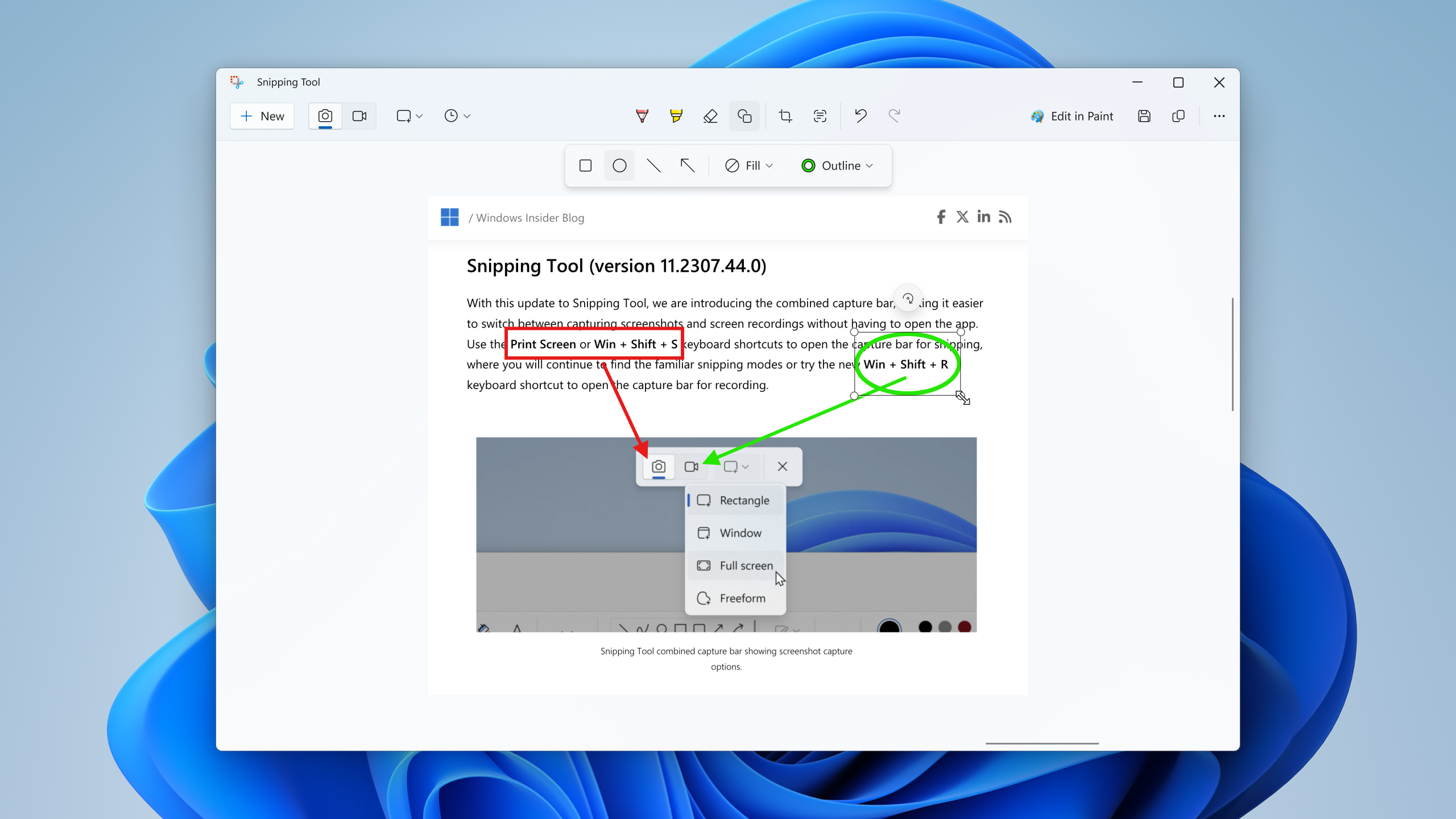 Snipping Tool window open with the new shapes toolbar active.[/caption]
To get started, select the new shapes button in the toolbar, and select the desired shape (you can change the fill or outline color if you’d like). Click and drag anywhere over your image to draw a new shape. You can resize, move, or change your shape color before clicking away. Once the shape is deselected, it will merge with your image, but you can still remove shapes with the eraser tool or undo your annotations.
FEEDBACK: Please file feedback in Feedback Hub (WIN + F) under Apps > Snipping Tool.
Snipping Tool window open with the new shapes toolbar active.[/caption]
To get started, select the new shapes button in the toolbar, and select the desired shape (you can change the fill or outline color if you’d like). Click and drag anywhere over your image to draw a new shape. You can resize, move, or change your shape color before clicking away. Once the shape is deselected, it will merge with your image, but you can still remove shapes with the eraser tool or undo your annotations.
FEEDBACK: Please file feedback in Feedback Hub (WIN + F) under Apps > Snipping Tool.
Notepad (version 11.2401.25.0)
In this update to Notepad, we are adding a new feature that helps you quickly understand content in your text files. With “Explain with Copilot”, you can ask Copilot in Windows to help explain log files, code segments, or any selected content directly from within Notepad. [caption id="attachment_176853" align="alignnone" width="1024"]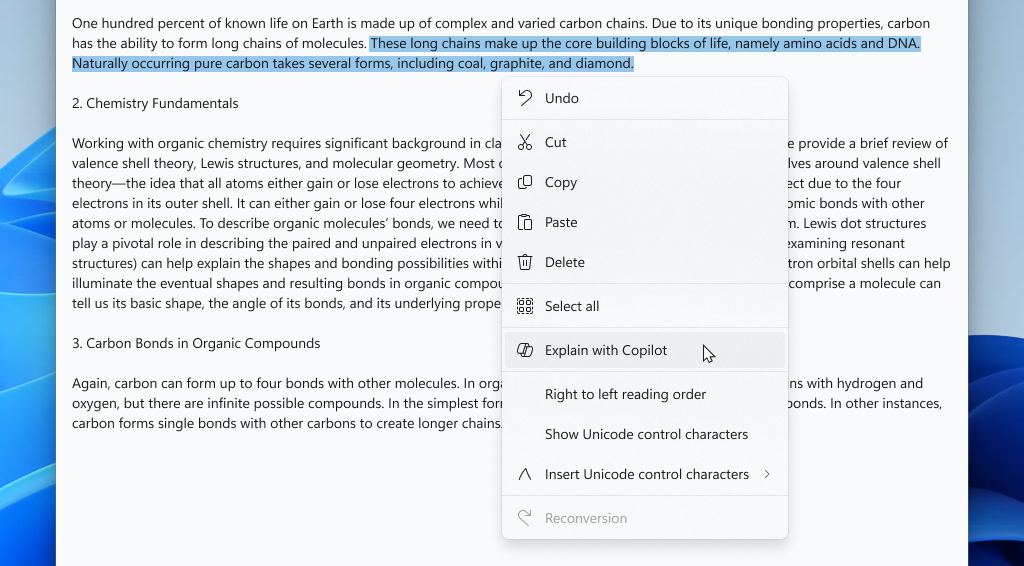 Notepad app open showing new “Explain with Copilot” action on selected content.[/caption]
To try it out, highlight any text, right-click, choose "Explain with Copilot" from the menu or use the new Ctrl + E keyboard shortcut, and a detailed explanation will appear in Copilot. This feature is available on devices that have Copilot in Windows, but there is a known issue where some users might not see this new feature in Notepad right away.
FEEDBACK: Please file feedback in Feedback Hub (WIN + F) under Apps > Notepad.
As always, we love getting feedback from the community and we will be looking out for your thoughts and suggestions on this update!
Thanks,
Dave Grochocki, Principal Product Manager Lead – Windows Inbox Apps
Notepad app open showing new “Explain with Copilot” action on selected content.[/caption]
To try it out, highlight any text, right-click, choose "Explain with Copilot" from the menu or use the new Ctrl + E keyboard shortcut, and a detailed explanation will appear in Copilot. This feature is available on devices that have Copilot in Windows, but there is a known issue where some users might not see this new feature in Notepad right away.
FEEDBACK: Please file feedback in Feedback Hub (WIN + F) under Apps > Notepad.
As always, we love getting feedback from the community and we will be looking out for your thoughts and suggestions on this update!
Thanks,
Dave Grochocki, Principal Product Manager Lead – Windows Inbox Apps