Vue normale

Il y a de nouveaux articles disponibles, cliquez pour rafraîchir la page.
À partir d’avant-hierFlux principal

Notepad Next : Notepad++ pour macOS et Linux

Par : Fx
12 avril 2024 à 05:00
Si vous êtes développeur, vous connaissez certainement Notepad++. Il s’agit d’un éditeur de texte et de code source surpuissant sous Windows. Cependant, pour les utilisateurs de macOS et Linux, la quête d’un outil similaire (à la fois puissant et polyvalent) peut s’avérer être un défi. Aujourd’hui, je vous propose de découvrir Notepad Next. Il s’agit d’un outil simple, efficace, multi-plateforme et gratuit ! Notepad Next Notepad Next est une logiciel open source et gratuite qui fonctionne sous Windows, Linux et macOS. Les développeurs derrière cet outil ne cachent pas leur grande inspiration tirée du célèbre Notepad++. Ils ont créé un […]
Lire la suite : Notepad Next : Notepad++ pour macOS et Linux

Spellcheck in Notepad begins rolling out to Windows Insiders

21 mars 2024 à 17:06
UPDATE 4/9: The below update for Notepad (version 11.2402.22.0) that introduces spellcheck has begun rolling out to Windows Insiders in the Beta and Release Preview Channels.
Hello Windows Insiders, today we are beginning to roll out an update to Notepad to Windows Insiders in the Canary and Dev Channels on Windows 11. This update introduces spellcheck in Notepad.

Notepad (version 11.2402.18.0)

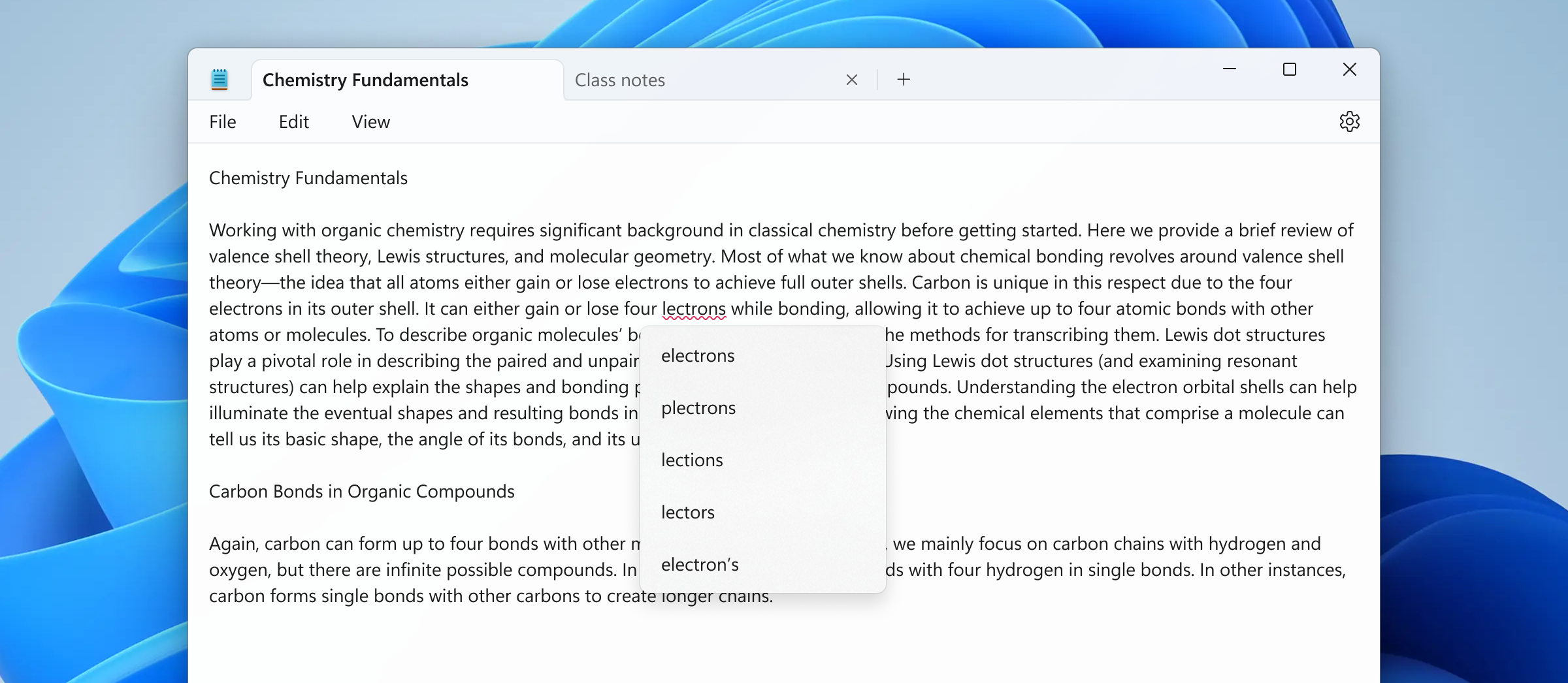
With this update, Notepad will now highlight misspelled words and provide suggestions so that you can easily identify and correct mistakes. We are also introducing autocorrect which seamlessly fixes common typing mistakes as you type. [caption id="attachment_176962" align="alignnone" width="1024"]Misspelled word highlighted in Notepad with options to correct the spelling. Misspelled word highlighted in Notepad with options to correct the spelling.[/caption] Getting started with spellcheck in Notepad is easy as misspelled words are automatically underlined in red. To fix a spelling mistake, click, tap, or use the keyboard shortcut Shift + F10 on the misspelled word to see suggested spellings. Selecting a suggestion immediately updates the word. You can also choose to ignore words in a single document or add them to the dictionary, so they are not flagged as a mistake again. Spellcheck in Notepad supports multiple languages. This feature is enabled by default for some file types but is off by default in log files and other file types typically associated with coding. You can toggle this setting on or off globally or for certain file types in Notepad app settings or temporarily for the current file in the context menu. We’ve organized the settings page as well to make it easier to find and adjust Notepad app settings. [We are beginning to roll out spellcheck in Notepad, so it may not be available to all Insiders in the Canary and Dev Channels just yet as we plan to monitor feedback and see how it lands before pushing it out to everyone.] FEEDBACK: Please share your feedback in Feedback Hub (WIN + F) under Apps > Notepad. As always, we love getting feedback from the community. We're excited to hear your thoughts and continue enhancing Notepad for everyone. Thanks, Dave Grochocki, Principal Product Manager Lead – Windows Inbox Apps

Snipping Tool and Notepad updates begin rolling out to Windows Insiders

8 février 2024 à 18:19
UPDATE 2/16: The below updates and new features for Snipping Tool and Notepad are now beginning to roll out to Windows Insiders in the Beta and Release Preview Channels. Hello Windows Insiders, today we are beginning to roll out updates to Snipping Tool and Notepad to Windows Insiders in the Canary and Dev Channels on Windows 11.

Snipping Tool (version 11.2401.32.0)

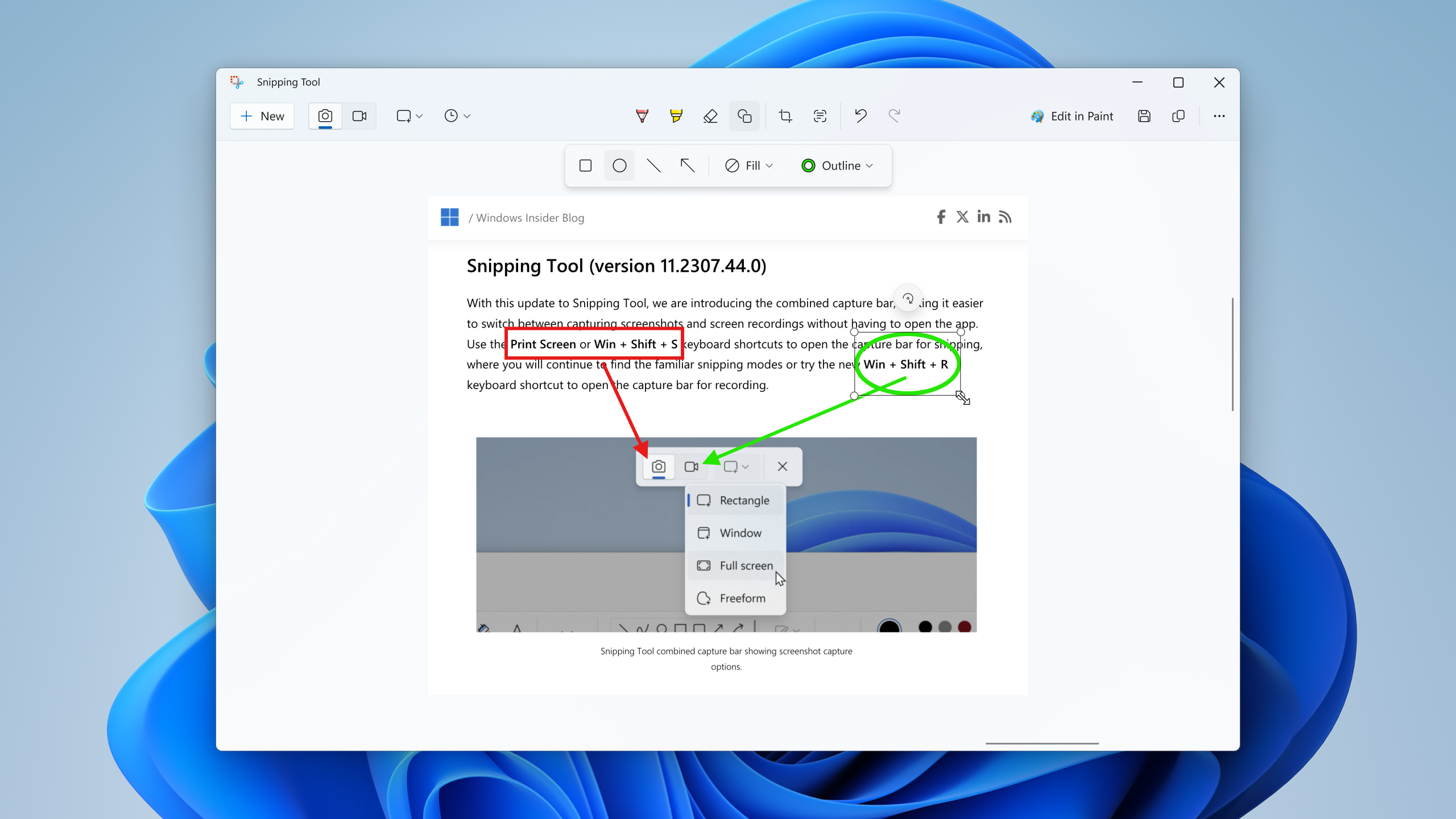
With this update, we are adding the ability to add shapes to captures in Snipping Tool, so that you can quickly add rectangles, ovals, lines, and arrows to mark up your screenshots. [caption id="attachment_176852" align="alignnone" width="1024"]Snipping Tool window open with the new shapes toolbar active. Snipping Tool window open with the new shapes toolbar active.[/caption] To get started, select the new shapes button in the toolbar, and select the desired shape (you can change the fill or outline color if you’d like). Click and drag anywhere over your image to draw a new shape. You can resize, move, or change your shape color before clicking away. Once the shape is deselected, it will merge with your image, but you can still remove shapes with the eraser tool or undo your annotations. FEEDBACK: Please file feedback in Feedback Hub (WIN + F) under Apps > Snipping Tool.

Notepad (version 11.2401.25.0)

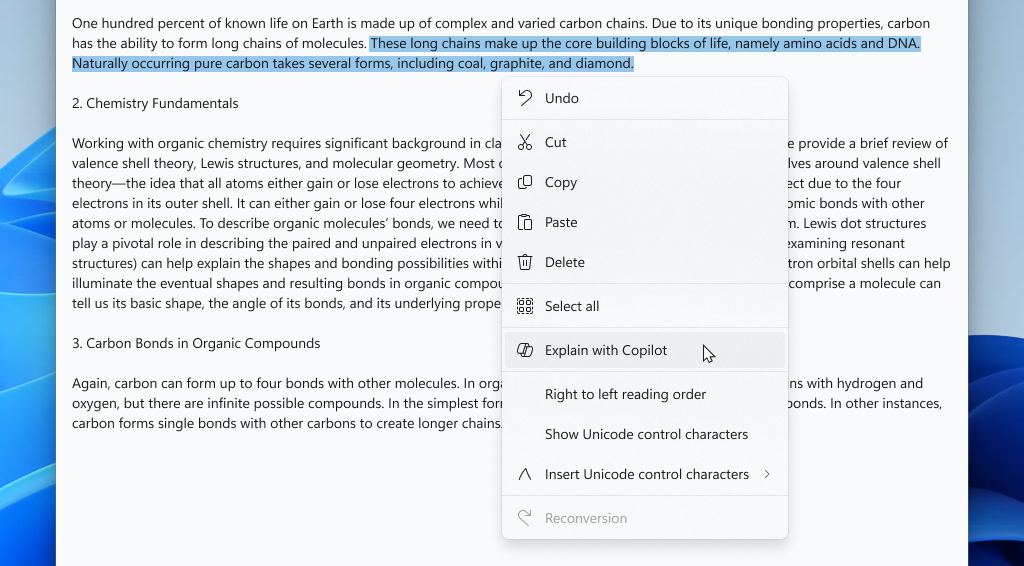
In this update to Notepad, we are adding a new feature that helps you quickly understand content in your text files. With “Explain with Copilot”, you can ask Copilot in Windows to help explain log files, code segments, or any selected content directly from within Notepad. [caption id="attachment_176853" align="alignnone" width="1024"]Notepad app open showing new “Explain with Copilot” action on selected content. Notepad app open showing new “Explain with Copilot” action on selected content.[/caption] To try it out, highlight any text, right-click, choose "Explain with Copilot" from the menu or use the new Ctrl + E keyboard shortcut, and a detailed explanation will appear in Copilot. This feature is available on devices that have Copilot in Windows, but there is a known issue where some users might not see this new feature in Notepad right away. FEEDBACK: Please file feedback in Feedback Hub (WIN + F) under Apps > Notepad. As always, we love getting feedback from the community and we will be looking out for your thoughts and suggestions on this update! Thanks, Dave Grochocki, Principal Product Manager Lead – Windows Inbox Apps

❌
❌