 Connexion
New updates for Snipping Tool and Phone Link begin rolling out to Windows Insiders
14 septembre 2023 à 17:00
UPDATE 9/26: The below updates and new features for Snipping Tool are now beginning to roll out to Windows Insiders in the Release Preview Channel (version 11.2308.37.0 and higher).
UPDATE 9/21: The below updates and new features for Snipping Tool are now beginning to roll out to Windows Insiders in the Beta Channel (version 11.2308.37.0).
Hello Windows Insiders, today we are beginning to roll out updates to Snipping Tool to Windows Insiders in the Canary and Dev Channels to improve the overall capture experience on Windows 11. We are also beginning to roll out a Phone Link update to all Window Insiders that introduces notification prompting to open capture in Snipping Tool for markup.
 Snipping Tool showing selectable text in a screenshot.[/caption]
With Text Actions, you can also redact sensitive information in screenshots before sharing. Select Quick Redact from the toolbar to automatically hide emails and phone numbers or select any text and select Redact Text from the right-click menu to hide the text.
[caption id="attachment_176569" align="alignnone" width="1024"] Snipping Tool showing redacted text in a screenshot of a bank statement.[/caption]
FEEDBACK: Please file feedback in Feedback Hub (WIN + F) under Apps > Snipping Tool.
Phone Link notification prompting to open capture in Snipping Too for markup.[/caption]
FEEDBACK: Please file feedback in Feedback Hub (WIN + F) under Apps > Phone Link.
We look forward to hearing your feedback on these updates!
Thanks,
Dave Grochocki, Principal Product Manager Lead – Windows Inbox Apps
Snipping Tool showing selectable text in a screenshot.[/caption]
With Text Actions, you can also redact sensitive information in screenshots before sharing. Select Quick Redact from the toolbar to automatically hide emails and phone numbers or select any text and select Redact Text from the right-click menu to hide the text.
[caption id="attachment_176569" align="alignnone" width="1024"] Snipping Tool showing redacted text in a screenshot of a bank statement.[/caption]
FEEDBACK: Please file feedback in Feedback Hub (WIN + F) under Apps > Snipping Tool.
Phone Link notification prompting to open capture in Snipping Too for markup.[/caption]
FEEDBACK: Please file feedback in Feedback Hub (WIN + F) under Apps > Phone Link.
We look forward to hearing your feedback on these updates!
Thanks,
Dave Grochocki, Principal Product Manager Lead – Windows Inbox Apps
Text Actions with Snipping Tool
With this update to Snipping Tool (version 11.2308.33.0), we are introducing Text Actions, which detects text in your captured screenshots, making it easy to copy text from any image to share with others or paste in another app. To get started, click the Text Actions button in the toolbar to show selectable text before selecting and copying text with your mouse. You can also click the Copy all text button in the toolbar or use Ctrl + A and Ctrl + C to select and copy all text using your keyboard. [caption id="attachment_176568" align="alignnone" width="1024"]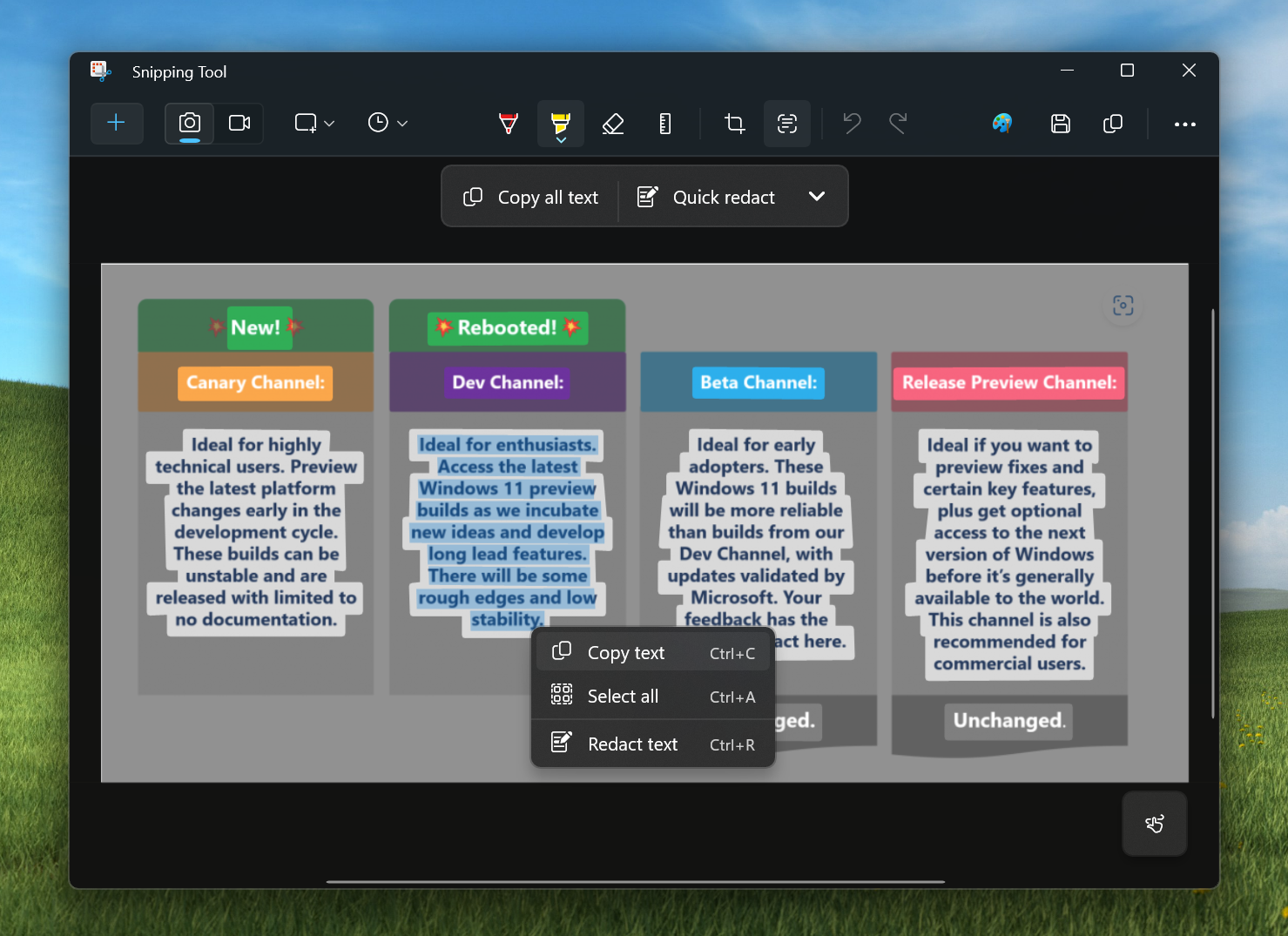 Snipping Tool showing selectable text in a screenshot.[/caption]
With Text Actions, you can also redact sensitive information in screenshots before sharing. Select Quick Redact from the toolbar to automatically hide emails and phone numbers or select any text and select Redact Text from the right-click menu to hide the text.
[caption id="attachment_176569" align="alignnone" width="1024"]
Snipping Tool showing selectable text in a screenshot.[/caption]
With Text Actions, you can also redact sensitive information in screenshots before sharing. Select Quick Redact from the toolbar to automatically hide emails and phone numbers or select any text and select Redact Text from the right-click menu to hide the text.
[caption id="attachment_176569" align="alignnone" width="1024"]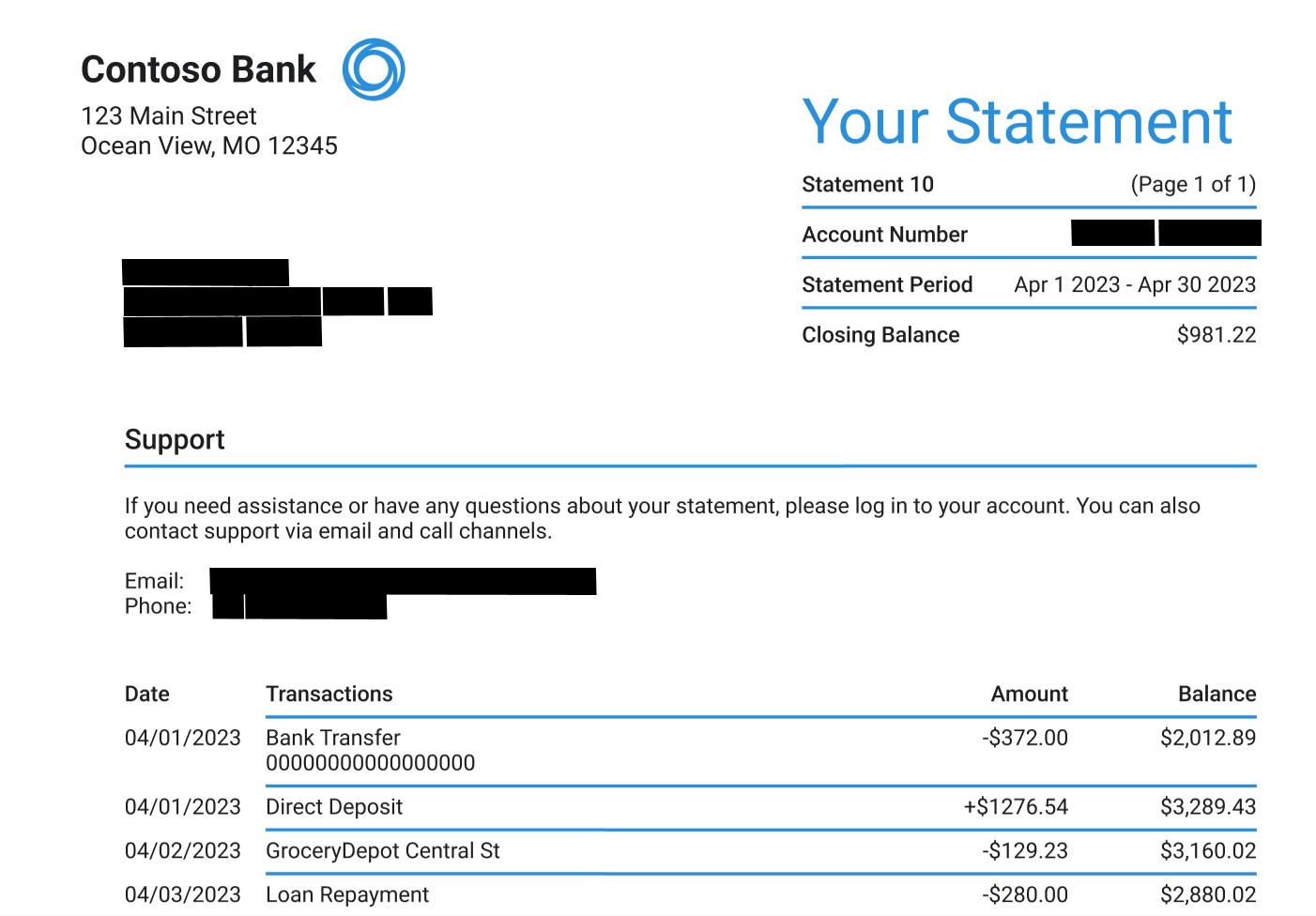 Snipping Tool showing redacted text in a screenshot of a bank statement.[/caption]
FEEDBACK: Please file feedback in Feedback Hub (WIN + F) under Apps > Snipping Tool.
Snipping Tool showing redacted text in a screenshot of a bank statement.[/caption]
FEEDBACK: Please file feedback in Feedback Hub (WIN + F) under Apps > Snipping Tool.
Remote capture with Phone Link
We are also beginning to gradually roll out a new feature for Phone Link (version 1.23082.123.0 or greater on PC) that introduces the ability to effortlessly access and edit your most recent photos from your Android mobile device in Snipping Tool on your PC. Say goodbye to missed opportunities as you'll receive instant notifications on your PC whenever a new photo is captured on your Android device, provided both devices are connected via Phone Link. [caption id="attachment_176570" align="alignnone" width="482"]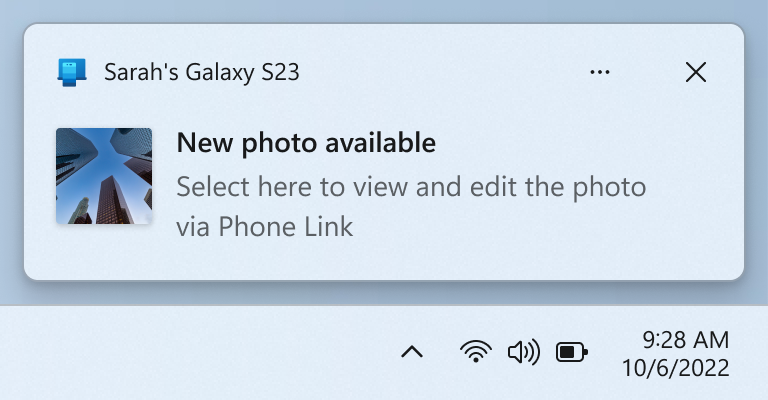 Phone Link notification prompting to open capture in Snipping Too for markup.[/caption]
FEEDBACK: Please file feedback in Feedback Hub (WIN + F) under Apps > Phone Link.
We look forward to hearing your feedback on these updates!
Thanks,
Dave Grochocki, Principal Product Manager Lead – Windows Inbox Apps
Phone Link notification prompting to open capture in Snipping Too for markup.[/caption]
FEEDBACK: Please file feedback in Feedback Hub (WIN + F) under Apps > Phone Link.
We look forward to hearing your feedback on these updates!
Thanks,
Dave Grochocki, Principal Product Manager Lead – Windows Inbox Apps