Vue normale

Il y a de nouveaux articles disponibles, cliquez pour rafraîchir la page.
À partir d’avant-hierFlux principal

Windows Photos adds new Microsoft Designer integration

16 avril 2024 à 21:27
Hello Windows Insiders, Today we are introducing the ability to send an image from the Photos app to Microsoft Designer, a cloud based graphic design app that helps you create professional quality social media posts, invitations, digital postcards, graphics, and new visuals with the power of generative AI. This update is available on Windows 11 to start, and is currently limited to users within the US, UK, Australia, Ireland, India, and New Zealand. We are starting to roll this out to Insiders in the Canary and Dev channels.

Photos app integration with Designer

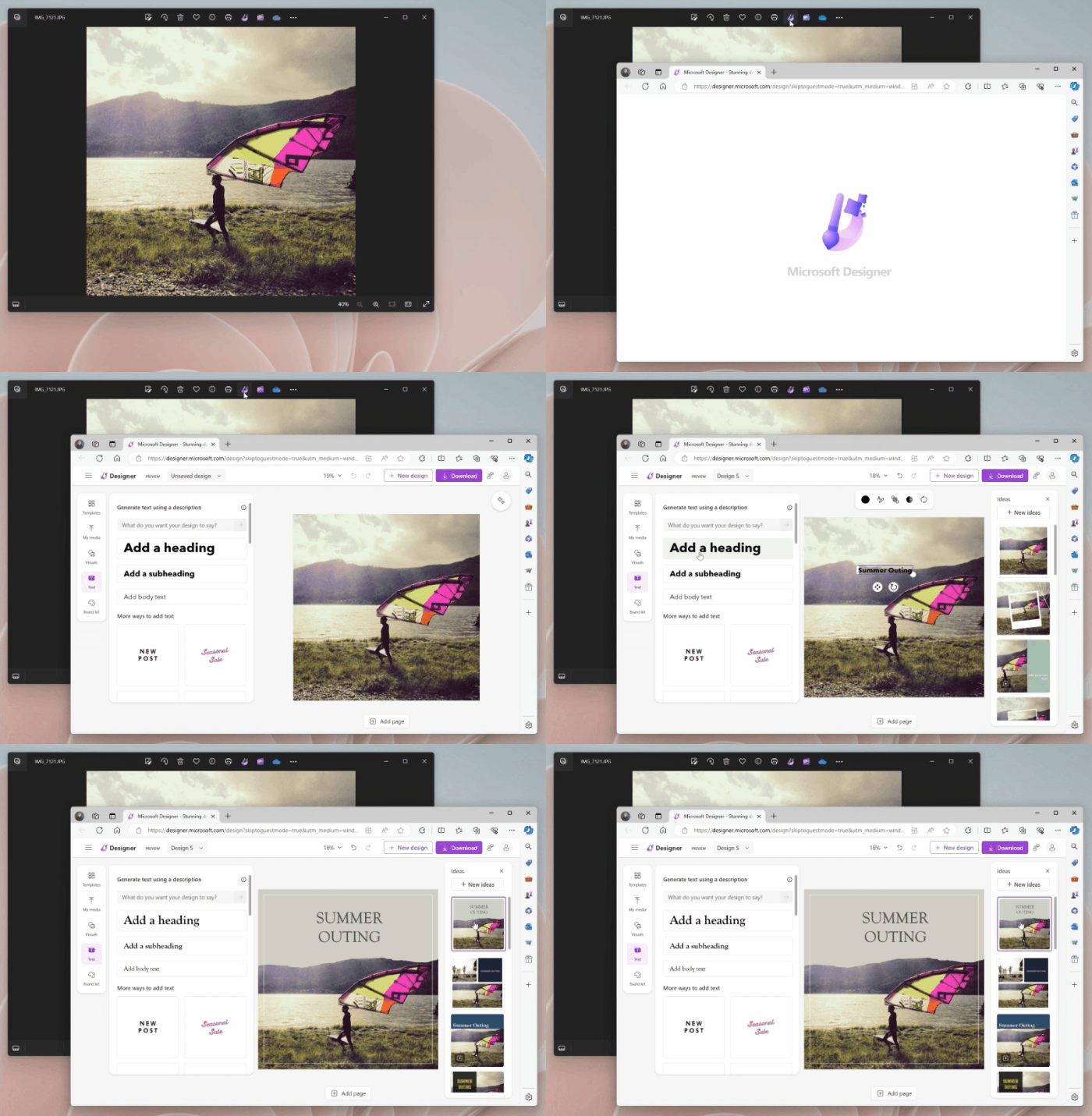
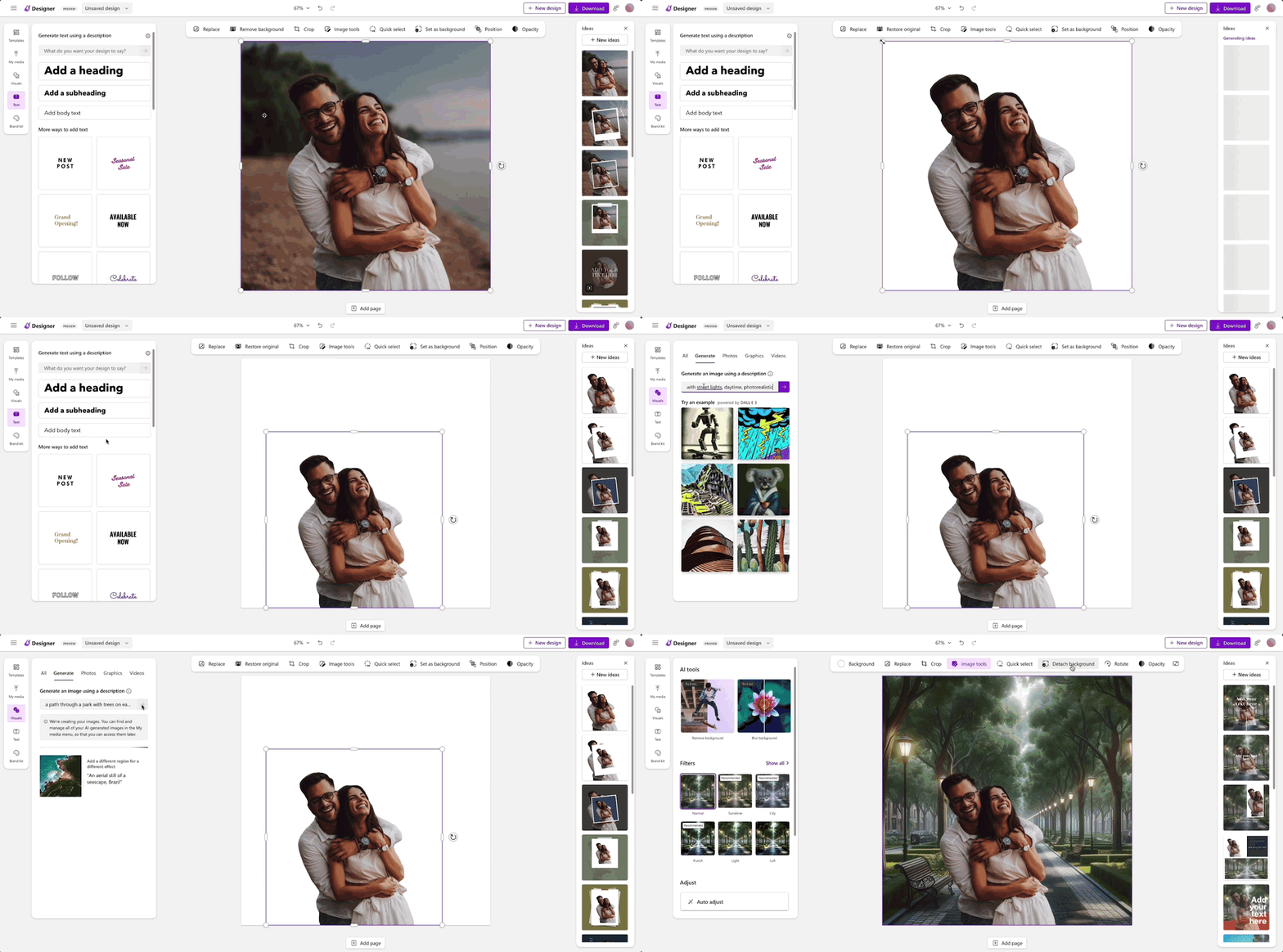
We're adding a new way to unlock the creative potential of your images through Designer. Simply click the Designer button in the title bar when viewing a single image in the Photos app, and your image will open Designer in the default web browser. [caption id="attachment_177003" align="alignnone" width="700"]Send an image from Photos to Designer. Send an image from Photos to Designer.[/caption] Once in Designer, you can apply templates, add visuals, and use AI tools to help you personalize your photo further. For example, try using AI to generate a new custom background for your photo using these simple steps:
  • With your photo selected, click on “Remove background” in the toolbar.
  • Click Visuals in the left pane and select Generate to create a custom image background from a prompt.
  • Click on the desired generated image to insert it on the canvas.
  • From the toolbar, select Set as background to place the generated image behind your photo.
[caption id="attachment_177004" align="alignnone" width="1066"]Designer editing experience showing swapping the background. Designer editing experience showing swapping the background.[/caption] To get the latest Photos experience, update your app to version number 2024.11040.16001.0 or higher. Sign in with a free personal Microsoft account to try Designer’s generative AI features currently in preview, as well as share your creations. We appreciate your comments and suggestions, so please share your feedback with us! FEEDBACK: Please file feedback in Feedback Hub (WIN + F) under Apps > Photos. Thanks, Mala Srivatsa, Senior Product Manager – Windows Photos

Releasing Windows 10 Build 19045.4353 to Release Preview Channel

15 avril 2024 à 17:15
Hello Windows Insiders, today we are releasing Windows 10 22H2 Build 19045.4353 (KB5036979) to the Release Preview Channel for those Insiders who are on Windows 10, version 22H2. This update includes the following features and improvements:
  • New! This update starts the rolls out of account-related notifications for Microsoft accounts in Settings > Home. A Microsoft account connects Windows to your Microsoft apps. The account also backs up all your data and helps you to manage your subscriptions. You can also add extra security steps to keep you from being locked out of your account. This feature displays notifications across the Start menu and Settings. You can manage your Settings notifications in Settings > Privacy & security > General.
  • This update addresses an issue that affects app licensing. Because of this, Copilot in Windows (in preview) does not work as you expect.
  • This update addresses an issue that occurs when your device resumes from Modern Standby. You might get the stop error, “0x9f DRIVER_POWER_STATE_FAILURE.”
  • This update addresses a race condition that might stop a machine from starting up. This occurs when you set up a bootloader to start up multiple OSes.
  • This update affects media allocations. It improves their memory granularity for some hardware setups. This lowers overcommitment. Also, performance is more efficient.
  • This update addresses an issue that affects an accelerator backing store management path. A memory leak occurs that affects some devices.
  • This update makes Country and Operator Settings Asset (COSA) profiles up to date for some mobile operators.
  • This update addresses an issue that affects the container networking Address Resolution Protocol (ARP). It returns the wrong Virtual Subnet ID (VSID) for external ports.
  • This update affects hypervisor-protected code integrity (HVCI). It accepts drivers that are now compatible.
  • This update includes quarterly changes to the Windows Kernel Vulnerable Driver Blocklist file, DriverSiPolicy.p7b. It adds to the list of drivers that are at risk for Bring Your Own Vulnerable Driver (BYOVD) attacks.
  • This update addresses an issue that affects Protected Process Light (PPL) protections. You can bypass them.
  • This update addresses an issue that affects some wireless earbuds. Bluetooth connections are not stable. This occurs on devices that have firmware from April 2023 and later.
  • This update addresses an issue that affects the Distributed Transaction Coordinator (DTC). A memory leak occurs when it retrieves mappings.
  • This update addresses an issue that affects Windows Local Administrator Password Solution (LAPS). Its Post Authentication Actions (PAA) do not occur at the end of the grace period. Instead, they occur at restart.
  • This update makes some changes to Windows Search. It is now more reliable, and it is easier to find an app after you install it. This update also gives you a personalized app search experience.
Thanks, The Windows Insider Program Team

Releasing Windows 11 Builds 22621.3520 and 22631.3520 to the Release Preview Channel

11 avril 2024 à 17:20
Hello Windows Insiders, today we’re releasing Windows 11 Builds 22621.3520 and 22631.3520 (KB5036980) to Insiders in the Release Preview Channel on Windows 11, version 22H2 (Build 22621) and version 23H2 (Build 22631).   This update includes the following features and improvements:
  • [ADDED 4/15] New! This update affects Widgets on the lock screen. They are more reliable and have improved quality. This update also supports more visuals and a more customized experience for you.
  • [ADDED] New! This update improves the Widgets icons on the taskbar. They are no longer pixelated or fuzzy. This update also starts the rollout of a larger set of animated icons. This change is not yet rolling out. 
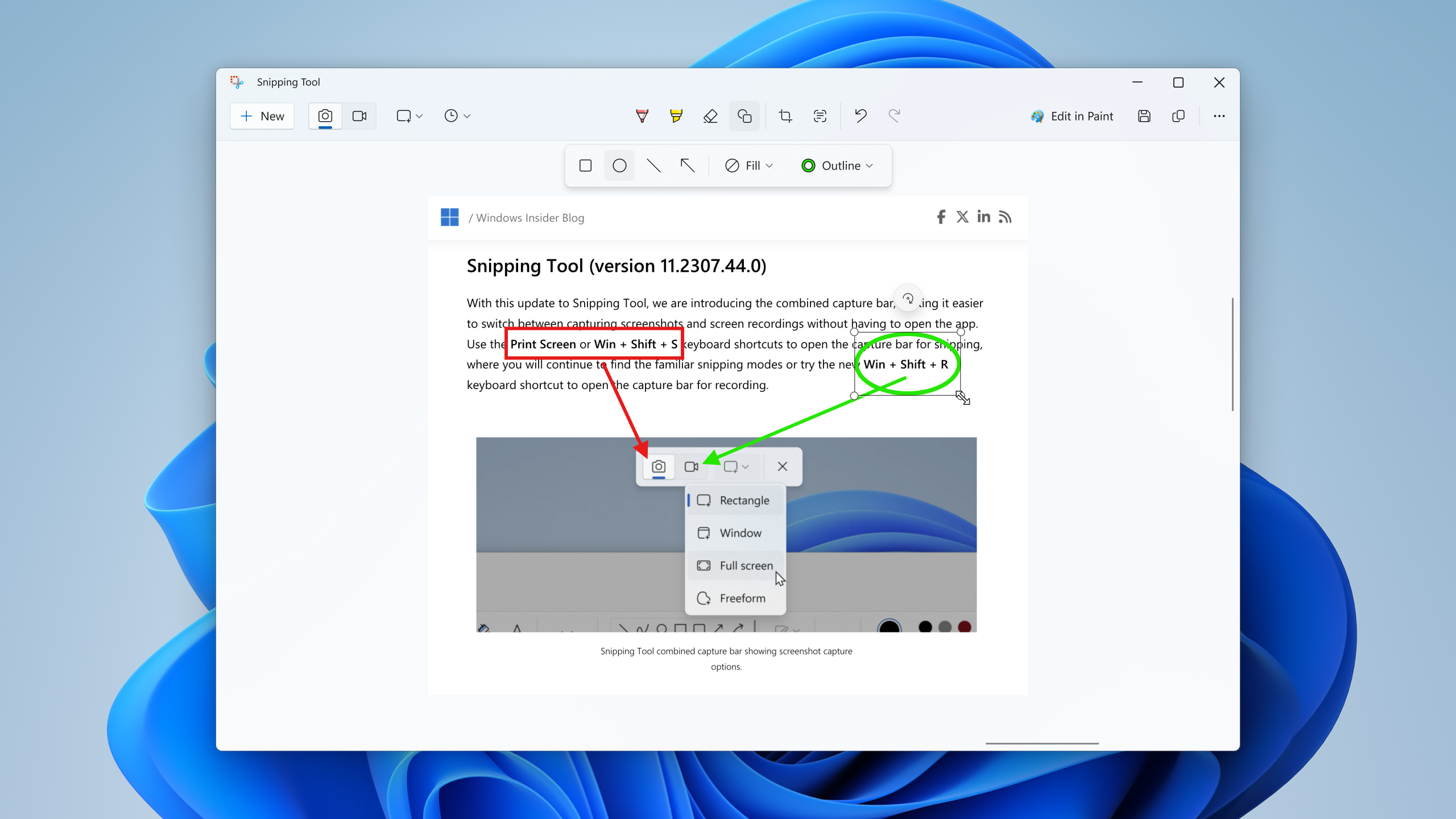
  • This update adds a new mobile device management (MDM) policy called “AllowScreenRecorder.” It affects the Snipping Tool. IT admins can use this policy to turn off screen recording in the app.
  • This update adds support for Arm64 .msi files using a Group Policy Object (GPO). You can now use the Group Policy Management Console (GPMC) to add Arm64 .msi files. You can also use a GPO to install these files on Arm64 machines. 
  • This update addresses an issue that affects the netstat -c command. It fails to perform effective port exhaustion troubleshooting.
  • This update addresses an issue that affects a low latency network. The speed of data on the network degrades significantly. This occurs when you turn on timestamps for a Transmission Control Protocol (TCP) connection.
  • This update addresses a race condition that might stop a machine from starting up. This occurs when you set up a bootloader to start up multiple OSes.
  • This update addresses an issue that affects an accelerator backing store management path. A memory leak occurs that affects some devices.
  • This update affects media allocations. It improves their memory granularity for some hardware setups. This lowers overcommitment. Also, performance is more efficient.
  • This update affects Windows Subsystem for Linux 2 (WSL2). Intermittent name resolution fails in a split DNS setup.
  • This update affects the touch keyboard. It makes the Japanese 106 keyboard layout appear as expected when you sign in.
  • This update addresses an issue that affects universal printers. The system creates duplicate print queues for them.
  • This update makes Country and Operator Settings Asset (COSA) profiles up to date for some mobile operators.
  • This update addresses an issue that affects the container networking Address Resolution Protocol (ARP). It returns the wrong Virtual Subnet ID (VSID) for external ports.
  • This update addresses a memory allocation issue in the Host Networking Service (HNS). The issue causes high memory consumption. It also affects service and pod deployment and scaling.
  • This update addresses an issue that occurs when you elevate from a normal user to an Administrator to run an application. When you use a PIN to sign in, the app will not run.
  • This update affects hypervisor-protected code integrity (HVCI). It accepts drivers that are now compatible.
  • This update includes quarterly changes to the Windows Kernel Vulnerable Driver Blocklist file, DriverSiPolicy.p7b. It adds to the list of drivers that are at risk for Bring Your Own Vulnerable Driver (BYOVD) attacks.
  • This update addresses an issue that affects Protected Process Light (PPL) protections. You can bypass them.
  • This update addresses an issue that affects Bluetooth Advanced Audio Distribution Profile (A2DP) hardware offload. A stop error occurs on PCs that support it.
  • This update addresses an issue that affects Settings. It stops responding when you dismiss a flyout menu.
  • This update addresses an issue that affects the Distributed Transaction Coordinator (DTC). A memory leak occurs when it retrieves mappings.
  • This update addresses an issue that affects Windows Local Administrator Password Solution (LAPS). Its Post Authentication Actions (PAA) do not occur at the end of the grace period. Instead, they occur at restart.
  • This update addresses an issue that affects the Resilient File System (ReFS). A high load might make the system unresponsive. Also, signing in might be slow.
Thanks, Windows Insider Program Team

Windows Photos begins previewing a Windows App SDK version to Windows Insiders

2 avril 2024 à 22:12
UPDATE 5/6: The preview version of the Photos app built with the Windows App SDK (WASDK) is now rolling out to Insiders across all channels.
We are beginning to roll out a preview version of the Photos app built with the Windows App SDK (WASDK) to Windows Insiders in the Canary and Dev Channels on Windows 11. This change moves Photos to the latest Windows app development platform, with modern UI and other quality and performance improvements. All the current Photos app features and functionality is still present in this version. However, given the extensive changes, this version may be a little rough around the edges as we continue to polish the experience. To get this experience, Windows Insiders on Windows 11 in the Canary and Dev channels can update the Photos app to version number 2024.11040.1002.0. We appreciate your comments and suggestions, so please share your feedback with us! FEEDBACK: Please file feedback in Feedback Hub (WIN + F) under Apps > Photos. To learn more about Windows App SDK, please visit: Build desktop Windows apps with the Windows App SDK - Windows apps | Microsoft Learn. Thanks, Mala Srivatsa, Senior Product Manager – Windows Photos

Releasing Windows 11 Builds 22621.3371 and 22631.3371 to the Release Preview Channel

21 mars 2024 à 17:13
Hello Windows Insiders, today we’re releasing Windows 11 Builds 22621.3371 and 22631.3371 (KB5035942) to Insiders in the Release Preview Channel on Windows 11, version 22H2 (Build 22621) and version 23H2 (Build 22631).   This update includes the following features and improvements:
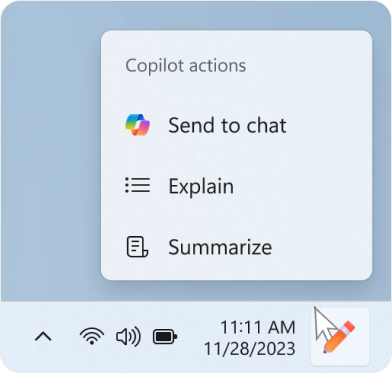
  • [ADDED 3/27] New! When you copy text, the Copilot icon will change appearance and animate to indicate that Copilot can help. When you hover your mouse over the Copilot icon, it will provide a menu of actions that you can take, such as summarizing or explaining the copied text. If you select an action on the menu, it will launch Copilot with the action ready-to-go. We also support the ability to launch Copilot if you start dragging an image – just drag the image file onto the Copilot icon in the taskbar, and Copilot will open. Note this feature might not be available to all users because it will roll out gradually.
  • [ADDED 3/26] New! You can ask Copilot in Windows (in preview) for help ten times when you sign in to Windows using a local account. After that, you must sign in using a Microsoft account (MSA) or a Microsoft Entra ID account (formerly Azure Active Directory (Azure AD)). To sign in, use the link in the dialog that appears in Copilot in Windows. If you do not sign in, some Copilot features might not work. To learn more, see Welcome to Copilot in Windows and Manage Copilot in Windows.
  • New! This update adds more content to your lock screen. In addition to weather, sports, traffic, and finance content will appear. To turn on this feature, go to Settings > Personalization > Lock screenNote this feature might not be available to all users because it will roll out gradually.
  • New! This update affects Windows Hello for Business. IT admins can now use mobile device management (MDM) to turn off the prompt that appears when users sign in to an Entra-joined machine. To do this, they can turn on the “DisablePostLogonProvisioning” policy setting. After a user signs in, provisioning is off for Windows 10 and Windows 11 devices.
  • New! This update improves the Remote Desktop Session Host. You can now set up its “clipboard redirection” policy to work in a single direction from the local computer to the remote computer. You can also reverse that order.
  • This update supports daylight saving time (DST) changes in Greenland. To learn more, see Greenland 2023 time zone update now available.
  • This update supports DST changes in Kazakhstan. To learn more, see Interim guidance for Kazakhstan time zone changes 2024.
  • This update supports DST changes in Samoa. To learn more, see Interim guidance for Samoa DST changes 2021.
  • This update affects MSIX applications. It helps their UI to localize correctly for all languages when you upgrade your OS.
  • This update addresses an issue that affects the COM+ component. Some applications that depend on it stop responding.
  • This update addresses an issue that stops some apps and features from being available. This occurs after you upgrade to Windows 11.
  • This update addresses a deadlock issue in CloudAP. It occurs when different users sign in and sign out at the same time on virtual machines.
  • This update addresses an issue that affects a network resource. You cannot access it from a Remote Desktop session. This occurs when you turn on the Remote Credential Guard feature and the client is Windows 11, version 22H2 or higher.
  • This update addresses an issue that affects Containers that you create or deploy. Their status does not progress past “ContainerCreating.”
  • This update addresses an issue that affects the time service. You can configure it using mobile device management (MDM) or a Group Policy Object (GPO). But the Windows Settings app does not match what you have configured.
  • This update addresses an issue that affects certain Neural Processing Units (NPU). They do not show in Task Manager.
  • This update addresses an issue that affects the touch keyboard and the candidate window for the Japanese and Chinese Input Method Editors (IME). They do not show after you come out of Modern Standby. To learn more, see Microsoft Japanese IME and What is Modern Standby.
  • This update addresses an issue that occurs when you use LoadImage() to load a top-down bitmap. If the bitmap has a negative height, the image does not load and the function returns NULL.
  • This update addresses an issue that affects the Settings app. It stops responding when you use it to remove Bluetooth devices.
  • This update makes Country and Operator Settings Asset (COSA) profiles up to date for some mobile operators.
  • This update addresses an issue that affects Notepad. It fails to print to certain Internet Printing Protocol (IPP) printers when you use a print support app.
  • This update addresses an issue that affects USB audio. It fails on some processors. This occurs after you pause, play, or resume from sleep.
  • This update addresses an issue that affects Windows Defender Application Control (WDAC). It prevents a stop error that occurs when you apply more than 32 policies.
  • This update addresses an issue that affects the existing AppLocker rule collection enforcement mode. It is not overwritten when rules merge with a collection that has no rules. This occurs when the enforcement mode is set to “Not Configured.”
  • This update addresses an issue that affects the Group Policy service. It fails after you use LGPO.exe to apply an audit policy to the system.
  • This update addresses an issue that affects Secure Launch. It does not run on some processors.
  • This update addresses an issue that affects the Combine taskbar buttons and hide labels setting. The app labels in the taskbar sometimes do not have the correct length, which cuts off the label text. This occurs when this setting is set to “When taskbar is full” or “Never.”
  • This update addresses a reliability issue. It affects a Virtual Remote App product when you use a custom shell to open it.
  • This update addresses an issue that affects some wireless headphones. Bluetooth connections are not stable. This occurs on devices that have firmware from April 2023 and later.
  • This update addresses an issue that affects Transport Layer Security (TLS), version 1.3. It causes Azure App Services to fail. This occurs when the web server attempts to connect to a third-party Lightweight Directory Access Protocol (LDAP) server.
  • This update addresses an issue that affects dsamain.exe. When the Knowledge Consistency Checker (KCC) runs evaluations, it stops responding.
  • This update addresses an issue that affects the Microsoft Message Queue (MSMQ) PowerShell module. It does not load.
Thanks, Windows Insider Program Team

Spellcheck in Notepad begins rolling out to Windows Insiders

21 mars 2024 à 17:06
UPDATE 4/9: The below update for Notepad (version 11.2402.22.0) that introduces spellcheck has begun rolling out to Windows Insiders in the Beta and Release Preview Channels.
Hello Windows Insiders, today we are beginning to roll out an update to Notepad to Windows Insiders in the Canary and Dev Channels on Windows 11. This update introduces spellcheck in Notepad.

Notepad (version 11.2402.18.0)

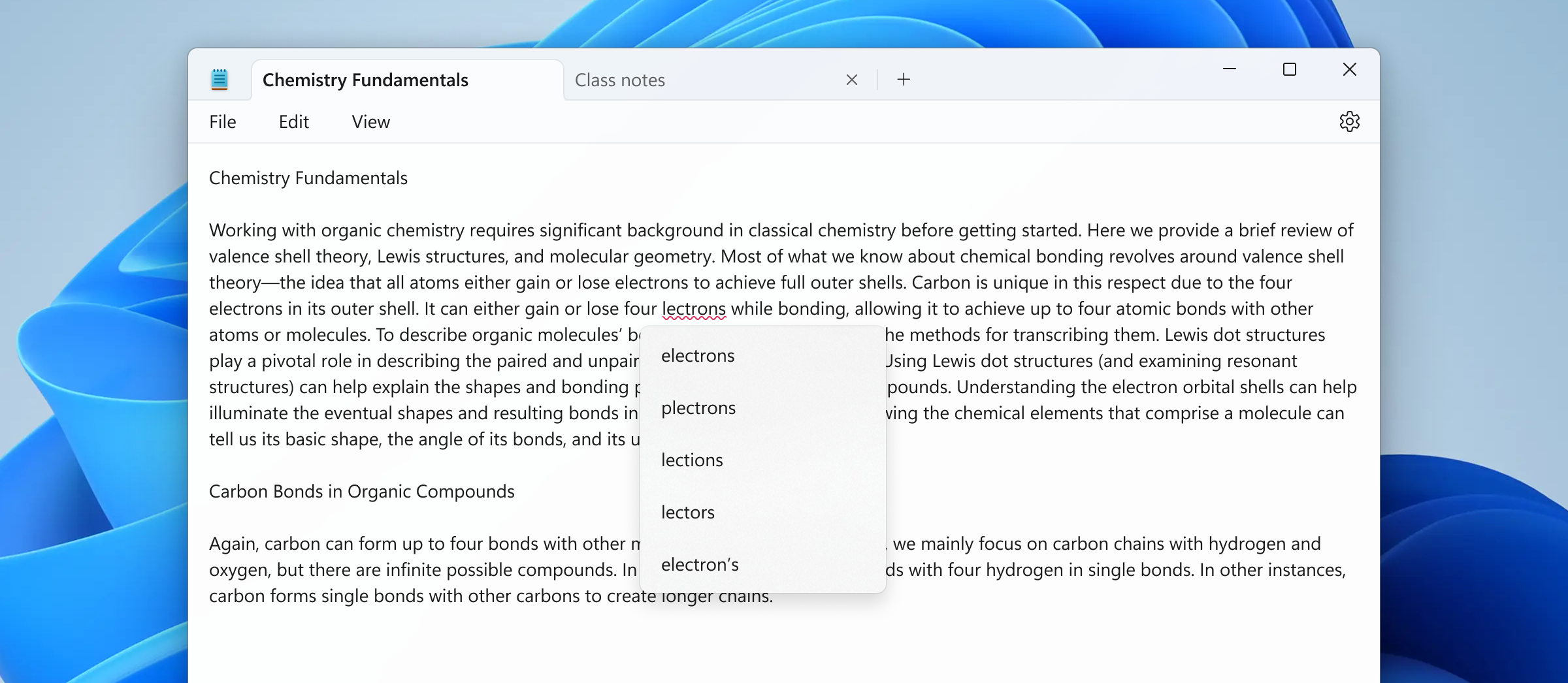
With this update, Notepad will now highlight misspelled words and provide suggestions so that you can easily identify and correct mistakes. We are also introducing autocorrect which seamlessly fixes common typing mistakes as you type. [caption id="attachment_176962" align="alignnone" width="1024"]Misspelled word highlighted in Notepad with options to correct the spelling. Misspelled word highlighted in Notepad with options to correct the spelling.[/caption] Getting started with spellcheck in Notepad is easy as misspelled words are automatically underlined in red. To fix a spelling mistake, click, tap, or use the keyboard shortcut Shift + F10 on the misspelled word to see suggested spellings. Selecting a suggestion immediately updates the word. You can also choose to ignore words in a single document or add them to the dictionary, so they are not flagged as a mistake again. Spellcheck in Notepad supports multiple languages. This feature is enabled by default for some file types but is off by default in log files and other file types typically associated with coding. You can toggle this setting on or off globally or for certain file types in Notepad app settings or temporarily for the current file in the context menu. We’ve organized the settings page as well to make it easier to find and adjust Notepad app settings. [We are beginning to roll out spellcheck in Notepad, so it may not be available to all Insiders in the Canary and Dev Channels just yet as we plan to monitor feedback and see how it lands before pushing it out to everyone.] FEEDBACK: Please share your feedback in Feedback Hub (WIN + F) under Apps > Notepad. As always, we love getting feedback from the community. We're excited to hear your thoughts and continue enhancing Notepad for everyone. Thanks, Dave Grochocki, Principal Product Manager Lead – Windows Inbox Apps

Releasing Windows 10 Build 19045.4233 to Release Preview Channel

14 mars 2024 à 19:17
UPDATE 3/19: We have released Windows 10 22H2 Build 19045.4235 (KB5035941) to the Release Preview Channel for those Insiders who are on Windows 10, version 22H2. This update is just a re-release with the same changes documented below on 3/14.
Hello Windows Insiders, today we are releasing Windows 10 22H2 Build 19045.4233 (KB5035941) to the Release Preview Channel for those Insiders who are on Windows 10, version 22H2. This update includes the following features and improvements:
  • New! This update adds Windows Spotlight to your desktop background. This feature displays new images as your desktop wallpaper. If you want to know more about an image, click or tap the Learn More button, which takes you to Bing. To turn on this feature, go to Settings > Personalization > Background > Personalize your background. Choose Windows spotlightNote this feature might not be available to all users because it will roll out gradually.
  • New! This update adds more content to your lock screen. In addition to weather, sports, traffic, and finance content will appear.  To turn on this feature, go to Settings > Personalization > Lock screenNote this feature might not be available to all users because it will roll out gradually.
  • New! This update affects Windows Hello for Business. IT admins can now use mobile device management (MDM) to turn off the prompt that appears when users sign in to an Entra-joined machine. To do this, they can turn on the “DisablePostLogonProvisioning” policy setting. After a user signs in, provisioning is off for Windows 10 and Windows 11 devices.
  • When you sign in, you might see a message that invites you to upgrade to Windows 11. This message only appears if your device is eligible for an upgrade. Note this feature might not be available to all users because it will roll out gradually.
  • This update supports daylight saving time (DST) changes in Palestine. To learn more, see Interim guidance for DST changes announced by Palestinian Authority for 2024, 2025.
  • This update supports daylight saving time (DST) changes in Kazakhstan. To learn more, see Interim guidance for Kazakhstan time zone changes 2024.
  • This update supports daylight saving time (DST) changes in Samoa. To learn more, see Interim guidance for Samoa DST changes 2021.
  • This update changes the English name of the former Republic of Turkey. The new, official name is the Republic of Türkiye.
  • This update addresses an issue that affects the COM+ component. Some applications that depend on it stop responding.
  • This update addresses an issue that stops some apps and features from being available. This occurs after you upgrade to Windows 11.
  • This update addresses a deadlock issue in CloudAP. It occurs when different users sign in and sign out at the same time on virtual machines.
  • This update addresses an issue that affects a network resource. You cannot access it from a Remote Desktop session. This occurs when you turn on the Remote Credential Guard feature and the client is Windows 11, version 22H2 or higher.
  • This update addresses an issue that affects Microsoft Edge. It fails to open on Surface Hub (Team OS).
  • This update affects the Antimalware Scan Interface (AMSI) AmsiUtil class. It helps to detect the bypass of the AMSI scan. This update also addresses some long-term issues that expose your device to threats.
  • This update addresses an issue that affects the time service. You can configure it using mobile device management (MDM) or a Group Policy Object (GPO). But the Windows Settings app does not match what you have configured.
  • This update addresses an issue that affects the touch keyboard. It does not open sometimes.
  • This update addresses an issue that occurs when you use LoadImage() to load a top-down bitmap. If the bitmap has a negative height, the image does not load and the function returns NULL.
  • This update addresses an issue that affects scanners. They stop responding when you connect to them using eSCL over USB.
  • This update makes Country and Operator Settings Asset (COSA) profiles up to date for some mobile operators.
  • This update addresses an issue that affects the existing AppLocker rule collection enforcement mode. It is not overwritten when rules merge with a collection that has no rules. This occurs when the enforcement mode is set to “Not Configured.”
  • This update addresses an issue that affects the Group Policy service. It fails after you use LGPO.exe to apply an audit policy to the system.
  • This update addresses a reliability issue. It affects a Virtual Remote App product when you use a custom shell to open it.
Thanks, The Windows Insider Program Team

Paint update begins rolling out to Windows Insiders

13 mars 2024 à 17:16
UPDATE 3/21: The below update for Paint that introduces a new size slider for pencil, brushes, and eraser tools has begun rolling out to Windows Insiders in the Beta and Release Preview Channels.
Hello Windows Insiders, today we are beginning to roll out updates to Paint to Windows Insiders in the Canary and Dev Channels on Windows 11.

Paint (version 11.2402.32.0)

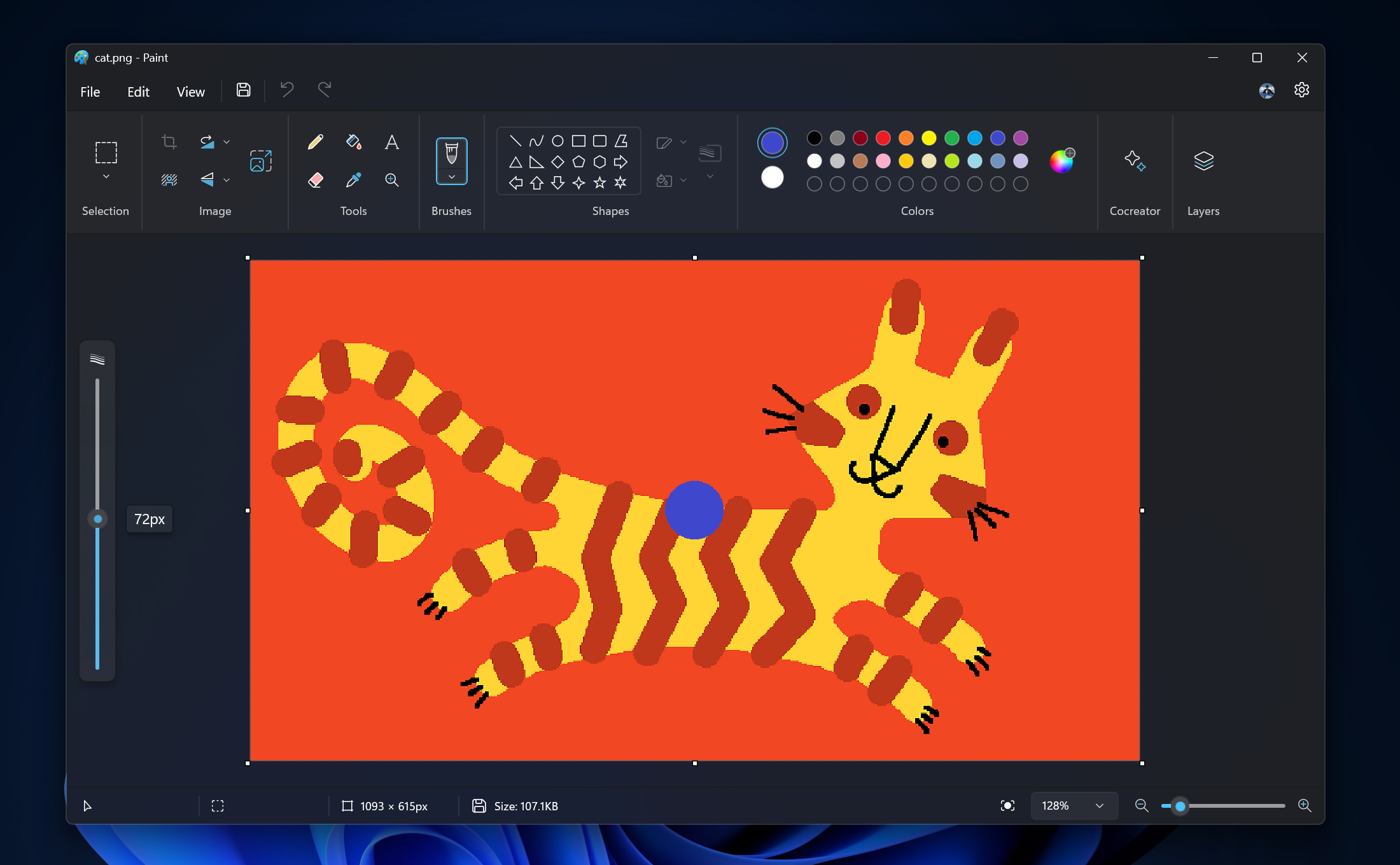
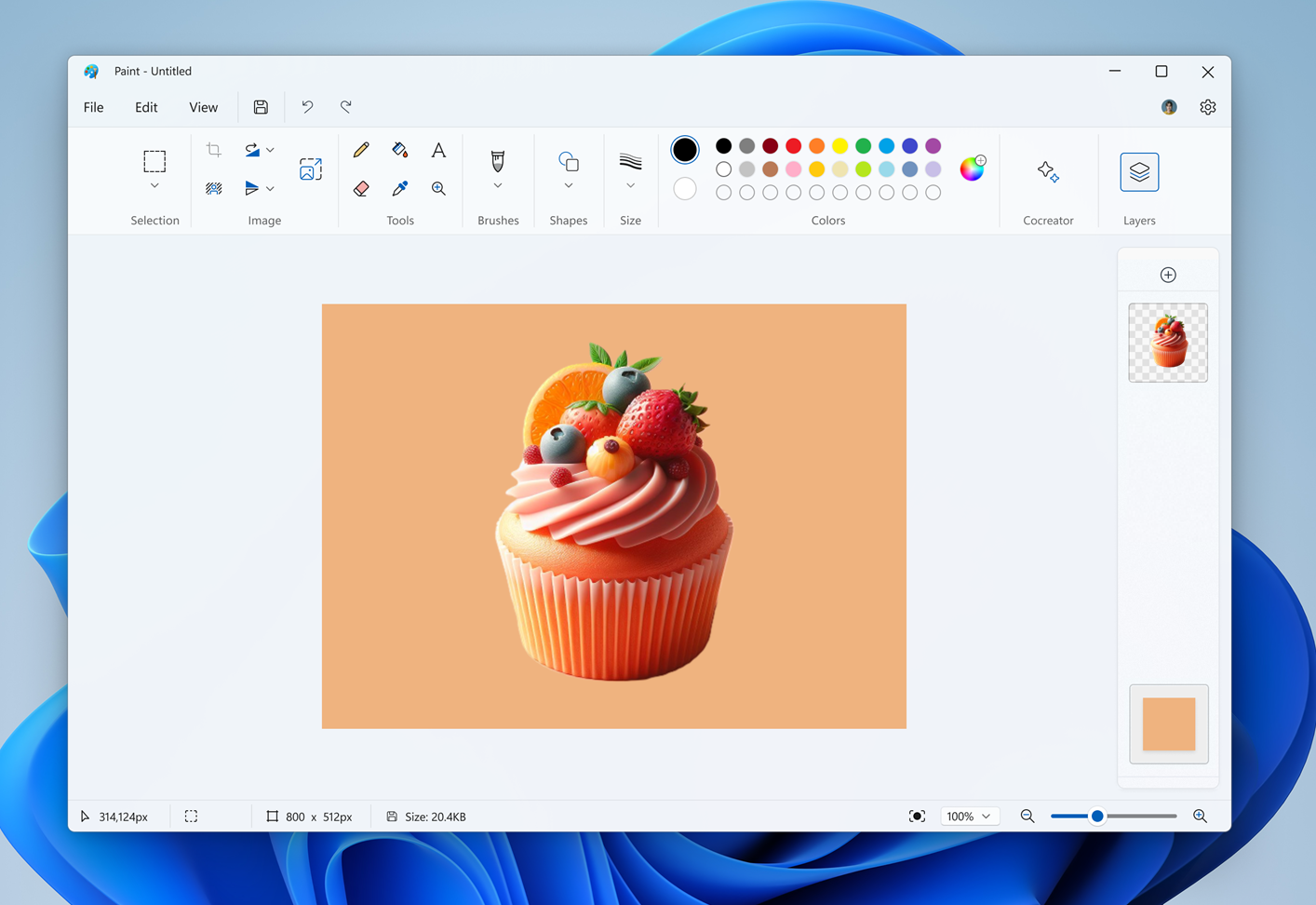
With this update to Paint, we are improving the brush size selection experience with a new size slider for pencil, brushes, and eraser tools. With the new size slider, you can choose from a wider range of size options and preview the selected size on the canvas as you drag the slider. [caption id="attachment_176924" align="alignnone" width="2200"]Paint open with new size slider and size representation active. Paint open with new size slider and size representation active.[/caption] To get started, click on any of the pencil, brushes, or eraser tools, and a size slider will appear on the left side of the canvas. Click and drag along the slider to view different sizes and select the desired size to start drawing! [We are beginning to roll out the new size slider mentioned above, so it may not be available to all Insiders in the Canary and Dev Channels just yet as we plan to monitor feedback and see how it lands before pushing it out to everyone.] We are also improving layers by adding a new background option to the Layers panel. With this option, you can set the Background color for the canvas. Open the Layers panel and click the “Background” tile at the bottom or use Ctrl + Shift + B to try this out yourself. This will open the color picker dialog where you can set any color as the background. You can also use the “Hide background” option to make the background completely transparent or use the keyboard shortcut Ctrl + Shift + H to quickly show/hide the background. We are also adding a new way to copy with “Copy visible layers”. This enables you to copy all visible content across layers. To use this option, select an area using the selection tool and invoke the context menu or use the Ctrl + Shift + C keyboard shortcut. “Copy” (Ctrl + C) will copy the visible content from the current layer only. [caption id="attachment_176925" align="alignnone" width="1414"]Paint layers panel open showing new background option. Paint layers panel open showing new background option.[/caption] FEEDBACK: Please file feedback in Feedback Hub (WIN + F) under Apps > Paint. As always, we love getting feedback from the community and we will be looking out for your thoughts and suggestions on this update! Thanks, Dave Grochocki, Principal Product Manager Lead – Windows Inbox Apps

Ability to use a mobile device’s camera as a webcam on your PC begins rolling out to Windows Insiders

29 février 2024 à 18:52
UPDATE 3/19: We have expanded the rollout introducing the ability to use your Android phone or tablet camera in any video application on your Windows 11 PC to all Windows Insiders across all Insider Channels.
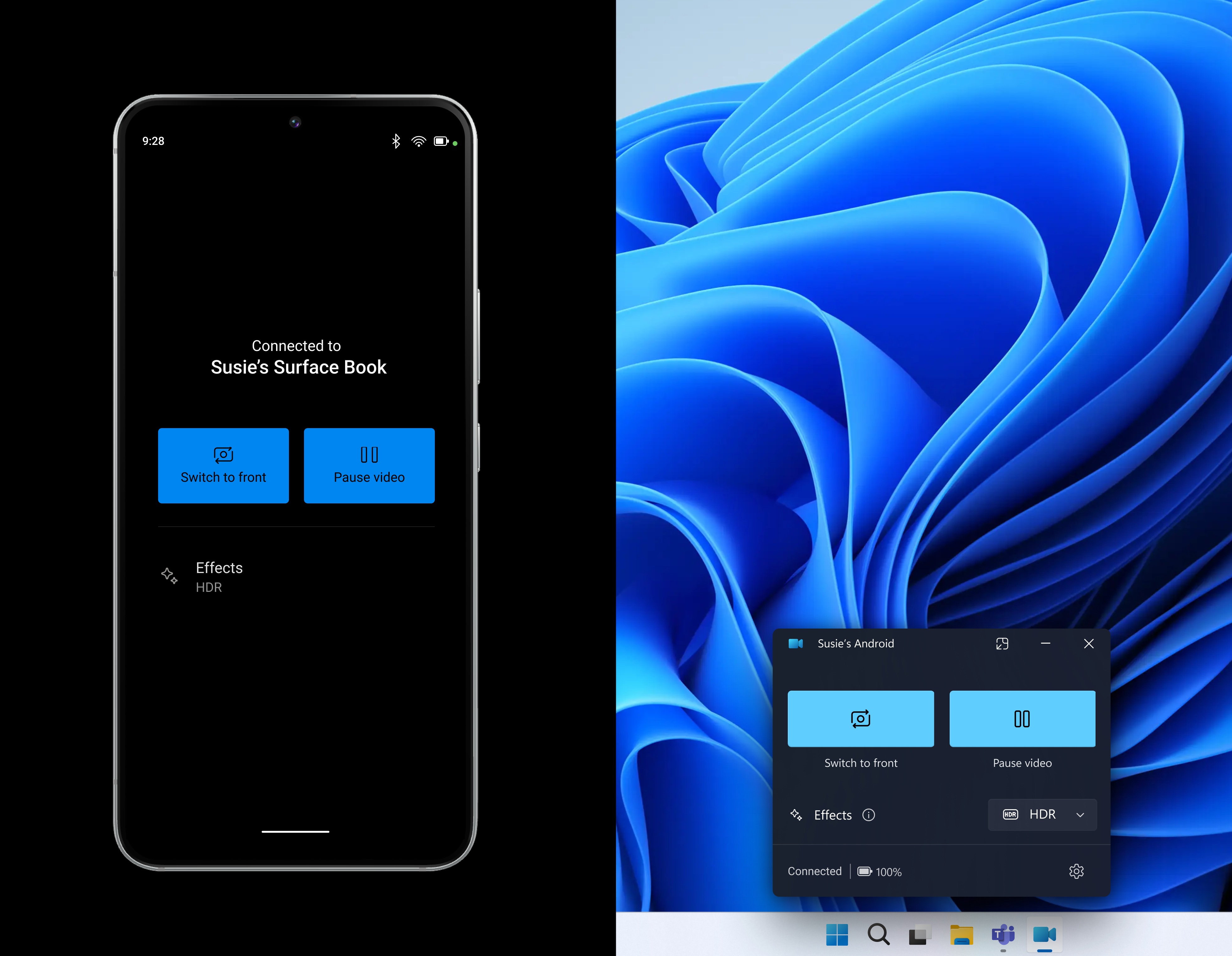
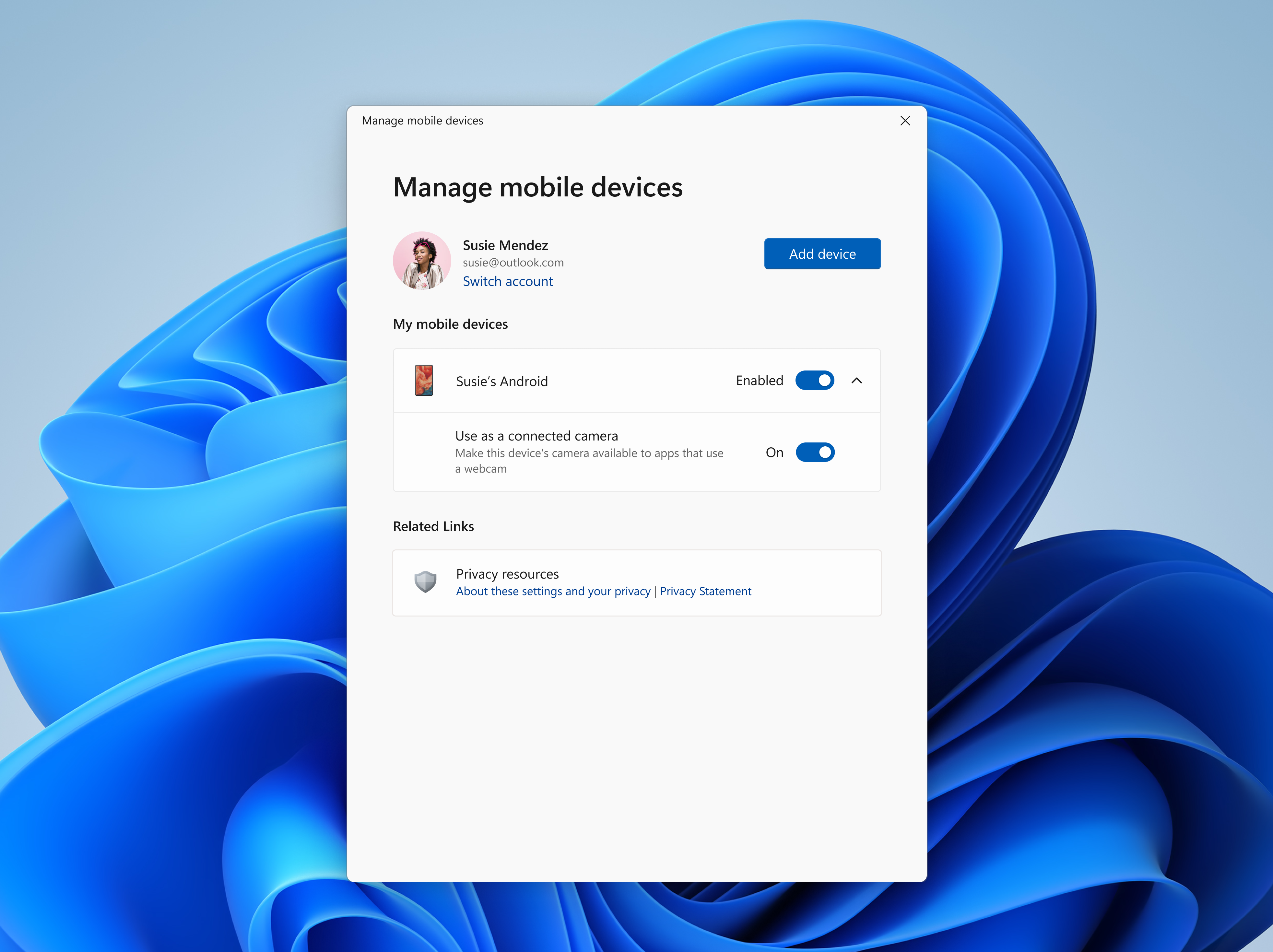
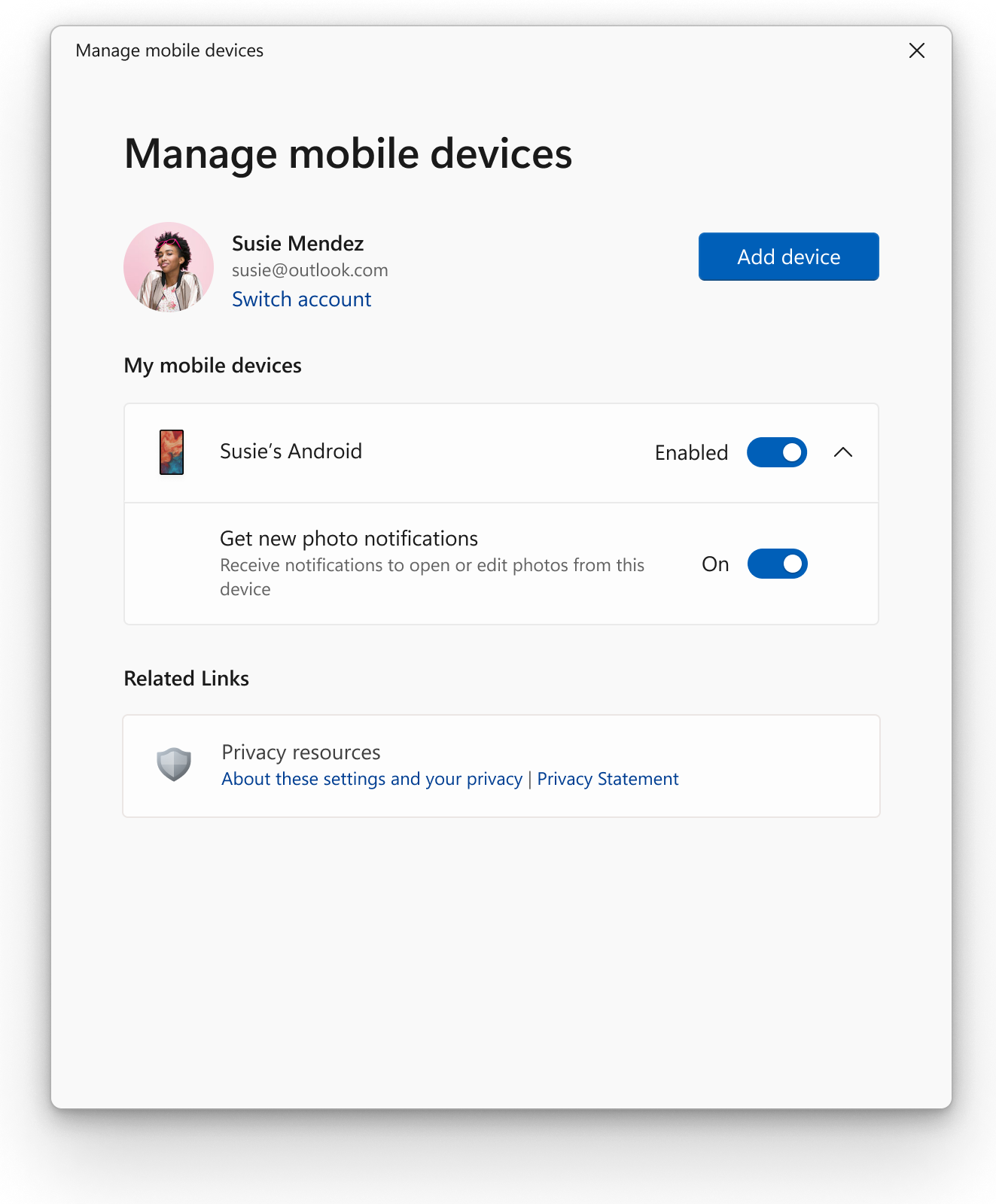
Hello Windows Insiders, We are gradually rolling out the ability to use your Android phone or tablet camera in any video application on your Windows 11 PC to Windows Insiders across all Insider Channels. With this feature, you’ll be able to wirelessly enjoy the high quality of your mobile device’s camera on your PC with flexibility and ease. Some of the abilities include being able to switch between front and back camera, pausing the stream during interruptions, and enjoying effects provided by your mobile model. [caption id="attachment_176911" align="alignnone" width="3927"]A phone and a PC window showing connected camera controls that are available when you connect your phone with your PC. A phone and a PC window showing connected camera controls that are available when you connect your phone with your PC.[/caption] Please ensure that your mobile device has Android 9.0+ and that you are running the BETA version of the Link to Windows phone application version 1.24012* or greater. [caption id="attachment_176912" align="alignnone" width="3927"]New settings window for managing mobile devices that are allowed to connect to your PC. New settings window for managing mobile devices that are allowed to connect to your PC.[/caption] To enable this experience, go to Settings > Bluetooth & devices > Mobile devices and choose “Manage devices” and allow your PC to access your Android phone. Your PC will get a Cross Device Experience Host update in the Microsoft Store that is required for this experience to work. FEEDBACK: Please file feedback in Feedback Hub (WIN + F) under Devices and Drivers > Linked devices. Thanks, Windows Insider Program Team

Announcing Windows 11 Insider Preview Build 22635.3212 (Beta Channel)

26 février 2024 à 22:18
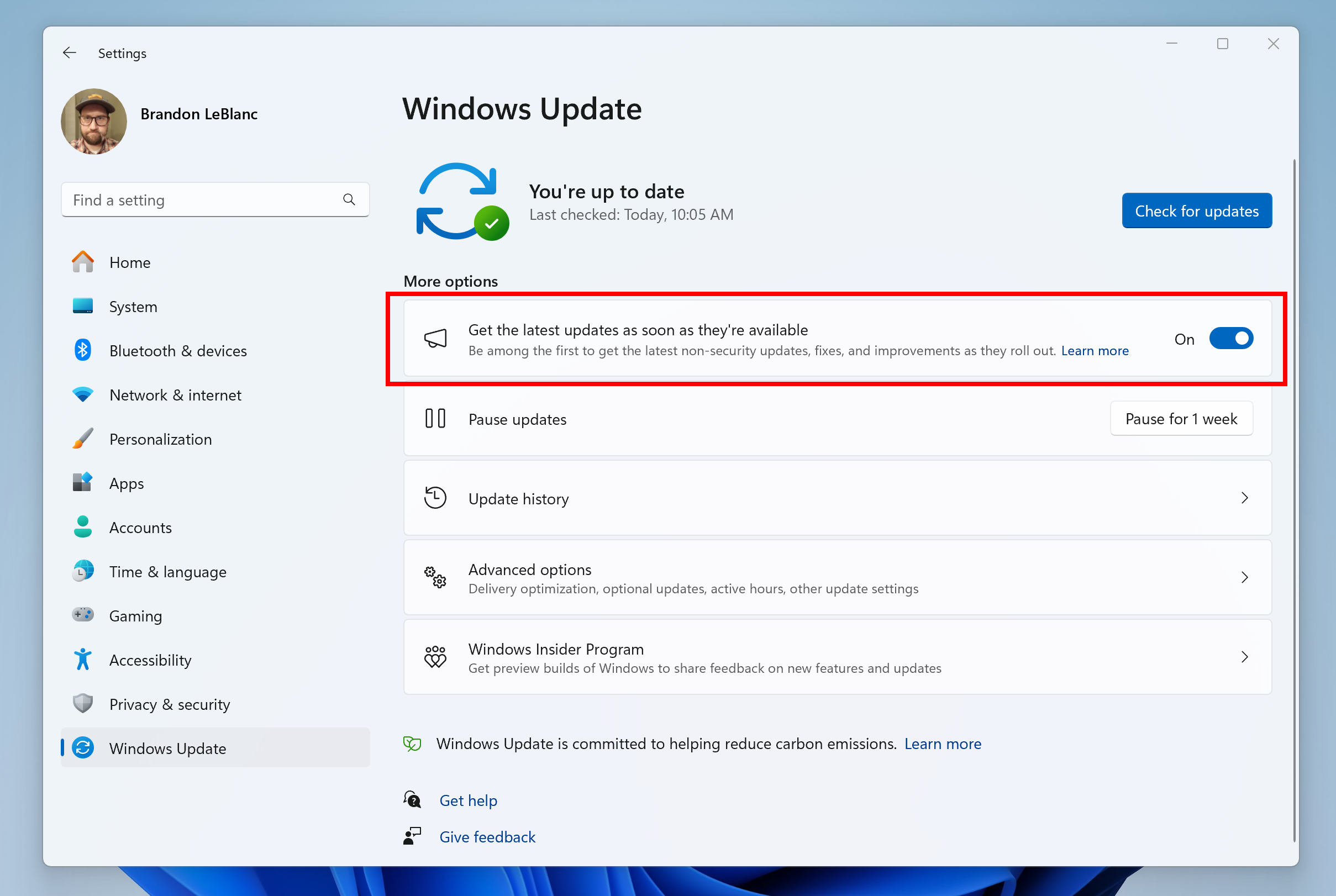
Hello Windows Insiders, today we are releasing Windows 11 Insider Preview Build 22635.3212 (KB5034845) to the Beta Channel. REMINDER: All Windows Insiders in the Beta Channel will now be on the same build (Build 22635.xxxx) via an enablement package. For Windows Insiders in the Beta Channel who want to be the first to get features gradually rolled out to you, you can turn ON the toggle (shown in the image below) to get the latest updates as they are available via Settings > Windows Update. Over time, we will increase the rollouts of features to everyone with the toggle turned on. Should you keep this toggle off, new features will gradually be rolled out to your device over time once they are ready. [caption id="attachment_176587" align="alignnone" width="776"]Turn on the toggle to get the latest updates as they are available to get new features rolled out to you. Turn on the toggle to get the latest updates as they are available to get new features rolled out to you.[/caption] Going forward, we will document changes in Beta Channel builds in two buckets: new features, improvements, and fixes that are being gradually rolled out for Insiders who have turned on the toggle to get the latest updates as they are available and then new features, improvements, and fixes available to everyone in the Beta Channel.

Fixes gradually being rolled out to the Beta Channel with toggle on*

[Taskbar]

  • Fixed an issue which was causing the taskbar to sometimes be very slow to appear sometimes after booting up and logging in for the first time.

[Search]

  • Fixed an issue where if your taskbar was close to being full of app icons, when you tried to open search it would just open and immediately close.

New features rolling out for everyone in the Beta Channel

New notification badging for Widgets 

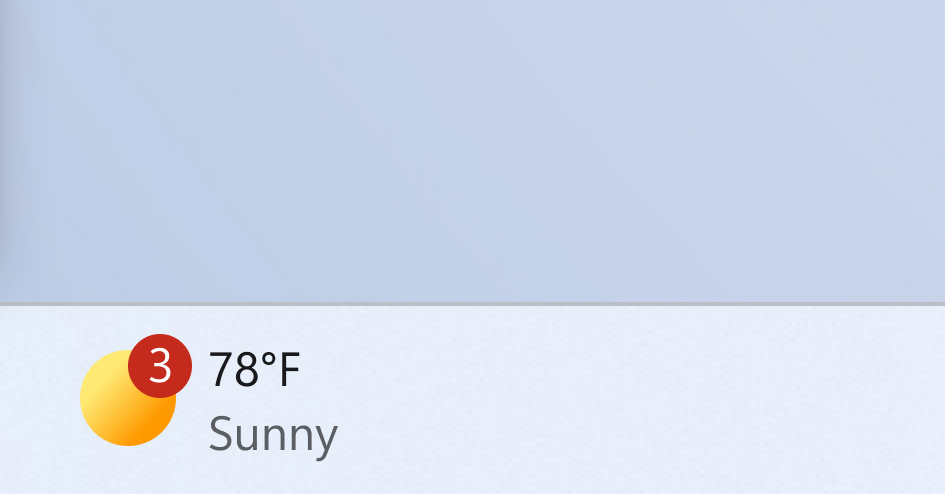
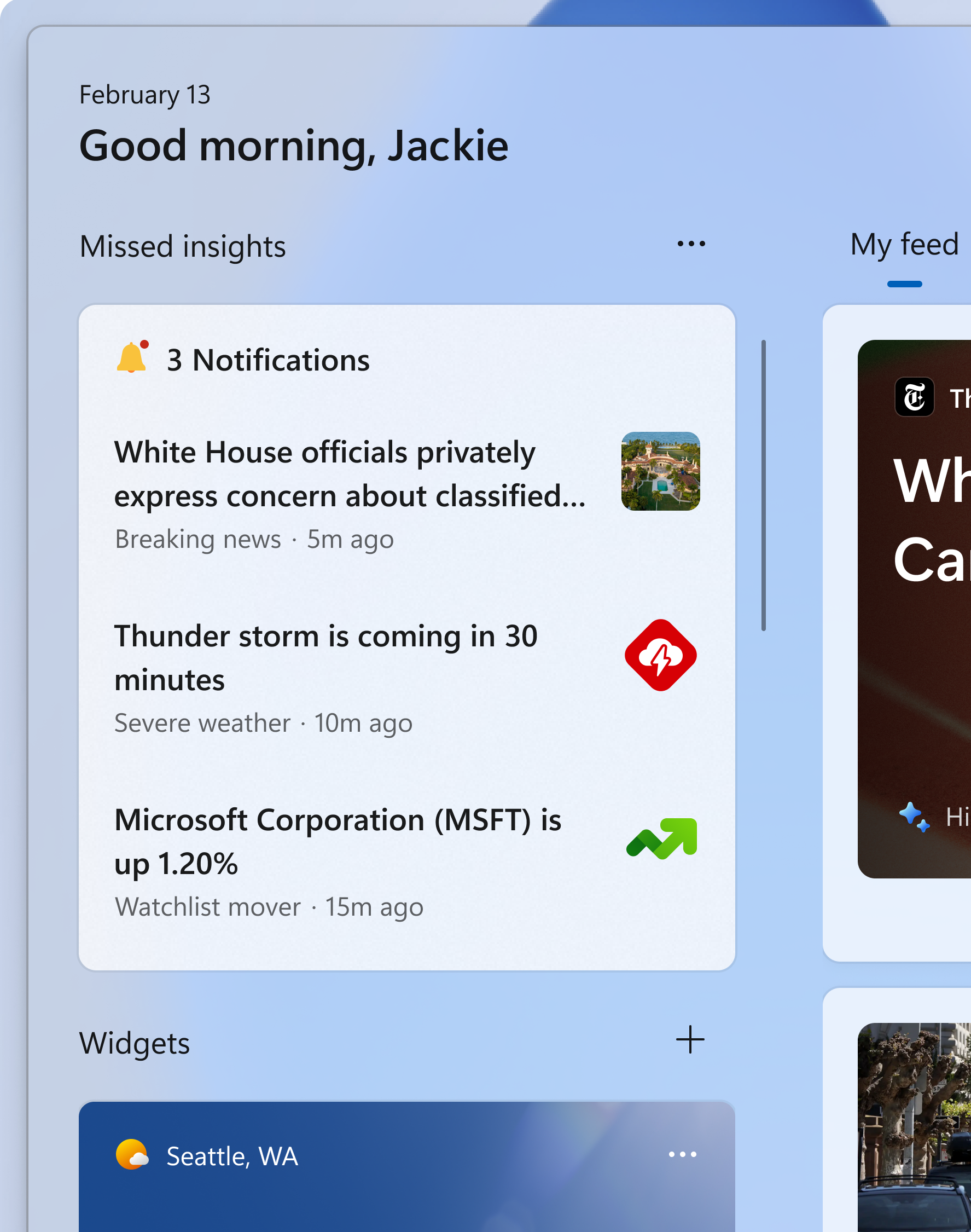
We’re beginning to roll out a new badging experience for Widgets. Widgets badges will notify you when you miss an important notification on your taskbar. Below is an example of a notification badge for Widgets that shows that there are three missed notifications. [caption id="attachment_176876" align="alignnone" width="319"]Widget badging on the taskbar showing three missed notifications. Widget badging on the taskbar showing three missed notifications.[/caption] When you open the Widgets board you can see details for the notifications you missed in the top left corner of the board. [caption id="attachment_176877" align="alignnone" width="400"]Missed notifications at the top left of the widgets board. Missed notifications at the top left of the widgets board.[/caption] [We are beginning to roll this out to Windows Insiders in the Beta Channel today, so the experience isn’t available to all Insiders just yet.] FEEDBACK: Please file feedback in Feedback Hub (WIN + F) under Desktop Environment  > Widgets.

Changes and Improvements gradually being rolled out to everyone in the Beta Channel

[Widgets]

  • We’ve made improvements to Widgets so that the icons on the taskbar no longer appear pixelated or fuzzy. [UPDATE] We have temporarily disabled this improvement and plan to re-enable this again in a future flight after fixing some bugs. [UPDATE 4/19] This has been re-enabled with Build 22635.3500.

Known issues

  • Microsoft Defender Application Guard (MDAG) for Microsoft Edge users may hit a no network connection issue when browsing inside MDAG. The workaround is to disable the MDAG enterprise policy or uninstall MDAG via "Turn Windows Features on and off" and reboot. As a reminder – MDAG for Edge is a deprecated feature.

About the Beta Channel

The Beta Channel is the place we preview experiences that are closer to what we will ship to our general customers. Because the Dev and Beta Channels represent parallel development paths from our engineers, there may be cases where features and experiences show up in the Beta Channel first. However, this does not mean every feature we try out in the Beta Channel will ship. We encourage Insiders to read this blog post that outlines the ways we’ll try things out with Insiders in both the Dev and Beta Channels. *Getting new features: For Windows Insiders in the Beta Channel who want to be the first to get features gradually rolled out to you, you can turn ON the toggle to get the latest updates as they are available via Settings > Windows Update. Over time, we will increase the rollouts of features to everyone with the toggle turned on. Should you keep this toggle off, new features will gradually be rolled out to your device over time once they are ready. **Availability of Copilot in Windows: Copilot in Windows in preview is being rolled out gradually to Windows Insiders in select global markets. The initial markets for the Copilot in Windows preview include North America, United Kingdom and parts of Asia and South America. It is our intention to add additional markets over time.

Important Insider Links

Thanks, Amanda & Brandon

Windows Photos gets Generative erase, and recent AI editing features now available on Arm64 devices and Windows 10

22 février 2024 à 23:36
UPDATED! Hello Windows Insiders, We're excited to share with you our latest editing capability available for the Photos app, Generative erase. Plus, all our recently released AI edit features, including Blur background, Remove and replace background, and Generative erase, are also now available in the Photos app for Arm64 devices and Windows 10. This update is beginning to roll out to Windows Insiders in all channels today (including Windows Insiders on Windows 10 in the Release Preview Channel). Make sure to update your app to version number 2024.11020.21001.0 or higher.

Generative Erase

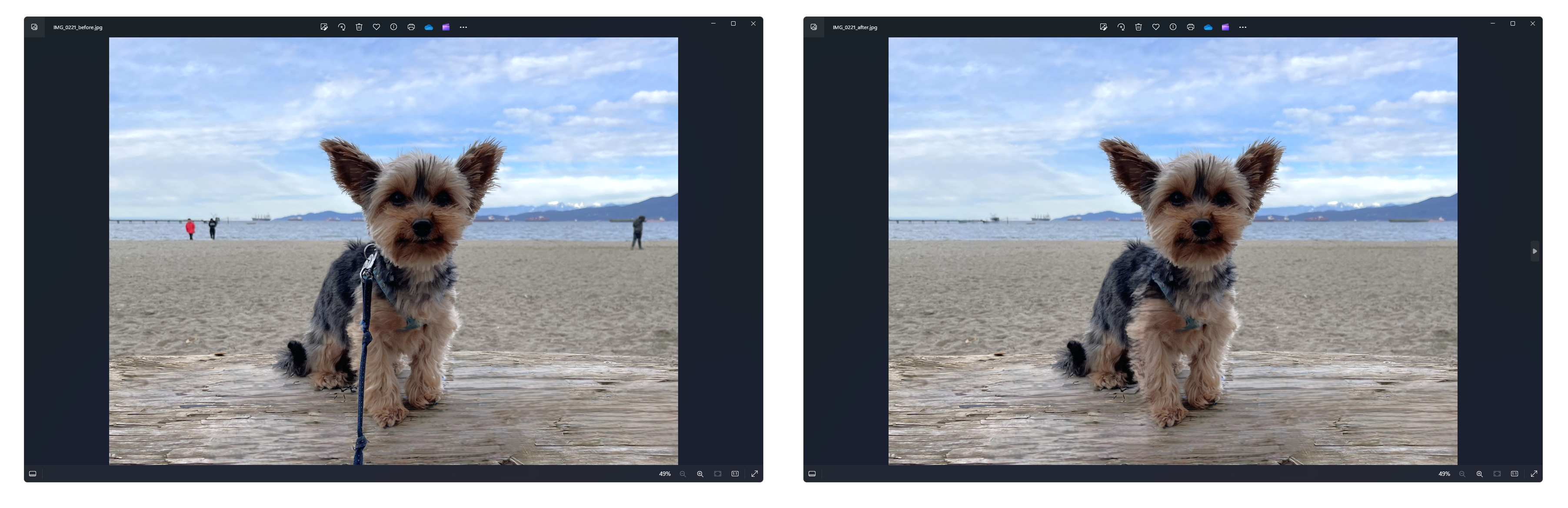
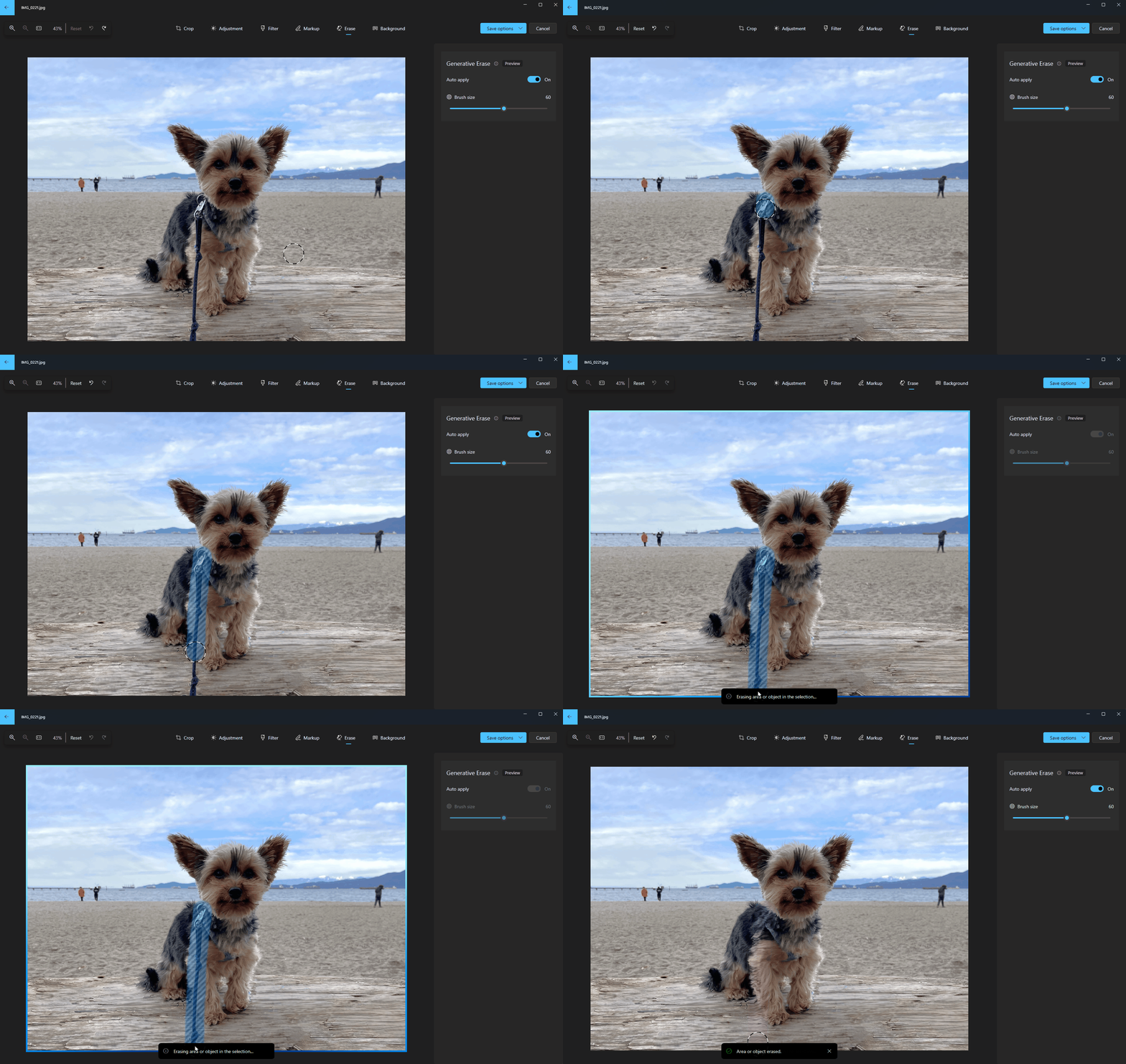
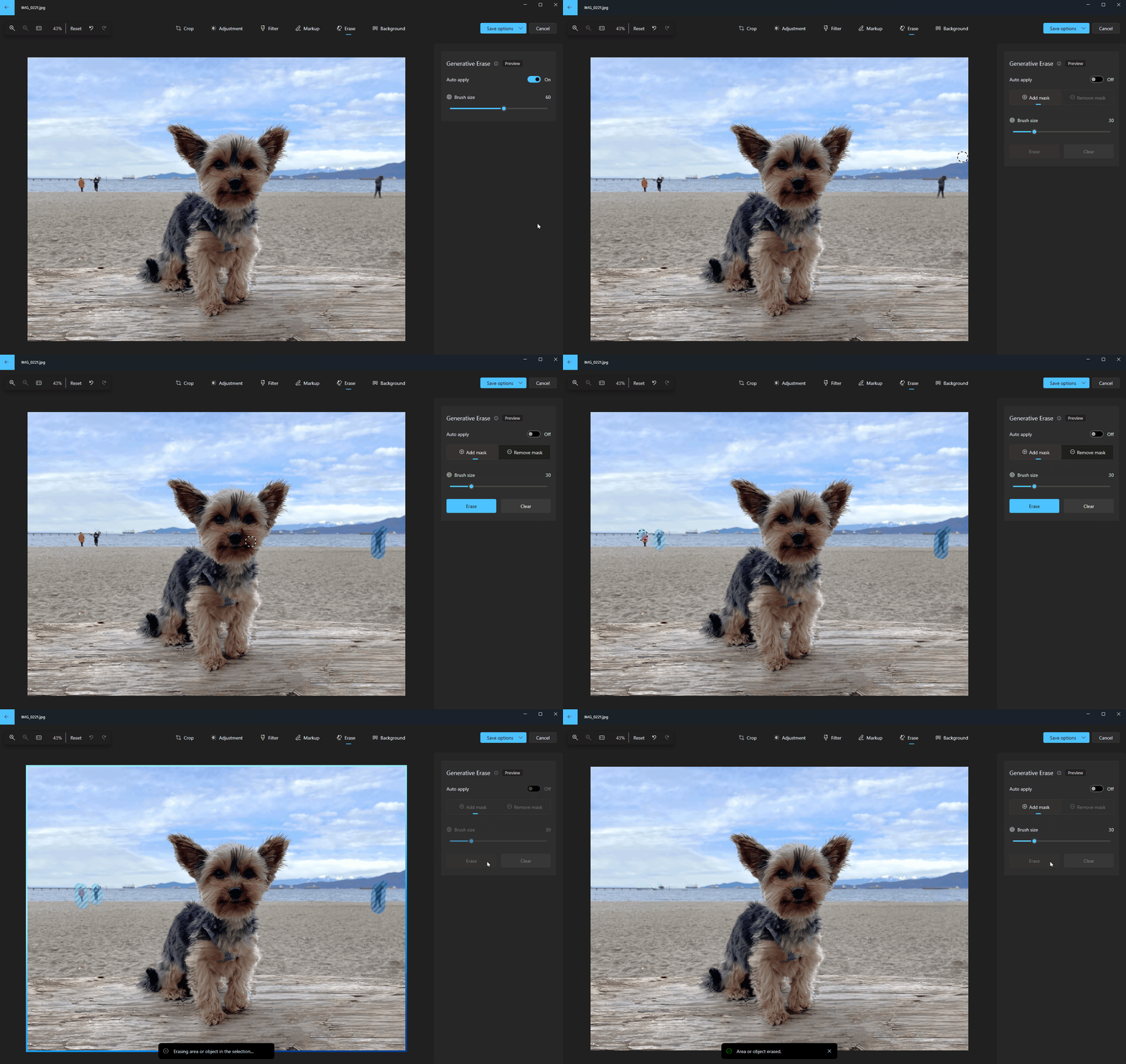
Our well-known Spot fix tool has received a boost with the help of AI and is now known as Generative erase in the app. This feature allows you to fix and remove distractions from your photos, like background objects or miscellaneous visual clutter. Compared to Spot fix, Generative erase creates a more seamless and realistic result after objects are erased from the photo, even when erasing large areas. [caption id="attachment_176898" align="alignnone" width="1024"]Before and after using generative erase to remove unwanted objects from the photo. Before and after using generative erase to remove unwanted objects from the photo.[/caption] To use Generative erase, go to Edit Image and select the Erase option. Brush over the objects or areas you want to remove. Adjust the brush size to get the right level of precision you need. [caption id="attachment_176899" align="alignnone" width="1696"]Select the areas you want removed and watch unwanted objects disappear. Select the areas you want removed and watch unwanted objects disappear.[/caption] For even finer control or removing multiple objects at once, you can disable Auto Apply to add or remove masks, where each mask represents an area that will be erased. [caption id="attachment_176900" align="alignnone" width="1696"]Add masks to remove multiple objects at once. Add masks to remove multiple objects at once.[/caption]

Other fixes and improvements

  • All of the current Photos app AI edit features, including Blur background, Remove and Replace background, and Generative erase are now available in the Photos app for Windows 11 for Arm64 devices.
  • For the first time, Windows 10 will be receiving all of the AI editing features that were previously available only on Windows 11, including Blur background, Remove and Replace background, and Generative erase.
  • Various stability fixes and improvements.
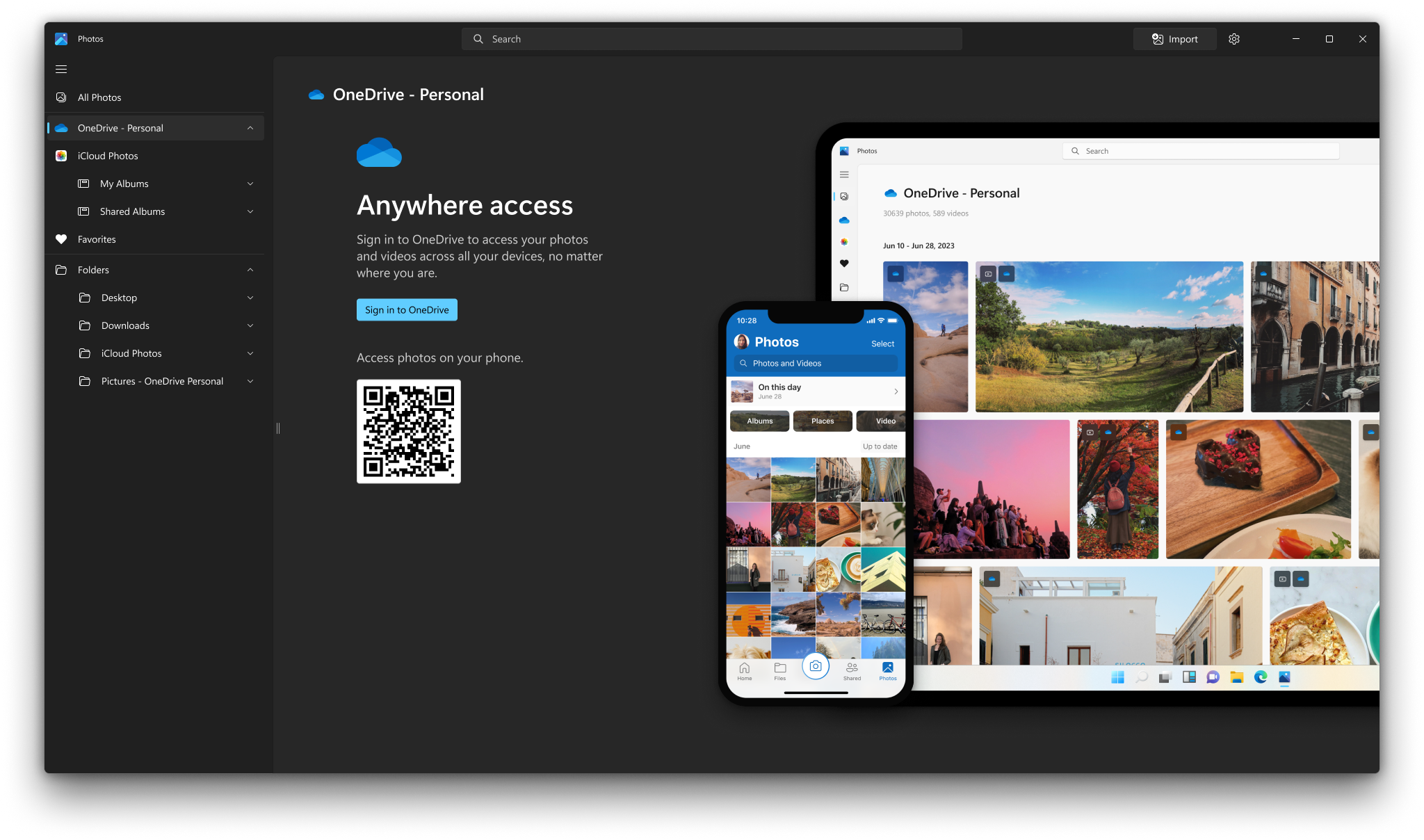
[ADDED 3/14/2024] We've added a QR code to download the OneDrive iOS/Android mobile app and set up photo backup in a few new places - so you can access photos captured on your phone right here in the Photos app. If you're already signed in to OneDrive Personal on Windows, you will now be automatically signed in to the mobile app, so the setup is easier than ever before. [caption id="attachment_176949" align="alignnone" width="1024"]QR code to download the OneDrive iOS/Android mobile app so you can access photos captured on your phone right here in the Photos app. QR code to download the OneDrive iOS/Android mobile app so you can access photos captured on your phone right here in the Photos app.[/caption] We appreciate your comments and suggestions, so please share your feedback with us! FEEDBACK: Please file feedback in Feedback Hub (WIN + F) under Apps > Photos. Thanks, Mala Srivatsa, Senior Product Manager – Windows Photos

Announcing Windows 11 Insider Preview Build 26063 (Canary Channel)

22 février 2024 à 18:04
Hello Windows Insiders, today we are releasing Windows 11 Insider Preview Build 26063 to the Canary Channel. Windows Insiders in the Dev Channel will not receive this build. Instead, we are releasing servicing updates to Insiders in the Dev Channel on Build 26058 to test our servicing pipeline for Windows 11, version 24H2. Please read the known issues below. This build still has the issue impacting Dev Drive users.

What’s new in Build 26063

Wi-Fi 7

Following the announcement by the Wi-Fi Alliance, Windows is adding support for Wi-Fi 7 for consumer access points with the current Insider Preview builds in the Canary and Dev Channels. Wi-Fi 7, also known as IEEE 802.11be Extremely High Throughput (EHT), is a revolutionary technology that offers unprecedented speed, reliability, and efficiency for your wireless devices. Next Generation Wi-Fi 7 builds on the innovations of Wi-Fi 6 and Wi-Fi 6E to provide enhanced user experiences through upgrades in all aspects of wireless connectivity - throughput, latency, efficiency, reliability, power, etc. Highlighting some of Wi-Fi 7 new features:
  • Multi-Link operation (MLO) allows devices to use multiple bands (2.4 GHz, 5GHz, and/or 6GHz) simultaneously to avoid network congestion and maintain connectivity.
  • 320 MHz ultra-wide bandwidth in 6GHz doubles the speed to your devices and enables new possibilities for high bandwidth applications – and scenarios using such as AR/VR.
  • 4096-QAM modulation increases the data transmission by 20% and improves the quality of video streaming, video conferencing, and more.
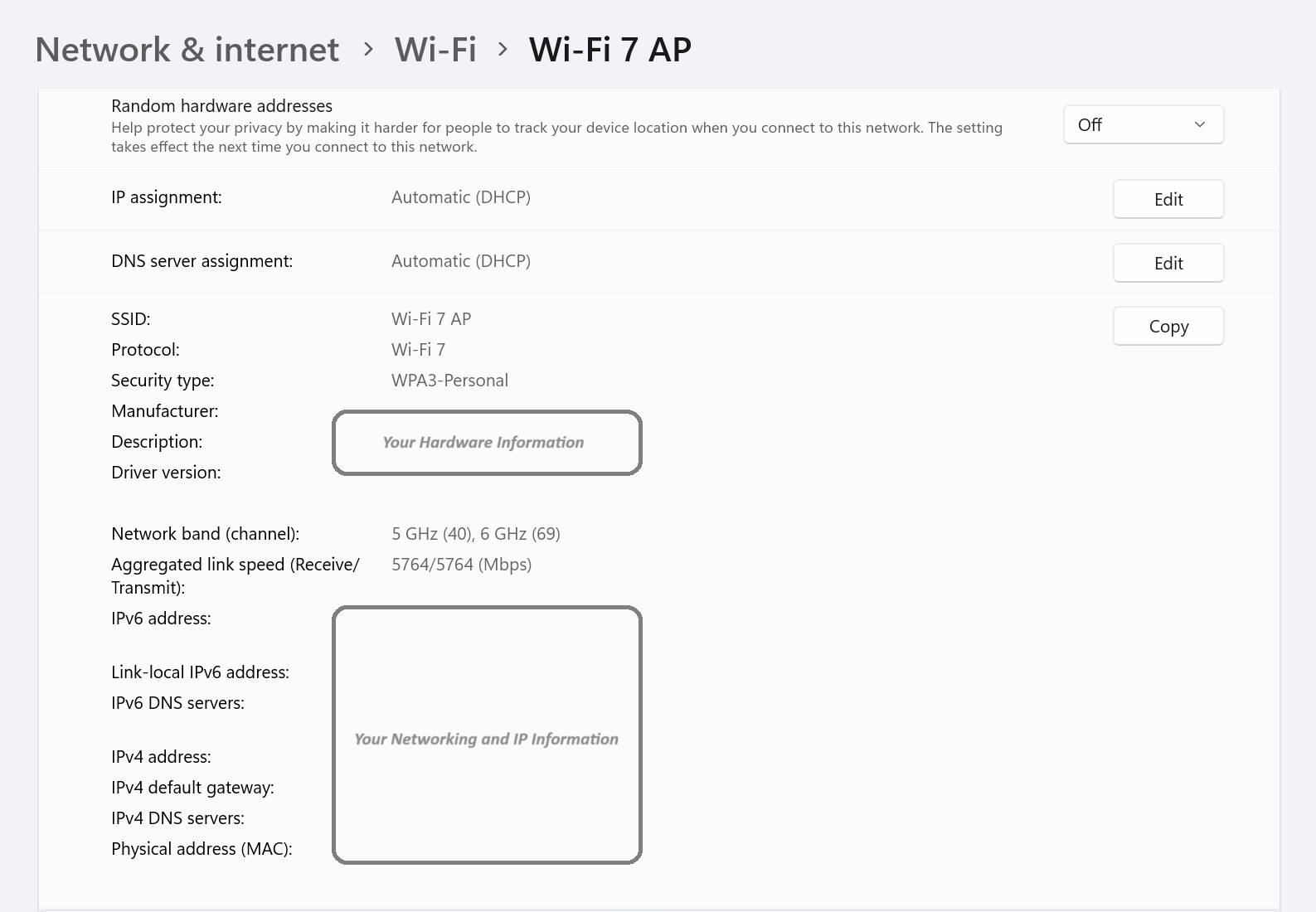
With Wi-Fi 7, you can enjoy multi-gigabit speeds on your Windows PC and experience up to 4x faster speeds than Wi-Fi 6 and Wi-Fi 6E, and close to 6x faster than Wi-Fi 5. You can also enjoy significantly lower latency, which improves the responsiveness and performance of real-time activities like gaming and video conferencing. Please note that performance may vary by manufacturer and hardware device capabilities. To take advantage of Wi-Fi 7, you will need a Wi-Fi 7 capable consumer access point and PC, which many of our ecosystem partners have launched on the market. Below is a screenshot from your Windows PC with this build when connected to the Wi-Fi 7 consumer access point. [caption id="attachment_176895" align="alignnone" width="608"]Wi-Fi settings showing a Windows PC connected to the Wi-Fi 7 access point. Wi-Fi settings showing a Windows PC connected to the Wi-Fi 7 access point.[/caption] FEEDBACK: Please file feedback in Feedback Hub (WIN + F) under Network and Internet > Connecting to a Wi-Fi network. 

Changes and Improvements

[Copilot in Windows*]

  • You can now ask Copilot in Windows to do 16 new actions, adding to the 13 already live. With Power Automate Desktop, you can also automate tasks. We began rolling these improvements out for Copilot in Windows to Windows Insiders in the Canary Channel earlier this week and added the details into last week’s blog post.
https://twitter.com/ShilpaRan/status/1760093164776636720
  • The new Copilot in Windows experience we began trying out with Build 26052 where the Copilot icon will change appearance and animate to indicate that Copilot can help when you copy text has temporarily been disabled. We will bring this back in the future after fixing some bugs. Thank you for all the feedback!

[Widgets]

  • The widgets board improvements documented with Build 26058 have temporarily been disabled. We will bring this back in the future after fixing some bugs. Thank you for all the feedback.

Fixes for known issues

  • Fixed an issue causing some Insiders to experience an issue where the network icon in the system tray showed they didn’t have an internet connection when connected to some VPNs even though the internet connection was working. Those impact may have also seen some apps think there wasn’t an internet connection when there really was.
  • The fix for the issue causing Build 26058 to not be listed under Settings > Windows Update > Update history like it should is making its way out. It may take another flight or two for builds to properly show up under Update History.
  • Fixed a high hitting DWM crash in the last couple flights.
  • Fixed an underlying issue with plug and play which may have impacted audio device setup in the last 2 builds. If you’re continuing to experience issues with audio not playing after this build, please file feedback under Devices and Drivers > Audio and sound in the Feedback Hub.
  • Fixed an issue where typing too quickly in the Settings search box could result in the results not loading completely.
  • Fixed an issue causing the three-finger touchpad gesture for middle mouse click (if you had enabled this in touchpad settings) to not work in some apps.
  • Fixed an issue where attempted to use the Move option when you pressed ALT + Space was causing a window to resize instead of move.
  • Fixed an issue for Insiders with multiple monitors, where opening a minimized window might result in the window appearing on the wrong monitor.
  • Fixed an issue which could cause the clock in the taskbar to stop updating.
  • Fixed an issue which could cause the taskbar icons to shift around under your mouse as you moved your mouse across the taskbar.
  • Fixed an issue where the "Notify when apps request location" option in Settings under Privacy & Security > Location was reset after reboot.
  • Fixed an issue that was causing the Windows Update page in Settings to unexpectedly flash messages sometimes (too quickly to read) in the previous flight.

Known issues

[General]

  • [IMPORTANT NOTE FOR GAMERS – UPDATED!] Some popular games may not work correctly and cause a bugcheck (green screen) when launched on the most recent Insider Preview builds in the Canary Channel. Please be sure to submit feedback in Feedback Hub on any issues you see with playing games on these builds.
  • IMPORTANT NOTE FOR DEV DRIVE USERS: Insiders on Build 26052+ who have Dev Drives and might need to rollback will need to back up their Dev Drives BEFORE rolling back as rolling back will cause Dev Drives to break and data on them to be lost.
  • A Display Connection section is incorrectly showing up under Settings > System > Display > Graphics that when clicked, will crash Settings. This section will be removed in a future flight.
  • Using the ISOs for Build 26058 to upgrade instead of doing a clean install may not work if you choose “Keep nothing” in the Windows Setup experience. To upgrade to the latest build in the Canary and Dev Channels, please use Windows Update.
  • [UPDATED] We’ve made a change to help reduce the number of rollbacks (with error code 0xC1900101) when installing the latest builds and are continuing to investigate reports.
  • We’re working on the fix for an issue causing the input switcher (WIN + Space) design to revert back to an older style and draw in the wrong location.
  • In some cases, the File Explorer context menu no longer has the acrylic effect. This will be fixed in a future flight.
  • [NEW] We’re investigating reports of mouse cursor issues after installing Build 26058, including that the cursor is disappearing in some apps. If you’re experiencing issues, please file feedback describing exactly what you’re seeing under Input and Language > Mouse in the Feedback Hub.
  • [NEW] When opening the context menu in File Explorer, the icons may appear out of place and overlapping text.

For developers

You can download the latest Windows Insider SDK at aka.ms/windowsinsidersdk. SDK NuGet packages are now also flighting at NuGet Gallery | WindowsSDK which include: These NuGet packages provide more granular access to the SDK and better integration in CI/CD pipelines. SDK flights are now published for both the Canary and Dev Channels, so be sure to choose the right version for your Insider Channel. Remember to use adaptive code when targeting new APIs to make sure your app runs on all customer machines, particularly when building against the Dev Channel SDK. Feature detection is recommended over OS version checks, as OS version checks are unreliable and will not work as expected in all cases.

Reminders for Windows Insiders

  • The Canary and Dev Channels receive builds with features and experiences that may never get released as we try out different concepts and get feedback. Features may change over time, be removed, or replaced and never get released beyond Windows Insiders. Some of these features and experiences could show up in future Windows releases when they’re ready.
  • Many features in the Canary and Dev Channel are rolled out using Control Feature Rollout technology, starting with a subset of Insiders and ramping up over time as we monitor feedback to see how they land before pushing them out to everyone in these channels.
  • As the Canary and Dev Channels receive the same builds, some features may begin rolling out to the Canary Channel first before the Dev Channel.
  • While the Canary Channel is now on Windows 11, version 24H2, this is just temporary. At some point in the future, the Canary Channel will jump ahead to receiving new builds not matched to any specific release in a higher build series.
  • To get off the Canary or Dev Channel, a clean install of Windows 11 will be required. As a reminder - Insiders can’t switch to a channel that is receiving builds with lower build numbers without doing a clean installation of Windows 11 due to technical setup requirements.
  • The desktop watermark shown at the lower right corner of the desktop is normal for these pre-release builds.
  • Check out Flight Hub for a complete look at what build is in which Insider channel.
  • Copilot in Windows* in preview is being rolled out gradually to Windows Insiders in select global markets. The initial markets for the Copilot in Windows preview include North America, United Kingdom and parts of Asia and South America. It is our intention to add additional markets over time.
Thanks, Amanda & Brandon
Announcing Windows 11 Insider Preview Build 22635.3209 (Beta Channel)

16 février 2024 à 18:04
Hello Windows Insiders, today we are releasing Windows 11 Insider Preview Build 22635.3209 (KB5034855) to the Beta Channel. REMINDER: All Windows Insiders in the Beta Channel will now be on the same build (Build 22635.xxxx) via an enablement package. For Windows Insiders in the Beta Channel who want to be the first to get features gradually rolled out to you, you can turn ON the toggle (shown in the image below) to get the latest updates as they are available via Settings > Windows Update. Over time, we will increase the rollouts of features to everyone with the toggle turned on. Should you keep this toggle off, new features will gradually be rolled out to your device over time once they are ready. [caption id="attachment_176587" align="alignnone" width="794"]Turn on the toggle to get the latest updates as they are available to get new features rolled out to you. Turn on the toggle to get the latest updates as they are available to get new features rolled out to you.[/caption] Going forward, we will document changes in Beta Channel builds in two buckets: new features, improvements, and fixes that are being gradually rolled out for Insiders who have turned on the toggle to get the latest updates as they are available and then new features, improvements, and fixes available to everyone in the Beta Channel.

New features for everyone in the Beta Channel

Instantly access new photos and screenshots from your mobile device

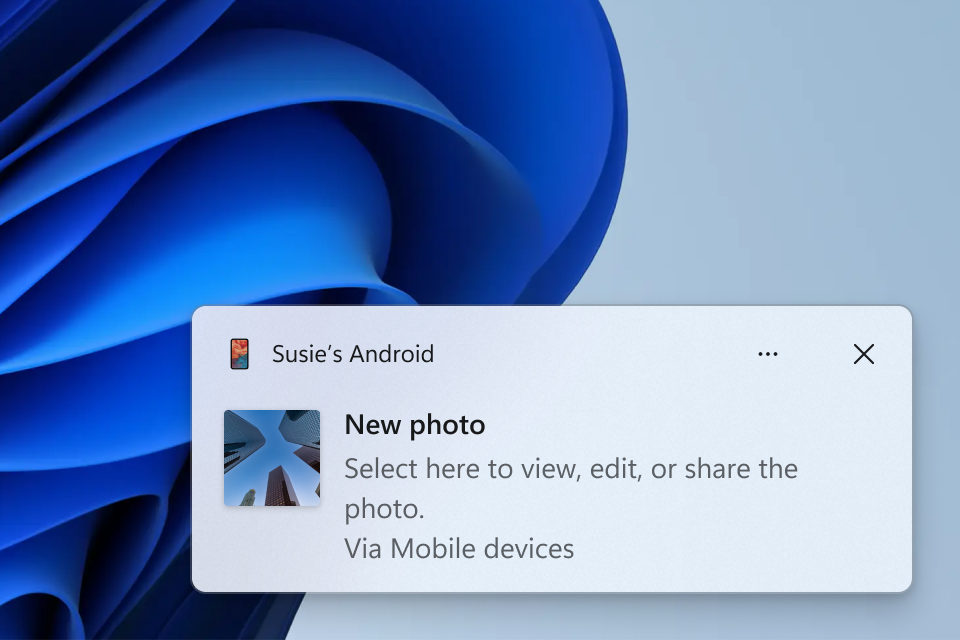
We are also beginning to gradually roll out the ability to effortlessly access and edit your most recent photos and screenshots from your Android mobile device in Snipping Tool on your PC. With this feature, you’ll receive instant notifications on your PC whenever a new photo or screenshot is captured on your Android device. [caption id="attachment_176819" align="alignnone" width="410"]Windows notification prompting to open capture in Snipping Tool for markup. Windows notification prompting to open capture in Snipping Tool for markup.[/caption] To enable this experience, go to Settings > Bluetooth & devices > Mobile devices and choose “Manage devices” and allow your PC to access your Android phone. [caption id="attachment_176820" align="alignnone" width="483"]New settings window for managing mobile devices that are allowed to connect to your PC. New settings window for managing mobile devices that are allowed to connect to your PC.[/caption] Please note that as part of this change, we have renamed the Phone Link settings page under Settings > Bluetooth & devices to Mobile devices. Your PC will get a Cross Device Experience Host update in the Microsoft Store that is required for this experience to work. This new experience replaces the remote capture with Phone Link experience that was announced back in September. FEEDBACK: Please file feedback in Feedback Hub (WIN + F) under Devices and Drivers > Linked devices.

Fixes for everyone in the Beta Channel

  • This update addresses an issue that affects the CrashOnAuditFail registry value. When you set it to one (1), only admins can sign in to a machine that has stopped working. After you install this update, standard users can sign in to the machine.
  • This update addresses an issue that affects an embedded SIM (eSIM) When you delete it, you do not get a notification.
  • This update addresses an issue that affects Azure Virtual Desktop virtual machines. At random, they restart. This occurs because of an access violation in lsass.exe.
  • This update addresses an issue that affects Microsoft Edge. The UI is wrong for Internet Options Data Settings.
  • This update addresses an issue that affects long-edge fed printers. The alignment of stapling or hole punch locations is wrong.
  • This update addresses an issue that affects a machine that is used as a remote desktop session host. You get stop error RDR_FILE_SYSTEM (0x27). This occurs when you start up all users from the machine.
  • This update addresses an issue that makes the troubleshooting process fail. This occurs when you use the Get Help app.
  • This update addresses an issue that affects the Windows Settings Home page. It randomly stops responding when you go to the page.
  • This update addresses an issue that affects Remote Desktop Web Authentication. You might not be able to connect to sovereign cloud endpoints.
  • This update addresses an issue that affects Steps Recorder. Some of the UI and steps are not localized to Chinese.
  • This update addresses an issue that affects Notepad. It does not open for the standard user account. This occurs when you use Command Prompt to open it based on file type association.
  • This update addresses an issue that affects 8 Zip archives. It stops you from opening them by double-clicking them in File Explorer.
  • This update affects games you install on a secondary drive. Now, they remain installed on the drive.
  • This update addresses an issue that affects the Certificate Authority snap-in. You cannot select the "Delta CRL" option. This stops you from using the GUI to publish Delta CRLs.
  • This update addresses an issue that stops a system from going to sleep. This occurs when you connect an external device to the system.
  • This update addresses an issue that affects the download of device metadata. Downloads from the Windows Metadata and Internet Services (WMIS) over HTTPS are now more secure.
  • This update addresses an issue that affects networking. A device fails to make the automatic switch from cellular to Wi-Fi when it can use Wi-Fi.
  • This update addresses an issue that affects Narrator announcements. They are slow when you use Natural Voices.
  • This update addresses an issue that affects explorer.exe. It might stop responding. This occurs when you restart or shut down a PC that has a controller accessory attached to it.

About the Beta Channel

The Beta Channel is the place we preview experiences that are closer to what we will ship to our general customers. Because the Dev and Beta Channels represent parallel development paths from our engineers, there may be cases where features and experiences show up in the Beta Channel first. However, this does not mean every feature we try out in the Beta Channel will ship. We encourage Insiders to read this blog post that outlines the ways we’ll try things out with Insiders in both the Dev and Beta Channels. *Getting new features: For Windows Insiders in the Beta Channel who want to be the first to get features gradually rolled out to you, you can turn ON the toggle to get the latest updates as they are available via Settings > Windows Update. Over time, we will increase the rollouts of features to everyone with the toggle turned on. Should you keep this toggle off, new features will gradually be rolled out to your device over time once they are ready. **Availability of Copilot in Windows: Copilot in Windows in preview is being rolled out gradually to Windows Insiders in select global markets. The initial markets for the Copilot in Windows preview include North America, United Kingdom and parts of Asia and South America. It is our intention to add additional markets over time.

Important Insider Links

Thanks, Amanda & Brandon

Releasing Windows 10 Build 19045.4116 to Release Preview Channel

15 février 2024 à 18:04
Hello Windows Insiders, today we are releasing Windows 10 22H2 Build 19045.4116 (KB5034843) to the Release Preview Channel for those Insiders who are on Windows 10, version 22H2. This update includes the following features and improvements:
  • New! This update adds Desktop Spotlight to your desktop background. Just one click or tap of the icon on your desktop takes you to Bing, where you can explore the world one picture at a time. [UPDATE 2/28] This improvement has been disabled and will get released in a future update.
  • New! Using Windows share, you can now directly share URLs to apps like WhatsApp, Gmail, Facebook, and LinkedIn. Sharing to X (formerly Twitter) is coming soon.
  • This update addresses an issue that affects Azure Virtual Desktop sessions. There are delays when you sign in.
  • This update affects games you install on a secondary drive. Now, they remain installed on the drive.
  • This update addresses an issue that affects Windows Hello for Business. You cannot use it to authenticate to Microsoft Entra ID on certain apps. This occurs when you use Web Access Management (WAM).
  • This update addresses an issue that affects Microsoft Edge. The UI is wrong for Internet Options Data Settings.
  • This update addresses an issue that affects the Japanese Input Method Editor (IME). It fails to work for custom desktops.
  • This update addresses an issue that affects Remote Desktop Web Authentication. You might not be able to connect to sovereign cloud endpoints.
Thanks, The Windows Insider Program Team

Releasing Windows 11 Builds 22621.3227 and 22631.3227 to the Release Preview Channel

15 février 2024 à 18:01
Hello Windows Insiders, today we’re releasing Windows 11 Builds 22621.3227 and 22631.3227 (KB5034848) to Insiders in the Release Preview Channel on Windows 11, version 22H2 (Build 22621) and version 23H2 (Build 22631). Along with this update, we are also releasing a February Windows Configuration Update (KB5035349) for both Windows 11, version 22H2 and 23H2 that introduces a few new features and improvements such as:
  • Voice access is available in additional languages: French (France, Canada), German, and Spanish (Spain, Mexico).
  • You can now use all voice access features on multiple displays.
  • Voice shortcuts or custom commands in voice access.
  • You can now listen to a preview of the ten natural voices in Narrator before you download them.
  • You can now use voice access to open applications, dictate text, and interact with elements on the screen. You can also use your voice to command Narrator.
  • The Windows share window will use the account you use to sign in for apps that are in “Share using.” For example, if you use a Microsoft account (MSA) to sign in, you will see Microsoft Teams (free). When you use a Microsoft Entra ID account (formerly Azure Active Directory) to sign in, your Microsoft Teams (work or school) contacts show instead.
  • The Windows share window now supports sharing with WhatsApp in the “Share using” section. If you do not have WhatsApp installed, you can install it from the Windows share window.
  • You can use quick settings or the Settings app to turn on Nearby Share. If you do and Wi-Fi and Bluetooth are off, Wi-Fi and Bluetooth will turn on to make Nearby Share work as you expect. If you turn off Wi-Fi or Bluetooth, Nearby Share turns off as well.
  • You can now give your device a more friendly name to identify it when sharing. Go to Settings > System > Nearby sharing. There, you can rename your device.
  • We have improved Nearby Share transfer speed for users on the same network. Before, users had to be on the same private network. Now, users must be on the same public or private network.
  • The Cast flyout menu in quick settings gives you more help to find nearby displays, fix connections, and more.
  • We are adding suggestions to Snap Layouts. They help you to instantly snap multiple app windows together.
  • Improvements for Windows 365 Boot and Windows 365 Switch.
[caption id="attachment_176587" align="alignnone" width="1024"]Turn on the toggle to get the latest updates as they are available to get new features rolled out to you. Turn on the toggle to get the latest updates as they are available to get new features rolled out to you.[/caption] If you have the toggle to get the latest updates as soon as they are available turned ON via Settings > Windows Update BEFORE installing KB5034848, you will also get the February Windows Configuration Update (KB5035349) installed at the same time you install KB5034848 in a single reboot. Note only KB5034848 will show during install on the Settings > Windows Update page. But after restarting, the February Windows Configuration Update (KB5035349) will be shown in your Update History. This Windows Configuration Update is how we’re enabling new features via Controlled Feature Rollout (CFR) technology. Should you install KB5034848 without turning on the toggle to get the latest updates as they are available before, you can simply turn it on, and the February Windows Configuration Update will be downloaded on your PC where you will be asked to reboot. Should you install KB5034848 and keep the toggle off, the new features will be gradually rolled out to your device over time. KB5034848 includes the following improvements:
  • [ADDED 2/29] New! This update adds support for the USB 80Gbps standard. It is the next generation of USB4 that has twice the bandwidth of USB 40Gbps. To use USB 80Gbps, you must have a compatible PC and USB4 or Thunderbolt™ peripheral.
  • New! The Copilot in Windows icon now appears on the right side of the system tray on the taskbar. Also, the display of Show desktop at the rightmost corner of the taskbar will be off by default. To turn it on, go to Settings > Personalization > Taskbar. You can also right-click the taskbar and choose Taskbar settings.
  • New! The Phone Link settings page has a new name: Mobile devices. Go to Settings > Bluetooth & devices > Mobile devices.
  • New! You can now use the Snipping Tool on your PC to edit the most recent photos and screenshots from your Android device. You will get an instant notification on your PC when your Android device captures a new photo or screenshot. To turn this on, go to Settings > Bluetooth & devices > Mobile devices. Choose Manage devices and allow your PC to access your Android device.
  • This update affects games you install on a secondary drive. Now, they remain installed on the drive.
  • This update addresses an issue that affects Notepad. It does not open for the standard user account. This occurs when you use Command Prompt to open it based on file type association.
  • This update addresses an issue that affects 8 Zip archives. It stops you from opening them by double-clicking them in File Explorer.
  • [UPDATED 2/20] This update addresses an issue that affects a machine that is used as a remote desktop session host. You get stop error RDR_FILE_SYSTEM (0x27). Because of this, all users are signed out from the machine.
  • This update addresses an issue that affects Microsoft Edge. The UI is wrong for Internet Options Data Settings.
  • This update addresses an issue that affects Steps Recorder. Some of the UI and steps are not localized to Chinese.
  • This update addresses an issue that affects long-edge fed printers. The alignment of stapling or hole punch locations is wrong.
  • This update addresses an issue that affects an embedded SIM (eSIM) profile. When you delete it, you do not get a notification.
  • This update addresses an issue that affects the Windows Settings Home page. It randomly stops responding when you go to the page.
  • This update addresses an issue that affects networking. A device fails to make the automatic switch from cellular to Wi-Fi when it can use Wi-Fi.
  • This update addresses an issue that affects Remote Desktop Web Authentication. You might not be able to connect to sovereign cloud endpoints.
  • This update addresses an issue that makes the troubleshooting process fail. This occurs when you use the Get Help app.
  • This update addresses an issue that affects the Certificate Authority snap-in. You cannot select the "Delta CRL" option. This stops you from using the GUI to publish Delta CRLs.
  • This update addresses an issue that stops a system from going to sleep. This occurs when you connect an external device to the system.
Thanks, Windows Insider Program Team

Announcing Windows 11 Insider Preview Build 26058 (Canary and Dev Channels)

14 février 2024 à 22:05
UPDATE 2/22: We are starting to roll out two servicing updates to Windows Insiders in the Dev Channel. Both these updates do not include anything new and are designed to test our servicing pipeline for Windows 11, version 24H2. Most Insiders in the Dev Channel will receive Cumulative Update Build 26058.1300 (KB5036082). However, Insiders that have Virtualization Based Security (VBS) turned on will receive Build 26058.1400 (KB5036080) and may not experience a restart upon installing the update. Arm64 devices, even with VBS turned on, will only receive Build 26058.1300 (KB5036082).
Hello Windows Insiders, today we are releasing Windows 11 Insider Preview Build 26058 to the Canary and Dev Channels. We are releasing ISOs for this build – they can be downloaded here. Insiders in the Canary Channel will receive Build 26058.1000 while Insiders in the Dev Channel will receive Build 26058.1100 (KB5036078) as we test delivery of a full build and a servicing update at the same time. There is no difference between the two of these as Build 26058.1100 does not include any additional code. Please read the known issues below. This build still has the issue impacting Dev Drive users. We have also added a few issues based on feedback from last week’s flight and an issue with using the ISOs being released today to do an upgrade. The Canary and Dev Channels receiving the same builds is only temporary. During the times in which the Canary and Dev Channels are on the same builds (e.g. Build 26058), the window is open for Insiders in the Canary Channel to switch to the Dev Channel. At some point in the future, the Canary Channel will jump to higher build numbers and the window will be closed. NOTE: Some features may begin rolling out to the Canary Channel first before the Dev Channel even if the two channels have the same build.

[ADDED 2/20] Improvements for Copilot in Windows*

We’re trying out a new runtime for Copilot in Windows that allows you to manage more settings via Copilot, including accessibility-focused settings, and use Power Automate Desktop through Copilot!

More built-in capabilities via Copilot in Windows

Try asking Copilot to turn on Narrator or Live Captions, turn on battery saver, show you available networks, even empty your recycle bin or clean up your storage. Here’s the full list of things you can ask Copilot to do! New with this update:
  • Ask for available wireless networks.
  • Ask for system or device information.
  • Ask for battery information.
  • Ask to clean storage.
  • Ask to empty recycle bin.
  • Ask to toggle battery saver.
  • Ask to show startup apps.
  • Ask for your IP address.
  • Ask for system, device, or storage information.
Try accessibility features:
  • Ask to turn on narrator.
  • Ask to open voice access.
  • Ask to turn on magnifier.
  • Ask to change text size.
  • Ask to start live captions.
  • Ask to turn on high-contrast.
  • Ask to start voice typing.
Already live, now on the new runtime:
  • Ask to toggle dark/light theme.
  • Ask to toggle Bluetooth.
  • Ask to toggle do not disturb.
  • Ask to add a device.
  • Ask to take a screenshot.
  • Ask to cast your screen to another monitor.
  • Ask to change your background image.
  • Ask to set volume, change volume, or mute/unmute volume.
  • Ask to launch an application.
  • State that certain parts of your PC aren't working: Audio, Windows Update, Camera, Bluetooth, Printer, Network, others.
  • Ask to snap a window.
  • Ask to start a focus session.

Introducing Power Automate via Copilot in Windows

Power Automate is a low-code automation solution that is part of the Power Platform. We’re excited to introduce the Power Automate plugin in Copilot in Windows. This first release of the plugin offers automation features for Excel, PDF manipulation and file management. To use the plugin, download or update Power Automate Desktop to the latest version from the Microsoft Store. Currently plugins are only accessible if you are signed in to Copilot in Windows with a Microsoft account. After you have Power Automate installed and you activate the plugin in the plugins section in Copilot in Windows, you can ask for tasks such as:
  • Write an email to my team wishing everyone a happy weekend.
  • List the top 5 highest mountains in the world in an Excel file.
  • Rename all PDF files in a folder to add the word final at the end.
  • Move all word documents to another folder.
  • I need to split a PDF by the first page. Can you help?
Do you want to share your feedback on the Power Automate plugin or do you have other automation scenarios that you would like us to support? Feel free to contact us: powerautomate-ai@microsoft.com. [We are beginning to roll out these Copilot for Windows improvements to Windows Insiders in the Canary Channel today, so the experience isn’t available to all Insiders just yet.] FEEDBACK: Because of an issue with our feedback pipeline, please do not use the in-line feedback form that opens from thumbs up/down for these actions right now, and instead file feedback about using these in Feedback Hub (WIN + F) under Desktop Environment > Copilot in Windows.

What’s new in Build 26058

Pointer Indicator: New accessibility setting for low vision Windows users

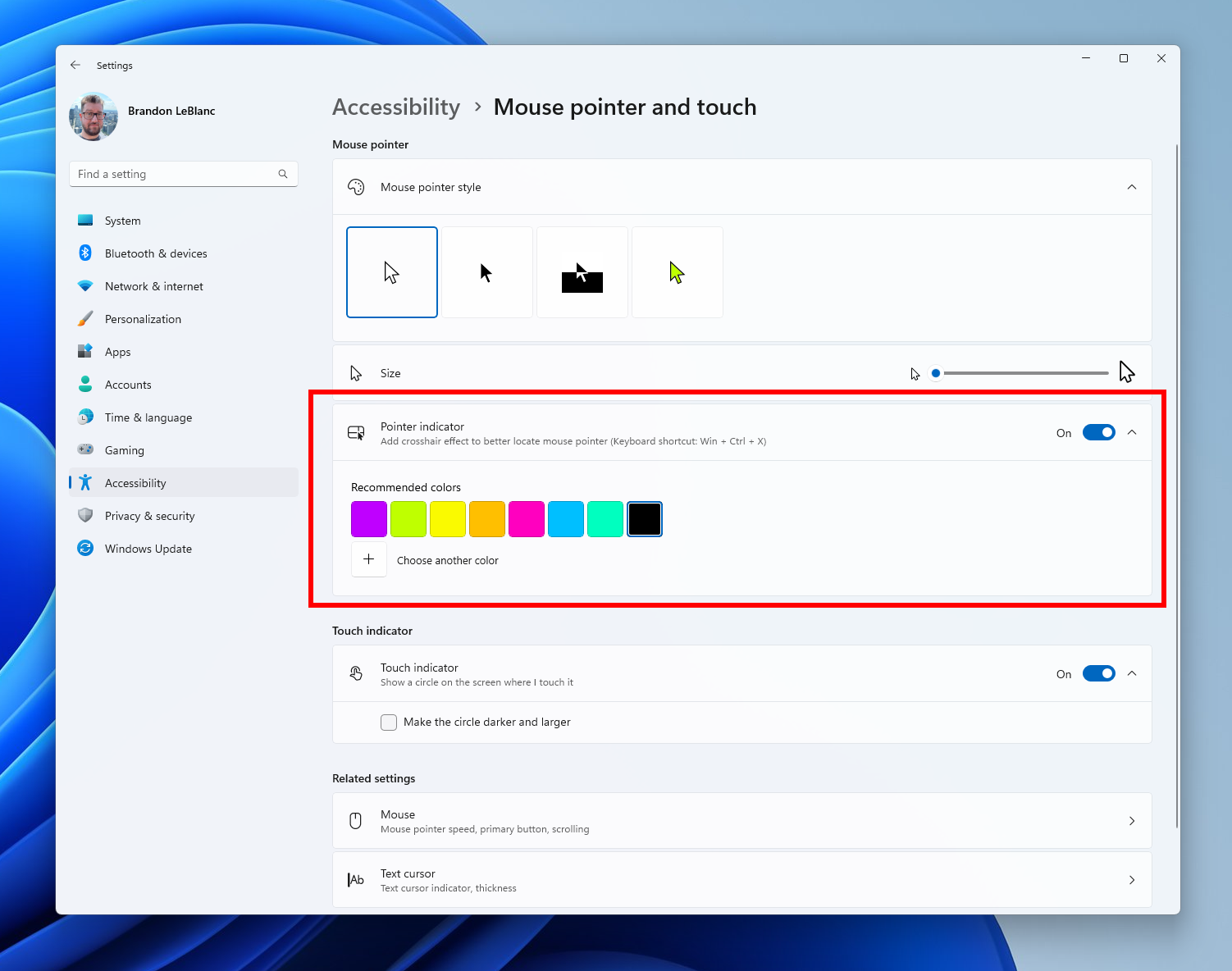
Low vision users on Windows can now easily locate and use their cursor. This will allow these users to be more productive and efficient when using a Windows device. [caption id="attachment_176872" align="alignnone" width="622"]Mouse pointer indicator shown over Settings in Windows 11. Mouse pointer indicator shown over Settings in Windows 11.[/caption] To enable this experience, go to Settings > Accessibility > Mouse pointer and touch and enable the Pointer indicator setting. You can also search for the setting by name. When the setting is enabled, you can toggle it on/off with the keyboard shortcut, Win + Ctrl + X. [caption id="attachment_176873" align="alignnone" width="616"]Settings shown for turning on the mouse pointer indicator. Settings shown for turning on the mouse pointer indicator.[/caption] FEEDBACK: Please file feedback in Feedback Hub (WIN + F) under Accessibility > Accessibility Settings.

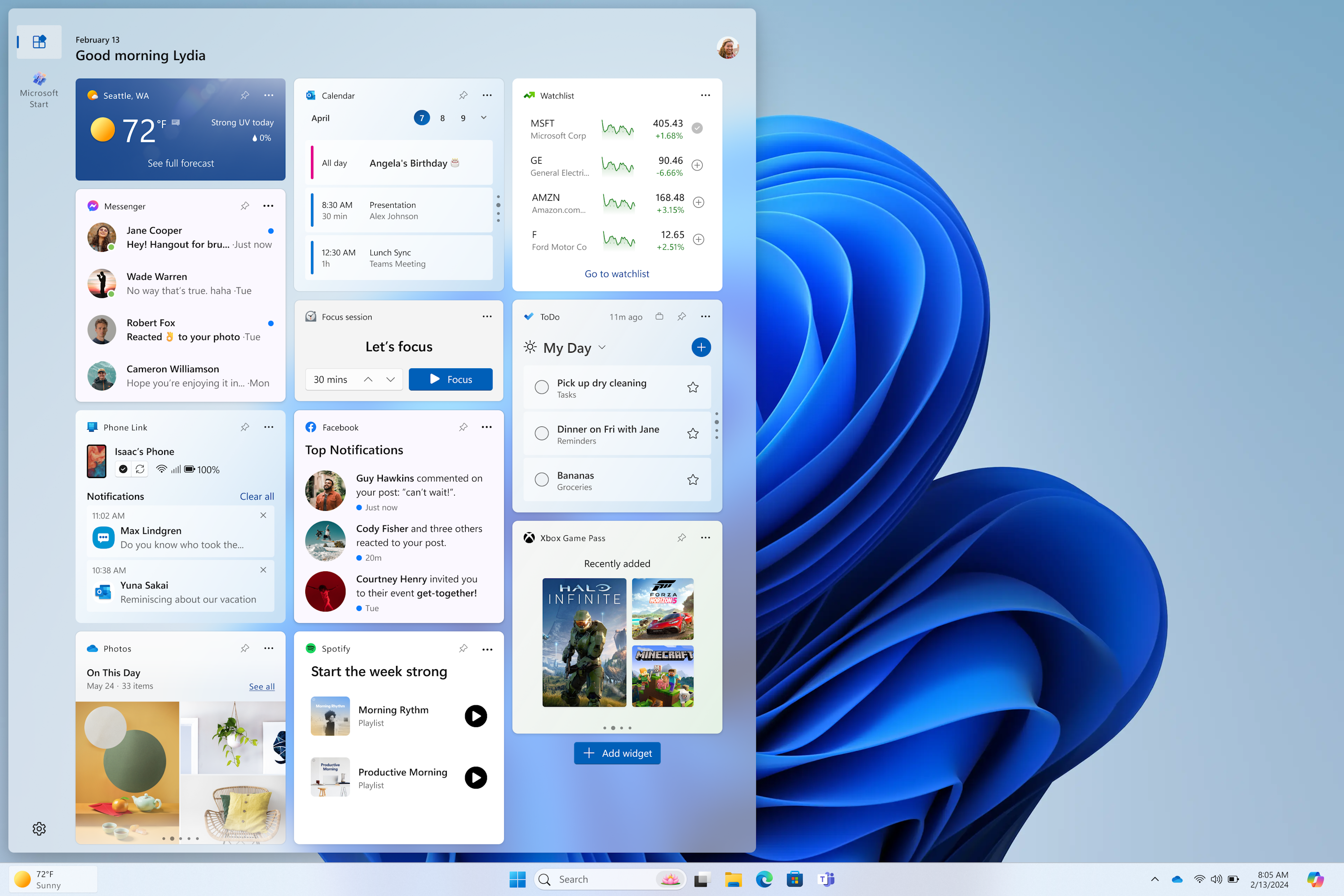
Widgets board improvements

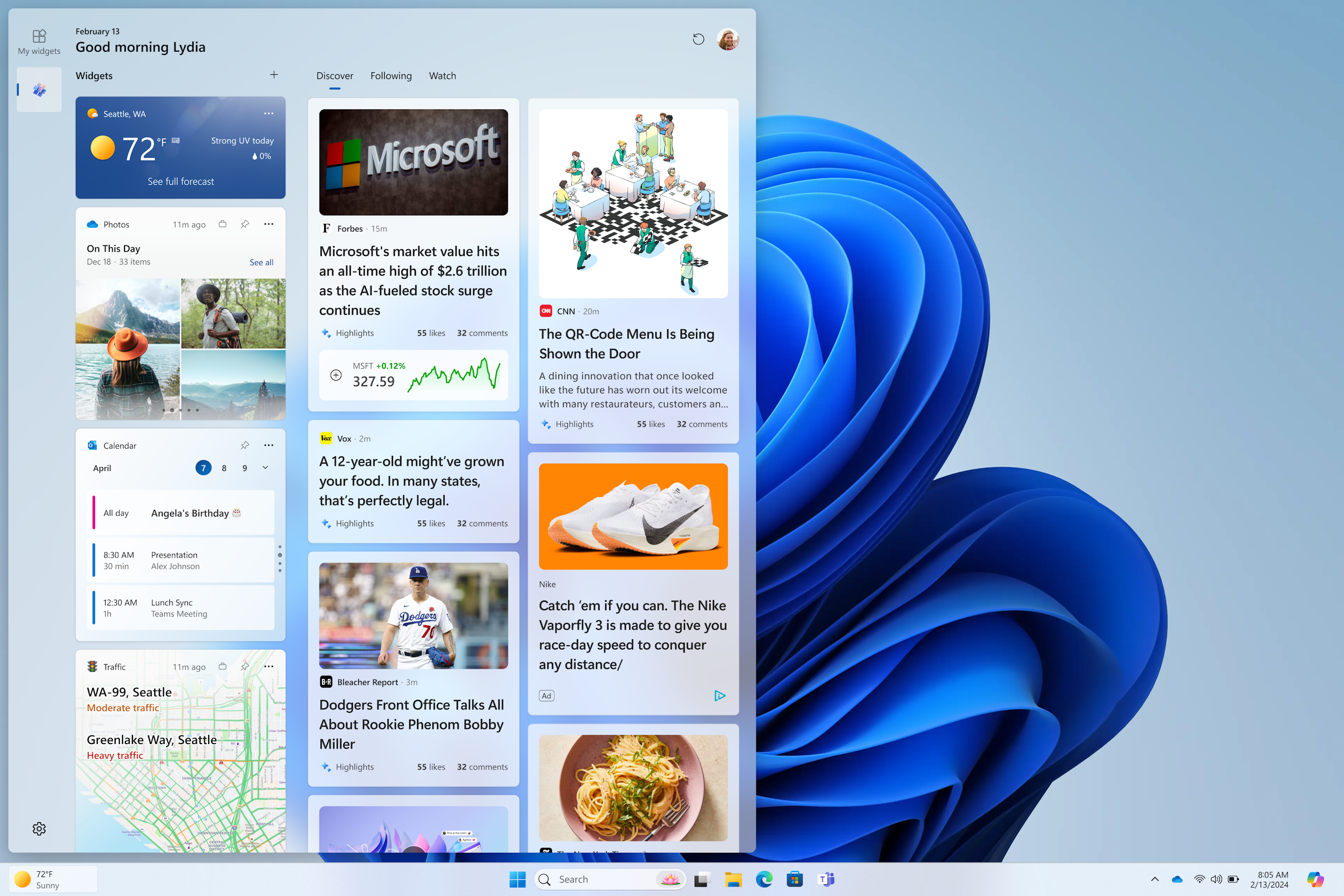
We’re continuing to evolve the widgets board experience and you can now have more space for your favorite widgets and stay on top of current events with a feed that helps you discover the world around you. With the introduction of the new navigation bar on the left, you can switch between a dedicated widgets dashboard and other integrated dashboards like Discover. Give it a try and let us know what you think using the feedback button at the top of the board. [caption id="attachment_176874" align="alignnone" width="642"]We've added a new Navigation Pane on the left that allows you to switch to My Widgets dashboard. We've added a new Navigation Pane on the left that allows you to switch to My Widgets dashboard.[/caption] [caption id="attachment_176875" align="alignnone" width="642"]A full widgets only experience from your favorite apps and services. A full widgets only experience from your favorite apps and services.[/caption] UPDATE 2/16: We have stopped the rollout of the above Widgets feature. We will begin rolling it out again after fixing a few bugs. Thanks to Insiders for all the feedback on this! FEEDBACK: Please file feedback in Feedback Hub (WIN + F) under Desktop Environment > Widgets.

New notification badging for Widgets 

We’re beginning to roll out a new badging experience for Widgets. Widgets badges will notify you when you miss an important notification on your taskbar. Below is an example of a notification badge for Widgets that shows that there are three missed notifications. [caption id="attachment_176876" align="alignnone" width="285"]Widget badging on the taskbar showing three missed notifications. Widget badging on the taskbar showing three missed notifications.[/caption] When you open the Widgets board you can see details for the notifications you missed in the top left corner of the board. [caption id="attachment_176877" align="alignnone" width="413"]Missed notifications at the top left of the widgets board. Missed notifications at the top left of the widgets board.[/caption] [We are beginning to roll this out to Windows Insiders in the Canary and Dev Channels today, so the experience isn’t available to all Insiders just yet.] FEEDBACK: Please file feedback in Feedback Hub (WIN + F) under Desktop Environment  > Widgets.

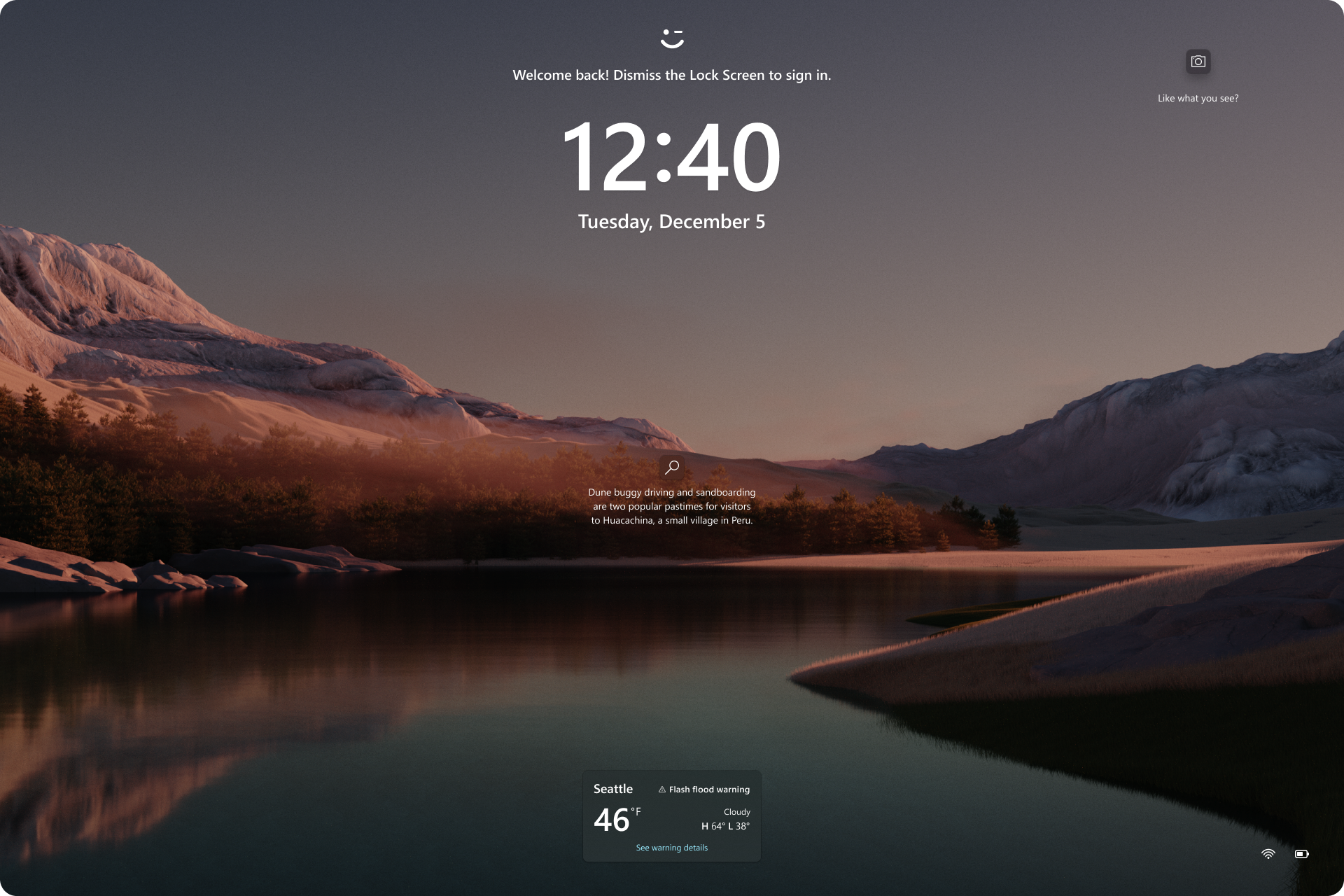
Richer weather experience on the lock screen

If you are in the Canary Channel, you should start to see the richer weather experience on your lock screen. This includes dynamic, interactive weather updates. So, as you hover over the weather experience on your lock screen, you will see more information. When you tap or click on the weather card and sign in, Microsoft Edge opens with the full forecast in MSN Weather. If you already use Weather under Settings > Personalization > Lock screen > Lock screen status, there is nothing for you to do. Also, this new experience will be on by default. Should you not want to see this experience, you can change your lock screen status to “None.”  This rich weather experience is available when you lock your screen no matter which personalization option you select (Windows spotlight, Picture, or Slideshow). [caption id="attachment_176800" align="alignnone" width="621"]Richer weather experience on the lock screen. Richer weather experience on the lock screen.[/caption] [We are currently rolling this out starting with EN-US only, so the experience isn’t available to all Insiders in the Canary or Dev Channels just yet as we plan to monitor feedback and see how it lands before pushing it out to everyone.] FEEDBACK: Please file feedback in Feedback Hub (WIN + F) under Desktop Environment > Lock screen.

Changes and Improvements

[General]

  • WIN + CTRL + S will now open voice access instead of Windows Speech Recognition (WSR). Windows 11 is transitioning from WSR to voice access. WSR is being deprecated.

[File Explorer]

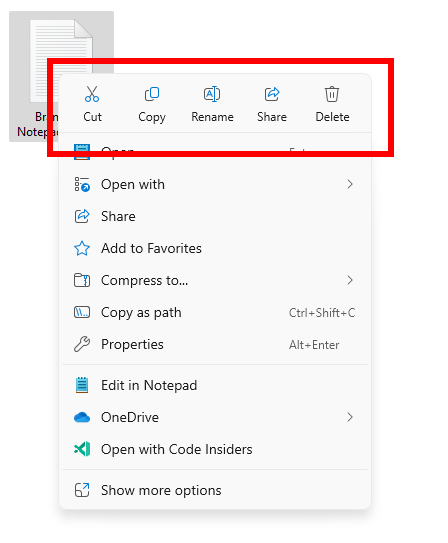
  • To make it easier to use the File Explorer context menu, labels have been added to previously unlabeled actions such as cut, copy, paste, rename, share, and delete.
[caption id="attachment_176878" align="alignnone" width="322"]Labels added to previously unlabeled actions in the File Explorer context menu. Labels added to previously unlabeled actions in the File Explorer context menu.[/caption]

[Command Prompt]

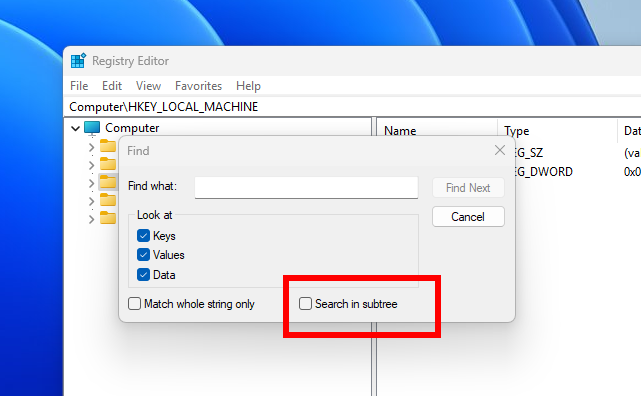
  • If you run winget, or any other package manager configured to do so, Command Prompt (CMD) will now look for changes to the PATH and update your current session. To enable a package manager to have this logic in CMD, simply add the package manager .exe name to HKEY_LOCAL_MACHINE\SOFTWARE\Microsoft\Command Processor\KnownPackageManagers.

Fixes for known issues

  • Fixed an issue causing an increase in Insiders to experience black screens after Build 26040 (particularly when waking a device from sleep). Please file feedback if you continue experiencing issues after installing this build.
  • Fixed an issue where all the added features under Settings > System > Optional Features were showing 0 bytes in the previous flight.
  • Fixed an issue where focus sessions continued to show as running in the notification center after they had ended.
  • Fixed an issue causing Windows Sandbox to unexpectedly show Windows Sandbox could not be initialized. (0x800736b3) for some Insiders in the previous flight.
  • Fixed an issue where the last checked time showing for Windows Update in Settings was wrong.

Known issues

[General]

  • [IMPORTANT NOTE FOR GAMERS – UPDATED!] Some popular games may not work correctly and cause a bugcheck (green screen) when launched on the most recent Insider Preview builds in the Canary Channel. Please be sure to submit feedback in Feedback Hub on any issues you see with playing games on these builds.
  • IMPORTANT NOTE FOR DEV DRIVE USERS: Insiders on Build 26052+ who have Dev Drives and might need to rollback will need to back up their Dev Drives BEFORE rolling back as rolling back will cause Dev Drives to break and data on them to be lost.
  • A Display Connection section is incorrectly showing up under Settings > System > Display > Graphics that when clicked, will crash Settings. This section will be removed in a future flight.
  • [NEW] Using the ISOs released today for this build to upgrade instead of doing a clean install may not work if you choose “Keep nothing” in the Windows Setup experience. To upgrade to the latest build in the Canary and Dev Channels, please use Windows Update.
  • [NEW] We are investigating an increase of reports of insiders rolling back when attempting to install the latest build (with error code 0xC1900101).
  • [NEW] Some Insiders may experience an issue where the network icon in the system tray shows they do not have an internet connection when connected to some VPNs even though the internet connection is working. Some apps might also think there isn’t an internet connection when there really is.
  • [NEW] We’re investigating an issue causing the input switcher (WIN + Space) design to revert back to an older style and draw in the wrong location.
  • [NEW] After this build is installed, there is an issue where the build will not be listed under Settings > Windows Update > Update history like it should.
  • [ADDED] In some cases, the File Explorer context menu no longer has the acrylic effect. This will be fixed in a future flight.

[Widgets]

  • [NEW] You may at times experience your widgets-only dashboard not rendering any content.

For developers

You can download the latest Windows Insider SDK at aka.ms/windowsinsidersdk. SDK NuGet packages are now also flighting at NuGet Gallery | WindowsSDK which include: These NuGet packages provide more granular access to the SDK and better integration in CI/CD pipelines. SDK flights are now published for both the Canary and Dev Channels, so be sure to choose the right version for your Insider Channel. Remember to use adaptive code when targeting new APIs to make sure your app runs on all customer machines, particularly when building against the Dev Channel SDK. Feature detection is recommended over OS version checks, as OS version checks are unreliable and will not work as expected in all cases.

Reminders for Windows Insiders

  • The Canary and Dev Channels receive builds with features and experiences that may never get released as we try out different concepts and get feedback. Features may change over time, be removed, or replaced and never get released beyond Windows Insiders. Some of these features and experiences could show up in future Windows releases when they’re ready.
  • Many features in the Canary and Dev Channel are rolled out using Controlled Feature Rollout technology, starting with a subset of Insiders and ramping up over time as we monitor feedback to see how they land before pushing them out to everyone in these channels.
  • As the Canary and Dev Channels receive the same builds, some features may begin rolling out to the Canary Channel first before the Dev Channel.
  • While the Canary Channel is now on Windows 11, version 24H2, this is just temporary. At some point in the future, the Canary Channel will jump ahead to receiving new builds not matched to any specific release in a higher build series.
  • To get off the Canary or Dev Channel, a clean install of Windows 11 will be required. As a reminder - Insiders can’t switch to a channel that is receiving builds with lower build numbers without doing a clean installation of Windows 11 due to technical setup requirements.
  • The desktop watermark shown at the lower right corner of the desktop is normal for these pre-release builds.
  • Check out Flight Hub for a complete look at what build is in which Insider channel.
  • Copilot in Windows* in preview is being rolled out gradually to Windows Insiders in select global markets. The initial markets for the Copilot in Windows preview include North America, United Kingdom and parts of Asia and South America. It is our intention to add additional markets over time.
Thanks, Amanda & Brandon

Snipping Tool and Notepad updates begin rolling out to Windows Insiders

8 février 2024 à 18:19
UPDATE 2/16: The below updates and new features for Snipping Tool and Notepad are now beginning to roll out to Windows Insiders in the Beta and Release Preview Channels. Hello Windows Insiders, today we are beginning to roll out updates to Snipping Tool and Notepad to Windows Insiders in the Canary and Dev Channels on Windows 11.

Snipping Tool (version 11.2401.32.0)

With this update, we are adding the ability to add shapes to captures in Snipping Tool, so that you can quickly add rectangles, ovals, lines, and arrows to mark up your screenshots. [caption id="attachment_176852" align="alignnone" width="1024"]Snipping Tool window open with the new shapes toolbar active. Snipping Tool window open with the new shapes toolbar active.[/caption] To get started, select the new shapes button in the toolbar, and select the desired shape (you can change the fill or outline color if you’d like). Click and drag anywhere over your image to draw a new shape. You can resize, move, or change your shape color before clicking away. Once the shape is deselected, it will merge with your image, but you can still remove shapes with the eraser tool or undo your annotations. FEEDBACK: Please file feedback in Feedback Hub (WIN + F) under Apps > Snipping Tool.

Notepad (version 11.2401.25.0)

In this update to Notepad, we are adding a new feature that helps you quickly understand content in your text files. With “Explain with Copilot”, you can ask Copilot in Windows to help explain log files, code segments, or any selected content directly from within Notepad. [caption id="attachment_176853" align="alignnone" width="1024"]Notepad app open showing new “Explain with Copilot” action on selected content. Notepad app open showing new “Explain with Copilot” action on selected content.[/caption] To try it out, highlight any text, right-click, choose "Explain with Copilot" from the menu or use the new Ctrl + E keyboard shortcut, and a detailed explanation will appear in Copilot. This feature is available on devices that have Copilot in Windows, but there is a known issue where some users might not see this new feature in Notepad right away. FEEDBACK: Please file feedback in Feedback Hub (WIN + F) under Apps > Notepad. As always, we love getting feedback from the community and we will be looking out for your thoughts and suggestions on this update! Thanks, Dave Grochocki, Principal Product Manager Lead – Windows Inbox Apps

Announcing Windows 11 Insider Preview Build 26052 (Canary and Dev Channels)

8 février 2024 à 18:04
UPDATE 2/9: Added an important known issue for Dev Drive users. Please see the known issues below. Hello Windows Insiders, today we are releasing Windows 11 Insider Preview Build 26052 to the Canary and Dev Channels. Insiders in the Canary Channel will receive Build 26052.1000 while Insiders in the Dev Channel will receive Build 26052.1100 (KB5035384) as we test delivery of a full build and a servicing update at the same time. There is no difference between the two of these as Build 26052.1100 does not include any additional code. (Arm64 devices in the Dev Channel will not receive Build 26052.1100.)

Flighting updates for Windows Insiders in the Canary & Dev Channels

Starting today, Windows Insiders in the Dev Channel are being moved from receiving 23000 series builds to receiving 26000 series builds. Insiders in the Dev Channel will gain a set of new features such as energy saver, scrollable quick settings, QR codes for Wi-Fi sharing, support for creating 7-zip and TAR archives in addition to ZIP in File Explorer, Windows protected print mode, voice clarity, along with recent Server Message Block (SMB) protocol changes and improvements to Windows Local Administrator Password Solution (LAPS), and improvements across Settings and improvements for Bluetooth and Graphics as well. Note that apps such as Tips and WordPad will be removed after upgrading to this build. The Canary and Dev Channels receiving the same builds is only temporary. During the times in which the Canary and Dev Channels are on the same builds (e.g. Build 26052), the window is open for Insiders in the Canary Channel to switch to the Dev Channel. At some point in the future, the Canary Channel will jump to higher build numbers and the window will be closed. If you are a gamer, please take note that some popular games may not work correctly or crash when launched on these builds. Over time, we expect this experience to improve as bugs get fixed. NOTE: As part of this move, rollouts for some features in the Dev Channel may get reset which means in a small number of cases features might disappear. As we ramp up feature rollouts, these features should return over time. Some features may begin rolling out to the Canary Channel first before the Dev Channel even if the two channels have the same build.

What’s new in Build 26052

Sudo for Windows 

Sudo for Windows provides a new, yet familiar way to elevate processes directly from the command-line. https://youtu.be/1MuCwhs1T18 The sudo command can be configured to run in three different modes:
  1. In a new window: A new window will open in which the elevated command will run.
  2. With input disabled: The elevated command will run inline with its stdin closed in the window from which you’ve triggered elevation. You will not be able to interact with the elevated process.
  3. Inline: The elevated command will run inline in the window from which you’ve triggered elevation. This mode is most similar to the sudo experience on other platforms.
It is recommended that you review the security considerations for each mode here before enabling the sudo command on your machine. Here is how you can enable the sudo command: Just navigate to Settings > System > For developers and toggle on the sudo command. Configure how the sudo command behaves by selected one of the modes in the drop-down menu (In a new window, with input disabled, inline). NOTE: The setting for enabling Sudo may incorrectly be showing on Windows Server Insider Preview builds – this feature will not be available on Windows Server and the setting will be disabled in a future Server Insider Preview build. FEEDBACK: Please file feedback in Feedback Hub (WIN + F) under Developer platform > command line.

Enhancements in Hearing Aid Support  

As announced in October 2023, Windows took a step forward in accessibility, allowing direct pairing, audio streaming, and smooth call handling for customers with Bluetooth® Low Energy Audio (LE Audio) supported hearing aids on LE Audio-compatible PCs. Now, we are thrilled to introduce a set of features that will take this support to the next level: We’re introducing new capabilities to control audio presets, ambient sounds, and experience enhancements to the Settings > Bluetooth & devices page. Customers can now adjust the audio presets that they or their audiologist configured in their hearing aids, right from the Settings or Quick Settings UI in Windows. These controls allow customers to quickly adjust the behavior of their hearing aids to their preference for the environment they’re in. Preset options and availability will vary based on the model and configuration of hearing aids. [caption id="attachment_176860" align="alignnone" width="595"]Control ambient sound for hearing aids in Settings. Control ambient sound for hearing aids in Settings.[/caption] We’re also introducing capabilities for customers to adjust the volume of ambient sound captured by their hearing aids. These controls adjust the balance between streamed audio and sound picked up from the surrounding environment, helping customers choose what they want to focus on. Ambient sound control availability will vary based on the model of hearing aids. These features require both your Windows device and hearing aid to support Bluetooth LE Audio. Note that not all Windows 11 PCs or hearing aids, even ones that support Bluetooth LE, have support for LE Audio. To learn more about LE Audio compatibility on Windows, please visit this link: Check if your Windows 11 PC supports Bluetooth Low Energy Audio. To learn more about LE Audio compatibility with hearing aids, consult your manufacturer or audiologist. We’ve also enhanced the Bluetooth & devices settings page to provide additional functionality. Customers will now be able to:
  • Monitor essential Bluetooth device details when available, such as battery life and connection status, through an expandable menu for each connected device.
  • For audio devices, effortlessly access the System > Sound > Properties page to control audio settings for that device.
These new enhancements are available for hearing aids and all other devices on this page. To try out this feature, go to Settings > Bluetooth & devices > Devices. [caption id="attachment_176859" align="alignnone" width="612"]Managing hearing aids in Settings. Managing hearing aids in Settings.[/caption] FEEDBACK: Please file feedback in Feedback Hub (WIN + F) under Devices and Drivers > Bluetooth – Audio quality, glitches, choppiness, and stuttering.

Audio mic test utility to test audio in different processing modes

Windows now offers a convenient way to test the difference between Default and Communication mode audio. This new utility can be found under the microphone properties via Settings > System > Sound. You can select the mode and record/listen to audio in both modes, allowing you to easily compare audio processing modes for applications built for the Windows ecosystem. Some audio drivers come with special audio effects for communications, and the toggle lets users hear how audio captured in your microphone sounds when recorded by a communications application versus a non-communications application. It's important to note that the utility is for testing purposes only and will not affect the actual mode of the audio. You can use this to try out the Voice Clarity feature in the last flight! [caption id="attachment_176861" align="alignnone" width="578"]New mic test utility in Settings. New mic test utility in Settings.[/caption] FEEDBACK: Please file feedback in Feedback Hub (WIN + F) under Devices and Drivers > Audio and sound.

Changes and Improvements

[General]

  • Starting with Build 26-xx today, Windows Insiders in the Canary and Dev Channels will see the versioning updated under Settings > System > About (and winver) to version 24H2. This denotes that Windows 11, version 24H2 will be this year’s annual feature update. As mentioned here, Windows 11 will have an annual feature update cadence that releases in the second half of the calendar year.
  • Plugging in to use a Windows Mixed Reality headset will not work starting with this build. Windows Mixed Reality is no longer available to users as Windows Mixed Reality has been announced as deprecated. This includes the Mixed Reality Portal app, and Windows Mixed Reality for SteamVR and Steam VR Beta. Existing Windows Mixed Reality devices will continue to work with Steam through November 2026, if users remain on their current released version of Windows 11 (version 23H2) and do not upgrade to this year’s annual feature update for Windows 11 (version 24H2). This deprecation does not impact HoloLens.
  • Microsoft Defender Application Guard (MDAG) is no longer available as a feature on demand starting with this build. Microsoft Defender Application Guard for Office and Edge has been announced as deprecated.

[Copilot in Windows*]

  • We are trying out a new experience for Copilot in Windows that helps showcase the ways that Copilot can accelerate and enhance your work. This experience will show when you copy text – since Copilot supports helpful actions that you can take with text content. In this scenario, the Copilot icon will change appearance and animate to indicate that Copilot can help (there are several different treatments so you may notice a different visual effect). When you hover your mouse over the Copilot icon, it will provide a menu of actions that you can take, such as summarizing or explaining the copied text. If you select an action on the menu, it will launch Copilot with the action ready-to-go. We will also support the ability to launch Copilot if you start dragging an image – just drag the image file onto the Copilot icon in the taskbar, and Copilot will open. You can then drop the image into the text box in Copilot and type an action that you would like to take on the image content. UPDATE 2/16: We have stopped the rollout of the above Copilot in Windows feature. We will begin rolling it out again after fixing a few bugs. Thanks to Insiders for all the feedback on this!
[caption id="attachment_176862" align="alignnone" width="246"]Copilot actions you can take when you mouse over the Copilot icon on the taskbar after copying some text. Copilot actions you can take when you mouse over the Copilot icon on the taskbar after copying some text.[/caption]
  • After temporarily disabling this experience to fix an issue, we are trying out opening Copilot automatically when Windows starts on widescreen devices again with some Windows Insiders in the Canary and Dev Channels. This can be managed via Settings > Personalization > Copilot. Note that this is rolling out so not all Insiders in the Canary or Dev Channels will see this right away. We’re trying this experience out on devices that have minimum diagonal screen size of 27” and pixel width of 1920 pixels and limited to primary display screens in multi-monitor scenarios. As a reminder, we regularly try out different experiences with Windows Insiders that may not ever ship, and others could show up in future Windows releases when they’re ready.
[caption id="attachment_176809" align="alignnone" width="565"]New Copilot Settings page. New Copilot Settings page.[/caption]

[Taskbar & System Tray]

  • We have updated the energy saver icon for desktop PCs (PCs without batteries). This icon is shown on the system tray when energy saver is enabled, under quick settings, and under Settings > System power & battery.
[caption id="attachment_176863" align="alignnone" width="639"]Different energy saver icons on the system tray for desktop PCs and laptops. Different energy saver icons on the system tray for desktop PCs and laptops.[/caption]

[File Explorer]

  • [ADDED 2/9] The preview thumbnail title in the taskbar, ALT + Tab and Task View for File Explorer windows will now indicate if that window includes multiple tabs.

[Bluetooth]

  • Today, when discovering available Bluetooth devices to connect to, Windows filters out device classes that are uncommon. Customers who wish to override this filter and see all nearby devices available to pair can do so by choosing “Advanced” for the “Bluetooth devices discovery” setting. Starting with this build, we are removing that option and introducing some changes to the add device workflow to streamline this experience. Now, discovery will always scan for all devices, but only show common device types by default. Whenever an “uncommon” device is found during the discovery process, an option to “Show all devices” will be displayed to the customer.

[Graphics]

  • Windows Insiders who use the Color Management Control Panel to make changes to their color profiles can now use the all-new Color management settings page located under Settings > System > Display > Color management. This new settings page will allow users to add or remove color profiles, as well as set default color profiles for the connected displays. In addition, auto color management can now be found on the new Color management settings page.
[caption id="attachment_176864" align="alignnone" width="633"]Old Color Management Control Panel and new Color Management settings page. Old Color Management Control Panel and new Color Management settings page.[/caption]

[Registry Editor]

  • The Registry Editor now supports limiting a search to the currently selected key and its descendants.
[caption id="attachment_176865" align="alignnone" width="388"]New search in subtree option for searching in Registry Editor. New search in subtree option for searching in Registry Editor.[/caption]

[Developer APIs]

  • Starting with this build, we are introducing the Power Grid Forecast API. This API empowers app developers to optimize app behavior, minimizing environmental impact by shifting background tasks to times when more renewable energy is available in the local electrical grid. The result is lower carbon emissions for app users. Please note that forecast quality varies by region and is not available globally. While the API is available in this build, we are still working on public documentation, sample code, and we have a couple of bug fixes checked in. All of this should make its way to Insiders in the coming weeks.
  • We are adding an energy saver notification callback setting GUID to represent the new energy saver experience introduced in Build 26002. Apps can subscribe to the energy saver status by passing the appropriate GUID to the PowerSettingRegisterNotification API and can implement different behaviors to optimize energy or performance depending on the current energy saver status. More details can be found in here.
  • We are making a minor extension of the existing Effective Power Mode API to interpret the new energy saver levels when determining the returned effective power mode. Documentation will be updated shortly.

[Security]

[Settings]

  • You can go Settings > Bluetooth & devices > Printers & scanners to choose to setup Windows protected print mode but clicking the setup button under “Printer preferences”. This experience will continue to be refined in future flights.
  • We moved the option to show your Wi-Fi password to the top of the Wi-Fi properties page under Settings > Network & Internet > Wi-Fi.
  • [ADDED] We have updated the UI for Storage Spaces under Settings > System > Storage > Storage Spaces to more intuitively reflect Spaces. Some key changes include: remove confusing and/misleading status icons, replace links to Disk Management with links to Disks & Volumes, share drive labels and letter, when applicable, offering an explanation for a term when hovering over it, and adding upgrade and delete pool. This UI change should provide greater ease of storage management on Windows.  

[Other]

  • We've adjusted the text in the notification when a PC detects a slow charger.
[caption id="attachment_176866" align="alignnone" width="398"]Updated notification when a PC detects a slow charger. Updated notification when a PC detects a slow charger.[/caption]
  • You can now use the Camera app to join a Wi-Fi network. Just scan a QR code with Wi-Fi details and a link will be provided that will open Settings to quickly get the new Wi-Fi profile added and connected. As a reminder, starting with Build 25977 in the Canary Channel you can create your own QR code for Wi-Fi and share it with others. This also works for mobile hotspots too.
[caption id="attachment_176867" align="alignnone" width="520"]Scan a QR code with Wi-Fi details in the Camera app to quickly connect to a Wi-Fi network. Scan a QR code with Wi-Fi details in the Camera app to quickly connect to a Wi-Fi network.[/caption]

Fixes for known issues

  • We fixed the issue where in some multi-monitor configurations, a display would appear as frozen in Build 26040.
  • Fixed a DWM issue in Build 26040 causing some rendering issues.
  • Fixed an issue causing Build 26040 flight to fail to install for some Insiders with error code 0x80188306.
  • Fixed an issue causing the print queue to not open in recent Canary Channel flights.
  • Did some more work to help improve the launch performance of File Explorer.
  • Fixed multiple crashes impacting system tray and its flyouts.
  • The volume slider in quick settings will now make a sound when adjusted again.
  • When using the save dialog, if you try to save a file to Gallery in File Explorer, it will now save to your Pictures library rather than showing an error.

Known issues

[General]

  • [IMPORTANT NOTE FOR GAMERS – UPDATED!] Some popular games may not work correctly and cause a bugcheck (green screen) when launched on the most recent Insider Preview builds in the Canary Channel. Please be sure to submit feedback in Feedback Hub on any issues you see with playing games on these builds.
  • Content in some video streaming apps from the Microsoft Store may not play. As a workaround, try streaming from a browser.
  • [NEW] We’re working on the fix for an issue causing an increase in Insiders experiencing black screens starting with Build 26040 (including when waking your PC from sleep). If you encounter this, pressing WIN + CTRL + Shift + B may resolve it.
  • [ADDED] A Display Connection section is incorrectly showing up under Settings > System > Display > Graphics that when clicked, will crash Settings. This section will be removed in a future flight. 
  • [ADDED 2/9] IMPORTANT NOTE FOR DEV DRIVE USERS: Insiders on Build 26052 who have Dev Drives and might need to rollback will need to back up their Dev Drives BEFORE rolling back as rolling back will cause Dev Drives to break and data on them to be lost.

[Widgets]

  • Keyboard navigation from settings subpages back to the top-level Settings page is broken.

Microsoft Store Update

Windows Insiders in the Canary and Dev Channels running version 22401.xxxx.x of the Microsoft Store and higher will see the following improvement rolling out: New and improved pages for Microsoft 365: We've improved the Microsoft 365 pages to better describe all the benefits included in the subscription. You can compare between monthly and annual plans to determine what's best for you, and you can browse the features in various apps included in Microsoft 365. [caption id="attachment_176868" align="alignnone" width="532"]Example of improved Microsoft 365 page in the Microsoft Store. Example of improved Microsoft 365 page in the Microsoft Store.[/caption] FEEDBACK: Please file feedback in Feedback Hub (WIN + F) under Microsoft Store.

For developers

You can download the latest Windows Insider SDK at aka.ms/windowsinsidersdk. SDK NuGet packages are now also flighting at NuGet Gallery | WindowsSDK which include: These NuGet packages provide more granular access to the SDK and better integration in CI/CD pipelines. SDK flights are now published for both the Canary and Dev Channels, so be sure to choose the right version for your Insider Channel. Remember to use adaptive code when targeting new APIs to make sure your app runs on all customer machines, particularly when building against the Dev Channel SDK. Feature detection is recommended over OS version checks, as OS version checks are unreliable and will not work as expected in all cases.

Reminders for Windows Insiders

  • The Canary and Dev Channels receive builds with features and experiences that may never get released as we try out different concepts and get feedback. Features may change over time, be removed, or replaced and never get released beyond Windows Insiders. Some of these features and experiences could show up in future Windows releases when they’re ready.
  • Many features in the Canary and Dev Channel are rolled out using Controlled Feature Rollout technology, starting with a subset of Insiders and ramping up over time as we monitor feedback to see how they land before pushing them out to everyone in these channels.
  • As the Canary and Dev Channels receive the same builds, some features may begin rolling out to the Canary Channel first before the Dev Channel.
  • While the Canary Channel is now on Windows 11, version 24H2, this is just temporary. At some point in the future, the Canary Channel will jump ahead to receiving new builds not matched to any specific release in a higher build series.
  • To get off the Canary or Dev Channel, a clean install of Windows 11 will be required. As a reminder - Insiders can’t switch to a channel that is receiving builds with lower build numbers without doing a clean installation of Windows 11 due to technical setup requirements.
  • The desktop watermark shown at the lower right corner of the desktop is normal for these pre-release builds.
  • Check out Flight Hub for a complete look at what build is in which Insider channel.
  • Copilot in Windows* in preview is being rolled out gradually to Windows Insiders in select global markets. The initial markets for the Copilot in Windows preview include North America, United Kingdom and parts of Asia and South America. It is our intention to add additional markets over time.
Thanks, Amanda & Brandon

Announcing Windows 11 Insider Preview Build 22635.3140 (Beta Channel)

8 février 2024 à 18:04
Hello Windows Insiders, today we are releasing Windows 11 Insider Preview Build 22635.3140 (KB5034851) to the Beta Channel. REMINDER: All Windows Insiders in the Beta Channel will now be on the same build (Build 22635.xxxx) via an enablement package. For Windows Insiders in the Beta Channel who want to be the first to get features gradually rolled out to you, you can turn ON the toggle (shown in the image below) to get the latest updates as they are available via Settings > Windows Update. Over time, we will increase the rollouts of features to everyone with the toggle turned on. Should you keep this toggle off, new features will gradually be rolled out to your device over time once they are ready. [caption id="attachment_176587" align="alignnone" width="673"]Turn on the toggle to get the latest updates as they are available to get new features rolled out to you. Turn on the toggle to get the latest updates as they are available to get new features rolled out to you.[/caption] Going forward, we will document changes in Beta Channel builds in two buckets: new features, improvements, and fixes that are being gradually rolled out for Insiders who have turned on the toggle to get the latest updates as they are available and then new features, improvements, and fixes available to everyone in the Beta Channel.

Changes and Improvements gradually being rolled out to everyone in the Beta Channel

[Copilot in Windows*]

  • We are making a change where the Copilot icon is shown on the right side of the system tray on the taskbar to make the entry point to Copilot more clear and easily accessible by being closer to where the Copilot pane opens. As part of this change, we have defaulted the “show the desktop” behavior for the far-right corner of the taskbar to off and this can be re-enabled in the taskbar behaviors section under Settings > Personalization > Taskbar (you can simply right-click on the taskbar to get to this). This is just beginning to roll out to Insiders in the Beta Channel so not every will see this change right away.
[caption id="attachment_176858" align="alignnone" width="364"]The Copilot on the right side of the system tray on the taskbar. The Copilot on the right side of the system tray on the taskbar.[/caption]

[Start menu]

  • We’re trying out grouping recently added apps on your PC into a folder under the Recommended section of Start with some Windows Insiders in the Dev Channel. Note that this is rolling out so not all Insiders in the Beta Channel will see this right away.
[caption id="attachment_176666" align="alignnone" width="343"]Grouping of recently added apps under the Recommended section of the Start menu. Grouping of recently added apps under the Recommended section of the Start menu.[/caption]
  • For people logged into Windows 11 Pro or Enterprise editions with a Microsoft Entra ID account, we are trying out the ability to view and join upcoming Microsoft Teams meetings directly from the Start menu. The next online Teams meeting will show up as a Recommended item 5 minutes before it begins, clicking the meeting recommendation will open the join meeting flow in Teams. Note that this is rolling out so not all Insiders in the Beta Channel will see this right away.
[caption id="attachment_176821" align="alignnone" width="457"]Join upcoming Microsoft Teams meetings directly Start menu. Join upcoming Microsoft Teams meetings directly Start menu.[/caption]

About the Beta Channel

The Beta Channel is the place we preview experiences that are closer to what we will ship to our general customers. Because the Dev and Beta Channels represent parallel development paths from our engineers, there may be cases where features and experiences show up in the Beta Channel first. However, this does not mean every feature we try out in the Beta Channel will ship. We encourage Insiders to read this blog post that outlines the ways we’ll try things out with Insiders in both the Dev and Beta Channels. *Getting new features: For Windows Insiders in the Beta Channel who want to be the first to get features gradually rolled out to you, you can turn ON the toggle to get the latest updates as they are available via Settings > Windows Update. Over time, we will increase the rollouts of features to everyone with the toggle turned on. Should you keep this toggle off, new features will gradually be rolled out to your device over time once they are ready. **Availability of Copilot in Windows: Copilot in Windows in preview is being rolled out gradually to Windows Insiders in select global markets. The initial markets for the Copilot in Windows preview include North America, United Kingdom and parts of Asia and South America. It is our intention to add additional markets over time.

Important Insider Links

Thanks, Amanda & Brandon
❌
❌