
 Connexion
Previewing a refreshed Link to Windows experience for Android phones
24 juillet 2025 à 16:13
Hello Windows Insiders,
We’re excited to begin rolling out an update for the Link to Windows app that includes a refreshed experience for Windows Insiders. This update brings a modernized design, smarter onboarding, and new ways to access content and remotely control your PC including the ability to lock your PC — all from your Android phone. Please note that this experience is rolling out, so not all Insiders will see it right away.
Whether you're already using Link to Windows and Phone Link or just getting started, this update is designed to make your cross-device experience more seamless, intuitive, and powerful.
 The refreshed Link to Windows experience on an Android phone.[/caption]
A new home for connected experiences
We’ve reimagined the Link to Windows app as a connected PC experience hub — a central place where you can access, share, and control content between your Android phone and Windows PC.- Recent activity: Quickly access your most recently received files and clipboard items of your PC.
- PC at a glance: Check your PC’s battery, and Wi-Fi status from your phone.
- Remote actions from Link to Windows:
- Send files to your PC from within Link to Windows.
- Lock your PC remotely when PC is connected.
- Mirror your phone’s screen to your PC.
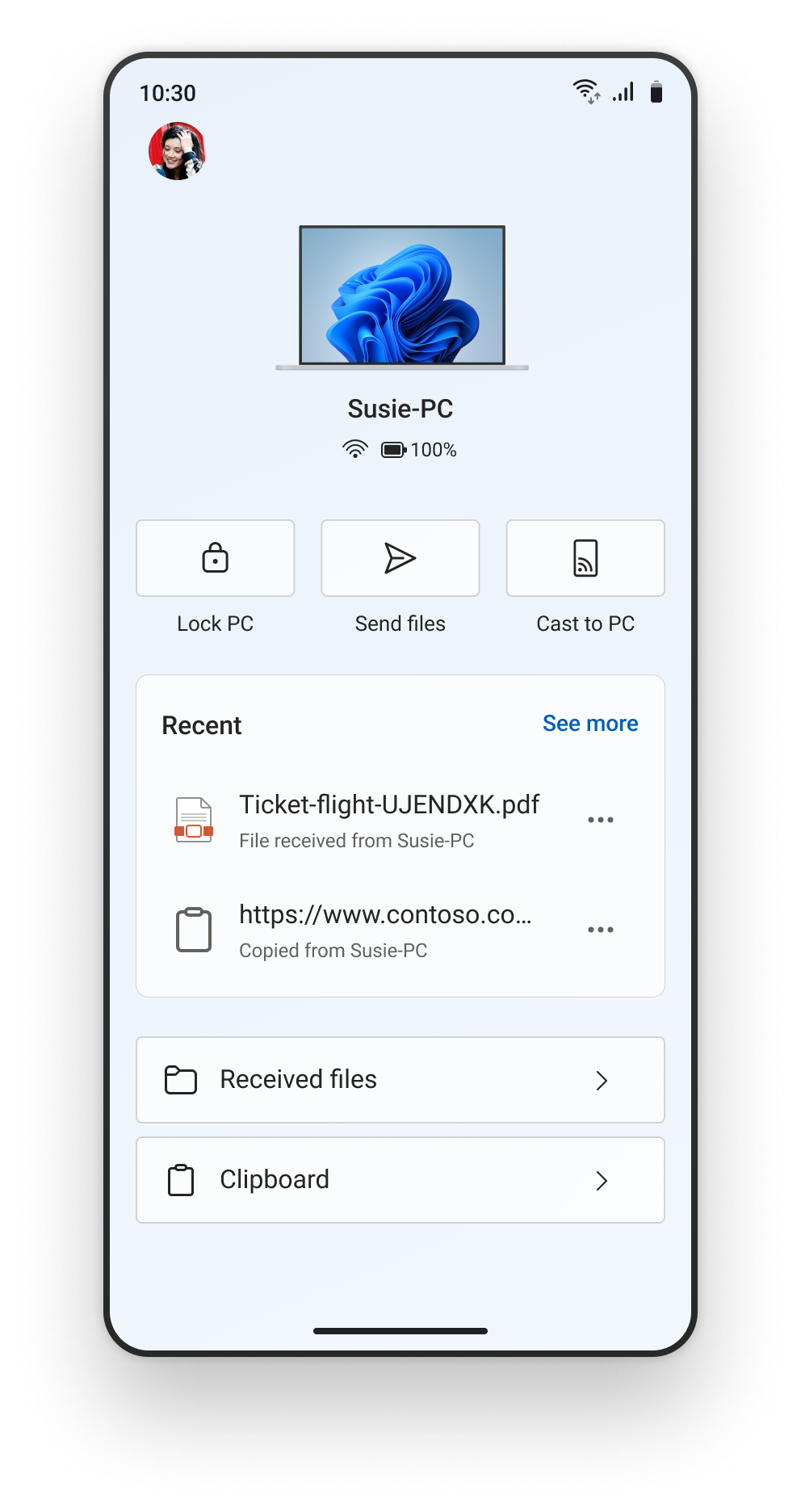 The refreshed Link to Windows experience on an Android phone.[/caption]
More intuitive onboarding for getting started
We’re updating the onboarding experience that lets you set up Link to Windows directly from your Android device — no PC required to get started. This helps you discover the value of connected experiences right away, with contextual permission prompts and a simplified setup with clear instructions on what to do next when you get to your PC. These features are designed to give you more control and flexibility, especially when you're away from your desk.How to try out the refreshed Link to Windows experience on your Android phone
Here is how Windows Insiders can try out the new refreshed Link to Windows experience for their Android phone today:- Make sure you’re running the latest Windows Insider Preview build on your PC from any Insider Channel and Phone Link version is 1.25062.83.0 or higher.
- Opt-in to the Link to Windows Beta from the Play Store.
- Update the Link to Windows app from the Play Store and ensure the version is 1.25071.155 or higher.
- Pair your Android phone to your PC from Link to Windows on your phone and Phone Link on your PC.
- Finally, go to Windows Settings > Bluetooth & devices > Mobile devices > Manage devices and ensure you are logged in with the same Microsoft account as Link to Windows and see your Android phone listed and enabled.
Give feedback
Be sure to give us feedback and let us know what you think as you try out the refreshed Link to Windows experience:- Directly from Link to Windows on your Android phone via Phone > Give Feedback > Link to Windows.
- Or by using Feedback Hub and submitting feedback under Devices and Drivers > Linked devices.


