❌

Vue lecture

Il y a de nouveaux articles disponibles, cliquez pour rafraîchir la page.

AI-powered Auto-Categorization now available in Microsoft Photos

Hello Windows Insiders, We’re excited to announce an update to the Microsoft Photos app, now rolling out on Windows 11 across all Insider channels. This release brings a powerful new feature on Copilot+ PCs that leverages AI to organize photos into categories for easier recall.
Auto-Categorization

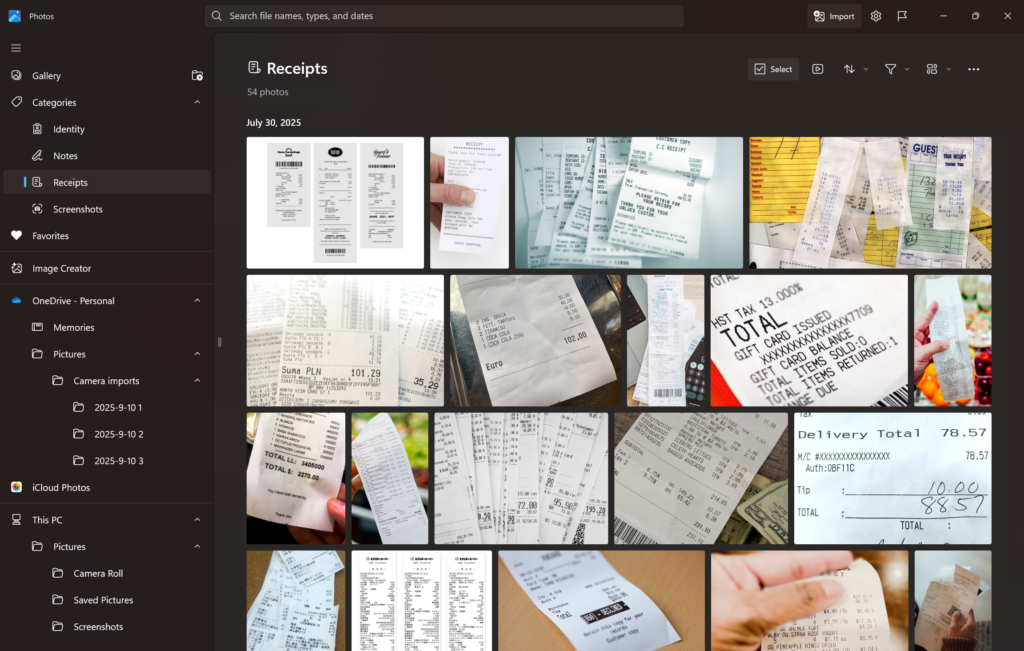
Auto-Categorization automatically detects and organizes your photo collection into meaningful categories like screenshots, receipts, identity documents, and notes using AI. It’s designed to save time, reduce clutter, and make your photo library easier to navigate. [caption id="attachment_178269" align="alignnone" width="1024"]A photo showing Windows Photos app categorizing images of Receipts using the AI powered Auto-categorization feature. A photo showing Windows Photos app categorizing images of Receipts using the AI powered Auto-categorization feature.[/caption] How Auto-Categorization works:
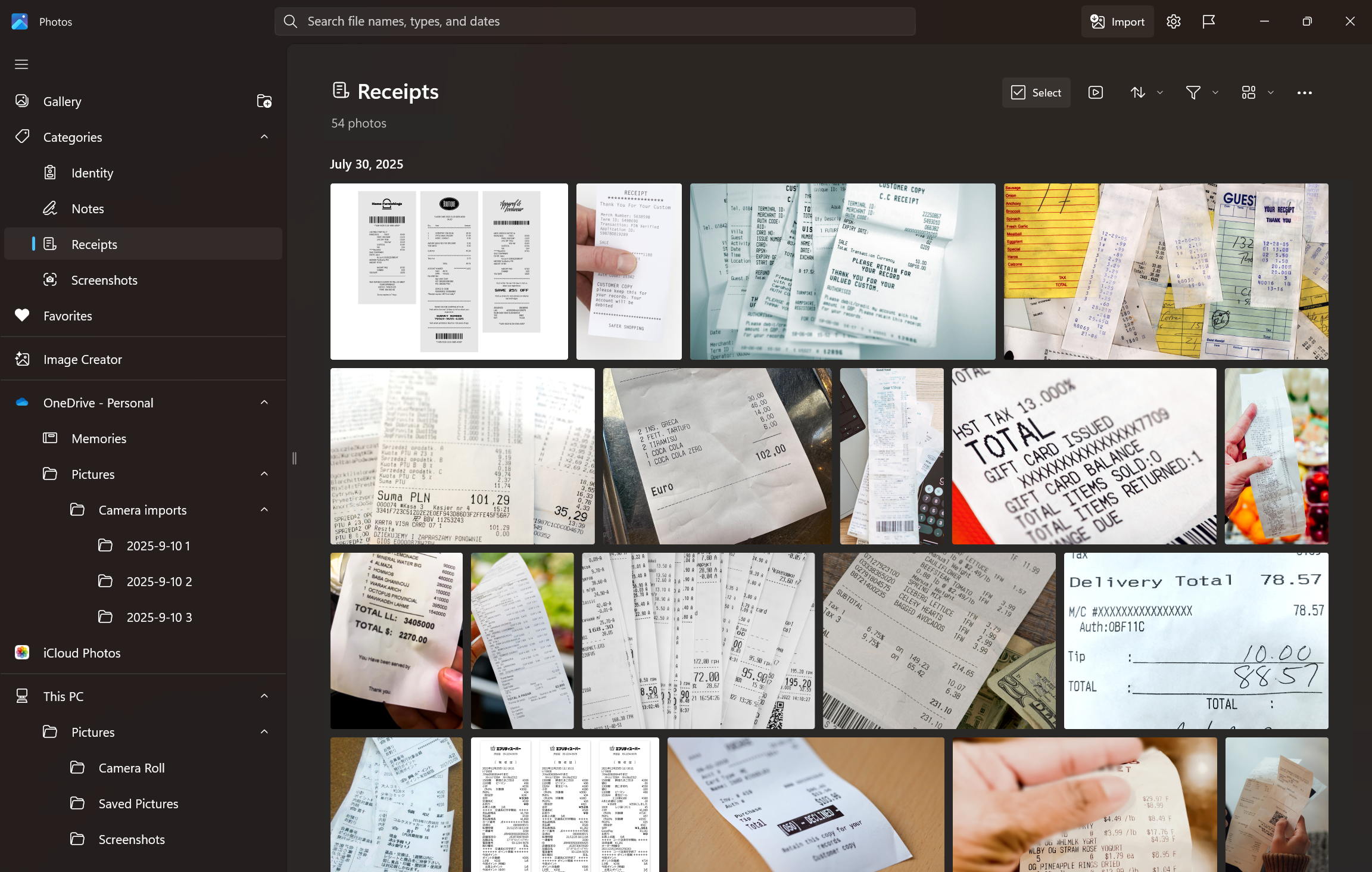
  • Smart sorting into categories: Photos are automatically grouped into predefined folders based on visual content, such as handwritten notes, printed documents, or receipts.
  • Language-agnostic recognition: The AI model can identify document types regardless of the language in the image. For example, a Hungarian passport will still be categorized as “Passport,” even if the text isn’t in English.
  • Explore your organized photo library with Auto-Categorization in Photos.
  • Use the Left Nav or Search bar to find categorized images instantly.
  • Change categories manually or provide feedback to improve accuracy.
NOTE: Auto-Categorization is available on Copilot+ PCs and categories are limited to four categories (screenshots, receipts, identity documents, and notes).

Other fixes and improvements

  • Super Resolution is now available across Snapdragon, AMD and Intel® powered Copilot+ PCs and will prompt you to download the model package.
Please make sure to update your app to version 2025.11090.25001.0 or higher via the Microsoft Store. This update is currently rolling out, so it (and above-mentioned features and improvements) may not be available right away. As always, we love getting your feedback so please share your thoughts in Feedback Hub (Win + F) under Apps > Photos. Thanks, Ronnie Myers, Senior Product Manager

Paint, Snipping Tool, and Notepad app updates begin rolling out to Windows Insiders

UPDATE 9/24: The following updates and features for Paint, Snipping Tool, and Notepad are now rolling out to Windows Insiders in the Beta and Release Preview Channels. Hello Windows Insiders, today we are beginning to roll out updates to Snipping Tool to Windows Insiders in the Canary and Dev Channels on Windows 11.

Paint (version 11.2508.361.0)

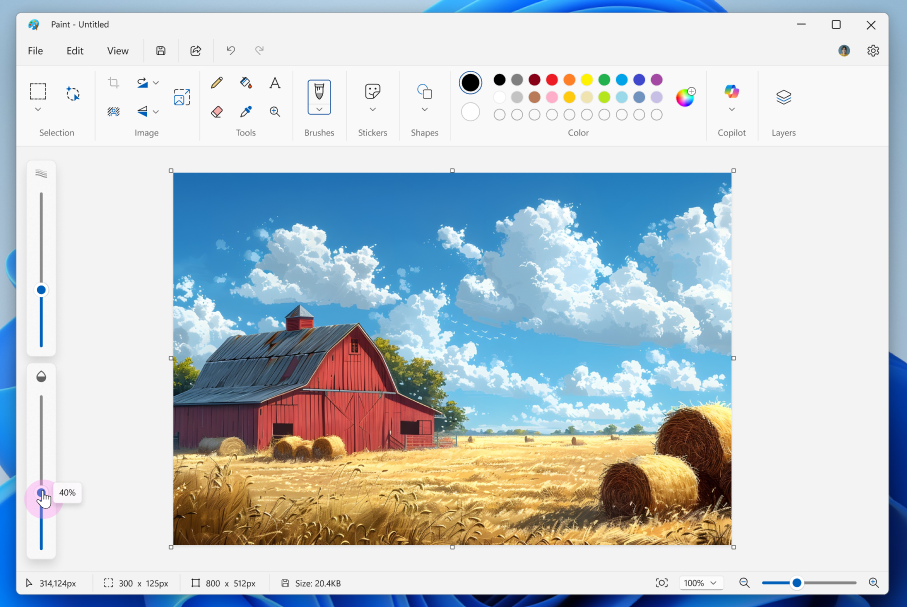
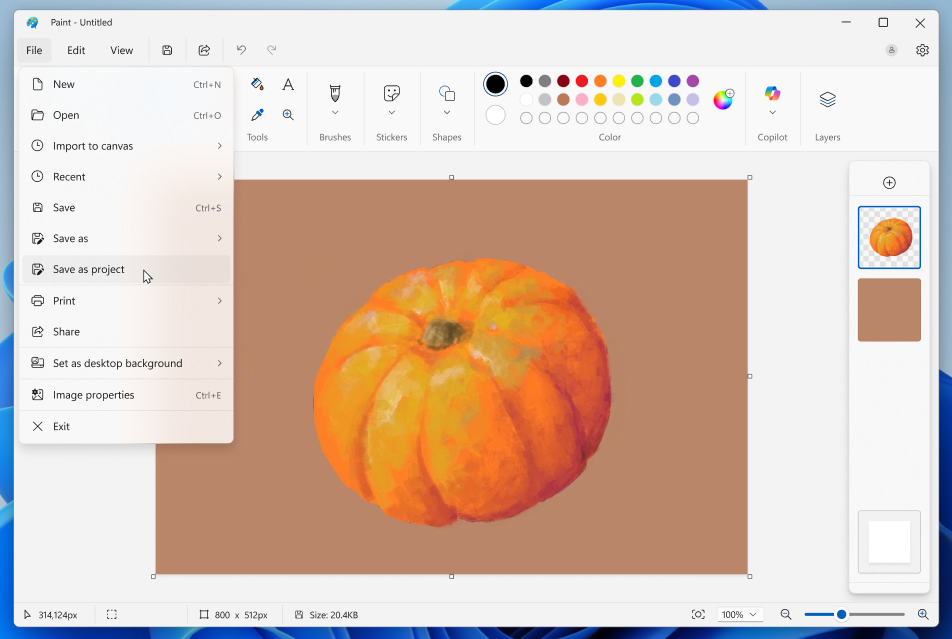
In this update, we’re excited to introduce two powerful enhancements that bring more flexibility to your creative workflow. First, we’re introducing project files, you can now save your creation as an editable Paint project file and seamlessly pick up where you left off. Once you're ready to save your artwork, go to the File menu and select Save as project. The File Explorer will open, allowing you to choose a location and save your work as a .paint file. When you're ready to return, simply open the file to launch it in Paint, right where you left off. [caption id="attachment_178246" align="alignnone" width="952"]Paint app screenshot of pumpkin and saving as a project file. Paint app screenshot of pumpkin and saving as a project file.[/caption] We’re also adding an opacity slider, giving you control over the transparency of your strokes with the Pencil and Brush tools. To get started, select either tool and use the slider on the left side of the canvas to adjust the opacity to your desired level. Try experimenting with both the size and opacity sliders to create smooth blends and layered effects that bring your artwork to life. [caption id="attachment_178247" align="alignnone" width="907"]Paint app screenshot of barn with opacity adjusting to 40%. Paint app screenshot of barn with opacity adjusting to 40%.[/caption] FEEDBACK: Please file feedback in Feedback Hub (WIN + F) under Apps > Paint.

Snipping Tool (version 11.2508.24.0)

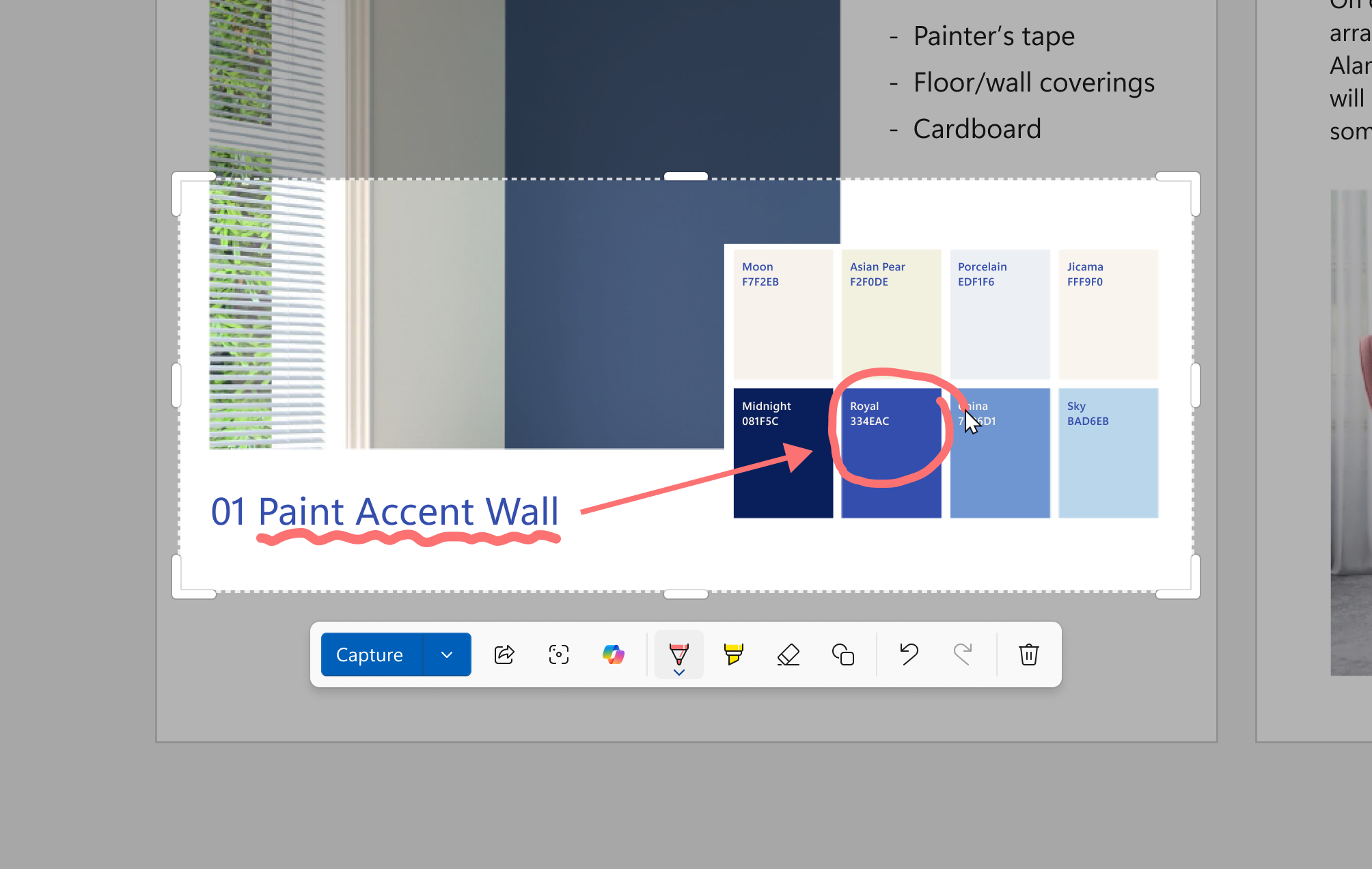
In this update, we’re introducing Quick markup – a faster way to annotate your screenshots and streamline your workflow! [caption id="attachment_178248" align="alignnone" width="438"]Snipping Tool Capture Toolbar with the cursor hovering over the new Quick markup tool. Snipping Tool Capture Toolbar with the cursor hovering over the new Quick markup tool.[/caption] To get started, open Snipping Tool via Win + Shift + S or launch the app directly. Before capturing your selection area, you’ll now see a Quick markup button in the top toolbar. Click on this button to toggle the feature on, or use the keyboard shortcut Ctrl + E. Once the button is on, go ahead and select your selection region. You’ll notice after this, you’ll be able to markup and make edits to your image right in Snipping Tool’s selection area before finalizing your screenshot! [caption id="attachment_178249" align="alignnone" width="1024"]Snipping Tool Quick markup toolbar with a screenshot of color swatches. A single color is circled with the pen tool using Quick markup to bring attention to it. Snipping Tool Quick markup toolbar with a screenshot of color swatches. A single color is circled with the pen tool using Quick markup to bring attention to it.[/caption] In the Quick markup toolbar, you’ll find the classic pen, highlighter, and eraser tools, along with shapes and emojis to make quick edits to your image. Re-cropping the selection area can be done with the grabbers around the perimeter. You’ll also be able to streamline your workflows by clicking on the Share, Visual Search with Bing, or Ask Copilot buttons. Please note that for these options, the image will not be copied to your clipboard or autosaved. FEEDBACK: Please file feedback in Feedback Hub (WIN + F) under Apps > Snipping Tool.

Notepad (version 11.2508.28.0)

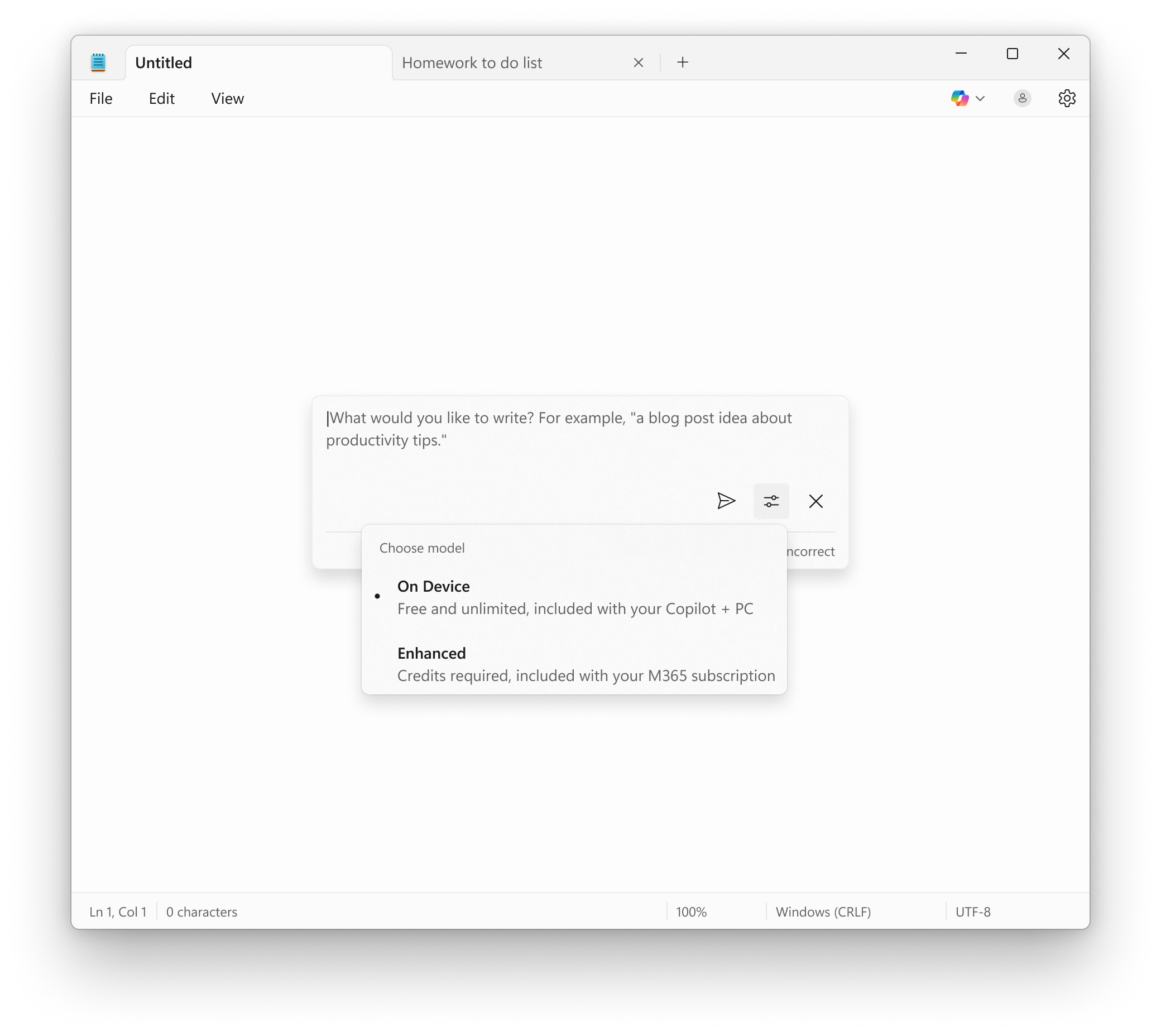
Notepad now supports AI features like Summarize, Write, and Rewrite on Copilot+ PCs, with no subscription required. If you have a subscription, you can seamlessly switch between local and cloud models based on your needs. If you’re not signed in or don’t have a subscription, you can use the local model to accomplish your tasks. For now, these features support English only, making premium AI more accessible and flexible for everyone. [caption id="attachment_178250" align="alignnone" width="1024"]Notepad showing Write prompt with the ability to use the local model on your Copilot+ PC without a subscription. Notepad showing Write prompt with the ability to use the local model on your Copilot+ PC without a subscription.[/caption] FEEDBACK: Please share your feedback in Feedback Hub (WIN + F) under Apps > Notepad. As always, we love getting feedback from the community and we will be looking out for your thoughts and suggestions on these updates! Thanks, Dave Grochocki, Principal Group Product Manager – Windows Inbox Apps

Releasing Windows 11 Builds 26100.6713 and 26200.6713 to the Release Preview Channel

[UPDATE 9/17] We are releasing Builds 26100.6718 and 26200.6718 KB5065789) today which is a small update that includes some additional changes noted in the updated blog post below. Hello Windows Insiders, today we’re releasing Windows 11 Builds 26100.5061 and 26200.6713 (KB5065789) to Insiders in the Release Preview Channel on Windows 11, version 24H2 (Build 26100) and version 25H2 (Build 26200). Below is a summary of the new features and improvements included as part of this update separated into two sections: gradual rollout and normal rollout. The bold text within the brackets indicates the item or area of the change we are documenting.

Gradual rollout

The following features and improvements might not be available to all users because they will roll out gradually. Text bolded in brackets indicate the area of the change being documented. Please note that features and improvements that gradually roll out may not begin rolling out right away nor will they immediately show up right away.
  • [Click to Do]
    • New! Click to Do can now detect tables. You can now highlight any simple table and send it to Excel, copy or share it. With a table in any application, you can press Win + Click to invoke Click to Do, or Win + Q or right swipe and tap to select the table. Once selected, you’ll see the actions you can take like Convert to table with Excel. Just click, capture and continue. This is available on Snapdragon-powered Copilot+ PCs, with support for AMD and Intel-powered Copilot+ PCs coming soon. You’ll need the latest Microsoft Excel application installed on your PC to see Convert to table with Excel and a Microsoft 365 Subscription. This change is not yet rolling out to Windows Insiders in the EEA (European Economic Area). [UPDATE 9/17] This feature will roll out in a future update.
    • New! New and popular action tags in the Click to Do context menu help you discover the latest and most widely used AI-powered actions.
    • New! Click to Do now provides more concise summaries with the Summarize action. The output for text entities is shorter and more focused. Ongoing improvements continue to enhance clarity and precision.
  • [Agents in Settings] New! A direct navigation link to the corresponding settings page is now available from agent search results. This improvement is currently rolling out to agents in Settings on Copilot+ PCs.
  • [Desktop] New! You can now move the hardware indicators for brightness, volume, airplane mode, and virtual desktops to different positions on your screen. To change their position, go to Settings > System > Notifications, and then pick from the options in the Position of the onscreen pop-up in the dropdown list.
  • [Taskbar] New! IT administrators no longer need to restart explorer.exe to apply the pinning policy. After applying the policy, users might see a pin on their taskbar within approximately 8 hours, depending on the refresh interval.
  • [Notification Center] [ADDED 10/2] New! The Notification Center functionality is now available on secondary monitors. To open it, select the date and time in the system tray on the taskbar. With the August 2025 non-security update (KB5064081), you can also show a larger clock with seconds above the calendar.
  • [File Explorer]
    • New! Use AI actions in File Explorer to edit images or summarize documents. Just right click (or press Shift +F10) on the file and select AI actions. This experience is not yet available for customers in the EEA (European Economic Area).
      • Image actions: You can now use four AI-powered image actions with .jpg, .jpeg, and .png files. Visual Search searches the web using an image instead of text. Blur Background opens the Photos app to highlight the subject and blur the background. Erase Objects removes unwanted elements from your photo. Remove Background uses Paint to change any image leaving a smooth cut out the subject.
      • AI actions in Microsoft 365 make it easier to work with your documents. With the Summarize action in Copilot, you can quickly generate summaries of files stored in OneDrive and SharePoint—no need to open each one. This AI action requires an active Microsoft 365 subscription and a Copilot license (Microsoft account and Microsoft Entra ID supported).
    • Improved: The File Explorer context menu has been updated to remove the accent colored backplate behind packaged app icons in the Open With list when right clicking a file (for example, for Snipping Tool). In doing this, the icons should be easier to see now.
    • Improved: Made underlying changes to help improve the performance of launching cloud files from File Explorer and loading context menus.
    • Fixed: Icons and text may become overlapping on the desktop when using increased text scaling.
    • Fixed: Icons in the details, preview, and navigation panes of File Explorer aren’t properly mirrored when using an Arabic or Hebrew display language.
  • [Windows Share] New! You can pin your favorite apps in the Windows share window to quickly access them when you need them.
  • [Emoji] New! The Emoji 16.0 release includes a small but meaningful set of new emoji— Face with Bags Under Eyes, Fingerprint, Root Vegetable, Leafless Tree, Harp, Shovel, and Splatter. These new emoji are designed to resonate across cultures and contexts. You’ll find them in the emoji panel starting with this build. [UPDATE 9/29] This feature will roll out in a future update.
  • [Advanced Settings] New! The redesigned Advanced settings page (Settings > System > Advanced) is an update of the For Developers page and makes it easier to find key options. Settings include  File Explorer + version control, which shows Git details such as branch, diff count, and last commit message directly in File Explorer when you select a repository folder.
  • [Automatic Super Resolution (Auto SR)] New! Auto SR on Snapdragon®-powered Copilot+ PCs helps gamers improve visual quality with minimal effort through simplified settings. When a supported game is launched, Windows displays a notification that allows users to turn on Auto SR with a single click. The feature is now easier to find and manage in Graphics settings, and future updates might enable users to turn on Auto SR directly from the Game Bar during gameplay. [UPDATE 9/29] This feature will roll out in a future update.
  • [Input]
    • New! Insert dashes with new keyboard shortcuts. You can quickly insert an en dash (–) or em dash (—) while typing.  Press Windows logo key + Minus (-) to insert an en dash, and Windows logo key + Shift + Minus (-) to insert an em dash. If Magnifier is running, Windows logo key + hyphen (-) will zoom out Magnifier instead of inserting an en dash.
    • Fixed: After waking a PC from sleep, touch input may not work to enter your pin on the login screen.
  • [Narrator]
    • New! Narrator now includes Braille Viewer, which shows both on-screen text and its Braille equivalent on a refreshable Braille display. To open Braille viewer and start Narrator, press the Windows logo key + Ctrl + Enter, press Narrator key + Alt + B. A new floating window opens and updates dynamically as you navigate with Narrator. Before using Braille viewer, you must set up Narrator for Braille. To download and install the Braille support package, go to Settings > Accessibility > Narrator > Use a Braille display with Narrator.
    • New! Narrator now offers a smoother, more natural experience in Word, with improved voice feedback, reliable continuous reading, and better navigation for footnotes, comments, lists, and tables. Enhancements include consistent list announcements, clearer table boundaries, and intuitive selection feedback.
  • [Administrator Protection Preview] Administrator protection aims to protect free floating admin rights for administrator users allowing them to still perform all admin functions with just-in-time admin privileges. This feature is off by default and needs to be enabled via OMA-URI in Intune or via group policy. [UPDATE 9/16] The ability to enable this via Windows Security under Account protection is coming in a later update. [UPDATE 9/30] This feature will roll out in a future update.
  • [Passkeys] New! A seamless plugin passkey manager integration in Windows 11. You can now use plugin credential manager for passkeys. To set up a plugin credential manager, install a credential manager application that supports integration then go to Settings > Accounts > Passkeys > Advanced options. Turn on support and complete user verification using Windows Hello (through face recognition, fingerprint, or PIN). Once verified, you can use your existing passkeys saved to the plugin credential manager or save new passkeys.
  • [Settings]
    • New! The Manage or clear your Bing search history entry under Settings > Privacy & security > Search > Search history has been removed. You can now manage your Bing search history directly from the Privacy dashboard, accessible via the Privacy resources link under Related settings on that Settings page.
    • New! More time, language, and keyboard settings have moved from Control Panel to Settings. You can now add additional clocks, change your time server, and customize date and time formatting—including AM/PM symbols—directly from Settings > Time & language > Date & time. Number and currency formats, Unicode UTF-8 support, and options to copy language and region settings to other accounts are now under Settings > Time & language > Language & region. Keyboard character repeat and cursor blink rate settings are now easier to find under Settings > Accessibility.
    • Improved: Made underlying changes to help improve the performance of loading the apps list in Settings > Apps > Installed apps.
    • Fixed: Settings > System > Storage > Disks and Volumes might show a link for BitLocker drive encryption in unsupported cases. Clicking it results in BitLocker opening and displaying error 0x80004005.
  • [Gaming]
    • New! Xbox controller support for gaming on Windows 11 has been improved. Short pressing the Xbox button opens Game Bar. A new change we're introducing is when you long press the Xbox button, it will open Task View. Pressing and holding the Xbox button continues to turn off the game controller.
    • Improved: Made some underlying changes to help improve performance when gaming with Game Bar or other overlays on top of your game. This may particularly help those with multiple monitors which have different refresh rates.
  • [Other] New! Several dialogs, including the one that appears when an app fails to open, have been modernized with WinUI 3 and match the visuals for Windows 11.
  • [Dynamic Lighting] Fixed: The Dynamic Lighting Background Controller may occasionally consume excessive CPU after unlocking your PC.[Voice Access] Fixed: Voice Access may get stuck in a state where it says it’s listening but is stuck and doesn’t respond.
  • [Windows Hello] Fixed: You may unexpectedly see a message saying “Something happened and your PIN isn’t available” when attempting to enter safe mode.
  • [Windows Sandbox] Fixed: When Windows Sandbox is enabled, the VmmemCmFirstBoot process may consume large amounts of CPU after login, causing your PC to become unresponsive.
  • [HDR] Fixed: HDR may unexpectedly immediately turn off after being enabled in Settings.
  • [Quick Settings]: Fixed: If you had to enter a PIN for your device to cast from Quick Settings, pressing Enter wouldn’t confirm the PIN.

Normal rollout

This update includes the following features and improvements that are rolling out as part of this update. Text bolded in brackets indicates the area of the change being documented.
  • [Input]
    • Fixed: An issue where some characters didn’t display correctly when using the Chinese Input Method Editor (IME).
    • Fixed:  This update addresses an issue where certain Chinese characters appeared as empty boxes in some text fields, such as those used in Connection Manager Administration Kit, when a character limit was set.
  • [Servicing] Fixed: This update addresses an issue that disrupted Windows Update for customers using Windows Server Update Services (WSUS).
  • [Windows Hello] Fixed: This update addresses an issue that affects Windows Hello PIN setup with error 0x80090010 on devices joined to Microsoft Entra ID domains after installing Windows updates released on or after KB5060842.
The following fixes were added on 9/17:
  • [Media] Fixed: This update addresses an issue that affects playback of protected content in certain Blu-ray, DVD, and digital TV apps. This can occur after installing KB5064081.
  • [Performance] Improved: Added support for Certificate Revocation List (CRL) partitioning in Windows Certificate Authorities.
  • [Battery] Fixed: The battery icon in the taskbar may not display a charging state even though your PC is charging.
  • [Settings] Fixed: Settings may crash when attempting to access drive information under Settings > System > Storage. This also impacts trying to launch these pages from File Explorer drive properties.
  • [Windows Update] Fixed: Some Insiders see error 0x80070002 when attempting to install the build.
Thanks, Windows Insider Program Team

Releasing Windows 10 Build 19045.6388 to the Release Preview Channel

[UPDATE 9/16] We are releasing Build 19045.6390 (KB5066198) today which is a small update that addresses some issues with the update itself. Hello Windows Insiders, today we are releasing Windows 10 22H2 Build 19045.6388 (KB5066198) to the Release Preview Channel for Insiders who are on Windows 10, version 22H2. This update includes the following features and improvements (items bolded in brackets indicate the area of the change being documented):
  • This update includes a small set of general improvements and fixes that improve the overall experience for customers and their devices on Windows 10.
Thanks, The Windows Insider Program Team

Releasing Windows 11 Build 22631.5982 to the Release Preview Channel

[UPDATE 9/16] We are releasing Build 22631.5984 (KB5065790) today which is a small update that addresses some issues with the update itself. Hello Windows Insiders, today we’re releasing Windows 11 Build 22631.5982 (KB5065790) to Insiders in the Release Preview Channel on Windows 11, version 23H2 (Build 22631).   This update includes the following features and improvements that are rolling out as part of this update. Text bolded in brackets indicates the area of the change being documented.
  • [Authentication] Fixed: An issue that caused Windows sign-in screen to stop responding after a user enters the SIM PIN during sign-in using a mobile broadband connection.
  • [Country and Operator Settings Asset (COSA)] Fixed: This update brings profiles up to date for certain mobile operators.
  • [Display Kernel] Fixed: This update addresses an issue that affects display configuration changes during Remote Desktop Protocol (RDP) sessions with multiple monitors. The system might shut down unexpectedly when disconnected from a docking station during a streaming session.
  • [Input] 
    • Fixed: An issue where some characters didn’t display correctly when using the Chinese Input Method Editor (IME).
    • Fixed:  This update addresses an issue where certain Chinese characters appeared as empty boxes in some text fields, such as those used in Connection Manager Administration Kit, when a character limit was set.
  • [Printer] Fixed: An issue where viewing the printer queue in Settings for a shared printer caused the Print Queue user interface to stop working.
  • [System services and reliability] Fixed: Addresses an issue that caused McpManagement service to appear without a description on Windows.
Thanks, Windows Insider Program Team

Releasing Windows 11, version 25H2 to the Release Preview Channel

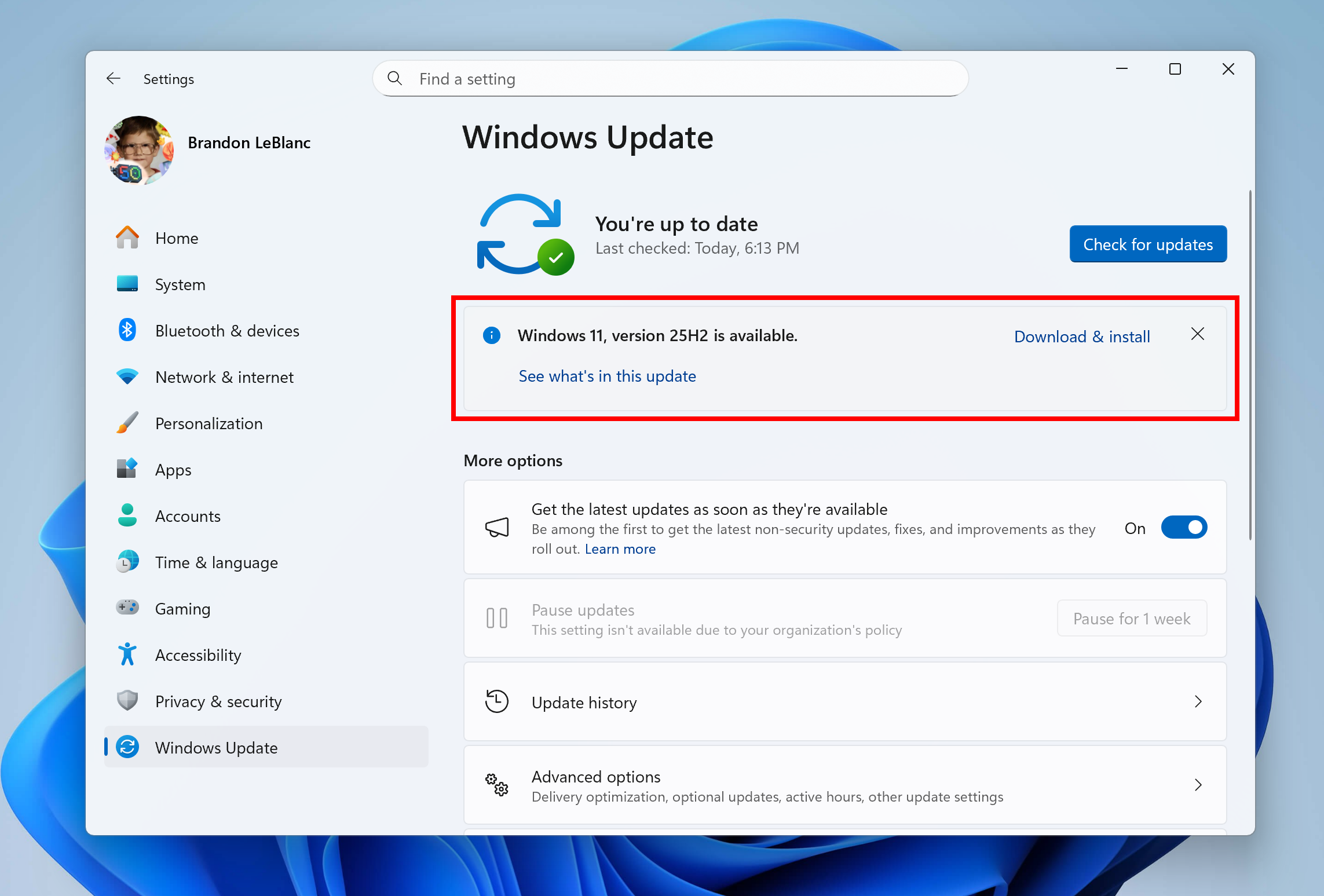
Hello Windows Insiders! Today, we are making this year’s annual feature update Windows 11, version 25H2 (Build 26200.5074) available in the Release Preview Channel for customers to preview ahead of general availability later this calendar year. Windows 11, version 25H2 will be delivered as an enablement package (eKB). This means that Windows 11, version 24H2 and version 25H2 use a shared servicing branch. It also means that they also share the same new features and enhancements delivered through our continuous innovation efforts. Windows 11, version 25H2 also includes some feature removals such as PowerShell 2.0 and Windows Management Instrumentation command-line (WMIC). And for our commercial customers, Windows 11, version 25H2 includes the ability for IT admins to remove select pre-installed Microsoft Store apps via Group Policy/MDM CSP on Enterprise/EDU devices. For more details on Windows 11, version 25H2, see this blog post. [caption id="attachment_178192" align="alignnone" width="1024"]Windows 11, version 25H2 shown as available as an optional update highlighted in a red box. Windows 11, version 25H2 shown as available as an optional update highlighted in a red box.[/caption] Windows Insiders in the Release Preview Channel can install Windows 11, version 25H2 via our “seeker” experience in Windows Update. This means if you are an Insider currently in the Release Preview Channel on a PC that meets the Windows 11 hardware requirements, you can go to Settings and Windows Update and choose to download and install Windows 11, version 25H2 if you want. Once you update your PC to Windows 11, version 25H2, you will continue to automatically receive new servicing updates through Windows Update (the typical monthly update process). For instructions on how to join the Windows Insider Program and join your PC to the Release Preview Channel, click here. Commercial* customers enrolled in the Windows Insider Program for Business can begin validating Windows 11, version 25H2 on PCs in their organizations. For these customers, the Windows 11, version 25H2 is available through Windows Update for Business (WUfB) and Windows Server Update Service (WSUS). Azure Marketplace will be available later today. You can learn more about deploying pre-release feature updates using these deployment methods here. Should any issues arise, IT admins in organizations deploying Release Preview updates can request Microsoft Support. And finally – ISOs will be available for download for Windows 11, version 25H2 via the Windows Insider ISO download page next week. [UPDATE 9/10] The ISOs for Windows 11, version 25H2 are now available for download. Thanks, Windows Insider Program Team *We consider a device a commercial device if it is not running the Windows 11 Home edition AND is being managed by an IT administrator (whether via Microsoft Endpoint Manager or other management solution) or has a volume license key or commercial ID or is joined to a domain.

Copilot on Windows: Semantic Search and new home begin rolling out to Windows Insiders

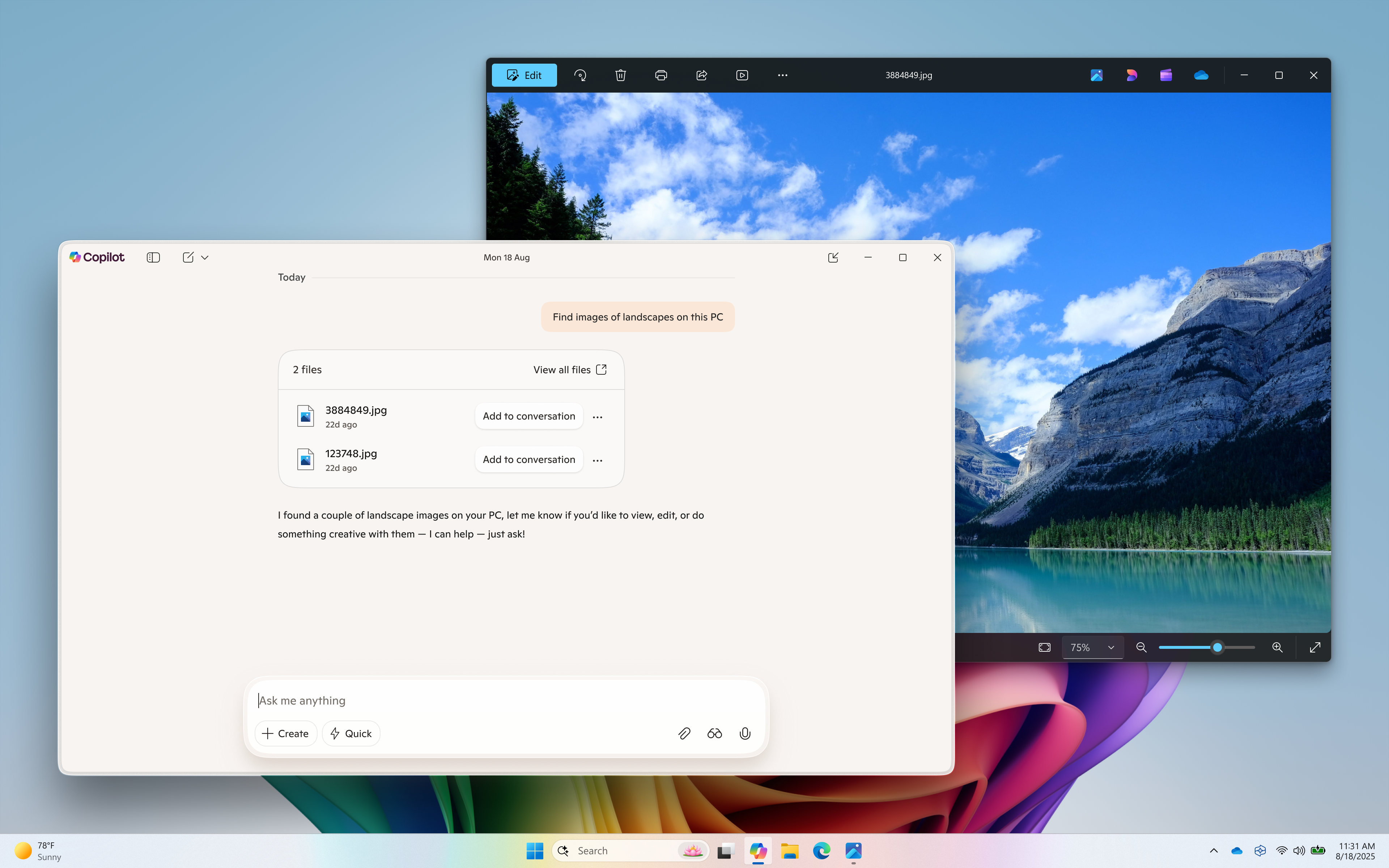
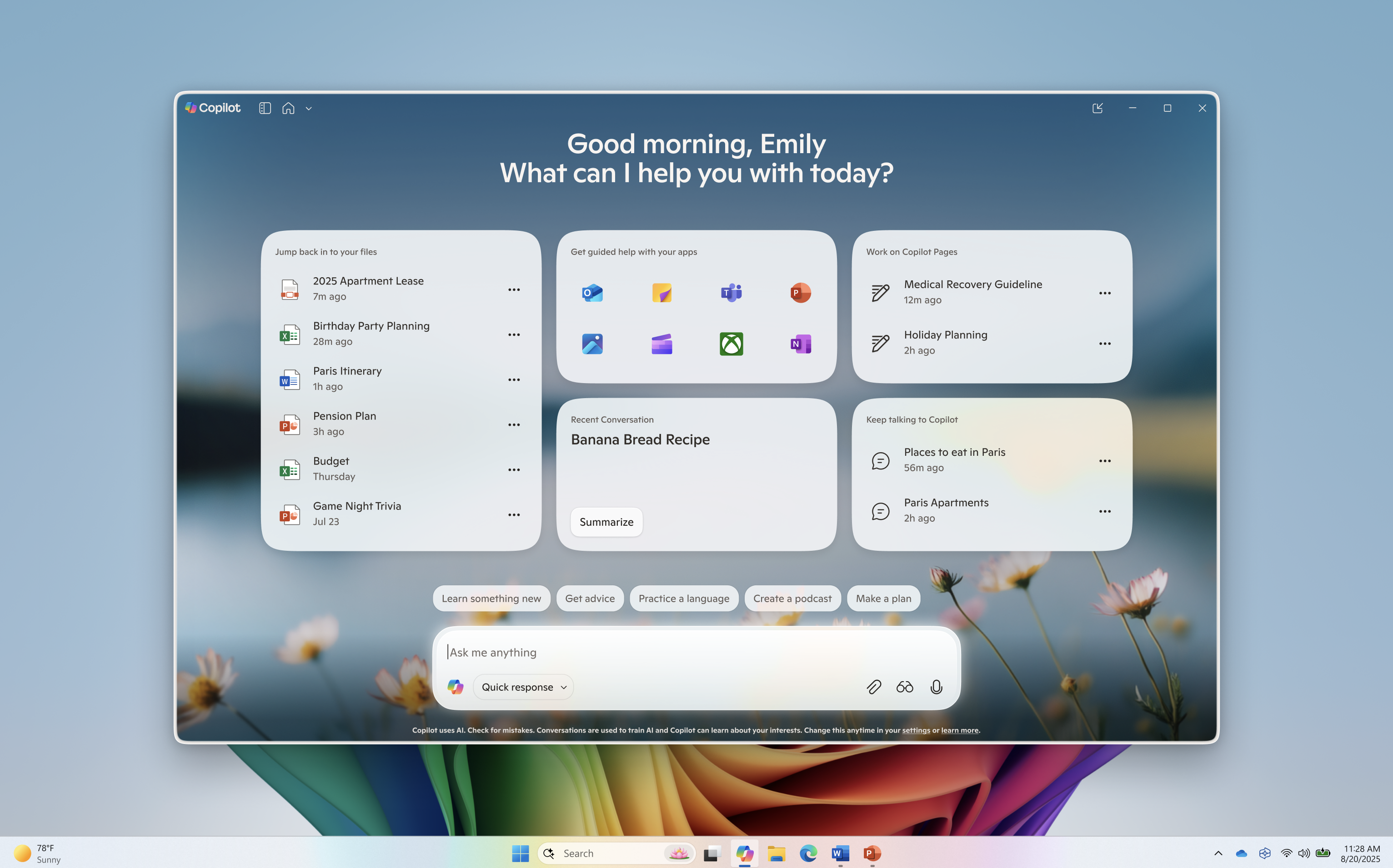
Hello Windows Insiders, we are excited to begin rolling out a new update for the Microsoft Copilot app on Windows that introduces the following changes and improvements: Semantic file search*, available on Copilot+ PCs, is a smarter and faster way to find your files using natural language. With today’s update, you can now leverage the power of improved search capabilities right from the Copilot on Windows app. This provides yet another way to find your documents and photos on your PC without having to remember the exact file names or exact words in file content. For example, you can find images by typing “find images of bridges at sunset on my PC”, find your resume documents with similar terms like “find my cv” or describing content of the file that you’re looking for like “find the file with the chicken tostada recipe”. You can adjust your permissions for what Copilot can access, retrieve, or read in Copilot Settings under Permission settings. [caption id="attachment_178158" align="alignnone" width="1024"]Semantic file search (available on Copilot+ PC) helps find images of a landscape. Semantic file search (available on Copilot+ PC) helps find images of a landscape.[/caption] The new Copilot home experience brings your recent apps, files and conversations into Copilot and at your fingertips. Now it’s easier to get guided help: when you click on a recent application in the “get guided help with your apps” section, a Vision session will begin to help you get started. Or you can have Copilot take action on a recent document or photo – click the file of choice in the left pane and it’s uploaded to the Copilot chat window. From there you can have Copilot summarize the content, identify objects in an image, or just chat about it. How does Copilot know what files I have? Copilot shows you files you've recently opened on your device by referencing the standard Windows "Recent" folder.  Like any application on Windows, Copilot can show those recent files used by apps like Word or Photos to help you quickly find your work.  These are local files stored on your computer, and Copilot doesn’t scan your entire system or upload anything automatically. Only files that are compatible with Copilot** and have been recently accessed will appear in the list. If you choose to attach a file and send it to Copilot, that action gives Copilot permission to process it — nothing is shared unless you explicitly do so. [caption id="attachment_178159" align="alignnone" width="1024"]Redesigned Copilot on Windows home. Redesigned Copilot on Windows home.[/caption] Use Vision to get real-time guidance on what’s on your screen or attach a file to your Copilot conversation for summaries, insights, and helpful pointers. Whether you're planning, creating, or catching up, Copilot is ready to help you. This Copilot app update (version 1.25082.132.0 and higher) is beginning to roll out across all Insider Channels via the Microsoft Store. The above-mentioned features are gradually rolling out so not all Insiders will get the update right away. We are excited to be previewing improvements with our Insiders to ensure all our customers have a great Copilot experience on Windows. FEEDBACK: Please provide feedback directly within the Copilot app by clicking on your profile icon and choosing “Give feedback”. Thanks, Microsoft Copilot Team *Works with specific text, image, and document formats only; optimized for select languages (English, Chinese (Simplified), French, German, Japanese, and Spanish). See aka.ms/copilotpluspcs. **File types currently supported for file upload include .png, .jpeg, .svg, .pdf, .docx, .xlsx, .csv, .json, and .txt.

Releasing Windows 10 Build 19045.6276 to the Release Preview Channel

[UPDATE 8/21] We are releasing Build 19045.6280 (KB5063842) today which is a small update that addresses some issues with the update itself. Hello Windows Insiders, today we are releasing Windows 10 22H2 Build 19045.6276 (KB5063842) to the Release Preview Channel for Insiders who are on Windows 10, version 22H2. This update includes the following features and improvements (items bolded in brackets indicate the area of the change being documented):
  • [Mobile Operator Profiles] Updated: Country and Operator Settings Asset (COSA) profiles.
  • [Common Controls] Fixed: An issue that affects how certain supplementary characters appear in Windows textboxes.
  • [Multimedia] Fixed: An issue where mf.dll failed to enumerate redirected web camera devices on Remote Desktop Services (RDS) environments.
  • [Windows Hello] Fixed: An issue in which Narrator reads the incorrect name for the "Enhance Facial Recognition Protection" check box under the Facial Recognition setting.
  • [Family Safety] Fixed: An issue where the "Ask to Use" approval flow was not being triggered for blocked apps. With this fix, the approval flow now appears as expected when a blocked app is accessed.
  • [Portable Devices] Fixed: An issue where the Removeable Storage Access policy may not work properly.
  • [Input and Composition] Fixed: An issue with the Chinese Simplified Input Method Editor (IME). Some extended characters were shown as empty boxes.
  • [Licensing] New! This update adds a new feature that allows customers using the Windows 10 keyless Commercial ESU solution—alongside a Windows 365 subscription—to block outbound network traffic. This enhancement supports compliance with Zero Exhaust policies.
  • [Search pane] Fixed: An issue that might cause the Windows Search pane to not show the preview pane correctly.
  • [Windows Backup for Organizations] New! Windows Backup for Organizations is now generally available! Experience seamless device transitions with enterprise-grade backup and restore. Whether you're refreshing your organization’s devices, upgrading to Windows 11, or deploying AI-powered PCs, this solution helps sustain productivity with minimal disruption, ensuring business continuity and organizational resilience.
Thanks, Windows Insider Program Team

Releasing Windows 11 Build 22631.5837 to the Release Preview Channel

[UPDATE 8/21] We are releasing Build 22631.5840 (KB5064080) today which is a small update that addresses some issues with the update itself. Hello Windows Insiders, today we’re releasing Windows 11 Build 22631.5837 (KB5064080) to Insiders in the Release Preview Channel on Windows 11, version 23H2 (Build 22631).   This update includes the following features and improvements that are rolling out as part of this update. Text bolded in brackets indicates the area of the change being documented.
  • [Country and Operator Settings Asset (COSA)] Fixed: This update brings profiles up to date for certain mobile operators.
  • [Device management] Fixed: An issue where the removable storage policy didn’t correctly block external devices such as USB flash drives and memory sticks.
  • [Family Safety] Fixed: An issue where the “Ask to Use” approval prompt didn’t appear when blocked apps were opened. With this fix, apps now show the expected approval prompt when Family Safety settings are enabled.
  • [File Explorer]
    • Fixed: File Explorer might unexpectedly only display a single folder (for example, Desktop), rather than the expected content with recent files and more.
    • Fixed: Syncing more SharePoint sites to File Explorer might slow performance when navigating folders or opening the context menu. This can also affect how quickly files launch.
  • [File sharing] Fixed: This update addresses an issue where accessing files on a Server Message Block (SMB) share over Quick UDP Internet Connections (QUIC) might result in unexpected delays.
  • [File system] Fixed: This update addresses an issue in Resilient File System (ReFS) where enabling de-duplication and compression simultaneously could occasionally cause the system to stop responding.
  • [Input]
    • Fixed: This update addresses an issue where certain extended Unicode characters—such as rare Chinese symbols—appeared as blank spaces or incorrect symbols in Windows text boxes. The fix ensures these characters display correctly and maintains compliance with GB18030-2022 requirements.
    • Fixed: This update addresses an issue with the Chinese (Simplified) Input Method Editor (IME) where some extended characters appeared as empty boxes.
  • [Narrator] Fixed: This update addresses an issue where Narrator incorrectly read the name of the Enhance Facial Recognition Protection checkbox under the Facial recognition (Windows Hello) setting.
  • [Network connectivity] Fixed: This update addresses an issue where Wi-Fi might not reconnect automatically after a Group Policy update.
  • [Remote Desktop] Fixed: An issue where cameras didn’t appear during remote sessions after being added or removed. Newly connected cameras were not recognized in Remote Desktop Services (RDS) environments.
  • [Windows Backup for Organizations] New! Windows Backup for Organizations is now generally available! Experience seamless device transitions with enterprise-grade backup and restore. Whether you're refreshing your organization’s devices, upgrading to Windows 11, or deploying AI-powered PCs, this solution helps sustain productivity with minimal disruption, ensuring business continuity and organizational resilience.
Thanks, Windows Insider Program Team

Releasing Windows 11 Build 26100.5061 to the Release Preview Channel

[UPDATE 8/21] We are releasing Build 26100.5067 (KB5064081) today which is a small update that addresses some issues with the update itself. An additional fix is noted below. Hello Windows Insiders, today we’re releasing Windows 11 Build 26100.5061 (KB5064081) to Insiders in the Release Preview Channel on Windows 11, version 24H2 (Build 26100). Below is a summary of the new features and improvements included as part of this update separated into two sections: gradual rollout and normal rollout. The bold text within the brackets indicates the item or area of the change we are documenting.

Gradual rollout

The following features and improvements might not be available to all users because they will roll out gradually. Text bolded in brackets indicate the area of the change being documented. Please note that features and improvements that gradually roll out may not begin rolling out right away nor will they immediately show up right away.
  • [Recall] New! Recall opens to a personalized homepage that puts your recent activity and top-used apps and websites front and center, making it easy to pick up where you left off. After turning on snapshot collection, the homepage highlights key productivity features like Recent Snapshots, which show the latest snapshots to help you quickly resume tasks, and Top Apps and Websites, which display the three apps and websites you’ve used most in the past 24 hours. You can set filters in Settings to control which apps and websites are saved in snapshots. A new navigation bar on the leftmost side of the screen provides quick access to Home, Timeline, Feedback, and Settings.
  • [Click to Do] New! When you launch Click to Do for the first time, you'll see a quick interactive tutorial. It shows how to complete tasks faster by demonstrating actions on both text and images—such as summarizing large blocks of text or removing image backgrounds. To revisit the tutorial later, select More options ... > Start tutorial.
  • [General] New! When an app requests access to location, camera, microphone, or other device capabilities, Windows shows a redesigned system dialog box. The screen dims slightly, and the privacy prompt appears centered on the screen.
  • [Taskbar]
    • New! The larger clock with seconds is now back in the notification center, displayed above the date and calendar. To turn this option on, go to Settings > Time & language > Date & time, and turn on Show time in the Notification Center.
    • Fixed: If you accidentally click down and slide your mouse on the taskbar preview thumbnail, clicking it may stop working.
    • Fixed: File Explorer preview windows may appear when hovering over unrelated app icons in the taskbar.
  • [Search on the Taskbar]
    • New! When you use Search from the Windows taskbar, a new grid view will help you more quickly and accurately identify the desired image within your search.
    • New! Search on the taskbar now provides clearer status information. If your search results are incomplete while your PC is organizing files in the background, Windows shows a notice with a link to check progress. You can dismiss the notice when you're done. There is also a status for files and folders, so you can easily tell whether they’re available online (cloud) or stored on your device.
  • [Lock screen] New! After rolling this experience out to Windows Insiders in the EEA, we are now beginning to roll out more widget options on the lock screen as well as support for lock screen widget personalization (previously referred to as “Weather and more”) with Insiders in all regions. You can add, remove, and rearrange lock screen widgets such as Weather, Watchlist, Sports, Traffic, and more. Any widget that supports the small sizing option can be added here. To customize your lock screen widgets, navigate to Settings > Personalization > Lock screen.
  • [File Explorer]
    • New! Use AI actions in File Explorer to edit images or summarize documents. Just right click (or Press Shift+F10) on a file and select AI Actions. [UPDATE 8/28] AI actions in File Explorer will roll out in a future update.
      • Image actions: You can now use four AI-powered image actions with .jpg, .jpeg, and .png files. Visual Search searches the web using an image instead of text. Blur Background opens the Photos app to highlight the subject and blur the background. Erase Objects removes unwanted elements from your photo. Remove Background uses Paint to change any image leaving a smooth cut out of the subject.
      • AI actions for Microsoft 365 makes it easier to work with your documents. With the Summarize action in Copilot, you can quickly generate summaries of files stored in OneDrive and SharePoint—no need to open each one. This AI action requires an active Microsoft 365 subscription and a Copilot license (Microsoft account and Microsoft Entra ID supported).New! Dividers now appear between top-level icons in the File Explorer context menu.
    • New! When you're signed in with a work or school account (Entra ID), File Explorer will display people icons in the Activity column and the Recommended section at the top of File Explorer Home. Hover over or select a person's icon to open their Microsoft 365 Live Persona Card, which shows who they are and how they're connected to the file.
    • Fixed: If you try to use the unblock open in Properties for a file, it still shows as blocked when you open Properties the next time.
  • [Windows Hello]
    • New! As part of the enhanced passkey features released in September 2023, you’ll see a redesigned Windows Hello interface. These modernized visual updates support fast, clear communication that appear across multiple authentication flows, including the Windows sign-in screen, passkey, Recall, the Microsoft Store, and more. The Windows  security credential experience for passkey offers a cleaner, more intuitive interface designed to support fast, secure sign-in. You can now easily switch between authentication options such as passkeys or connected devices.
    • Fixed: Windows Hello may recognize your face on the login screen, however it would still fail and then prompt you to enter your pin. If you continue experiencing issues, you may need to go to the Facial Recognition section under Settings > Accounts > Sign-in options, and select Improve recognition.
    • Improved: Fingerprint login after standby is now more robust.
  • [Advanced Settings] New! The redesigned Advanced settings page under Settings > System > Advanced is an update of the For Developers page and makes it easier to find key options. New settings include Enable long paths, which removes MAX_PATH limitations; Virtual workspaces, which let you turn environments like Hyper-V and Windows Sandbox on or off; and File Explorer + version control, which shows Git details such as branch, diff count, and last commit message directly in File Explorer when you select a repository folder. [UPDATE 8/27] This change will roll out in a future update.
  • [Settings]
    • New! Windows activation and expiration prompts match the Windows 11 design and appear as system notifications when action is required. There also have been improvements to messaging under Settings > System > Activation.
    • New! You can go to Settings > Privacy & security > Text and Image Generation to see which third-party apps have recently used generative AI models provided by Windows. You can also choose which apps are permitted to use them—putting you in charge of your device’s AI experience.
    • New! You can view the Device Card on the Settings home page. It shows key specifications and usage details of your PC. From the card, go directly to Settings > About page for more detailed information about your PC. This card will show when signed in with your Microsoft account and in the U.S. only. [UPDATE 8/28] This change will roll out in a future update.
    • New! More time, language, and keyboard settings have moved from Control Panel to Settings. You can now add additional clocks, change your time server, and customize date and time formatting—including AM/PM symbols—directly from Settings > Time & language > Date & time. Number and currency formats, Unicode UTF-8 support, and options to copy language and region settings to other accounts are now under Settings > Time & language > Language & region. Keyboard character repeat and cursor blink rate settings are now easier to find under Settings > Accessibility. [UPDATE 8/28] This change will roll out in a future update.
    • New! As part of the Copilot+ PC experience, the agent in Settings helps you quickly find and change settings. Initially available on Snapdragon®-powered Copilot+ PCs, agent in Settings now supports AMD- and Intel™-powered Copilot+ PCs. It currently works only when your primary display language is set to English.
    • Fixed: Settings may crash if you attempt to add a security key under Settings > Account > Sign-in options.
  • [Task Manager] New! Task Manager now uses standard metrics to show CPU workload consistently across all pages, aligning with industry standards and third-party tools. If you prefer the previous view, you can enable a new optional column called CPU Utility in the Details tab to display the earlier CPU usage value shown on the Processes page.
  • [Windows Backup for Organizations] New! Windows Backup for Organizations is now generally available! Experience seamless device transitions with enterprise-grade backup and restore. Whether you're refreshing your organization’s devices, upgrading to Windows 11, or deploying AI-powered PCs, this solution helps sustain productivity with minimal disruption, ensuring business continuity and organizational resilience.
  • [PowerShell 2.0] Starting in August 2025, Windows 11, version 24H2, will no longer include Windows PowerShell 2.0.This  legacy component was  introduced in Windows 7 and officially deprecated in 2017. Most users won’t be affected, as newer versions such as PowerShell 5.1 and PowerShell 7.x remain available and supported. If you use older scripts or tools that depend on PowerShell 2.0, update them to avoid compatibility issues.
  • [Live captions] Fixed: Changing the opacity of live captions in Settings > Accessibility > Captions > Caption Style, has no effect.
  • [Input]
    • Fixed: Attempting to type Chinese with an IME after copying something with CTRL + C can result in the first character not displaying.
    • Fixed: An underlying issue related to textinputframework.dll could result in certain apps like Sticky Notes and Notepad crashing.
  • [Kerberos] Fixed: There may be an underlying crash in Kerberos when attempting to access a cloud file share.
  • [Login] Improved: Addressed some underlying cases which could lead to you seeing a blank white screen, or a screen saying, "just a moment", for a few minutes when logging in to your PC.
  • [dbgcore.dll] Fixed: An underlying issue with dbgcore.dll could result in certain apps, including explorer.exe, crashing.
  • [Audio] Improved: Addressed an underlying audio service hang which could impact the ability to play audio in certain cases.

Normal rollout

This update includes the following features and improvements that are rolling out as part of this update. Text bolded in brackets indicates the area of the change being documented.
  • [Device management] Fixed: This update addresses an issue that prevented some system recovery features from working properly due to a temporary file sharing conflict. This affected certain device management tools and disrupted key functions on some devices.
  • [File system] Fixed: An issue in Resilient File System (ReFS) where using backup apps with large files could sometimes exhaust system memory.
  • [Input]
    • Fixed: This update addresses an issue with the Chinese (Simplified) Input Method Editor (IME) where some extended characters appear as empty boxes.
    • Fixed: This update addresses an issue that prevents typing on the touch keyboard when using the Microsoft Changjie, Microsoft Bopomofo, or Microsoft Japanese Input Method Editors (IMEs). The issue occurs after switching to a previous version of the IME.
  • [Performance] Fixed: This update addresses an issue that slows application installation on ARM64 devices. Some installers might take longer to complete.
  • [ADDED 8/21] [Miracast] Fixed: An issue where, on certain devices, audio would initially play but stop a few seconds after casting to a TV.
Thanks, Windows Insider Program Team

Xbox PC App Experience Expanding on Arm®-based Windows 11 PCs

Today, we’re beginning to roll out an update for Arm®-based Windows 11 PCs, which introduces changes and improvements to the Xbox PC app experience. Game Downloads: The Xbox PC app experience is expanding to support game downloads and local play on Arm®-based Windows 11 PCs. Insiders can download titles from the Xbox PC app catalog unlocking more games to play locally on Arm®-based Windows 11 PCs – including titles offered through your  PC Game Pass or Game Pass Ultimate subscription. Windows and Xbox are working closely together to ensure compatibility across the catalog, and we’re developing new features that will enable more games to be played on Arm®-based Windows 11 PCs in the coming months. We’re excited to team up with Insiders to continue testing and helping us enable full access to your library of games. [caption id="attachment_178130" align="alignnone" width="602"]PC Gaming Preview. Join the PC Gaming Preview on your Arm®-based Windows 11 PC![/caption] This update (version 2508.1001.27.0 and higher) is available to Windows Insiders who are also Xbox Insiders enrolled in the PC Gaming Preview on their Arm®-based Windows 11 PCs, located in the Xbox Insider Hub. If you’re not enrolled in the PC Gaming Preview, here’s how to get started:
  • Download the Xbox Insider Hub from the Microsoft Store.
  • Launch the Xbox Insider Hub and sign-in with your Microsoft account you use for gaming.
  • Under “Previews”, navigate to “PC Gaming” and click join.
  • Once the Xbox Insider Hub shows you as “joined” for the PC Gaming Preview – go to the Microsoft Store and check for updates and you should see an Xbox PC app update for version 1001.27.0 or higher).
These features will roll out gradually over time, so some Insiders may see the update before others. FEEDBACK: To provide feedback or report a problem, click on the “Feedback” item in the “Profile & Settings” menu. Thanks, Brynnan Fink – Principal Program Manager, Windows Silicon and System Integration Peter Dawoud – Principal Product Manager, Windows Silicon and System Integration Brandon LeBlanc – Principal Product Manager, Windows Insider Program Nicole Allen – Senior Director, Xbox Next Generation

Previewing a refreshed Link to Windows experience for Android phones

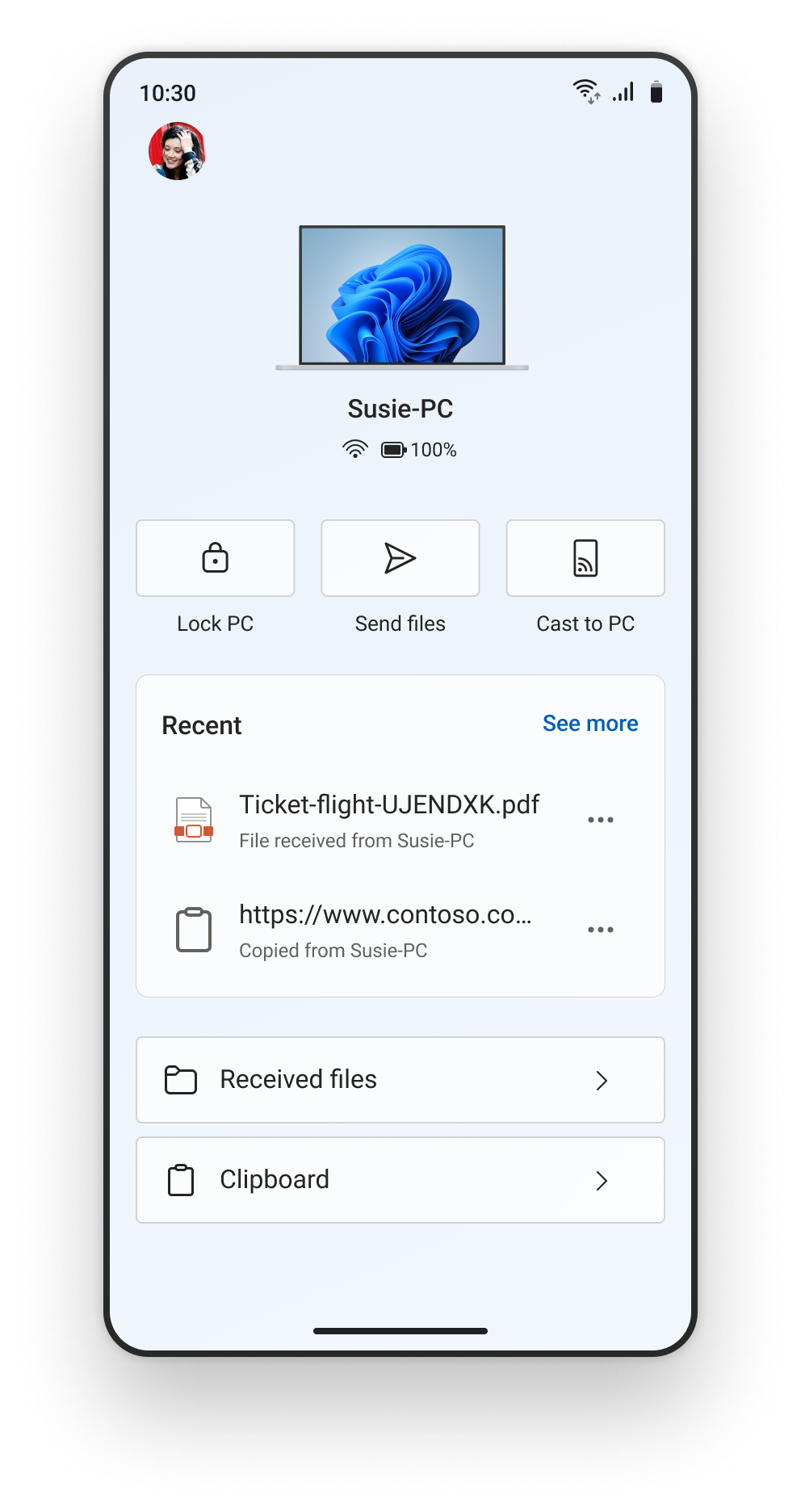
Hello Windows Insiders, We’re excited to begin rolling out an update for the Link to Windows app that includes a refreshed experience for Windows Insiders. This update brings a modernized design, smarter onboarding, and new ways to access content and remotely control your PC including the ability to lock your PC — all from your Android phone. Please note that this experience is rolling out, so not all Insiders will see it right away. Whether you're already using Link to Windows and Phone Link or just getting started, this update is designed to make your cross-device experience more seamless, intuitive, and powerful.

A new home for connected experiences

We’ve reimagined the Link to Windows app as a connected PC experience hub — a central place where you can access, share, and control content between your Android phone and Windows PC.
  • Recent activity: Quickly access your most recently received files and clipboard items of your PC.
  • PC at a glance: Check your PC’s battery, and Wi-Fi status from your phone.
  • Remote actions from Link to Windows:
    • Send files to your PC from within Link to Windows.
    • Lock your PC remotely when PC is connected.
    • Mirror your phone’s screen to your PC.
[caption id="attachment_178084" align="alignnone" width="335"]The refreshed Link to Windows experience on an Android phone. The refreshed Link to Windows experience on an Android phone.[/caption]

More intuitive onboarding for getting started

We’re updating the onboarding experience that lets you set up Link to Windows directly from your Android device — no PC required to get started. This helps you discover the value of connected experiences right away, with contextual permission prompts and a simplified setup with clear instructions on what to do next when you get to your PC. These features are designed to give you more control and flexibility, especially when you're away from your desk.

How to try out the refreshed Link to Windows experience on your Android phone

Here is how Windows Insiders can try out the new refreshed Link to Windows experience for their Android phone today:
  1. Make sure you’re running the latest Windows Insider Preview build on your PC from any Insider Channel and Phone Link version is 1.25062.83.0 or higher.
  2. Opt-in to the Link to Windows Beta from the Play Store.
  3. Update the Link to Windows app from the Play Store and ensure the version is 1.25071.155 or higher.
  4. Pair your Android phone to your PC from Link to Windows on your phone and Phone Link on your PC.
  5. Finally, go to Windows Settings > Bluetooth & devices > Mobile devices > Manage devices and ensure you are logged in with the same Microsoft account as Link to Windows and see your Android phone listed and enabled.

Give feedback

Be sure to give us feedback and let us know what you think as you try out the refreshed Link to Windows experience:
  • Directly from Link to Windows on your Android phone via Phone > Give Feedback > Link to Windows.
  • Or by using Feedback Hub and submitting feedback under Devices and Drivers > Linked devices.
Thanks, Phone Link & Cross-Device Experiences Team

Copilot on Windows: Vision Desktop Share begins rolling out to Windows Insiders

Hello Windows Insiders, we are beginning to roll out an update for the Microsoft Copilot app on Windows via the Microsoft Store which introduces the following changes and improvements to Copilot Vision on Windows: Desktop Share: Now you can choose to share your whole desktop with Copilot. When you share your desktop (or any specific browser or app window), Copilot can see what you see and talk to you about it in real time. It can help analyze content, provide insights, and answer your questions, coaching you through it aloud. Get tips on making improvements to your creative project, help with improving your resume, or guidance while navigating a new game. To get started click the glasses icon in your composer, select the desktop that you’d like to share, and ask Copilot to help with whatever you’re working on. To stop sharing, press 'Stop' or 'X' in the composer. [caption id="attachment_178066" align="alignnone" width="1024"]Copilot Vision on Windows with desktop share. Copilot Vision on Windows with desktop share.[/caption] Access Vision from your Voice conversation: Now you can turn on Vision from a Voice conversation. When you're talking with Copilot and want to provide additional context on whatever you’re working on, simply click on the glasses icon and share your screen. This Copilot app update (version 1.25071.125 and higher) is beginning to roll out across all Insider Channels via the Microsoft Store. These updates will first roll out to Insiders in markets where Windows Vision is enabled. The above-mentioned features are gradually rolling out so not all Insiders will get the update right away. We are excited to be previewing improvements with our Insiders to ensure all our customers have a great Copilot experience on Windows. FEEDBACK: Please provide feedback directly within the Copilot app by clicking on your profile icon and choosing “Give feedback”. Thanks, Microsoft Copilot Team

Releasing Windows 11 Build 22631.5696 to the Release Preview Channel

[UPDATE 7/15] We are releasing Build 22631.5699 (KB5062663) today which is a small update that addresses some issues with the update itself. Hello Windows Insiders, today we’re releasing Windows 11 Build 22631.5696 (KB5062663) to Insiders in the Release Preview Channel on Windows 11, version 23H2 (Build 22631).  

Normal rollout

This update includes the following features and improvements that are rolling out as part of this update. Text bolded in brackets indicates the area of the change being documented.
  • [Country and Operator Settings Asset (COSA)] Fixed: This update brings profiles up to date for certain mobile operators.
  • [File systems]
    • Fixed: This update addresses an issue in the Resilient File System (ReFS) where using backup applications on large files could occasionally result in system memory becoming fully exhausted.
    • Fixed: An issue where searching for PDF files in a shared folder could return incorrect error messages—such as “No More Files” or “STATUS_NO_MORE_FILES.” These errors disrupted output to the virtual PDF printer and interfered with backup processes.
  • [Networking] Fixed: An issue where peripheral devices could take longer to work after resuming from hibernation on some devices with active cellular connections.
  • [Printer] Improved: Printer names now appear more clearly when using IPP Directed Discovery, making it easier to identify printers during setup.
  • [Stability issue] Fixed: This update addresses an issue observed in rare cases after installing the May 2025 security update and subsequent updates causing devices to experience stability issues. Some devices became unresponsive and stopped responding in specific scenarios.
Thanks, Windows Insider Program Team

Releasing Windows 10 Build 19045.6156 to the Release Preview Channel

[UPDATE 7/15] We are releasing Build 19045.6159 (KB5062649) today which is a small update that addresses some issues with the update itself. Hello Windows Insiders, today we are releasing Windows 10 22H2 Build 19045.6156 (KB5062649) to the Release Preview Channel for Insiders who are on Windows 10, version 22H2. This update includes the following features and improvements (items bolded in brackets indicate the area of the change being documented):
  • Update resolves an issue impacting the Windows 10 Extended Security Updates (ESU) enrollment wizard. Some users experienced a problem where clicking “Enroll now” caused the wizard window to open, begin loading, and then close unexpectedly. This occurred due to incomplete app registration, which prevented the wizard from loading correctly. This update addresses that issue to ensure a smoother enrollment experience.
  • ​​​​​[Mobile Operator Profiles] Updated: Country and Operator Settings Asset (COSA) profiles.
  • [Secure Boot] New! Adds the ability to deploy SKUSiPolicy VBS Anti-rollback protections through the Secure Boot AvailableUpdates registry key.
  • [Stability issue] Fixed: This update addresses an issue observed in rare cases after installing the May 2025 security update and subsequent updates causing devices to experience stability issues. Some devices became unresponsive and stopped responding in specific scenarios.
Thanks, The Windows Insider Program Team

Releasing Windows 11 Build 26100.4762 to the Release Preview Channel

[UPDATE 7/17] We are releasing Build 26100.4767 (KB5062663) today which is a small update that adds some additional fixes that are documented below. Hello Windows Insiders, today we’re releasing Windows 11 Build 26100.4762 (KB5062660) to Insiders in the Release Preview Channel on Windows 11, version 24H2 (Build 26100). Below is a summary of the new features and improvements included as part of this update separated into two sections: gradual rollout and normal rollout. The bold text within the brackets indicates the item or area of the change we are documenting.

Gradual rollout

The following features and improvements might not be available to all users because they will roll out gradually. Text bolded in brackets indicate the area of the change being documented. Please note that features and improvements that gradually roll out may not begin rolling out right away nor will they immediately show up right away.
  • [Recall]
    • New! We are excited to announce Recall is now available in the European Economic Area (EEA). For more info, see Retrace your steps with Recall. In the EEA, Recall supports exporting snapshots to share with trusted third-party apps and websites. When saving snapshots is turned on for the first time, a unique Recall export code appears. This code is required to decrypt exported snapshots and is shown only once during initial setup. Microsoft doesn’t store or recover this code. To export, go to Settings > Privacy & Security > Recall & Snapshots > Advanced Settings and authenticate with Windows Hello. Choose to export past snapshots (from the last 7 days, 30 days, or all) or start a continuous export. Third-party apps can access exported snapshots only when both the export code and folder path are provided. If you lose or compromise the export code, reset Recall to generate a new one.
    • New! For all Recall users worldwide, we are adding the ability to reset Recall and all its data. You will now see an advanced settings page under Settings > Privacy & Security > Recall & Snapshots. Under this new advanced settings page, we have included a reset button that will delete all your snapshots and reset your settings for Recall.
  • [Click to Do]
    • New!1 Practice in Reading Coach is a new Click to Do text action that helps you improve reading fluency and pronunciation. Select text on your screen, choose Practice in Reading Coach, and read the text aloud. Reading Coach gives you feedback and shows where to improve. To use this feature, install the free Microsoft Reading Coach app from the Microsoft Store.
    • New!1 Read with Immersive Readeris a new text action in Click to Do that displays text in a focused, distraction-free environment. It helps improve reading and writing for all skill levels and abilities. You can adjust text size, spacing, font, and background theme, have text read aloud, break words into syllables, and highlight parts of speech. The picture dictionary shows images for unfamiliar words. To use this feature, install the free Microsoft Reading Coach application from the Microsoft Store.
    • New!1 With the Draft with Copilot in Word text action, you can quickly turn any recognized text into a full draft. Whether it’s a sentence in an email or a snippet on your screen, press Win + Click on the recognized text, then select Draft with Copilot in Word. No more blank pages. No more writer's block. Just momentum. For “Draft with Copilot in Word” – a Microsoft 365 Copilot subscription is required.
    • New!1 Click to Do on Copilot+ PCs now supports actions through Microsoft Teams. When you select an email address recognized by Click to Do on your screen, you can choose to send a Teams message or schedule a Teams meeting. These options make it easy to ask a question or set up time to talk without interrupting your workflow.
  • [Settings]
    • New!1 The new agent in Settings is part of the Copilot+ PC experience and is designed to help solve one of the most common frustrations: finding and changing settings on your PC. You can describe what you need help with, such as “how to control my PC by voice” or “my mouse pointer is too small,” and the agent will suggest steps to resolve the issue. An agent uses AI on your PC to understand your request and, with your permission, can automate and complete tasks for you. This experience is rolling out to Snapdragon-powered Copilot+ PCs, with support for AMD and Intel™-powered PCs coming soon. It currently works only if your primary display language is set to English.
    • New! On non-Copilot+ PCs, the search box in Settings will now be located at the top center to deliver a more consistent and better search experience.
    • Fixed: If your PC is set to 'Do nothing' on 'Closing the lid' in Settings > System > Power and Battery and the Settings window is left open when you close the lid, upon opening the lid again Settings window might hang and become unresponsive to input or resizing (instead, just showing your accent color).
    • Fixed: Settings may hang when attempting to save credentials for Wi-Fi network
  • [Windows Resiliency Initiative] The following changes are part of the Windows Resiliency Initiative announced at Ignite 2024:
    • New! Quick machine recovery is now available. When enabled, it automatically detects and fixes widespread issues on Windows 11 devices using the Windows Recovery Environment (WinRE). This reduces downtime and avoids the need for manual fixes. If a device experiences a widespread boot issue, it enters WinRE, connects to the internet, and Microsoft can deliver a targeted fix through Windows Update. IT admins can enable or customize this experience for their organization through the Intune Settings Catalog UI using the RemoteRemediationCSP. There is also a dedicated quick machine recovery settings page available under System > Recovery > Quick machine recovery. Today, it’s enabled by default for home users.
    • New! A more streamlined interface appears during an unexpected restart This updated design aligns with Windows 11’s visual style and helps you return to work faster. The screen displays a more readable layout while keeping the technical details visible. This screen appears with a black background.
  • [UPDATED] [Start menu] New! We are adding a Boolean to the Configure Start Pins policy to allow admins to apply Start menu pins once. This means that a user will receive admin pins on day 0 but can then make any changes to their Start pinned layout and have those safeguarded. These changes can be optionally applied through the existing configuration service provider (CSP).
  • [Snap] New! Improvements make it easier to learn and use Snap in Windows 11. Inline messages now appear when you accidentally open the Snap Bar by dragging an app to the upper center of your desktop or open the Snap menu by hovering over the Minimize or Maximize button. These messages provide helpful tips on Snap app windows and show keyboard shortcuts.
  • [Windows Search] New! Windows Search settings are now easier to find. Instead of two separate pages for settings (“Search permissions” and “Searching Windows”), you’ll now find everything in one place under Settings > Privacy & security > Search. This new page has a modern look and a better layout, so you can quickly view and manage all your Windows Search settings.
  • [File Explorer]
    • Fixed: If you opened the “…” menu in the File Explorer address bar to show the full list of folders for the current path, the dropdown may be cut off and the bottom of it inaccessible.
    • Fixed: File operation progress dialogs may stop appearing when displayed from apps.
    • Fixed: The more SharePoint sites are synced to File Explorer, File Explorer may start to show noticeable performance degradation when navigating through folders and opening the context menu. In this state it may also impact the performance of launching files.
  • [Input] New! The Gamepad layout of the Windows touch keyboard now includes enhanced controller navigation and improved focus handling for child keys, menus, word suggestions, language switching, and settings. A new Gamepad keyboard, designed for gaming, also supports PIN sign-in on the Windows lock screen. It offers controller shortcuts for quick PIN entry and full navigation for those who prefer not to use shortcuts.
  • [Desktop icons] Fixed: If you have an app pinned to your desktop, and the app updates, the app icon may no longer display correctly and instead show a white page.
  • [Notifications] Fixed: Clicking a Windows notification toast may unexpectedly not bring the relevant app into the foreground, for example when interacting with Outlook notifications.
1Functionality will vary by device and market; text actions will be available across markets in select character sets. See aka.ms/copilotpluspcs.

Normal rollout

This update includes the following features and improvements that are rolling out as part of this update. Text bolded in brackets indicates the area of the change being documented.
  • [Authentication] Fixed: This update addresses an issue that affects the Local Security Authority Subsystem Service (LSASS). LSASS might stop responding during machine password changes with specific audit settings.
  • [File Explorer] Fixed: File Explorer Home might unexpectedly only display a single folder (for example, Desktop), rather than the expected content with recent files and more.
  • [File system] Fixed: This update addresses an issue in the Resilient File System (ReFS) where using backup applications on large files could occasionally result in system memory becoming fully exhausted.
  • [Stability issue] Fixed: This update addresses an issue observed in rare cases after installing the May 2025 security update and subsequent updates causing devices to experience stability issues. Some devices became unresponsive and stopped responding in specific scenarios.
Additional fixes added with Build 26100.4767:
  • [Graphics] Fixed: An issue where external graphics cards connected through Thunderbolt weren’t always recognized in some cases.
  • [Input (know issue)]
    • Fixed: An issue when using the Microsoft Changjie IME (input method editor) for Traditional Chinese might cause problems such as not being able to form or select words, unresponsive spacebar or blank key, incorrect word output, or a broken candidate window display. This can occur after installing KB5062553.
    • Fixed: This update addresses an issue that affects Phonetic input methods, including the Hindi Phonetic Input keyboard and the Marathi Phonetic keyboard, which might not work correctly after installing KB5062553.
  • [Group Policy Editor] Fixed: This update addresses an issue where the Group Policy Editor shows error messages like “No element was expected but found” or “Encountered an unknown error” when opened.
  • [Windows Firewall] Fixed: This update addresses an issue found in Event Viewer as Event 2042 for Windows Firewall with Advanced Security. The event appears as "Config Read Failed" with the message "More data is available." For more information about this issue, see "Error events are logged for Windows Firewall" in the Windows Health Dashboard.
Thanks, Windows Insider Program Team EDITOR'S NOTE 7/11: We made some adjustments to the Recall section under "Gradual Rollout" for clarity.

Releasing Windows 11 Build 26100.4482 to the Release Preview Channel

Hello Windows Insiders, today we’re releasing Windows 11 Build 26100.4482 (KB5060829) to Insiders in the Release Preview Channel on Windows 11, version 24H2 (Build 26100). Below is a summary of the new features and improvements included as part of this update separated into two sections: gradual rollout and normal rollout. The bold text within the brackets indicates the item or area of the change we are documenting.

Gradual rollout

The following features and improvements might not be available to all users because they will roll out gradually. Text bolded in brackets indicate the area of the change being documented. Please note that features and improvements that gradually roll out may not begin rolling out right away nor will they immediately show up right away.
  • [ADDED 6/25] [Click to Do (Preview)] New! Ask Microsoft 365 Copilot is a new action in Click to Do on Copilot+ PCs. Use it to send text or images to Microsoft 365 Copilot, which will respond to your questions. The Ask Microsoft 365 Copilot action requires a Microsoft 365 license and follows your organization’s privacy policies.
  • [App defaults] New! We are rolling out some small changes in the EEA region for default browsers via the Set default button in Settings > Apps > Default apps:
    • Additional file and link types will be set for the new default browser, if it registers them.
    • The new default browser will be pinned to the Taskbar and Start menu unless you choose not to pin it by clearing the checkboxes.
    • There is now a separate one-click button for browsers to change your .pdf default, if the browser registers for the .pdf file type.
  • [Start menu] New! For Admins, the Configure Start Pins policy now includes an option to apply Start menu pins only once. This means users will receive the admin Start menu pins on their first sign-in (day 0), but afterward, they can personalize their pinned layout, and those changes will be retained. UPDATE: This change will roll out at a later date.
  • [Taskbar & System Tray]
    • New! The taskbar now resizes icons to fit more apps when space runs low, keeping everything visible and easy to access. You can adjust how icons appear in settings—reduce icon size only when the taskbar is full (default), keep icons at their original size at all times by selecting Never, or use smaller icons all the time by selecting Always. To change this setting, right-click an empty area on the taskbar, select Taskbar settings, expand the Taskbar behaviors section, and choose your preference under Show smaller taskbar buttons.
    • New! In addition to the new grouping of the Accessibility menu in Quick settings, there are text descriptions for the assistive technologies like Narrator, Voice access, and more for easier identification and learning.
    • New! Adjusted the indicator (pill) under taskbar apps to make it wider and more visible.
    • Fixed: Clicking the top third of the buttons in the top row doesn't work to enable or disable the button.
    • Fixed: WIN + CTRL + Number doesn't work anymore for switching windows of an open app in the taskbar
    • Fixed: When using taskbar in Windows, the media controls that appear in the preview windows for apps might unexpectedly flicker.
  • [Windows Share]
    • New! When you share links or web content using the Windows share window, you will see a visual preview for that content.
    • New! In the Windows share window, you can select a compression level—High, Medium, or Low Quality—when editing and sharing images, instead of selecting from a 0–100 scale.
  • [PC Migration] We’re beginning the rollout of a new PC-to-PC migration experience in Windows. You’ll start to see the landing and the pairing page in the Windows Backup app, giving you a first look at what’s coming. In the full experience, you will be able to transfer your files and settings from your old PC to the new one during the PC setup process. Support during the PC setup will be available in a future update. We are releasing in phases for a smooth experience and will provide more details soon.
  • [File Explorer] Improved: Performance has been enhanced when extracting archive files - this will particularly help in the case of copy pasting large numbers of files out of large 7z or .rar archives.
  • Narrator
    • New! The Screen Curtain feature in Narrator helps protect your privacy and improve focus by blacking out the screen while Narrator reads content aloud. This is especially helpful in public or shared spaces, where you can work with sensitive information without others seeing your screen. To turn on Narrator, press Ctrl + Windows + Enter. Then press Caps Lock + Ctrl + C to enable Screen Curtain. While it’s on, you can use Narrator as usual with the screen hidden. Press Caps Lock + Ctrl + C again to turn it off.
    • New! Narrator makes it easier to discover and learn about its features directly within the experience. Whether you're new or exploring advanced options, Narrator will guide you through the latest updates using a series of steps and prompts that explain each new feature and change.
  • [Voice Access]
    • New! You can now use voice access to navigate, dictate, and interact with Windows using voice commands in Simplified Chinese and Traditional Chinese.
    • New! You can add custom words to the dictionary in voice access. The feature will be available in all the currently supported voice access languages.
  • [Settings]
    • New! We are starting to roll out the Settings homepage for commercial customers on PCs managed by an IT administrator. The feature will show some existing cards relevant to enterprise-managed PCs like “Recommended settings” and “Bluetooth devices” as well as two new enterprise-specific device info and accessibility preferences cards. For commercial customers who also use their Microsoft account on their managed PC, there will also be a new accounts card indicating the presence of both work and school and Microsoft account types. 
    • New! Added the country or region selected during device setup under Settings > Time & language > Language & region.
    • Fixed: The storage card in Settings > System > About shows an incorrect or unreadable character instead of the proper disk size.
  • [Windowing]
    • Fixed: When you ALT + Tab out of a full screen game, other windows (like Windows Terminal might stop responding.
    • Fixed: An underlying issue might lead to unexpected window size and position changes after sleep/resume for some devices.
    • Fixed: Explorer.exe might stop working unexpectedly  when dragging a window  if window snapping is enabled.
  • [Scripting] Fixed: Running a script on a remote SMB share might take an unexpectedly long time if the share was an older Windows Server version like Windows Server 2019.
  • [Graphics]
    • Improved: Made some underlying changes to help improve display related user experiences, including reducing screen flashing in some display configuration transitions and removing unnecessary display resets which was happening in some cases.
    • Fixed: Certain displays might be unexpectedly green.
    • Fixed: If User Account Control (UAC) is set to Always Notify and the button under Settings > System > Display for color calibration is selected for your display and canceled, Settings  will stop responding.
  • [Color Filters] Improved: Adjusted the location of the intensity and color boost sliders under Settings > Accessibility > Color Filters, so the color previews at the top of the page are visible while adjusting the sliders.
  • [Input] Fixed: Typing Japanese with the touch keyboard may stop working after switching to typing with an English keyboard and back.
  • [Printing] Fixed: Printed lines might be unexpectedly thicker than expected.
  • [MSFTEdit.dll] Fixed: Some apps like Sticky Notes and dxdiag might stop working when the display language is set to Arabic or Hebrew.

Normal rollout

This update includes the following features and improvements that are rolling out as part of this update. Text bolded in brackets indicates the area of the change being documented.
  • [Copilot] Fixed: Improved the Copilot key’s reliability and resolved an issue that prevented users from restarting Copilot after using the key.
  • [Performance] Fixed: This update addresses an issue to maintain efficiency of Storage Spaces Direct (S2D). When running complex software defined data center (SDDC) related workflows, it’s possible the system might become unresponsive.
  • [Storage optimization] Fixed: An issue that prevented unused language packs and Feature on Demand packages from being fully removed, which led to unnecessary storage use and longer Windows Update installation times.
  • [Windows Search]
    • Fixed: Windows Search responds very slowly—the Search Box can take over 10 seconds to load before you can use it.
    • Fixed: This update enhances the reliability of Windows Search and resolves an issue that prevented users from typing in Windows Search in some cases.
Thanks, Windows Insider Program Team

GIF export in Snipping Tool begins rolling out to Windows Insiders

UPDATE 6/26: The following update for Snipping Tool is now rolling out to Windows Insiders in the Beta and Release Preview Channels. Hello Windows Insiders, today we are beginning to roll out an update to Snipping Tool to Windows Insiders in the Canary and Dev Channels on Windows 11.

Snipping Tool (version 11.2505.21.0)

GIF export

In this update, we are adding GIF export for screen recordings – designed to boost your productivity and turn quick captures into shareable moments. To get started, open Snipping Tool’s screen recorder via Win + Shift + R or launch the app and toggle to screen recording mode. Record a screen recording video. Once the recording preview opens in the Snipping Tool app, click on the “Export GIF” button in the top toolbar. [caption id="attachment_177999" align="alignnone" width="637"]Snipping Tool playback app window toolbar with the cursor hovering over the new “Export GIF” tool. Snipping Tool playback app window toolbar with the cursor hovering over the new “Export GIF” tool.[/caption] You will be prompted to select a preferred GIF quality between low and high quality. Then, you can save your GIF to your files or skip this step and copy it directly to your clipboard! [caption id="attachment_178000" align="alignnone" width="484"]Snipping Tool GIF Export tool with the low GIF quality option selected. Snipping Tool GIF Export tool with the low GIF quality option selected.[/caption] Please note: GIF export is limited to videos that are 30 seconds or less. If your video is longer than 30 seconds, Snipping Tool will offer to export the first 30 seconds of your video instead. FEEDBACK: Please file feedback in Feedback Hub (WIN + F) under Apps > Snipping Tool. As always, we love getting feedback from the community and we will be looking out for your thoughts and suggestions on these updates! Thanks, Dave Grochocki, Principal Group Product Manager – Windows Inbox Apps

Releasing Windows 11 Build 22631.5545 to the Release Preview Channel

[UPDATE 6/19] We are releasing Build 22631.5548 (KB5060826) today which is a small update that addresses some issues with some of the new features and improvements gradually rolling out with this release. Hello Windows Insiders, today we’re releasing Windows 11 Build 22631.5545 (KB5060826) to Insiders in the Release Preview Channel on Windows 11, version 23H2 (Build 22631).   Below is a summary of the new features and improvements included as part of this update separated into two sections: gradual rollout and normal rollout. The bold text within the brackets indicates the item or area of the change we are documenting.

Gradual rollout

The following features and improvements might not be available to all users because they will roll out gradually. Text bolded in brackets indicates the area of the change being documented. Please note that features and improvements that gradually roll out may not begin rolling out right away nor will they immediately show up right away. 
  • App defaults] New! We are rolling out some small changes in the EEA region for default browsers via the Set default button in Settings > Apps > Default apps:
    • Additional file and link types will be set for the new default browser, if it registers them.
    • The new default browser will be pinned to the Taskbar and Start menu unless you choose not to pin it by clearing the checkboxes.
    • There is now a separate one-click button for browsers to change your .pdf default, if the browser registers for the .pdf file type.
  • [Windows Share] New! When you share links or web content using the Windows share window, you will see a visual preview for that content.
  • [ADDED 6/19] [PC Migration] We’re beginning the rollout of a new PC-to-PC migration experience in Windows. You’ll start to see the landing and the pairing page in the Windows Backup app, giving you a first look at what’s coming. In the full experience, you will be able to transfer your files and settings from your old PC to the new one during the PC setup process. Support during the PC setup will be available in a future update. We are releasing in phases for a smooth experience and will provide more details soon.
  • [ADDED 6/18] [Windows Setup] New! Admins can configure whether a new device gets critical updates during the out-of-box experience (OOBE).

Normal rollout

This update includes the following features and improvements that are rolling out as part of this update. Text bolded in brackets indicates the area of the change being documented.
  • [Audit] Fixed: An issue with auditing privilege use created too many security event logs. These logs filled up the system drive and prevented users from signing in.
  • [Authentication] Fixed: This update fixes an issue where domain-joined machines running Windows 11 22H2 or 23H2 couldn’t update their account passwords on Windows Server 2025 domain controllers, which led to trust relationship issues.
  • Country and Operator Settings Asset (COSA)] Fixed: This update brings profiles up to date for certain mobile operators.
  • [Display Kernel] Fixed: An issue that prevented Remote Desktop Protocol (RDP) connections until you restarted your device.
  • [Network file sharing] Fixed: This update fixes an issue where workstations and servers might stop responding when connecting to resources located on Server Message Block (SMB) shares.
  • [Performance] Fixed: This update addresses an issue that prevented the complete removal of unused language packs and Feature on Demand packages, which previously led to unnecessary storage use and longer Windows Update installation times.
  • [Shell] Fixed: This update resolves an issue where kiosk devices might stop responding after being locked and unlocked by an administrator.
  • Windows Hello] Fixed: This update fixes an issue that prevented the automatic renewal of expiring certificates in Windows Hello for Business.
  • [Windows Search] Fixed: Windows Search responds very slowly—the Search Box can take over 10 seconds to load before you can use it.
Thanks, Windows Insider Program Team
❌