❌

Vue lecture

Il y a de nouveaux articles disponibles, cliquez pour rafraîchir la page.

Announcing Windows 11 Insider Preview Build 26220.7051 (Dev & Beta Channels)

Update: 11/5 - We are rolling out Quality Update 26220.7052. This update does not include anything new, doesn't require a reboot, and is designed to test our servicing pipeline. Hello Windows Insiders, today we are releasing Windows 11 Insider Preview Build 26220.7051 (KB5067115) to the Dev & Beta Channels. Starting today, we are beginning to offer the same Dev Channel updates based on Windows 11, version 25H2 to Windows Insiders in the Beta Channel as a recommended update. If you are an Insider in the Dev Channel, you now have a window to switch from the Dev Channel to the Beta Channel if you would like. This window will only be open for as long as we’re releasing the same 25H2-based updates across both the Dev and Beta Channels. After we move Dev Channel forward to a higher build number, the opportunity to switch between these channels will close. When the Dev Channel jumps ahead, things might not be as stable as the Dev Channel is today, so we highly encourage you to evaluate which channel you would like to be in during the time in which the window to switch is open. For more information, see the Reminders section at the bottom of this blog post.
New features gradually being rolled out with toggle on*

Introducing Ask Copilot in taskbar

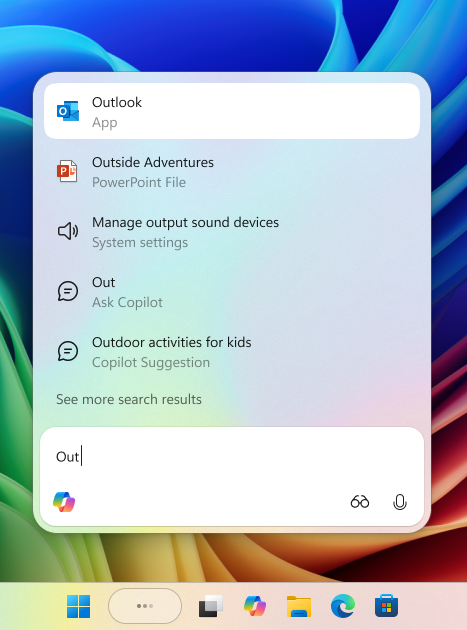
[caption id="attachment_178366" align="alignnone" width="467"]The Ask Copilot experience in the Windows taskbar demonstrating a query for ‘Out’ that shows apps, files, settings, and Copilot chat suggestions. The Ask Copilot experience in the Windows taskbar demonstrating a query for ‘Out’ that shows apps, files, settings, and Copilot chat suggestions.[/caption] With the new Ask Copilot in taskbar, Copilot becomes a natural part of how you use your PC, ready to help, guide and collaborate the moment you need it. This opt-in experience gives you one-click access to Copilot Vision and Voice, enabling more natural interaction in your flow. Whether through text, voice, or guided support with Copilot Vision, you can engage on your terms, in the way that works best for you. You’re always in control. As you type, results appear and update instantly, making it easier than ever to find what you need. To get started go to Settings > Personalization > Taskbar > Ask Copilot to enable the experience. You can also manage whether the Copilot app launches automatically at sign-in using the “Auto start on log in” toggle in the Copilot app settings. Ask Copilot in taskbar complements the familiar Windows Search experience, so you can continue using Search as you always have from Start while trying out this new experience. Ask Copilot uses existing Windows APIs to return apps, files, and settings—just like Windows Search—and does not grant Copilot access to your personal content. For more details, you can learn about privacy and control options for Microsoft Copilot here. Feedback: Share your thoughts in Feedback Hub (WIN + F) under Desktop Environment > Ask Copilot in taskbar.
Full screen experience

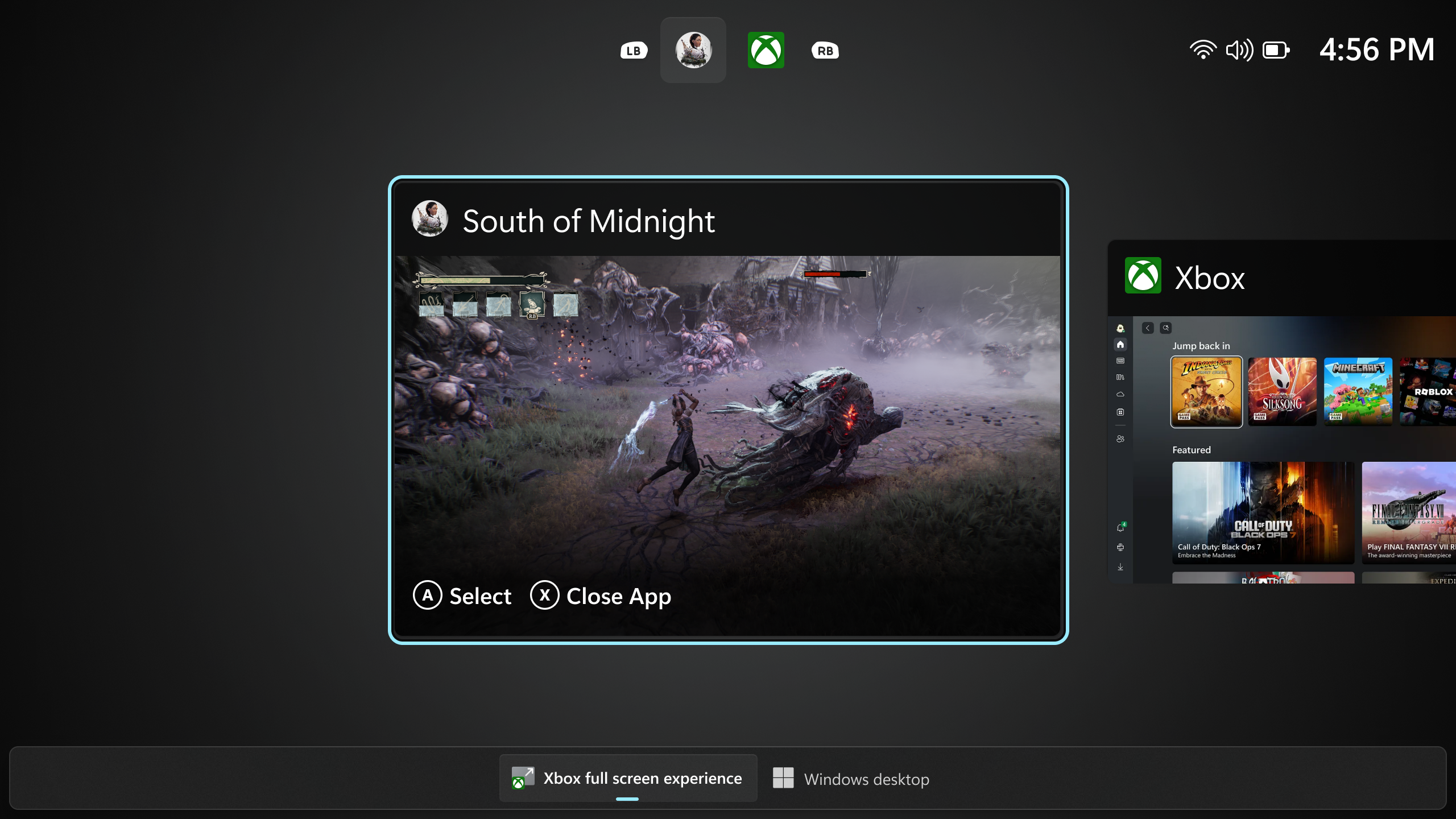
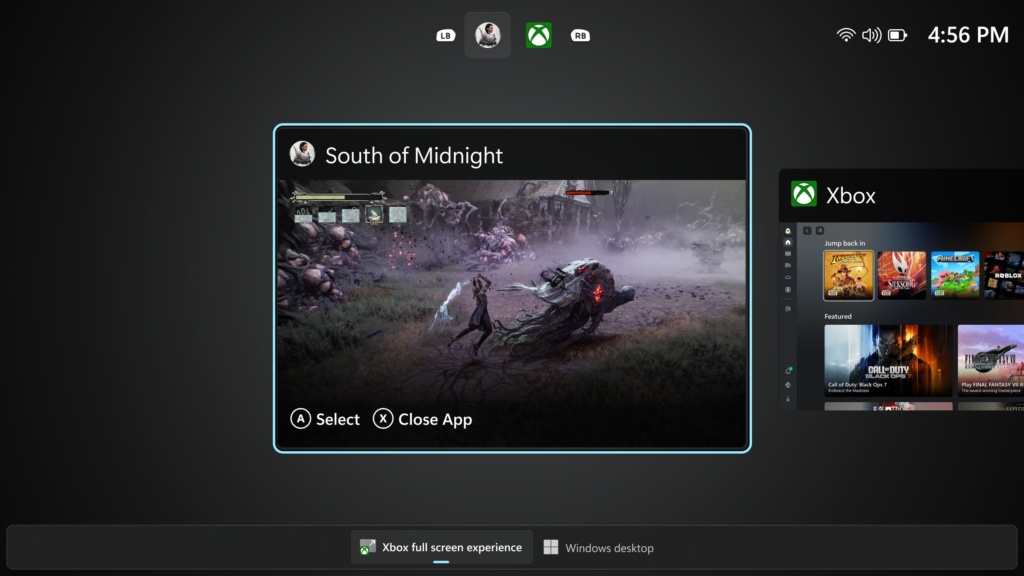
Following the initial launch of the full screen experience (FSE) on the ASUS ROG Xbox Ally and ROG Xbox Ally X, today’s preview to Windows Insiders expands availability to additional Windows 11 handheld devices currently in market. Designed with console-style navigation in mind, the Xbox PC app paired with the full screen experience delivers a clean, distraction-free interface for handheld gaming. You’ll get smooth task switching and optimized performance, with background processes minimized and non-essential tasks deferred—so gameplay stays responsive and uninterrupted. [caption id="attachment_178370" align="alignnone" width="1024"]A screenshot of the full screen experience with the Xbox PC app, with game selection shown. A screenshot of the full screen experience with the Xbox PC app, with game selection shown.[/caption]
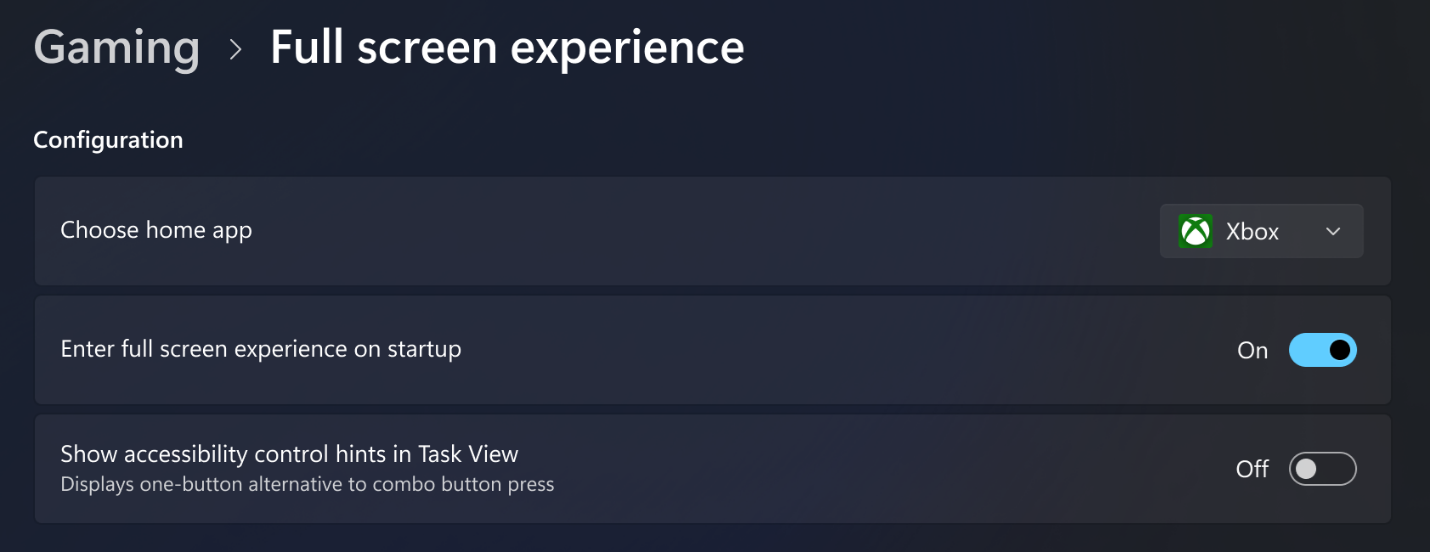
[caption id="attachment_178369" align="alignnone" width="1024"]Settings screen shot showing Gaming and full screen experience enablement options for startup. Settings screen shot showing Gaming and full screen experience enablement options for startup.[/caption] How to enable FSE: On supported devices, go to Settings > Gaming > Full screen experience, then select Xbox as your home app. Once enabled, you can access FSE from Task View and Game Bar or configure your handheld to enter full screen experience on startup.
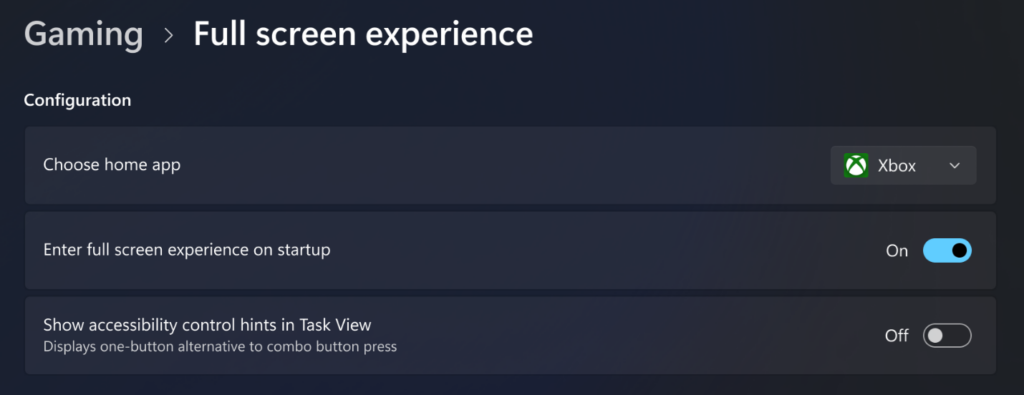
Availability: Feedback: Share your thoughts in Feedback Hub (WIN + F) under Gaming and Xbox > Gaming Handhelds.
Shared audio (preview)

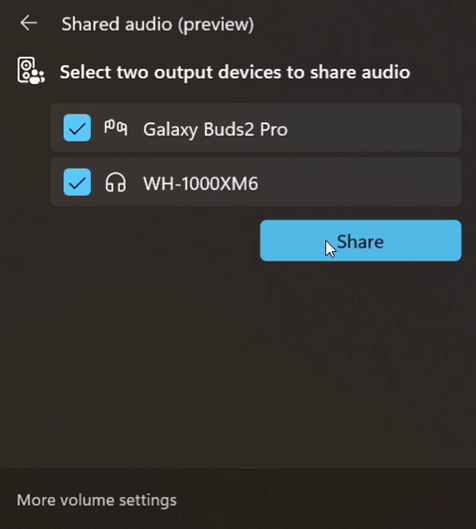
  • In this update, we are beginning rollout of shared audio (preview), a new experience built on Bluetooth® LE Audio broadcast technology, for Copilot+ PCs. Shared audio allows two family members to watch movies together while traveling, or two students to share music while studying.
  • To get started, access the “Shared audio (preview)” tile in quick settings, select two supported paired and connected accessories and click “Share” to begin.
  • For more information about shared audio (preview), including details about compatible PCs and accessories, visit Extending Bluetooth® LE Audio on Windows 11 with shared audio (preview).
[caption id="attachment_178365" align="alignnone" width="476"]Shared audio (preview) settings showing two connected devices and the Share button to get started using the experience. Shared audio (preview) settings showing two connected devices and the Share button to get started using the experience.[/caption]

Changes and Improvements gradually being rolled out with toggle on*

[Prism]

  • We are enabling the feature update to Prism, our emulator for Windows on Arm, that makes it possible for more 64-bit x86 (x64) applications to run under emulation by adding support for more CPU features under emulation. This support will be made available to any 64-bit x86 (x64) application under emulation by default, and 32-bit x86 applications can be opted in to the support using the emulation settings in the Properties window.
  • Please submit any feedback on compatibility issues or performance regressions through the Feedback Hub (Win + F) under Apps and the specific app you’re seeing issues with (if you don’t see the app listed, use “All other apps”) to help us to ensure that this updated Prism provides a great experience.

Fixes gradually being rolled out with toggle on* [General]

  • Fixed an underlying issue leading to keyboards or other USB devices not working for a small number of Insiders after the latest flights.

[Start menu]

  • Fixed an issue where interacting with a folder or its contents in Start menu could result in the folder becoming invisible.

[File Explorer]

  • Made some underlying changes to help responsiveness of File Explorer when navigating in network locations.
  • Made some more underlying improvements to help reduce the launch time of File Explorer.
  • Fixed an issue where “Open” in File Explorer’s context menu wasn’t showing the right icon for .exe, .cmd & .bat files (was showing a generic executable icon, instead of the default app for that file type).
  • Fixed an issue where you might see your desktop icons move when interacting with files, such as opening or renaming them.
  • Fixed a couple issues where tooltips were not showing up as expected when using navigating Home with a keyboard.

[Lock and login screens]

  • Fixed a memory leak when your lock screen was set to slide show, which could lead to performance or reliability issues over time when unlocking your PC.
  • Fixed an issue which could cause logging into be very slow the first time when logging into a new account.

[Settings]

  • Fixed an issue where the search box in Settings could become overlapped with the minimum and maximize buttons in the title bar.

[Other]

  • Fixed an issue where after the latest updates, screen readers might unexpectedly say "legacy window" without reading out the window contents when interacting with certain apps.
  • Fixed an issue where after the latest updates, text might not render correctly when editing content within a multiline text box in certain apps.
  • Fixed an issue where protected content playback might fail on some machines after the latest updates.
  • Fixed an issue which could cause ethernet upload speeds to be significantly lower on some PCs after the latest updates.

Known issues

[Taskbar & System Tray]

  • We’re investigating an issue which is causing the Start menu to not open for some Insiders on click, although it will open if you press the Windows key. It’s believed this issue may also potentially impact the notification center (which you can open with WIN + N).
  • We’re investigating an issue where for some Insiders apps aren’t showing in the system tray when they should be.

[File Explorer]

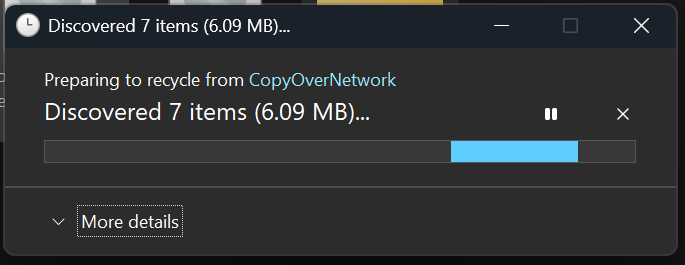
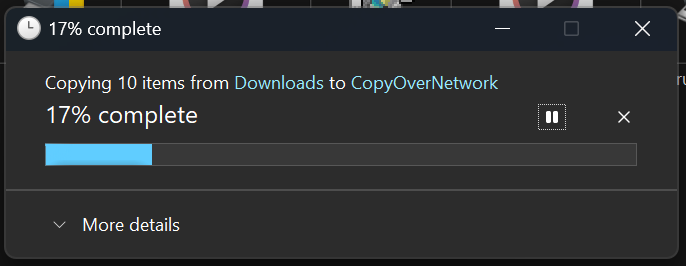
  • Copy progress might flash when clicking more or less details in dark mode version of the copy dialog.
  • Scrollbar and footer are missing and showing a white block instead when text is scaled in dark mode version of the copy dialog.

Reminders for Windows Insiders in the Dev & Beta Channels

  • Updates are based on Windows 11, version 25H2 via an enablement package (Build 26220.xxxx).
  • Many features are rolled out using Controlled Feature Rollout technology, starting with a subset of Insiders and ramping up over time as we monitor feedback to see how they land before pushing them out to everyone in this channel.
  • For Windows Insiders who want to be the first to get features gradually rolled out to you, you can turn ON the toggle to get the latest updates as they are available via Settings > Windows Update*. Over time, we will increase the rollouts of features to everyone with the toggle turned on. Should you keep this toggle off, new features will gradually be rolled out to your PC over time once they are ready.
  • Features and experiences included in these builds may never get released as we try out different concepts and get feedback. Features may change over time, be removed, or replaced and never get released beyond Windows Insiders. Some of these features and experiences could show up in future Windows releases when they’re ready.
  • Some features in active development we preview with Windows Insiders may not be fully localized and localization will happen over time as features are finalized. As you see issues with localization in your language, please report those issues to us via Feedback Hub.
  • Check out Flight Hub for a complete look at what build is in which Insider channel.
Thanks, Amanda

Extending Bluetooth® LE Audio on Windows 11 with shared audio (preview)

[Updated 3/05] Shared audio continues to improve, with per-accessory volume sliders, a taskbar icon while sharing, and expanded device readiness for this preview. Check it out here with the Windows Insider Build 26300.7939 or later on Dev & Beta channels.   Today’s Windows 11 Insider Preview Build (26220.7051) for Dev & Beta Channels begins gradual rollout of shared audio (preview), a new experience being previewed that allows your audio to be shared between two separate headphones, speakers, earbuds, or hearing aids.  Built on top of Bluetooth LE Audio broadcast technology, shared audio lets your supported Windows 11 PC transmit an audio stream to two Bluetooth audio accessories at the same time. Update 10/31: This preview is currently only supported on the Copilot+ PCs listed below, but more devices may be supported once available to general audiences. Shared audio lets students share music with a friend while studying or brings family members closer by watching a movie together on an airplane. As Insiders, you have the first opportunity to explore this feature and provide feedback before it rolls out more broadly. To use shared audio, pair and connect two compatible Bluetooth LE Audio accessories to your Windows 11 PC, then use the “Shared audio (preview)” tile in quick settings to start sharing audio. Use the “Stop sharing” button to end an active sharing session. [caption id="attachment_178365" align="alignnone" width="476"]Shared audio (preview) settings showing two connected devices and the Share button to get started using the experience. Shared audio (preview) settings showing two connected devices and the Share button to get started using the experience.[/caption]

Compatible Copilot+ PCs

Shared audio (preview) is supported on select Windows 11 Copilot+ PCs listed below with compatible Bluetooth and audio driver updates, and we expect additional Windows 11 PCs to add support for shared audio later. Available today:
  • Surface Laptop, 13.8-inch and 15-inch* | Qualcomm Snapdragon X
  • Surface Laptop for Business, 13.8 and 15-inch* | Qualcomm Snapdragon X
  • Surface Pro, 13-inch** | Qualcomm Snapdragon X
  • Surface Pro for Business, 13-inch** | Qualcomm Snapdragon X
  • [UPDATE 11/20] Surface Laptop, 13-inch | Qualcomm Snapdragon X
  • [UPDATE 11/20] Surface Laptop for Business, 13-inch | Qualcomm Snapdragon X
  • [UPDATE 11/20] Surface Pro, 12-inch | Qualcomm Snapdragon X
  • [UPDATE 11/20] Surface Pro for Business, 12-inch | Qualcomm Snapdragon X
  • [UPDATE 1/29] Samsung Galaxy Book4 Edge | Qualcomm Snapdragon X
Coming soon:
  • Samsung Galaxy Book5 360 | Intel Core Ultra Series 200
  • Samsung Galaxy Book5 Pro | Intel Core Ultra Series 200
  • Samsung Galaxy Book5 Pro 360 | Intel Core Ultra Series 200
* Previously known as Surface Laptop 7th Edition ** Previously known as Surface Pro 11th Edition

Compatible Bluetooth LE Audio accessories

Shared audio (preview) is compatible with a wide range of Bluetooth LE Audio accessories. This includes, but is not limited to, Samsung Galaxy Buds2 Pro, Buds3 and Buds3 Pro, Sony WH-1000XM6, and recent LE Audio capable hearing aids from ReSound and Beltone. Shared audio and other innovative Windows Bluetooth audio experiences, like super wideband stereo, are built on top of LE Audio technology. Look for LE Audio support when purchasing your next headphones, earbuds, speaker, or assistive hearing device.

Requirements to try shared audio (preview)

To try out shared audio (preview), enroll your compatible Windows 11 Copilot + PC in the Windows Insider Dev or Beta Channels, and install the latest OS and driver updates through Windows Update. For Windows Insiders who want to be the first to get features gradually rolled out to you, you can turn ON the toggle to get the latest updates as they are available via Settings > Windows Update. Over time, we will increase the rollouts of features to everyone with the toggle turned on. Should you keep this toggle off, new features will gradually be rolled out to your PC over time once they are ready. If you own a Copilot+ PC on the coming soon list, look for driver updates to be offered to you through Windows Update in the coming weeks. The “Shared audio (preview)” tile will appear in Quick Settings when your system has the necessary driver updates to support the feature. It is highly recommended to use the manufacturers’ app for your Bluetooth audio accessories to ensure LE Audio support is enabled and that the latest firmware updates are installed. If after updating, your Bluetooth accessory is connected to your PC but does not show under the “Shared audio (preview)” tile, try removing it from your PC, and then re-pairing it.

Share your feedback

We welcome and appreciate all feedback to help refine the shared audio experience during preview. Please file feedback in Feedback Hub (WIN + F) under Bluetooth – Audio quality, glitches, choppiness and stuttering.

Copilot on Windows: Vision with text input begins rolling out to Windows Insiders

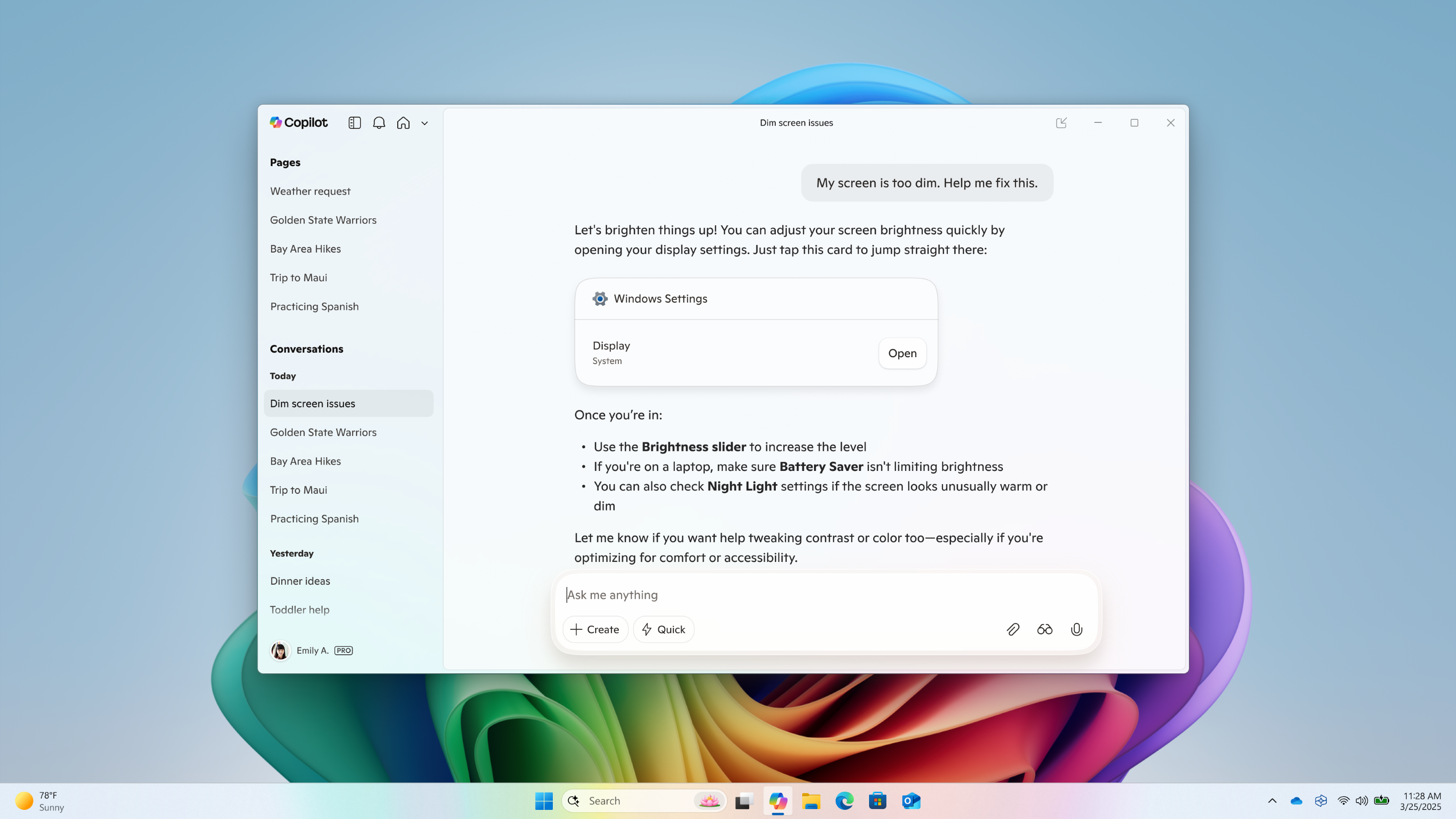
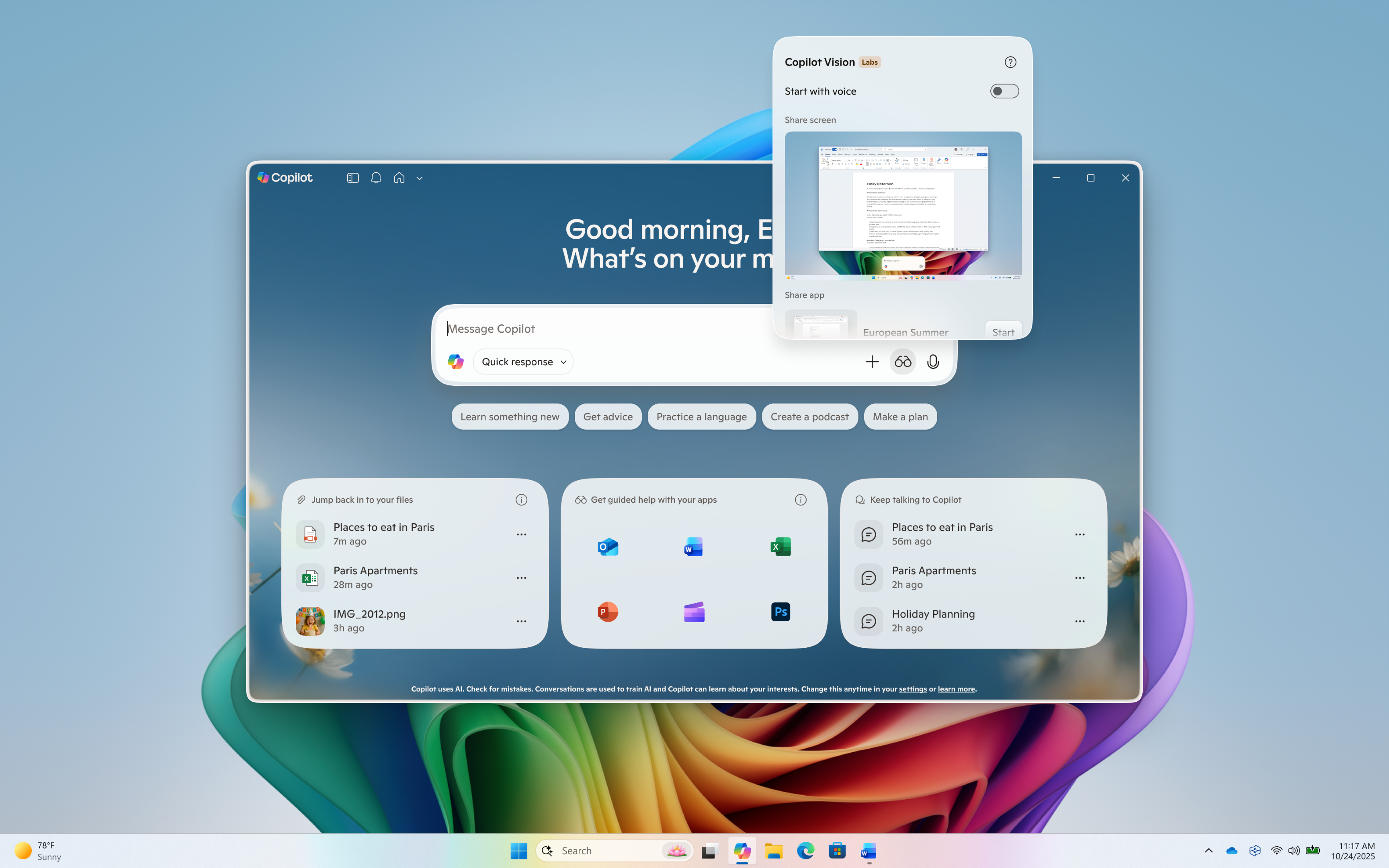
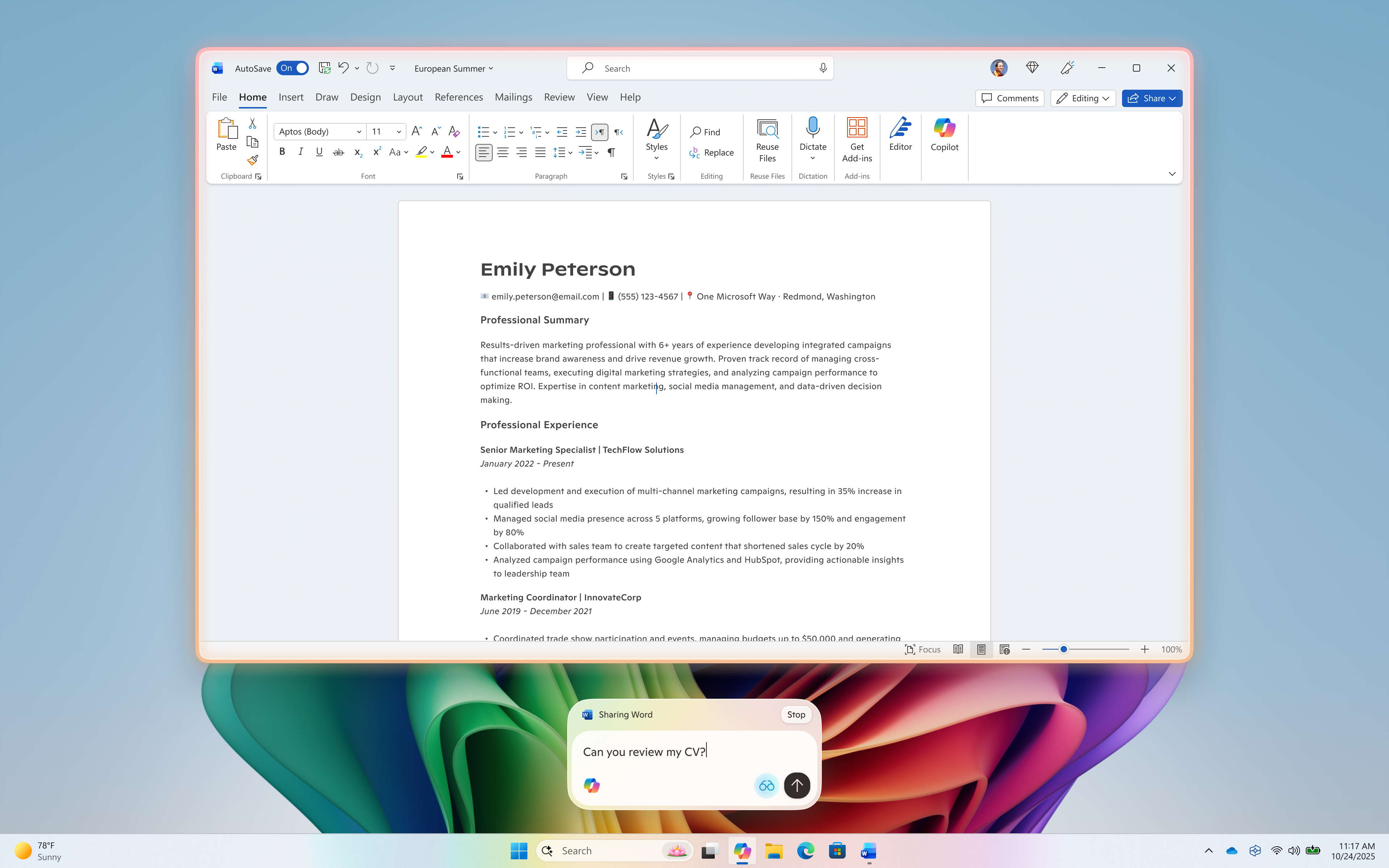
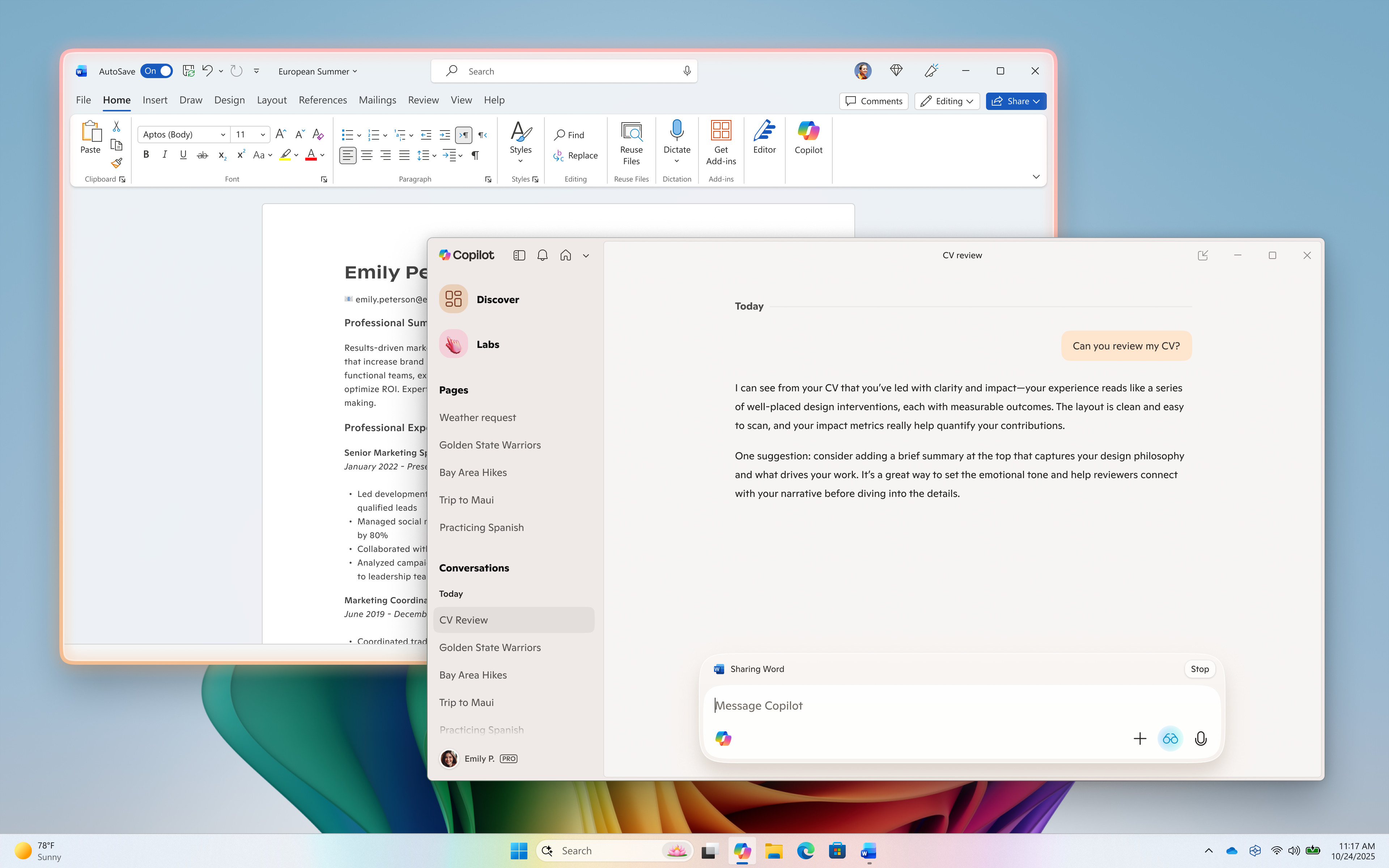
Hello Windows Insiders, we are excited to begin rolling out a new update for the Microsoft Copilot app on Windows that introduces the following changes and improvements: Vision with text-in, text-out: Windows Insiders can now converse with Copilot Vision using text, with Copilot responding in text within the same chat window. Previously you could only use Vision using voice, and Copilot would coach you through it aloud. Share any app or screen, and Copilot can help analyze, offer insights, or answer your questions. To get started click the glasses icon in your composer, toggle off the ‘Start with voice ‘setting, and select which app or screen you want to share with Copilot. You will see a glow around the app or window that you are sharing with Copilot.  Type your questions, and Copilot will respond in text within the same chat window. Pressing the mic button will transition the text Vision session to a  voice Vision session, and you can continue the conversation using your voice. To stop sharing, press ‘Stop’ or ‘X’ in the composer. We are continuing to explore how Vision can best serve our users, so some functionality, like highlights that visually point out elements on the screen, is not supported with today’s release. Please provide feedback on your experience directly within the Copilot app by clicking on your profile icon and choosing “Give feedback”. Whether you forget your headphones or just prefer engaging via text, Vision can support you across whichever scenario suits you best. [caption id="attachment_178349" align="alignnone" width="1024"]Click on the glasses icon, toggle off ‘Start with voice’, and share your screen to start Vision with text. Click on the glasses icon, toggle off ‘Start with voice’, and share your screen to start Vision with text.[/caption] [caption id="attachment_178351" align="alignnone" width="1024"]Type your questions or chat about what you’re sharing Type your questions or chat about what you’re sharing[/caption] [caption id="attachment_178350" align="alignnone" width="1024"]Copilot responds in text Copilot responds in text[/caption] This Copilot app update (version 1.25103.107 and higher) is beginning to roll out across all Insider Channels via the Microsoft Store. The above-mentioned features are gradually rolling out so not all Insiders will get the update right away. We are excited to be previewing improvements with our Insiders to ensure all our customers have a great Copilot experience on Windows. FEEDBACK: Please provide feedback directly within the Copilot app by clicking on your profile icon and choosing “Give feedback”. Thanks, Microsoft Copilot Team

Announcing Windows 11 Insider Preview Build 26220.6982 (Dev Channel)

Hello Windows Insiders, today we are releasing Windows 11 Insider Preview Build 26220.6982 (KB5067109) to the Dev Channel. Changes in Dev Channel builds and updates are documented in two buckets: new features, improvements, and fixes that are being gradually rolled out for Insiders who have turned on the toggle to get the latest updates as they are available (via Settings > Windows Update*) and then new features, improvements, and fixes rolling out to everyone in the Dev Channel. For more information, see the Reminders section at the bottom of this blog post.

New features gradually being rolled out to the Dev Channel with toggle on*

[Windows Search Box]

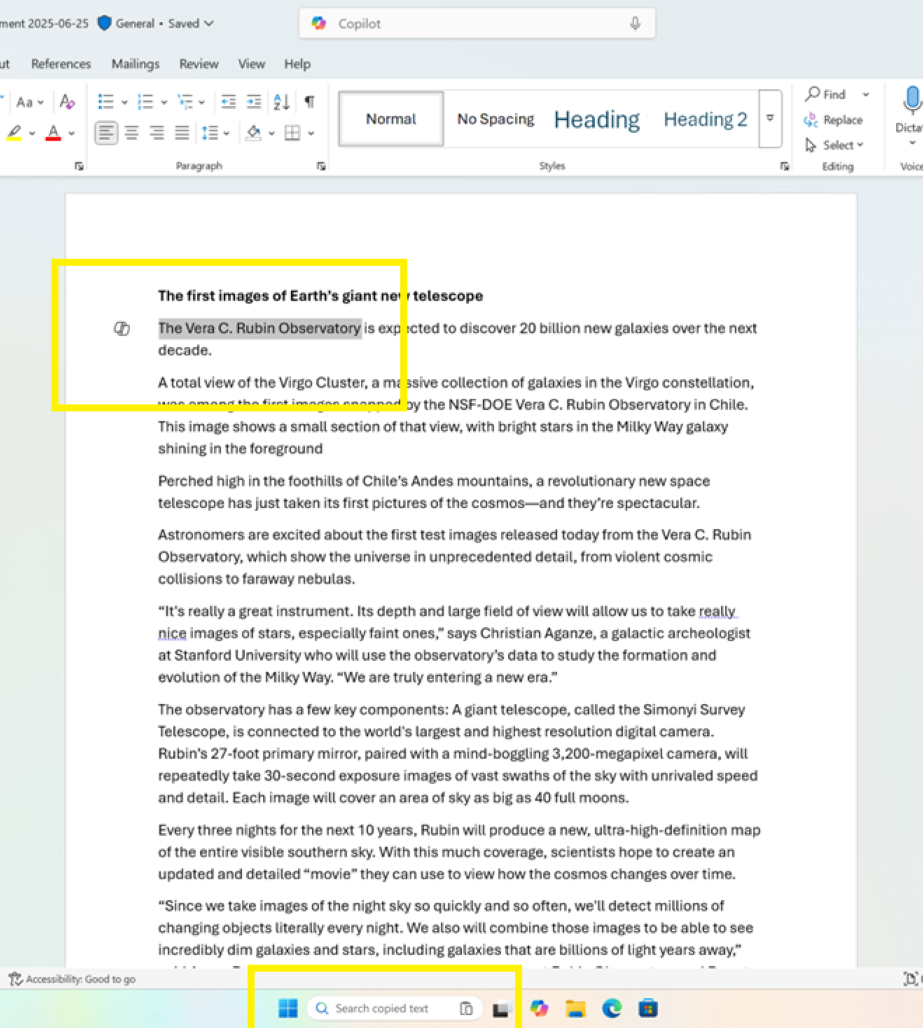
  • In this update, we are introducing Copy & Search, a feature that allows you to search the text in your clipboard with a single click. When you copy text anywhere in Windows, a paste gleam will appear in your search box. Click on this gleam and your copied text will appear in the search field, allowing you to search instantly. To get started:
    • Copy text from a document, webpage, or app.
    • After copying text, the paste gleam will appear in the search box on the taskbar.
    • Click the paste gleam to search for the copied text.
[caption id="attachment_178337" align="alignnone" width="919"]Copying any text in Windows (in this case Office) adds a paste gleam to in the Search field on Taskbar. Copying any text in Windows (in this case Office) adds a paste gleam to in the Search field on Taskbar.[/caption]

[Voice Typing]

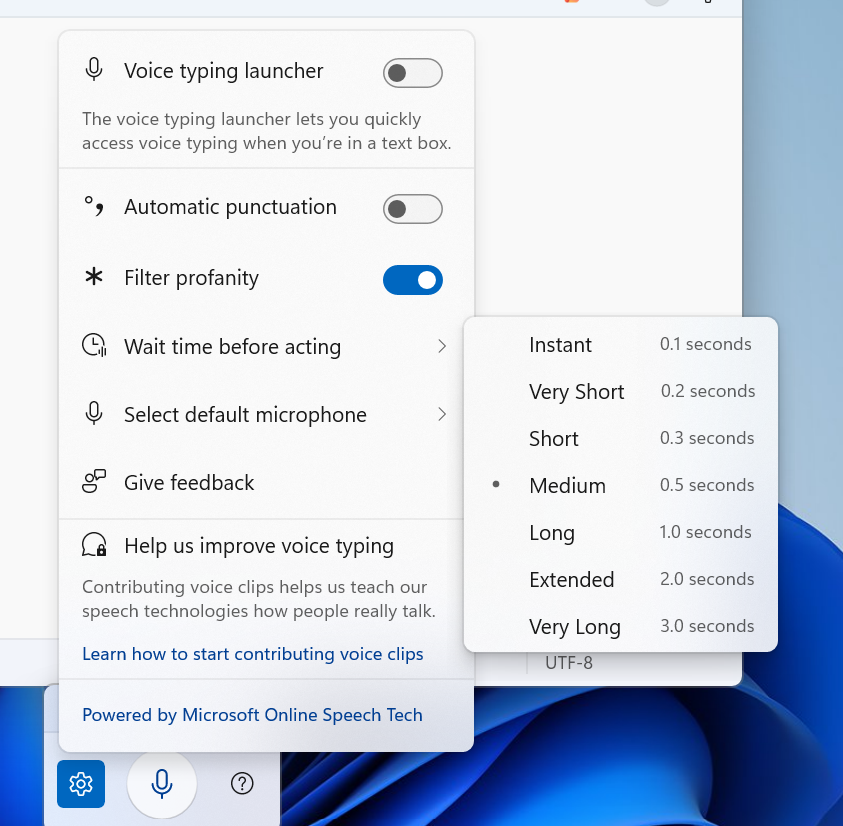
  • We are introducing a new 'Wait time before acting' setting in Voice Typing, allowing users to configure the delay before a voice command is executed. This provides greater flexibility for users with varying speech patterns, enabling more accurate recognition whether speaking slowly or quickly. (Update: This is rolling out for all desktop types, not just Copilot+ PCs.)
[caption id="attachment_178338" align="alignnone" width="843"]Voice typing settings supports “Wait time before acting” with timing options like “Instant - 0.1 seconds” to “Very Long - 3.0 seconds” Voice typing settings supports “Wait time before acting” with timing options like “Instant - 0.1 seconds” to “Very Long - 3.0 seconds”[/caption]

[Proactive Memory Diagnostics]

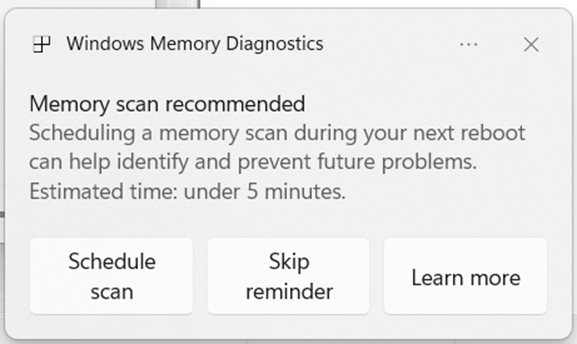
  • We’re introducing a new feature that helps improve system reliability. If your PC experiences a bugcheck (unexpected restart), you may see a notification when signing in suggesting a quick memory scan. If you choose to run it, the system will schedule a Windows Memory Diagnostic scan to run during your next reboot (taking 5 minutes or less on average) and then continue to Windows. If a memory issue is found and mitigated, you will see a notification post-reboot. Please note:
    • This early flight includes all bugcheck codes as triggers while we study the relationship between memory corruption and crashes. Future builds will refine targeting.
    • Currently this is experience not supported on Arm64 devices, systems with Administrator Protection, or BitLocker without Secure Boot.
[caption id="attachment_178339" align="alignnone" width="577"]Windows Memory Diagnostics dialog recommending a scan during next reboot. Windows Memory Diagnostics dialog recommending a scan during next reboot.[/caption]

Changes and Improvements gradually being rolled out to the Dev Channel with toggle on*

[Settings]

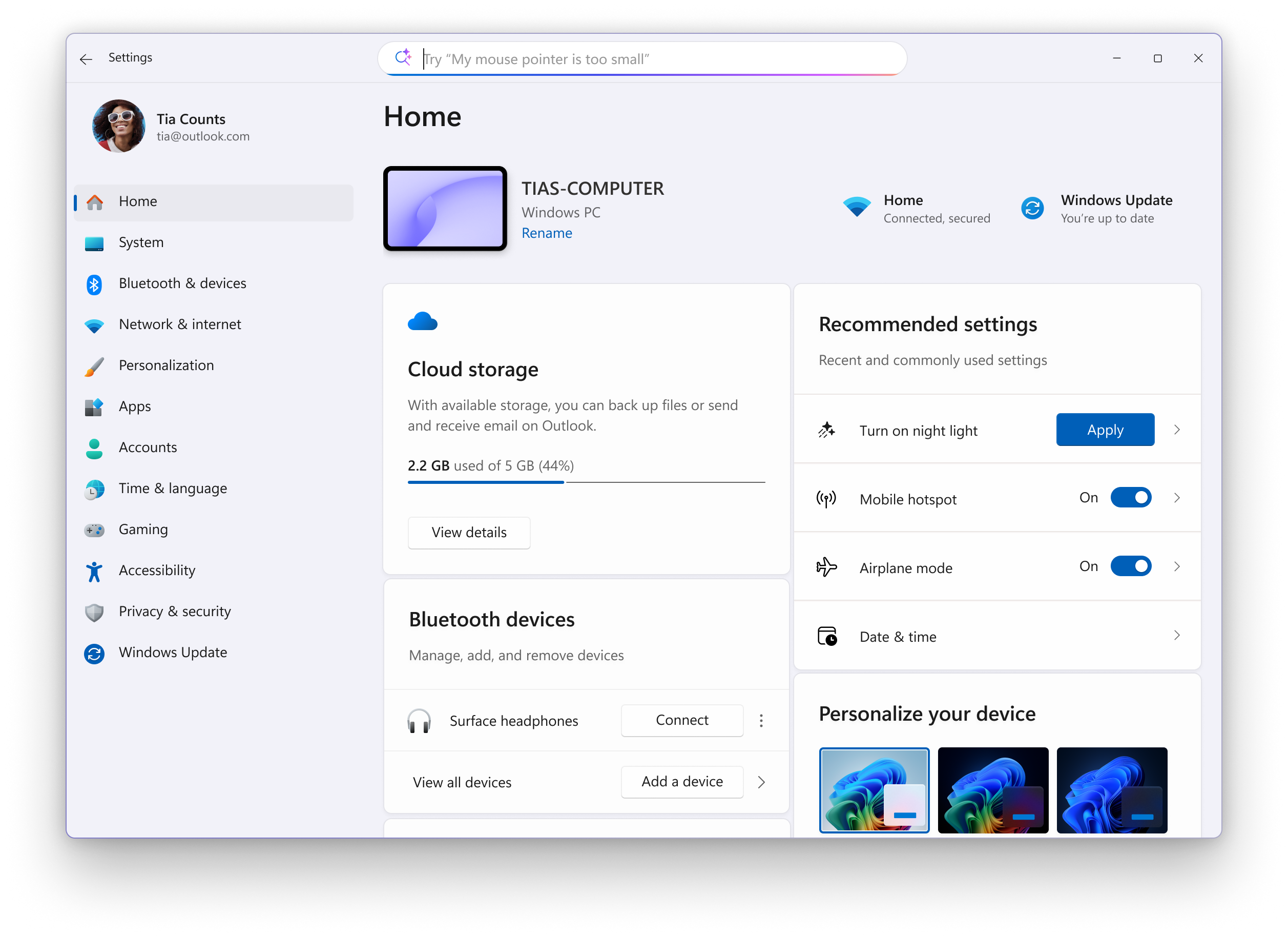
  • Device Cards in Settings has been updated to provide more clarity on information about your device for better readability and streamlined navigation for improved user experience.
  • In Settings About, we’ve enhanced it to deliver a more structured and intuitive experience, empowering users with device insights, and seamless navigation to related device components - including quick access to Storage settings.
  • Search: You can now scroll through all search results directly in the flyout, without needing to open a separate results page.
[caption id="attachment_178340" align="alignnone" width="1024"]A scrollbar is added to Settings search results flyout to show all results. A scrollbar is added to Settings search results flyout to show all results.[/caption]

[Click to Do]

  • We’re helping users discover more actions in Click to Do!
    • A helpful hint now appears as you launch Click to Do, assisting unfamiliar users in discovering powerful actions that help you work quickly and intuitively.
    • Known issue: When there are multiple monitors, the hint appears on every display, and closing one of them does not dismiss the others.

[Start menu]

  • Windows Insiders with the larger Start menu flyout will now notice that the Windows Search flyout now matches in size. This update aims to create a smoother transition when searching. The feature relies on the updated Start menu rolled out to WIP earlier this year.

[File Explorer]

[Taskbar]

[Windows Studio Effects]

Fixes gradually being rolled out to the Dev Channel with toggle on* [General]

  • Fixed an issue causing text actions that use Phi Silica in Click to Do and Recall to not work correctly on the previous build.

[Taskbar]

  • Fixed an issue where hovering over the taskbar with a pen was making the taskbar prematurely hide for some Insiders recently.
  • Fixed an issue where voice access wasn’t working correctly when attempting to interact with the taskbar (calling out a number wasn’t invoking that item).

[Input]

  • Fixed an issue where if you used the touch keyboard to input your password on the login screen, it might not disappear after logging into your PC.

[File Explorer]

  • Fixed an issue where the search icon in File Explorer might infinitely loop in an animation recently.

[Widgets]

  • If you’ve been experiencing an issue recently with widgets not being able to log in, that should be resolved now.

[Administrator Protection]

  • Fixed an issue when running an app as administrator where the text in the UAC prompt might be truncated.

[Task Manager]

  • Fixed an issue which was causing some apps and their processes to not be grouped correctly.

[Other]

  • Updated the buttons to have rounded corners when you’re shutting down your PC and are prompted if you want to shut down anyway despite running apps.


Known issues

[General]

  • [NEW] We’re investigating an underlying issue leading to keyboards or other USB devices not working for a small number of Insiders after the latest flights.

[Taskbar & System Tray]

  • We’re investigating an issue which is causing the Start menu to not open for some Insiders on click, although it will open if you press the Windows key. It’s believed this issue may also potentially impact the notification center (which you can open with WIN + N).
  • [NEW] We’re investigating an issue where for some Insiders apps aren’t showing in the system tray when they should be.

[File Explorer]

  • Copy progress might flash when clicking more or less details in dark mode version of the copy dialog.
  • Scrollbar and footer are missing and showing a white block instead when text is scaled in dark mode version of the copy dialog.
 

Reminders for Windows Insiders in the Dev Channel

  • Windows Insiders in the Dev Channel receive updates based on Windows 11, version 25H2 via an enablement package (Build 26220.xxxx).
  • Many features in the Dev Channel are rolled out using Controlled Feature Rollout technology, starting with a subset of Insiders and ramping up over time as we monitor feedback to see how they land before pushing them out to everyone in this channel.
  • For Windows Insiders in the Dev Channel who want to be the first to get features gradually rolled out to you, you can turn ON the toggle to get the latest updates as they are available via Settings > Windows Update*. Over time, we will increase the rollouts of features to everyone with the toggle turned on. Should you keep this toggle off, new features will gradually be rolled out to your PC over time once they are ready.
  • Features and experiences included in these builds may never get released as we try out different concepts and get feedback. Features may change over time, be removed, or replaced and never get released beyond Windows Insiders. Some of these features and experiences could show up in future Windows releases when they’re ready.
  • Some features in active development we preview with Windows Insiders may not be fully localized and localization will happen over time as features are finalized. As you see issues with localization in your language, please report those issues to us via Feedback Hub.
  • Please note that some accessibility features may not work with features like Recall and Click to Do while in preview with Windows Insiders.
  • Because the Dev and Beta Channels represent parallel development paths from our engineers, there may be cases where features and experiences show up in the Beta Channel first.
  • Check out Flight Hub for a complete look at what build is in which Insider channel.
Thanks, Amanda

Announcing Windows 11 Insider Preview Build 26120.6982 (Beta Channel)

Hello Windows Insiders, today we are releasing Windows 11 Insider Preview Build 26120.6982 (KB5067109) to the Beta Channel for Windows Insiders on Windows 11, version 24H2. Changes in Beta Channel builds and updates are documented in two buckets: new features/improvements, and fixes that are being gradually rolled out for Insiders who have turned on the toggle to get the latest updates as they are available (via Settings > Windows Update*) and then new features, improvements, and fixes rolling out to everyone in the Beta Channel. For more information, see the Reminders section at the bottom of this blog post.

New features gradually being rolled out to the Beta Channel with toggle on*

[Windows Search Box]

  • In this update, we are introducing Copy & Search, a feature that allows you to search the text in your clipboard with a single click. When you copy text anywhere in Windows, a paste gleam will appear in your search box. Click on this gleam and your copied text will appear in the search field, allowing you to search instantly. To get started:
    • Copy text from a document, webpage, or app.
    • After copying text, the paste gleam will appear in the search box on the taskbar.
    • Click the paste gleam to search for the copied text.
[caption id="attachment_178337" align="alignnone" width="919"]Copying any text in Windows (in this case Office) adds a paste gleam to in the Search field on Taskbar. Copying any text in Windows (in this case Office) adds a paste gleam to in the Search field on Taskbar.[/caption]

[Voice Typing]

  • We are introducing a new 'Wait time before acting' setting in Voice Typing, allowing users to configure the delay before a voice command is executed. This provides greater flexibility for users with varying speech patterns, enabling more accurate recognition whether speaking slowly or quickly. (Update: This is rolling out for all desktop types, not just Copilot+ PCs.)
[caption id="attachment_178338" align="alignnone" width="843"]Voice typing settings supports “Wait time before acting” with timing options like “Instant - 0.1 seconds” to “Very Long - 3.0 seconds” Voice typing settings supports “Wait time before acting” with timing options like “Instant - 0.1 seconds” to “Very Long - 3.0 seconds”[/caption]

[Proactive Memory Diagnostics]

  • We’re introducing a new feature that helps improve system reliability. If your PC experiences a bugcheck (unexpected restart), you may see a notification when signing in suggesting a quick memory scan. If you choose to run it, the system will schedule a Windows Memory Diagnostic scan to run during your next reboot (taking 5 minutes or less on average) and then continue to Windows. If a memory issue is found and mitigated, you will see a notification post-reboot. Please note:
    • This early flight includes all bugcheck codes as triggers while we study the relationship between memory corruption and crashes. Future builds will refine targeting.
    • Currently this is experience not supported on Arm64 devices, systems with Administrator Protection, or BitLocker without Secure Boot.
[caption id="attachment_178339" align="alignnone" width="577"]Windows Memory Diagnostics dialog recommending a scan during next reboot. Windows Memory Diagnostics dialog recommending a scan during next reboot.[/caption]

Changes and Improvements gradually being rolled out to the Beta Channel with toggle on*

[Settings]

  • Device Cards in Settings has been updated to provide more clarity on information about your device for better readability and streamlined navigation for improved user experience.
  • In Settings About, we’ve enhanced it to deliver a more structured and intuitive experience, empowering users with device insights, and seamless navigation to related device components - including quick access to Storage settings.
  • Search: You can now scroll through all search results directly in the flyout, without needing to open a separate results page.
[caption id="attachment_178340" align="alignnone" width="1024"]A scrollbar is added to Settings search results flyout to show all results. A scrollbar is added to Settings search results flyout to show all results.[/caption]

[Click to Do]

  • We’re helping users discover more actions in Click to Do!
    • A helpful hint now appears as you launch Click to Do, assisting unfamiliar users in discovering powerful actions that help you work quickly and intuitively.
    • Known issue: When there are multiple monitors, the hint appears on every display, and closing one of them does not dismiss the others.

[Start menu]

  • Windows Insiders with the larger Start menu flyout will now notice that the Windows Search flyout now matches in size. This update aims to create a smoother transition when searching. The feature relies on the updated Start menu rolled out to WIP earlier this year.

[File Explorer]

[Taskbar]

[Windows Studio Effects]

Fixes gradually being rolled out to the Beta Channel with toggle on*

[General]

  • Fixed an issue causing text actions that use Phi Silica in Click to Do and Recall to not work correctly on the previous build.

[Taskbar]

  • Fixed an issue where hovering over the taskbar with a pen was making the taskbar prematurely hide for some Insiders recently.
  • Fixed an issue where voice access wasn’t working correctly when attempting to interact with the taskbar (calling out a number wasn’t invoking that item).

[Input]

  • Fixed an issue where if you used the touch keyboard to input your password on the login screen, it might not disappear after logging into your PC.

[File Explorer]

  • Fixed an issue where the search icon in File Explorer might infinitely loop in an animation recently.

[Widgets]

  • If you’ve been experiencing an issue recently with widgets not being able to log in, that should be resolved now.

[Administrator Protection]

  • Fixed an issue when running an app as administrator where the text in the UAC prompt might be truncated.

[Task Manager]

  • Fixed an issue which was causing some apps and their processes to not be grouped correctly.

[Other]

  • Updated the buttons to have rounded corners when you’re shutting down your PC and are prompted if you want to shut down anyway despite running apps.

Known Issues

[General]

  • [NEW] We’re investigating an underlying issue leading to keyboards or other USB devices not working for a small number of Insiders after the latest flights.

[Taskbar & System Tray]

  • We’re investigating an issue which is causing the Start menu to not open for some Insiders on click, although it will open if you press the Windows key. It’s believed this issue may also potentially impact the notification center (which you can open with WIN + N).
  • [NEW] We’re investigating an issue where for some Insiders apps aren’t showing in the system tray when they should be.

[File Explorer]

  • Copy progress might flash when clicking more or less details in dark mode version of the copy dialog.
  • Scrollbar and footer are missing and showing a white block instead when text is scaled in dark mode version of the copy dialog.

Reminders for Windows Insiders in the Beta Channel

  • Windows Insiders in the Beta Channel on Windows 11, version 24H2 will receive updates based on Windows 11, version 24H2 via an enablement package (Build 26120.xxxx).
  • Updates delivered to the Beta Channel are in a format that offers a preview of enhancements to servicing technology on Windows 11, version 24H2. To learn more, see https://aka.ms/CheckpointCumulativeUpdates.
  • Many features in the Beta Channel are rolled out using Controlled Feature Rollout technology, starting with a subset of Insiders and ramping up over time as we monitor feedback to see how they land before pushing them out to everyone in this channel.
  • For Windows Insiders in the Beta Channel who want to be the first to get features gradually rolled out to you, you can turn ON the toggle to get the latest updates as they are available via Settings > Windows Update*. Over time, we will increase the rollouts of features to everyone with the toggle turned on. Should you keep this toggle off, new features will gradually be rolled out to your PC over time once they are ready.
  • Features and experiences included in these builds may never get released as we try out different concepts and get feedback. Features may change over time, be removed, or replaced and never get released beyond Windows Insiders. Some of these features and experiences could show up in future Windows releases when they’re ready.
  • Some features in active development we preview with Windows Insiders may not be fully localized and localization will happen over time as features are finalized. As you see issues with localization in your language, please report those issues to us via Feedback Hub.
  • Please note that some accessibility features may not work with features like Recall and Click to Do while in preview with Windows Insiders.
  • Because the Dev and Beta Channels represent parallel development paths from our engineers, there may be cases where features and experiences show up in the Beta Channel first.
  • Check out Flight Hub for a complete look at what build is in which Insider channel.
Thanks, Amanda

Announcing Windows 11 Insider Preview Build 27975 (Canary Channel)

UPDATE 10/27/25: We are starting to roll out Cumulative Update Build 27975.984 (KB5070899). This update does not include anything new and is designed to test our servicing pipeline for builds in the Canary Channel. Hello Windows Insiders, today we are releasing Windows 11 Insider Preview Build 27975 to the Canary Channel.

What’s new in Build 27975

[General] 

  • This update includes a small set of general improvements and fixes that improve the overall experience for Insiders running this build on their PCs.

Fixes

[Input]

  • Fixed an issue impacting touch keyboard launch reliability in the latest Canary builds.

[Windows Hello]

  • Fixed an issue impacting certain devices which was causing the Windows Hello PIN to not work after upgrading to the latest Canary builds, until you set it up again.

[Settings]

  • Fixed an issue causing Settings to crash when accessing drive information under Settings > System > Storage. This also impacted accessing the drive information from the properties when you right clicked a drive in File Explorer.

Known issues

[Start menu]

  • Insiders with the new Start menu may experience it unexpectedly scrolling to the top.

[Power and Battery]

  • We’re investigating reports that sleep and shutdown aren’t working correctly for some Insiders after the latest Canary builds.

Reminders for Windows Insiders in the Canary Channel

  • The builds we release to the Canary Channel represent the latest platform changes early in the development cycle and should not be seen as matched to any specific release of Windows and features and experiences included in these builds may never get released as we try out different concepts and get feedback. Features may change over time, be removed, or replaced and never get released beyond Windows Insiders. Some of these features and experiences could show up in future Windows releases when they’re ready.
  • Many features in the Canary Channel are rolled out using Control Feature Rollout technology, starting with a subset of Insiders and ramping up over time as we monitor feedback to see how they land before pushing them out to everyone in this channel.
  • Some features may show up in the Dev and Beta Channels first before showing up in the Canary Channel.
  • Some features in active development we preview with Windows Insiders may not be fully localized and localization will happen over time as features are finalized. As you see issues with localization in your language, please report those issues to us via Feedback Hub.
  • To get off the Canary Channel, a clean install of Windows 11 will be required. As a reminder - Insiders can’t switch to a channel that is receiving builds with lower build numbers without doing a clean installation of Windows 11 due to technical setup requirements.
  • Check out Flight Hub for a complete look at what build is in which Insider channel.
Thanks, Amanda

Restyle in Paint begins rolling out to Windows Insiders

Hello Windows Insiders, today we are beginning to roll out updates to Paint to Windows Insiders in the Canary, Dev & Beta Channels on Windows 11. Paint (version 11.2509.441.0) In this update we are introducing Restyle, an AI-powered feature that lets you transform the art style of images on the canvas. To get started, open Paint and select the Restyle option from the Copilot menu. Choose from a preset list of styles and select the Generate button. Once the restyled images are generated, you can click on the Add to canvas button, copy, or save it for later use. [caption id="attachment_178331" align="alignnone" width="1024"]Paint showing a sailboat styled into Pop art. Paint showing a sailboat styled into Pop art.[/caption]

Restyle will be available on Snapdragon-powered Copilot+ PCs. To use Restyle, you will need to sign in with your Microsoft account.

FEEDBACK: Please file feedback in Feedback Hub (WIN + F) under Apps > Paint. As always, we love getting feedback from the community and we will be looking out for your thoughts and suggestions on these updates! Thanks, Dave Grochocki, Principal Group Product Manager – Windows Inbox Apps

Releasing Windows 11 Build 22631.6132 to the Release Preview Channel

Hello Windows Insiders, today we’re releasing Windows 11 Build 22631.6132 (KB5067112) to Insiders in the Release Preview Channel on Windows 11, version 23H2 (Build 22631).   This update includes the following features and improvements that are rolling out as part of this update. Text bolded in brackets indicates the area of the change being documented.
  • [Input] Fixed: This update addresses an issue where the touch keyboard does not enter characters into text fields after the device wakes from sleep. Although touch keyboard animations appear correctly, key presses do not register—for example, when entering a password on the sign-in screen.
  • [Networking] Fixed: An issue where external virtual switches lose their physical network interface card (NIC) bindings and convert to internal switches when the host restarts, resulting in network connectivity loss. The issue was caused by incorrect detection of orphaned virtual switch objects during Host Network Service startup.
  • [Shell] This update enables the Personalized Offers feature during device setup in the Out-of-Box Experience (OOBE), and in Settings after the user reaches the desktop.
  • [Storage] Fixed: This update addresses an issue that affects disk communication and causes connectivity errors during Azure Stack Hub or Azure Local cluster upgrades.
Thanks, Windows Insider Program Team

Releasing Windows 11 Builds 26100.7015 and 26200.7015 to the Release Preview Channel

Hello Windows Insiders, today we’re releasing Windows 11 Builds 26100.7015 and 26200.7015 (KB5067036) to Insiders in the Release Preview Channel on Windows 11, version 24H2 (Build 26100) and version 25H2 (Build 26200). Below is a summary of the new features and improvements included as part of this update separated into two sections: gradual rollout and normal rollout. The bold text within the brackets indicates the item or area of the change we are documenting.

Gradual rollout

The following features and improvements might not be available to all users because they will roll out gradually. Text bolded in brackets indicate the area of the change being documented. Please note that features and improvements that gradually roll out may not begin rolling out right away nor will they immediately show up right away.
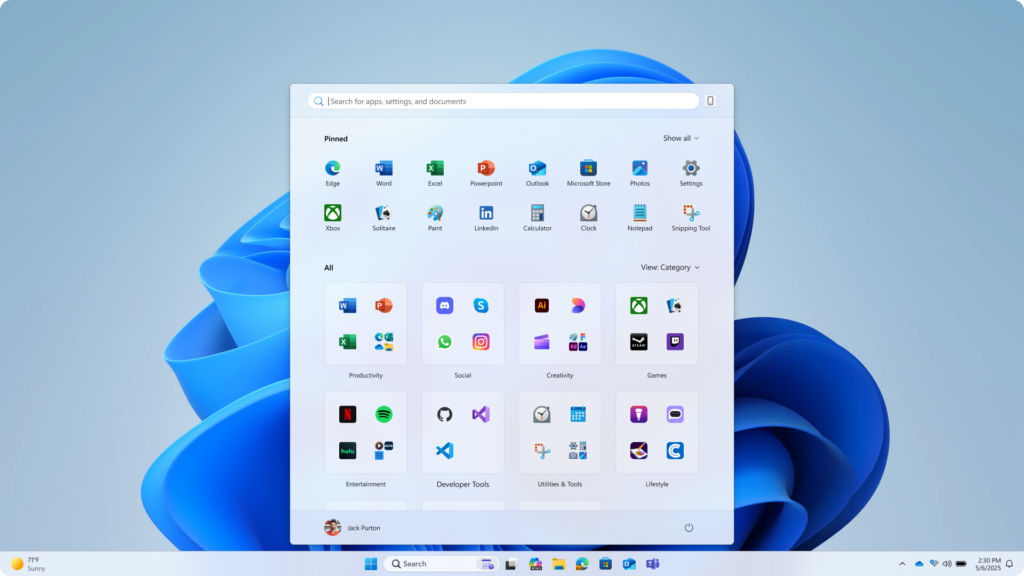
  • [Start menu] New! The redesigned Start menu, built to help you access your apps more quickly and smoothly. Its redesigned layout makes it easier than ever to find what you need.
    • Scrollable ‘All’ section: The main page now includes a scrollable “All” section, making it easier to find apps.
    • Category and grid views: Switch between two new views—category view, which groups apps by type and highlights frequently used ones, and grid view, which lists apps alphabetically with more horizontal space for easier scanning. The menu remembers your last selected view.
    • Responsive layout: The Start menu adapts to your screen size. Larger displays show more pinned apps, recommendations, and categories by default. Sections like Pinned and Recommended expand or collapse based on content. You can customize these views under Settings > Personalization > Start.
    • Phone Link integration: A new mobile device button next to Search lets you expand or collapse content from your connected phone. This feature supports Android and iOS devices in most markets and will roll out to the European Economic Area (EEA) in 2025.
  • [Voice access]
    • New! Fluid Dictation in voice access makes voice-based dictation smoother and smarter. It helps correct grammar, punctuation, and filler words in real time. Powered by on-device small language models (SLMs), it offers fast and private processing. Fluid Dictation is on by default—just open the voice access app to start. To turn it on or off, go to Settings or say Turn on Fluid Dictation or Turn off Fluid Dictation. You can use it in most text input apps, but it’s disabled in secure fields like passwords or PINs Fluid Dictation is available in all English locales on Copilot+ PCs.
    • New! You can now configure a delay before a voice command is executed. To set this up, go to Voice access settings > Wait time before acting, and select the option that best matches your preferences.
    • New! Voice Access now supports Japanese, expanding accessibility for more users. You can now navigate, dictate, and interact with Windows using voice commands.  With this update, Windows users who speak Japanese can enjoy a hands-free, voice-powered PC experience.
    • Fixed: Voice access unexpectedly stops working, showing error code 9001.
  • [Agent in Settings] New! The new agent in the Settings experience now supports French.
  • [Settings] New! The “Email & accounts” section is now called “Your accounts.” You manage all your accounts under Settings > Accounts.
  • [Click to Do]
    • New! The prompt box in Click to Do streamlines interaction with Copilot, helping you work more efficiently. You can type a custom prompt directly into the text box, which sends your prompt and selected on-screen content to Copilot. Suggested prompts appear below the text box and are powered locally by https://learn.microsoft.com/en-us/windows/ai/apis/phi-silica. These suggestions are available for text selections in English, Spanish, and French. This feature isn’t currently available in the European Economic Area (EEA) or China.
    • New! You can now translate on-screen text with Microsoft Copilot with Click to Do. When you select text that is in a different language from your Windows display language or preferred language setting, a translation suggestion appears. After selecting the option to translate the text, the translated text will appear in the Copilot app. You can see the supported regions and languages in Microsoft Copilot. This experience is not yet available for customers in the EEA (European Economic Area) or China.
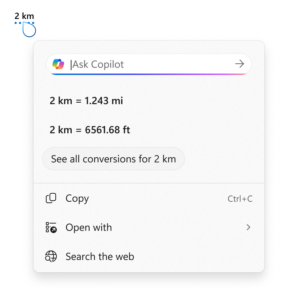
    • New! Click to Do provides unit conversions for length, area, volume, height, temperature, and speed. When you hover over a number + unit, a floating tooltip will show you the conversation. When you select the number + unit, the context menu opens with additional conversation options. You can also access more conversions via the Copilot app. This experience is not yet available for customers in the EEA (European Economic Area) or China.
    • New! By pressing and holding two fingers anywhere on your Copilot+ PC with a touch screen, you can simultaneously launch Click to Do, select the entity under your finger and see relevant actions.
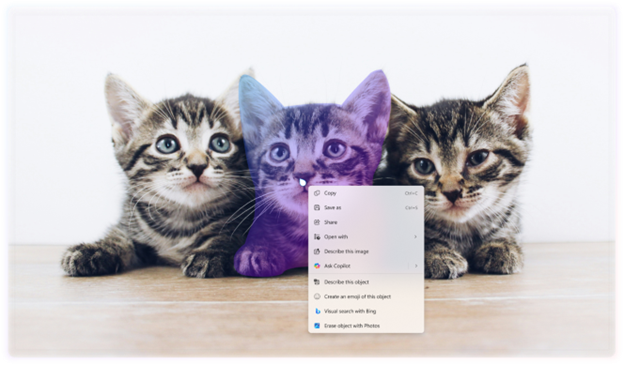
    • New! You can now select objects in Click to Do using Freeform Selection, Rectangle Selection and Ctrl + Click. To use Freeform Selection Mode, select the Freeform button on the toolbar. Then use your pen or finger to draw freely around the items you want to select. To use the Rectangle Selection Mode, select the Rectangle Selection button on the toolbar. Then drag a box around the items. Everything inside the rectangle will be selected. You can also use Ctrl + Click to select multiple types of items—such as text and images—by holding down the Ctrl key and selecting each item.
    • New! Click to Do can now detect tables. You can now highlight any simple table and send it to Excel, copy or share it. With a table in any application, you can press Win + Click to invoke Click to Do, or Win + Q or right swipe and tap to select the table. Once selected, you’ll see the actions you can take like Convert to table with Excel. Just click, capture and continue. This is available on Snapdragon-powered Copilot+ PCs, with support for AMD and Intel-powered Copilot+ PCs coming soon. You’ll need the latest Microsoft Excel application installed on your PC to see Convert to table with Excel and a Microsoft 365 Subscription. This change is not yet rolling out to Windows Insiders in the EEA (European Economic Area).
    • New! Live Persona Cards from Microsoft 365 now appears in Click to Do. To view a profile card, press Win + Click on an email address from your organization.
    • New! Visual cues now make key items, such as emails, tables, and more, light up on your screen as you launch Click to Do.
    • Fixed: Click to Do may unexpectedly invoke sometimes when pressing Windows key + P.
  • [File Explorer]
    • New! Recommended files in File Explorer Home are now available in personal Microsoft accounts and local accounts. Recommended files show content such as files you frequently used, have recently downloaded, or added to your File Explorer Gallery. This change is not yet rolling out in the EEA (European Economic Area). If you would prefer not to see the recommended section in File Explorer Home, this can be turned off in File Explorer Folder Options. When turned off, folders pinned to Quick Access will display instead.
    • New! When you hover over a file in File Explorer Home, commands such as Open file location or Ask Copilot This experience is available if you’re signed in with a Microsoft account. Support for work and school account (Entra ID) will be available in a future update. This change is not available in the EEA (European Economic Area).
    • New! StorageProvider APIs are now available for cloud providers to integrate with File Explorer Home. Developers can learn to enable the system to query for suggested files.
    • Fixed: The File Explorer context menu may unexpectedly switch back and forth between the normal view and Show More Options on each right click.
    • Fixed: When opening a folder from another app (for example, opening the Downloads folder from a browser), your custom view — including sorting files by name, changing the icon size, or removing grouping — unexpectedly resets back to default.
    • Fixed: The body of the File explorer window may no longer respond to mouse clicks after invoking the context menu.
    • Fixed: Extracting very large archive folders (1.5gb+) may fail with a Catastrophic Error (0x8000FFFF).
    • Fixed: File Explorer may become unresponsive when opening Home.
  • [Taskbar]
    • New! The battery icons are now improved to display colored icons to indicate charging states, simplified overlays that don’t block the percentage bars, and an option to turn on battery percentage. A green battery icon shows that your PC is charging and is in a good state. A yellow icon indicates your battery is less than or equal to 20%. You can also enable the ability to see the battery percentage next to the battery icon in the system tray. To turn on this feature, go to Settings > Power & battery and toggle on the “Battery Percentage”
    • New! When you hover over an open app icon on the taskbar, a thumbnail preview of the app window appears with a new “Share with Copilot” button beneath this preview. Selecting it allows Copilot Vision to scan, analyze, and offer insights on the content displayed by the app at that time. This option can be turned off if preferred under Settings > Personalization > Taskbar > Taskbar behaviors, using the checkbox “Share any window from my taskbar”.
    • Fixed: If you hover over an app icon on the taskbar, and then click the window preview, the preview may dismiss and not bring the window to the foreground.
  • [Lock screen] New! The new battery icons, featuring color indicators and battery percentage, now appear in the lower-right corner of the lock screen.
  • [Microsoft 365 Copilot] New! A new Microsoft 365 Copilot page is added to the Get Started experience for commercial devices managed with an active Microsoft 365 subscription. This page helps you discover and engage with Microsoft 365 Copilot more easily.
  • [Windows Setup Experience] New! You can now name your default user folder during set up. On the Microsoft account sign in page, press Shift + F10 to open Command Prompt. Type the following command: “cd oobe”, press Enter. Then type ““SetDefaultUserFolder.cmd ”. Enter a folder name of your choice and proceed with the MSA sign-in. The folder name cannot be more than 16 characters and only Unicode characters are supported. The custom folder name will be applied if valid. If not, Windows will automatically generate a profile folder name from your Microsoft email address.
  • [Logging into your PC] Improved: Made underlying changes to help improve the performance of loading the taskbar when unlocking your PC after coming out of sleep. This should also help with cases where the password field and other login screen contents didn’t render when transitioning from lock screen to login screen after sleep.
  • [Windows Update]
    • Improved: Addressed underlying issue which can cause “Update and shutdown” to not actually shut down your PC after updating.
    • Improved: Addressed underlying issue which can cause Windows Update to fail to install with error 0x800f0983.
  • [Remote Credential Guard] Fixed: Remote Credential Guard scenarios between the latest Windows 11 builds and Server 2022 (and below) may unexpectedly fail.
  • [Display and Graphics]
    • Fixed: Apps and browsers may have partially stuck onscreen content when other maximized / full screen apps are updating in the background. This is noticeable particularly when trying to scroll the window content, as only some parts update.
    • Fixed: After recent updates, some videos and games may be unexpectedly red.
    • Fixed: If Connected Devices Platform Service has been disabled, Settings may crash when trying to open Settings > System > Display (including if launched using the menu when right clicking the desktop.
  • [Input] Fixed: An issue related to microsoft.ink.dll and relevant APIs can result in pen and handwriting not working correctly in apps or app crashes recently due to unexpected exceptions being thrown.
  • [Open and Save Dialog] Fixed: Certain apps may become unresponsive when launching the Open or Save Dialog.
  • [Administrator Protection Preview] Administrator protection aims to protect free floating admin rights for administrator users allowing them to still perform all admin functions with just in time admin privileges. This feature is off by default and needs to be enabled via OMA-URI in Intune or via group policy.

Normal rollout

This update includes the following features and improvements that are rolling out as part of this update. Text bolded in brackets indicates the area of the change being documented.
  • [Authentication] Fixed: An issue that caused an ACCESS_DENIED error when users attempted to change passwords remotely on member servers or workgroup devices, even when they had the required permissions.
  • [Media] Fixed: This update addresses an issue where protected content playback fails on some machines after installing KB5064081.
Thanks, Windows Insider Program Team

Announcing Windows 11 Insider Preview Build 26220.6972 (Dev Channel)

Hello Windows Insiders, today we are releasing Windows 11 Insider Preview Build 26220.6972 (KB5067106) to the Dev Channel. Changes in Dev Channel builds and updates are documented in two buckets: new features, improvements, and fixes that are being gradually rolled out for Insiders who have turned on the toggle to get the latest updates as they are available (via Settings > Windows Update*) and then new features, improvements, and fixes rolling out to everyone in the Dev Channel. For more information, see the Reminders section at the bottom of this blog post.

New features gradually being rolled out to the Dev Channel with toggle on*

[Mobile Device Settings]

  • You can now directly add and manage your mobile devices from Settings on your Windows PC by navigating to “Mobile Devices” under the Bluetooth & Devices section. This page allows you to view your mobile devices, add new mobile devices, and manage features such as using your device as a connected camera or accessing your device's files in File Explorer.
[caption id="attachment_178322" align="alignnone" width="842"]New settings page under Bluetooth & Devices to manage and add connected mobile devices. New settings page under Bluetooth & Devices to manage and add connected mobile devices.[/caption]

Changes and Improvements gradually being rolled out to the Dev Channel with toggle on*

[Accounts]

  • We’ve added a new entry point in the account control on the Start menu that takes you directly to the benefits page on https://account.microsoft.com/, making it easier to explore and manage the benefits that come with your Microsoft account.
[caption id="attachment_178321" align="alignnone" width="878"]Account control in the Start menu has an option to “View my benefits” to take you directly to the benefits page on account.microsoft.com. Account control in the Start menu has an option to “View my benefits” to take you directly to the benefits page on account.microsoft.com.[/caption]

[Game Pass]

  • In this build we have modified references to Game Pass plans in Settings to reflect updated branding and benefits.
[caption id="attachment_178320" align="alignnone" width="1024"]Settings Home page reflect new Game Pass branding and benefits. Settings Home page reflects new Game Pass branding and benefits.[/caption]

[File Explorer]

  • We’re continuing to make improvements to the dark mode experience in File Explorer. You will now see a consistent dark mode experience in the Folder Options dialog.
[caption id="attachment_178319" align="alignnone" width="354"]Updates to the Folder Options dialog in dark mode. Updates to the Folder Options dialog in dark mode.[/caption]

[Drag Tray]

  • We’ve added the ability to turn Drag Tray on/off from Settings->System->Nearby sharing.


Fixes gradually being rolled out to the Dev Channel with toggle on*

[File Explorer]

  • Fixed an issue which could cause File Explorer to show a Catastrophic Error (0x8000FFFF) when extracting large (1.5gb+) archive files.
  • Fixed an issue which could cause an old white toolbar to randomly appear in File Explorer sometimes.

[Display and Graphics]

  • Fixed a recent issue which was causing some videos and games to be unexpectedly red.
  • Fixed an issue where apps and browsers could have partially stuck onscreen content when other maximized / full screen apps were updating in the background. This may have been noticeable particularly when trying to scroll the window content, as only some parts would update.
  • We've improved the performance when apps query monitors for their full list of supported modes. When this happens could lead to a momentary stutter on very high-resolution monitors, and this work should help prevent and reduce stuttering in these scenarios.

[Windows Update]

  • Fixed an issue which could lead to updates failing to install with error 0x800f0983.

[Other]

  • Fixed a hang which could impact Outlook in recent builds, where if prompted for your credentials, you wouldn’t be able to bring the pop up to the foreground and it would go unresponsive.
  • Fixed an issue which was causing Remote Credential Guard scenarios between the latest Windows 11 builds and Server 2022 (and below) to fail.
  • Fixed an issue which could cause the print preview screen to stop responding in Chromium-based browsers.

Known issues

[General]

  • [NEW] Text actions that use Phi Silica in Click to Do and Recall will not work correctly on this build. A fix is on the way.

[Taskbar & System Tray]

  • Our new animations on taskbar previews have been turned off temporarily because they were interfering with the ability to share a window from its preview, we will note when they’re brought back.
  • [NEW] We’re investigating an issue which is causing the Start menu to not open for some Insiders on click, although it will open if you press the Windows key. It’s believed this issue may also potentially impact the notification center (which you can open with WIN + N).

[File Explorer]

  • Copy progress might flash when clicking more or less details in dark mode version of the copy dialog.
  • Scrollbar and footer are missing and showing a white block instead when text is scaled in dark mode version of the copy dialog.

 [Gaming]

  • Some Insiders are experiencing an issue where using their Xbox Controller via Bluetooth is causing their PC to bugcheck. Here is how to resolve the issue. Open Device Manager by searching for it via the search box on your taskbar. Once Device Manager is open, click on "View" and then "Devices by Driver". Find the driver named "oemXXX.inf (XboxGameControllerDriver.inf)" where the "XXX" will be a specific number on your PC. Right-click on that driver and click "Uninstall".

Reminders for Windows Insiders in the Dev Channel

  • Windows Insiders in the Dev Channel receive updates based on Windows 11, version 25H2 via an enablement package (Build 26220.xxxx).
  • Many features in the Dev Channel are rolled out using Controlled Feature Rollout technology, starting with a subset of Insiders and ramping up over time as we monitor feedback to see how they land before pushing them out to everyone in this channel.
  • For Windows Insiders in the Dev Channel who want to be the first to get features gradually rolled out to you, you can turn ON the toggle to get the latest updates as they are available via Settings > Windows Update*. Over time, we will increase the rollouts of features to everyone with the toggle turned on. Should you keep this toggle off, new features will gradually be rolled out to your PC over time once they are ready.
  • Features and experiences included in these builds may never get released as we try out different concepts and get feedback. Features may change over time, be removed, or replaced and never get released beyond Windows Insiders. Some of these features and experiences could show up in future Windows releases when they’re ready.
  • Some features in active development we preview with Windows Insiders may not be fully localized and localization will happen over time as features are finalized. As you see issues with localization in your language, please report those issues to us via Feedback Hub.
  • Please note that some accessibility features may not work with features like Recall and Click to Do while in preview with Windows Insiders.
  • Because the Dev and Beta Channels represent parallel development paths from our engineers, there may be cases where features and experiences show up in the Beta Channel first.
  • Check out Flight Hub for a complete look at what build is in which Insider channel.
Thanks, Amanda

Announcing Windows 11 Insider Preview Build 26120.6972 (Beta Channel)

Hello Windows Insiders, today we are releasing Windows 11 Insider Preview Build 26120.6972 (KB5067106) to the Beta Channel for Windows Insiders on Windows 11, version 24H2. Changes in Beta Channel builds and updates are documented in two buckets: new features, improvements, and fixes that are being gradually rolled out for Insiders who have turned on the toggle to get the latest updates as they are available (via Settings > Windows Update*) and then new features, improvements, and fixes rolling out to everyone in the Beta Channel. For more information, see the Reminders section at the bottom of this blog post.

New features gradually being rolled out to the Beta Channel with toggle on*

[Mobile Device Settings]

  • You can now directly add and manage your mobile devices from Settings on your Windows PC by navigating to “Mobile Devices” under the Bluetooth & Devices section. This page allows you to view your mobile devices, add new mobile devices, and manage features such as using your device as a connected camera or accessing your device's files in File Explorer.
[caption id="attachment_178322" align="alignnone" width="842"]New settings page under Bluetooth & Devices to manage and add connected mobile devices. New settings page under Bluetooth & Devices to manage and add connected mobile devices.[/caption]

Changes and Improvements gradually being rolled out to the Beta Channel with toggle on*

[Accounts]

  • We’ve added a new entry point in the account control on the Start menu that takes you directly to the benefits page on https://account.microsoft.com/, making it easier to explore and manage the benefits that come with your Microsoft account.
[caption id="attachment_178321" align="alignnone" width="878"]Account control in the Start menu has an option to “View my benefits” to take you directly to the benefits page on account.microsoft.com. Account control in the Start menu has an option to “View my benefits” to take you directly to the benefits page on account.microsoft.com.[/caption]

[Game Pass]

  • In this build we have modified references to Game Pass plans in Settings to reflect updated branding and benefits.
[caption id="attachment_178320" align="alignnone" width="1024"]Settings Home page reflect new Game Pass branding and benefits. Settings Home page reflects new Game Pass branding and benefits.[/caption]

[File Explorer]

  • We’re continuing to make improvements to the dark mode experience in File Explorer. You will now see a consistent dark mode experience in the Folder Options dialog.
[caption id="attachment_178319" align="alignnone" width="354"]Updates to the Folder Options dialog in dark mode. Updates to the Folder Options dialog in dark mode.[/caption]

[Drag Tray]

  • We’ve added the ability to turn Drag Tray on/off from Settings->System->Nearby sharing.

Fixes gradually being rolled out to the Beta Channel with toggle on*

[File Explorer]

  • Fixed an issue which could cause File Explorer to show a Catastrophic Error (0x8000FFFF) when extracting large (1.5gb+) archive files.
  • Fixed an issue which could cause an old white toolbar to randomly appear in File Explorer sometimes.

[Display and Graphics]

  • Fixed a recent issue which was causing some videos and games to be unexpectedly red.
  • Fixed an issue where apps and browsers could have partially stuck onscreen content when other maximized / full screen apps were updating in the background. This may have been noticeable particularly when trying to scroll the window content, as only some parts would update.
  • We've improved the performance when apps query monitors for their full list of supported modes. When this happens, this could lead to a momentary stutter on very high-resolution monitors, and this work should help prevent and reduce stuttering in these scenarios.

[Windows Update]

  • Fixed an issue which could lead to updates failing to install with error 0x800f0983.

[Other]

  • Fixed a hang which could impact Outlook in recent builds, where if prompted for your credentials, you wouldn’t be able to bring the pop up to the foreground and it would go unresponsive.
  • Fixed an issue which was causing Remote Credential Guard scenarios between the latest Windows 11 builds and Server 2022 (and below) to fail.
  • Fixed an issue which could cause the print preview screen to stop responding in Chromium-based browsers.

Known issues

[General]

  • [NEW] Text actions that use Phi Silica in Click to Do and Recall will not work correctly on this build. A fix is on the way.

[Taskbar & System Tray]

  • Our new animations on taskbar previews have been turned off temporarily because they were interfering with the ability to share a window from its preview, we will note when they’re brought back.
  • [NEW] We’re investigating an issue which is causing the Start menu to not open for some Insiders on click, although it will open if you press the Windows key. It’s believed this issue may also potentially impact the notification center (which you can open with WIN + N).

[File Explorer]

  • Copy progress might flash when clicking more or less details in dark mode version of the copy dialog.
  • Scrollbar and footer are missing and showing a white block instead when text is scaled in dark mode version of the copy dialog.

 [Gaming]

  • Some Insiders are experiencing an issue where using their Xbox Controller via Bluetooth is causing their PC to bugcheck. Here is how to resolve the issue. Open Device Manager by searching for it via the search box on your taskbar. Once Device Manager is open, click on "View" and then "Devices by Driver". Find the driver named "oemXXX.inf (XboxGameControllerDriver.inf)" where the "XXX" will be a specific number on your PC. Right-click on that driver and click "Uninstall".

Reminders for Windows Insiders in the Beta Channel

  • Windows Insiders in the Beta Channel on Windows 11, version 24H2 will receive updates based on Windows 11, version 24H2 via an enablement package (Build 26120.xxxx).
  • Updates delivered to the Beta Channel are in a format that offers a preview of enhancements to servicing technology on Windows 11, version 24H2. To learn more, see https://aka.ms/CheckpointCumulativeUpdates.
  • Many features in the Beta Channel are rolled out using Controlled Feature Rollout technology, starting with a subset of Insiders and ramping up over time as we monitor feedback to see how they land before pushing them out to everyone in this channel.
  • For Windows Insiders in the Beta Channel who want to be the first to get features gradually rolled out to you, you can turn ON the toggle to get the latest updates as they are available via Settings > Windows Update*. Over time, we will increase the rollouts of features to everyone with the toggle turned on. Should you keep this toggle off, new features will gradually be rolled out to your PC over time once they are ready.
  • Features and experiences included in these builds may never get released as we try out different concepts and get feedback. Features may change over time, be removed, or replaced and never get released beyond Windows Insiders. Some of these features and experiences could show up in future Windows releases when they’re ready.
  • Some features in active development we preview with Windows Insiders may not be fully localized and localization will happen over time as features are finalized. As you see issues with localization in your language, please report those issues to us via Feedback Hub.
  • Please note that some accessibility features may not work with features like Recall and Click to Do while in preview with Windows Insiders.
  • Because the Dev and Beta Channels represent parallel development paths from our engineers, there may be cases where features and experiences show up in the Beta Channel first.
  • Check out Flight Hub for a complete look at what build is in which Insider channel.
Thanks, Amanda

Announcing Windows 11 Insider Preview Build 27971 (Canary Channel)

Announcing Windows 11 Insider Preview Build 27971 (Canary Channel) Hello Windows Insiders, today we are releasing Windows 11 Insider Preview Build 27971 to the Canary Channel.

What’s new in Build 27971 

[Notification Center]

  • We are extending the functionality of Notification Center to secondary monitors. This means you will be able to see your calendar on any of your monitors as well as the option to show a bigger clock with seconds above calendar. You will be able to open Notification Center on any monitor by clicking the date and time in the system tray of your taskbar.
[We are beginning to roll this out to Windows Insiders in the Canary, so the experience isn’t available to all Insiders just yet as we plan to monitor feedback before pushing it out to everyone.]

Fixes

[File Explorer]

  • Fixed an issue in the latest Canary builds causing File Explorer to crash when transferring files to a network drive.

[Lock and login screens]

  • Fixed an issue in the previous build where the media controls might not display on the lock screen.

[Input]

  • Fixed an underlying issue related to microsoft.ink.dll and relevant APIs, which could result in pen and handwriting not working correctly in apps or app crashes recently due to unexpected exceptions being thrown.

[Other]

  • Fixed an underlying issue which was causing protected content playback to fail for some apps recently.
  • Fixed an issue impacting the ability to start Hyper-V virtual machines with Trusted Platform Module (TPM) on ARM64 devices.

Known issues

[Settings]

  • Settings may crash when accessing drive information under Settings > System > Storage. This also impacts accessing the drive information from the properties when you right click a drive in File Explorer.

[Start menu]

  • [NEW] Insiders with the new Start menu may experience it unexpectedly scrolling to the top.

[Power and Battery]

  • We’re investigating reports that sleep and shutdown aren’t working correctly for some Insiders after the latest Canary builds.

Reminders for Windows Insiders in the Canary Channel

  • The builds we release to the Canary Channel represent the latest platform changes early in the development cycle and should not be seen as matched to any specific release of Windows and features and experiences included in these builds may never get released as we try out different concepts and get feedback. Features may change over time, be removed, or replaced and never get released beyond Windows Insiders. Some of these features and experiences could show up in future Windows releases when they’re ready.
  • Many features in the Canary Channel are rolled out using Control Feature Rollout technology, starting with a subset of Insiders and ramping up over time as we monitor feedback to see how they land before pushing them out to everyone in this channel.
  • Some features may show up in the Dev and Beta Channels first before showing up in the Canary Channel.
  • Some features in active development we preview with Windows Insiders may not be fully localized and localization will happen over time as features are finalized. As you see issues with localization in your language, please report those issues to us via Feedback Hub.
  • To get off the Canary Channel, a clean install of Windows 11 will be required. As a reminder - Insiders can’t switch to a channel that is receiving builds with lower build numbers without doing a clean installation of Windows 11 due to technical setup requirements.
  • The desktop watermark shown at the lower right corner of the desktop is normal for these pre-release builds.
  • Check out Flight Hub for a complete look at what build is in which Insider channel.
Thanks, Amanda

Copilot on Windows: Settings support begins rolling out to Windows Insiders

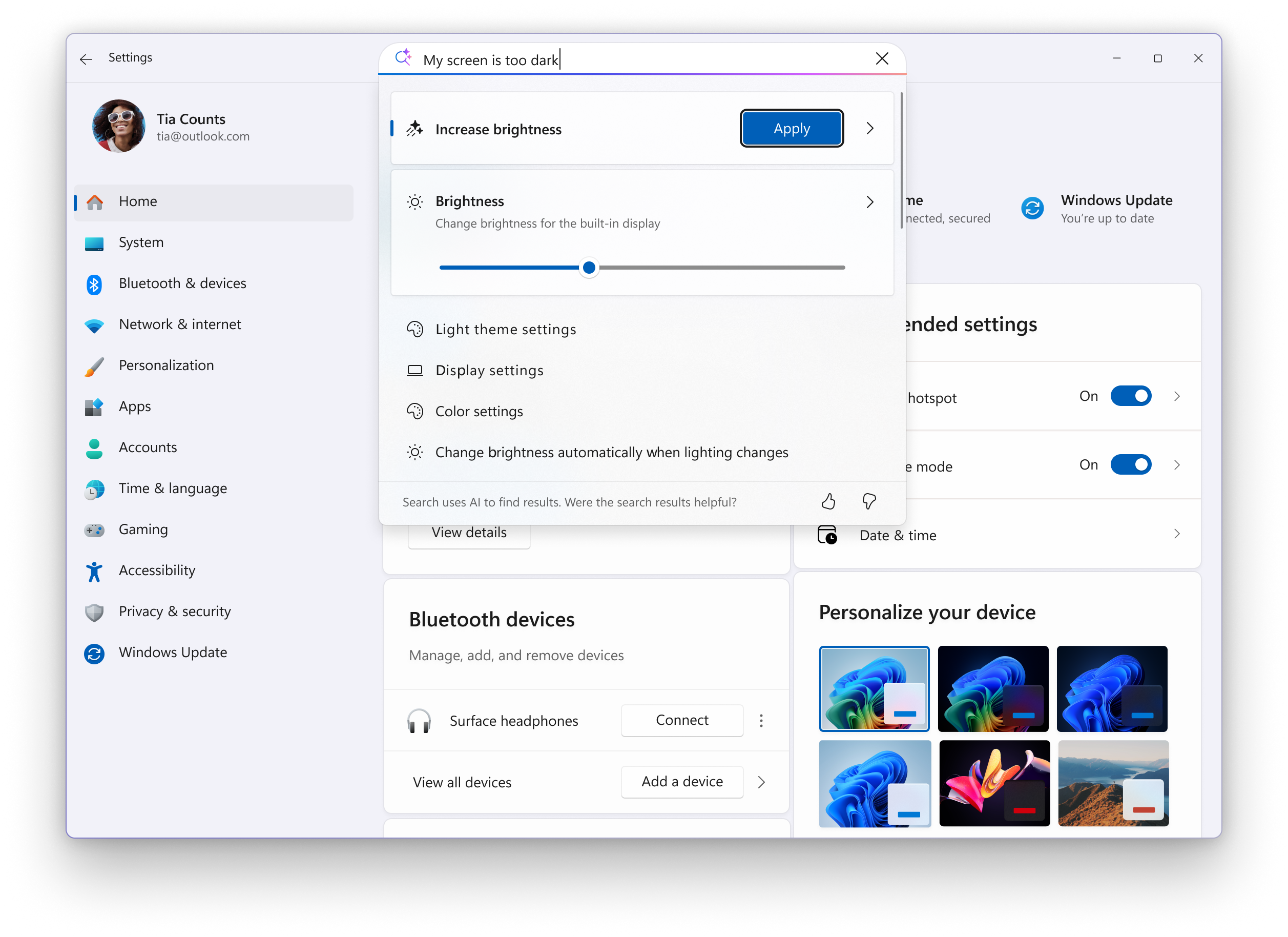
Hello Windows Insiders, we are excited to begin rolling out a new update for the Microsoft Copilot app on Windows that introduces the following changes and improvements: Direct Settings Access: Now, if Copilot on Windows users ask a question related to their PC settings, Copilot will provide a direct link to the relevant Windows Settings. Just ask 'Make my screen easier to read' or 'Help me focus by reducing distractions,' and Copilot will guide you to the Windows settings page. [caption id="attachment_178315" align="alignnone" width="1024"]Direct Settings access in Copilot on Windows Direct Settings access in Copilot on Windows[/caption] This Copilot app update (version 1.25095.161 and higher) is beginning to roll out across all Insider Channels via the Microsoft Store. The above-mentioned features are gradually rolling out so not all Insiders will get the update right away. We are excited to be previewing improvements with our Insiders to ensure all our customers have a great Copilot experience on Windows. FEEDBACK: Please provide feedback directly within the Copilot app by clicking on your profile icon and choosing “Give feedback”. Thanks, Microsoft Copilot Team

Announcing Windows 11 Insider Preview Build 26220.6780 (Dev Channel)

Hello Windows Insiders, today we are releasing Windows 11 Insider Preview Build 26220.6780 (KB5067103) to the Dev Channel. Changes in Dev Channel builds and updates are documented in two buckets: new features, improvements, and fixes that are being gradually rolled out for Insiders who have turned on the toggle to get the latest updates as they are available (via Settings > Windows Update*) and then new features, improvements, and fixes rolling out to everyone in the Dev Channel. For more information, see the Reminders section at the bottom of this blog post.

New features gradually being rolled out to the Dev Channel with toggle on*

[Agent in Settings]

The following changes and improvements are rolling out for agent in Settings on Copilot+ PCs: We’re introducing new experiences to make it easier to modify settings in both search and recommended settings. Recommend Settings: Now allows for faster changes by showing an inline agent action for recently modified settings. [caption id="attachment_178310" align="alignnone" width="1024"]Settings Homepage with options to adjust recently modified settings under “Recommended settings”. Settings Homepage with options to adjust recently modified settings under “Recommended settings”.[/caption] Search: We now show more available results in the search fly out to discover what you’re looking for and to allow you to quickly modify those settings. In cases where the settings can’t be adjusted further, a dialog lets you know why and provides an option to modify the settings as needed. [caption id="attachment_178312" align="alignnone" width="1024"]More available results are displayed within search and take action to quickly modify those settings. More available results are displayed within search to take action and quickly modify those settings.[/caption] [caption id="attachment_178313" align="alignnone" width="1024"]When searching for “increase volume” within settings, a dialog is presented indicating that volume is already at the maximum setting and provides a slider to modify the value. When searching for “increase volume” within settings, a dialog is presented indicating that volume is already at the maximum setting and provides a slider to modify the value.[/caption]

[Drag Tray]

  • Drag Tray now supports multi-file sharing, intelligently surfaces more relevant apps, and enables seamless file movement to a chosen folder.
[caption id="attachment_178302" align="alignnone" width="600"]Drag Tray UI shows options to share to apps like WhatsApp, Paint, Snapchat, and movement to other folders. Drag Tray UI shows options to share to apps like WhatsApp, Paint, Snapchat, and movement to other folders.[/caption]

Changes and Improvements gradually being rolled out to the Dev Channel with toggle on*

[Click to Do (Preview)]

The following changes and improvements are rolling out for Click to Do on Copilot+ PCs:
  • We’re making it easier to act on what matters. Visual cues now make key entities, such as emails, tables, and more, light up on your screen as you launch Click to Do. Click on these entities to discover powerful actions that help you work faster and smarter.

[Administrator Protection]

  • The ability to enable Administrator Protection via Windows Security under Account protection is now available again.

[OneDrive]

  • We are rolling out the new OneDrive icon in Accounts and Homepages in Settings.

[Run]

  • Dark Mode: We continue to make improvements to the dark more experience in Windows 11. This week we are updating the Run dialog. [UPDATE] This change is on a very slow rollout so not many Insiders will see it right away. We plan to expand the rollout to more Insiders over the next few flights.
[caption id="attachment_178301" align="alignnone" width="428"]Run dialog in dark mode Run dialog in dark mode[/caption]

Fixes gradually being rolled out to the Dev Channel with toggle on*

[Click to Do (Preview)]

The following fixes are rolling out for Click to Do on Copilot+ PCs:
  • Fixed an issue where launching Click to Do on your primary display via right-edge gesture would result in the swipe visuals appearing on the incorrect display.

[Taskbar & System Tray]

  • Fixed an issue where pressing WIN + <number> repeatedly wasn’t cycling through the windows of an app as expected.

[File Explorer]

  • Fixed an issue in the previous flight which was causing File Explorer to crash a lot for some Insiders.

[Start menu]

  • Fixed an issue which was causing Start menu to unexpectedly scroll to the top when interacting with it.
  • Fixed an issue where the context menu in Start wouldn’t open with touch (just immediately dismissed).

[Search]

  • Fixed an issue where searches might show unexpected text instead of the expected results and images.

[Other]

  • If you were experiencing a large number of apps (including browsers) crashing in the previous flight, that should no longer repro with this update.

Known issues

[Taskbar & System Tray]

  • Our new animations on taskbar previews have been turned off temporarily because they were interfering with the ability to share a window from its preview, we will note when they’re brought back.

[File Explorer]

  • Copy progress might flash when clicking more or less details in dark mode version of the copy dialog.
  • Scrollbar and footer are missing and showing a white block instead when text is scaled in dark mode version of the copy dialog.

 [Xbox Controller]

  • Some Insiders are experiencing an issue where using their Xbox Controller via Bluetooth is causing their PC to bugcheck. Here is how to resolve the issue. Open Device Manager by searching for it via the search box on your taskbar. Once Device Manager is open, click on "View" and then "Devices by Driver". Find the driver named "oemXXX.inf (XboxGameControllerDriver.inf)" where the "XXX" will be a specific number on your PC. Right-click on that driver and click "Uninstall".

Reminders for Windows Insiders in the Dev Channel

  • Windows Insiders in the Dev Channel receive updates based on Windows 11, version 25H2 via an enablement package (Build 26220.xxxx).
  • Many features in the Dev Channel are rolled out using Controlled Feature Rollout technology, starting with a subset of Insiders and ramping up over time as we monitor feedback to see how they land before pushing them out to everyone in this channel.
  • For Windows Insiders in the Dev Channel who want to be the first to get features gradually rolled out to you, you can turn ON the toggle to get the latest updates as they are available via Settings > Windows Update*. Over time, we will increase the rollouts of features to everyone with the toggle turned on. Should you keep this toggle off, new features will gradually be rolled out to your PC over time once they are ready.
  • Features and experiences included in these builds may never get released as we try out different concepts and get feedback. Features may change over time, be removed, or replaced and never get released beyond Windows Insiders. Some of these features and experiences could show up in future Windows releases when they’re ready.
  • Some features in active development we preview with Windows Insiders may not be fully localized and localization will happen over time as features are finalized. As you see issues with localization in your language, please report those issues to us via Feedback Hub.
  • Please note that some accessibility features may not work with features like Recall and Click to Do while in preview with Windows Insiders.
  • Because the Dev and Beta Channels represent parallel development paths from our engineers, there may be cases where features and experiences show up in the Beta Channel first.
  • Check out Flight Hub for a complete look at what build is in which Insider channel.
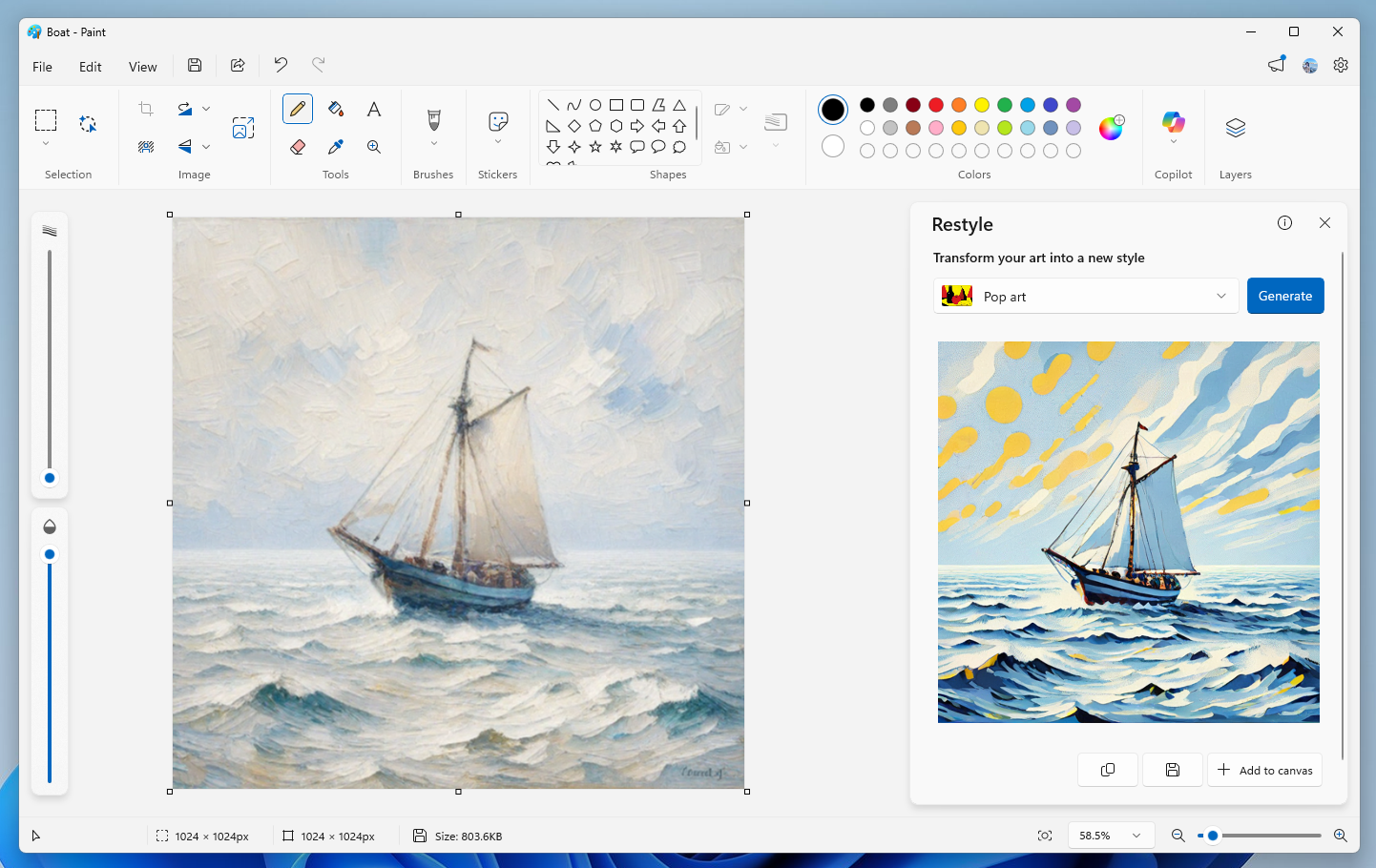
Thanks, Amanda

Announcing Windows 11 Insider Preview Build 26120.6780 (Beta Channel)

Hello Windows Insiders, today we are releasing Windows 11 Insider Preview Build 26120.6780 (KB5067103) to the Beta Channel for Windows Insiders on Windows 11, version 24H2. Changes in Beta Channel builds and updates are documented in two buckets: new features, improvements, and fixes that are being gradually rolled out for Insiders who have turned on the toggle to get the latest updates as they are available (via Settings > Windows Update*) and then new features, improvements, and fixes rolling out to everyone in the Beta Channel. For more information, see the Reminders section at the bottom of this blog post.

New features gradually being rolled out to the Beta Channel with toggle on*

[Agent in Settings]

The following changes and improvements are rolling out for agent in Settings on Copilot+ PCs: We’re introducing new experiences to make it easier to modify settings in both search and recommended settings. Recommend Settings: Now allows for faster changes by showing an inline agent action for recently modified settings.
[caption id="attachment_178310" align="alignnone" width="1024"]Settings Homepage with options to adjust recently modified settings under “Recommended settings”. Settings Homepage with options to adjust recently modified settings under “Recommended settings”.[/caption] Search: We now show more available results in the search fly out to discover what you’re looking for and to allow you to quickly modify those settings. In cases where the settings can’t be adjusted further, a dialog lets you know why and provides an option to modify the settings as needed.
[caption id="attachment_178312" align="alignnone" width="1024"]More available results are displayed within search and take action to quickly modify those settings. More available results are displayed within search to take action and quickly modify those settings.[/caption] [caption id="attachment_178313" align="alignnone" width="1024"]When searching for “increase volume” within settings, a dialog is presented indicating that volume is already at the maximum setting and provides a slider to modify the value. When searching for “increase volume” within settings, a dialog is presented indicating that volume is already at the maximum setting and provides a slider to modify the value.[/caption]

[Drag Tray]

Drag Tray now supports multi-file sharing, intelligently surfaces more relevant apps, and enables seamless file movement to a chosen folder. [caption id="attachment_178302" align="alignnone" width="600"]Drag Tray UI shows options to share to apps like WhatsApp, Paint, Snapchat, and movement to other folders. Drag Tray UI shows options to share to apps like WhatsApp, Paint, Snapchat, and movement to other folders.[/caption]

Changes and Improvements gradually being rolled out to the Beta Channel with toggle on*

[Click to Do (Preview)]

The following changes and improvements are rolling out for Click to Do on Copilot+ PCs:
  • We’re making it easier to act on what matters. Visual cues now make key entities, such as emails, tables, and more, light up on your screen as you launch Click to Do. Click on these entities to discover powerful actions that help you work faster and smarter.

[Administrator Protection]

  • The ability to enable Administrator Protection via Windows Security under Account protection is now available again.

[OneDrive]

  • We are rolling out the new OneDrive icon in Accounts and Homepages in Settings.

[Run]

  • Dark Mode: We continue to make improvements to the dark more experience in Windows 11. This week we are updating the Run dialog. [UPDATE] This change is on a very slow rollout so not many Insiders will see it right away. We plan to expand the rollout to more Insiders over the next few flights.
[caption id="attachment_178301" align="alignnone" width="428"]Run dialog in dark mode Run dialog in dark mode[/caption]

Fixes gradually being rolled out to the Beta Channel with toggle on*

[Click to Do (Preview)]

The following fixes are rolling out for Click to Do on Copilot+ PCs:
  • Fixed an issue where launching Click to Do on your primary display via right-edge gesture would result in the swipe visuals appearing on the incorrect display.

[Taskbar & System Tray]

  • Fixed an issue where pressing WIN + repeatedly wasn’t cycling through the windows of an app as expected.

[File Explorer]

  • Fixed an issue in the previous flight which was causing File Explorer to crash a lot for some Insiders.

[Start menu]

  • Fixed an issue which was causing Start menu to unexpectedly scroll to the top when interacting with it.
  • Fixed an issue where the context menu in Start wouldn’t open with touch (just immediately dismissed).

[Search]

  • Fixed an issue where searches might show unexpected text instead of the expected results and images.

[Other]

  • If you were experiencing a large number of apps (including browsers) crashing in the previous flight, that should no longer repro with this update.

Known issues

[Taskbar & System Tray]

  • Our new animations on taskbar previews have been turned off temporarily because they were interfering with the ability to share a window from its preview, we will note when they’re brought back.

[File Explorer]

  • Copy progress might flash when clicking more or less details in dark mode version of the copy dialog.
  • Scrollbar and footer are missing and showing a white block instead when text is scaled in dark mode version of the copy dialog.

 [Xbox Controller]

  • Some Insiders are experiencing an issue where using their Xbox Controller via Bluetooth is causing their PC to bugcheck. Here is how to resolve the issue. Open Device Manager by searching for it via the search box on your taskbar. Once Device Manager is open, click on "View" and then "Devices by Driver". Find the driver named "oemXXX.inf (XboxGameControllerDriver.inf)" where the "XXX" will be a specific number on your PC. Right-click on that driver and click "Uninstall".

Reminders for Windows Insiders in the Beta Channel

  • Windows Insiders in the Beta Channel on Windows 11, version 24H2 will receive updates based on Windows 11, version 24H2 via an enablement package (Build 26120.xxxx).
  • Updates delivered to the Beta Channel are in a format that offers a preview of enhancements to servicing technology on Windows 11, version 24H2. To learn more, see https://aka.ms/CheckpointCumulativeUpdates.
  • Many features in the Beta Channel are rolled out using Controlled Feature Rollout technology, starting with a subset of Insiders and ramping up over time as we monitor feedback to see how they land before pushing them out to everyone in this channel.
  • For Windows Insiders in the Beta Channel who want to be the first to get features gradually rolled out to you, you can turn ON the toggle to get the latest updates as they are available via Settings > Windows Update*. Over time, we will increase the rollouts of features to everyone with the toggle turned on. Should you keep this toggle off, new features will gradually be rolled out to your PC over time once they are ready.
  • Features and experiences included in these builds may never get released as we try out different concepts and get feedback. Features may change over time, be removed, or replaced and never get released beyond Windows Insiders. Some of these features and experiences could show up in future Windows releases when they’re ready.
  • Some features in active development we preview with Windows Insiders may not be fully localized and localization will happen over time as features are finalized. As you see issues with localization in your language, please report those issues to us via Feedback Hub.
  • Please note that some accessibility features may not work with features like Recall and Click to Do while in preview with Windows Insiders.
  • Because the Dev and Beta Channels represent parallel development paths from our engineers, there may be cases where features and experiences show up in the Beta Channel first.
  • Check out Flight Hub for a complete look at what build is in which Insider channel.
Thanks, Amanda

Copilot on Windows: Connectors, and Document Creation begin rolling out to Windows Insiders

Hello Windows Insiders, we are excited to begin rolling out a new update for the Microsoft Copilot app on Windows that introduces the following changes and improvements: Connectors: Copilot on Windows now supports connecting to personal services like OneDrive, Outlook (including email, contacts, and calendar), Google Drive, Gmail, Google Calendar, and Google Contacts. These connections make it easier for users to find their content across multiple accounts. In this initial release, Copilot enables natural language search across all your connected services.  For example, you can ask:
  • “What’s the email address for Sarah?”
  • “Find my school notes from last week.”
And Copilot will retrieve relevant information from your connected accounts. You can link both Microsoft and third-party accounts to Copilot. This feature is opt-in. Access can be granted by opening the Settings page in the Copilot Windows app, scrolling to the Connectors section, and enabling OneDrive, Outlook, Google Drive, Gmail, Google Calendar, or Google Contacts. [caption id="attachment_178297" align="alignnone" width="1024"]Connectors – OneDrive file search in Copilot on Windows Connectors – OneDrive file search in Copilot on Windows[/caption] Document Creation and Export: Copilot on Windows now supports creating and exporting content into multiple file formats with a simple prompt. Users can generate Word documents, Excel spreadsheets, PDFs, or PowerPoint presentations and more directly from their Copilot session. Just ask Copilot, “Export this text to a Word document” or “Create an Excel file from this table,” and Copilot will create the file for you. With just a prompt, you can instantly turn ideas, notes, and data into shareable and editable documents with no extra steps or tools required. And for responses with 600 characters or more, Copilot also includes a default export button that lets you send text directly to Word, PowerPoint, Excel, or PDF. [caption id="attachment_178298" align="alignnone" width="1024"]Document creation and export in Copilot on Windows Document creation and export in Copilot on Windows[/caption] This Copilot app update (version 1.25095.161.0 and higher) is beginning to roll out across all Insider Channels via the Microsoft Store. The above-mentioned features are gradually rolling out so not all Insiders will get the update right away. We are excited to be previewing improvements with our Insiders to ensure all our customers have a great Copilot experience on Windows. FEEDBACK: Please provide feedback directly within the Copilot app by clicking on your profile icon and choosing “Give feedback”. Thanks, Microsoft Copilot Team

Announcing Windows 11 Insider Preview Build 27965 (Canary Channel)

Hello Windows Insiders, today we are releasing Windows 11 Insider Preview Build 27965 to the Canary Channel.

What’s new in Build 27965 

Introducing the new Start menu for Windows 11

[caption id="attachment_177956" align="alignnone" width="1024"]Updated Start menu shows pinned apps on the top, recommended apps and files in the middle, and installed apps which are grouped by a new category UI on the bottom. Updated Start menu shows pinned apps on the top, recommended apps and files in the middle, and installed apps which are grouped by a new category UI on the bottom.[/caption] Easily launch all your apps with scrollable Start menu We’re making it easier for you to launch your apps with our updated, scrollable Start menu. With "All” now on the top-level, apps are easily accessible without having to navigate to a secondary page. In addition, we're introducing two new views to browse and launch your installed apps in the “All” section: category and grid view. The new default Category view automatically groups your apps by category for quick access to your most used categories and apps. So, if your most used apps are Outlook and Solitaire, you can expect those apps to bubble up to the top in their respective categories. Categories are formed when there are at least 3 apps in each respective category. Otherwise, they will remain in the “Other” category. Grid view is ordered alphabetically like List view but allows for better scanning of all your installed apps with more horizontal real estate. With new view options to choose from in the “All” section, we’ll remember your last used view so you can reliably launch your apps with the view you prefer most. [caption id="attachment_177957" align="alignnone" width="1024"]Updated Start menu introduces 2 new ways to view installed apps: by category and grid views. Updated Start menu introduces 2 new ways to view installed apps: by category and grid views.[/caption] Experience a larger Start menu with responsive sections We're making better use of your screen real estate by adapting the size of the Start menu based on your screen size. Have a larger-screen device? You can expect to see a larger Start menu, by default, so you can see more of your apps and files. On larger devices, users can expect to see 8 columns of pinned apps, 6 recommendations, and 4 columns of categories in the Start menu. On smaller devices, you’ll see 6 columns of pinned apps, 4 recommendations, and 3 columns of categories. [caption id="attachment_177959" align="alignnone" width="1024"]Updated Start menu only shows pinned and installed apps to illustrate that sections within Start are now responsive and can collapse such as the Recommended section. Updated Start menu only shows pinned and installed apps to illustrate that sections within Start are now responsive and can collapse such as the Recommended section.[/caption] Sections within Start are also responsive so you can see more or less of your Pinned and Recommended sections. Have only a few pins? The Pinned section will shrink down to a single row and other sections will slide up. If you’d prefer to not see recommendations, then turn off the following toggles in Settings > Personalization > Start: “Show recently added apps,” “Show recommended files in Start...,” “Show websites from your browsing history,” and “Show recommendations for tips...” If there aren’t any recommendations available, the section will collapse so you can see more of your installed apps. [caption id="attachment_177960" align="alignnone" width="1024"]Toggles in Settings app to turn on/off features in Start. Toggles in Settings app to turn on/off features in Start.[/caption] Seamless cross-device integration with Phone Link Lastly, we’ve updated Start to continue allowing you to take advantage of powerful cross-device features. Now, you can easily expand and collapse mobile device content using the new mobile device button next to the Search box. This cross-device integration is generally available for connected Android and iOS devices in most markets and will be coming later in 2025 to the European Economic Area. [We are beginning to roll this out to Windows Insiders in the Canary, so the experience isn’t available to all Insiders just yet as we plan to monitor feedback before pushing it out to everyone.] FEEDBACK: Please file feedback in Feedback Hub (WIN + F) under Desktop Environment > Start menu.

Changes and Improvements for everyone in the Canary channel

[.NET Framework 3.5]

  • Starting with Build 27965, .NET Framework 3.5 is no longer a Windows Feature on Demand optional component. We encourage customers relying on the legacy framework to move to modern versions of .NET. Customers running business-critical applications that still depend on .NET Framework 3.5 can access a .NET Framework 3.5 standalone installer located here: https://go.microsoft.com/fwlink/?linkid=2337635. More information about .NET Framework products' lifecycle can be found here: Lifecycle FAQ - .NET Framework | Microsoft Learn

[Command Line]

  • Edit, a command line text editor, is now delivered with Windows! You can quickly edit a file while in the Terminal app by typing edit followed by the file name. Edit is open source on GitHub and for a full list of its features, check out its docs.

Fixes

[Taskbar and System Tray]

  • If you were having issues with the taskbar not autohiding correctly in the previous flight, that should be resolved now.

[Video Playback]

  • Fixed a recent issue which was causing some videos and games to be unexpectedly red.
  • Fixed an issue that could affect playback of protected content in certain Blu-ray, DVD, and digital TV apps that used Enhanced Video Renderer with HDCP enforcement.

Known issues

[File Explorer]

  • [NEW] We’re working on the fix for an issue in the latest Canary builds causing File Explorer to crash when transferring files to a network drive.

[Settings]

  • [NEW] Settings may crash when accessing drive information under Settings > System > Storage. This also impacts accessing the drive information from the properties when you right click a drive in File Explorer.

[Lock and login screens]

  • [NEW] We’re investigating an issue in this build where the media controls may not display on the lock screen.

[Power and Battery]

  • We’re investigating reports that sleep and shutdown aren’t working correctly for some Insiders after the latest Canary builds.

Reminders for Windows Insiders in the Canary Channel

  • The builds we release to the Canary Channel represent the latest platform changes early in the development cycle and should not be seen as matched to any specific release of Windows and features and experiences included in these builds may never get released as we try out different concepts and get feedback. Features may change over time, be removed, or replaced and never get released beyond Windows Insiders. Some of these features and experiences could show up in future Windows releases when they’re ready.
  • Many features in the Canary Channel are rolled out using Control Feature Rollout technology, starting with a subset of Insiders and ramping up over time as we monitor feedback to see how they land before pushing them out to everyone in this channel.
  • Some features may show up in the Dev and Beta Channels first before showing up in the Canary Channel.
  • Some features in active development we preview with Windows Insiders may not be fully localized and localization will happen over time as features are finalized. As you see issues with localization in your language, please report those issues to us via Feedback Hub.
  • To get off the Canary Channel, a clean install of Windows 11 will be required. As a reminder - Insiders can’t switch to a channel that is receiving builds with lower build numbers without doing a clean installation of Windows 11 due to technical setup requirements.
  • The desktop watermark shown at the lower right corner of the desktop is normal for these pre-release builds.
  • Check out Flight Hub for a complete look at what build is in which Insider channel.
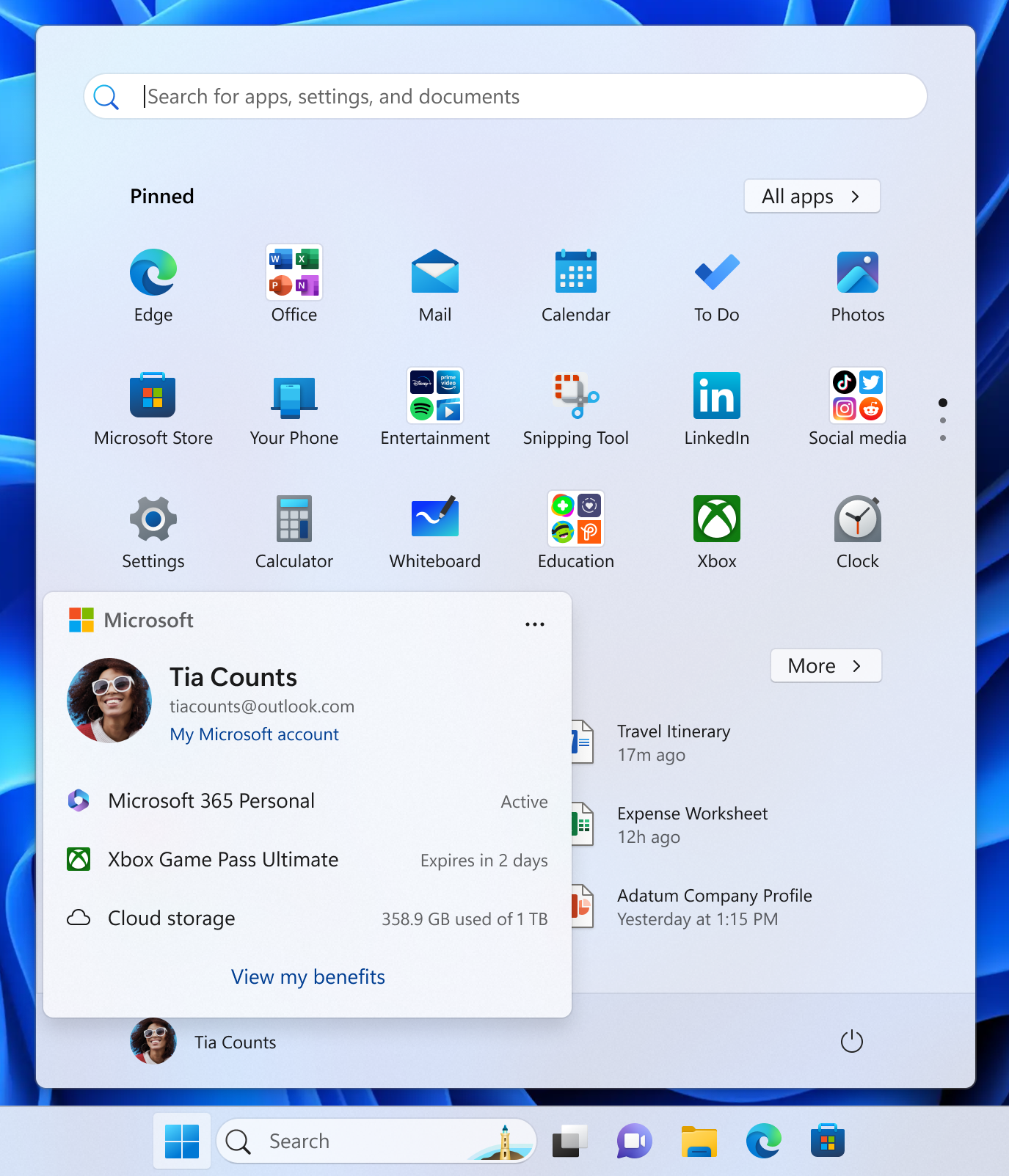
Thanks, Amanda

Announcing Windows 11 Insider Preview Build 26120.6772 (Beta Channel)

Hello Windows Insiders, today we are releasing Windows 11 Insider Preview Build 26120.6772 (KB5065797) to the Beta Channel for Windows Insiders on Windows 11, version 24H2. Changes in Beta Channel builds and updates are documented in two buckets: new features, improvements, and fixes that are being gradually rolled out for Insiders who have turned on the toggle to get the latest updates as they are available (via Settings > Windows Update*) and then new features, improvements, and fixes rolling out to everyone in the Beta Channel. For more information, see the Reminders section at the bottom of this blog post.

New features gradually being rolled out to the Beta Channel with toggle on*

[Click to Do (Preview)]

The following changes and improvements are rolling out for Click to Do on Copilot+ PCs: Image Object select in Click to Do: Image Object select is designed to help you speed up your creative flow and precisely select objects within images. Just hover over your image to preview selectable areas. Once selected, you can easily copy and paste your object into other apps or use it to kick off a chat with Copilot for deeper insights or creative actions. Update: We are temporarily turning off Image Object select due to quality issues. [caption id="attachment_178284" align="alignnone" width="624"]Image of three kittens sitting on a wooden surface with a computer context menu overlaid on the center kitten. The context menu includes options like "Copy," "Paste," and "Properties," along with other options like “Ask Copilot”. Image of three kittens sitting on a wooden surface with a computer context menu overlaid on the center kitten. The context menu includes options like "Copy," "Paste," and "Properties," along with other options like “Ask Copilot”.[/caption] Unit conversion: We’re introducing the ability to do unit conversion in Click to Do to help you quickly access conversions for number + unit combinations displayed on screen. Currently, we primarily support conversions for length, area, volume, weight, temperature, and speed.
  • When users hover over a number + unit, a floating tooltip appears showing the conversion.
  • When users select the number + unit, the context menu opens with additional conversion options.
  • Users can also access more conversions via the Copilot app (currently supported in Microsoft Copilot. This capability is not yet available for Windows Insiders in the EEA (European Economic Area) or China.
[caption id="attachment_178285" align="alignnone" width="292"]Screenshot showing the conversion tool for Click to Do using the example of 2 kilometers. It displays conversions to miles (1.243 mi) and feet (6561.68 ft), with options to copy, open with, or search the web. Screenshot showing the conversion tool for Click to Do using the example of 2 kilometers. It displays conversions to miles (1.243 mi) and feet (6561.68 ft), with options to copy, open with, or search the web.[/caption]

[Windows Hello]

Windows Hello Enhanced Sign-in Security Now Supports Peripheral Fingerprint Sensors: Windows Hello Enhanced Sign-in Security (ESS) is expanding to support peripheral fingerprint sensors in Windows 11. Previously, ESS was only available on PCs with built-in biometric sensors, but now Windows 11 PCs, including desktops and Copilot+ PCs, can benefit from the most secure sign-in experience Windows Hello has to offer. Just plug in a supported ESS fingerprint reader, head to Settings > Accounts > Sign-in options and follow the prompts to enroll. [caption id="attachment_178286" align="alignnone" width="625"]Settings dialog under Accounts-->Sign-in options, where Additional settings has an option outlined in red for “Enhanced sign-in security” with a button for “Set up” Settings dialog under Accounts-->Sign-in options, where Additional settings has an option outlined in red for “Enhanced sign-in security” with a button for “Set up” [/caption] FEEDBACK: Please file feedback in Feedback Hub (WIN + F) under Security and Privacy > Windows Hello Fingerprint.

Changes and Improvements gradually being rolled out to the Beta Channel with toggle on*

[Windows Setup Experience]

  • Ability to name your default user folder in OOBE:You can now customize the name of your default user folder, “C:\User\<name>”, during set up. To do so, follow these steps:
    • On the Microsoft account sign in page,press Shift + F10 to open Command Prompt.
    • Type the following commands:“cd oobe” press enter and then type “SetDefaultUserFolder.cmd <YourFolderName>”
    • <YourFolderName> can be 16 characters max.
    • Only Unicode characters are supported and special characters will be removed
    • Proceed with MSA sign-in.
    • The custom folder name will be applied if valid.
    • If not set, Windows will automatically generate a profile folder name from your Microsoft email address.
  • Local-only commands removal: We are removing known mechanisms for creating a local account in the Windows Setup experience (OOBE). While these mechanisms were often used to bypass Microsoft account setup, they also inadvertently skip critical setup screens, potentially causing users to exit OOBE with a device that is not fully configured for use. Users will need to complete OOBE with internet and a Microsoft account, to ensure device is setup correctly.

[File Explorer]

  • Dark Mode: We’ve made improvements to the dark mode experience in File Explorer starting with key actions like copy, move, and delete dialogs. You’ll now see a consistent dark mode experience in:
    • The default and expanded state for copy, move, and delete dialogs
    • Progress bars and chart views
    • Dialogs for confirming states like skip, override, and file selection
    • Multiple confirmation and error dialogs
[caption id="attachment_178287" align="alignnone" width="685"]The new discover dialog in dark mode. The new discover dialog in dark mode.[/caption] [caption id="attachment_178289" align="alignnone" width="700"]The new recycle bin dialog in dark mode. The new recycle bin dialog in dark mode.[/caption] [caption id="attachment_178292" align="alignnone" width="686"]The new copy dialog in dark mode. The new copy dialog in dark mode.[/caption] [caption id="attachment_178290" align="alignnone" width="690"]The new replace or skip files dialog in dark mode.  The new replace or skip files dialog in dark mode.[/caption]

Fixes gradually being rolled out to the Beta Channel with toggle on*

[General]

  • Fixed an underlying issue which caused multiple features which were rolling out to unexpectedly disappear from some Insider PCs after the previous flight.

[Taskbar & System Tray]

  • Fixed an issue after the latest updates where when “automatically hide the taskbar” was enabled sometimes you would still see the system tray peeking up while the taskbar was hidden. Also fixed an issue where it wasn’t hiding anymore when you were on the desktop with all app windows minimized.
  • Fixed a focus related issue when clicking on an app preview thumbnail which could result on it dismissing but the app window not actually coming to the foreground.

[File Explorer]

  • Fixed an issue where Encrypted File System (EFS) related dialogs in File Explorer weren’t responding to increased text scaling.

[Windows Studio Effects]

  • Fixed an issue for some classes of external webcams, where turning on "Use Windows Studio Effects" in the advanced camera setting might result in a camera preview failure. If you were impacted by this known issue in the latest builds, and turned off Windows Studio Effects inside the camera settings to workaround it, you can enable it again now.

[Settings]

  • Fixed an issue causing certain network adapters to show an incorrect link speed

[Other]

  • Fixed an issue impacting the ability to start Hyper-V virtual machines with Trusted Platform Module (TPM) on ARM64 devices.
  • Fixed an issue that could affect playback of protected content in certain Blu-ray, DVD, and digital TV apps that used Enhanced Video Rendererwith HDCP enforcement.

Known issues

[Click to Do]

  • Launching Click to Do on your primary display via right-edge gesture will result in the swipe visuals appearing on the incorrect display. The issue is being investigated.

[Lock and login screens]

  • [NEW] The touch keyboard may fail to launch on the login screen. If you encounter this, you can use the on-screen keyboard in the accessibility menu as a workaround.

[Taskbar & System Tray]

  • Our new animations on taskbar previews have been turned off temporarily because they were interfering with the ability to share a window from its preview, we will note when they’re brought back.

[Search]

  • Certain searches may show unexpected text instead of the expected results and images.

[Xbox Controllers]

  • Some Insiders are experiencing an issue where using their Xbox Controller via Bluetooth is causing their PC to bugcheck. Here is how to resolve the issue. Open Device Manager by searching for it via the search box on your taskbar. Once Device Manager is open, click on "View" and then "Devices by Driver". Find the driver named "oemXXX.inf (XboxGameControllerDriver.inf)" where the "XXX" will be a specific number on your PC. Right-click on that driver and click "Uninstall".

Reminders for Windows Insiders in the Beta Channel

  • Windows Insiders in the Beta Channel on Windows 11, version 24H2 will receive updates based on Windows 11, version 24H2 via an enablement package (Build 26120.xxxx).
  • Updates delivered to the Beta Channel are in a format that offers a preview of enhancements to servicing technology on Windows 11, version 24H2. To learn more, see https://aka.ms/CheckpointCumulativeUpdates.
  • Many features in the Beta Channel are rolled out using Controlled Feature Rollout technology, starting with a subset of Insiders and ramping up over time as we monitor feedback to see how they land before pushing them out to everyone in this channel.
  • For Windows Insiders in the Beta Channel who want to be the first to get features gradually rolled out to you, you can turn ON the toggle to get the latest updates as they are available via Settings > Windows Update*. Over time, we will increase the rollouts of features to everyone with the toggle turned on. Should you keep this toggle off, new features will gradually be rolled out to your PC over time once they are ready.
  • Features and experiences included in these builds may never get released as we try out different concepts and get feedback. Features may change over time, be removed, or replaced and never get released beyond Windows Insiders. Some of these features and experiences could show up in future Windows releases when they’re ready.
  • Some features in active development we preview with Windows Insiders may not be fully localized and localization will happen over time as features are finalized. As you see issues with localization in your language, please report those issues to us via Feedback Hub.
  • Please note that some accessibility features may not work with features like Recall and Click to Do while in preview with Windows Insiders.
  • Because the Dev and Beta Channels represent parallel development paths from our engineers, there may be cases where features and experiences show up in the Beta Channel first.
  • Check out Flight Hub for a complete look at what build is in which Insider channel.
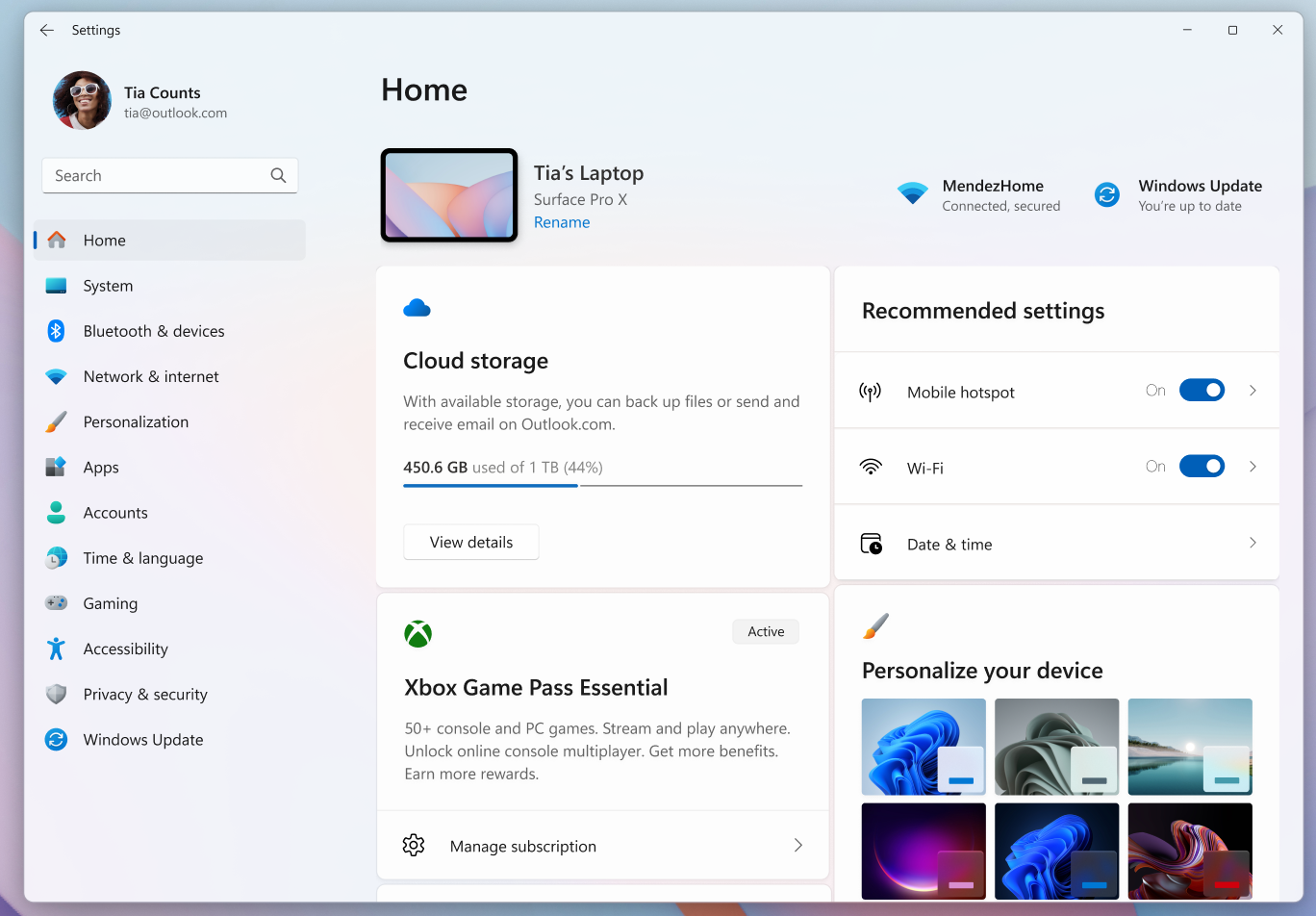
Thanks, Amanda

Announcing Windows 11 Insider Preview Build 26220.6772 (Dev Channel)

Hello Windows Insiders, today we are releasing Windows 11 Insider Preview Build 26220.6772 (KB5065797) to the Dev Channel. Changes in Dev Channel builds and updates are documented in two buckets: new features, improvements, and fixes that are being gradually rolled out for Insiders who have turned on the toggle to get the latest updates as they are available (via Settings > Windows Update*) and then new features, improvements, and fixes rolling out to everyone in the Dev Channel. For more information, see the Reminders section at the bottom of this blog post.

New features gradually being rolled out to the Dev Channel with toggle on*

[Click to Do (Preview)]

The following changes and improvements are rolling out for Click to Do on Copilot+ PCs: Image Object select in Click to Do: Image Object select is designed to help you speed up your creative flow and precisely select objects within images. Just hover over your image to preview selectable areas. Once selected, you can easily copy and paste your object into other apps or use it to kick off a chat with Copilot for deeper insights or creative actions. Update: We are temporarily turning off Image Object select due to quality issues. [caption id="attachment_178284" align="alignnone" width="624"]Image of three kittens sitting on a wooden surface with a computer context menu overlaid on the center kitten. The context menu includes options like "Copy," "Paste," and "Properties," along with other options like “Ask Copilot”. Image of three kittens sitting on a wooden surface with a computer context menu overlaid on the center kitten. The context menu includes options like "Copy," "Paste," and "Properties," along with other options like “Ask Copilot”.[/caption] Unit conversion: We’re introducing the ability to do unit conversion in Click to Do to help you quickly access conversions for number + unit combinations displayed on screen. Currently, we primarily support conversions for length, area, volume, weight, temperature, and speed.
  • When users hover over a number + unit, a floating tooltip appears showing the conversion.
  • When users select the number + unit, the context menu opens with additional conversion options.
  • Users can also access more conversions via the Copilot app (currently supported in Microsoft Copilot. This capability is not yet available for Windows Insiders in the EEA (European Economic Area) or China.
[caption id="attachment_178285" align="alignnone" width="292"]Screenshot showing the conversion tool for Click to Do using the example of 2 kilometers. It displays conversions to miles (1.243 mi) and feet (6561.68 ft), with options to copy, open with, or search the web. Screenshot showing the conversion tool for Click to Do using the example of 2 kilometers. It displays conversions to miles (1.243 mi) and feet (6561.68 ft), with options to copy, open with, or search the web.[/caption]

[Windows Hello]

Windows Hello Enhanced Sign-in Security Now Supports Peripheral Fingerprint Sensors: Windows Hello Enhanced Sign-in Security (ESS) is expanding to support peripheral fingerprint sensors in Windows 11. Previously, ESS was only available on PCs with built-in biometric sensors, but now Windows 11 PCs, including desktops and Copilot+ PCs, can benefit from the most secure sign-in experience Windows Hello has to offer. Just plug in a supported ESS fingerprint reader, head to Settings > Accounts > Sign-in options and follow the prompts to enroll. [caption id="attachment_178286" align="alignnone" width="625"]Settings dialog under Accounts-->Sign-in options, where Additional settings has an option outlined in red for “Enhanced sign-in security” with a button for “Set up” Settings dialog under Accounts-->Sign-in options, where Additional settings has an option outlined in red for “Enhanced sign-in security” with a button for “Set up”[/caption] FEEDBACK: Please file feedback in Feedback Hub (WIN + F) under Security and Privacy > Windows Hello Fingerprint.

Changes and Improvements gradually being rolled out to the Dev Channel with toggle on*

[Windows Setup Experience]

  • Ability to name your default user folder in OOBE: You can now customize the name of your default user folder, “C:\User\<name>”, during set up. To do so, follow these steps:
    • On the Microsoft account sign in page,press Shift + F10 to open Command Prompt.
    • Type the following commands:“cd oobe” press enter and then type “SetDefaultUserFolder.cmd <YourFolderName>”
    • <YourFolderName> can be 16 characters max.
    • Only Unicode characters are supported and special characters will be removed
    • Proceed with MSA sign-in.
    • The custom folder name will be applied if valid.
    • If not set, Windows will automatically generate a profile folder name from your Microsoft email address.
  • Local-only commands removal: We are removing known mechanisms for creating a local account in the Windows Setup experience (OOBE). While these mechanisms were often used to bypass Microsoft account setup, they also inadvertently skip critical setup screens, potentially causing users to exit OOBE with a device that is not fully configured for use. Users will need to complete OOBE with internet and a Microsoft account, to ensure device is setup correctly.

[File Explorer]

  • Dark Mode: We’ve made improvements to the dark mode experience in File Explorer starting with key actions like copy, move, and delete dialogs. You’ll now see a consistent dark mode experience in:
    • The default and expanded state for copy, move, and delete dialogs
    • Progress bars and chart views
    • Dialogs for confirming states like skip, override, and file selection
    • Multiple confirmation and error dialogs
[caption id="attachment_178287" align="alignnone" width="685"]The new discover dialog in dark mode. The new discover dialog in dark mode.[/caption] [caption id="attachment_178292" align="alignnone" width="686"]The new copy dialog in dark mode. The new copy dialog in dark mode.[/caption] [caption id="attachment_178289" align="alignnone" width="700"]The new recycle bin dialog in dark mode. The new recycle bin dialog in dark mode.[/caption] [caption id="attachment_178290" align="alignnone" width="690"]The new replace or skip files dialog in dark mode.  The new replace or skip files dialog in dark mode.[/caption]

Fixes gradually being rolled out to the Dev Channel with toggle on*

[General]

  • Fixed an underlying issue which caused multiple features which were rolling out to unexpectedly disappear from some Insider PCs after the previous flight.

[Taskbar & System Tray]

  • Fixed an issue after the latest updates where when “automatically hide the taskbar” was enabled sometimes you would still see the system tray peeking up while the taskbar was hidden. Also fixed an issue where it wasn’t hiding anymore when you were on the desktop with all app windows minimized.
  • Fixed a focus related issue when clicking on an app preview thumbnail which could result on it dismissing but the app window not actually coming to the foreground.

[File Explorer]

  • Fixed an issue where Encrypted File System (EFS) related dialogs in File Explorer weren’t responding to increased text scaling.

[Windows Studio Effects]

  • Fixed an issue for some classes of external webcams, where turning on "Use Windows Studio Effects" in the advanced camera setting might result in a camera preview failure. If you were impacted by this known issue in the latest builds, and turned off Windows Studio Effects inside the camera settings to workaround it, you can enable it again now.

[Settings]

  • Fixed an issue causing certain network adapters to show an incorrect link speed

[Other]

  • Fixed an issue impacting the ability to start Hyper-V virtual machines with Trusted Platform Module (TPM) on ARM64 devices.
  • Fixed an issue that could affect playback of protected content in certain Blu-ray, DVD, and digital TV apps that used Enhanced Video Rendererwith HDCP enforcement.

Known issues

[Click to Do]

  • Launching Click to Do on your primary display via right-edge gesture will result in the swipe visuals appearing on the incorrect display. The issue is being investigated.

[Lock and login screens]

  • [NEW] The touch keyboard may fail to launch on the login screen. If you encounter this, you can use the on-screen keyboard in the accessibility menu as a workaround.

[Taskbar & System Tray]

  • Our new animations on taskbar previews have been turned off temporarily because they were interfering with the ability to share a window from its preview, we will note when they’re brought back.

[Search]

  • Certain searches may show unexpected text instead of the expected results and images.

[Xbox Controllers]

  • Some Insiders are experiencing an issue where using their Xbox Controller via Bluetooth is causing their PC to bugcheck. Here is how to resolve the issue. Open Device Manager by searching for it via the search box on your taskbar. Once Device Manager is open, click on "View" and then "Devices by Driver". Find the driver named "oemXXX.inf (XboxGameControllerDriver.inf)" where the "XXX" will be a specific number on your PC. Right-click on that driver and click "Uninstall".

Reminders for Windows Insiders in the Dev Channel

  • Windows Insiders in the Dev Channel receive updates based on Windows 11, version 25H2 via an enablement package (Build 26220.xxxx).
  • Many features in the Dev Channel are rolled out using Controlled Feature Rollout technology, starting with a subset of Insiders and ramping up over time as we monitor feedback to see how they land before pushing them out to everyone in this channel.
  • For Windows Insiders in the Dev Channel who want to be the first to get features gradually rolled out to you, you can turn ON the toggle to get the latest updates as they are available via Settings > Windows Update*. Over time, we will increase the rollouts of features to everyone with the toggle turned on. Should you keep this toggle off, new features will gradually be rolled out to your PC over time once they are ready.
  • Features and experiences included in these builds may never get released as we try out different concepts and get feedback. Features may change over time, be removed, or replaced and never get released beyond Windows Insiders. Some of these features and experiences could show up in future Windows releases when they’re ready.
  • Some features in active development we preview with Windows Insiders may not be fully localized and localization will happen over time as features are finalized. As you see issues with localization in your language, please report those issues to us via Feedback Hub.
  • Please note that some accessibility features may not work with features like Recall and Click to Do while in preview with Windows Insiders.
  • Because the Dev and Beta Channels represent parallel development paths from our engineers, there may be cases where features and experiences show up in the Beta Channel first.
  • Check out Flight Hub for a complete look at what build is in which Insider channel.
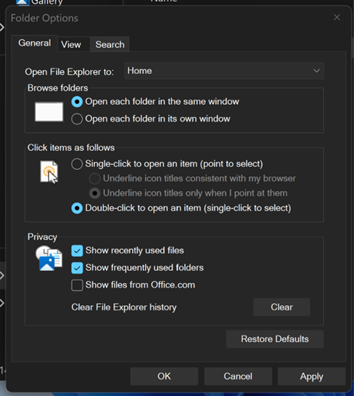
Thanks, Amanda
❌