❌

Vue lecture

Il y a de nouveaux articles disponibles, cliquez pour rafraîchir la page.

Announcing new builds for 2 October 2026

Hello Windows Insiders, Today, we’re releasing new Windows 11 Insider Preview builds to the Beta and Experimental channels. New builds this week Select your channel below to view its release notes: For those on other specific Windows build versions, here are today’s new builds and release notes: Also a reminder that next week October 7, we have our Windows and Surface event at 10AM Pacific time! Tune in to watch live via the Windows YouTube channel.  Thanks, Stephen and the Windows Insider Program team

Announcing new builds for 25 September 2026

Hello Windows Insiders, Today, we’re releasing new Windows 11 Insider Preview builds to the Beta and Experimental channels. New builds this week Select your channel below to view its release notes: For those on other specific Windows build versions, here are today’s new builds and release notes:
  • Beta (26H1): Build 28020.3112
  • Experimental (26H1): Build 28120.3122
  • Experimental (Future Platforms): We do not have a release for Experimental (Future Platforms) today.

Notable new features:

[Start menu - Phone companion]

Release channel: Experimental
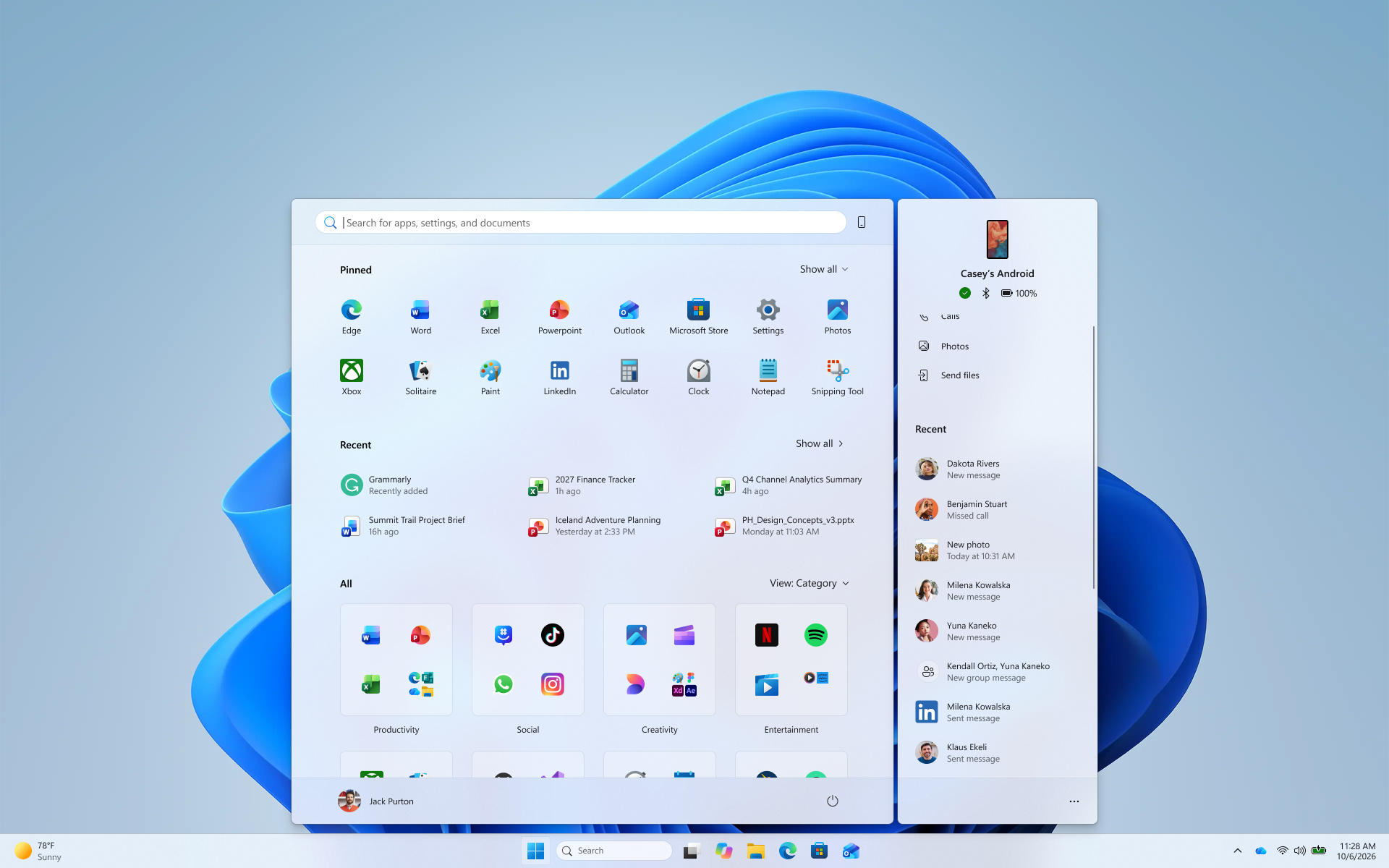
  • See more of your latest activities at a glance: Phone companion for the Start menu now shows more of your recent activity, with a scrollable side pane so you can view even more without leaving the Start menu.
[caption id="attachment_179178" align="aligncenter" width="1920"]The phone companion in Start with a scrollable pane for viewing more recent mobile activity. The phone companion in Start with a scrollable pane for viewing more recent mobile activity.[/caption]

[Settings]

Release channel: Experimental
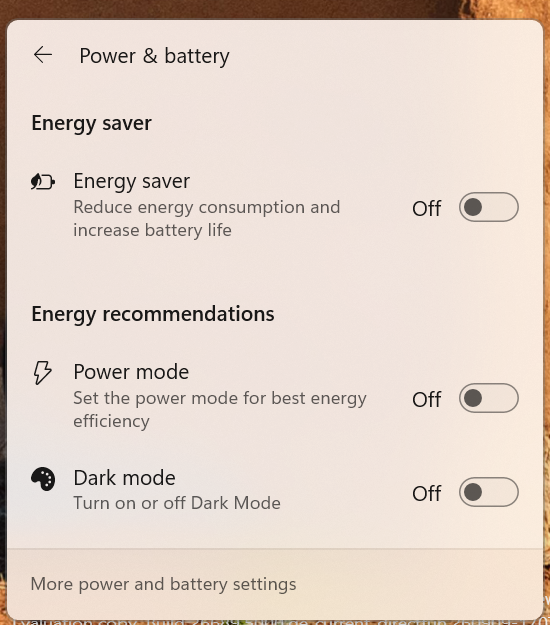
  • Windows Insiders will now see Energy Recommendations directly in Quick Settings, making it easier to discover and take actions that can help reduce energy consumption and improve device sustainability.
[caption id="attachment_179179" align="aligncenter" width="550"]The Power & battery settings page showing Energy Recommendations, including suggested actions. The Power & battery settings page showing Energy Recommendations, including suggested actions.[/caption] Thanks, Stephen and the Windows Insider Program team

Beyond the Build – September 2026

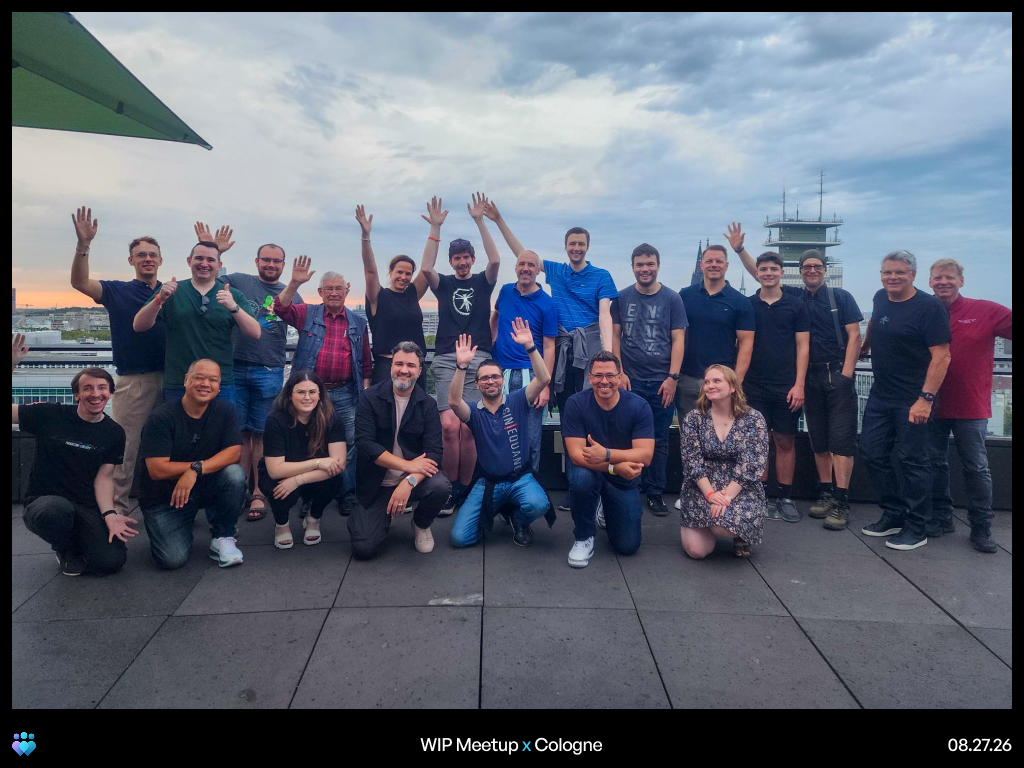
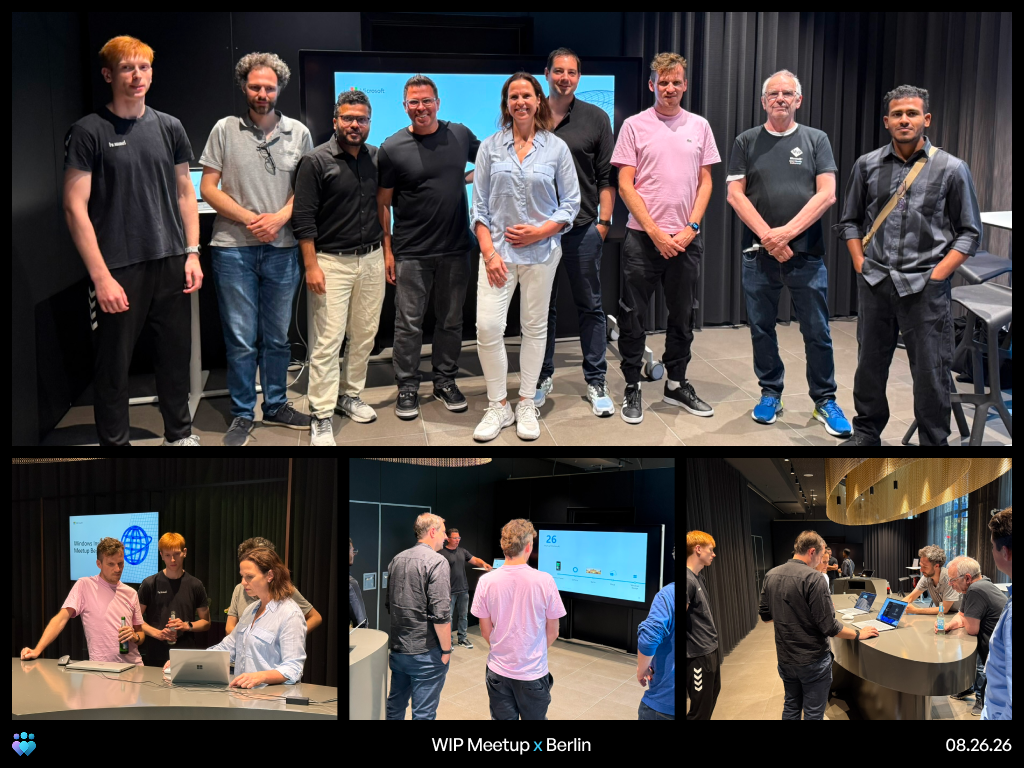
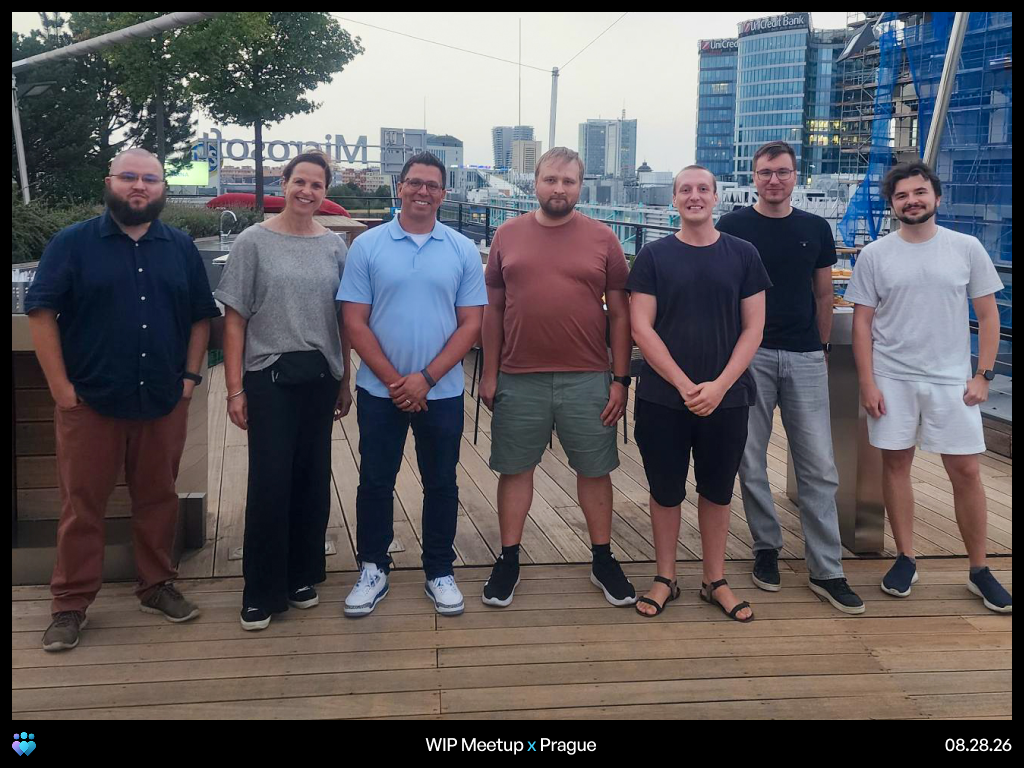
Beyond the Build is a monthly update from Marcus Ash, CVP Design and Research across Windows & Devices, on what’s happening across the Windows Insider Program. Plus, read on to see how you can register to attend our next Windows Insider event on October 15 in Brooklyn, NYC.  Earlier this month, we kicked off the next leg of our Windows Insider meetup tour with stops in Berlin, Cologne, and Prague. [caption id="attachment_179172" align="aligncenter" width="1024"]A group of Windows Insiders from the Windows Insider meetup in Cologne A group of Windows Insiders from the Windows Insider meetup in Cologne[/caption] [caption id="attachment_179173" align="aligncenter" width="1024"]A group of Windows Insiders from the Windows Insider meetup in Berlin A group of Windows Insiders from the Windows Insider meetup in Berlin[/caption] [caption id="attachment_179174" align="aligncenter" width="1024"]A group of Windows Insiders from the Windows Insider meetup in Prague A group of Windows Insiders from the Windows Insider meetup in Prague[/caption] These meetups were smaller by design. That gave us more time for direct conversations, questions, and feedback. Many of you shared that you can feel the improvements in Experimental builds, especially in overall system responsiveness. That feedback came with a clear ask to keep rolling these improvements out to everyone so your friends, family, and other people in your life can experience them too. Some of that is already underway. Start and taskbar improvements have started rolling out broadly, and you can expect more as we head into the fall. You also asked us to explore new ways of sharing our work, including early design concepts and ideas. We recently held a feedback session where we shared the design for the File Explorer context menus that recently shipped to Experimental builds. You can expect more lightweight, early sharing sessions so we can hear your feedback before improvements make their way into Experimental builds. We also heard that it can be difficult to understand what’s happening with the feedback you submit. You want similar feedback grouped together and a clearer view of what we’re considering and actively working on. We’re increasing our investment in this area and will have more to share soon. A consistent theme across the meetups was the strength of the Insider community. Across each stop, attendees reconnected in person, met people they had previously only known online, and shared tips with one another. It was great to be together, swap insights, and spend time with this community. The feedback and energy we feel from Insiders help us shape Windows. We’re looking forward to keeping the conversation going as the tour continues. Marcus Windows Community Connection in Brooklyn, NYC on October 15: Register for a chance to attend an exclusive Windows Insider event on October 15 in Brooklyn: https://www.aka.ms/windowsfans. Hear from Microsoft leaders and the Windows Insider team, share your thoughts on the program, and get a closer look at what's ahead for Windows. Space is limited.

Announcing new builds for 18 September 2026

Hello Windows Insiders, Today, we’re releasing new Windows 11 Insider Preview builds to the Beta and Experimental channels. New builds this week Select your channel below to view its release notes: For those on other specific Windows build versions, here are today’s new builds and release notes:

Notable new features:

[Accessibility - Mouse indicator]

Release channel: Experimental
  • We're introducing a sleeker new animation for the Mouse indicator. This can be enabled under accessibility settings. We've also added the option to keep the indicator activated until the user presses the escape key.

[Magnifier]

Release channel: Experimental
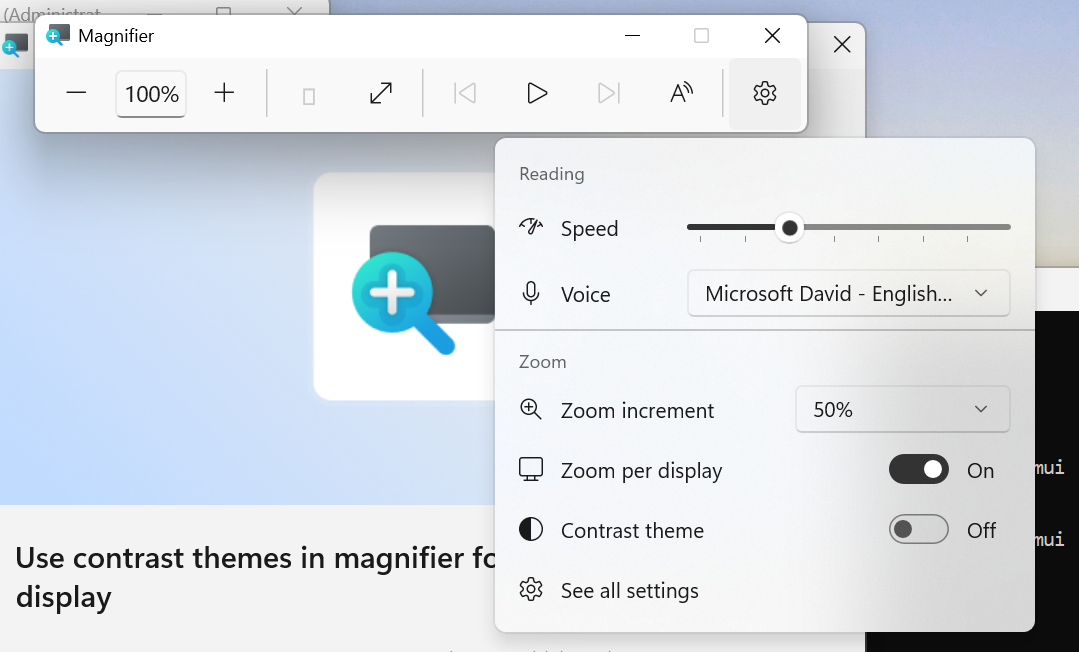
  • A new contrast theme toggle for a lower-glare screen. If bright screens are uncomfortable, many people use color inversion to reduce glare. However, inversion changes everything on screen, including photos, charts, and videos. With this update, we're introducing a new contrast theme toggle in Magnifier. Check out the release notes link for more information.
[caption id="attachment_179168" align="aligncenter" width="1079"]UI showing the new contrast theme toggle in Magnifier UI showing the new contrast theme toggle in Magnifier[/caption]

[Cloud rebuild]

Release channel: Experimental
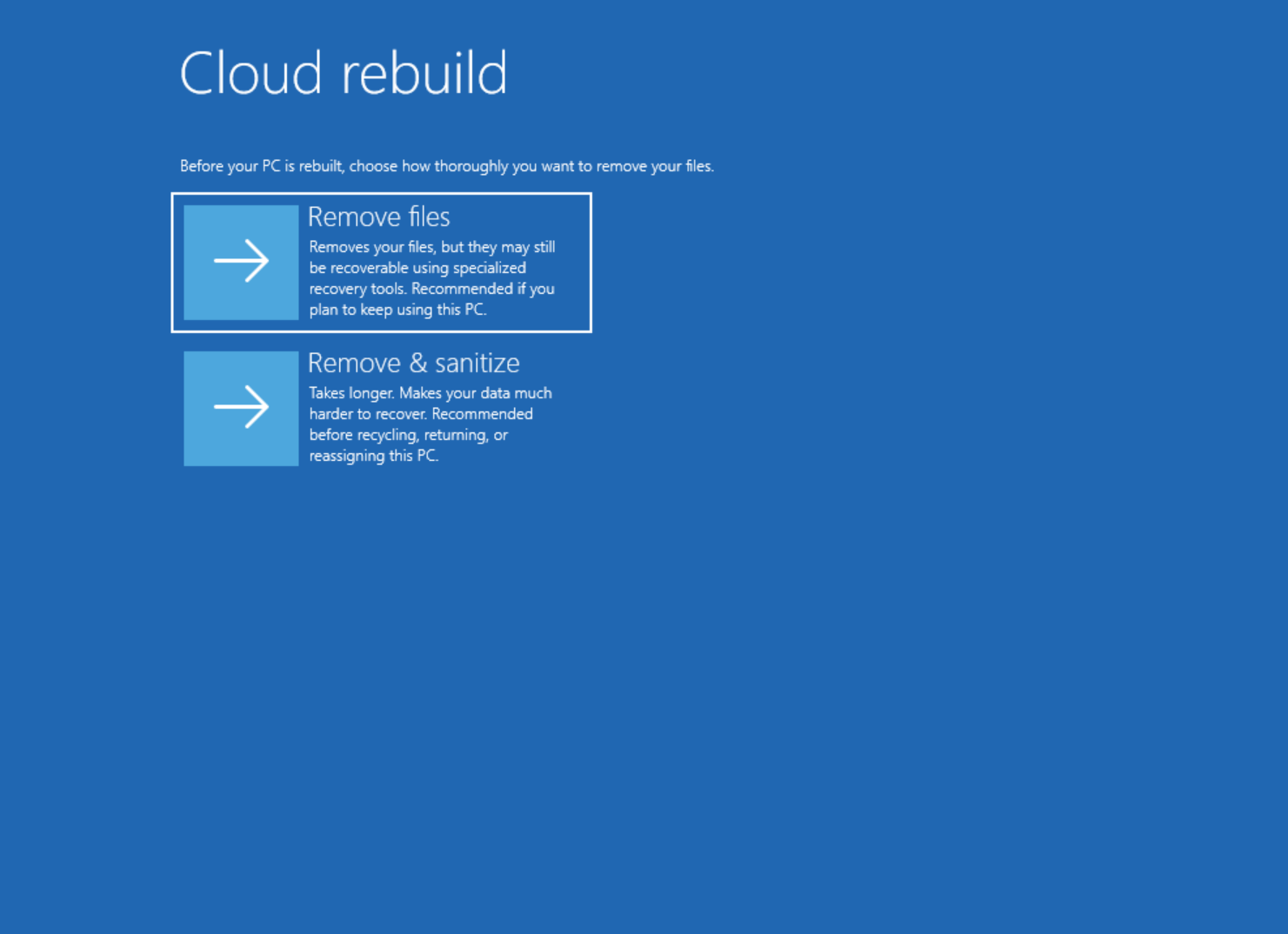
  • We're updating Cloud rebuild, the recovery option that restores a Windows 11 PC to a clean, known-good state by performing a full OS reinstall, with two additions. Cloud rebuild can now sanitize the device's drives as part of the rebuild and IT administrators can now configure and start Cloud rebuild remotely through the Recovery CSP. See release notes for more information.
[caption id="attachment_179169" align="aligncenter" width="1481"]UI showing new Cloud rebuild file removal options. UI showing new Cloud rebuild file removal options.[/caption] Thanks, Stephen and the Windows Insider Program team

Announcing new builds for 11 September 2026

Hello Windows Insiders, Today, we’re releasing new Windows 11 Insider Preview builds to the Beta, Experimental, and Release Preview channels. New builds this week Select your channel below to view its release notes: For those on other specific Windows build versions, here are today’s new builds and release notes: We also have the Windows 11, version 26H1 Release Preview going out today:

Notable new features:

[Context menu]

Release channel: Experimental Building on the work we've been doing to improve the context menu experience:
  • We've added a new teaching tip you might see as a first-time experience to help you learn about the customization options.
  • In theme with giving you more control, you can also now turn off the customize context menu entry in the new context menu settings.
  • We've fixed a few small issues with the Send To option in the context menu not working as expected.

[File Explorer search]

Release channel: Experimental
  • Search from This PC in File Explorer is now indexer-based, making it much faster and consistent with search from File Explorer Home.
Thanks, Stephen and the Windows Insider Program team

Announcing Windows 11 Release Preview Builds 26100.9539/26200.9539

Hello Windows Insiders, Today we’re releasing build Builds 26100.9539/26200.9539 for Release Preview for Windows 11, version 24H2/25H2. Release notes can be found over in the Windows Insider Documentation Hub as usual, as well as below: Highlights  This update is available through two release phases: gradual rollout and normal rollout. A gradual rollout delivers an update in phases, so features reach devices over time instead of all at once, meaning availability varies by device.​​​​​​​​​​​​​ A normal rollout is the broad release to all eligible devices at the same time, usually when it reaches general availability (GA). Gradual rollout This section highlights some new features and enhancements for Windows 11 PCs, including AI-powered capabilities, continuous innovation, and performance improvements. File Explorer
  • New! This update adjusts how the preview pane handles files downloaded from the web. For HTML files, a new Preview anyway button lets you acknowledge the warning and preview the file. Non-HTML files, such as PDFs, are now previewed automatically.
  • New! File Explorer Home now preserves the state of sections (expanded or collapsed), so you can pick up where you left off.
  • New! This update improves the reliability of thumbnail previews for cloud files in the Details pane. The pane has also been reorganized so file properties are easier to find and review at a glance.
  • New! The update addresses an issue that could clear the address bar contents when entering edit mode by clicking near the right side of the address bar.
Emoji
  • New! This update adds support for Emoji 17.0, including new emoji such as distorted face, fight cloud, and hairy creature. To insert them, press the Windows key + Period (.) to open the emoji panel.
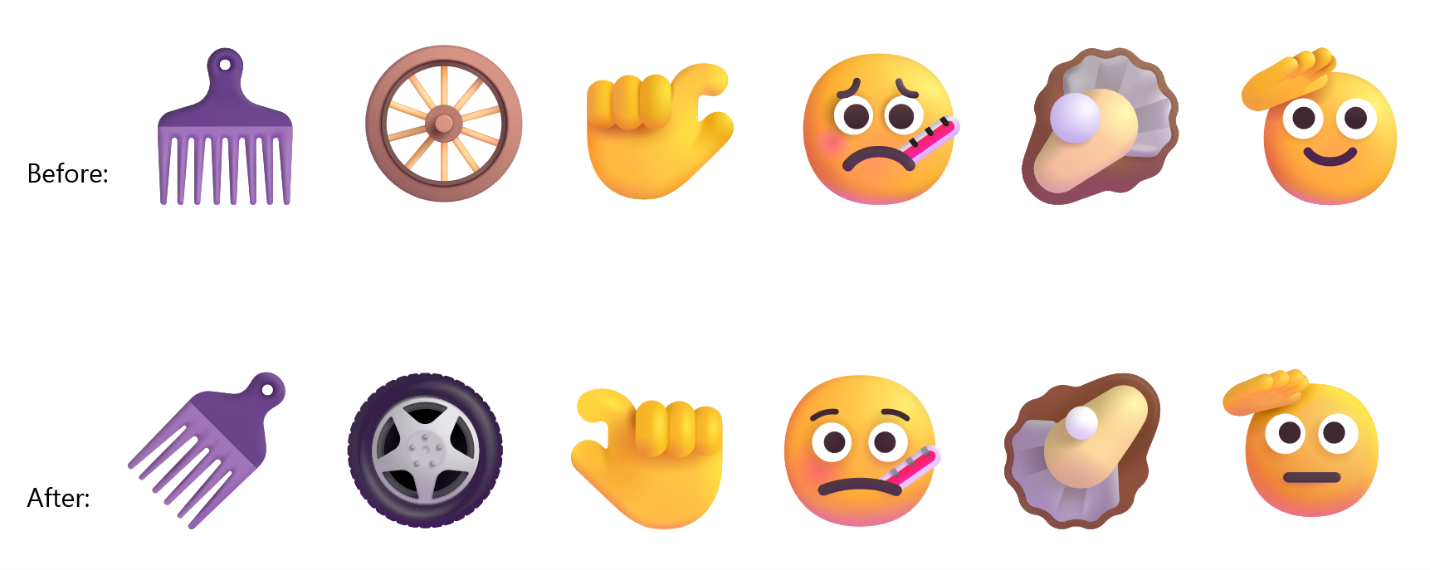
  • New! This update also refines the design of several existing emoji for better consistency across platforms, including saluting face, face with peeking eye, goose, lotus, and kissing cat.
Widgets
  • New! This update introduces the Tips widget, which provides short, helpful guidance about Windows features. To add it to your Widgets board, open the board, select Add widgets, and then choose Tips. To add it to your lock screen, go to Settings > Personalization > Lock screen and add Tips to your lock screen widgets.
Personalization
  • This update includes a variety of improvements to desktop background experiences.
  • This update improves the reliability of the Personalization > Background page in Settings.
  • This update adds support for using DIB image files as desktop backgrounds.
  • This update improves reliability of desktop slideshow transitions on newly created accounts.
  • This update improves resolution of previews when selecting a desktop background in Personalization > Background.
  • This update improves desktop background preview display in Settings for users with portrait mode monitors.
  • This update improves reliability of processing desktop wallpaper changes when they happen in quick succession.
  • This update adds support for using slideshow wallpapers with multiple desktops, so that it won’t automatically switch you back to Picture.
Bluetooth
  • This update contains several enhancements to improve reliability and experience when connecting to and using Bluetooth devices:
  • During voice calls, the Windows shell volume flyout now appears when adjusting the volume of a Bluetooth Classic Audio accessory via the volume controls on the accessory, providing visual feedback of the new volume level.
  • This update improves the accuracy of the connection state displayed by Windows for accessories that have disconnected from the PC.
  • This update improves stability of the Bluetooth and devices page in Settings when managing Bluetooth and audio devices.
  • This update resolves an issue where the Bluetooth radio could be turned off, but the state of the radio control toggle in the Bluetooth and devices page in Settings shows as on.
  • This update improves Bluetooth audio stability and compatibility.
  • This update improves microphone compatibility with certain Bluetooth Classic audio accessories.
  • This update resolves an issue that could result in a crash (error code 0x139) while streaming Bluetooth audio.
  • This update improves reliability and performance with LE Audio accessories.
Accessibility
  • New! This update introduces Open apps maximized, an accessibility setting that automatically maximizes app windows as they open. It removes a bit of everyday friction whether you use a screen reader or magnification, work in tablet mode, or simply prefer a consistent, full-screen workspace. To turn it on, go to Settings > Accessibility > Visual effects and turn on Open apps maximized.
  • This update improves navigation of the Bluetooth quick settings page when using keyboard input, gamepad input, or Narrator.
Magnifier
  • New! This update brings a modernized visual refresh to the Magnifier taskbar.
  • Updated icons. Magnifier's toolbar icons align with Windows 11 visual design, giving the tool a cleaner, more modernized feel.
  • Refined spacing and padding. The padding is adjusted with spacing across the toolbar for a more polished, consistent layout.
  • Views, zoom controls, keyboard shortcuts, and Read Aloud all behave exactly as they did in earlier versions.
Settings
  • This update improves the reliability of Settings when interacting with the contents of the Settings > Bluetooth & Devices > Printers & Scanners page.
  • This update updates Settings > Apps > Installed apps to show the version number at the top level for packaged apps, as it already does for other apps.
  • This update improves the time picker control in Settings so that it reflects your preferred time format when you switch between 12-hour and 24-hour. This applies in places such as setting active hours and scheduling night light.
  • This update improves persistence of the Allow multiple apps to use camera at the same time option in Settings > Bluetooth & Devices > Camera settings.
Touchpad
  • New! Additional gesture controls for precision touchpads are available in Settings > Bluetooth & devices > Touchpad:
  • Single-finger scrolling — Scroll vertically with one finger starting from the left or right side of the touchpad.
  • Automatic scrolling — Keep scrolling without lifting your fingers by moving them near the edge of your touchpad while scrolling.
  • Previously, gesture controls for scroll and zoom speed and accelerate scrolling were released in the July 2026 update (KB5101684).
Copilot key
  • New! This update introduces a new Windows 11 setting that lets you remap the Copilot key to function as the Right Ctrl or Context Menu key, helping preserve familiar keyboard shortcuts and accessibility workflows. For more information, see Understand updates to the Copilot key on Windows devices.
Cameral roll
  • New! This update introduces Camera roll backup in Settings, helping eligible users protect their photos with OneDrive. You can turn on the feature from the Settings Home or Accounts page and complete setup on their mobile phone using a QR code. 1
Fonts
  • New! This update adds support for the Garay and Beria Erfe scripts to the Ebrima font, the first Microsoft font to support both. Garay was encoded in Unicode 16.0 and Beria Erfe in Unicode 17.0.
  • New! This update also refines the Adlam glyph designs in Ebrima to align with the current Unicode standard and improve consistency.
Windows Recovery (WinRE)
  • New! This update enables WinRE to automatically reuse eligible Wi-Fi profiles already saved in Windows, including supported certificate-based networks. Devices can now get online automatically during recovery scenarios such as quick machine recovery or cloud rebuild, without preconfiguring Wi-Fi credentials in WinRE. This capability is on by default, and IT admins can disable it. For more information, see Windows Recovery Environment (Windows RE).
  • New! This update adds recovery remote management plug-in for extending WinRE management capabilities for MDM providers. For more information, see Recovery Remote Management Overview.
Kiosk mode
  • The Windows key plus Tab keyboard shortcut is now disabled when using a restricted UX kiosk.
  • The Windows key plus A and Windows key plus C keyboard shortcuts are now disabled when using single app kiosk mode.
Windows Backup 
  • PC-to-PC Migration is no longer available. This feature, introduced through a phased rollout, previously allowed you to transfer files and settings directly from your previous PC when setting up a new Windows PC. To back up and restore your files, settings, and other supported items when moving to a new PC, use Windows Backup. For more information, see Back up and restore with Windows Backup.
1Feature availability depends on your device and market.

Announcing new builds for 8 September 2026

Hello Windows Insiders, Today, we’re releasing new Windows 11 Insider Preview builds to the Beta and Experimental channels. New builds this week Select your channel below to view its release notes: For those on other specific Windows build versions, here are today’s new builds and release notes:

Notable new features:

[Cross-device resume improvements]

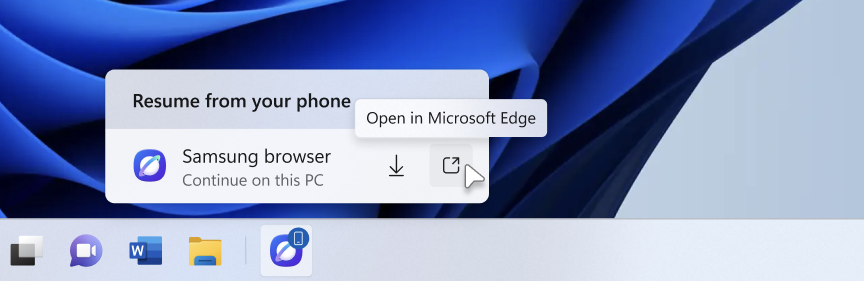
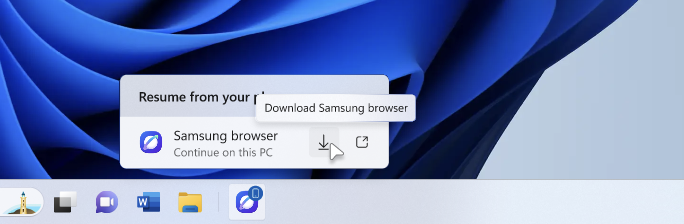
Release channel: Experimental We're making it easier to continue where you left off on your PC. When you resume a webpage from your phone and the phone's browser isn't installed on your PC, the Resume hovercard now gives you two options: open the page directly in your PC's default browser or install the phone's browser for a native experience. This update helps you continue your work immediately without requiring an app installation first. [caption id="attachment_179156" align="aligncenter" width="864"]The Resume hovercard provides an option to open the webpage in the PC's default browser. The Resume hovercard provides an option to open the webpage in the PC's default browser.[/caption] [caption id="attachment_179157" align="aligncenter" width="684"]The Resume hovercard provides an option to install the originating phone browser. The Resume hovercard provides an option to install the originating phone browser.[/caption]

[Narrator]

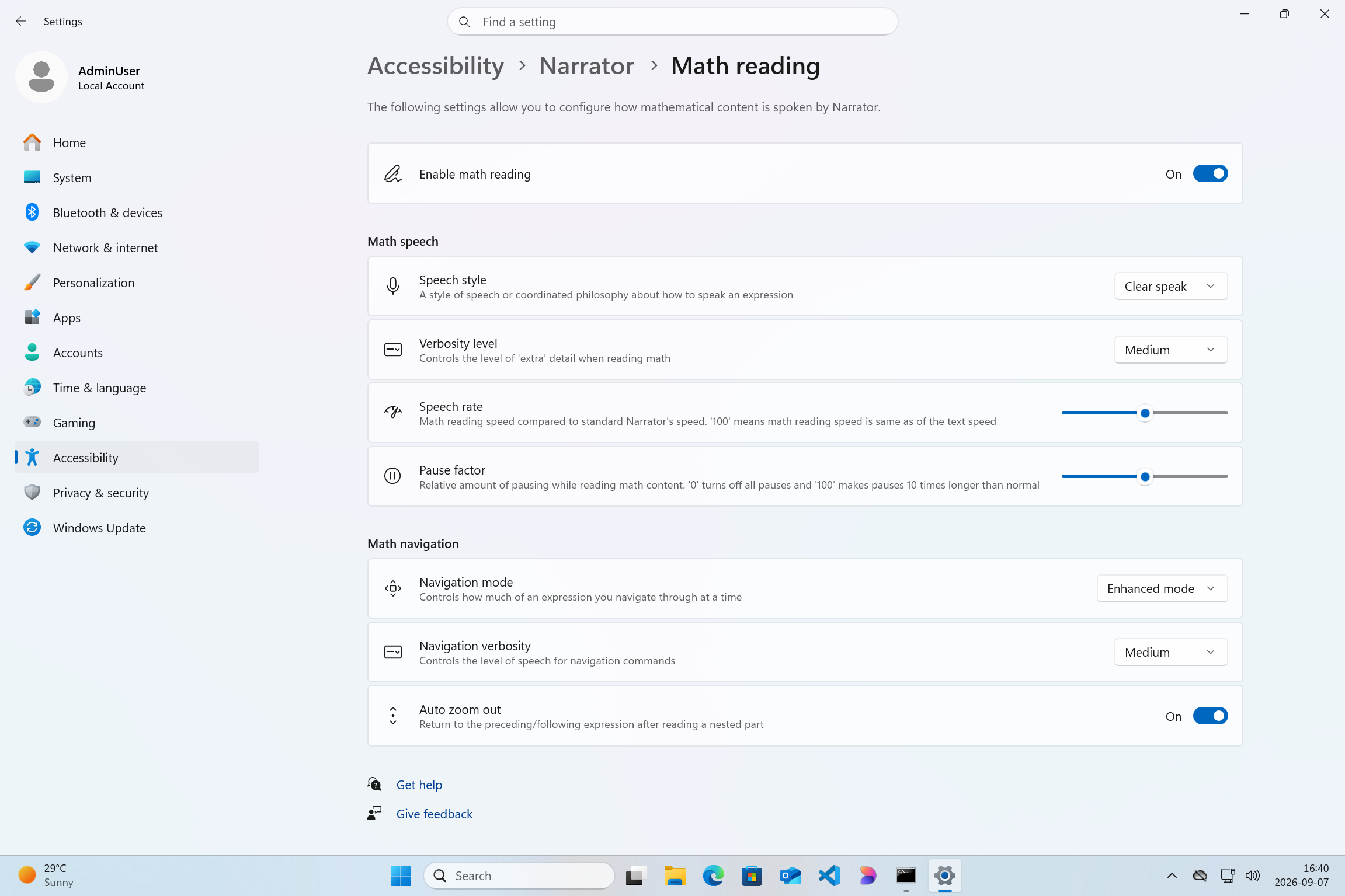
Release channel: Experimental Read and explore math equations with Narrator We are adding math reading and navigation support in Narrator, bringing clearer and more natural math experiences to users who are blind or have low vision. Math is at the heart of STEM education and learning, and this update helps students and professionals independently read, understand, and explore equations, formulas, and scientific notations with confidence. Read more in release notes link above. [caption id="attachment_179158" align="aligncenter" width="2303"]Screenshot of Windows settings page with Narrator Math reading settings page open Screenshot of Windows settings page with Narrator Math reading settings page open[/caption]

[Magnifier]

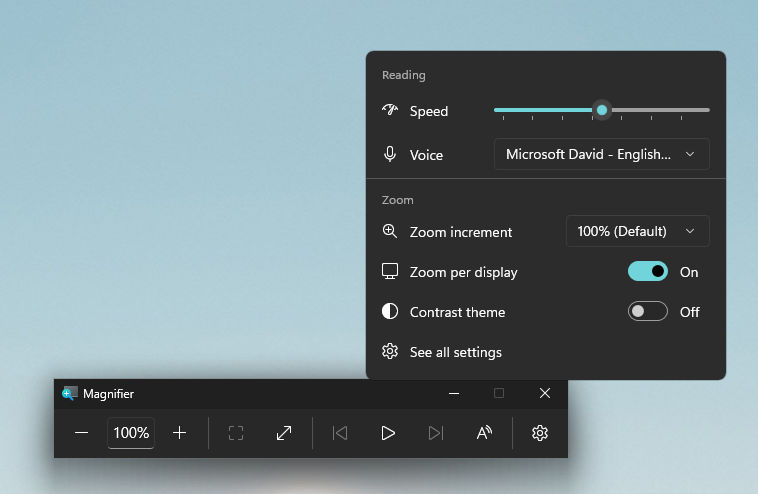
Release channel: Experimental Magnifier now understands each of your displays
  • Every screen keeps its own view, at its own zoom. In earlier versions of Magnifier, zooming in stretched a single magnified view across all of your displays, so one screen's zoom followed you everywhere and screen edges blurred together. With this update, each monitor's boundary is respected, and each monitor can hold its own zoom percentage. Your writing screen can sit at 300% while your reference screen stays at 150%, and the magnified view no longer spills from one display into the next. This matters because different tasks, and different screen resolutions, often call for different levels of magnification to stay comfortable to read. Read more in release notes link above.
[caption id="attachment_179159" align="aligncenter" width="758"]UI showing Magnifier settings with Zoom per display enabled, allowing each monitor to maintain its own zoom level. UI showing Magnifier settings with Zoom per display enabled, allowing each monitor to maintain its own zoom level.[/caption] [caption id="attachment_179160" align="aligncenter" width="1041"]UI showing Magnifier's multiple display controls, including independent zoom and view locking options. UI showing Magnifier's multiple display controls, including independent zoom and view locking options.[/caption] Thanks, Stephen and the Windows Insider Program team

Releasing Windows 11, version 26H2 to the Release Preview Channel

[Update 31 August 2026: ISOs are now available] Hello Windows Insiders! Today, we are making this year’s annual feature update, Windows 11, version 26H2 (Build 26300.9278),  available in the Release Preview Channel for customers to preview ahead of general availability later this calendar year. Windows 11, version 26H2 will be delivered as an enablement package (eKB). This means that Windows 11, versions 24H21, 25H2, and 26H2 use a shared servicing branch. It also means that they share the same new features and enhancements delivered through our continuous innovation efforts. As a result, many of the features and improvements available in Windows 11, version 26H2 might already be familiar, as they have been gradually introduced through monthly updates. For commercial customers, Windows 11, version 26H2 enables several experiences that were introduced in earlier releases but not previously enabled by default for commercial devices. This includes Windows settings backup, app-specific actions from the taskbar, and some File Explorer enhancements. For guidance on how to prepare for Windows 11, version 26H2 in your organization, see Get ready for Windows 11, version 26H2. Windows Insiders in the Release Preview Channel can install Windows 11, version 26H2 via our “seeker” experience in Windows Update. This means if you are an Insider currently in the Release Preview Channel on a PC that meets the Windows 11 hardware requirements, you can go to Settings and Windows Update and choose to download and install Windows 11, version 26H2. Once you update your PC to Windows 11, version 26H2, you will continue to automatically receive new servicing updates through Windows Update (the typical monthly update process). For instructions on how to join the Windows Insider Program and enroll your PC in the Release Preview Channel, click here. If you are a commercial2 customer enrolled in the Windows Insider Program for Business, you can deploy and begin validating Windows 11, version 26H2 on PCs in your organization using Windows Update client policies and Windows Server Update Services (WSUS). Azure Marketplace will be available later today. Should any issues arise, IT admins in organizations deploying Release Preview updates can request Microsoft Support. And finally, ISOs will be available for download for Windows 11, version 26H2 via the Windows Insider ISO download page in the near term. Thanks, Windows Insider Program Team 1Windows 11, version 24H2 Home and Pro editions will reach end of updates on October 13, 2026. Enterprise and Education editions remain supported until October 12, 2027. 2We consider a device a commercial device if it is not running the Windows 11 Home edition AND is being managed by an IT administrator (whether via Microsoft Intune or other management solution), or has a volume license key or commercial ID, or is joined to a domain.

Announcing new builds for 21 August 2026

Hello Windows Insiders, Today, we’re releasing new Windows 11 Insider Preview builds to the Beta and Experimental Channels. Experimental Feature Flags We’ve fixed the issue causing the Feature Flags list to show empty for Insiders in the Experimental channel. You should now see Feature Flags reappear after installation of the latest Experimental build. New builds this week We’re releasing new Windows 11 Insider Preview builds today. Select your channel below to view its release notes: For those on other specific build versions, here are today’s new builds and release notes:

Notable new features:

[Modernized Autoplay experience]

Release channel: Experimental
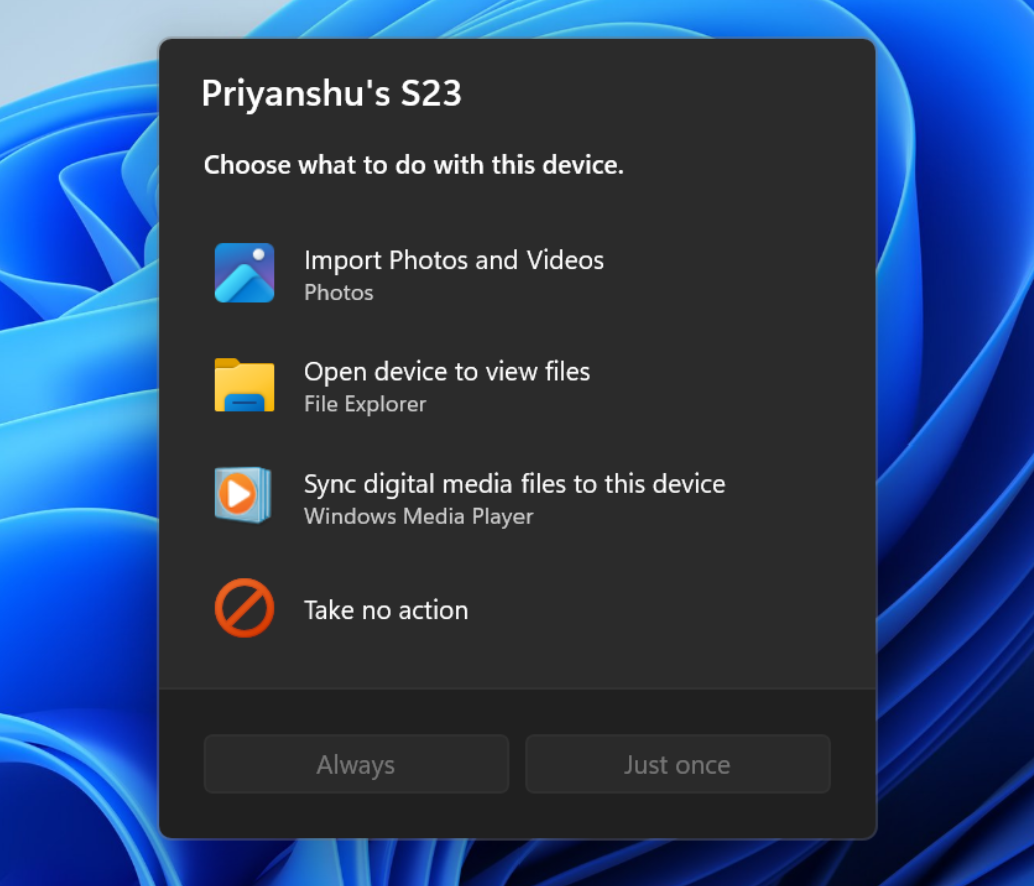
  • We've updated the AutoPlay dialog that helps you choose the preferred experience when devices are connected to your PC (e.g., a phone, camera, or removable drive). Rebuilt with WinUI, the refreshed experience is more consistent with the rest of Windows, supports dark mode, and continues to provide the familiar AutoPlay actions you use today. The experience is also more responsive to text scaling and display settings. Notifications for this dialog will now be docked in the notification center for easy access.
[caption id="attachment_179139" align="aligncenter" width="1024"]The new AutoPlay experience, shown in dark mode. The new AutoPlay experience, shown in dark mode.[/caption]

[Accessibility]

Release channel: Experimental, Beta A simpler way to open apps maximized
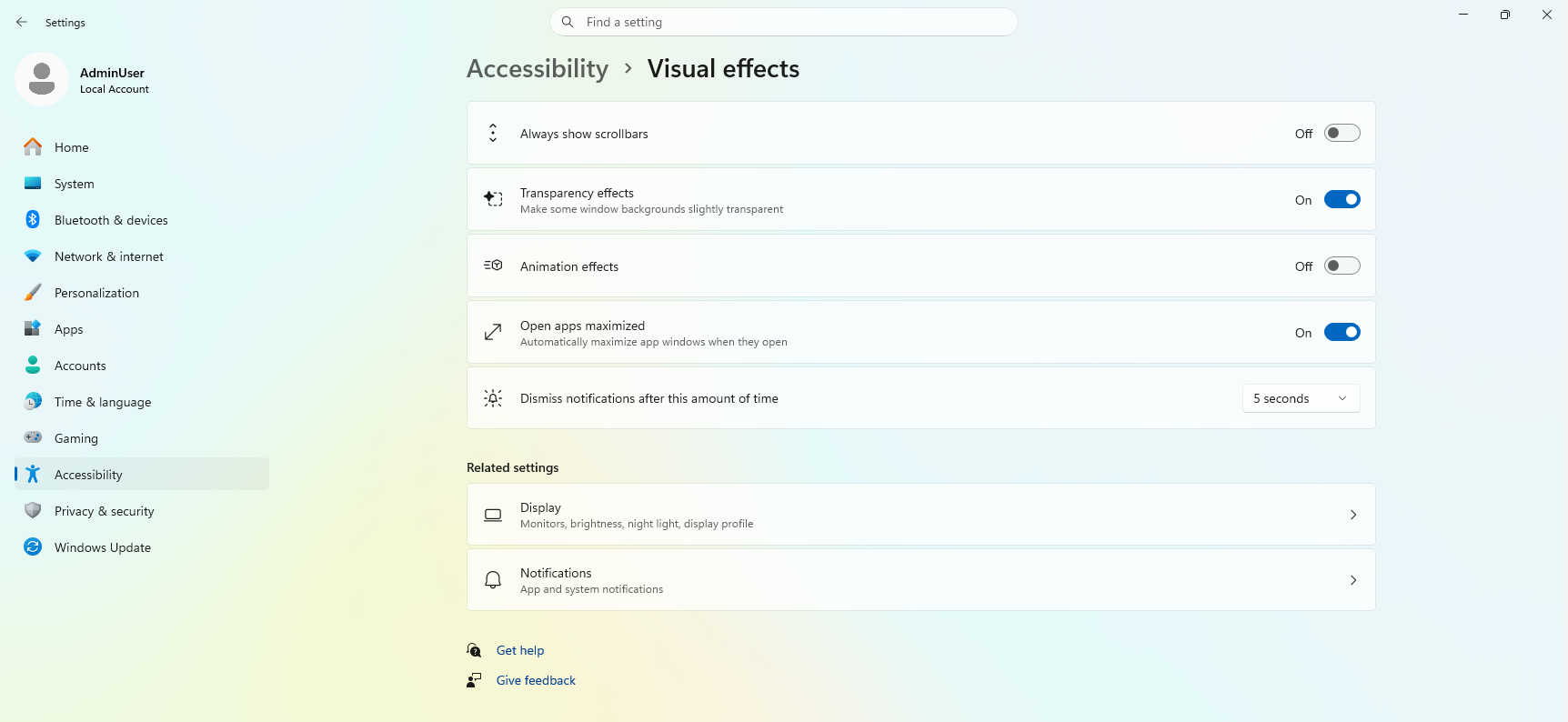
  • We are introducing a new accessibility setting, “Open apps maximized”, that automatically maximizes app windows when they open — so you no longer have to do it yourself every time. This is a small change that removes a bit of everyday friction, whether you use a screen reader or magnification, work in tablet mode, or simply prefer a consistent, full-screen workspace.
  • To turn it on, go to Settings > Accessibility > Visual effects and switch on Open apps maximized. Once enabled, Windows maximizes app windows for you as they open. Give it a try and let us know how it works for you.
[caption id="attachment_179140" align="aligncenter" width="1024"]UI showing the new "Open apps maximized" accessibility setting in Settings > Accessibility > Visual effects. UI showing the new "Open apps maximized" accessibility setting in Settings > Accessibility > Visual effects.[/caption] Thanks, Stephen and the Windows Insider Program team

Improving File Explorer & Context Menu: faster, simpler, and more customizable

Hi Windows Insiders, File Explorer is one of the most used experiences on Windows. It's where you get work done: organizing files, finding what you need, and moving content seamlessly across local storage and the cloud. Earlier this year, we shared our commitment to improving Windows quality, with a focus on performance, reliability, and craftsmanship. In File Explorer, that means investing in the foundational work needed to improve the experience end-to-end: reducing hangs and delays, improving responsiveness and reliability, addressing customer-reported issues, and removing friction from everyday tasks. But quality is also about continually evolving the experience to feel more modern, intuitive, and efficient for the millions of people who rely on File Explorer every day. Today we're sharing progress on both fronts. Alongside continued investments in File Explorer performance and reliability, we are introducing a substantially redesigned context menu experience that's faster, simpler, and more customizable than ever before. This new context menu experience is now rolling to Windows Insiders and represents one of several major improvements underway as we continue to modernize File Explorer.

Fewer bad moments

What people remember most are the worst moments. A single freeze while renaming a file, a slow right-click, or a Home view that flashes and reloads can outweigh dozens of smooth interactions. That reality has guided our approach to improving File Explorer. We focused on the everyday experiences people rely on most and set clear goals to make those interactions faster, more reliable, and less disruptive. Improving the moments that matter most We've profiled and invested in improving the performance and responsiveness of File Explorer. File Explorer now launches faster, and the overall experience feels more consistent and predictable. We’ve analyzed the issues behind many of the freezes, hangs, and delays users encounter, and eliminated dozens of potential stalls and interruptions in the experience.  As a result, you'll see fewer freezes and flashes when browsing, renaming files, navigating, or selecting multiple files. There are many more improvements to come, and these changes are designed to reduce disruptions and make File Explorer feel more responsive and reliable day to day.

Improving the details that matter every day

Our work extends beyond performance and reliability improvements. Many of the requests we hear from customers aren’t about major new features, they’re about the small interactions that happen every day.  We’ve continued refining File Explorer based on that feedback, removing friction and improving the details that help make everyday tasks feel more natural and predictable. For example, file renames no longer get interrupted by background file synchronization, and case-only filename changes now appear immediately. We’ve also improved navigation workflows.  The Address Bar now supports a wider range of inputs, including paths with quotation marks and double backslashes. Support for opening folders in a new tab with a middle-click has also been expanded to the Address Bar and Home page folders, making multitasking faster and more intuitive. Smaller usability improvements add up as well. Home now preserves whether sections are expanded or collapsed so you can pick up where you left off. File sizes are now displayed using appropriate units such as KB, MB, and GB, making them easier to understand at a glance. The Details pane has been reorganized so file properties are easier to find and review. Many of these improvements came directly from customer and Windows Insider feedback. They represent just the beginning of our ongoing effort to improve the everyday experiences people depend on most.

Putting you in control of the context menu

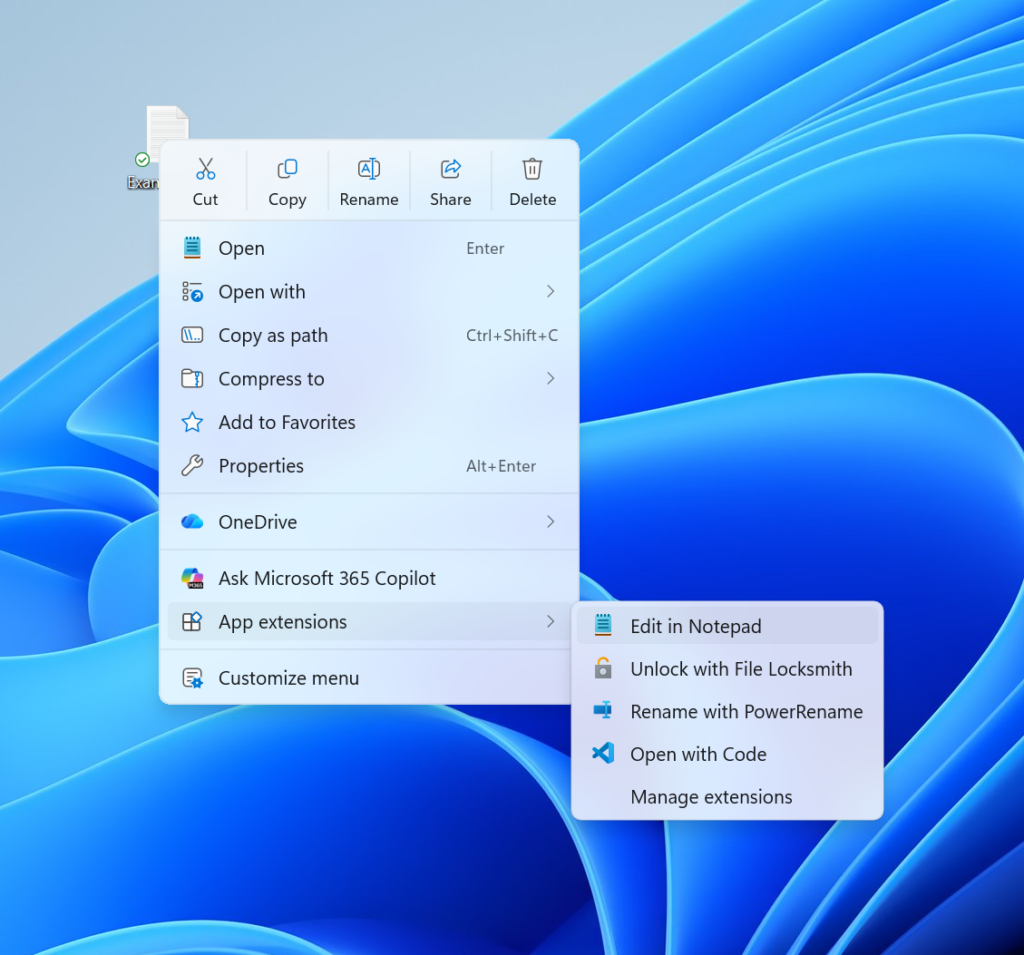
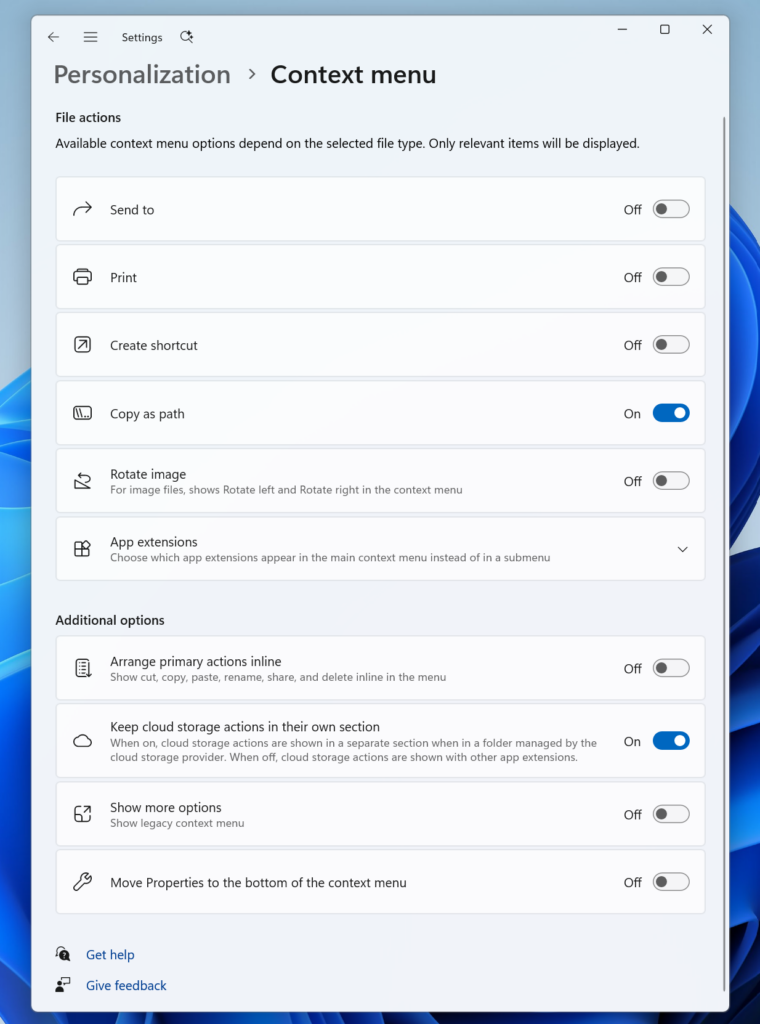
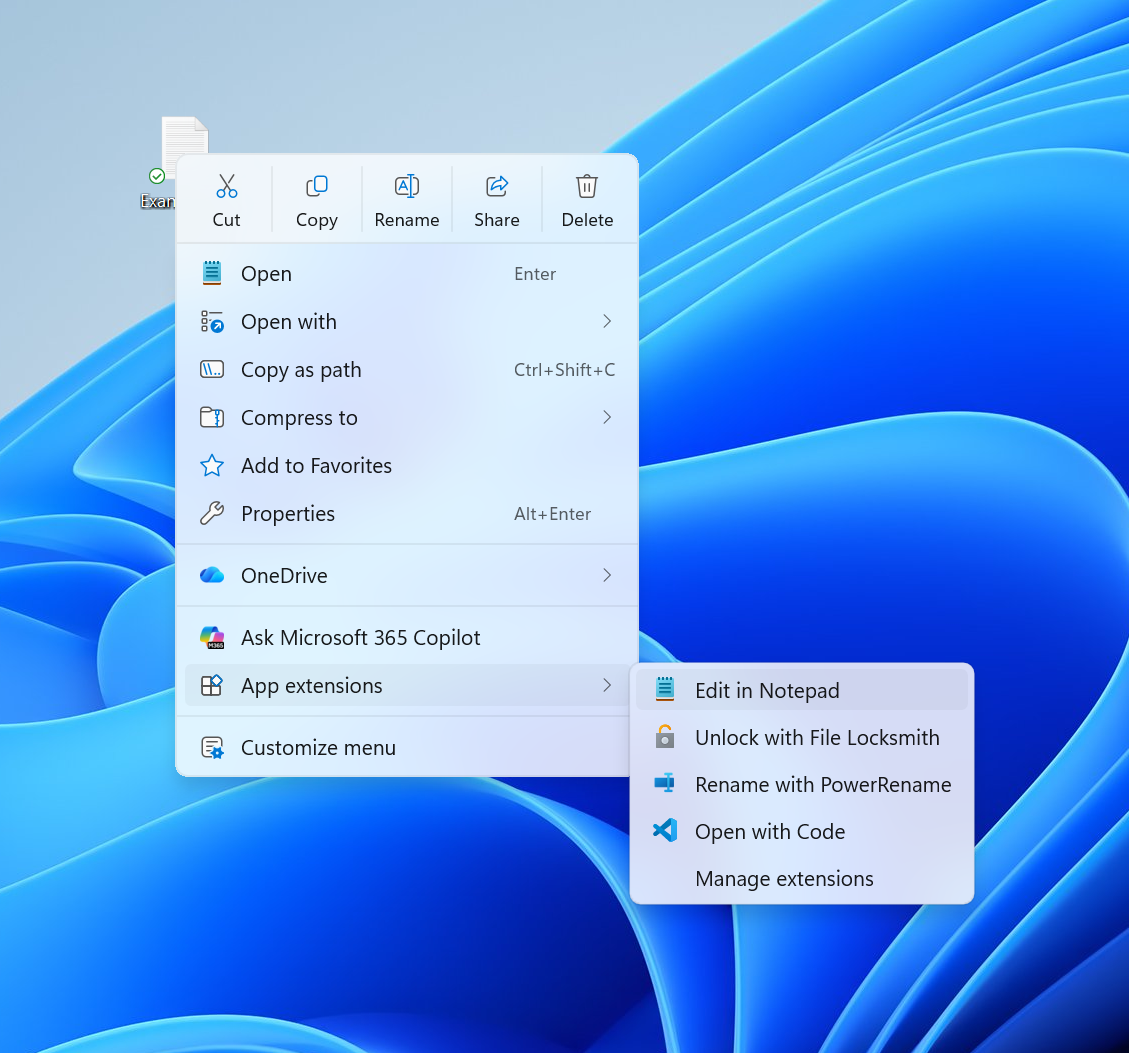
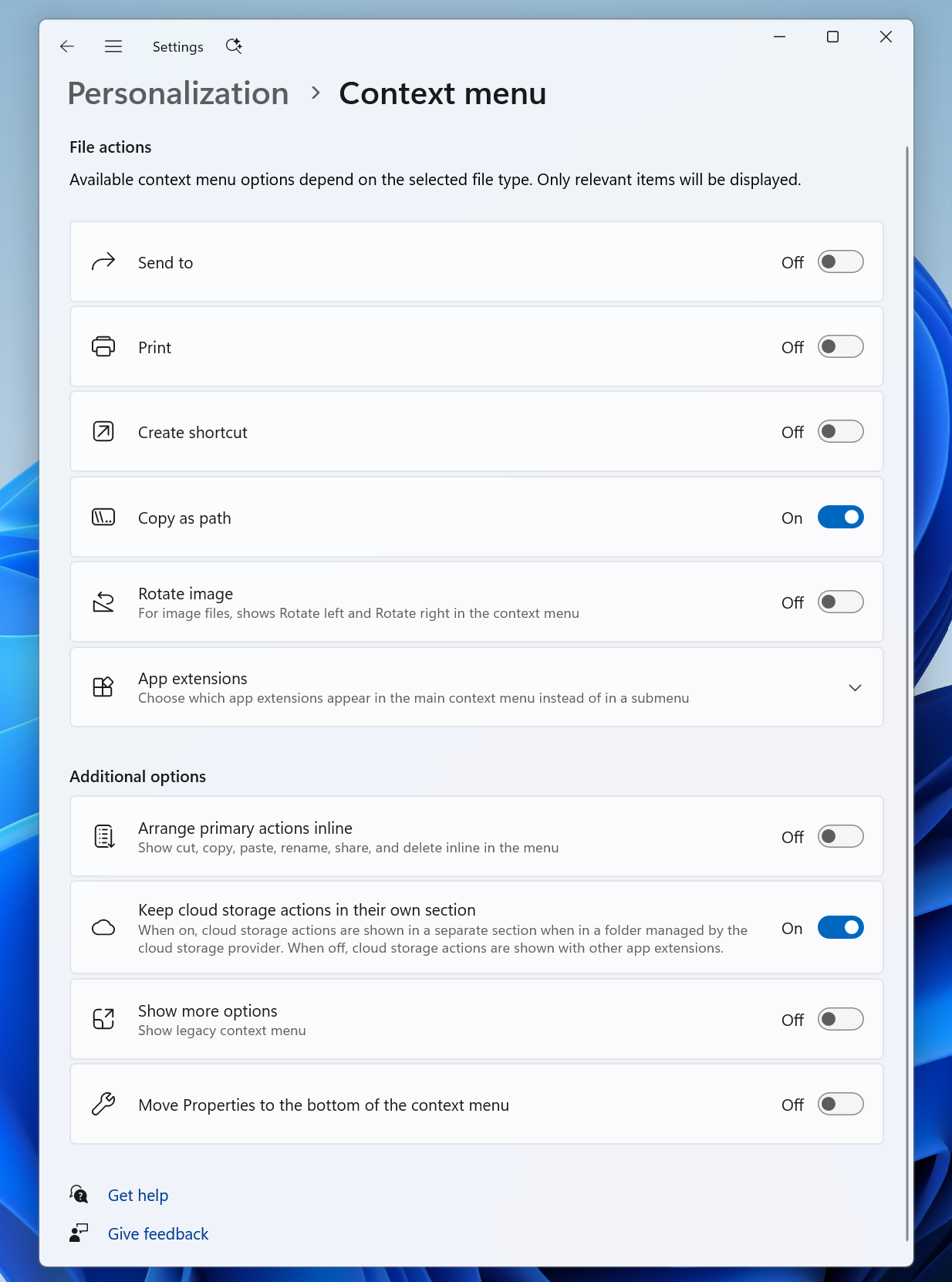
Right-clicking is one of the most common actions in Windows. If it doesn’t work as intended, or is difficult to navigate, it can derail your workflow. When we launched Windows 11, we introduced a new context menu with a modernized design, improved organization, and a new approach to application extensions. Over time, though, the menu became cluttered and sluggish, and we recognized the need to dramatically reduce the time between right-clicking and having a menu that’s fully ready to use. Today, we're excited to announce an updated context menu that delivers a faster, simpler, and more customizable experience. The new design reduces top-level clutter, keeps commonly used actions easy to access, and introduces a new Settings experience that gives you more control over what appears in the menu. [caption id="attachment_179130" align="aligncenter" width="1024"]The new right-click menu. The new right-click menu.[/caption] Faster to open The first thing you'll notice is that the menu opens much more quickly. For something used as often as the context menu, speed is part of good design. A lot of that comes from behind-the-scenes engineering improvements, and a good part comes from a cleaner default menu, with the full set of options just a click away in Settings. Clutter isn't only a visual problem; it slows the menu down because every app that adds its own options can make the menu do extra work each time it opens. Your menu, your control Part of the broader push we’re making across Windows 11 is making the operating system calmer by default, with more personalization and control. Each person uses the context menu in different ways, so we’re adding more customization to allow you to choose the layout that works best for you. At the bottom of the new context menu, you’ll now find “Customize menu”, as a shortcut to its Settings page, where you can shape the menu around your preferences, your habits, or the years of muscle memory you’ve built with a specific configuration. [caption id="attachment_179131" align="aligncenter" width="760"]The new Context Menu page in the Settings app, under Personalization. The new Context Menu page in the Settings app, under Personalization.[/caption] The top section lets you turn built-in Windows commands like Send to or Create shortcut on or off. Some of these commands, like Print, weren't available in the Windows 11 context menu before and can now be switched on if you want them. The next section is about options for app extensibility, so you can choose which app extensions appear in the main menu or submenu, including hiding the submenu altogether. Finally, the last section is about where the most common commands live. We know many people have years of muscle memory from the Windows 10 menu, so we've added options to bring that feel back. You can list the main commands (Cut, Copy, Paste, Rename, Delete, and Share) inline directly in the menu instead of as a row of icons, and you can move Properties down to the very bottom. As we continue refining this experience with Insider feedback, our goal is to make right-click feel more responsive, predictable, and personal.

Building a healthier File Explorer for the long term

We are committed to continue doing the hard work and consistently improving File Explorer month after month. Not every update will be obvious on its own, but together they should make File Explorer feel faster, polished, and more dependable across tasks users do most. Your feedback continues to shape every step of this journey. Keep it coming through Feedback Hub, and we'll continue sharing our progress as this work evolves. The File Explorer team

Announcing new builds for 17 August 2026

Hello Windows Insiders, Today, we’re releasing new Windows 11 Insider Preview builds to the Beta and Experimental Channels. This post also includes reminders about renewed flight certificates and the current Feature Flags settings issue in the Experimental channel. Renewed Windows Insider flight certificates As a reminder, all new builds include renewed Windows Insider flight certificates, replacing certificates that expired on August 11, 2026. Flight certificates are renewed periodically to help ensure Insider devices remain on supported builds and continue receiving future Windows Insider Preview updates. Devices that are not updated to a newer build with a current certificate may encounter compatibility issues with software such as anti-cheat applications. For more information, please visit the certificate renewal FAQ. Experimental Feature Flags We’re investigating an issue that causes the Feature Flags settings page to appear empty for Windows Insiders in the Experimental channel. We expect to resolve it in the next Experimental build and will share updates on the blog. New builds this week We’re releasing new Windows 11 Insider Preview builds today. Select your channel below to view its release notes: For those on other specific build versions, here are today’s new builds and release notes:

Notable new features:

[File Explorer]

Release channel: Experimental Introducing the new, redesigned Context Menu in File Explorer
  • We’re beginning to roll out an updated context menu experience in File Explorer, designed to feel faster, cleaner, and easier to tailor to the way you work. The new design reduces top-level clutter, keeps commonly used actions easy to access, and adds a new Settings experience that gives you more control over what appears in the menu. As we continue refining this experience with Insider feedback, our goal is to make right-click feel more responsive, predictable, and personal.
[caption id="attachment_179130" align="aligncenter" width="1024"]The new right-click menu. The new right-click menu.[/caption]

[Emoji]

Release channel: Experimental
  • We’re adding support for Emoji 17.0. This includes new emoji such as distorted face, fight cloud, and hairy creature. To try out the new emoji, you can press the Windows key plus Period (.) to open the emoji panel and insert them from there.
New Emoji 17.0
  • As part of this effort, we’ve also made some slight adjustments the design of some of our current emoji to improve consistency across platforms. This includes the saluting face, face with peeking eye, goose, lotus, and kissing cat emoji.
Updated emoji Thanks, Stephen and the Windows Insider Program team

Windows quality: an update on the commitment we made in March

In March I wrote to you about our commitment to Windows quality. Four months in, the team and I have been reflecting on our progress and wanted to share an update. We know there is more to do, especially in getting these improvements to all customers. We’re not slowing down. What we said we'd focus on In my letter, there was a list of immediate changes we committed to making. This included:
  • More taskbar customization
  • Integrating AI where it’s most meaningful
  • Reducing disruption from Windows Updates
  • Faster and more dependable File Explorer
  • More control over widgets and feed experiences
  • A simpler, more transparent Windows Insider Program
  • Improving the Feedback Hub experience
We also named three areas of focus at the start: performance, reliability, and well-crafted experiences. Since then, the team has been deeply focused on these priorities. Many of these improvements have been rolling out to Windows Insiders over the last few months, and they'll start rolling out more broadly across Windows 11 PCs beginning this fall. Here's what our work so far looks like
  • Earlier this month, we began previewing improvements to Windows Search Box, including a calmer home screen, clearer results, removing promotional content from web results and more.
  • At Build 2026 in June, we introduced a number of improvements to the developer experience on Windows including a developer-optimized Windows 11 experience to build and ship faster, announcing and later delivering a public preview of WSL containers, Windows 365 with developer configuration, Microsoft Execution Containers and much more.
  • We've strengthened the fundamentals of WinUI 3 and extended it into more of the Windows shell, including Widgets and the new Run experience, with Autoplay dialog and more File/Folder Properties dialogs coming soon to Windows Insider Preview Experimental builds. And with substantial improvements in memory efficiency and latency, these investments are strengthening the platform foundation needed to accelerate the modernization of Windows 11 and the broader application ecosystem.
  • In May, we began previewing changes to Taskbar and Start, which included the ability to move your taskbar positions as well as provide more personalization of Start.
  • In May, we shared updates on how we've been simplifying AI throughout the OS, starting with inbox apps, part of a broader shift to make AI in Windows more intentional and focused on the experiences that provide the most value to customers.
  • We have previewed several improvements to File Explorer, including foundational architecture enhancements designed to improve responsiveness and reliability across launch and navigation. We’ve addressed long-standing feedback about Home, including unstable transitions and blurry thumbnails. We also made updates to address File Explorer reliability, readability, and usability across the Address Bar, file size formatting, keyboard navigation, and renaming, and there’s more to come soon.
  • In May, we previewed updates to the widgets and feed experience, giving you more control over and making them quieter by default.
  • In May, we introduced the Driver Quality Initiative (DQI), a comprehensive, ecosystem-wide effort designed to fundamentally raise the bar on driver quality, reliability, and security across Windows. Since March, we've improved reliability across some of Windows' most common connectivity experiences, including improved USB4 docking performance, improved compatibility with Bluetooth devices like AirPods, as well as major gains in printer connectivity, including reducing in-network printer discovery failures.
  • We're continuing to invest across the full stack, from the kernel and shell to the apps and developer tools built on Windows, so performance improvements benefit the broad range of ways people use Windows. Building on the responsiveness and scheduler work we described in May, application launches and experiences like Start, File Explorer, Search, and Snipping Tool are faster and more responsive. Our focus has been on improving these experiences, so they are responsive, free of stutters and delays, and customers enjoy a reliable experience every time. Boot and logon times are also improved. Additionally, developers benefit from faster compile times, streamlining enterprise workflows.
  • Alongside all of these areas, we’ve steadily been introducing several improvements to the memory efficiency of Windows, from taking advantage of a more efficient memory allocator to reduce overhead across apps and components, continued tuning of WinUI 3 so that apps built on it use less memory by design, as well as driving efficiencies across Chromium and Webview2 components when they appear in the operating system.
  • Throughout this effort, we've improved Windows Hello to make signing in with your face or fingerprint more reliable, helping you get to your desktop faster. It's part of our broader focus on the everyday experiences that should just work, making Windows feel more polished, dependable, and consistent every day.
  • In April, we began previewing changes that reduced disruption from Windows Updates and provided more control like the ability to skip updates during the out-of-box experience (OOBE), extending update pauses and more.
  • In April, we made changes to the Windows Insider Program to become simpler and easier to navigate, with fewer channels and more control over the features you flight.
What happens between now and the end of the year Across our focus areas, the work continues as we bring these enhancements to general availability and deliver ongoing improvements customers can feel across performance, reliability, and craft. We're going to take everything we've learned since March and keep listening and closing the loop on your feedback. The signal from you is clear: keep going. We intend to. We're staying focused on our initial areas, and we're expanding into four new ones.
  • Onboarding and setup. Delivering a faster and more efficient out-of-box experience.
  • Memory optimization for 8GB and above. Reducing Windows memory footprint to deliver a fast and responsive Windows experience across the PCs customers use every day.
  • Family. Providing a faster set up and making it easier for families to access useful parental controls.
  • Voice. Making voice more natural and fluid to interact across the apps you use every day.
What's energized us most The last few months have energized us. Meeting Windows Insiders at our monthly meetups and hearing what you think has been one of the best parts. This is work our engineers love and we want you to feel it in the product. We know we have more to do, and we're grateful to be on this journey with you. Pavan

Announcing new builds for 31 July 2026

Hello Windows Insiders, We have new releases today with builds across Beta and Experimental, including refreshed security certificates across all new builds. Renewed Windows Insider flight certificates All builds this week contain renewed Windows Insider flight certificates (Note: Experimental (Future Platforms) has already contained the renewed flight certificate since the build released earlier this week). Windows Insider Preview builds use flight certificates that are renewed periodically to help ensure Insider devices remain on supported builds and continue receiving future Insider Preview updates. The current flight certificate expires on August 11, 2026, so please update your device to a build containing the renewed flight certificate before that date. For more information, please visit the certificate renewal FAQ. New builds this week Today we are releasing new Windows 11 Insider Preview Builds. See your channel release notes here: For those on other specific build versions, here are today’s new builds and release notes:

Notable new features:

[Updated 4 August 2026: thank you for the feedback from Insiders who found that the taskbar improvements had not made their way to the latest Beta build on release. After a slight delay, those improvements are now included in the build, a reboot maybe required. We look forward to continuing receiving your feedback for the new Taskbar improvements.]

[Taskbar]

Release channel: Experimental, new to Beta and Beta (26H1) Alternate Taskbar Position
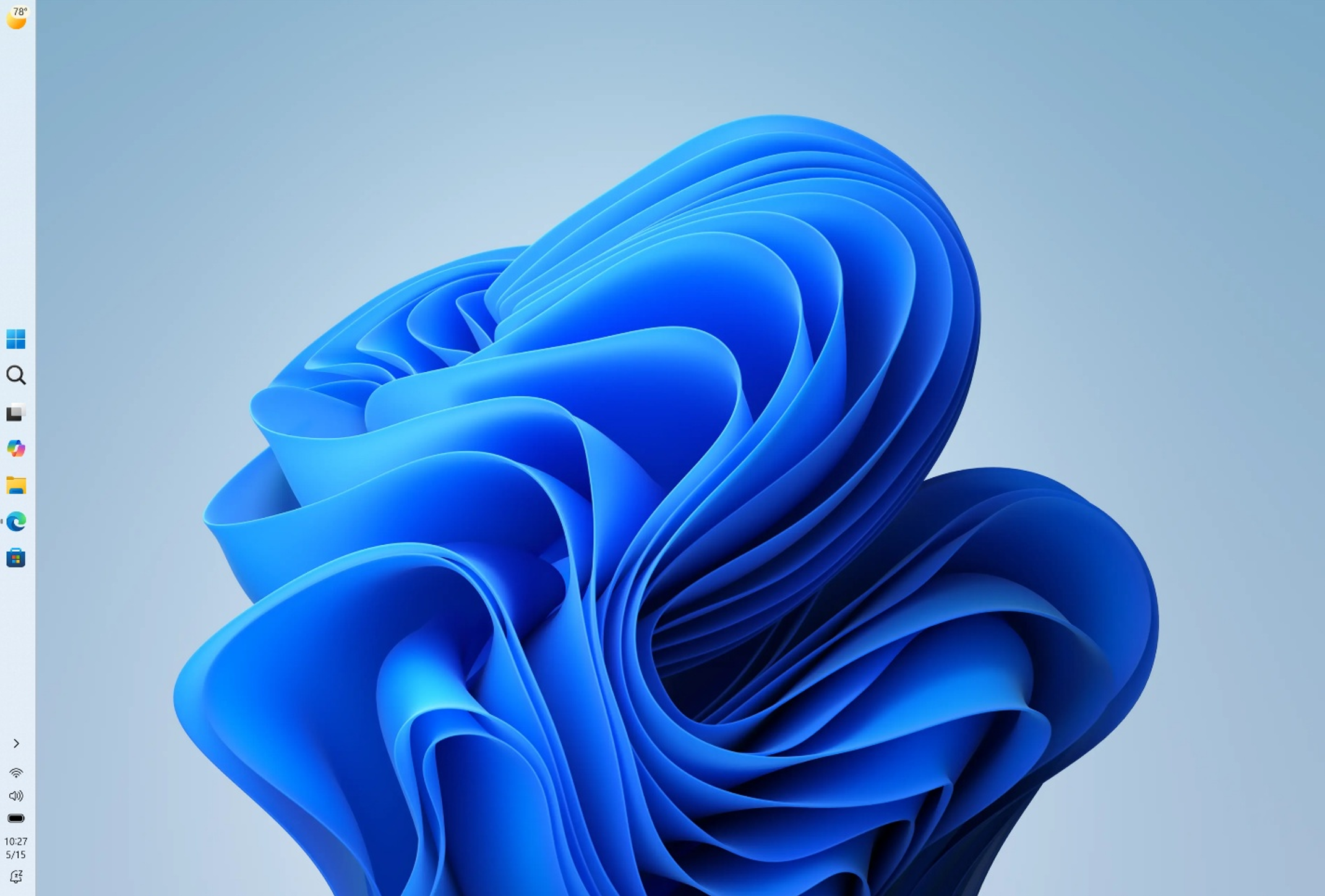
  • You can now change the position of taskbar on your screen. In Settings > Personalization > Taskbar > Taskbar Behaviors, you can select the side of the screen you want your taskbar on: bottom, top, left, or right. In these other positions, tooltips, flyouts, and animations will still come from the taskbar, and most customization settings like never combine taskbar icons will work with all locations.
  • Support for touch gestures, Search box, and Ask Copilot in alternate locations is in progress. Auto-hidden taskbar and touch optimized taskbar are not currently supported. Smaller taskbar is currently supported only for top and bottom positions.
[caption id="attachment_178963" align="aligncenter" width="1024"]Screenshot of the taskbar in the left-aligned position. Screenshot of the taskbar in the left-aligned position.[/caption] Smaller Taskbar
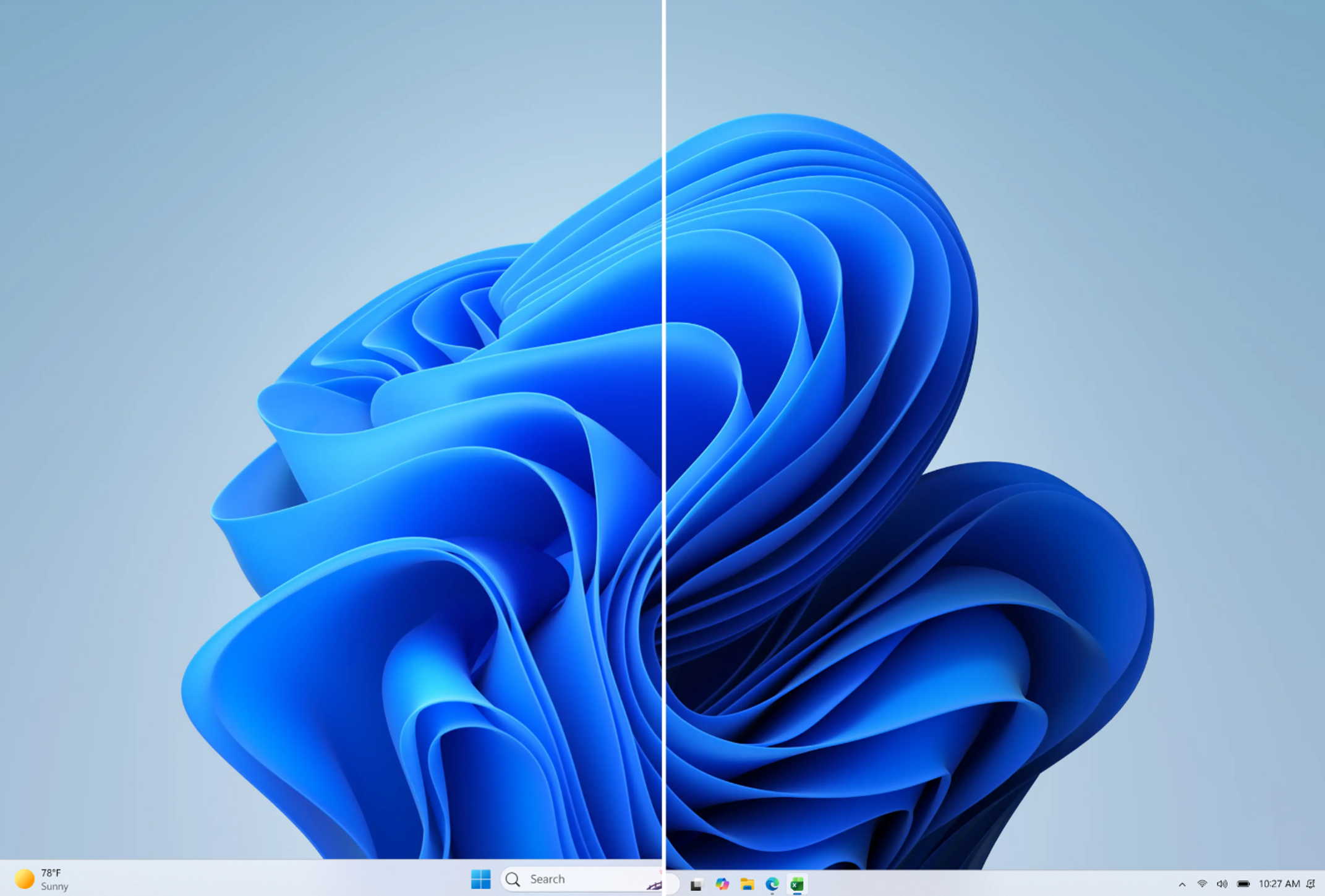
  • We’re introducing a smaller taskbar for users who want to maximize screen space, especially on smaller devices. While the default taskbar remains unchanged, this setting provides a more compact experience with smaller icons and a reduced taskbar height, giving you more room for your apps. Core elements like Start, Search, and the system tray scale appropriately to stay aligned and consistent.
  • To change your taskbar size, go to Settings > Personalization > Taskbar > Taskbar behaviors > Taskbar size. When set to Small, both the icons and the taskbar height become smaller.
[caption id="attachment_178959" align="aligncenter" width="1024"]Side-by-side comparison of the standard and smaller taskbar heights on the same device and resolution, showing the additional screen space gained. Side-by-side comparison of the standard and smaller taskbar heights on the same device and resolution, showing the additional screen space gained.[/caption]

[Adaptive Hibernate Policy]

Release channel: Experimental Updates to the adaptive hibernate policy to increase instances of instant-on resumes from Modern Standby and increased battery preservation at the low end of the battery.  Noticeable changes include less hibernation while the battery is above 80% and hibernating sooner when the battery is below 10%. Thanks, Stephen and the Windows Insider Program team

Announcing Windows 11 Insider Preview Build 29634.1000 for Experimental (Future Platforms)

Hello Windows Insiders, Today we’re releasing build 29634.1000 for the Experimental (Future Platforms) channel. Release notes can be found over in the Windows Insider Documentation Hub as usual, as well as below. Renewed Windows Insider flight certificate Today’s Experimental (Future Platforms) build contains a renewed Windows Insider flight certificate. Windows Insider Preview builds use flight certificates that are renewed periodically to help ensure Insider devices remain on supported builds and continue receiving future Insider Preview updates. The current flight certificate expires on August 11, 2026, so please update your device to a build containing the renewed flight certificate before that date. For more information, please visit the certificate renewal FAQ. Experimental (Future Platforms) moves to updated WIP UI We conclude the full transition of all Windows Insider builds to the updated WIP channel UI, with those on the 29600 Preview Builds now seeing Experimental (Future Platforms) in the Windows Insider channel settings.

Release notes for Windows 11 Insider Preview Build 29634.1000 for Experimental (Future Platforms)

Changes and improvements gradually being rolled out [Voice Isolation in Voice Access]
  • We're introducing Voice Isolation, a new option in Voice Access that helps it focus on your voice, even when others are speaking nearby. Whether you're in a shared office, an open floor plan, or at home with family around, Voice Isolation filters out other voices and background noise so Voice Access can better understand you. All processing happens privately on your device.
  • Getting started Voice Access now offers three speech recognition modes under Voice Access settings > Improve speech recognition:
    • Voice Isolation — Filters out other speakers and background noise (one-time voice setup required).
    • Remove background noise only — Filters out non-speech sounds like typing or door slams. No additional setup needed.
    • No filtering — Default microphone input with no additional processing.
  • To set up Voice Isolation, select it from the menu and follow the short, guided setup where you'll read a brief paragraph aloud so Voice Access can learn your voice. It only takes a minute, and your voice data never leaves your device
[Narrator] Braille displays now connect instantly with Narrator
  • We're making refreshable braille displays easier to use in Windows. Narrator now supports displays that use the HID standard — an open industry standard for braille displays. If your display supports HID, simply connect it via USB and start reading — true plug-and-play with no additional setup required. For Bluetooth, pair your HID braille display in Settings > Bluetooth & devices just like any other accessory, and you can work wirelessly without being tethered to your PC.
  • Compatible HID displays include models like the Orbit Reader 20, Orbit Slate 340, Freedom Scientific Focus 40, and APH Mantis Q40.
  • HID braille displays now work during the initial Windows setup experience (OOBE) over USB — meaning users who are deaf-blind can set up their PC independently, right from the first screen. You can customize braille input and output options anytime in Settings > Accessibility > Narrator > Braille.
[Account Control]
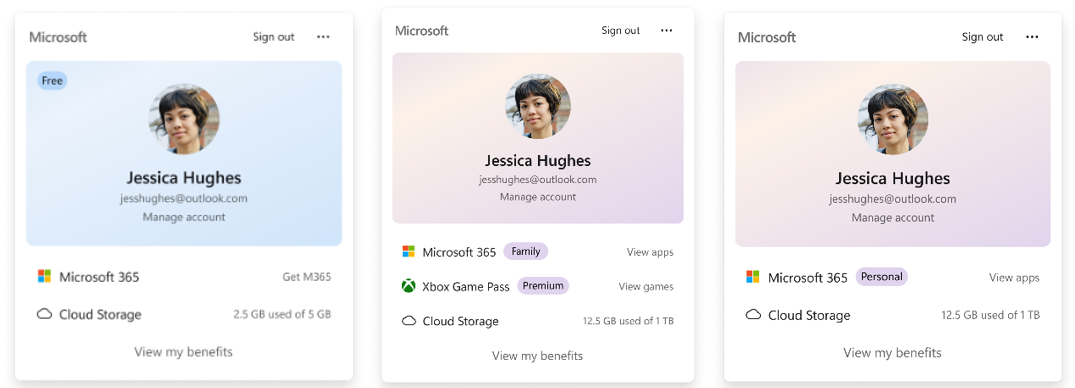
  • The Windows 11 Account Control flyout has a refreshed, modern design and a clear subscription badge to make the user's account status instantly visible. This helps users easily identify their plan, discover benefits, and explore upgrades.
Feedback: Share your thoughts in Feedback Hub (WIN + F) under Settings > Start Menu. [Input]
  • The emoji panel (Windows key + period (.)) now uses GIPHY as the GIF provider, delivering a smoother GIF browsing and sharing experience following the deprecation of the Tenor API.
[Settings]
  • Improved reliability of navigating to the Startup apps page in Settings.
[Taskbar]
  • Improved reliability of loading the system tray area of the taskbar when using your PC in a tablet posture.
[Start menu]
  • Improved reliability of Start menu view preferences, ensuring your selected view is retained.
  • Improved keyboard navigation when keyboard focus is set to the apps list within Start menu.
[Date and Time]
  • Improved detection for triggering time zone change notifications.
[Display and Graphics]
  • Improves the reliability of rendering content while scrolling for certain apps spanning across multiple monitors.
Thanks, Stephen and the Windows Insider Program team

Announcing Windows 11 Insider Preview Build 28120.2546 for Experimental (26H1)

Hello Windows Insiders, Today we're releasing build 28120.2546 for the Experimental (26H1) channel. Release notes can be found over in the Windows Insider Documentation Hub as usual, as well as below:

Changes and improvements gradually being rolled out

- This update includes a small set of general improvements and fixes that improve the overall experience for Insiders running this build on their PCs.

[Smart card removal policy]

- Administrators can now configure Azure Virtual Desktop (AVD) and Windows 365 sessions that use Microsoft Entra ID (RDS AAD Auth) authentication to automatically disconnect when a redirected smart card is removed. This extends smart card removal policy enforcement to Microsoft Entra authenticated remote sessions, helping organizations meet security and compliance requirements.

[Narrator]

- Braille displays now connect instantly with Narrator. - We're making refreshable braille displays easier to use in Windows. Narrator now supports displays that use the HID standard, an open industry standard for braille displays. If your display supports HID, simply connect it via USB and start reading with no additional setup required. - For Bluetooth, pair your HID braille display in **Settings > Bluetooth & devices** just like any other accessory, and you can work wirelessly without being tethered to your PC. - Compatible HID displays include Orbit Reader 20, Orbit Slate 340, Freedom Scientific Focus 40, and APH Mantis Q40. - HID braille displays now work during the initial Windows setup experience (OOBE) over USB, meaning users who are deaf-blind can set up their PC independently right from the first screen. - You can customize braille input and output options anytime in **Settings > Accessibility > Narrator > Braille**.

[Voice Access]

- Voice Access now supports Portuguese (Portugal), Portuguese (Brazil), and Korean (South Korea).

[Settings]

- The Bluetooth quick settings page is now navigable using gamepad input. - Fixed an issue causing the Graphics page in Settings to crash for Insiders after the latest updates.

[Sounds]

- Improved system sounds when using Windows in dark mode. Thanks! Stephen and the Windows Insider Program team

Announcing new builds for 20 July 2026

Hello Windows Insiders, Today we are releasing new Windows 11 Insider Preview Builds across Beta, Experimental and Release Preview. See your channel release notes here: For those on other specific build versions, here are today’s new builds and release notes:
  • Beta (26H1): Build 28020.2539
  • Experimental (26H1): No new build today, please keep an eye out for future blog updates
  • Experimental (Future Platforms): No new build today, please keep an eye out for future blog updates
We also have Release Preview builds today for 24H2/25H2 and 26H1: [Update: Corrected build numbers] Thanks, Stephen and the Windows Insider Program team

Announcing new builds for July 6 2026

Hello Windows Insiders, We have new releases today with builds across Beta and Experimental. New builds this week Today we are releasing new Windows 11 Insider Preview Builds. As a reminder, all Insiders can find the release notes for your device based on the new channel system, even if you haven’t moved yet. This is to make finding build information as easy as possible during the transition. See your channel release notes here: For those on other specific build versions, here are today’s new builds and release notes:
  • Beta (26H1): Build 2820.2380
  • Experimental (26H1): Build 28120.2387
  • Experimental (Future Platforms): We do not have a new build for this channel today, keep an eye out for future announcements.

Notable new features:

[Cloud Recovery]

Release channel: Experimental
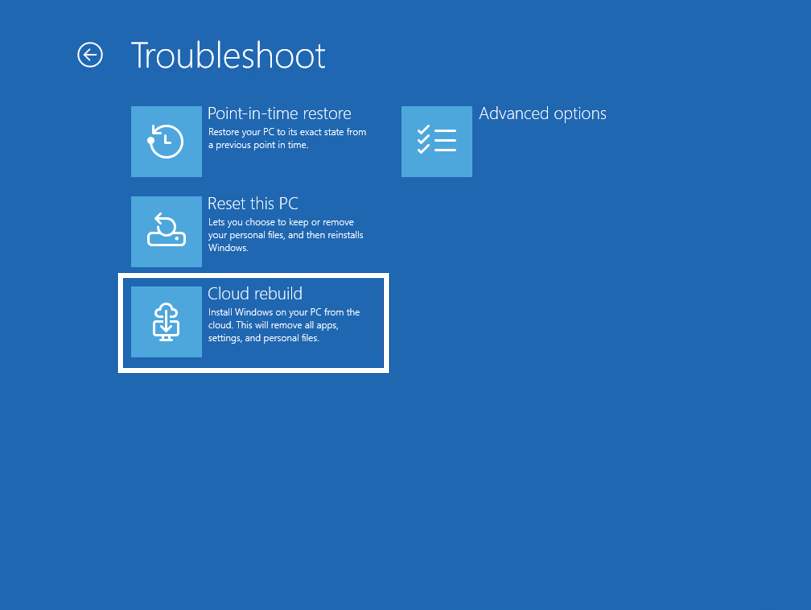
  • We're introducing Cloud rebuild, a new recovery option that restores a Windows 11 PC to a clean, known-good state by performing a full OS reinstall, even when Windows won't boot. Unlike Reset this PC, Cloud rebuild downloads both the target Windows image and the device's drivers from Windows Update, so the device comes back fully functional without USB media, without a custom image, and without depending on the health of the currently installed OS.
[caption id="attachment_179033" align="aligncenter" width="811"]The new Cloud rebuild option in Windows Recovery Environment (WinRE), enabling a full Windows reinstall using files downloaded from Windows Update. The new Cloud rebuild option in Windows Recovery Environment (WinRE), enabling a full Windows reinstall using files downloaded from Windows Update.[/caption] To learn more, see https://aka.ms/CloudRebuild.

[Account Control]

Release channel: Experimental
  • The Windows 11 Account Control flyout has a refreshed, modern design and a clear subscription badge to make the user's account status instantly visible. This helps users easily identify their plan, discover benefits, and explore upgrades.
[caption id="attachment_179034" align="aligncenter" width="1024"]UI showing the refreshed Account Control flyout with subscription badges, account benefits, and storage details. UI showing the refreshed Account Control flyout with subscription badges, account benefits, and storage details.[/caption] Thanks, Stephen and the Windows Insider Program team
❌