Vue lecture

Il y a de nouveaux articles disponibles, cliquez pour rafraîchir la page.

Announcing Windows 11 Insider Preview Build 26120.461 (Dev Channel)

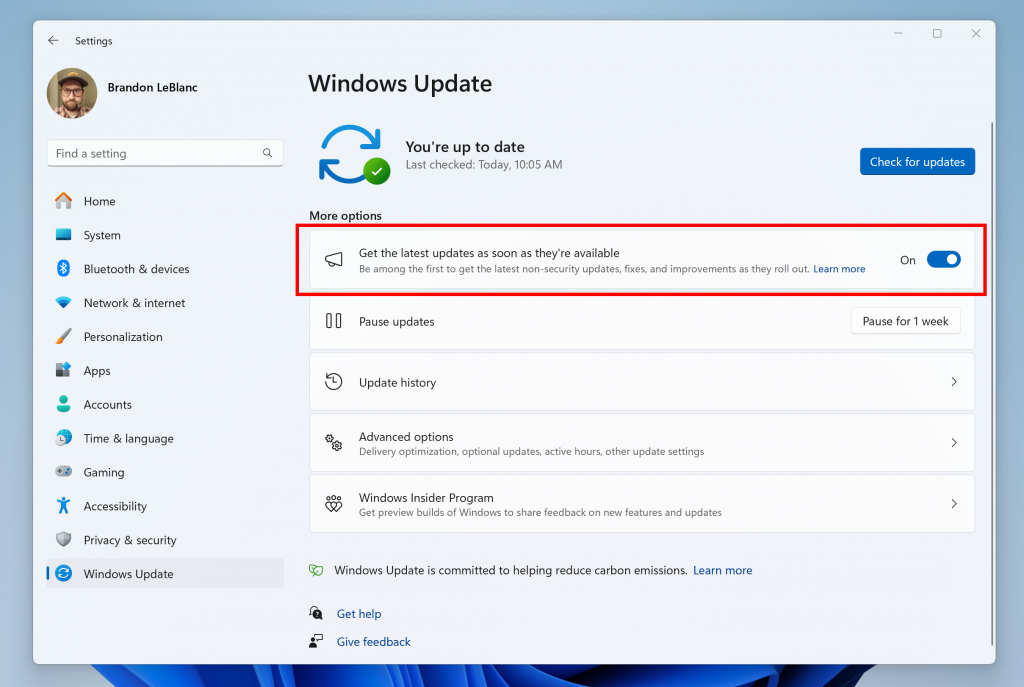
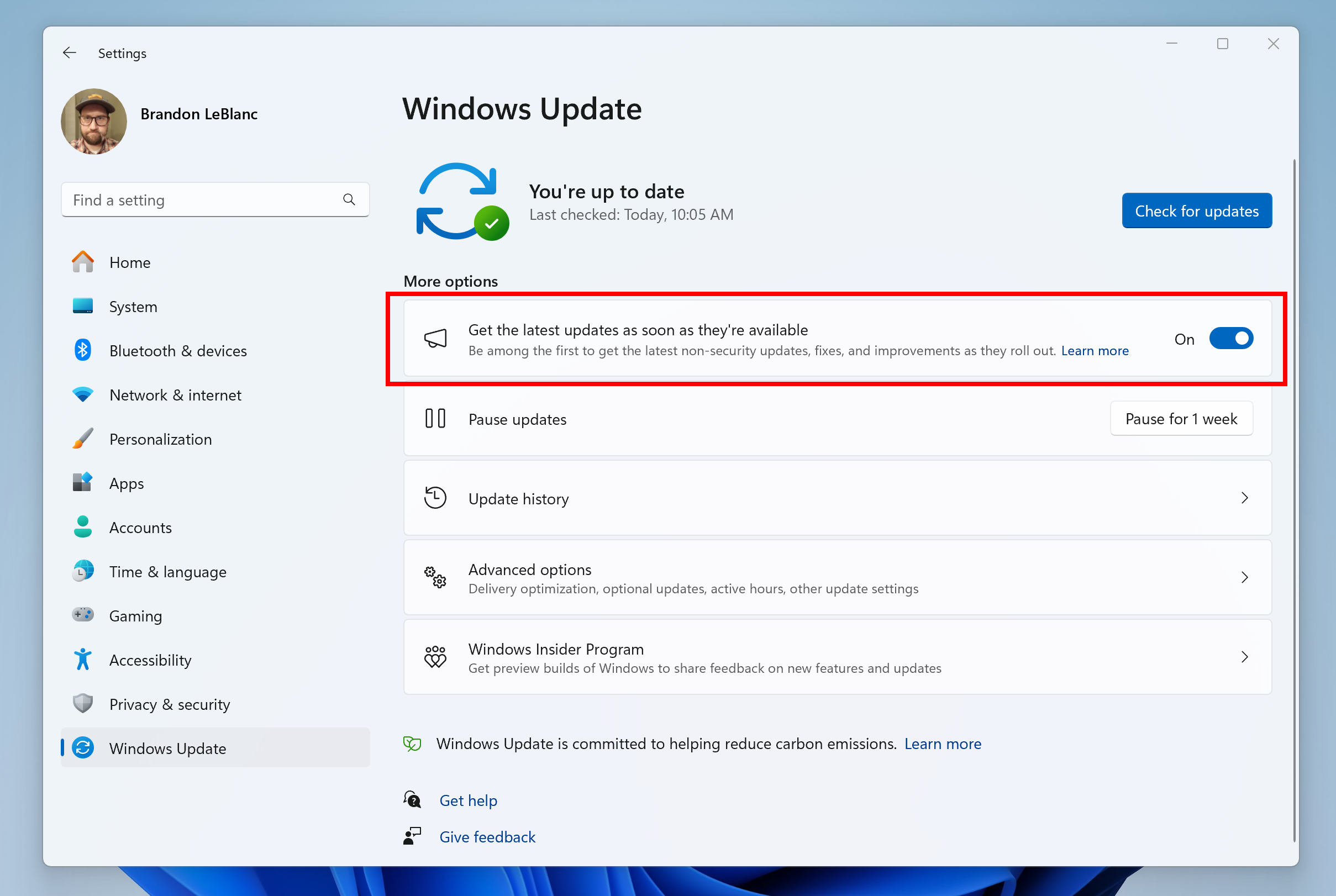
Hello Windows Insiders, today we are releasing Windows 11 Insider Preview Build 26120.461 (KB5037009) to the Dev Channel. Windows Insiders in the Dev Channel will now receive updates based on Windows 11, version 24H2 via an enablement package (Build 26120.xxxx). For Insiders in the Dev Channel who want to be the first to get features gradually rolled out to you, you can turn ON the toggle (shown in the image below) to get the latest updates as they are available via Settings > Windows Update. Over time, we will increase the rollouts of features to everyone with the toggle turned on. Should you keep this toggle off, new features will gradually be rolled out to your device over time once they are ready. [caption id="attachment_176587" align="alignnone" width="675"]Turn on the toggle to get the latest updates as they are available to get new features rolled out to you. Turn on the toggle to get the latest updates as they are available to get new features rolled out to you.[/caption] Going forward, we will document changes in Dev Channel builds in two buckets: new features, improvements, and fixes that are being gradually rolled out for Insiders who have turned on the toggle to get the latest updates as they are available and then new features, improvements, and fixes available to everyone in the Dev Channel.
Changes and Improvements gradually being rolled out to the Dev Channel with toggle on*

[General]

  • This update includes a small set of general improvements and fixes that improve the overall experience for Insiders running this build on their PCs.

Changes and Improvements gradually being rolled out to everyone in the Dev Channel

[Copilot in Windows**]

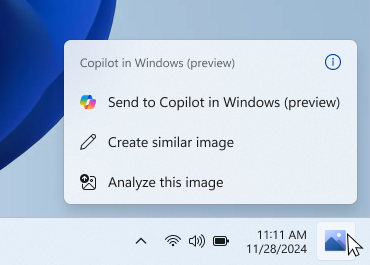
  • Over the last few months, we’ve been trying out different experiences for Copilot in Windows (Preview) with Windows Insiders across the Canary, Dev, and Beta Channels. Some of these experiences include the ability for Copilot in Windows to act like a normal application window and the taskbar icon animating to indicate that Copilot can help when you copy text or images. We have decided to pause the rollouts of these experiences to further refine them based on user feedback. Copilot in Windows will continue to work as expected while we continue to evolve new ideas with Windows Insiders.

Fixes for everyone in the Dev Channel

[Copilot in Windows**]

  • We are rolling out a fix for the issue causing Copilot to auto-launch unexpectedly for Windows Insiders in the Canary, Dev, and Beta Channels after restarting their PCs. This issue was unrelated to the auto-launching experience we tried out with Insiders in the Canary and Dev Channels in early February which we stopped rolling out in March.

Known issues

[General]

  • [ADDED 5/6] We are investigating reports that some Insiders are experiencing an install error 0x8007371B trying to install Build 26120.461.

Reminders for Windows Insiders in the Dev Channel

  • Updates released to the Dev Channel are based off Windows 11, version 24H2.
  • Features and experiences included in these builds may never get released as we try out different concepts and get feedback. Features may change over time, be removed, or replaced and never get released beyond Windows Insiders. Some of these features and experiences could show up in future Windows releases when they’re ready.
  • Many features in the Dev Channel are rolled out using Control Feature Rollout technology, starting with a subset of Insiders and ramping up over time as we monitor feedback to see how they land before pushing them out to everyone in this channel.
  • Windows Insiders in the Dev Channel who want to be the first to get features gradually rolled out to you*, you can turn ON the toggle to get the latest updates as they are available via Settings > Windows Update. Over time, we will increase the rollouts of features to everyone with the toggle turned on. Should you keep this toggle off, new features will gradually be rolled out to your device over time once they are ready.
  • Because the Dev and Beta Channels represent parallel development paths from our engineers, there may be cases where features and experiences show up in the Beta Channel first.
  • Check out Flight Hub for a complete look at what build is in which Insider channel.
  • Copilot in Windows** in preview is being rolled out gradually to Windows Insiders in select global markets. The initial markets for the Copilot in Windows preview include North America, United Kingdom and parts of Asia and South America. It is our intention to add additional markets over time.
Thanks, Amanda & Brandon

Announcing Windows 11 Insider Preview Build 22635.3570 (Beta Channel)

Hello Windows Insiders, today we are releasing Windows 11 Insider Preview Build 22635.3570 (KB5037008) to the Beta Channel. REMINDER: All Windows Insiders in the Beta Channel will now be on the same build (Build 22635.xxxx) via an enablement package. For Windows Insiders in the Beta Channel who want to be the first to get features gradually rolled out to you, you can turn ON the toggle (shown in the image below) to get the latest updates as they are available via Settings > Windows Update. Over time, we will increase the rollouts of features to everyone with the toggle turned on. Should you keep this toggle off, new features will gradually be rolled out to your device over time once they are ready. [caption id="attachment_176587" align="alignnone" width="675"]Turn on the toggle to get the latest updates as they are available to get new features rolled out to you. Turn on the toggle to get the latest updates as they are available to get new features rolled out to you.[/caption] Going forward, we will document changes in Beta Channel builds in two buckets: new features, improvements, and fixes that are being gradually rolled out for Insiders who have turned on the toggle to get the latest updates as they are available and then new features, improvements, and fixes available to everyone in the Beta Channel.

Changes and Improvements gradually being rolled out to the Beta Channel with toggle on*

[File Explorer] 

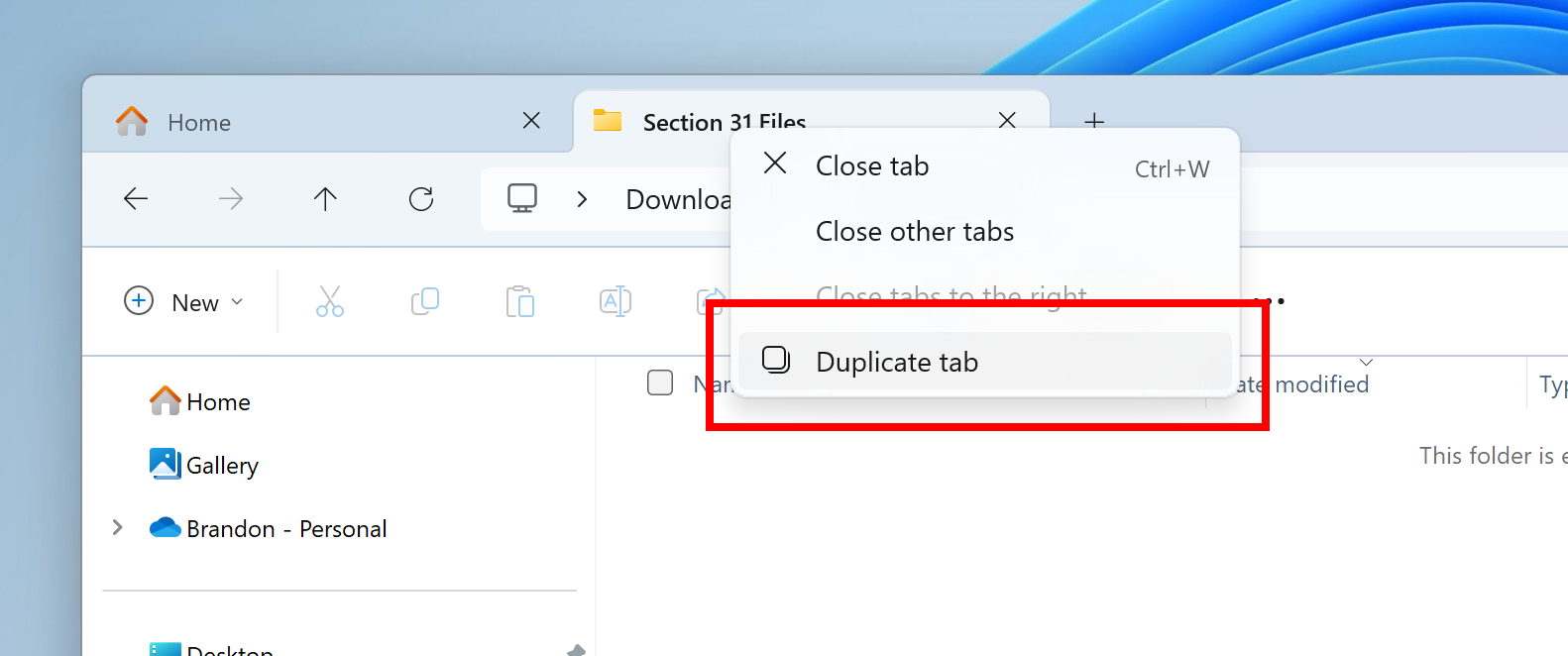
  • We’re rolling out the ability to duplicate a tab by right-clicking on a tab in File Explorer.
[caption id="attachment_177024" align="alignnone" width="554"]Option to duplicate tab when right-clicking on a tab in File Explorer highlighted in a red square. Option to duplicate tab when right-clicking on a tab in File Explorer highlighted in a red square.[/caption]

Fixes gradually being rolled out to the Beta Channel with toggle on*

[File Explorer]

  • Fixed a memory leak when interacting with archive folders in File Explorer.
  • Fixed a few issues impacting File Explorer reliability.
  • Made a change to help fix an issue which could cause the spacing between your desktop icons to become extremely wide.
  • Fixed a timing issue where if you start a search from Home in File Explorer, it may unexpectedly show no results the first time you tried.
  • Did some work to help address an issue where the address bar dropdown might appear unexpectedly while you were using File Explorer.

[Task Manager]

  • Updated the units (from MHz to MT/s) for DDR speed.
  • Fixed an issue where the Safely Remove Hardware option for ejecting USB devices wouldn’t work if Task Manager was open.
  • Did some work to ensure Task Manager releases process handles quickly when terminating processes.
  • Made some more improvements to help with Task Manager reliability.
  • We have improved the performance when changing the sort order.
  • Made multiple improvements to overall accessibility of Task Manager, including improving keyboard focus, tab navigation, text scaling, names of items read out by screen readers, and more.
  • We made it a little easier to resize Task Manager when trying to resize by grabbing the top of the window.

Changes and Improvements gradually being rolled out to everyone in the Beta Channel

[Copilot in Windows**]

  • Over the last few months, we’ve been trying out different experiences for Copilot in Windows (Preview) with Windows Insiders across the Canary, Dev, and Beta Channels. Some of these experiences include the ability for Copilot in Windows to act like a normal application window and the taskbar icon animating to indicate that Copilot can help when you copy text or images. We have decided to pause the rollouts of these experiences to further refine them based on user feedback. Copilot in Windows will continue to work as expected while we continue to evolve new ideas with Windows Insiders.

Fixes for everyone in the Beta Channel

[Start menu]

  • We fixed the issue causing a component related to upgrading and restoring data from Windows Backup called “Global.WindowsMigration” to incorrectly show under the Start menu > All apps.

[Copilot in Windows**]

  • We are rolling out a fix for the issue causing Copilot to auto-launch unexpectedly for Windows Insiders in the Canary, Dev, and Beta Channels after restarting their PCs. This issue was unrelated to the auto-launching experience we tried out with Insiders in the Canary and Dev Channels in early February which we stopped rolling out in March.

Known issues

[General]

  • We are investigating an issue where Internet Information Services (IIS) and Windows Communication Foundation (WCF) may not work after installing this update.

[Widgets]

Windows Insiders in the Beta Channel who have the new position for the Widgets entry-point on left-aligned taskbars may see the following known issues:
  • Swipe invocation for Widgets may not work if taskbar is center-aligned instead of left-aligned.
  • Unpinning Widgets from the taskbar may not work if taskbar is center-aligned instead of left-aligned.
  • The Widgets board is incorrectly positioned when Copilot is in side-by-side mode.
  • Turning on/off Widgets in taskbar settings may refresh the taskbar.

Reminders for Windows Insiders in the Beta Channel

  • Updates released to the Beta Channel are based off Windows 11, version 23H2.
  • Features and experiences included in these builds may never get released as we try out different concepts and get feedback. Features may change over time, be removed, or replaced and never get released beyond Windows Insiders. Some of these features and experiences could show up in future Windows releases when they’re ready.
  • Many features in the Beta Channel are rolled out using Control Feature Rollout technology, starting with a subset of Insiders and ramping up over time as we monitor feedback to see how they land before pushing them out to everyone in this channel.
  • Windows Insiders in the Beta Channel who want to be the first to get features gradually rolled out to you*, you can turn ON the toggle to get the latest updates as they are available via Settings > Windows Update. Over time, we will increase the rollouts of features to everyone with the toggle turned on. Should you keep this toggle off, new features will gradually be rolled out to your device over time once they are ready.
  • Because the Dev and Beta Channels represent parallel development paths from our engineers, there may be cases where features and experiences show up in the Beta Channel first.
  • Check out Flight Hub for a complete look at what build is in which Insider channel.
  • Copilot in Windows** in preview is being rolled out gradually to Windows Insiders in select global markets. The initial markets for the Copilot in Windows preview include North America, United Kingdom and parts of Asia and South America. It is our intention to add additional markets over time.
Thanks, Amanda & Brandon

Test Geekom IT13 – Un mini PC de 650 grammes avec un Intel Core i9-13900H et 32 Go de RAM

I. Présentation

Dans cet article, nous allons découvrir le Mini PC Geekom IT13 dans sa version la plus puissante dotée d'un processeur Intel Core i9 de 13ème génération, de 32 Go de RAM et de 2 To de SSD. D'autres versions de ce modèle sont proposées avec des processeurs Intel Core i5 et Intel Core i7.

Nous allons passer en revue les caractéristiques techniques, le design et la qualité du boitier, ainsi que les possibilités d'évolution. Forcément, cet article va évoquer les performances de ce Mini PC à la configuration très musclée !

Sur le marché des Mini PC, la marque Geekom est incontournable et elle s'est imposée comme un acteur majeur au niveau mondial. Elle a été créée en 2003 et la direction R&D de Geekom est située à Taiwan. En complément, la marque a plusieurs succursales dans différents pays du monde.

II. Caractéristiques du Geekom IT13

Commençons par découvrir les caractéristiques principales de ce modèle :

  • Processeur : Intel Core i9-13900H (14 Cœurs, 20 Threads, 24 Mo de cache, jusqu'à 5,40 GHz)
  • GPU : Intel Iris Xe
  • RAM : 32 Go DDR4-3200, extensible jusqu'à 64 Go
  • Stockage : 2 To de SSD NVMe (Gen.4) + 1 emplacement pour SSD SATA au format M.2 (2242 - Jusqu'à 1 To) + 1 emplacement vide pour disque 2.5 pouces (2 To max.)
  • Connectique : 3 x ports USB 3.2 Gen 2 + 1 x port USB 2.0 + 2 x ports USB 4 + 1 prise casque Jack 3.5 mm + 1 x slot pour une carte SD + 1 x interface réseau LAN 2.5 GbE + 2 x ports HDMI 2.0 + 1 x port d'alimentation
  • Affichage : prise en charge jusqu'à 4 écrans.
  • WiFi 6E (AX211), Bluetooth 5.2
  • Alimentation : 19V, 6,32A DC - 120W
  • Poids : 652 grammes
  • Dimensions (L x W x H) : 117 mm x 112 mm x 49,2 mm
  • Système d'exploitation : Windows 11 Pro
  • Garantie : 3 ans

Comme vous le voyez, la fiche technique est très alléchante ! Entre l'Intel Core i9, l'interface réseau 2.5 GbE, l'USB4 et le WiFi 6E, nous sommes servis ! J'insiste aussi sur la présence d'une garantie constructeur de 3 ans.

Deux autres versions du modèle Geekom IT13 sont disponibles :

  • Intel Core i7-13700H (14 Cœurs, 20 Threads, 24 Mo de cache, jusqu'à 5,00 GHz) avec 32 Go de DDR4 + un SSD NVMe de 1 To
  • Intel Core i5-13500H (12 Cœurs, 16 Threads, 24 Mo de cache, jusqu'à 4,70 GHz) avec 16 Go de DDR4 + un SSD NVMe de 512 Go

III. Package et design

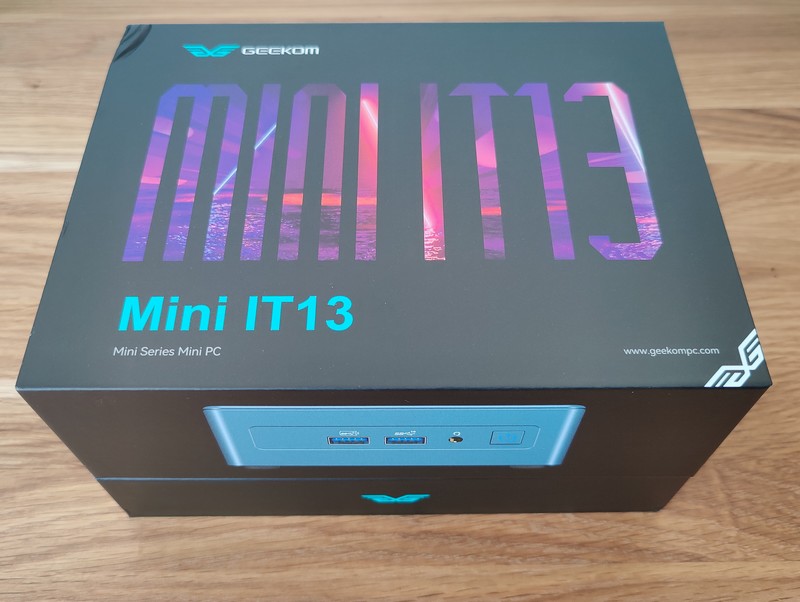
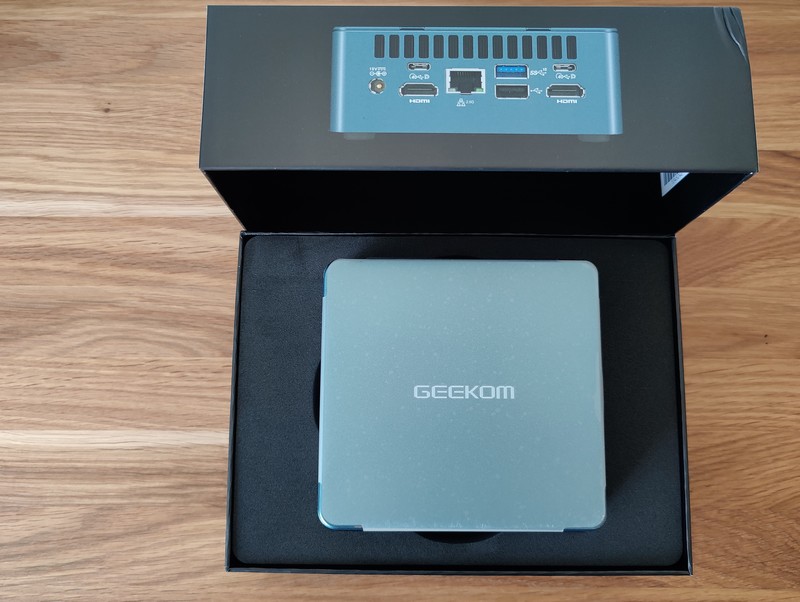
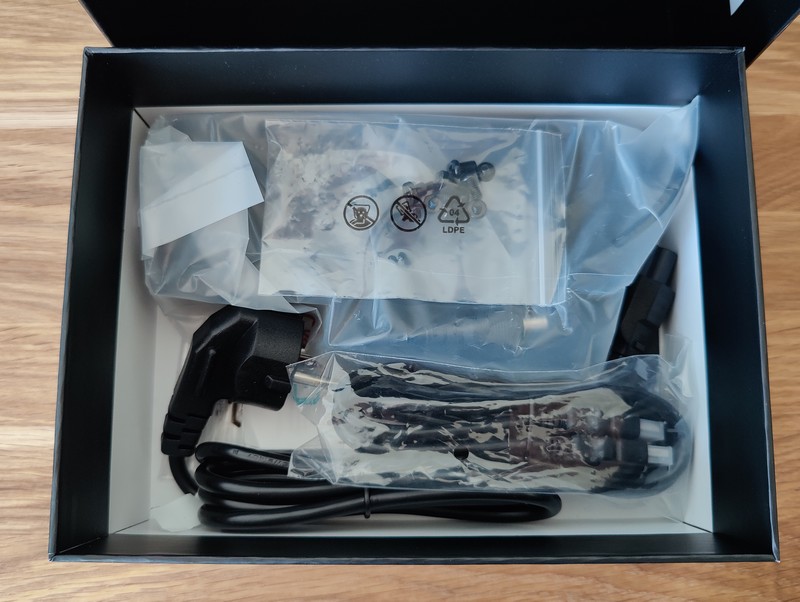
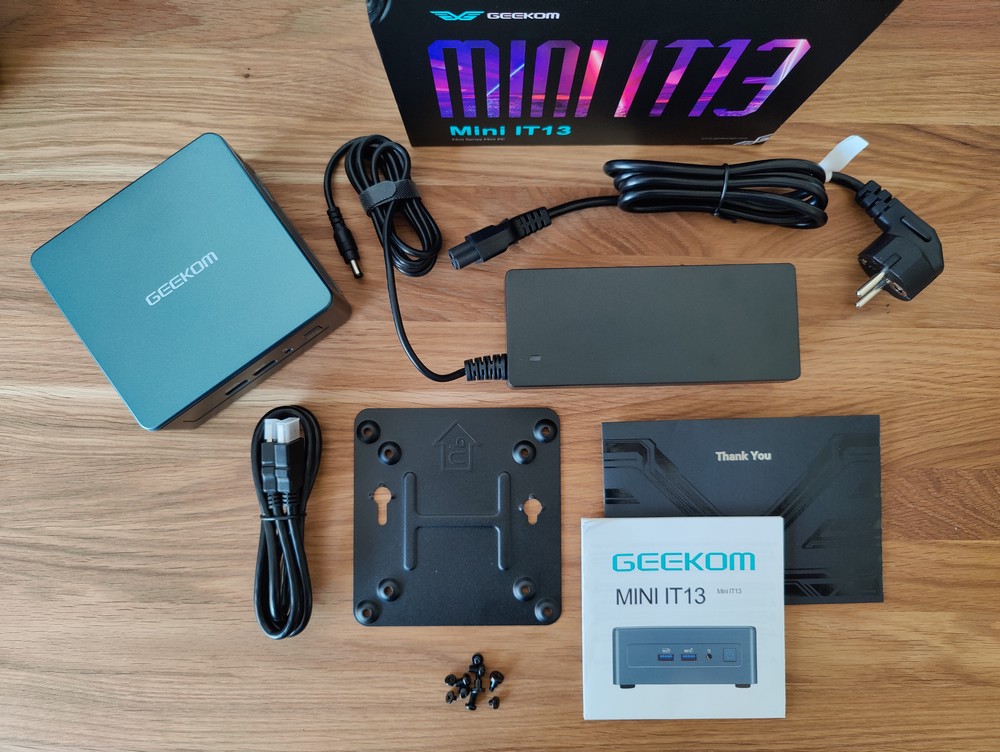
Il est temps de déballer ce Mini PC pour voir à quoi ils ressemblent. L'emballage est très soigné et la boite nous donne un aperçu plus précis sur la connectique de ce modèle et le positionnement des différents ports. À l'intérieur, le Mini PC est parfaitement protégé par un bloc en mousse rigide. En dessous de lui, nous avons l'ensemble des accessoires.

Au final, voici les éléments inclus par Geekom : un Mini PC IT13, un câble HDMI, une alimentation externe et son câble, une plaque VESA (et les vis) permettant d'accrocher le mini PC à l'arrière d'un écran (support VESA), une notice (qui explique comment ajouter un disque, comment utiliser le support VESA, etc.), ainsi qu'une lettre de remerciement pour l'achat. Un kit complet !

Regardons de plus près ce boitier. Premier constat : les finitions sont excellentes et la qualité de fabrication rassurante. C'est vraiment un beau boitier. Ce boitier n'est pas gris : Geekom a fait le choix d'opter pour un boitier coloris gris-bleu.

Sur la façade, nous retrouvons deux ports USB, dont un port USB 3.2 Gen2 avec PowerDelivery (PD) et un port USB 3.2 Gen2 (sans PD). Ils sont accompagnés par la prise casque et le bouton Power. Sur le côté droit du boitier, nous avons une fente de verrouillage Kensington, tandis que sur le côté gauche, nous avons un slot pour insérer une carte SD.

À l'arrière du boitier, nous avons tout le reste de la connectique, dont les deux ports USB4 au format USB-C avec PowerDelivery. Pour rappel, le débit théorique de l'USB4 est de 40 Gbps. Au total, nous avons à notre disposition 6 ports USB, dont un port USB 2.0 (un intrus ?), ce qui est confortable et rare sur ce type de PC (c'est plus souvent 4).

La connectique est surplombée par l'aération du dissipateur thermique pour permettre l'évacuation de l'air chaud par l'arrière, tandis que l'air pourra rentrer de chaque côté du boitier grâce aux aérations. La technologie de refroidissement baptisée GEEKCOOL se veut particulièrement silencieuse : 43.6 dBA, lorsque le matériel est fortement sollicité.

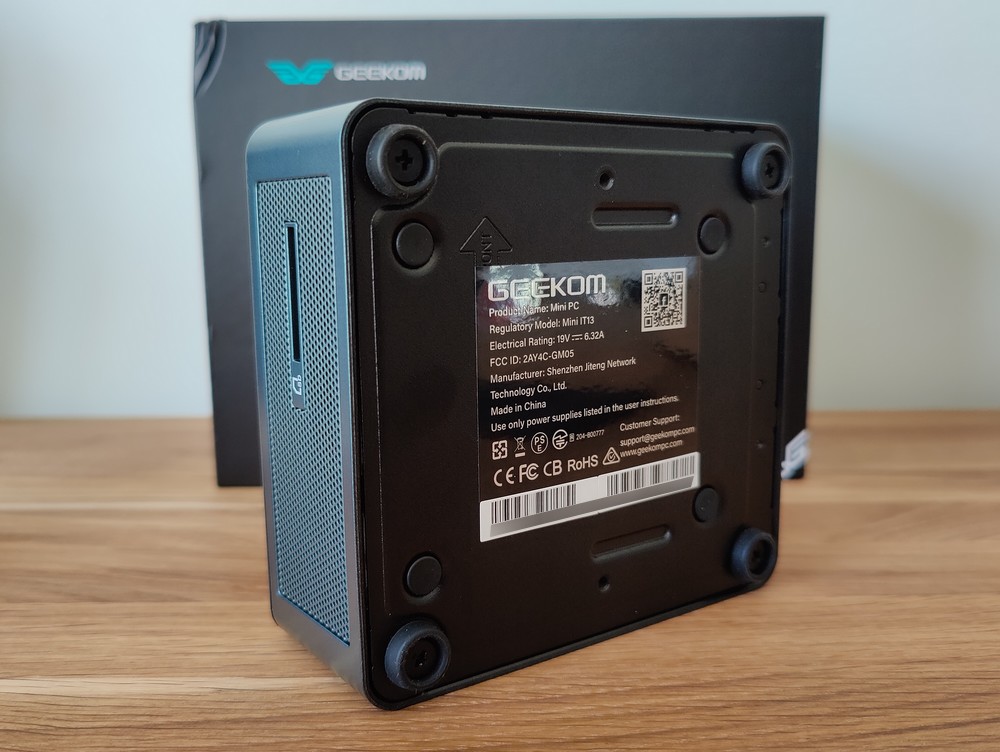
Sur le dessus du boitier, la marque est inscrite, tandis qu'en dessous, nous avons une étiquette avec diverses informations (modèle, adresse MAC, numéro de série, etc.) et nous constatons la présence de patins antidérapants. Les 4 vis que vous apercevez permettent d'ouvrir le boitier facilement et rapidement. Elles restent « accrochées » au support amovible, ce qui évite de les égarer.

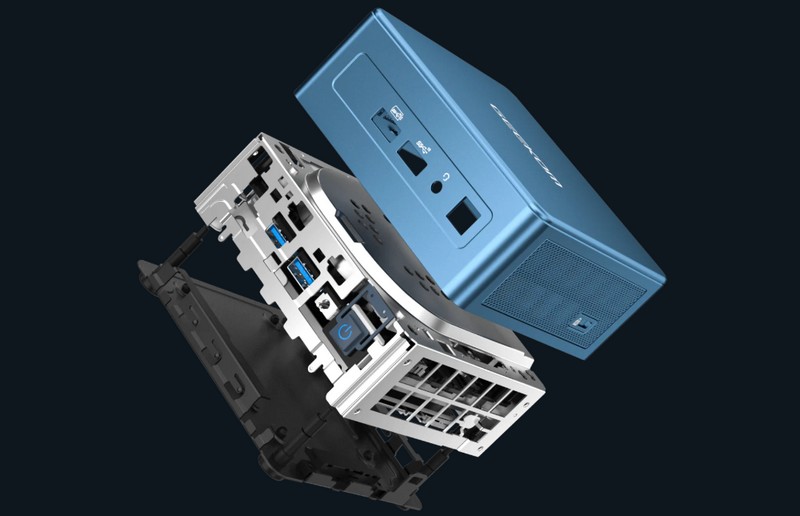
Il est important de préciser que ce boitier est à la fois en métal et en plastique. Les composants sont protégés par une cage métallique, tandis que la coque du boitier est en plastique. Cette illustration montre bien la conception de ce boitier :

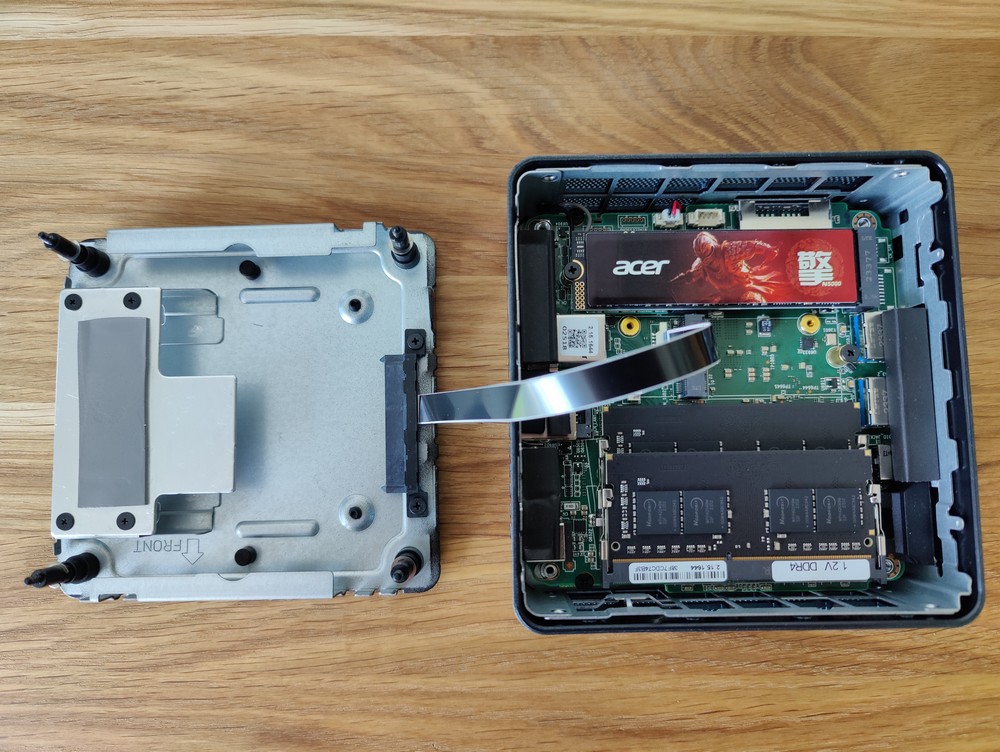
Comme je l'évoquais précédemment, le boitier s'ouvre facilement puisqu'il y a seulement 4 vis à retirer et elles sont directement accessibles. C'est l'occasion de jeter un coup d'œil à l'intérieur du boitier et de connaitre le type de SSD et de RAM.

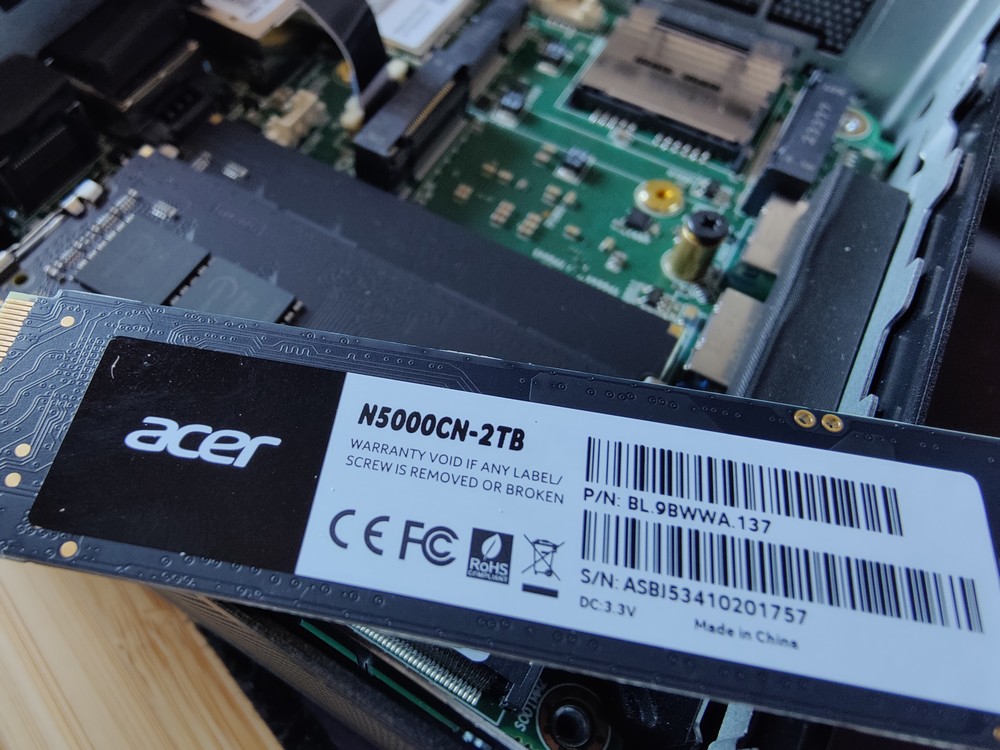
  • Un SSD NVMe de marque ACER, avec la référence N5000CN-2TB, d'une capacité de 2 To (pour lequel je ne suis pas parvenu à trouver d'informations supplémentaires).
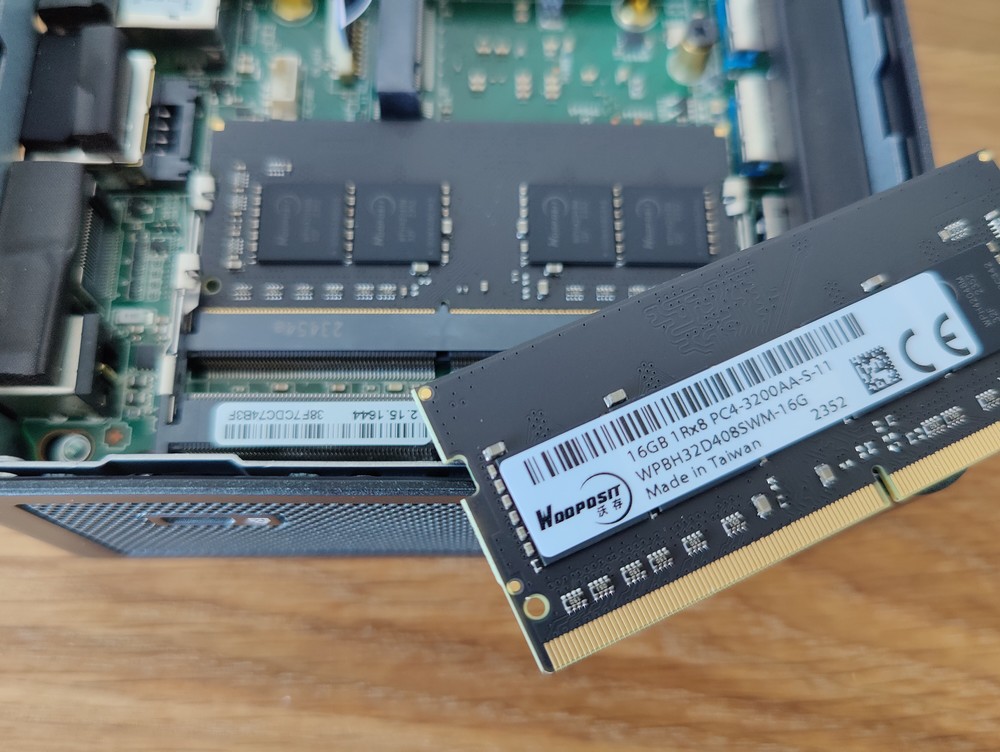
  • Deux barrettes de RAM de marque Wooposit : 16 Go Rx8 - PC4-3200AA-S-11. Soit 32 Go au total. Il est possible de passer sur 64 Go de RAM, mais ceci implique de remplacer les deux barettes déjà présentes car les deux slots sont occupés.

L'ajout d'un disque SATA au format 2.5 pouces s'effectue directement au sein de la cage métallique intégrée à la partie amovible du boitier (partie de gauche sur la première photo ci-dessous). De plus, nous pouvons ajouter un disque SSD SATA M.2 supplémentaire, grâce à l'emplacement disponible entre le SSD NVMe et les barrettes de RAM.

SSD ACER N5000CN-2TB

Les composants sont facilement accessibles et identifiables, donc vous n'aurez aucun mal à remplacer la RAM ou la mémoire SSD, que ce soit en cas de panne ou pour passer sur d'autres références.

IV. Évolutivité et performances

A. Mise en route et évolutivité

Mettons en route le mini PC IT13 de chez Geekom ! La première chose à effectuer après avoir branché les périphériques, c'est finir l'installation du système Windows 11 Pro ! Nous retrouvons les étapes et questions habituelles propres au fonctionnement du système Windows 11. Il est tout à fait possible d'utiliser un compte local ou un compte Microsoft, au choix.

À première vue, il s'agit d'une image officielle de Windows 11 Pro qui n'a pas été personnalisée par Geekom. Nous retrouvons uniquement les applications natives ajoutées par Microsoft.

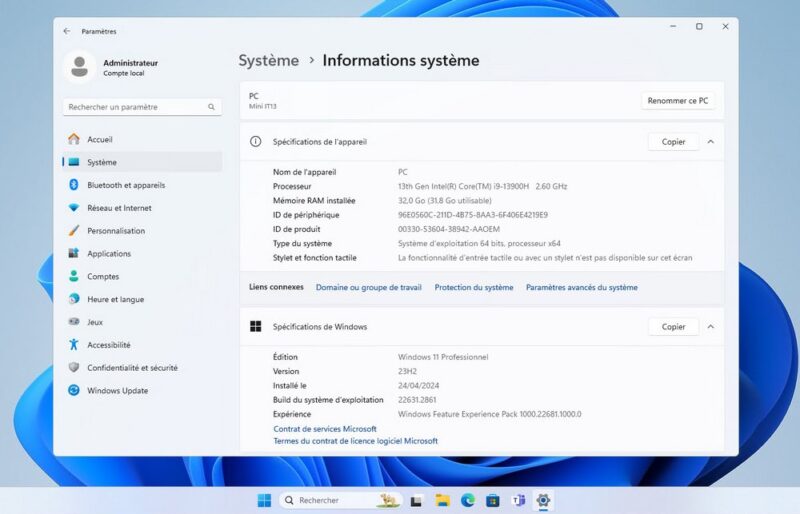
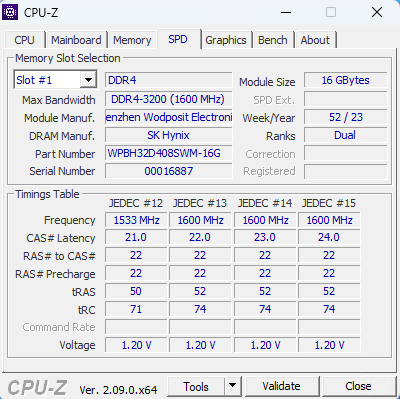
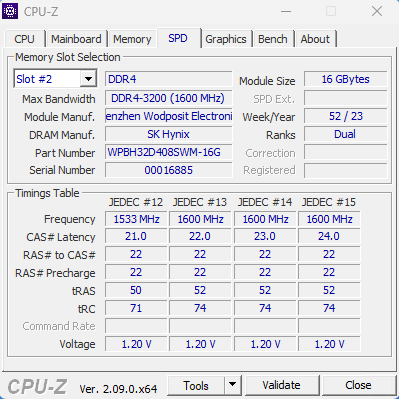
Le mini-PC est livré avec 32 Go de RAM en DDR4, mais une mise à niveau est possible. Le processeur i9 de ce modèle supporte 96 Go de RAM, et Geekom annonce une prise en charge jusqu'à 64 Go. Cela veut dire que nous pouvons doubler la RAM actuellement présente dans le mini PC, à condition de remplacer les deux barrettes de RAM. Si vous souhaitez utiliser ce PC pour de la virtualisation, cela peut s'avérer utile !

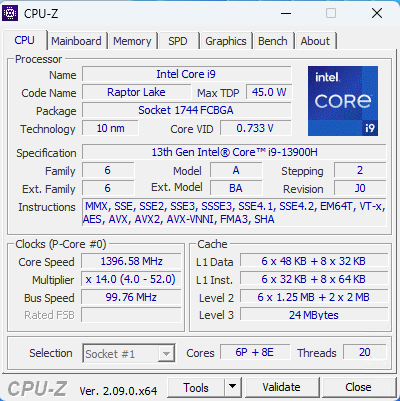
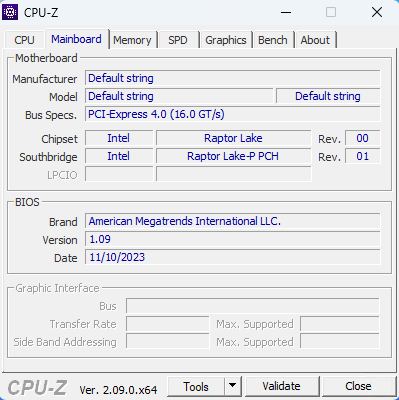
Voici des détails techniques obtenus avec le logiciel CPU-Z :

Sur ce mini PC, vous pouvez connecter jusqu'à 4 écrans en exploitant les deux ports HDMI et les deux ports USB4. Sur les deux ports HDMI 2.0, vous pouvez bénéficier d'un affichage 4K @ 60 Hz, tandis qu'on est sur un affichage à 8K @ 30 Hz sur les ports USB4.

Comme je l'évoquais précédemment, ce mini PC peut également accueillir 1 SSD SATA au format M.2 (2242 - Jusqu'à 1 To) et 1 disque 2.5 pouces (2 To max.).

En résumé, l'évolutivité est possible au niveau du stockage et de la RAM, tout en sachant que le processeur est très performant et qu'il y a un port Ethernet en 2.5 Gbit/s qui offre de belles possibilités !

B. Performances

Ce mini PC, avec un boitier très compact, est propulsé par un processeur Intel Core i9 de 13ème génération lancé au premier trimestre 2023. Le modèle i9-13900H a14 cœurs et 20 threads, 24 Mo de cache et sa fréquence maximale en mode Turbo est 5,40 GHz.

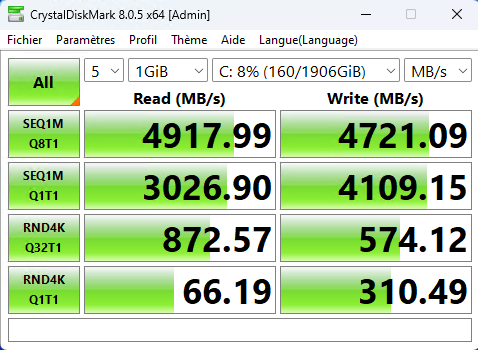
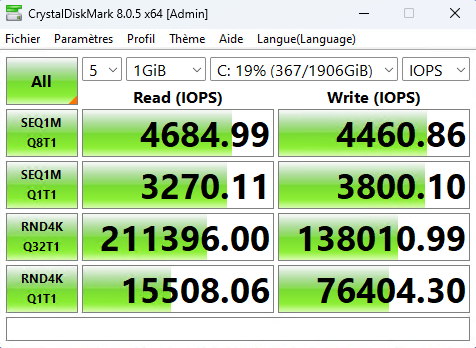
Commençons par mesurer les performances du disque SSD NVMe intégré à l'ordinateur.

Les performances de ce disque SSD NVMe sont excellentes ! Un copier-coller de gros fichiers en local (de disque à disque, sur le même volume), est effectué avec une vitesse moyenne de 1.82 Go/s ! En 56 secondes, j'ai pu dupliquer une bibliothèque d'images ISO de 101 Go !

Voici un benchmark du disque effectué avec Crystal Disk Mark :

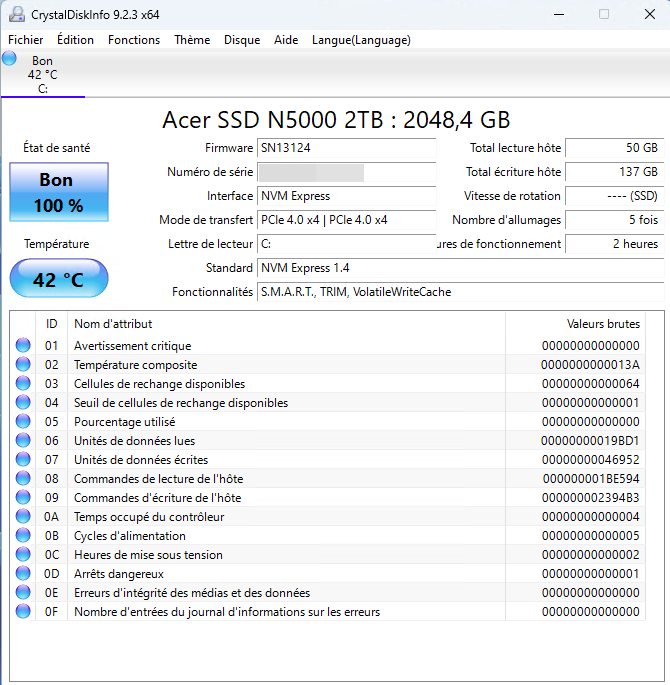
  • CrystalDiskInfo

Voici une analyse CrystalDiskInfo du disque SSD NVMe présent dans ce PC :

  • Geekbench

J'ai également effectué un benchmark du CPU et du GPU avec Geekbench, vous pouvez y accéder sur ces pages :

Poursuivons avec un stress CPU.

  • Stress CPU

Pendant le stress test du CPU (charge à 100%), le ventilateur s'emballe de façon cyclique, de façon à gérer la température du CPU et du boitier. Le mini PC perd en discrétion à ce moment-là, et la soufflerie est clairement audible. Au ralenti, lorsque la machine est peu sollicitée, les ventilateurs sont vraiment très discrets et ne vous gêneront pas du tout. Il n'y a qu'au tout début du démarrage du PC où la ventilation n'est pas discrète, mais il est probable que ce soit un "auto-test" du matériel à son lancement.

D'après HWMonitor, lorsque le mini PC est allumé sans être sollicité, la température du CPU est de 40°C, dans une pièce où il fait 25 degrés. Pendant le stress test du CPU, la température du CPU monte en flèche jusqu'à 100.0°C (au bout de quelques secondes) puis elle descend jusqu'à 85°C et ensuite, c'est stable tout au long du stress CPU. La machine semble bien gérer le stress CPU, ce qui m'a plutôt rassuré. Geekom semble aussi confiant sur ce point grâce à sa technologie Geekcool.

  • Que peut-on faire et ne pas faire avec ce modèle ?

Grâce à son excellent processeur, ce mini PC est super à l'aide pour de la bureautique et le multimédia (tout dépend du niveau d'exigence pour le GPU). Que ce soit pour la lecture de vidéos, le montage vidéo basique, la navigation sur Internet, etc... Il fonctionne parfaitement, tout en étant silencieux. Grâce à ses 32 Go de RAM et son Intel Core i9, il est à l'aise avec le multi-tâches.

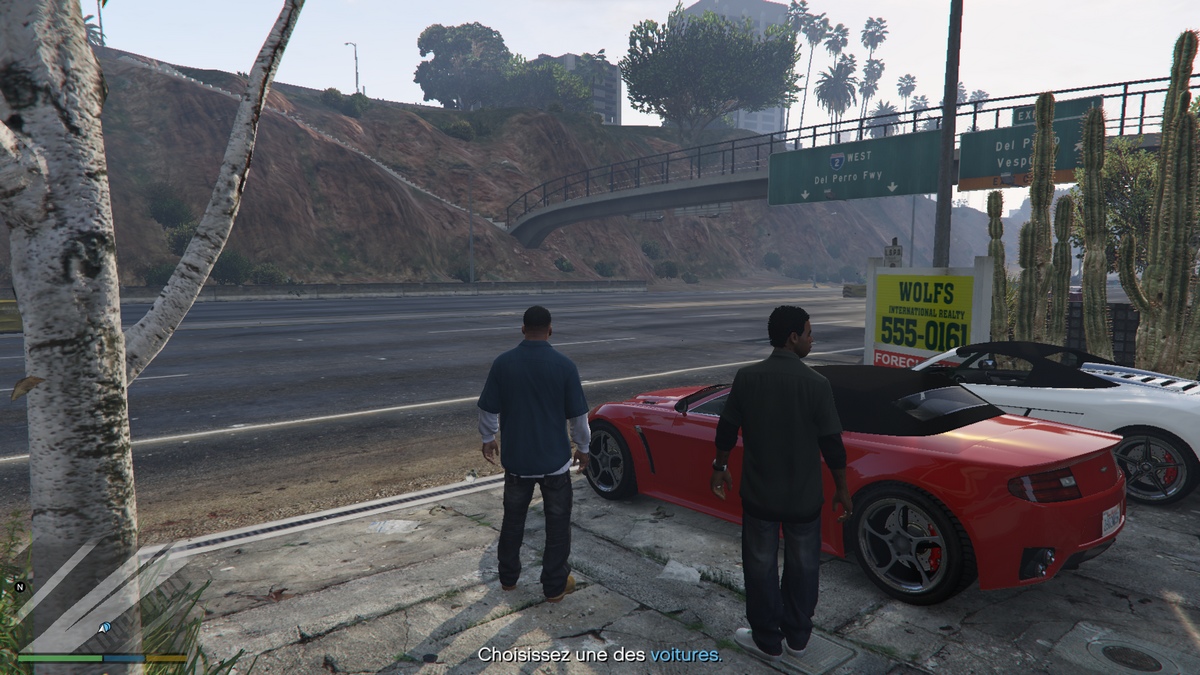
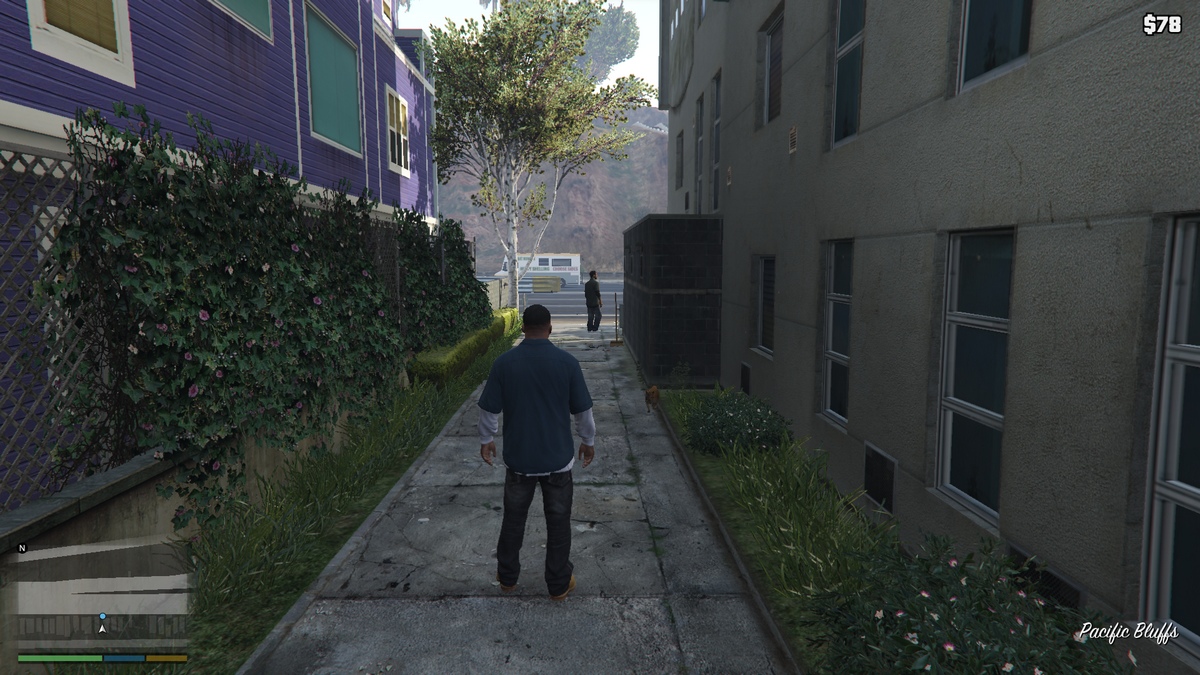
Sur un modèle comme celui-ci, dépourvu de GPU dédié, la principale limitation, c'est la puce graphique intégrée. Ici, un iGPU "Intel Iris Xe", tout de même plus performant que son prédécesseur Intel UHD Graphics. Si vous êtes prêts à faire quelques concessions sur les graphismes des jeux-vidéos, en diminuant la qualité et en désactivant certaines options, vous pourrez jouter en Full HD à certains jeux. J'ai testé GTA V et l'expérience est bonne. Le jeu est très fluide, avec la désactivation de certains effets visuels.

Voici un aperçu avec deux copies d'écran :

V. Conclusion

Ce mini PC, très compact et très léger, car il ne pèse que 652 grammes, est une excellente surprise ! À ce jour, le Geekom IT13 dans sa version avec un Core-i9 est probablement l'un des plus puissants des mini PC ! En attendant la prochaine génération !

Son design, son format et son Intel Core i9-13900H sont de gros atouts pour ce modèle ! À cela s'ajoutent une connectique ultra-complète et correspondante aux besoins actuels des utilisateurs les plus exigeants, ce qui en fait un mini PC polyvalent. Cette fiche technique solide fait que ce PC répondra aux besoins de nombreux utilisateurs pendant plusieurs années.

À l'inverse, la partie graphique (iGPU) est en retrait par rapport au reste, sans surprise, mais elle n'est pas mauvaise pour autant. Bien que le port USB 2.0 puisse surprendre, il peut être utile pour connecter un dongle USB sans utiliser un autre port. Enfin, si vous recherchez un appareil ultra-discret, sachez que son ventilateur a tendance à s'emballer par moment, notamment lorsqu'il est fortement sollicité (charge CPU élevée).

Le Geekom IT13 avec le Core i9 est proposé à 849,00 euros. C'est logique, compte tenu du tarif du processeur en lui-même. Une bonne alternative peut être de s'orienter vers la version équipée d'un Core i5.

👉 Offre spéciale sur le Geekom IT13

Profitez de 5% de réduction sur Amazon.fr ou sur la boutique officielle de Geekom, en utilisant les liens et codes ci-dessous.

Saisissez le code promo "icIT13pr20" dans votre panier pour obtenir 5% de réduction. Ce code est valide jusqu'au 26 mai 2024.

Cliquez sur ce lien pour accéder à l'offre.

Saisissez le code promo "8YJ8OMLE" dans votre panier pour obtenir 5% de réduction. Ce code est valide sans limites de temps.

Cliquez sur ce lien pour accéder à l'offre.

The post Test Geekom IT13 – Un mini PC de 650 grammes avec un Intel Core i9-13900H et 32 Go de RAM first appeared on IT-Connect.

Announcing Windows 11 Insider Preview Build 22635.3566 (Beta Channel)

Hello Windows Insiders, today we are releasing Windows 11 Insider Preview Build 22635.3566 (KB5037002) to the Beta Channel. REMINDER: All Windows Insiders in the Beta Channel will now be on the same build (Build 22635.xxxx) via an enablement package. For Windows Insiders in the Beta Channel who want to be the first to get features gradually rolled out to you, you can turn ON the toggle (shown in the image below) to get the latest updates as they are available via Settings > Windows Update. Over time, we will increase the rollouts of features to everyone with the toggle turned on. Should you keep this toggle off, new features will gradually be rolled out to your device over time once they are ready. [caption id="attachment_176587" align="alignnone" width="631"]Turn on the toggle to get the latest updates as they are available to get new features rolled out to you. Turn on the toggle to get the latest updates as they are available to get new features rolled out to you.[/caption] Going forward, we will document changes in Beta Channel builds in two buckets: new features, improvements, and fixes that are being gradually rolled out for Insiders who have turned on the toggle to get the latest updates as they are available and then new features, improvements, and fixes available to everyone in the Beta Channel.

Changes and Improvements gradually being rolled out to the Beta Channel with toggle on*

[Taskbar & System Tray]

  • In response to feedback, we are now showing the "show desktop" button by default and users can still manage this by right-clicking on the taskbar and choosing “Taskbar settings” (which opens Settings > Personalization > Taskbar directly).

[File Explorer] 

  • Dragging-and-dropping files with your mouse between breadcrumbs in the File Explorer Address Bar that began rolling out with Build 22635.3420 is now available to all Insiders in the Beta Channel.

Fixes and Improvements for everyone in the Beta Channel

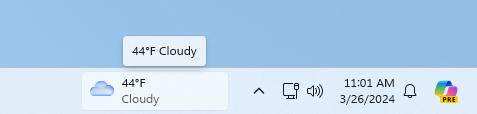
  • New! This update improves the Widgets icons on the taskbar. They are no longer pixelated or fuzzy. This update also starts the rollout of a larger set of animated icons.
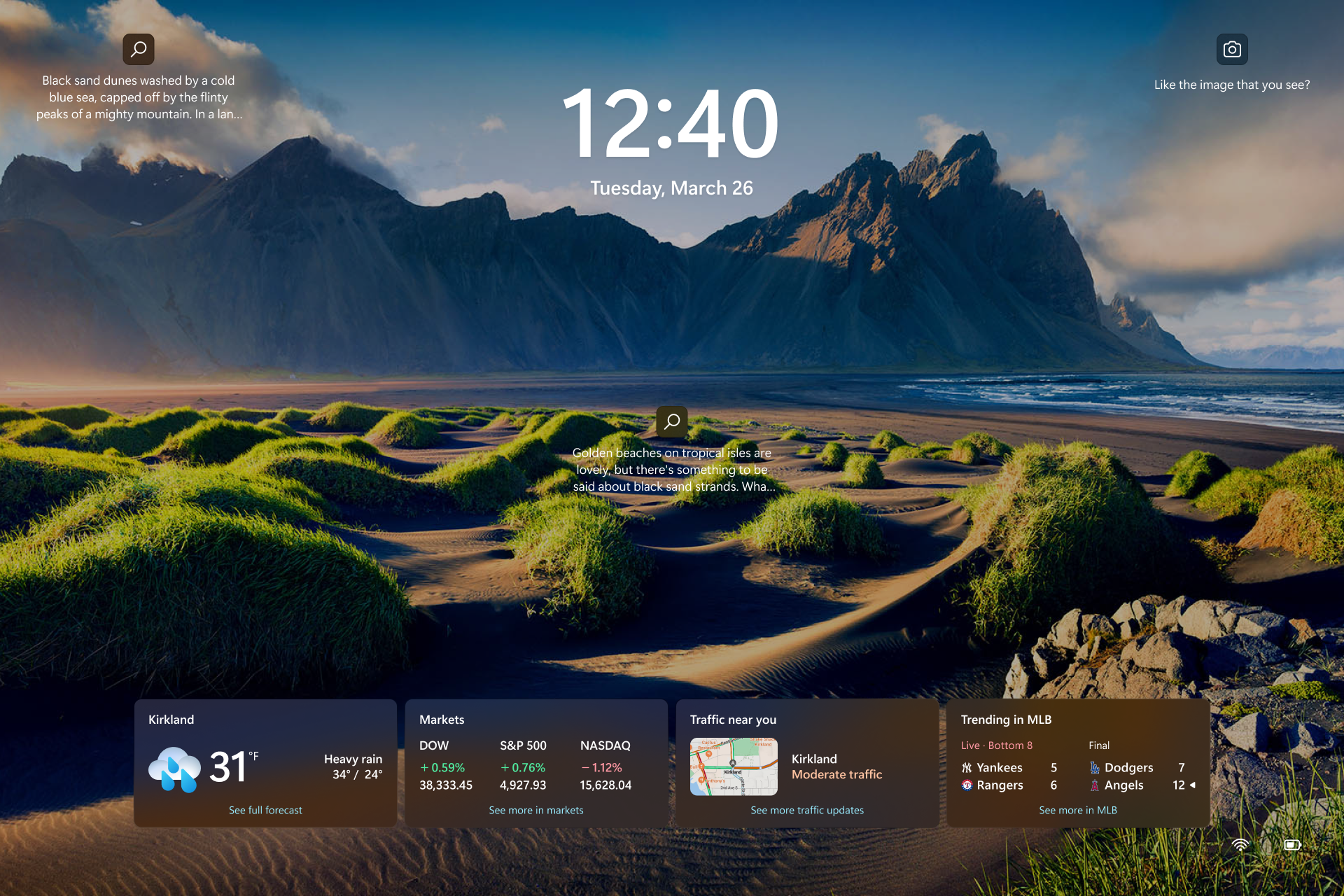
  • New! This update affects Widgets on the lock screen. They are more reliable and have improved quality. This update also supports more visuals and a more customized experience for you.
  • This update fixes an issue which was causing Settings to crash when copying out text in the last few flights.
  • This update addresses an issue that affects universal printers. The system creates duplicate print queues for them.
  • This update adds support for Arm64 .msi files using a Group Policy Object (GPO). You can now use the Group Policy Management Console (GPMC) to add Arm64 .msi files. You can also use a GPO to install these files on Arm64 machines.
  • This update affects hypervisor-protected code integrity (HVCI). It accepts drivers that are now compatible.
  • This update addresses an issue that occurs when you elevate from a normal user to an Administrator to run an application. When you use a PIN to sign in, the app will not run.
  • This update affects Windows Subsystem for Linux 2 (WSL2). Intermittent name resolution fails in a split DNS setup.
  • This update addresses an issue that affects the netstat -c It fails to perform effective port exhaustion troubleshooting.
  • This update addresses an issue that affects a low latency network. The speed of data on the network degrades significantly. This occurs when you turn on timestamps for a Transmission Control Protocol (TCP) connection.
  • This update addresses an issue that affects the Distributed Transaction Coordinator (DTC). A memory leak occurs when it retrieves mappings.
  • This update includes quarterly changes to the Windows Kernel Vulnerable Driver Blocklist file, p7b. It adds to the list of drivers that are at risk for Bring Your Own Vulnerable Driver (BYOVD) attacks.
  • This update affects the touch keyboard. It makes the Japanese 106 keyboard layout appear as expected when you sign in.
  • This update adds a new mobile device management (MDM) policy called “AllowScreenRecorder.” It affects the Snipping Tool. IT admins can use this policy to turn off screen recording in the app.
  • This update addresses an issue that affects Bluetooth Advanced Audio Distribution Profile (A2DP) hardware offload. A stop error occurs on PCs that support it.
  • This update addresses a memory allocation issue in the Host Networking Service (HNS). The issue causes high memory consumption. It also affects service and pod deployment and scaling.
  • This update addresses an issue that affects the container networking Address Resolution Protocol (ARP). It returns the wrong Virtual Subnet ID (VSID) for external ports.
  • This update affects media allocations. It improves their memory granularity for some hardware setups. This lowers overcommitment. Also, performance is more efficient.
  • This update addresses an issue that affects an accelerator backing store management path. A memory leak occurs that affects some devices.
  • This update addresses an issue that affects Windows Local Administrator Password Solution (LAPS). Its Post Authentication Actions (PAA) do not occur at the end of the grace period. Instead, they occur at restart.
  • This update addresses a race condition that might stop a machine from starting up. This occurs when you set up a bootloader to start up multiple OSes.
  • This update makes Country and Operator Settings Asset (COSA) profiles up to date for some mobile operators.
  • This update addresses an issue that affects the Resilient File System (ReFS). A high load might make the system unresponsive. Also, signing in might be slow.
  • This update addresses an issue that affects Settings. It stops responding when you dismiss a flyout menu.
  • This update addresses an issue that affects Protected Process Light (PPL) protections. You can bypass them.

Known issues

[General]

  • We are investigating an issue where Internet Information Services (IIS) and Windows Communication Foundation (WCF) may not work after installing this update.

[Start menu]

  • [ADDED 4/29] A component related to upgrading and restoring data from Windows Backup called “Global.WindowsMigration” is incorrectly showing under the Start menu > All apps and will be fixed in the next Beta Channel flight.

[Copilot in Windows*]

Windows Insiders in the Beta Channel who have the updated Copilot in Windows experience that introduces the ability for Copilot to act like a normal application window may see the following known issues:
  • We are aware of reports by Insiders in the Canary and Dev Channels that Copilot is auto-launching unexpectedly after restarting their PCs. We hope to have a fix for this issue soon and is unrelated to the auto-launching experience we tried out with Insiders in the Canary and Dev Channels in early Februarywhich we stopped rolling out in March.
  • Voice access does not work reliably with the updated Copilot in Windows experience that introduces the ability for Copilot to act like a normal application.
  • Using Windows Ink to write in Copilot will not work with the updated Copilot in Windows experience.

[Widgets]

Windows Insiders in the Beta Channel who have the new position for the Widgets entry-point on left-aligned taskbars may see the following known issues:
  • Swipe invocation for Widgets may not work if taskbar is center-aligned instead of left-aligned.
  • Unpinning Widgets from the taskbar may not work if taskbar is center-aligned instead of left-aligned.
  • The Widgets board is incorrectly positioned when Copilot is in side-by-side mode.
  • Turning on/off Widgets in taskbar settings may refresh the taskbar.

About the Beta Channel

The Beta Channel is the place we preview experiences that are closer to what we will ship to our general customers. Because the Dev and Beta Channels represent parallel development paths from our engineers, there may be cases where features and experiences show up in the Beta Channel first. However, this does not mean every feature we try out in the Beta Channel will ship. We encourage Insiders to read this blog post that outlines the ways we’ll try things out with Insiders in both the Dev and Beta Channels. *Getting new features: For Windows Insiders in the Beta Channel who want to be the first to get features gradually rolled out to you, you can turn ON the toggle to get the latest updates as they are available via Settings > Windows Update. Over time, we will increase the rollouts of features to everyone with the toggle turned on. Should you keep this toggle off, new features will gradually be rolled out to your device over time once they are ready. **Availability of Copilot in Windows: Copilot in Windows in preview is being rolled out gradually to Windows Insiders in select global markets. The initial markets for the Copilot in Windows preview include North America, United Kingdom and parts of Asia and South America. It is our intention to add additional markets over time.

Important Insider Links

Thanks, Amanda & Brandon

Announcing Windows 11 Insider Preview Build 26200 (Canary Channel)

Hello Windows Insiders, today we are releasing Windows 11 Insider Preview Build 26200 to the Canary Channel. (Note the .5001 after the build number does not mean anything relevant to Windows Insiders and we will continue to use the primary build number for these flight blog posts.) With the Canary Channel moving to a higher build number, the window closes on being able to switch to the Dev Channel without doing a clean-install of Windows. If you haven’t switched channels yet, you can still do so BEFORE taking Build 26200. Developers, please note that for a short period of time, we will not be releasing an SDK for builds we flight to the Canary Channel.

Changes and Improvements

[General]

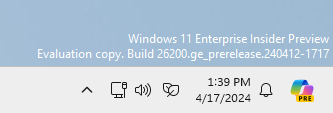
  • [REMINDER] As we’ve been mentioning previously that would happen, the build watermark at the lower right-hand corner of the desktop has returned.

[Widgets]

  • We are also making some improvements to the Widgets button on the taskbar so that the icons on the taskbar are clearer and we are rolling out a larger set of animated icons too.
  • As part of the Widgets board improvements that we began rolling out with Build 26090 a few weeks ago (which are now also rolling out to Insiders in the Dev Channel), we are introducing the ability for developers to send notifications to the taskbar button with their custom dashboards for the Widgets board. Developers can check out this documentation on how to implement this capability with their Widgets dashboards. To manage notifications from multiple dashboards, Widgets is also providing more granular control over what content shows on the Widgets button on the taskbar. You can go to Widgets Settings > Notifications and enable or disable taskbar notifications from individual dashboards. NOTE: These changes are only initially available to Windows Insiders in the European Economic Area (EEA).

[Taskbar & System Tray]

  • After trying out a different design for the energy saver icon in system tray a few months ago for PCs that are plugged in and do not have batteries (such as desktop PCs), we reverted the design back to the leaf icon a few builds ago. (This change is also present in Build 26100.)
[caption id="attachment_177014" align="alignnone" width="333"]Energy saver icon shown on the system tray for PCs that do not have batteries. Energy saver icon shown on the system tray for PCs that do not have batteries.[/caption]

Fixes for known issues

[Taskbar & System Tray]

  • Fixed an issue that caused a dead zone you couldn't click inside of next to the notification center.
  • Fixed an issue that was causing the page icons in quick settings to not work in secondary settings pages.
  • Fixed an issue where keyboard focus wasn't shifting to the top item of the new page correctly after switching pages in quick settings.

[Input]

  • Fixed a tabtip.exe crash, which could impact the ability to input text.

[Windowing]

  • Fixed an issue which could cause RemoteApp windows to get cut off when using 200% scaling.

[Multiple Desktops]

  • Fixed an issue where the option to set a different wallpaper on each desktop wasn’t working.

Known issues

[General]

  • [IMPORTANT NOTE] We are investigating reports that some Windows Insiders in the Canary and Dev Channels are stuck on Build 26040 or Build 23620. The investigation is ongoing, however if you are impacted by this and really want to get onto the latest build in the Canary or Dev Channel today – you can download the latest ISO here and do a clean install and opt your device back into flighting in the Canary or Dev Channels.

[Copilot in Windows*]

  • [NEW] We are aware of reports by Insiders in the Canary, Dev, and Beta Channels that Copilot is auto-launching unexpectedly after restarting their PCs. We hope to have a fix for this issue soon and is unrelated to the auto-launching experience we tried out with Insiders in the Canary and Dev Channels in early February which we stopped rolling out in March.
  • Voice access does not work reliably with the updated Copilot in Windows experience that introduces the ability for Copilot to act like a normal application.
  • Using Windows Ink to write in Copilot will not work with the updated Copilot in Windows experience that introduces the ability for Copilot to act like a normal application window.

Reminders for Windows Insiders

  • The builds we release to the Canary Channel should not be seen as matched to any specific release of Windows and features and experiences included in these builds may never get released as we try out different concepts and get feedback. Features may change over time, be removed, or replaced and never get released beyond Windows Insiders. Some of these features and experiences could show up in future Windows releases when they’re ready.
  • Many features in the Canary Channel are rolled out using Control Feature Rollout technology, starting with a subset of Insiders and ramping up over time as we monitor feedback to see how they land before pushing them out to everyone in this channel.
  • To get off the Canary Channel, a clean install of Windows 11 will be required. As a reminder - Insiders can’t switch to a channel that is receiving builds with lower build numbers without doing a clean installation of Windows 11 due to technical setup requirements.
  • The desktop watermark shown at the lower right corner of the desktop is normal for these pre-release builds.
  • Check out Flight Hub for a complete look at what build is in which Insider channel.
  • Copilot in Windows* in preview is being rolled out gradually to Windows Insiders in select global markets. The initial markets for the Copilot in Windows preview include North America, United Kingdom and parts of Asia and South America. It is our intention to add additional markets over time.
Thanks, Amanda & Brandon

Announcing Windows 11 Insider Preview Build 22635.3500 (Beta Channel)

Hello Windows Insiders, today we are releasing Windows 11 Insider Preview Build 22635.3500 (KB5036985) to the Beta Channel. REMINDER: All Windows Insiders in the Beta Channel will now be on the same build (Build 22635.xxxx) via an enablement package. For Windows Insiders in the Beta Channel who want to be the first to get features gradually rolled out to you, you can turn ON the toggle (shown in the image below) to get the latest updates as they are available via Settings > Windows Update. Over time, we will increase the rollouts of features to everyone with the toggle turned on. Should you keep this toggle off, new features will gradually be rolled out to your device over time once they are ready. [caption id="attachment_176587" align="alignnone" width="737"]Turn on the toggle to get the latest updates as they are available to get new features rolled out to you. Turn on the toggle to get the latest updates as they are available to get new features rolled out to you.[/caption] Going forward, we will document changes in Beta Channel builds in two buckets: new features, improvements, and fixes that are being gradually rolled out for Insiders who have turned on the toggle to get the latest updates as they are available and then new features, improvements, and fixes available to everyone in the Beta Channel.

Changes and Improvements gradually being rolled out to the Beta Channel with toggle on*

[Start menu]

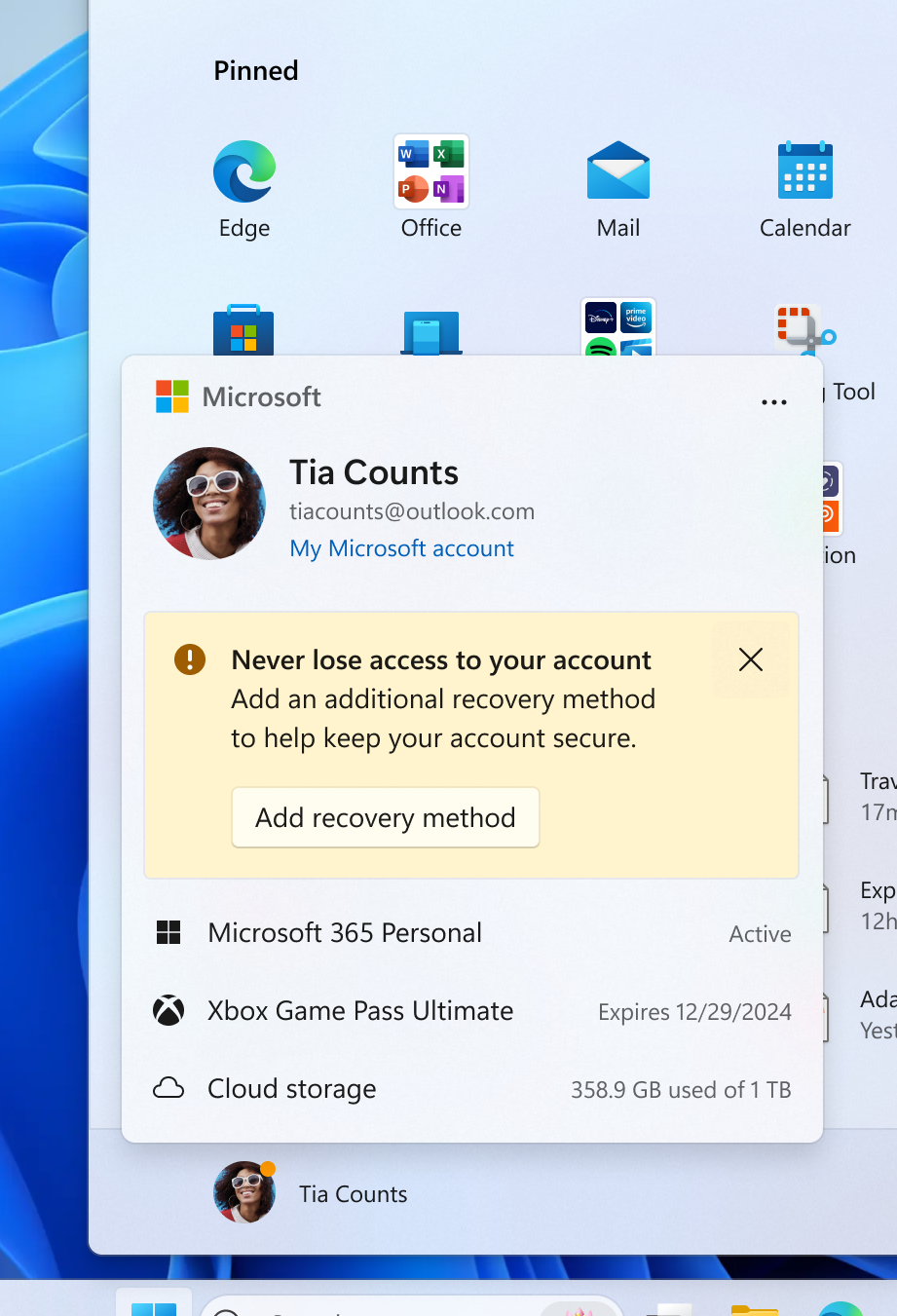
  • This update starts the roll out of the new account manager on Start menu. When you sign in with a Microsoft account, the new design gives you a quick glanceable view of your account benefits and makes it easy to manage account settings.
[caption id="attachment_177008" align="alignnone" width="370"]New account manager experience on the Start menu showing account settings and an action needed that needs to be taken to secure your Microsoft account. New account manager experience on the Start menu showing account settings and an action needed that needs to be taken to secure your Microsoft account.[/caption]

[Windows Share]

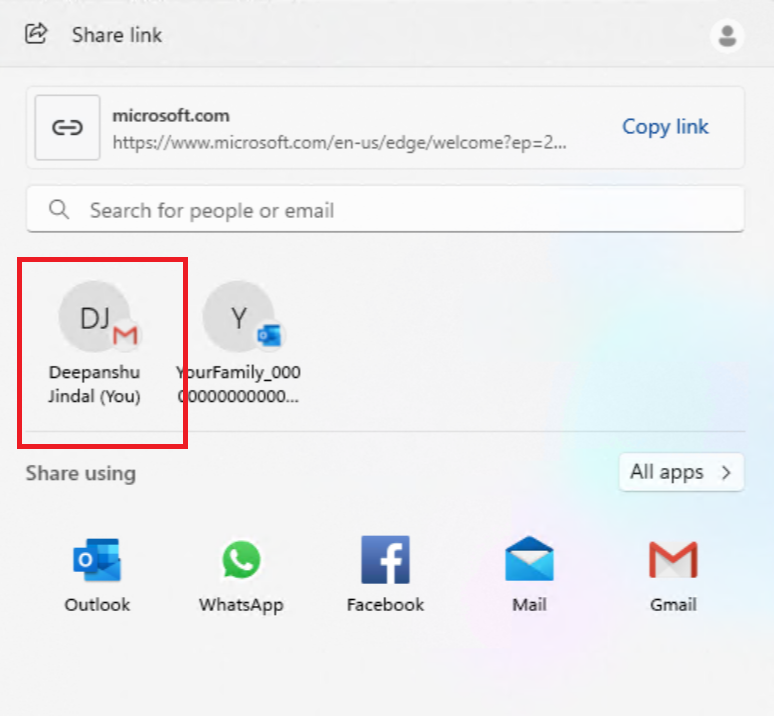
  • If your Microsoft account uses a Gmail address, you can now send email to yourself from Windows share window and receive it in your Gmail account.
[caption id="attachment_177009" align="alignnone" width="389"]Example Gmail option to email yourself in the Windows share window highlighted in a red box. Example Gmail option to email yourself in the Windows share window highlighted in a red box.[/caption]

[Settings]

  • To ensure you don’t lose access to your Microsoft account, we’re beginning to roll out a new banner with a “Add now” button under Settings > Account for adding a recovery email address if you haven’t added one for your Microsoft account yet. This will only show if you are signed in with a Microsoft account.
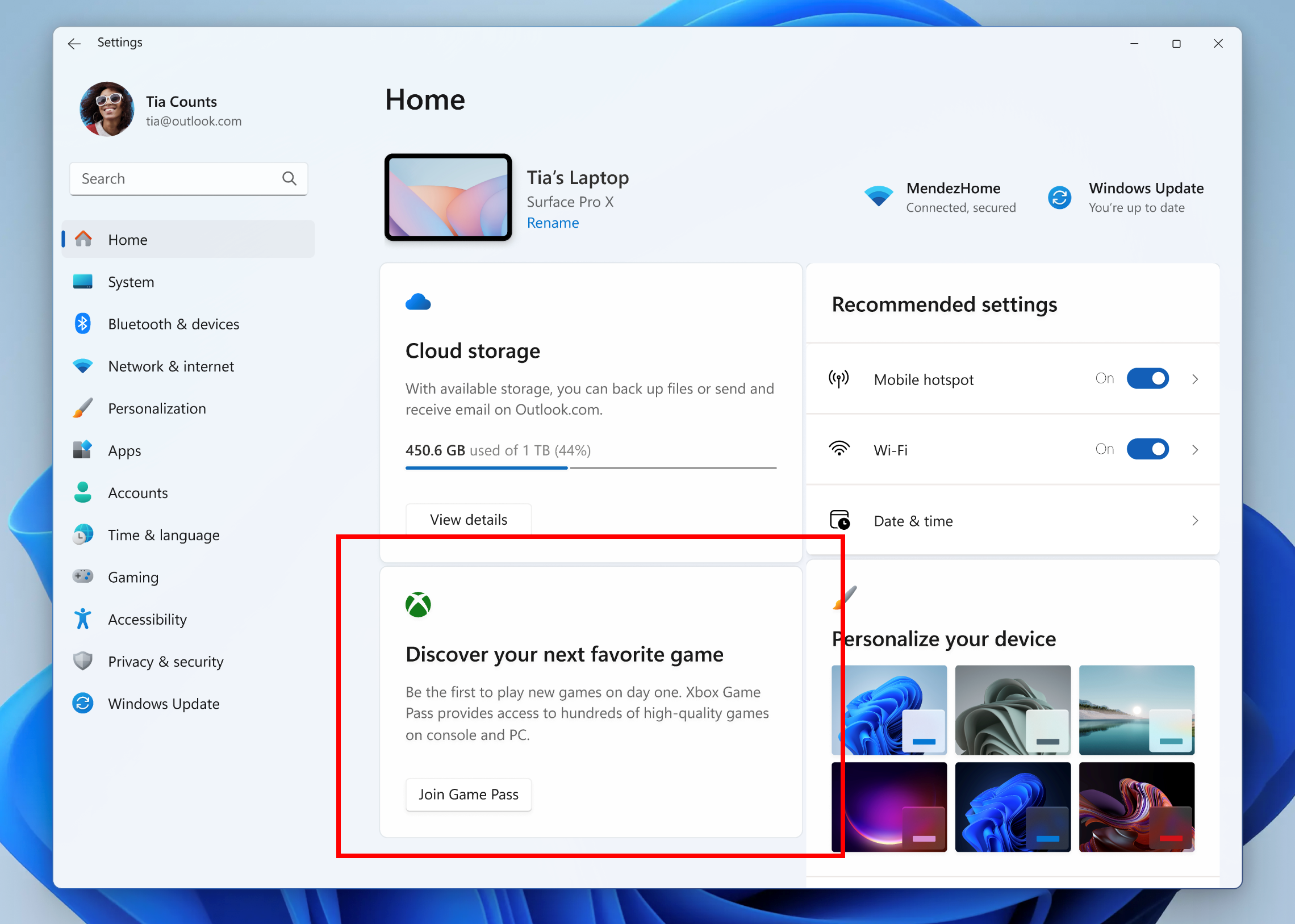
  • We are introducing a new Game Pass recommendation card on the Settings homepage. The Game Pass recommendation card on Settings Homepage will be shown to you if you actively play games on your PC. As a reminder - the Settings homepage will be shown only on the Home and Pro editions of Windows 11 and if you’re signed into Windows with your Microsoft account.
[caption id="attachment_177010" align="alignnone" width="671"]New Game Pass recommendation card highlighted in a red box on the Settings homepage. New Game Pass recommendation card highlighted in a red box on the Settings homepage.[/caption]

New features rolling out for everyone in the Beta Channel

Widgets Board Improvements

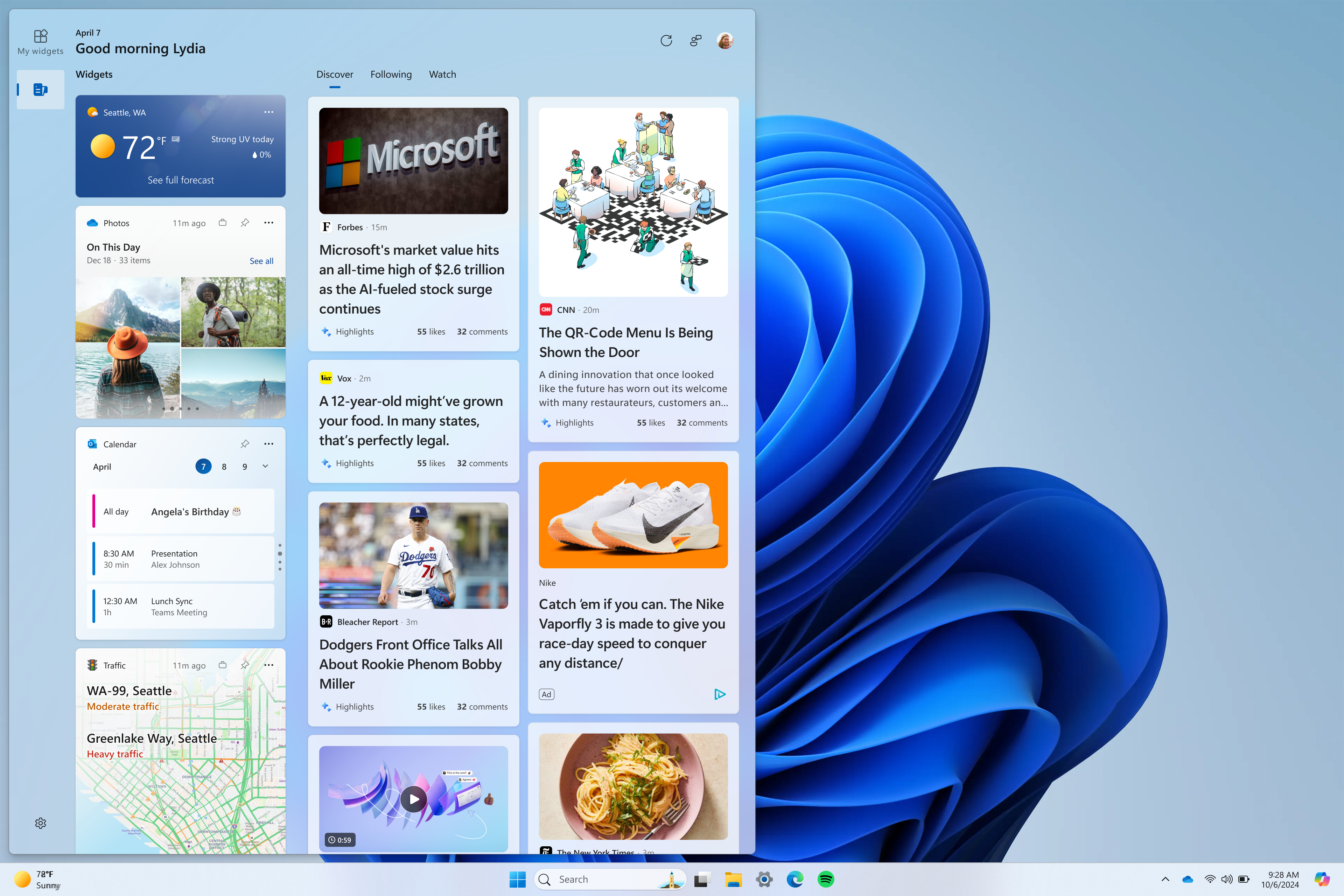
We are introducing a new navigation bar on the left allowing you to switch between a dedicated widgets dashboard and other integrated dashboards like Discover. As part of this change, we are introducing the ability for developers to send notifications to the taskbar button with their custom dashboards for the Widgets board. Developers can check out this documentation on how to implement this capability with their Widgets dashboards. To manage notifications from multiple dashboards, Widgets is also providing more granular control over what content shows on the Widgets button on the taskbar. You can go to Widgets Settings > Notifications and enable or disable taskbar notifications from individual dashboards. NOTE: These changes are only initially available to Windows Insiders in the European Economic Area (EEA). [caption id="attachment_176968" align="alignnone" width="680"]We’ve added a new Navigation Pane on the left that allows you to switch to My Widgets dashboard. We’ve added a new Navigation Pane on the left that allows you to switch to My Widgets dashboard.[/caption] [caption id="attachment_176970" align="alignnone" width="680"]A full widgets only experience from your favorite apps and services. A full widgets only experience from your favorite apps and services.[/caption] FEEDBACK: Please file feedback in Feedback Hub (WIN + F) under Desktop Environment > Widgets.

Changes and Improvements gradually being rolled out to everyone in the Beta Channel

[Widgets]

  • We are making some improvements to the Widgets button on the taskbar so that the icons on the taskbar are clearer and we are rolling out a larger set of animated icons too.

Known issues

[General]

  • We are investigating an issue where Internet Information Services (IIS) and Windows Communication Foundation (WCF) may not work after installing this update.
  • [NEW] We’re working on the fix for an issue causing Settings to crash when copying text in certain cases. As a workaround, please use the extract text option in Snipping Tool for the time being if you are impacted.

[Copilot in Windows*]

Windows Insiders in the Beta Channel who have the updated Copilot in Windows experience that introduces the ability for Copilot to act like a normal application window may see the following known issues:
  • [NEW] We are aware of reports by Insiders in the Canary, Dev, and Beta Channels that Copilot is auto-launching unexpectedly after restarting their PCs. We hope to have a fix for this issue soon and is unrelated to the auto-launching experience we tried out with Insiders in the Canary and Dev Channels in early February which we stopped rolling out in March.
  • Voice access does not work reliably with the updated Copilot in Windows experience that introduces the ability for Copilot to act like a normal application.
  • Using Windows Ink to write in Copilot will not work with the updated Copilot in Windows experience.

[Widgets]

  • [NEW] We’re working on the fix for an issue causing Widgets to crash for some Insiders when interacting with the Widgets board.
Windows Insiders in the Beta Channel who have the new position for the Widgets entry-point on left-aligned taskbars may see the following known issues:
  • Swipe invocation for Widgets may not work if taskbar is center-aligned instead of left-aligned.
  • Unpinning Widgets from the taskbar may not work if taskbar is center-aligned instead of left-aligned.
  • The Widgets board is incorrectly positioned when Copilot is in side-by-side mode.
  • Turning on/off Widgets in taskbar settings may refresh the taskbar.

About the Beta Channel

The Beta Channel is the place we preview experiences that are closer to what we will ship to our general customers. Because the Dev and Beta Channels represent parallel development paths from our engineers, there may be cases where features and experiences show up in the Beta Channel first. However, this does not mean every feature we try out in the Beta Channel will ship. We encourage Insiders to read this blog post that outlines the ways we’ll try things out with Insiders in both the Dev and Beta Channels. *Getting new features: For Windows Insiders in the Beta Channel who want to be the first to get features gradually rolled out to you, you can turn ON the toggle to get the latest updates as they are available via Settings > Windows Update. Over time, we will increase the rollouts of features to everyone with the toggle turned on. Should you keep this toggle off, new features will gradually be rolled out to your device over time once they are ready. **Availability of Copilot in Windows: Copilot in Windows in preview is being rolled out gradually to Windows Insiders in select global markets. The initial markets for the Copilot in Windows preview include North America, United Kingdom and parts of Asia and South America. It is our intention to add additional markets over time.
Important Insider Links

Thanks, Amanda & Brandon

Test NiPoGi CK10 – Un mini PC avec Intel Core i5-12450H, 16 Go de RAM et un SSD NVMe

I. Présentation

Dans cet article, nous allons évoquer le mini PC NiPoGi CK10 dans sa version avec un processeur Intel Core i5-12450H, 16 Go de RAM et un stockage SSD NVMe de 512 Go !

Ce test est l'occasion d'évoquer les caractéristiques techniques, le design, l'évolutivité et les performances de ce modèle compact ! Comme souvent, NiPoGi propose plusieurs configurations pour une seule référence. Le modèle CK10 est également disponible avec 32 Go de RAM et 1 To de SSD, à ne pas confondre avec la version présentée dans cet article.

II. Caractéristiques du NiPoGi CK10

Commençons par découvrir les caractéristiques principales de ce modèle :

  • Processeur : Intel Core i5-12450H (jusqu'à 4,4 GHz, 8C/12T)
  • GPU : Intel UHD Graphics (intégrée au processeur) - Fréquence 1.20 GHz
  • RAM : 16 Go DDR4 - 3200 MHz
  • Stockage : 512 Go SSD NVMe (M.2 - PCIe 3.0) + 1 emplacement vide SSD NVMe + 1 emplacement pour disque SATA 2.5 pouces
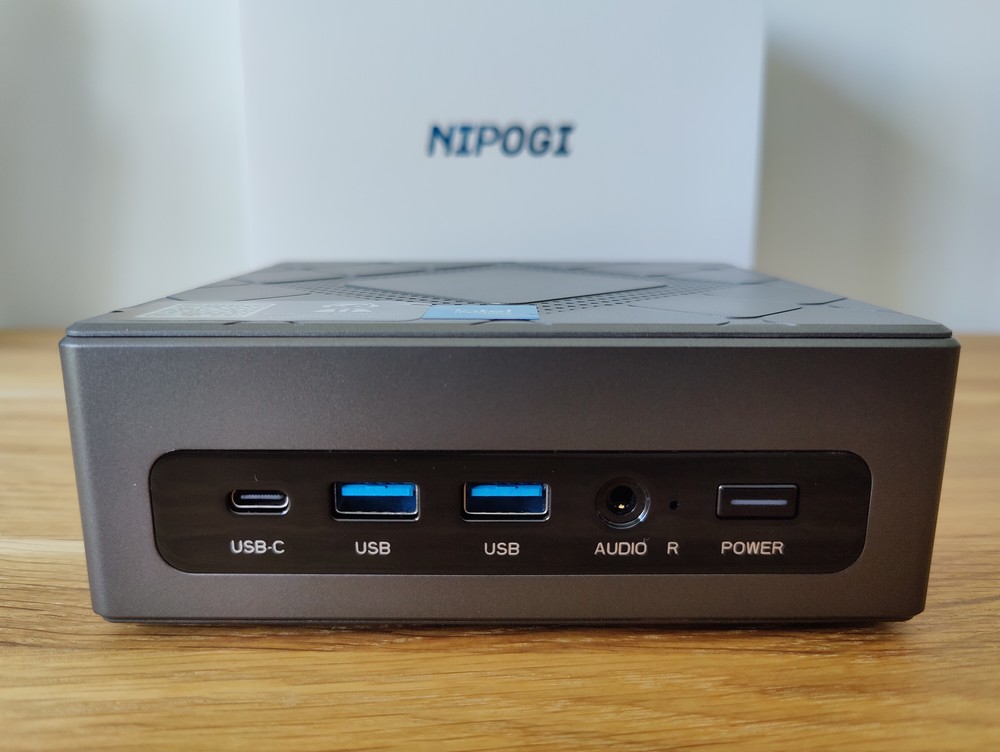
  • Connectique en façade : 2 x USB 3.0, 1 x USB-C 3.0, 1 x Jack audio et le bouton Power
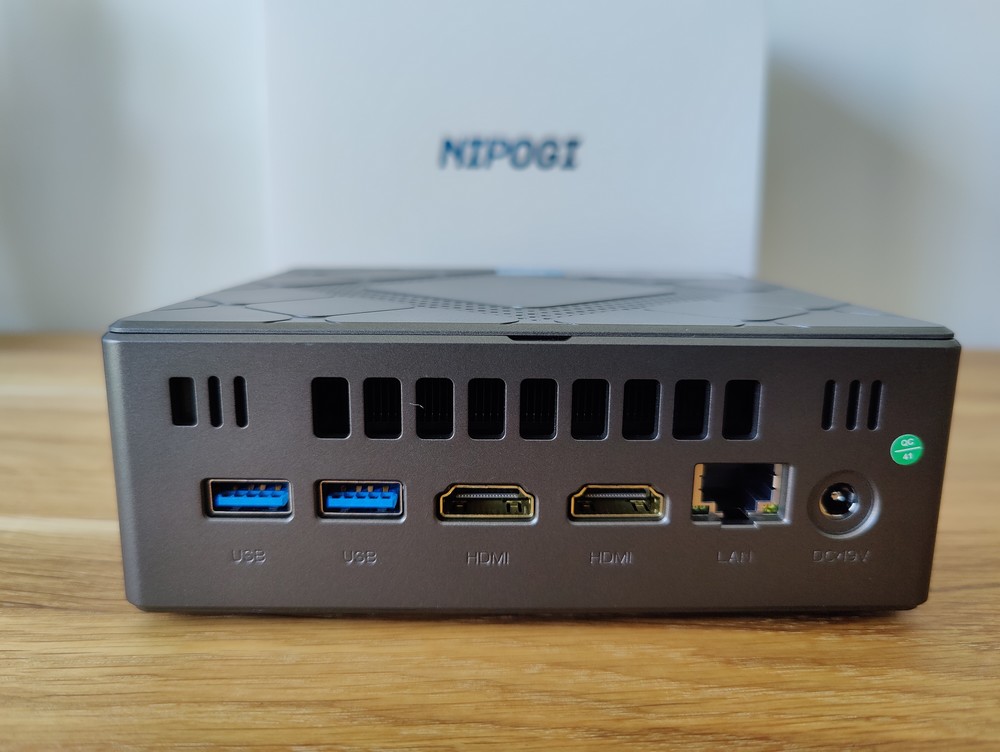
  • Connectique à l'arrière : 2 x USB 3.0, 2 x HDMI 2.0, 1 x RJ45 1 Gbit/s et 1 fente de verrouillage Kensington
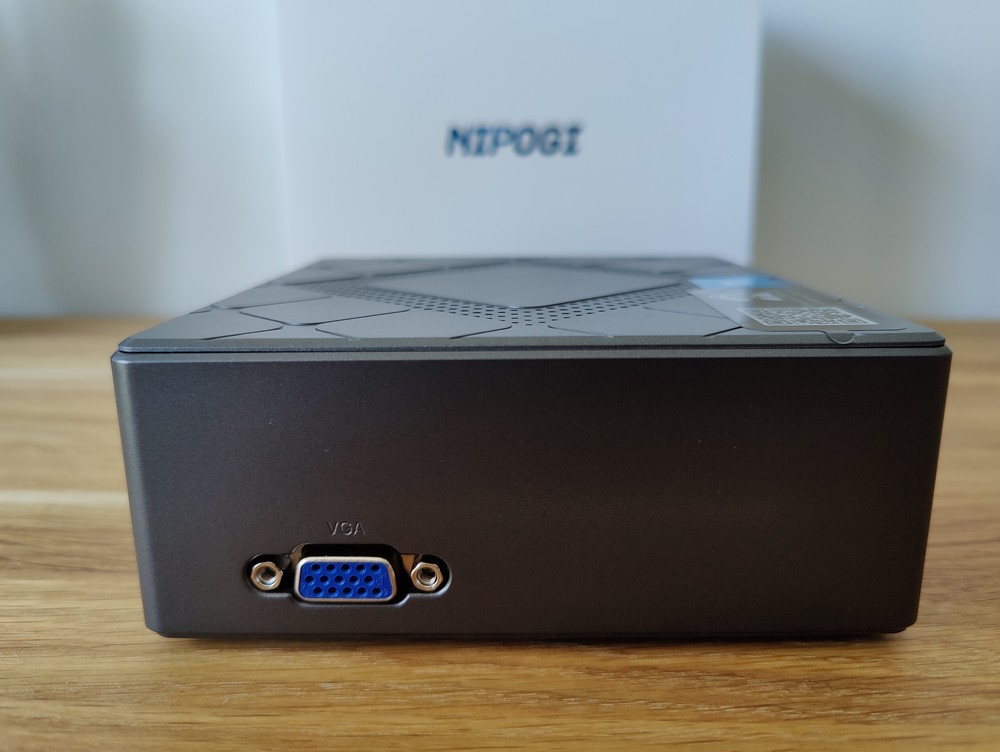
  • Connectique sur le côté gauche : 1 x VGA
  • Affichage : prise en charge de trois écrans grâce aux deux ports HDMI et au port VGA
  • WiFi 6, Bluetooth 5.2
  • Alimentation (sortie) : 19V/3.42A - 64.98W
  • Poids : 470 grammes
  • Dimensions (L x W x H) : 13,8 x 12,6 x 5 cm
  • Système d'exploitation : Windows 11
  • Prix : 360.00 euros - Rendez-vous en fin d'article pour notre offre bon plan

III. Package, design et conception

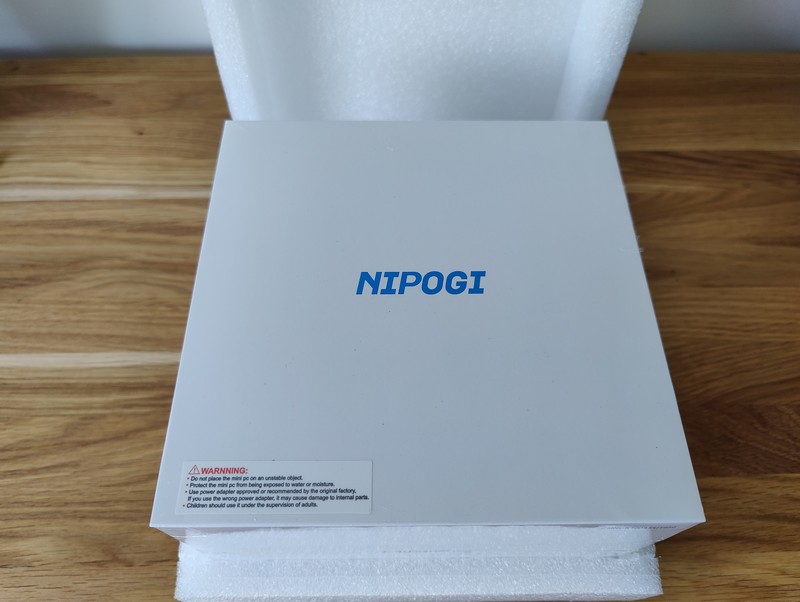
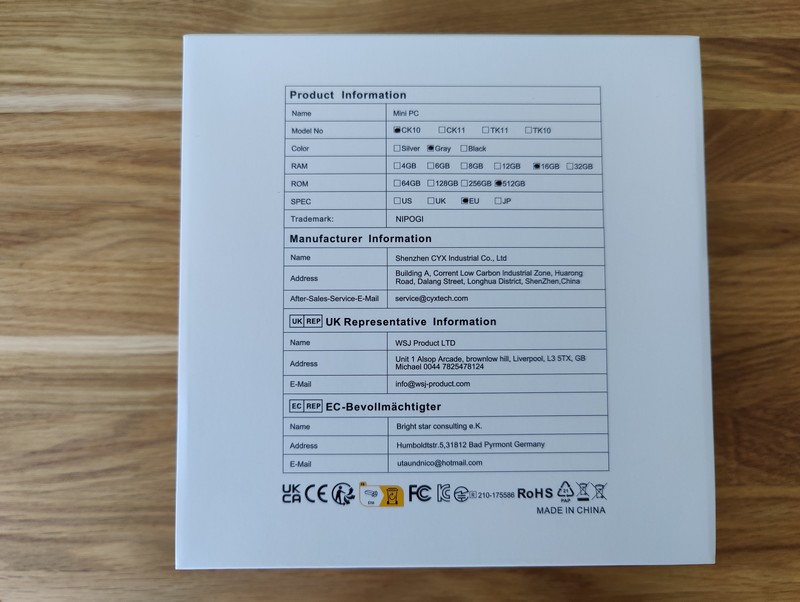
La boite, entièrement blanche, est sobre, mais elle a le mérite de nous donner des précisions sur la version présente à l'intérieur. L'ordinateur et les accessoires sont correctement emballés et protégés par d'épaisses mousses. Le matériel est arrivé en parfait état, c'est ce que nous retiendrons.

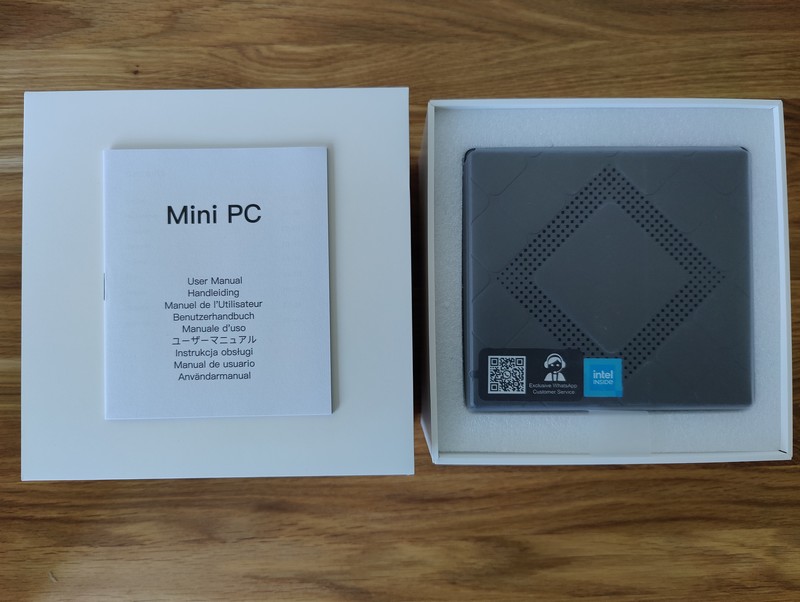
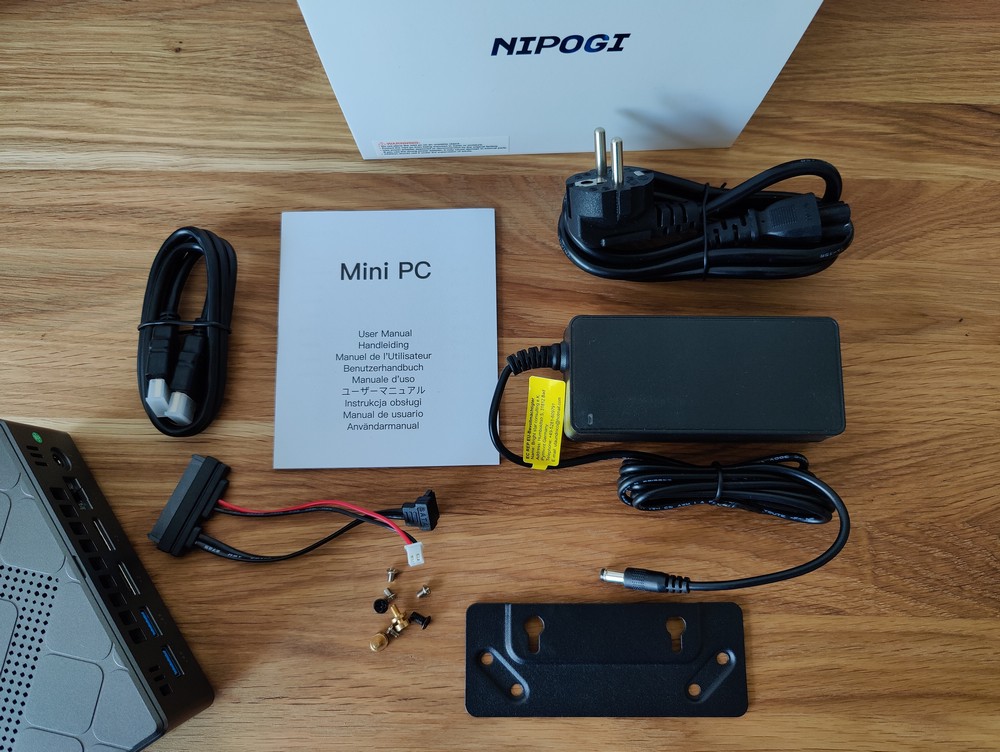
Qu'avons-nous à l'intérieur de la boite ? Le mini PC est accompagné par l'alimentation externe et son câble, ainsi qu'un câble HDMI, un support VESA (et les vis), une notice d'utilisation (en français, utile si vous envisagez d'utiliser le support VESA pour fixer le PC à l'arrière d'un écran), et une rallonge SATA à utiliser si vous souhaitez ajouter un disque SATA 2.5 pouces.

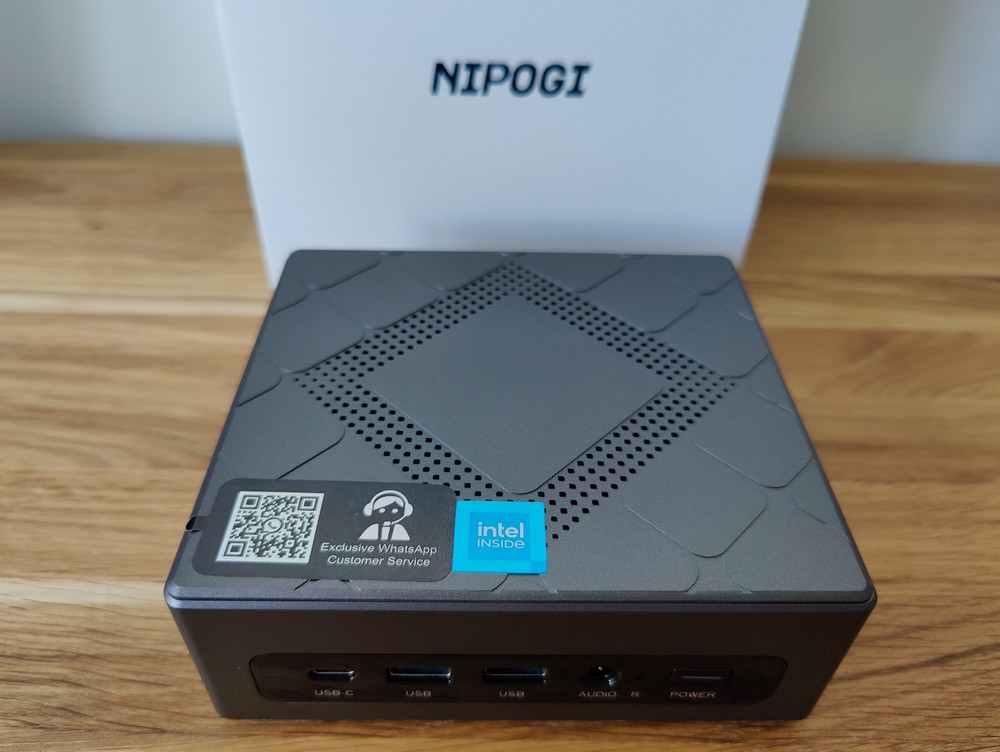
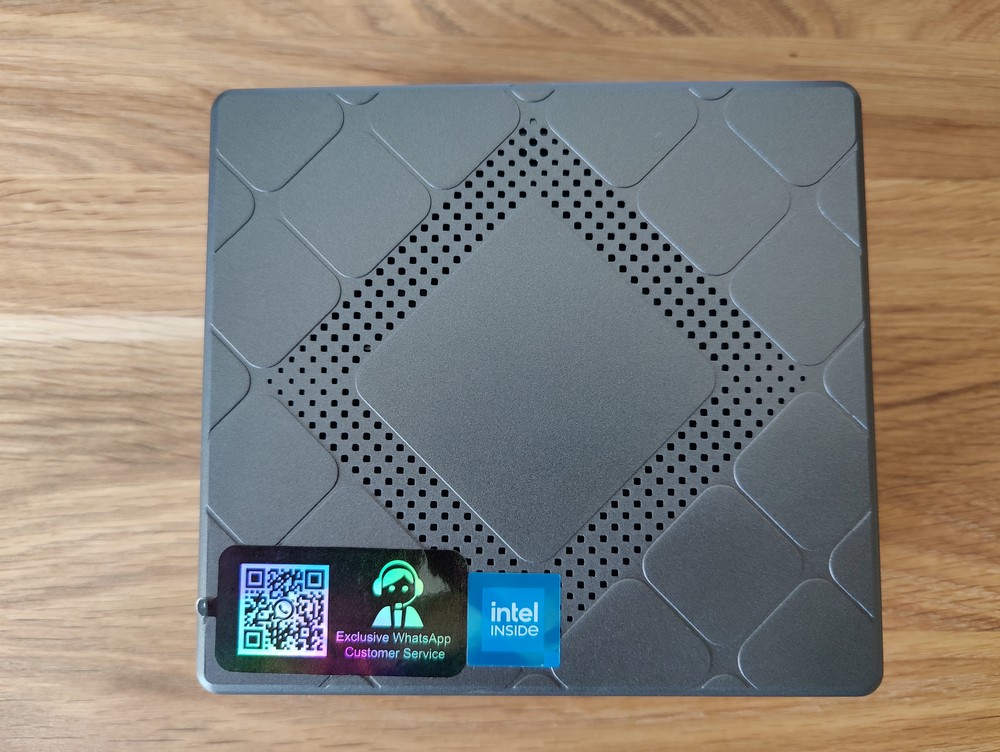
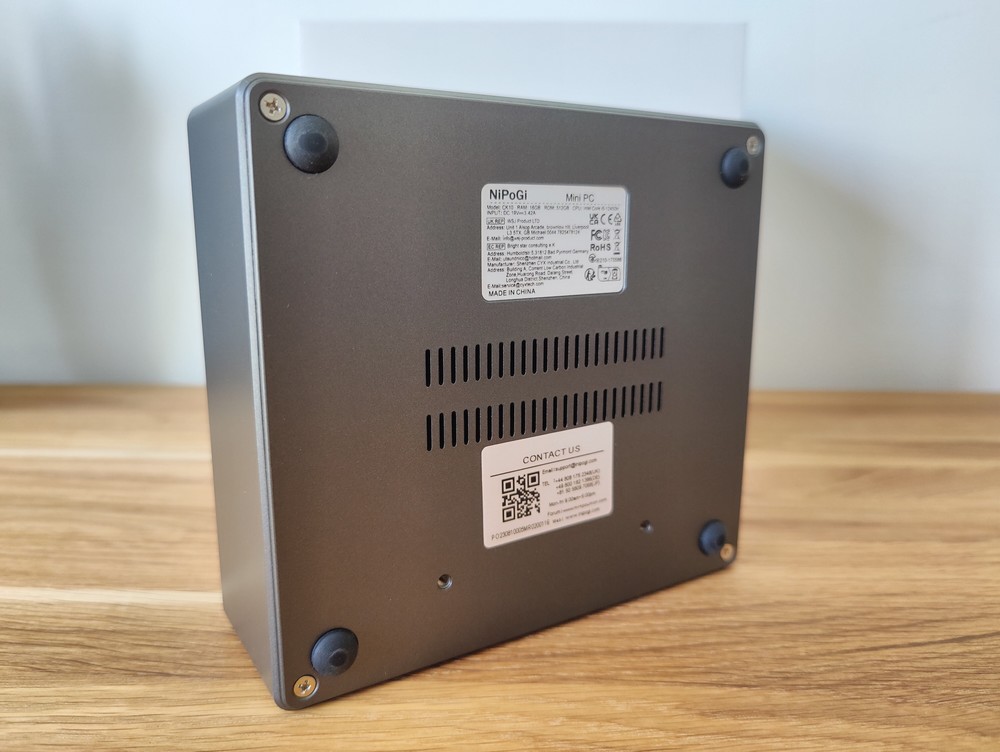
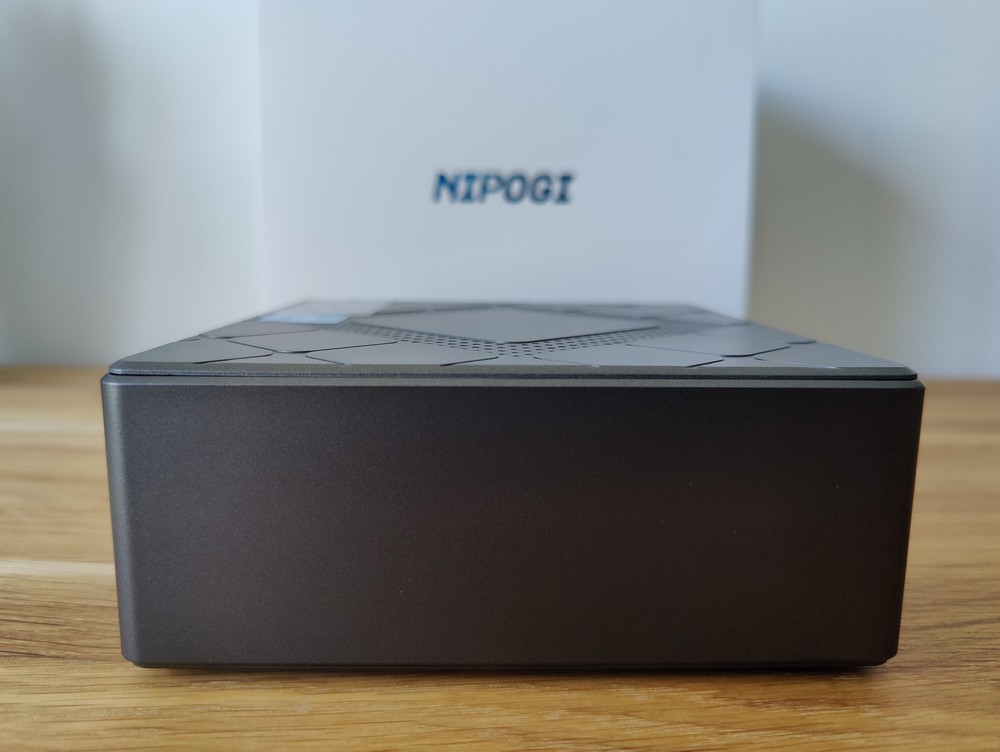
Le boitier gris anthracite de ce mini PC NiPoGi est entièrement en plastique. Le plastique est rigide et semble relativement solide. Le boitier est correctement assemblé et tous les ports sont bien accessibles : aucun défaut n'est à relever. La seule chose qui me gêne réellement, c'est l'emplacement hasardeux des deux stickers sur le dessus du boitier (que l'on peut retirer facilement). En dessous, nous retrouvons 4 patins antidérapants d'une épaisseur de 4 mm. Nous constatons qu'il y a une entrée d'air sur le dessus, mais aussi en dessous du boitier, tandis que l'extraction de l'air s'effectue par l'arrière du boitier.

La façade de ce mini PC est riche en connectique puisque 2 ports USB 3.0, 1 port USB-C et une prise Jack sont facilement accessibles. À l'arrière, il y a également 2 ports USB 3.0, ainsi que 2 ports HDMI et une interface RJ45 Gigabit Ethernet (1 Gbit/s). Sur la gauche du boitier, il y a également un port VGA : ce qui est assez rare de nos jours, mais cela permet à ce modèle de se démarquer ! Ainsi, vous pouvez connecter 3 écrans : 2 en HDMI et 1 en VGA. D'ailleurs, le port VGA pourrait être utilisé pour connecter un vidéoprojecteur ou un écran qui n'est pas équipé d'un port HDMI.

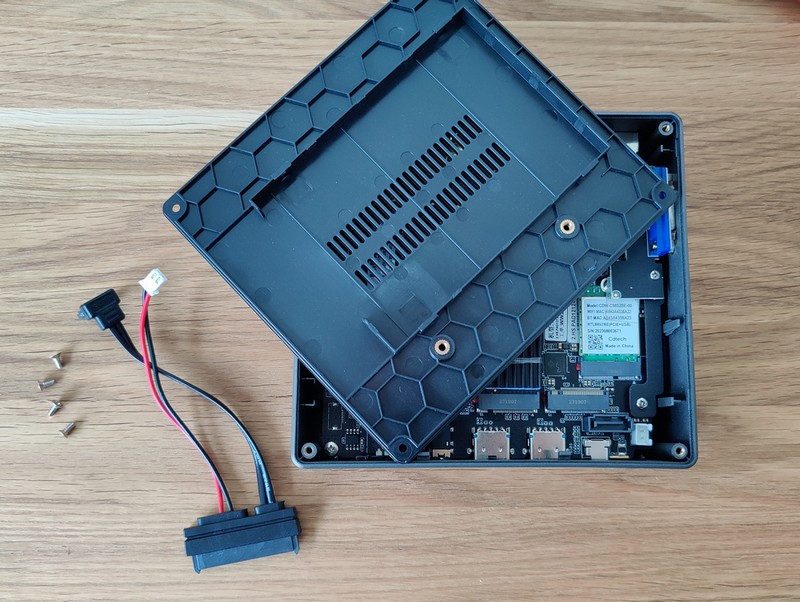
Pour ouvrir le boitier et accéder à l'intérieur, il suffit de retirer les 4 vis présentes en dessous du boitier. Ceci va nous permettre de découvrir les composants et l'image ci-dessous montre l'emplacement pour disque SATA, au format 2.5 pouces.

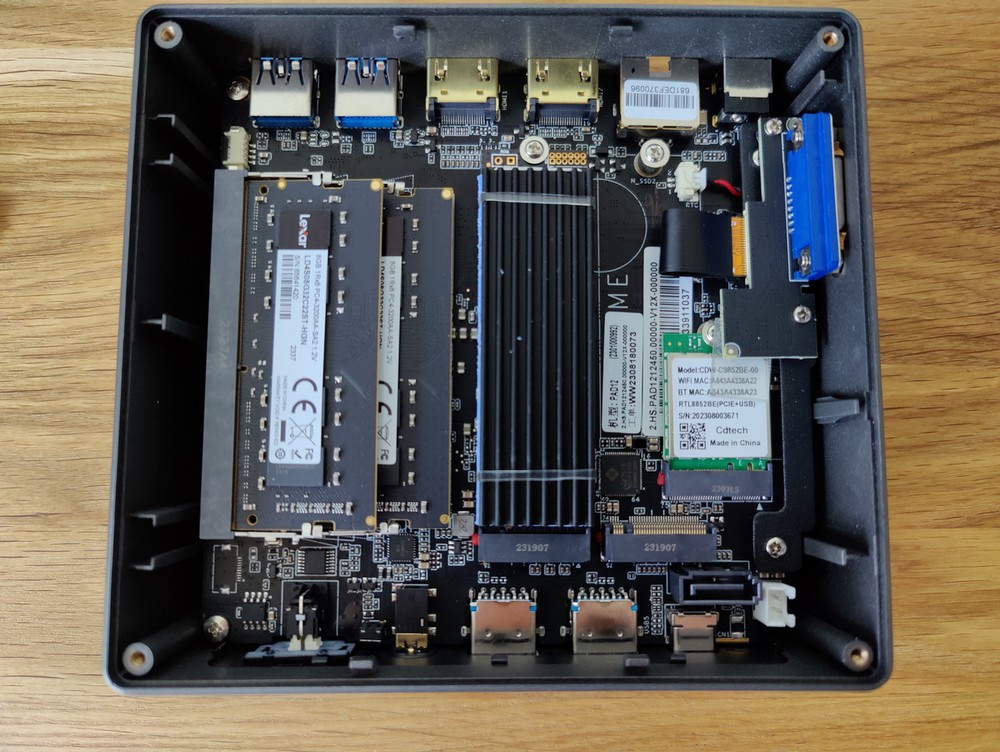
À l'intérieur du boitier, il y a un espace confortable entre les différents composants, mais ce sera différent si vous ajoutez un disque SATA 2.5 pouces. Néanmoins, il est important de préciser que ce boitier est un peu plus grand que beaucoup d'autres modèles de mini PC. Voici ce qui est à noter :

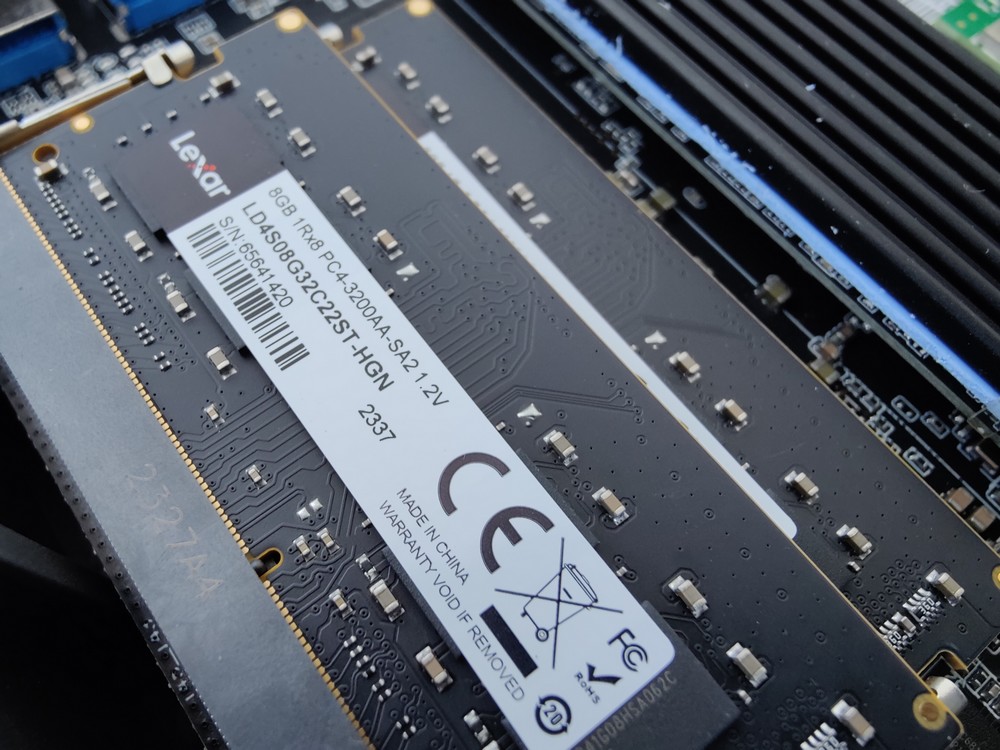
  • Il y a deux slots pour la mémoire vive (RAM) et les deux sont déjà occupés par 2 barrettes de 8 Go
  • Il y a deux barrettes de RAM SO-DIMM de marque Lexar : 8 Go 1Rx8 PC4-3200AA-SA21.2V
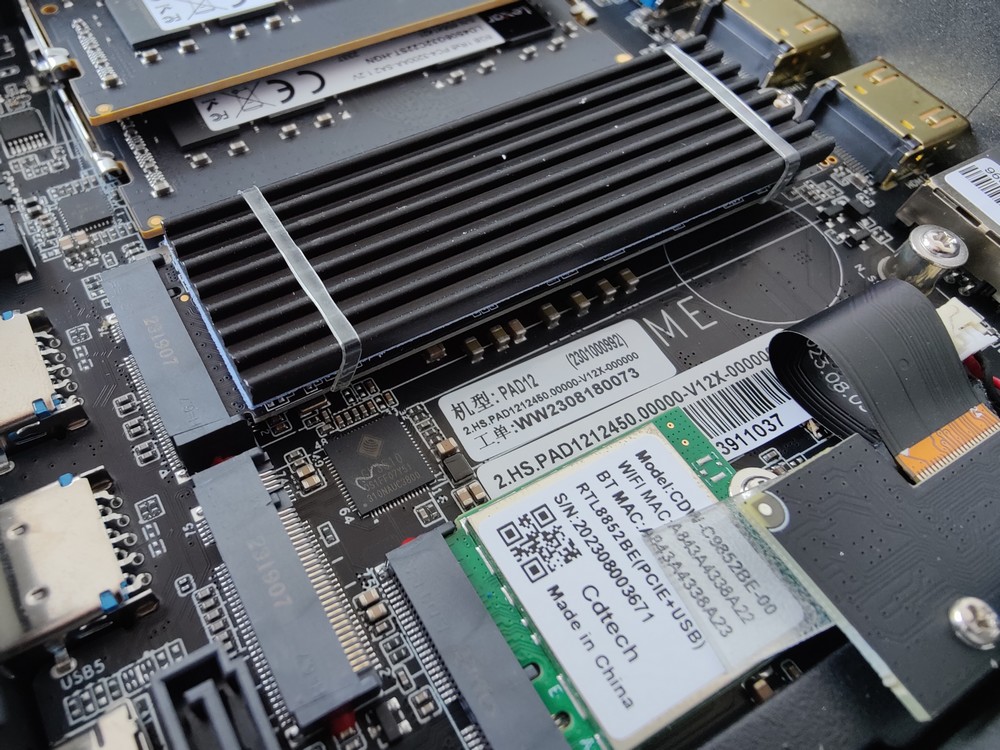
  • Il y a un disque SSD NVMe, équipé d'un dissipateur et d'une épaisse couche de pâte thermique. C'est appréciable (mais ceci nous empêche de lire l'étiquette pour en savoir plus sur la référence).
  • Il y a un emplacement libre pour ajouter un second disque SSD NVMe (PCIe 3.0)
  • Il y a une carte RealTek RTL8852BE pour le Wi-Fi 6 et le Bluetooth 5.2

Voici les entrailles du CK10 en photos :

IV. Évolutivité et performances

A. Mise en route et évolutivité

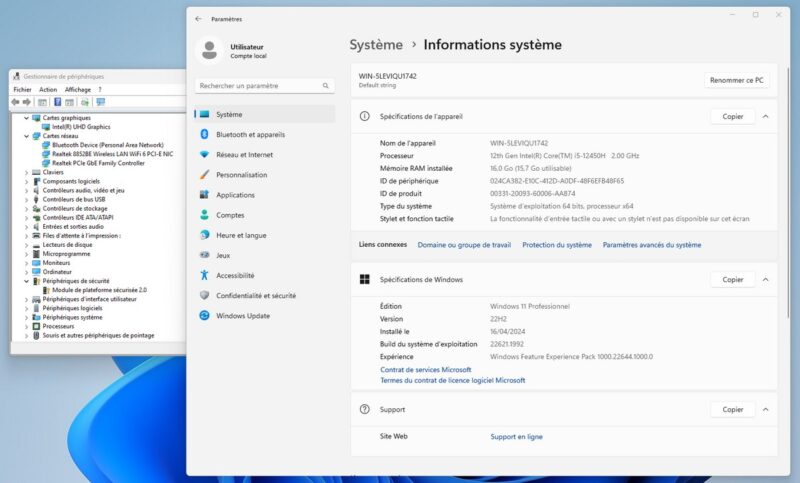
Ce mini PC est livré avec le système Windows 11 Pro, en version 22H2, donc il y aura des mises à jour à installer. Nous devons finaliser la mise en route, mais cela est très rapide puisque nous devons seulement définir le nom d'utilisateur. Il s'agit d'une image personnalisée par NiPoGi (probablement avec un fichier de réponse) et elle occupe 37 Go sur le disque (ce qui est beaucoup !).

Comme pour tous les ordinateurs, je vous recommande de réinstaller la machine avec une image propre et téléchargée depuis le site de Microsoft si vous souhaitez continuer sur Windows. Cette machine est pleinement compatible avec Windows 11, car elle respecte tous les prérequis (y compris la puce TPM 2.0).

À part Google Chrome qui est intégré à l'image de Windows 11, il n'y a pas d'autres logiciels supplémentaires visibles. Bien entendu, nous avons le droit à toute la panoplie d'applications de chez Microsoft.

Le mini-PC est livré avec 16 Go de RAM en DDR4, mais une mise à niveau est possible. Le processeur i5 de ce modèle supporte 64 Go de RAM, ce qui signifie que nous pouvons remplacer les 2 barrettes de 8 Go par 2 x 32 Go. De quoi faire une belle évolution si vous souhaitez utiliser ce PC pour de la virtualisation.

En résumé, pour faire évoluer la configuration de ce mini PC, vous avez plusieurs options : augmenter la RAM, ajouter un disque SATA (2.5 pouces) et ajouter un disque SSD NVMe.

B. Performances

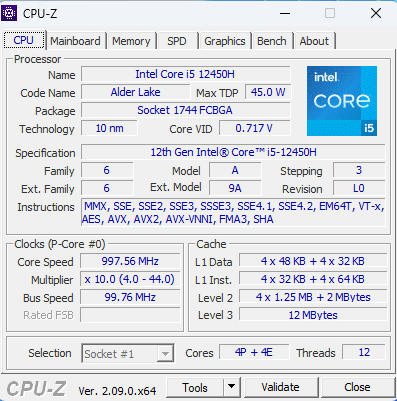
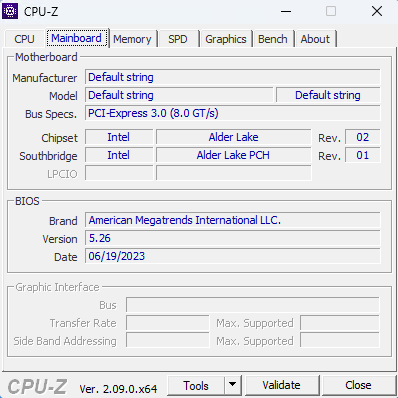
Ce mini PC est propulsé par un processeur Intel Core i5 de 12ème génération lancé au premier trimestre 2022. Le modèle i5-12450H a 8 cœurs et 12 threads, 12 Mo de cache et sa fréquence maximale en mode Turbo est 4,4 GHz. Sachez que NiPoGi a limité la consommation d'énergie du CPU à 35 watts, ce qui affectera légèrement les performances sur du traitement multithread.

Commençons par mesurer les performances du disque SSD NVMe intégré à l'ordinateur.

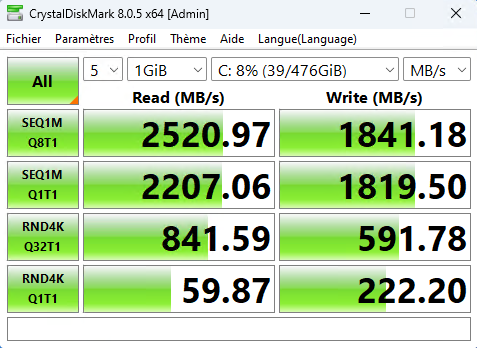
Le SSD NVMe présent dans ce mini PC NiPoGi offre de belles performances : un copier-coller de gros fichiers en local (de disque à disque, sur le même volume), est effectué avec une vitesse moyenne de 834 Mo/s.

Voici un benchmark du disque effectué avec Crystal Disk Mark :

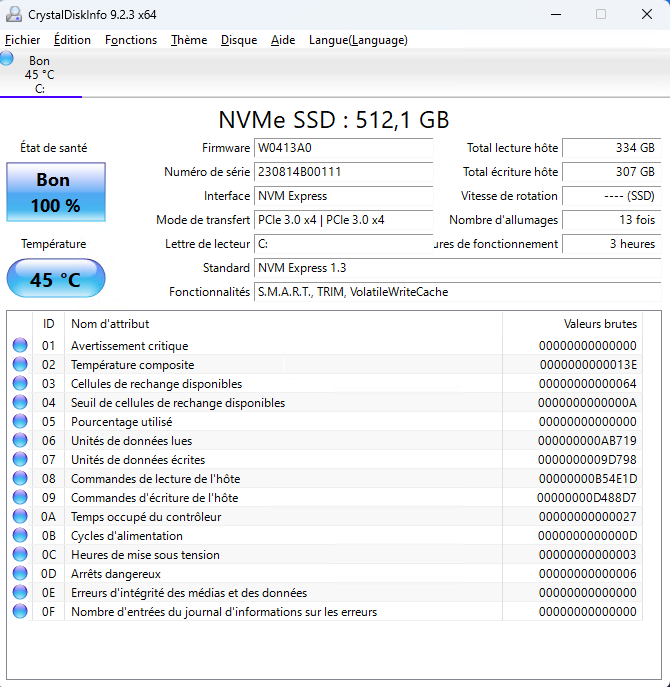
Ainsi qu'un aperçu du disque dans Crystal Disk Info :

J'ai également effectué un benchmark du CPU et du GPU avec Geekbench, vous pouvez y accéder sur ces pages :

Comment réagit le PC lors d'un stress CPU ?

Pendant le stress test du CPU (charge à 100%), la ventilation souffle un peu plus fort, mais cela reste discret. Au ralenti, les ventilateurs sont vraiment très discrets et ne vous gêneront pas du tout.

D'après HWMonitor, lorsque le mini PC est allumé sans être sollicité, la température du CPU est de 40°C. Pendant le stress test du CPU, la température du CPU monte en flèche jusqu'à 91.0°C (au bout de 5 minutes, environ). Ceci n'est pas surprenant, car l'air exfiltré par l'arrière du boitier est bien chaud ! Par contre, ensuite, la température met du temps à redescendre, comme si le système de refroidissement était un peu à la peine.

Que peut-on faire et ne pas faire avec ce modèle ?

Au quotidien, pour de la bureautique et un peu de multimédia, ce PC est parfaitement adapté. Il est très silencieux et supporte très bien la navigation sur Internet avec de nombreux onglets, la lecture de vidéos en 4K (sur YouTube, par exemple), mais également l'utilisation d'applications telles que la suite Microsoft Office. Ceci en fait un compagnon intéressant et abordable si vous recherchez ce type de mini PC.

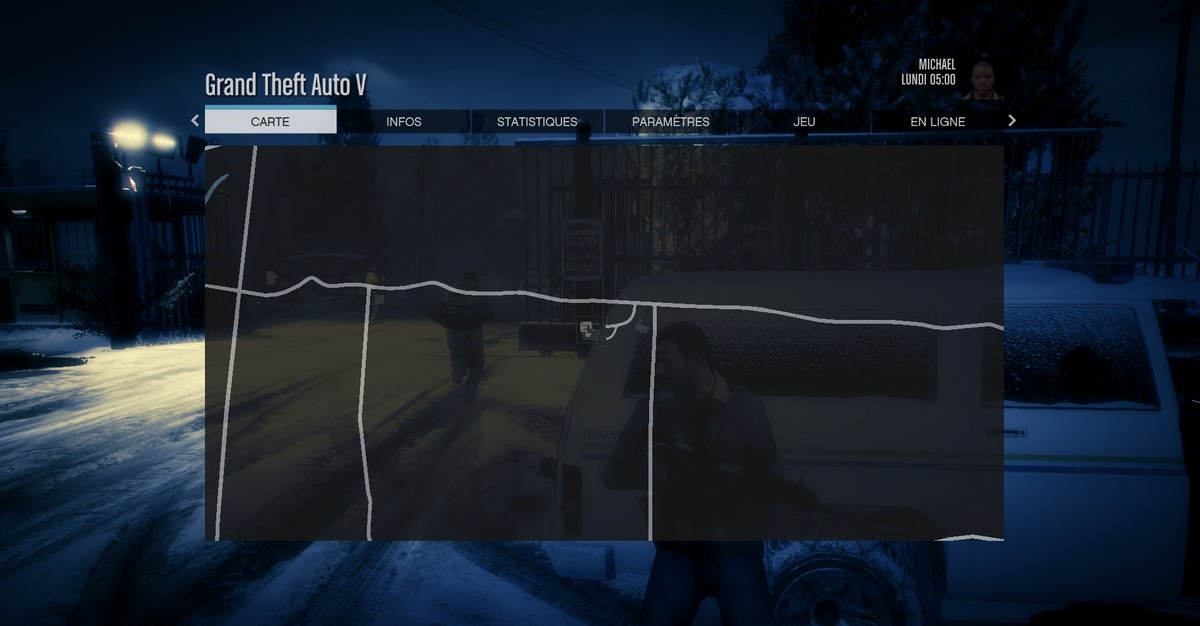
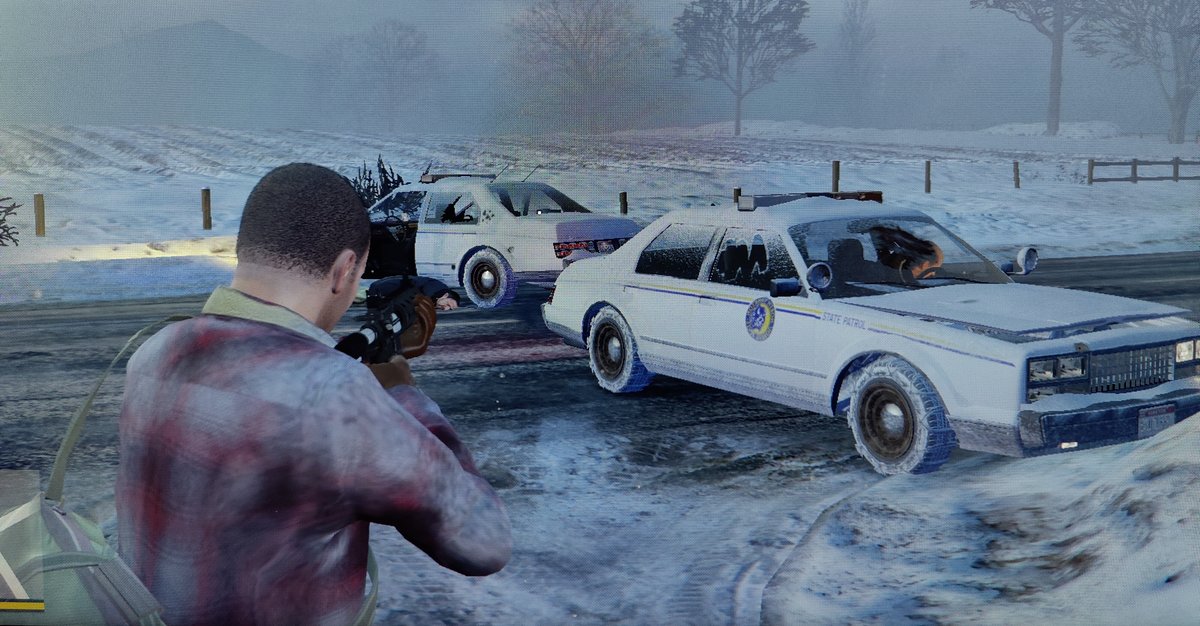
La principale limitation, c'est la puce graphique intégrée : Intel UHD Graphics qui est un iGPU. Autrement dit, ce n'est pas une configuration adaptée au gaming. Vous pouvez envisager de jouer à des jeux peu gourmands, ou, à des jeux disponibles depuis 3 ans, 4 ans, ou plus, en ajustant les paramètres de qualité graphique, mais c'est tout. À titre d'exemple, vous pouvez jouer à GTA V : tous les effets visuels ne peuvent pas être activés, mais en Full HD, le jeu est fluide !

Voici un aperçu (à gauche, une copie d'écran - à droite, une photo de l'écran).

V. Conclusion

C'est l'heure du verdict ! Le mini PC NiPoGi CK10 n'est pas parfait, mais il y a plusieurs points à mettre en avant. Tout d'abord, sa puce Intel Core i5 de 12ème génération qui répond présente et assure un bon niveau de performances, tout comme son disque SSD NVMe qui offre de bonnes performances ! Quant à la RAM, disons que 16 Go, c'est le minimum recommandé pour utiliser un PC confortablement et pour le multitâches. Si cela ne suffit pas, vous pouvez toujours prévoir une mise à niveau de la RAM (comptez plus de 130 euros pour passer sur 64 Go), mais aussi du stockage, car vous pouvez ajouter un disque SATA au format 2.5 pouces et un second disque SSD NVMe.

NiPoGi cherche toujours à apporter un peu d'originalité au design de ses boitiers, et c'est le cas avec le CK10. J'ai apprécié la présence d'une connectique riche, avec notamment de nombreux ports USB dont 3 en façade (2 USB-A + 1 USB-C). Néanmoins, le boitier de ce mini PC est légèrement plus imposant que d'autres modèles (même s'il reste compact : 13,8 x 12,6 x 5 cm) et il y a également l'absence d'un lecteur de carte SD. C'est à préciser, car pour certains usages, cela peut avoir son importance. Par ailleurs, le port VGA présent sur le côté du boitier peut surprendre, mais c'est malgré tout un atout pour ce modèle. Ce petit détail plaira à ceux qui ont besoin d'une machine récente, compacte et équipée du VGA.

Maintenant, il est important de mettre un tarif en face de cette configuration et ce verdict. Découvrez notre offre spéciale ci-dessous.

🎁 Profitez de notre offre spéciale pour acheter ce mini PC au meilleur prix :

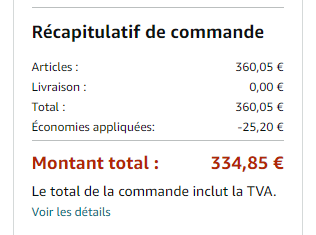
Grâce au code "6Q5HMH9M", vous pouvez bénéficier de 7% de réduction sur ce mini-PC ! Ce code est valide jusqu'au 12 juin 2024, à 23:59 (heure française).

Le tarif passe de 360,05 € à 334,85 € soit une réduction de 25,20 €.

Vous devez saisir ce code dans votre panier, sur Amazon.fr. Voici le lien qui mène à l'offre :

N'hésitez pas à commenter cet article si vous avez des questions.

* Le lien ci-dessus intègre notre identifiant d'affiliation Amazon.

The post Test NiPoGi CK10 – Un mini PC avec Intel Core i5-12450H, 16 Go de RAM et un SSD NVMe first appeared on IT-Connect.

Windows Photos adds new Microsoft Designer integration

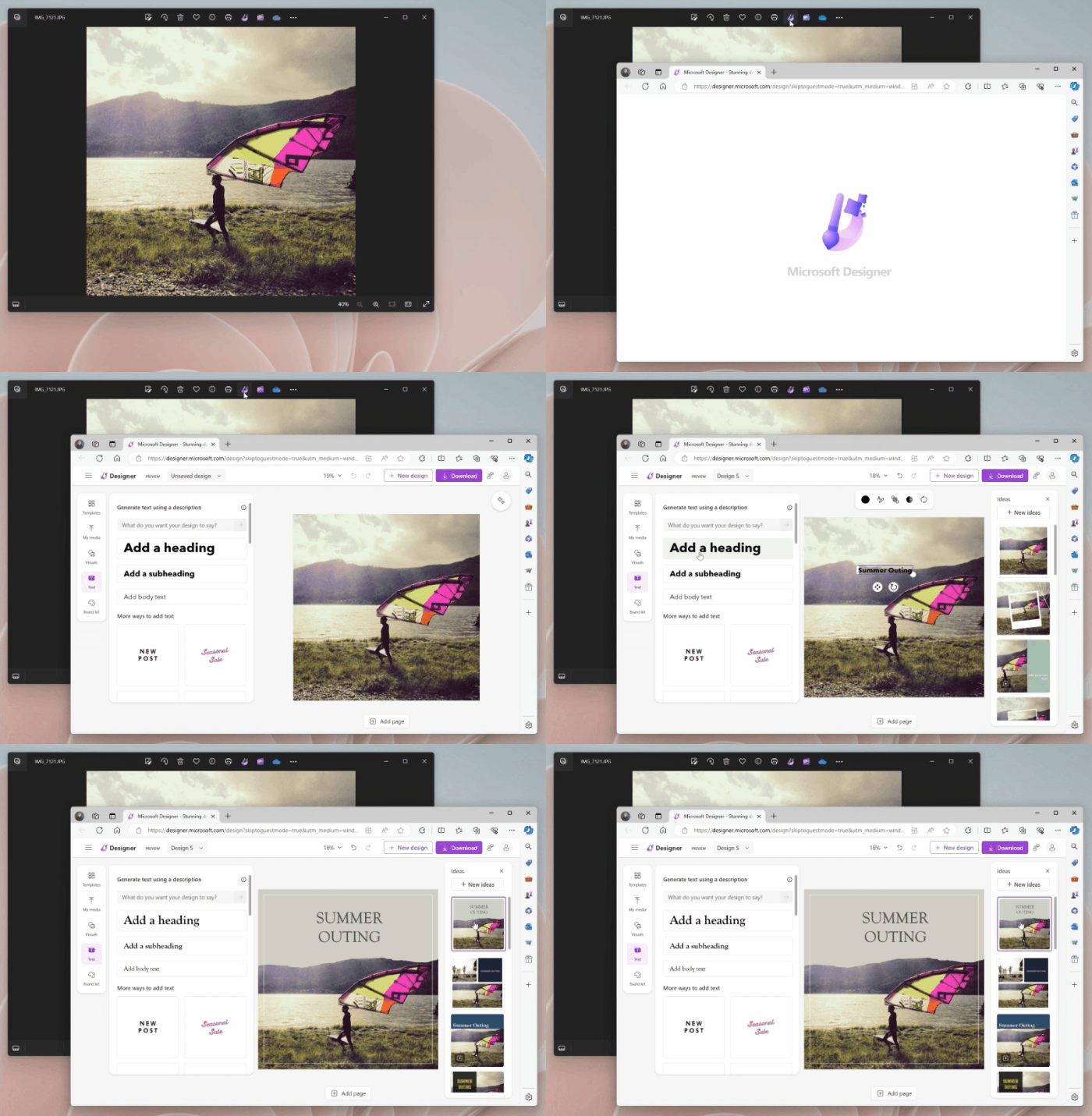
Hello Windows Insiders, Today we are introducing the ability to send an image from the Photos app to Microsoft Designer, a cloud based graphic design app that helps you create professional quality social media posts, invitations, digital postcards, graphics, and new visuals with the power of generative AI. This update is available on Windows 11 to start, and is currently limited to users within the US, UK, Australia, Ireland, India, and New Zealand. We are starting to roll this out to Insiders in the Canary and Dev channels.

Photos app integration with Designer

We're adding a new way to unlock the creative potential of your images through Designer. Simply click the Designer button in the title bar when viewing a single image in the Photos app, and your image will open Designer in the default web browser. [caption id="attachment_177003" align="alignnone" width="700"]Send an image from Photos to Designer. Send an image from Photos to Designer.[/caption] Once in Designer, you can apply templates, add visuals, and use AI tools to help you personalize your photo further. For example, try using AI to generate a new custom background for your photo using these simple steps:
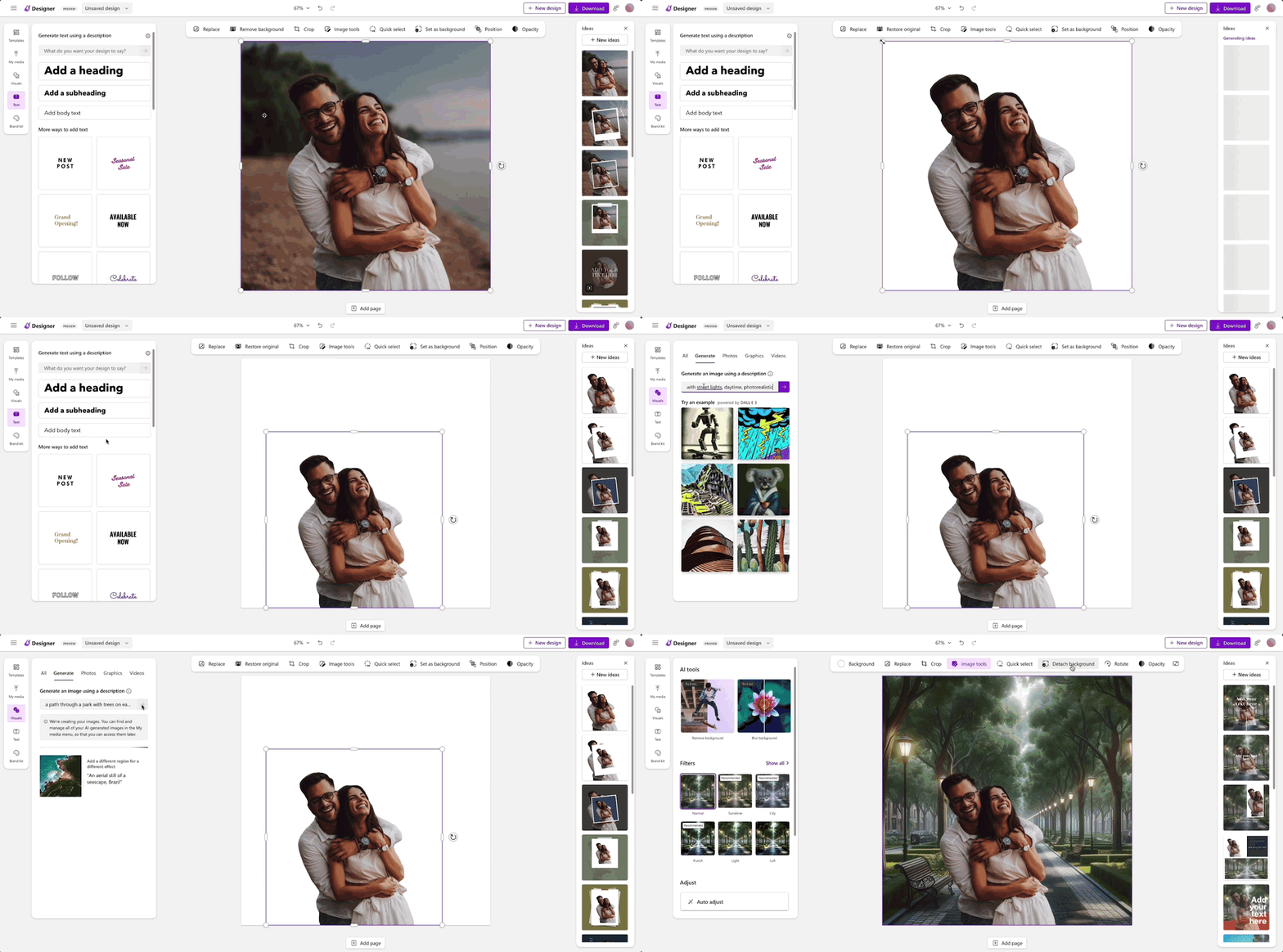
  • With your photo selected, click on “Remove background” in the toolbar.
  • Click Visuals in the left pane and select Generate to create a custom image background from a prompt.
  • Click on the desired generated image to insert it on the canvas.
  • From the toolbar, select Set as background to place the generated image behind your photo.
[caption id="attachment_177004" align="alignnone" width="1066"]Designer editing experience showing swapping the background. Designer editing experience showing swapping the background.[/caption] To get the latest Photos experience, update your app to version number 2024.11040.16001.0 or higher. Sign in with a free personal Microsoft account to try Designer’s generative AI features currently in preview, as well as share your creations. We appreciate your comments and suggestions, so please share your feedback with us! FEEDBACK: Please file feedback in Feedback Hub (WIN + F) under Apps > Photos. Thanks, Mala Srivatsa, Senior Product Manager – Windows Photos

Releasing Windows 10 Build 19045.4353 to Release Preview Channel

Hello Windows Insiders, today we are releasing Windows 10 22H2 Build 19045.4353 (KB5036979) to the Release Preview Channel for those Insiders who are on Windows 10, version 22H2. This update includes the following features and improvements:
  • New! This update starts the rolls out of account-related notifications for Microsoft accounts in Settings > Home. A Microsoft account connects Windows to your Microsoft apps. The account also backs up all your data and helps you to manage your subscriptions. You can also add extra security steps to keep you from being locked out of your account. This feature displays notifications across the Start menu and Settings. You can manage your Settings notifications in Settings > Privacy & security > General.
  • This update addresses an issue that affects app licensing. Because of this, Copilot in Windows (in preview) does not work as you expect.
  • This update addresses an issue that occurs when your device resumes from Modern Standby. You might get the stop error, “0x9f DRIVER_POWER_STATE_FAILURE.”
  • This update addresses a race condition that might stop a machine from starting up. This occurs when you set up a bootloader to start up multiple OSes.
  • This update affects media allocations. It improves their memory granularity for some hardware setups. This lowers overcommitment. Also, performance is more efficient.
  • This update addresses an issue that affects an accelerator backing store management path. A memory leak occurs that affects some devices.
  • This update makes Country and Operator Settings Asset (COSA) profiles up to date for some mobile operators.
  • This update addresses an issue that affects the container networking Address Resolution Protocol (ARP). It returns the wrong Virtual Subnet ID (VSID) for external ports.
  • This update affects hypervisor-protected code integrity (HVCI). It accepts drivers that are now compatible.
  • This update includes quarterly changes to the Windows Kernel Vulnerable Driver Blocklist file, DriverSiPolicy.p7b. It adds to the list of drivers that are at risk for Bring Your Own Vulnerable Driver (BYOVD) attacks.
  • This update addresses an issue that affects Protected Process Light (PPL) protections. You can bypass them.
  • This update addresses an issue that affects some wireless earbuds. Bluetooth connections are not stable. This occurs on devices that have firmware from April 2023 and later.
  • This update addresses an issue that affects the Distributed Transaction Coordinator (DTC). A memory leak occurs when it retrieves mappings.
  • This update addresses an issue that affects Windows Local Administrator Password Solution (LAPS). Its Post Authentication Actions (PAA) do not occur at the end of the grace period. Instead, they occur at restart.
  • This update makes some changes to Windows Search. It is now more reliable, and it is easier to find an app after you install it. This update also gives you a personalized app search experience.
Thanks, The Windows Insider Program Team

Announcing Windows 11 Insider Preview Build 22635.3495 (Beta Channel)

Hello Windows Insiders, today we are releasing Windows 11 Insider Preview Build 22635.3495 (KB5037000) to the Beta Channel. REMINDER: All Windows Insiders in the Beta Channel will now be on the same build (Build 22635.xxxx) via an enablement package. For Windows Insiders in the Beta Channel who want to be the first to get features gradually rolled out to you, you can turn ON the toggle (shown in the image below) to get the latest updates as they are available via Settings > Windows Update. Over time, we will increase the rollouts of features to everyone with the toggle turned on. Should you keep this toggle off, new features will gradually be rolled out to your device over time once they are ready. [caption id="attachment_176587" align="alignnone" width="681"]Turn on the toggle to get the latest updates as they are available to get new features rolled out to you. Turn on the toggle to get the latest updates as they are available to get new features rolled out to you.[/caption] Going forward, we will document changes in Beta Channel builds in two buckets: new features, improvements, and fixes that are being gradually rolled out for Insiders who have turned on the toggle to get the latest updates as they are available and then new features, improvements, and fixes available to everyone in the Beta Channel.

Changes and Improvements gradually being rolled out to the Beta Channel with toggle on*

[Start menu]

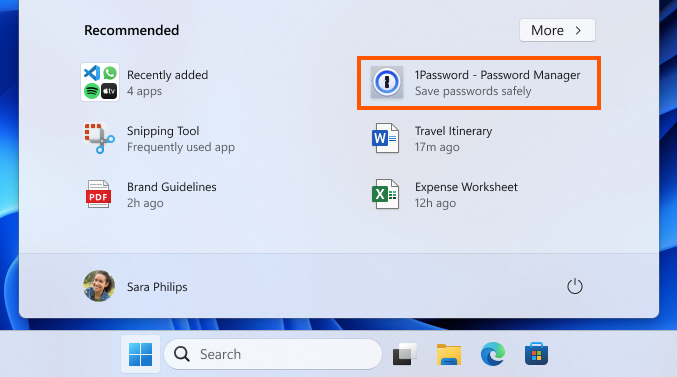
  • Building on top of recent improvements like grouping recently installed apps and showing your frequently used apps, we are now trying out recommendations to help you discover great apps from the Microsoft Store under Recommended on the Start menu. This will appear only for Windows Insiders in the Beta Channel in the U.S. and will not apply to commercial devices (devices managed by organizations). This can be turned off by going to Settings > Personalization > Start and turning off the toggle for “Show recommendations for tips, app promotions, and more”. As a reminder, we regularly try out new experiences and concepts that may never get released with Windows Insiders to get feedback. Should you see this experience on the Start menu, let us know what you think. We are beginning to roll this out to a small set of Insiders in the Beta Channel at first.
[caption id="attachment_176994" align="alignnone" width="523"]Example of a recommended app on the Start menu highlighted in a red box. Example of a recommended app on the Start menu highlighted in a red box.[/caption]

[Desktop Spotlight]

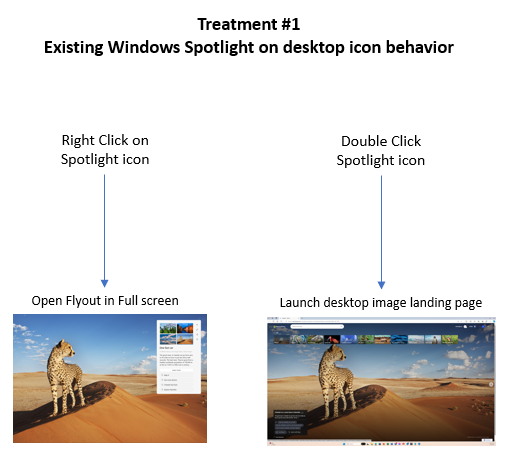
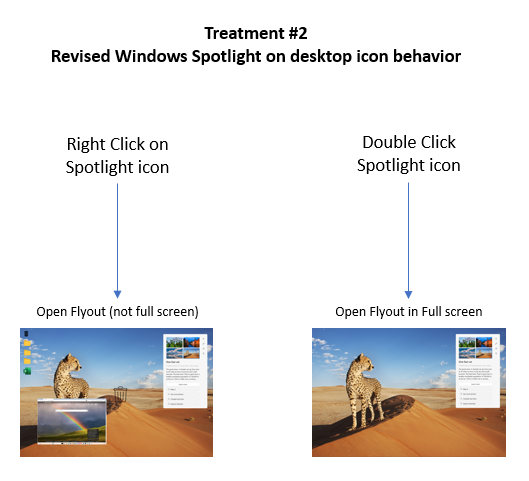
  • We are beginning to try out some adjustments for Windows Spotlight experience on the desktop to make it easier for Spotlight users to engage with this feature to change images, like or not like an image etc. In addition, these changes will make the Spotlight icon behave like other desktop icons. There will be several different treatments these adjustments that Insiders will notice.
[caption id="attachment_176995" align="alignnone" width="515"]With Treatment 1, if a user right-clicks on the Windows Spotlight icon it will launch Spotlight experience in full screen mode, while double clicking will open the landing page for the image on desktop. With Treatment 1, if a user right-clicks on the Windows Spotlight icon it will launch Spotlight experience in full screen mode, while double clicking will open the landing page for the image on desktop.[/caption] [caption id="attachment_176996" align="alignnone" width="529"]With Treatment 2, if a user right-clicks on the Windows Spotlight icon it will launch the Spotlight experience without any change to the desktop set up, while double clicking launches the Spotlight experience in full screen mode. With Treatment 2, if a user right-clicks on the Windows Spotlight icon it will launch the Spotlight experience without any change to the desktop set up, while double clicking launches the Spotlight experience in full screen mode.[/caption]

[Settings]

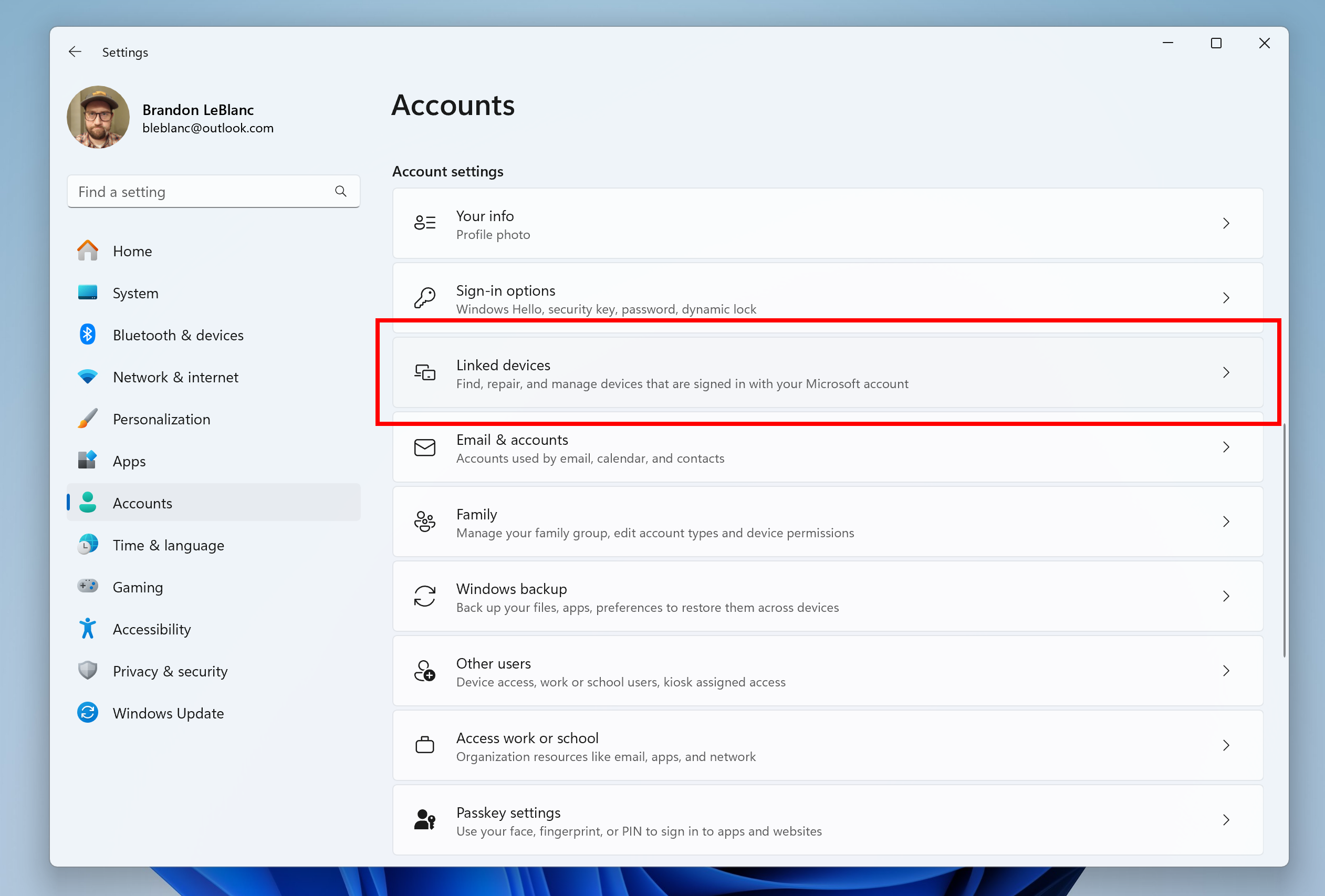
  • We are introducing a new Linked devices page under Settings > Accounts that allows you to manage PCs and Xbox consoles that you are signed in to with your Microsoft account. This settings page will only show on the Home and Pro editions of Windows 11 and if you’re signed into Windows with your Microsoft account.
[caption id="attachment_176997" align="alignnone" width="597"]New linked devices page under Accounts settings highlighted in a red box. New linked devices page under Accounts settings highlighted in a red box.[/caption]

Changes and Improvements gradually being rolled out to everyone in the Beta Channel

[Copilot in Windows*]

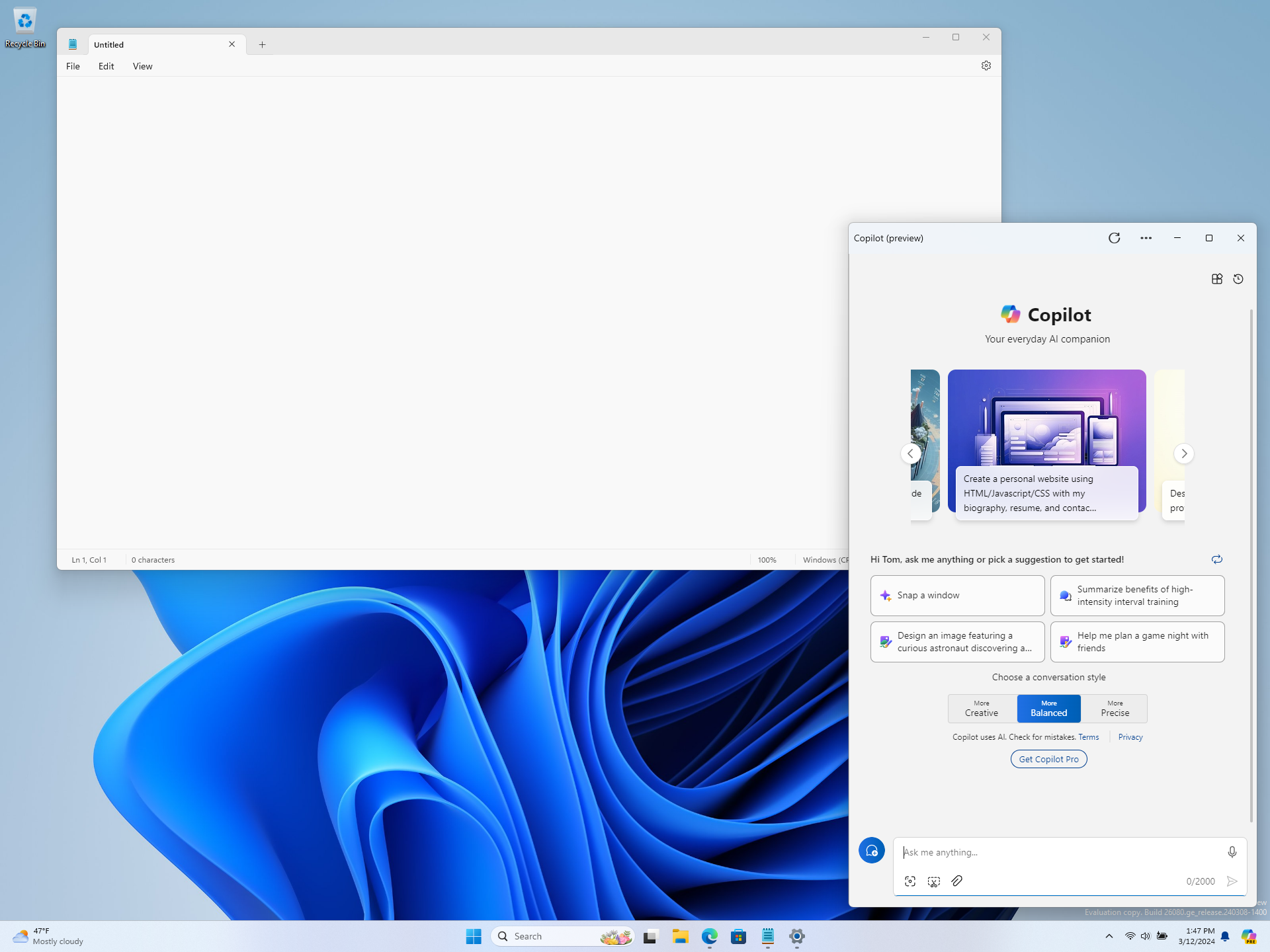
  • We are beginning to roll out an updated Copilot in Windows experience that adds the ability to switch between the existing “docked” behavior that attaches Copilot to the side of your desktop, and a new mode where it acts like a normal application window which you can resize and move around your screen. As part of this change, we’re also introducing some under-the-hood improvements as well. This experience is beginning to roll out to Windows Insiders in BOTH the Dev and Beta Channels. As always, please report any issues you experience to us via Feedback Hub.
[caption id="attachment_176935" align="alignnone" width="703"]Copilot in Windows undocked and shown next to Notepad like a normal application window. Copilot in Windows undocked and shown next to Notepad like a normal application window.[/caption]

Known issues

[General]

  • We are investigating an issue where Internet Information Services (IIS) and Windows Communication Foundation (WCF) may not work after installing this update.

[Copilot in Windows*]

Windows Insiders in the Beta Channel who have the updated Copilot in Windows experience that introduces the ability for Copilot to act like a normal application window may see the following known issues:
  • [NEW] Voice access does not work reliably with the updated Copilot in Windows experience that introduces the ability for Copilot to act like a normal application.
  • [NEW] Using Windows Ink to write in Copilot will not work with the updated Copilot in Windows experience.

[Widgets]

Windows Insiders in the Beta Channel who have the new position for the Widgets entry-point on left-aligned taskbars may see the following known issues:
  • Swipe invocation for Widgets may not work if taskbar is center-aligned instead of left-aligned.
  • Unpinning Widgets from the taskbar may not work if taskbar is center-aligned instead of left-aligned.
  • The Widgets board is incorrectly positioned when Copilot is in side-by-side mode.
  • Turning on/off Widgets in taskbar settings may refresh the taskbar.

About the Beta Channel

The Beta Channel is the place we preview experiences that are closer to what we will ship to our general customers. Because the Dev and Beta Channels represent parallel development paths from our engineers, there may be cases where features and experiences show up in the Beta Channel first. However, this does not mean every feature we try out in the Beta Channel will ship. We encourage Insiders to read this blog post that outlines the ways we’ll try things out with Insiders in both the Dev and Beta Channels. *Getting new features: For Windows Insiders in the Beta Channel who want to be the first to get features gradually rolled out to you, you can turn ON the toggle to get the latest updates as they are available via Settings > Windows Update. Over time, we will increase the rollouts of features to everyone with the toggle turned on. Should you keep this toggle off, new features will gradually be rolled out to your device over time once they are ready. **Availability of Copilot in Windows: Copilot in Windows in preview is being rolled out gradually to Windows Insiders in select global markets. The initial markets for the Copilot in Windows preview include North America, United Kingdom and parts of Asia and South America. It is our intention to add additional markets over time.
Important Insider Links

Thanks, Amanda & Brandon

Releasing Windows 11 Builds 22621.3520 and 22631.3520 to the Release Preview Channel

Hello Windows Insiders, today we’re releasing Windows 11 Builds 22621.3520 and 22631.3520 (KB5036980) to Insiders in the Release Preview Channel on Windows 11, version 22H2 (Build 22621) and version 23H2 (Build 22631).   This update includes the following features and improvements:
  • [ADDED 4/15] New! This update affects Widgets on the lock screen. They are more reliable and have improved quality. This update also supports more visuals and a more customized experience for you.
  • [ADDED] New! This update improves the Widgets icons on the taskbar. They are no longer pixelated or fuzzy. This update also starts the rollout of a larger set of animated icons. This change is not yet rolling out. 
  • This update adds a new mobile device management (MDM) policy called “AllowScreenRecorder.” It affects the Snipping Tool. IT admins can use this policy to turn off screen recording in the app.
  • This update adds support for Arm64 .msi files using a Group Policy Object (GPO). You can now use the Group Policy Management Console (GPMC) to add Arm64 .msi files. You can also use a GPO to install these files on Arm64 machines. 
  • This update addresses an issue that affects the netstat -c command. It fails to perform effective port exhaustion troubleshooting.
  • This update addresses an issue that affects a low latency network. The speed of data on the network degrades significantly. This occurs when you turn on timestamps for a Transmission Control Protocol (TCP) connection.
  • This update addresses a race condition that might stop a machine from starting up. This occurs when you set up a bootloader to start up multiple OSes.
  • This update addresses an issue that affects an accelerator backing store management path. A memory leak occurs that affects some devices.
  • This update affects media allocations. It improves their memory granularity for some hardware setups. This lowers overcommitment. Also, performance is more efficient.
  • This update affects Windows Subsystem for Linux 2 (WSL2). Intermittent name resolution fails in a split DNS setup.
  • This update affects the touch keyboard. It makes the Japanese 106 keyboard layout appear as expected when you sign in.
  • This update addresses an issue that affects universal printers. The system creates duplicate print queues for them.
  • This update makes Country and Operator Settings Asset (COSA) profiles up to date for some mobile operators.
  • This update addresses an issue that affects the container networking Address Resolution Protocol (ARP). It returns the wrong Virtual Subnet ID (VSID) for external ports.
  • This update addresses a memory allocation issue in the Host Networking Service (HNS). The issue causes high memory consumption. It also affects service and pod deployment and scaling.
  • This update addresses an issue that occurs when you elevate from a normal user to an Administrator to run an application. When you use a PIN to sign in, the app will not run.
  • This update affects hypervisor-protected code integrity (HVCI). It accepts drivers that are now compatible.
  • This update includes quarterly changes to the Windows Kernel Vulnerable Driver Blocklist file, DriverSiPolicy.p7b. It adds to the list of drivers that are at risk for Bring Your Own Vulnerable Driver (BYOVD) attacks.
  • This update addresses an issue that affects Protected Process Light (PPL) protections. You can bypass them.
  • This update addresses an issue that affects Bluetooth Advanced Audio Distribution Profile (A2DP) hardware offload. A stop error occurs on PCs that support it.
  • This update addresses an issue that affects Settings. It stops responding when you dismiss a flyout menu.
  • This update addresses an issue that affects the Distributed Transaction Coordinator (DTC). A memory leak occurs when it retrieves mappings.
  • This update addresses an issue that affects Windows Local Administrator Password Solution (LAPS). Its Post Authentication Actions (PAA) do not occur at the end of the grace period. Instead, they occur at restart.
  • This update addresses an issue that affects the Resilient File System (ReFS). A high load might make the system unresponsive. Also, signing in might be slow.
Thanks, Windows Insider Program Team

Announcing Windows 11 Insider Preview Build 22635.3430 (Beta Channel)

Hello Windows Insiders, today we are releasing Windows 11 Insider Preview Build 22635.3430 (KB5036992) to the Beta Channel. REMINDER: All Windows Insiders in the Beta Channel will now be on the same build (Build 22635.xxxx) via an enablement package. For Windows Insiders in the Beta Channel who want to be the first to get features gradually rolled out to you, you can turn ON the toggle (shown in the image below) to get the latest updates as they are available via Settings > Windows Update. Over time, we will increase the rollouts of features to everyone with the toggle turned on. Should you keep this toggle off, new features will gradually be rolled out to your device over time once they are ready. [caption id="attachment_176587" align="alignnone" width="722"]Turn on the toggle to get the latest updates as they are available to get new features rolled out to you. Turn on the toggle to get the latest updates as they are available to get new features rolled out to you.[/caption] Going forward, we will document changes in Beta Channel builds in two buckets: new features, improvements, and fixes that are being gradually rolled out for Insiders who have turned on the toggle to get the latest updates as they are available and then new features, improvements, and fixes available to everyone in the Beta Channel.

Changes and Improvements gradually being rolled out to the Beta Channel with toggle on*

[Copilot in Windows*]

  • Starting with Build 22635.3286, we began rolling out a new experience for Copilot in Windows that helps showcase the ways that Copilot can accelerate and enhance your work. We’re making an improvement to this experience. Now when you copy both text or image files, the Copilot icon will change appearance and animate to indicate that Copilot can help. When you hover your mouse over the Copilot icon, it will provide a menu of actions that you can take, such as creating a similar image or analyzing an image. If you select an action on the menu, it will launch Copilot with the action ready-to-go.
[caption id="attachment_176986" align="alignnone" width="370"]Copilot actions you can take when you mouse over the Copilot icon on the taskbar after copying an image. Copilot actions you can take when you mouse over the Copilot icon on the taskbar after copying an image.[/caption]

[Windows Share]

  • We are beginning to roll out again the ability to share directly to specific Microsoft Teams Channels and group chats directly within the Windows share window if you’re signed in with a Microsoft Entra ID. This originally rolled out with Build 22635.2776 but was temporarily disabled to fix some issues.

Known issues

[General]

  • We are investigating an issue where Internet Information Services (IIS) and Windows Communication Foundation (WCF) may not work after installing this update.

[Widgets]

Windows Insiders in the Beta Channel who have the new position for the Widgets entry-point on left-aligned taskbars may see the following known issues:
  • Swipe invocation for Widgets may not work if taskbar is center-aligned instead of left-aligned.
  • Unpinning Widgets from the taskbar may not work if taskbar is center-aligned instead of left-aligned.
  • The Widgets board is incorrectly positioned when Copilot is in side-by-side mode.
  • Turning on/off Widgets in taskbar settings may refresh the taskbar.

About the Beta Channel

The Beta Channel is the place we preview experiences that are closer to what we will ship to our general customers. Because the Dev and Beta Channels represent parallel development paths from our engineers, there may be cases where features and experiences show up in the Beta Channel first. However, this does not mean every feature we try out in the Beta Channel will ship. We encourage Insiders to read this blog post that outlines the ways we’ll try things out with Insiders in both the Dev and Beta Channels. *Getting new features: For Windows Insiders in the Beta Channel who want to be the first to get features gradually rolled out to you, you can turn ON the toggle to get the latest updates as they are available via Settings > Windows Update. Over time, we will increase the rollouts of features to everyone with the toggle turned on. Should you keep this toggle off, new features will gradually be rolled out to your device over time once they are ready. **Availability of Copilot in Windows: Copilot in Windows in preview is being rolled out gradually to Windows Insiders in select global markets. The initial markets for the Copilot in Windows preview include North America, United Kingdom and parts of Asia and South America. It is our intention to add additional markets over time.
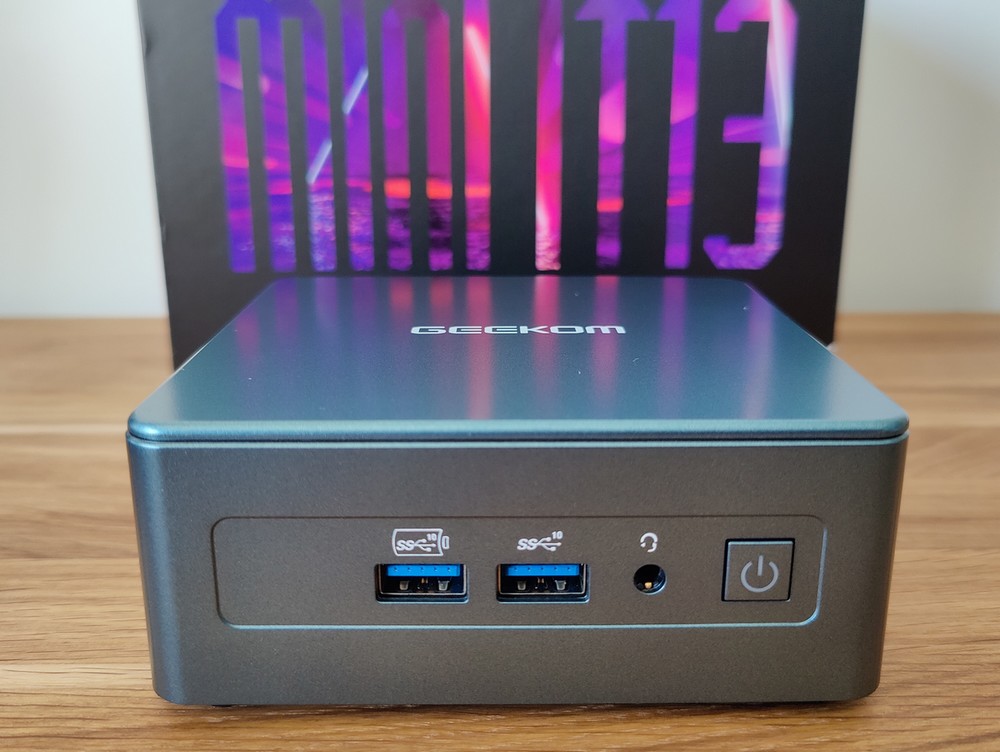
Important Insider Links

Thanks, Amanda & Brandon

Announcing Windows 11 Insider Preview Build 26100 (Canary and Dev Channels)

UPDATE 4/26: We are starting to roll out Cumulative Update Build 26100.268 (KB5036908) to Windows Insiders in the Dev Channel. This update is designed to test our servicing pipeline and is the same as the April 2024 security update released earlier this month for Windows 11, version 23H2.
Hello Windows Insiders, today we are releasing Windows 11 Insider Preview Build 26100 to the Canary and Dev Channels. The Canary and Dev Channels receiving the same builds is only temporaryDuring the times in which the Canary and Dev Channels are on the same builds (e.g. Build 26100), the window is open for Insiders in the Canary Channel to switch to the Dev Channel. In the near future, the Canary Channel will jump to higher build numbers and the window will be closed so make your choice on which channel to be in soon! NOTE: Some features may begin rolling out to the Canary Channel first before the Dev Channel even if the two channels have the same build.

What’s new in Build 26100

Changes and Improvements

[General]

  • [REMINDER] The build watermark at the lower right-hand corner of the desktop is not present in this build and will return in future Insider Preview builds. This is part of our normal process preparing Windows 11, version 24H2 for releasing to customers later this year – but does not mean we’re done. Windows 11, version 24H2, will be this year’s annual feature update. As mentioned here, Windows 11 will have an annual feature update cadence that releases in the second half of the calendar year.

Fixes for known issues

[General]

  • Made another fix to address the issue causing shutdown and hibernate to not work in the latest builds.
  • Fixed an issue resulting in some Insiders seeing error 0x80240067 when trying to download app updates from Microsoft Store or Windows updates in Settings in the latest builds.

[Copilot in Windows*]

[Windowing]

  • Fixed a DWM crash impacting some Insiders in the latest flights (this could result in you seeing your screen flash black).

Known issues

[General]

  • [IMPORTANT NOTE] We are investigating reports that some Windows Insiders in the Canary and Dev Channels are stuck on Build 26040 or Build 23620. The investigation is ongoing, however if you are impacted by this and really want to get onto the latest build in the Canary or Dev Channel today – you can download the latest ISO here and do a clean install and opt your device back into flighting in the Canary or Dev Channels.

[Copilot in Windows*]

  • [ADDED 4/12] We are aware of reports by Insiders in the Canary and Dev Channels that Copilot is auto-launching unexpectedly after restarting their PCs. We hope to have a fix for this issue soon and is unrelated to the auto-launching experience we tried out with Insiders in the Canary and Dev Channels in early February which we stopped rolling out in March.
  • Voice access does not work reliably with the updated Copilot in Windows experience that introduces the ability for Copilot to act like a normal application.
  • Using Windows Ink to write in Copilot will not work with the updated Copilot in Windows experience that introduces the ability for Copilot to act like a normal application window.
  • When Copilot in Windows is docked and resized to a large width, Copilot does not always fill the width of the panel. Resizing Copilot usually fixes this issue.

For developers

You can download the latest Windows Insider SDK at aka.ms/windowsinsidersdk. SDK NuGet packages are now also flighting at NuGet Gallery | WindowsSDK which include: These NuGet packages provide more granular access to the SDK and better integration in CI/CD pipelines. SDK flights are now published for both the Canary and Dev Channels, so be sure to choose the right version for your Insider Channel. Remember to use adaptive code when targeting new APIs to make sure your app runs on all customer machines, particularly when building against the Dev Channel SDK. Feature detection is recommended over OS version checks, as OS version checks are unreliable and will not work as expected in all cases.

Reminders for Windows Insiders

  • The Canary and Dev Channels receive builds with features and experiences that may never get released as we try out different concepts and get feedback. Features may change over time, be removed, or replaced and never get released beyond Windows Insiders. Some of these features and experiences could show up in future Windows releases when they’re ready.
  • Many features in the Canary and Dev Channel are rolled out using Control Feature Rollout technology, starting with a subset of Insiders and ramping up over time as we monitor feedback to see how they land before pushing them out to everyone in these channels.
  • As the Canary and Dev Channels receive the same builds, some features may begin rolling out to the Canary Channel first before the Dev Channel.
  • While the Canary Channel is now on Windows 11, version 24H2, this is just temporary. At some point in the future, the Canary Channel will jump ahead to receiving new builds not matched to any specific release in a higher build series.
  • To get off the Canary or Dev Channel, a clean install of Windows 11 will be required. As a reminder - Insiders can’t switch to a channel that is receiving builds with lower build numbers without doing a clean installation of Windows 11 due to technical setup requirements.
  • The desktop watermark shown at the lower right corner of the desktop is normal for these pre-release builds.
  • Check out Flight Hub for a complete look at what build is in which Insider channel.
  • Copilot in Windows* in preview is being rolled out gradually to Windows Insiders in select global markets. The initial markets for the Copilot in Windows preview include North America, United Kingdom and parts of Asia and South America. It is our intention to add additional markets over time.
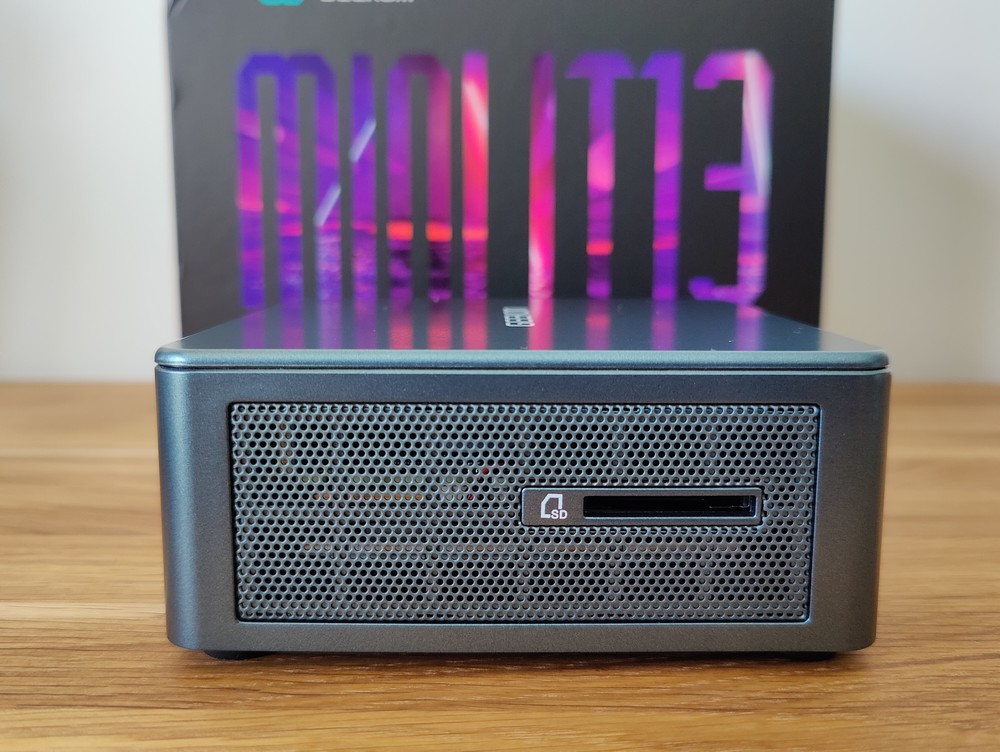
Thanks, Amanda & Brandon

Windows Photos begins previewing a Windows App SDK version to Windows Insiders

UPDATE 5/6: The preview version of the Photos app built with the Windows App SDK (WASDK) is now rolling out to Insiders across all channels.
We are beginning to roll out a preview version of the Photos app built with the Windows App SDK (WASDK) to Windows Insiders in the Canary and Dev Channels on Windows 11. This change moves Photos to the latest Windows app development platform, with modern UI and other quality and performance improvements. All the current Photos app features and functionality is still present in this version. However, given the extensive changes, this version may be a little rough around the edges as we continue to polish the experience. To get this experience, Windows Insiders on Windows 11 in the Canary and Dev channels can update the Photos app to version number 2024.11040.1002.0. We appreciate your comments and suggestions, so please share your feedback with us! FEEDBACK: Please file feedback in Feedback Hub (WIN + F) under Apps > Photos. To learn more about Windows App SDK, please visit: Build desktop Windows apps with the Windows App SDK - Windows apps | Microsoft Learn. Thanks, Mala Srivatsa, Senior Product Manager – Windows Photos

Announcing Windows 11 Insider Preview Build 22635.3420 (Beta Channel)

Hello Windows Insiders, today we are releasing Windows 11 Insider Preview Build 22635.3420 (KB5035953) to the Beta Channel. REMINDER: All Windows Insiders in the Beta Channel will now be on the same build (Build 22635.xxxx) via an enablement package. For Windows Insiders in the Beta Channel who want to be the first to get features gradually rolled out to you, you can turn ON the toggle (shown in the image below) to get the latest updates as they are available via Settings > Windows Update. Over time, we will increase the rollouts of features to everyone with the toggle turned on. Should you keep this toggle off, new features will gradually be rolled out to your device over time once they are ready. [caption id="attachment_176587" align="alignnone" width="730"]Turn on the toggle to get the latest updates as they are available to get new features rolled out to you. Turn on the toggle to get the latest updates as they are available to get new features rolled out to you.[/caption] Going forward, we will document changes in Beta Channel builds in two buckets: new features, improvements, and fixes that are being gradually rolled out for Insiders who have turned on the toggle to get the latest updates as they are available and then new features, improvements, and fixes available to everyone in the Beta Channel.

New features gradually being rolled out to the Beta Channel with toggle on*

New position for the Widgets entry-point on left-aligned taskbars 

We’re beginning to roll out a new position for the Widgets entry-point on left-aligned taskbars. The taskbar entry-point will move to the left of the systems tray and will be wider so you can see richer content from Widgets on your taskbar. When you launch the Widgets board, it will fly out from the right side instead of the left side. [caption id="attachment_176973" align="alignnone" width="477"]The Widgets entry-point at its new position to the left of system tray on a left-aligned taskbar. The Widgets entry-point at its new position to the left of system tray on a left-aligned taskbar.[/caption] FEEDBACK: Please file feedback in Feedback Hub (WIN + F) under Desktop Environment > Widgets.

Changes and Improvements gradually being rolled out to the Beta Channel with toggle on*

[File Explorer] 

  • In response to feedback from Windows Insiders, drag-and-drop files with your mouse functionality between breadcrumbs is now available in the File Explorer Address Bar. We are beginning to roll this out today, so not all Insiders in the Beta Channel will see it right away.

[Windows Share]

  • Users will be able to now generate QR codes for URLs and cloud file links through the Windows share window to seamlessly share webpages and files across their devices. To try this out in Microsoft Edge, just click the share button in the Edge toolbar and choose “Windows share options”.
[caption id="attachment_176975" align="alignnone" width="587"]Option to generate a QR code to share a URL through the Windows share window. Option to generate a QR code to share a URL through the Windows share window.[/caption]
  • To prevent accidentally closing the Windows share window, clicking outside the Windows share window will no longer close it. To close the Windows share window, just press the close button at the top right corner.

[Windows Backup]

  • If you have both Personalization and Other Windows settings toggled on under Settings > Accounts > Windows backup, many of your sound settings (including chosen sound scheme) will be backed up which can be restored via the Windows Backup app.
  • We’re beginning to roll out the ability to sign-in with your Microsoft account (MSA) directly within the Windows Backup app to save backups to your account.

Fixes gradually being rolled out to the Beta Channel with toggle on*

[File Explorer]

  • Fixed an issue causing File Explorer to crash on launch for a small number of Insiders in the previous flight.

[Multiple Desktops]

  • Fixed an issue where the option to set a different wallpaper on each desktop wasn’t working.

[Search]

  • Fixed an issue which could potentially result in no app results showing in search anymore.

[Task Manager]

  • Fixed an issue where Task Manager was holding onto process handles sometimes, leading to processes not stopping when you closed apps if you’d had Task Manager open.

Changes and Improvements gradually being rolled out to everyone in the Beta Channel

[Copilot in Windows*]

  • You can ask Copilot in Windows (in preview) for help ten times when you sign in to Windows using a local account. After that, you must sign in using a Microsoft account (MSA) or a Microsoft Entra ID account (formerly Azure Active Directory (Azure AD)). To sign in, use the link in the dialog that appears in Copilot in Windows. If you do not sign in, some Copilot features might not work. To learn more, see Welcome to Copilot in Windows and Manage Copilot in Windows.

[Lock screen]

  • This update adds Weather and more to your lock screen. Stay informed and efficient with dynamic updates that bring finance, traffic, and sports to your Lock screen, alongside weather. The card design has been improved with acrylic blur, card size, spacing, and font optimizations.To turn on this feature, go to Settings > Personalization > Lock screen. To learn more, see Personalize your lock screen. Note this feature might not be available to all users because it will roll out gradually.
[caption id="attachment_176976" align="alignnone" width="805"]Finance, traffic, and sports content along with weather on the Lock screen. Finance, traffic, and sports content along with weather on the Lock screen.[/caption]

Fixes for everyone in the Beta Channel

  • New! This update affects Windows Hello for Business. IT admins can now use mobile device management (MDM) to turn off the prompt that appears when users sign in to an Entra-joined machine. To do this, they can turn on the “DisablePostLogonProvisioning” policy setting. After a user signs in, provisioning is off for Windows 10 and Windows 11 devices.
  • New! This update improves the Remote Desktop Session Host. You can now set up its “clipboard redirection” policy to work in a single direction from the local computer to the remote computer. You can also reverse that order.
  • This update addresses an issue that affects the Combine taskbar buttons and hide labels The app labels in the taskbar sometimes do not have the correct length, which cuts off the label text. This occurs when this setting is set to “When taskbar is full” or “Never.”
  • This update addresses an issue that affects certain Neural Processing Units (NPU). They do not show in Task Manager.
  • This update addresses an issue that affects a network resource. You cannot access it from a Remote Desktop session. This occurs when you turn on the Remote Credential Guard feature and the client is Windows 11, version 22H2 or higher.
  • This update addresses an issue that affects Windows Defender Application Control (WDAC). It prevents a stop error that occurs when you apply more than 32 policies.
  • This update addresses a deadlock issue in CloudAP. It occurs when different users sign in and sign out at the same time on virtual machines.
  • This update addresses an issue that affects the Group Policy service. It fails after you use exe to apply an audit policy to the system.
  • This update addresses an issue that affects the Settings app. It stops responding when you use it to remove Bluetooth devices.
  • This update addresses an issue that affects Notepad. It fails to print to certain Internet Printing Protocol (IPP) printers when you use a print support app.
  • This update addresses an issue that affects dsamain.exe. When the Knowledge Consistency Checker (KCC) runs evaluations, it stops responding.
  • This update addresses an issue that stops some apps and features from being available. This occurs after you upgrade to Windows 11.
  • This update affects MSIX applications. It helps their UI to localize correctly for all languages when you upgrade your OS.
  • This update addresses an issue that affects the Microsoft Message Queue (MSMQ) PowerShell module. It does not load.
  • This update addresses an issue that affects the existing AppLocker rule collection enforcement mode. It is not overwritten when rules merge with a collection that has no rules. This occurs when the enforcement mode is set to “Not Configured.”
  • This update addresses an issue that affects Transport Layer Security (TLS), version 1.3. It causes Azure App Services to fail. This occurs when the web server attempts to connect to a third-party Lightweight Directory Access Protocol (LDAP) server.
  • This update addresses an issue that affects the touch keyboard and the candidate window for the Japanese and Chinese Input Method Editors (IME). They do not show after you come out of Modern Standby. To learn more, see Microsoft Japanese IME and What is Modern Standby.
  • This update addresses an issue that affects some wireless headphones. Bluetooth connections are not stable. This occurs on devices that have firmware from April 2023 and later.
  • This update addresses an issue that affects USB audio. It fails on some processors. This occurs after you pause, play, or resume from sleep.
  • This update supports DST changes in To learn more, see Interim guidance for Kazakhstan time zone changes 2024.
  • This update supports DST changes in To learn more, see Interim guidance for Samoa DST changes 2021.
  • This update supports daylight saving time (DST) changes in Greenland. To learn more, see Greenland 2023 time zone update now available.
  • This update supports daylight saving time (DST) changes in To learn more, see Interim guidance for DST changes announced by Palestinian Authority for 2024, 2025.
  • This update addresses an issue that affects Secure Launch. It does not run on some processors.
  • This update addresses a reliability issue. It affects a Virtual Remote App product when you use a custom shell to open it.
  • This update addresses an issue that affects Containers that you create or deploy. Their status does not progress past “ContainerCreating.”
  • This update makes Country and Operator Settings Asset (COSA) profiles up to date for some mobile operators.
  • This update addresses an issue that affects the COM+ component. Some applications that depend on it stop responding.
  • This update addresses an issue that affects the time service. You can configure it using mobile device management (MDM) or a Group Policy Object (GPO). But the Windows Settings app does not match what you have configured.
  • This update addresses an issue that occurs when you use LoadImage() to load a top-down bitmap. If the bitmap has a negative height, the image does not load and the function returns NULL.

Known issues

[General]

  • We are investigating an issue where Internet Information Services (IIS) and Windows Communication Foundation (WCF) may not work after installing this update.

[File Explorer]

  • [NEW] Using Shift + F10 will unexpectedly open Show More Options in the File Explorer context menu in this build.

[Widgets]

Windows Insiders in the Beta Channel who have the new position for the Widgets entry-point on left-aligned taskbars may see the following known issues:
  • [NEW] Swipe invocation for Widgets may not work if taskbar is center-aligned instead of left-aligned.
  • [NEW] Unpinning Widgets from the taskbar may not work if taskbar is center-aligned instead of left-aligned.
  • [NEW] The Widgets board is incorrectly positioned when Copilot is in side-by-side mode.
  • [NEW] Turning on/off Widgets in taskbar settings may refresh the taskbar.

About the Beta Channel

The Beta Channel is the place we preview experiences that are closer to what we will ship to our general customers. Because the Dev and Beta Channels represent parallel development paths from our engineers, there may be cases where features and experiences show up in the Beta Channel first. However, this does not mean every feature we try out in the Beta Channel will ship. We encourage Insiders to read this blog post that outlines the ways we’ll try things out with Insiders in both the Dev and Beta Channels. *Getting new features: For Windows Insiders in the Beta Channel who want to be the first to get features gradually rolled out to you, you can turn ON the toggle to get the latest updates as they are available via Settings > Windows Update. Over time, we will increase the rollouts of features to everyone with the toggle turned on. Should you keep this toggle off, new features will gradually be rolled out to your device over time once they are ready. **Availability of Copilot in Windows: Copilot in Windows in preview is being rolled out gradually to Windows Insiders in select global markets. The initial markets for the Copilot in Windows preview include North America, United Kingdom and parts of Asia and South America. It is our intention to add additional markets over time.
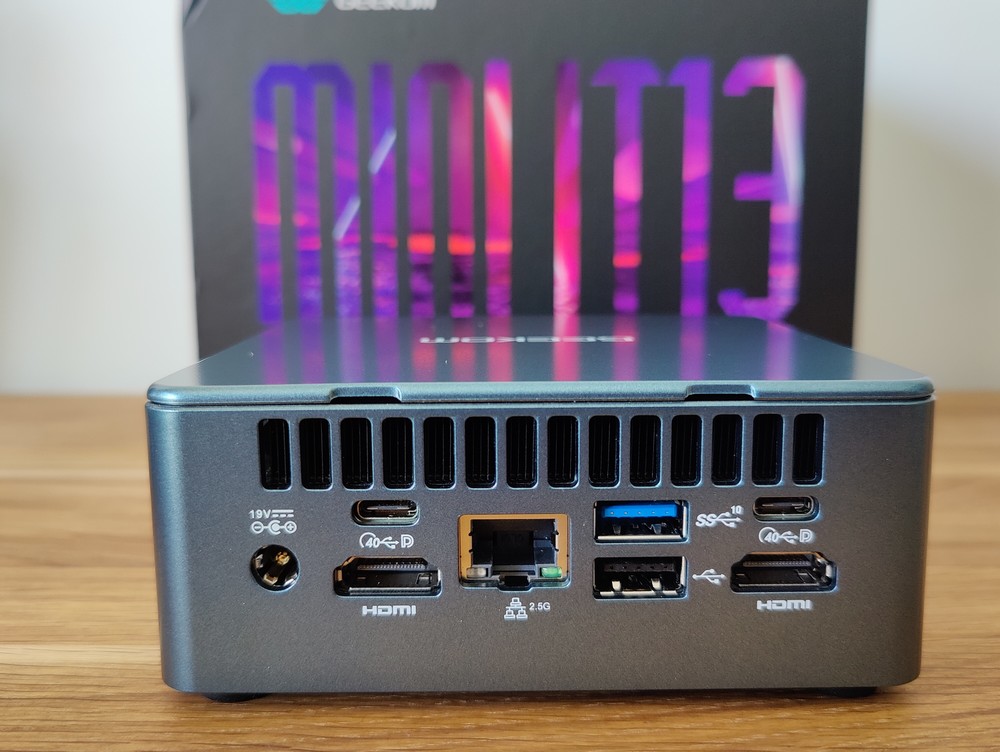
Important Insider Links

Thanks, Amanda & Brandon

Announcing Windows 11 Insider Preview Build 26090 (Canary and Dev Channels)

UPDATE 3/29: We are starting to roll out Cumulative Update Build 26090.112 (KB5037477) to Windows Insiders in the Dev Channel. This update does not include anything new and is designed to test our servicing pipeline.
Hello Windows Insiders, today we are releasing Windows 11 Insider Preview Build 26090 to the Canary and Dev Channels. The Canary and Dev Channels receiving the same builds is only temporaryDuring the times in which the Canary and Dev Channels are on the same builds (e.g. Build 26090), the window is open for Insiders in the Canary Channel to switch to the Dev Channel. In the near future, the Canary Channel will jump to higher build numbers and the window will be closed so make your choice on which channel to be in soon! NOTE: Some features may begin rolling out to the Canary Channel first before the Dev Channel even if the two channels have the same build.

What’s new in Build 26090

Widgets board improvements

We are restarting the rollout of the Widgets board improvements that originally began rolling out with Build 26058 to Windows Insiders in the Canary Channel. Those improvements include introducing a new navigation bar on the left allowing you to switch between a dedicated widgets dashboard and other integrated dashboards like Discover. Give it a try and let us know what you think using the feedback button at the top of the board. [caption id="attachment_176968" align="alignnone" width="700"]We’ve added a new Navigation Pane on the left that allows you to switch to My Widgets dashboard. We’ve added a new Navigation Pane on the left that allows you to switch to My Widgets dashboard.[/caption] [caption id="attachment_176970" align="alignnone" width="700"]A full widgets only experience from your favorite apps and services. A full widgets only experience from your favorite apps and services.[/caption] [We are beginning to roll this out to Windows Insiders in the Canary Channel today, so the experience isn’t available to all Insiders just yet.] FEEDBACK: Please file feedback in Feedback Hub (WIN + F) under Desktop Environment > Widgets.

More Server Message Block (SMB) protocol changes

Starting with Build 26085 and higher, we are introducing the following Server Message Block (SMB) protocol changes for QUIC, signing, and encryption. SMB over QUIC client disable: Administrators can now disable the SMB over QUIC client with Group Policy and PowerShell. To disable SMB over QUIC using PowerShell, run the following command in an elevated console:
  • Set-SmbClientConfiguration -EnableSMBQUIC $false
To disable SMB over QUIC using Group Policy, use GPMC.MSC or GPEDIT.MSC to configure the following setting:
  • Computer Configuration \ Administrative Templates \ Network \ Lanman Workstation \ Enable SMB over QUIC
SMB over QUIC client connection auditing: Successful SMB over QUIC client connection events are now written to the event log to include the QUIC transport. You can view these events using EVENTVWR.MSC under the following path:
  • Applications and Services Logs \ Microsoft \ Windows\ SMBClient \ Connectivity (Event ID: 30832)
SMB signing and encryption auditing: Administrators can now enable auditing of the SMB server and client for support of SMB signing and encryption. This shows if a third-party client or server doesn’t support  SMB encryption or signing. You can configure these settings with PowerShell and Group Policy. To configure SMB client or server signing or encryption auditing using Group Policy, use GPMC.MSC or GPEDIT.MSC to configure the following settings:
  • Computer Configuration \ Administrative Templates \ Network \ Lanman Workstation \ Audit server does not support encryption
  • Computer Configuration \ Administrative Templates \ Network \ Lanman Workstation \ Audit server does not support signing
  • Computer Configuration \ Administrative Templates \ Network \ Lanman Server \ Audit client does not support encryption
  • Computer Configuration \ Administrative Templates \ Network \ Lanman Server \ Audit client does not support signing
To disable SMB over QUIC using PowerShell, run the following command in an elevated console:
  • Set-SmbClientConfiguration -AuditServerDoesNotSupportEncryption $true
  • Set-SmbClientConfiguration -AuditServerDoesNotSupportSigning $true
  • Set-SmbServerConfiguration -AuditClientDoesNotSupportEncryption $true
  • Set-SmbServerConfiguration -AuditClientDoesNotSupportSigning $true
You can view these events using EVENTVWR.MSC under the following paths:
  • Applications and Services Logs \ Microsoft \ Windows\ SMBClient \ Audit (Event ID: 31998 and Event ID: 31999)
  • Applications and Services Logs \ Microsoft \ Windows\ SMBServer \ Audit (Event ID: 3021 and Event ID: 3022)
For more information on SMB over QUIC in Windows and Windows Server Insider Preview builds, review https://aka.ms/SMBoverQUICServer and https://aka.ms/SmbOverQuicCAC. For more information on SMB signing and encryption in Windows and Windows Server Insider Preview builds, review https://aka.ms/SmbSigningRequired and https://aka.ms/SmbClientEncrypt.

Changes and Improvements

[General]

  • The build watermark at the lower right-hand corner of the desktop is not present in this build and will return in future Insider Preview builds. This is part of our normal process for preparing Windows 11, version 24H2 for release to customers later this year – but does not mean we’re done. Windows 11, version 24H2, will be this year’s annual feature update. As mentioned here, Windows 11 will have an annual feature update cadence that releases in the second half of the calendar year.

[Copilot in Windows*]

  • You can ask Copilot in Windows (in preview) for help ten times when you sign in to Windows using a local account. After that, you must sign in using a Microsoft account (MSA) or a Microsoft Entra IDaccount (formerly Azure Active Directory (Azure AD)). To sign in, use the link in the dialog that appears in Copilot in Windows. If you do not sign in, some Copilot features might not work. To learn more, see Welcome to Copilot in Windows and Manage Copilot in Windows.

[Settings]

  • The redesigned version of the Delivery Optimization settings page under Settings > Windows Update > Advanced options > Delivery Optimization that was first introduced in Build 25987 has been reverted to the previous design starting with Build 26085. We plan to bring back this redesigned settings page in a future flight after fixing some bugs. Thanks to Insiders for all the feedback on this!

Fixes for known issues

[General]

  • Fixed an issue which was causing video stutters in some apps (and possibly impacting FPS in some games) in the previous flight.

[Taskbar & System Tray]

  • Fixed an explorer.exe crash that was impacting taskbar reliability.

[File Explorer]

  • Fixed an issue causing some Insiders to see File Explorer unexpectedly using the previous design and have no tabs in the latest builds.

[Task Manager]

  • Fixed an issue where Task Manager was holding onto process handles sometimes, leading to processes not stopping when you closed apps if you’d had Task Manager open.

[Windowing]

  • Fixed an underlying issue which was causing the bottom half of secondary monitors to be unusable sometimes in recent builds (app windows wouldn’t maximize to that area).
  • Fixed an explorer.exe crash which was happening for some Insiders recently when dragging windows.

Known issues

[General]

  • [IMPORTANT NOTE] We are investigating reports that some Windows Insiders in the Canary and Dev Channels are stuck on Build 26040 or Build 23620. The investigation is ongoing, however if you are impacted by this and really want to get onto the latest build in the Canary or Dev Channel today – you can download the latest ISO here and do a clean install and opt your device back into flighting in the Canary or Dev Channels.
  • [NEW] We’ve seen some Insiders report that shutdown is still not working on their PCs after Build 26085 and are working on a fix.

[Copilot in Windows*]

  • Voice access does not work reliably with the updated Copilot in Windows experience that introduces the ability for Copilot to act like a normal application.
  • Using Windows Ink to write in Copilot will not work with the updated Copilot in Windows experience that introduces the ability for Copilot to act like a normal application window.
  • When Copilot in Windows is docked and resized to a large width, Copilot does not always fill the width of the panel. Resizing Copilot usually fixes this issue.
  • With the updated Copilot in Windows experience that introduces the ability for Copilot to act like a normal application window, you may not be able to bring focus to the “…” or refresh buttons within Copilot when using a keyboard (ex: by using tab to cycle through buttons).

For developers

You can download the latest Windows Insider SDK at aka.ms/windowsinsidersdk. SDK NuGet packages are now also flighting at NuGet Gallery | WindowsSDK which include: These NuGet packages provide more granular access to the SDK and better integration in CI/CD pipelines. SDK flights are now published for both the Canary and Dev Channels, so be sure to choose the right version for your Insider Channel. Remember to use adaptive code when targeting new APIs to make sure your app runs on all customer machines, particularly when building against the Dev Channel SDK. Feature detection is recommended over OS version checks, as OS version checks are unreliable and will not work as expected in all cases.

Reminders for Windows Insiders

  • The Canary and Dev Channels receive builds with features and experiences that may never get released as we try out different concepts and get feedback. Features may change over time, be removed, or replaced and never get released beyond Windows Insiders. Some of these features and experiences could show up in future Windows releases when they’re ready.
  • Many features in the Canary and Dev Channel are rolled out using Control Feature Rollout technology, starting with a subset of Insiders and ramping up over time as we monitor feedback to see how they land before pushing them out to everyone in these channels.
  • As the Canary and Dev Channels receive the same builds, some features may begin rolling out to the Canary Channel first before the Dev Channel.
  • While the Canary Channel is now on Windows 11, version 24H2, this is just temporary. At some point in the future, the Canary Channel will jump ahead to receiving new builds not matched to any specific release in a higher build series.
  • To get off the Canary or Dev Channel, a clean install of Windows 11 will be required. As a reminder - Insiders can’t switch to a channel that is receiving builds with lower build numbers without doing a clean installation of Windows 11 due to technical setup requirements.
  • The desktop watermark shown at the lower right corner of the desktop is normal for these pre-release builds.
  • Check out Flight Hub for a complete look at what build is in which Insider channel.
  • Copilot in Windows* in preview is being rolled out gradually to Windows Insiders in select global markets. The initial markets for the Copilot in Windows preview include North America, United Kingdom and parts of Asia and South America. It is our intention to add additional markets over time.
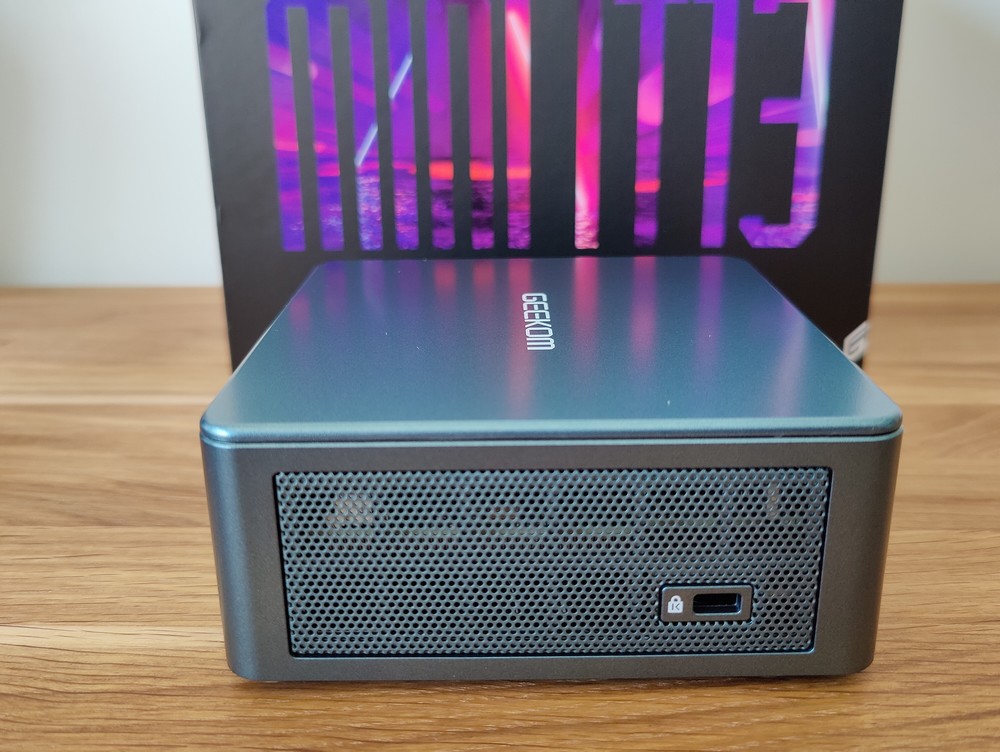
Thanks, Amanda & Brandon

Releasing Windows 11 Builds 22621.3371 and 22631.3371 to the Release Preview Channel

Hello Windows Insiders, today we’re releasing Windows 11 Builds 22621.3371 and 22631.3371 (KB5035942) to Insiders in the Release Preview Channel on Windows 11, version 22H2 (Build 22621) and version 23H2 (Build 22631).   This update includes the following features and improvements:
  • [ADDED 3/27] New! When you copy text, the Copilot icon will change appearance and animate to indicate that Copilot can help. When you hover your mouse over the Copilot icon, it will provide a menu of actions that you can take, such as summarizing or explaining the copied text. If you select an action on the menu, it will launch Copilot with the action ready-to-go. We also support the ability to launch Copilot if you start dragging an image – just drag the image file onto the Copilot icon in the taskbar, and Copilot will open. Note this feature might not be available to all users because it will roll out gradually.
  • [ADDED 3/26] New! You can ask Copilot in Windows (in preview) for help ten times when you sign in to Windows using a local account. After that, you must sign in using a Microsoft account (MSA) or a Microsoft Entra ID account (formerly Azure Active Directory (Azure AD)). To sign in, use the link in the dialog that appears in Copilot in Windows. If you do not sign in, some Copilot features might not work. To learn more, see Welcome to Copilot in Windows and Manage Copilot in Windows.
  • New! This update adds more content to your lock screen. In addition to weather, sports, traffic, and finance content will appear. To turn on this feature, go to Settings > Personalization > Lock screenNote this feature might not be available to all users because it will roll out gradually.
  • New! This update affects Windows Hello for Business. IT admins can now use mobile device management (MDM) to turn off the prompt that appears when users sign in to an Entra-joined machine. To do this, they can turn on the “DisablePostLogonProvisioning” policy setting. After a user signs in, provisioning is off for Windows 10 and Windows 11 devices.
  • New! This update improves the Remote Desktop Session Host. You can now set up its “clipboard redirection” policy to work in a single direction from the local computer to the remote computer. You can also reverse that order.
  • This update supports daylight saving time (DST) changes in Greenland. To learn more, see Greenland 2023 time zone update now available.
  • This update supports DST changes in Kazakhstan. To learn more, see Interim guidance for Kazakhstan time zone changes 2024.
  • This update supports DST changes in Samoa. To learn more, see Interim guidance for Samoa DST changes 2021.
  • This update affects MSIX applications. It helps their UI to localize correctly for all languages when you upgrade your OS.
  • This update addresses an issue that affects the COM+ component. Some applications that depend on it stop responding.
  • This update addresses an issue that stops some apps and features from being available. This occurs after you upgrade to Windows 11.
  • This update addresses a deadlock issue in CloudAP. It occurs when different users sign in and sign out at the same time on virtual machines.
  • This update addresses an issue that affects a network resource. You cannot access it from a Remote Desktop session. This occurs when you turn on the Remote Credential Guard feature and the client is Windows 11, version 22H2 or higher.
  • This update addresses an issue that affects Containers that you create or deploy. Their status does not progress past “ContainerCreating.”
  • This update addresses an issue that affects the time service. You can configure it using mobile device management (MDM) or a Group Policy Object (GPO). But the Windows Settings app does not match what you have configured.
  • This update addresses an issue that affects certain Neural Processing Units (NPU). They do not show in Task Manager.
  • This update addresses an issue that affects the touch keyboard and the candidate window for the Japanese and Chinese Input Method Editors (IME). They do not show after you come out of Modern Standby. To learn more, see Microsoft Japanese IME and What is Modern Standby.
  • This update addresses an issue that occurs when you use LoadImage() to load a top-down bitmap. If the bitmap has a negative height, the image does not load and the function returns NULL.
  • This update addresses an issue that affects the Settings app. It stops responding when you use it to remove Bluetooth devices.
  • This update makes Country and Operator Settings Asset (COSA) profiles up to date for some mobile operators.
  • This update addresses an issue that affects Notepad. It fails to print to certain Internet Printing Protocol (IPP) printers when you use a print support app.
  • This update addresses an issue that affects USB audio. It fails on some processors. This occurs after you pause, play, or resume from sleep.
  • This update addresses an issue that affects Windows Defender Application Control (WDAC). It prevents a stop error that occurs when you apply more than 32 policies.
  • This update addresses an issue that affects the existing AppLocker rule collection enforcement mode. It is not overwritten when rules merge with a collection that has no rules. This occurs when the enforcement mode is set to “Not Configured.”
  • This update addresses an issue that affects the Group Policy service. It fails after you use LGPO.exe to apply an audit policy to the system.
  • This update addresses an issue that affects Secure Launch. It does not run on some processors.
  • This update addresses an issue that affects the Combine taskbar buttons and hide labels setting. The app labels in the taskbar sometimes do not have the correct length, which cuts off the label text. This occurs when this setting is set to “When taskbar is full” or “Never.”
  • This update addresses a reliability issue. It affects a Virtual Remote App product when you use a custom shell to open it.
  • This update addresses an issue that affects some wireless headphones. Bluetooth connections are not stable. This occurs on devices that have firmware from April 2023 and later.
  • This update addresses an issue that affects Transport Layer Security (TLS), version 1.3. It causes Azure App Services to fail. This occurs when the web server attempts to connect to a third-party Lightweight Directory Access Protocol (LDAP) server.
  • This update addresses an issue that affects dsamain.exe. When the Knowledge Consistency Checker (KCC) runs evaluations, it stops responding.
  • This update addresses an issue that affects the Microsoft Message Queue (MSMQ) PowerShell module. It does not load.
Thanks, Windows Insider Program Team

Spellcheck in Notepad begins rolling out to Windows Insiders

UPDATE 4/9: The below update for Notepad (version 11.2402.22.0) that introduces spellcheck has begun rolling out to Windows Insiders in the Beta and Release Preview Channels.
Hello Windows Insiders, today we are beginning to roll out an update to Notepad to Windows Insiders in the Canary and Dev Channels on Windows 11. This update introduces spellcheck in Notepad.

Notepad (version 11.2402.18.0)

With this update, Notepad will now highlight misspelled words and provide suggestions so that you can easily identify and correct mistakes. We are also introducing autocorrect which seamlessly fixes common typing mistakes as you type. [caption id="attachment_176962" align="alignnone" width="1024"]Misspelled word highlighted in Notepad with options to correct the spelling. Misspelled word highlighted in Notepad with options to correct the spelling.[/caption] Getting started with spellcheck in Notepad is easy as misspelled words are automatically underlined in red. To fix a spelling mistake, click, tap, or use the keyboard shortcut Shift + F10 on the misspelled word to see suggested spellings. Selecting a suggestion immediately updates the word. You can also choose to ignore words in a single document or add them to the dictionary, so they are not flagged as a mistake again. Spellcheck in Notepad supports multiple languages. This feature is enabled by default for some file types but is off by default in log files and other file types typically associated with coding. You can toggle this setting on or off globally or for certain file types in Notepad app settings or temporarily for the current file in the context menu. We’ve organized the settings page as well to make it easier to find and adjust Notepad app settings. [We are beginning to roll out spellcheck in Notepad, so it may not be available to all Insiders in the Canary and Dev Channels just yet as we plan to monitor feedback and see how it lands before pushing it out to everyone.] FEEDBACK: Please share your feedback in Feedback Hub (WIN + F) under Apps > Notepad. As always, we love getting feedback from the community. We're excited to hear your thoughts and continue enhancing Notepad for everyone. Thanks, Dave Grochocki, Principal Product Manager Lead – Windows Inbox Apps

Announcing Windows 11 Insider Preview Build 26085 (Canary and Dev Channels)

Hello Windows Insiders, today we are releasing Windows 11 Insider Preview Build 26085 to the Canary and Dev Channels. The Canary and Dev Channels receiving the same builds is only temporary. During the times in which the Canary and Dev Channels are on the same builds (e.g. Build 26085), the window is open for Insiders in the Canary Channel to switch to the Dev Channel. At some point in the future, the Canary Channel will jump to higher build numbers and the window will be closed. NOTE: Some features may begin rolling out to the Canary Channel first before the Dev Channel even if the two channels have the same build.

Changes and Improvements

[Input]

  • The new pointer indicator accessibility setting for low vision Windows users introduced with Build 26052 has been temporarily disabled with Build 26085. We plan to re-enable this feature in a future flight after fixing some bugs. Thanks to Insiders for all the feedback on this!

[Settings]

  • Windows Insiders who have Bluetooth LE Audio capable assistive hearing devices can now set up and manage their devices via Settings > Accessibility > Hearing aids. This new accessibility settings page allows users to check their PC's compatibility for Bluetooth LE Audio and pair/manage a set of hearing devices for a more streamlined configuration. Please note that this page is a work-in-progress, and the contents of this page may change over time. (Note this change was first introduced in Build 26080.)

Fixes for known issues

[General]

  • Fixed the underlying issue believed to be the cause of shutdown and hibernation not working in the previous flight.

[File Explorer]

  • Fixed an issue where the context menu in File Explorer was missing an acrylic background.
  • Fixed an issue where when opening the context menu in File Explorer, the icons might appear out of place and overlapping text.
  • Fixed an issue which was causing File explorer to leak GDI objects and heap memory for every folder navigation, leading to stability and rendering issues over time.
  • Fixed a memory leak when interacting with archive folders in File Explorer.
  • Fixed an issue causing thumbnails in File Explorer to sometimes unexpectedly be black in the previous flight.

[Sudo]

  • Fixed an issue believed to be the cause of the setting to enable sudo (under System > For Developers) not working for some Insiders.
  • Fixed an issue where if you ran the command “sudo pwsh”, it wasn’t working properly in recent builds.

[Windows Security]

  • Fixed a high hitting Windows Security app crash in the previous flight, which is believed to potentially be the cause of Insiders reporting that the Windows Security app icon in the system tray was sometimes missing in that flight.

[Input]

  • With this build, the recent issues with the mouse cursor disappearing, and other recent issues related to the mouse cursor behaving abnormally should be fixed.

[Settings]

  • Fixed an underlying issue which was causing Settings to freeze sometimes so you couldn’t interact with any of the pages.
  • Fixed an issue where the list of Bluetooth devices under Bluetooth & Devices wasn’t being read out by screen readers in recent builds.

[Windows Update]

  • Fixed the issue causing Insiders in the Dev Channel to see error 0x80070002 when trying to install cumulative updates.
  • Fixed an issue where using “Update and Shutdown” wasn’t shutting down your PC upon completion.

[Other]

  • Fixed an issue that was causing some Insiders to see bugchecks with CRITICAL_STRUCTURE_CORRUPTION recently.
  • Fixed an issue which was causing Voice Access to crash on launch for some Insiders in recent builds.
  • Fixed an issue where after renaming your printer, it might not work with print support app association.

Known issues

[General]

  • [IMPORTANT NOTE FOR GAMERS] Most popular games should work correctly again in the most recent Insider Preview builds in the Canary and Dev Channels. Please be sure to submit feedback in Feedback Hub on any issues you see with playing games on the latest builds. We will be removing this note with the next Canary and Dev Channel flight.
  • [UPDATED] We’re continuing to investigate reports of rollbacks (with error code 0xC1900101) when installing the latest builds.
  • [NEW] We’re working on the fix for an issue causing some Insiders to see File Explorer unexpectedly using the previous design and have no tabs in the latest builds.

[Copilot in Windows*]

  • Voice access does not work reliably with the updated Copilot in Windows experience that introduces the ability for Copilot to act like a normal application.
  • Using Windows Ink to write in Copilot will not work with the updated Copilot in Windows experience that introduces the ability for Copilot to act like a normal application window.
  • When Copilot in Windows is docked and resized to a large width, Copilot does not always fill the width of the panel. Resizing Copilot usually fixes this issue.
  • With the updated Copilot in Windows experience that introduces the ability for Copilot to act like a normal application window, you may not be able to bring focus to the “…” or refresh buttons within Copilot when using a keyboard (ex: by using tab to cycle through buttons).

For developers

You can download the latest Windows Insider SDK at aka.ms/windowsinsidersdk. SDK NuGet packages are now also flighting at NuGet Gallery | WindowsSDK which include: These NuGet packages provide more granular access to the SDK and better integration in CI/CD pipelines. SDK flights are now published for both the Canary and Dev Channels, so be sure to choose the right version for your Insider Channel. Remember to use adaptive code when targeting new APIs to make sure your app runs on all customer machines, particularly when building against the Dev Channel SDK. Feature detection is recommended over OS version checks, as OS version checks are unreliable and will not work as expected in all cases.

Reminders for Windows Insiders

  • The Canary and Dev Channels receive builds with features and experiences that may never get released as we try out different concepts and get feedback. Features may change over time, be removed, or replaced and never get released beyond Windows Insiders. Some of these features and experiences could show up in future Windows releases when they’re ready.
  • Many features in the Canary and Dev Channel are rolled out using Control Feature Rollout technology, starting with a subset of Insiders and ramping up over time as we monitor feedback to see how they land before pushing them out to everyone in these channels.
  • As the Canary and Dev Channels receive the same builds, some features may begin rolling out to the Canary Channel first before the Dev Channel.
  • While the Canary Channel is now on Windows 11, version 24H2, this is just temporary. At some point in the future, the Canary Channel will jump ahead to receiving new builds not matched to any specific release in a higher build series.
  • To get off the Canary or Dev Channel, a clean install of Windows 11 will be required. As a reminder - Insiders can’t switch to a channel that is receiving builds with lower build numbers without doing a clean installation of Windows 11 due to technical setup requirements.
  • The desktop watermark shown at the lower right corner of the desktop is normal for these pre-release builds.
  • Check out Flight Hub for a complete look at what build is in which Insider channel.
  • Copilot in Windows* in preview is being rolled out gradually to Windows Insiders in select global markets. The initial markets for the Copilot in Windows preview include North America, United Kingdom and parts of Asia and South America. It is our intention to add additional markets over time.
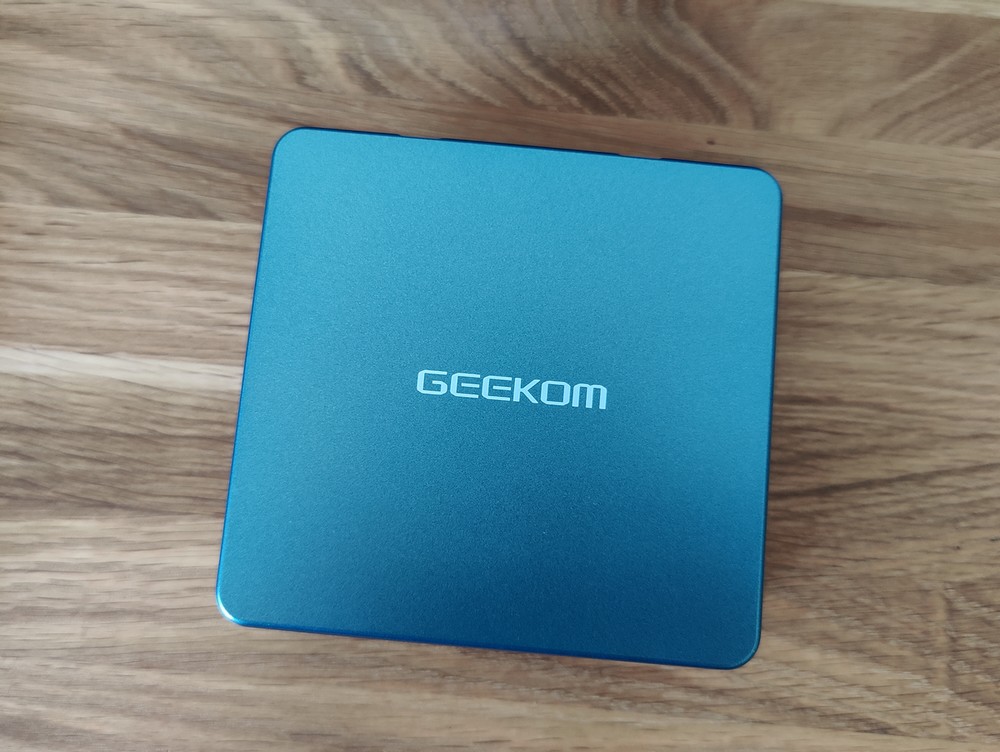
Thanks, Amanda & Brandon
❌