 Connexion
Copilot on Windows: Vision Desktop Share begins rolling out to Windows Insiders
15 juillet 2025 à 20:58
Hello Windows Insiders, we are beginning to roll out an update for the Microsoft Copilot app on Windows via the Microsoft Store which introduces the following changes and improvements to Copilot Vision on Windows:
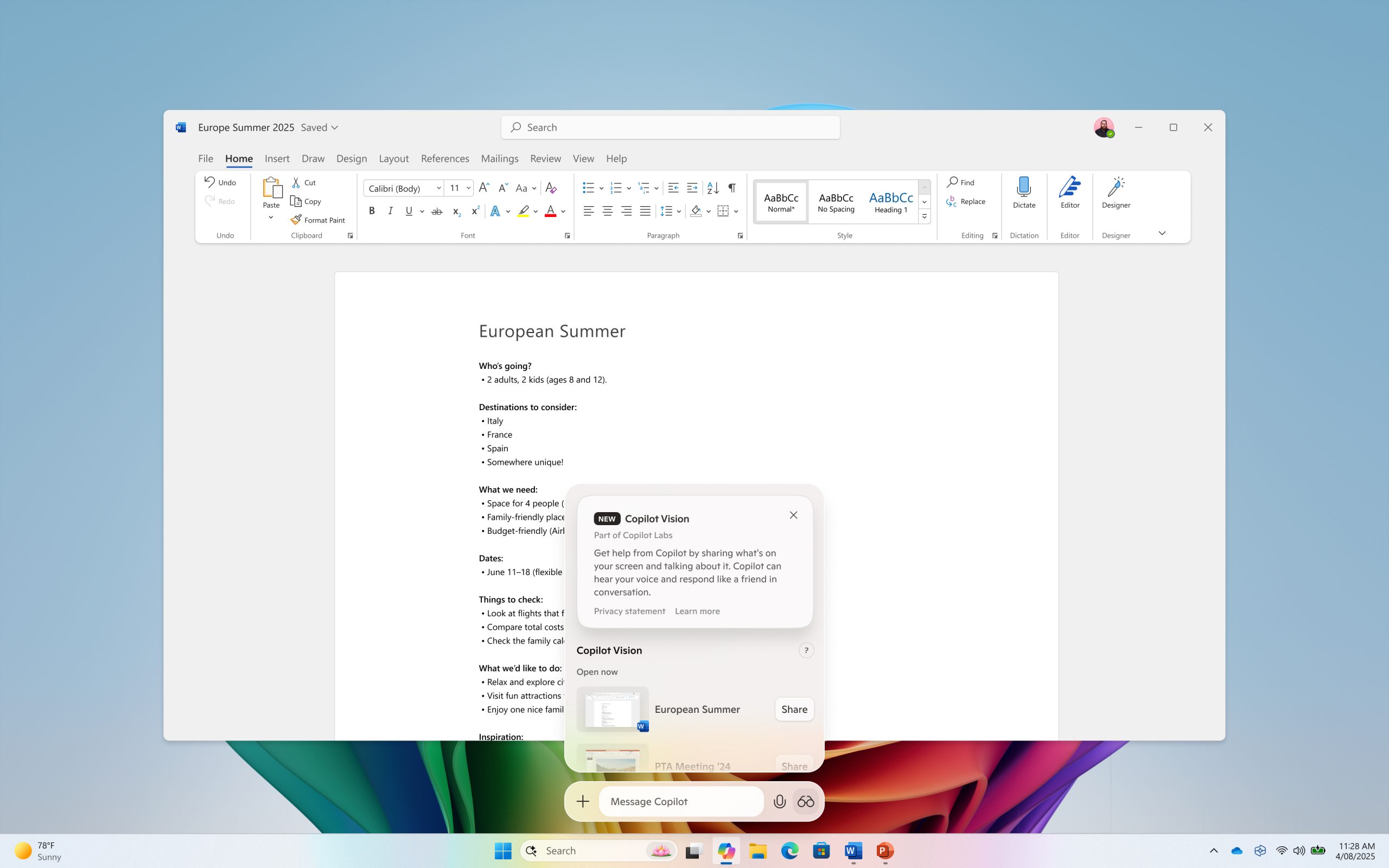
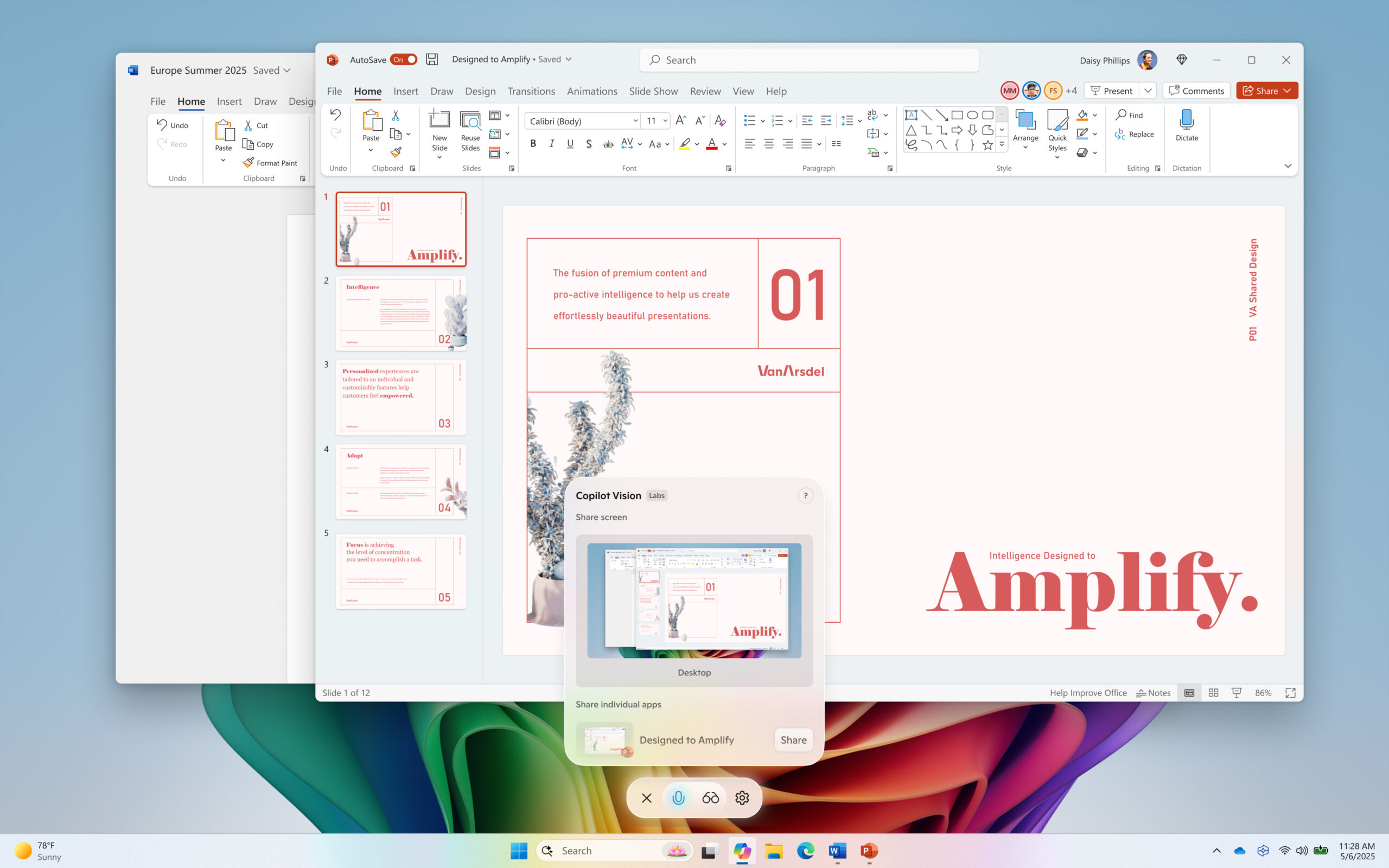
Desktop Share: Now you can choose to share your whole desktop with Copilot. When you share your desktop (or any specific browser or app window), Copilot can see what you see and talk to you about it in real time. It can help analyze content, provide insights, and answer your questions, coaching you through it aloud. Get tips on making improvements to your creative project, help with improving your resume, or guidance while navigating a new game. To get started click the glasses icon in your composer, select the desktop that you’d like to share, and ask Copilot to help with whatever you’re working on. To stop sharing, press 'Stop' or 'X' in the composer.
[caption id="attachment_178066" align="alignnone" width="1024"] Copilot Vision on Windows with desktop share.[/caption]
Access Vision from your Voice conversation: Now you can turn on Vision from a Voice conversation. When you're talking with Copilot and want to provide additional context on whatever you’re working on, simply click on the glasses icon and share your screen.
This Copilot app update (version 1.25071.125 and higher) is beginning to roll out across all Insider Channels via the Microsoft Store. These updates will first roll out to Insiders in markets where Windows Vision is enabled. The above-mentioned features are gradually rolling out so not all Insiders will get the update right away. We are excited to be previewing improvements with our Insiders to ensure all our customers have a great Copilot experience on Windows.
FEEDBACK: Please provide feedback directly within the Copilot app by clicking on your profile icon and choosing “Give feedback”.
Thanks,
Microsoft Copilot Team
Copilot Vision on Windows with desktop share.[/caption]
Access Vision from your Voice conversation: Now you can turn on Vision from a Voice conversation. When you're talking with Copilot and want to provide additional context on whatever you’re working on, simply click on the glasses icon and share your screen.
This Copilot app update (version 1.25071.125 and higher) is beginning to roll out across all Insider Channels via the Microsoft Store. These updates will first roll out to Insiders in markets where Windows Vision is enabled. The above-mentioned features are gradually rolling out so not all Insiders will get the update right away. We are excited to be previewing improvements with our Insiders to ensure all our customers have a great Copilot experience on Windows.
FEEDBACK: Please provide feedback directly within the Copilot app by clicking on your profile icon and choosing “Give feedback”.
Thanks,
Microsoft Copilot Team
 Copilot Vision on Windows with desktop share.[/caption]
Access Vision from your Voice conversation: Now you can turn on Vision from a Voice conversation. When you're talking with Copilot and want to provide additional context on whatever you’re working on, simply click on the glasses icon and share your screen.
This Copilot app update (version 1.25071.125 and higher) is beginning to roll out across all Insider Channels via the Microsoft Store. These updates will first roll out to Insiders in markets where Windows Vision is enabled. The above-mentioned features are gradually rolling out so not all Insiders will get the update right away. We are excited to be previewing improvements with our Insiders to ensure all our customers have a great Copilot experience on Windows.
FEEDBACK: Please provide feedback directly within the Copilot app by clicking on your profile icon and choosing “Give feedback”.
Thanks,
Microsoft Copilot Team
Copilot Vision on Windows with desktop share.[/caption]
Access Vision from your Voice conversation: Now you can turn on Vision from a Voice conversation. When you're talking with Copilot and want to provide additional context on whatever you’re working on, simply click on the glasses icon and share your screen.
This Copilot app update (version 1.25071.125 and higher) is beginning to roll out across all Insider Channels via the Microsoft Store. These updates will first roll out to Insiders in markets where Windows Vision is enabled. The above-mentioned features are gradually rolling out so not all Insiders will get the update right away. We are excited to be previewing improvements with our Insiders to ensure all our customers have a great Copilot experience on Windows.
FEEDBACK: Please provide feedback directly within the Copilot app by clicking on your profile icon and choosing “Give feedback”.
Thanks,
Microsoft Copilot Team