❌

Vue normale

Il y a de nouveaux articles disponibles, cliquez pour rafraîchir la page.
Aujourd’hui — 4 octobre 2026Windows Insider Blog

Copilot on Windows: Vision Desktop Share begins rolling out to Windows Insiders

15 juillet 2025 à 20:58
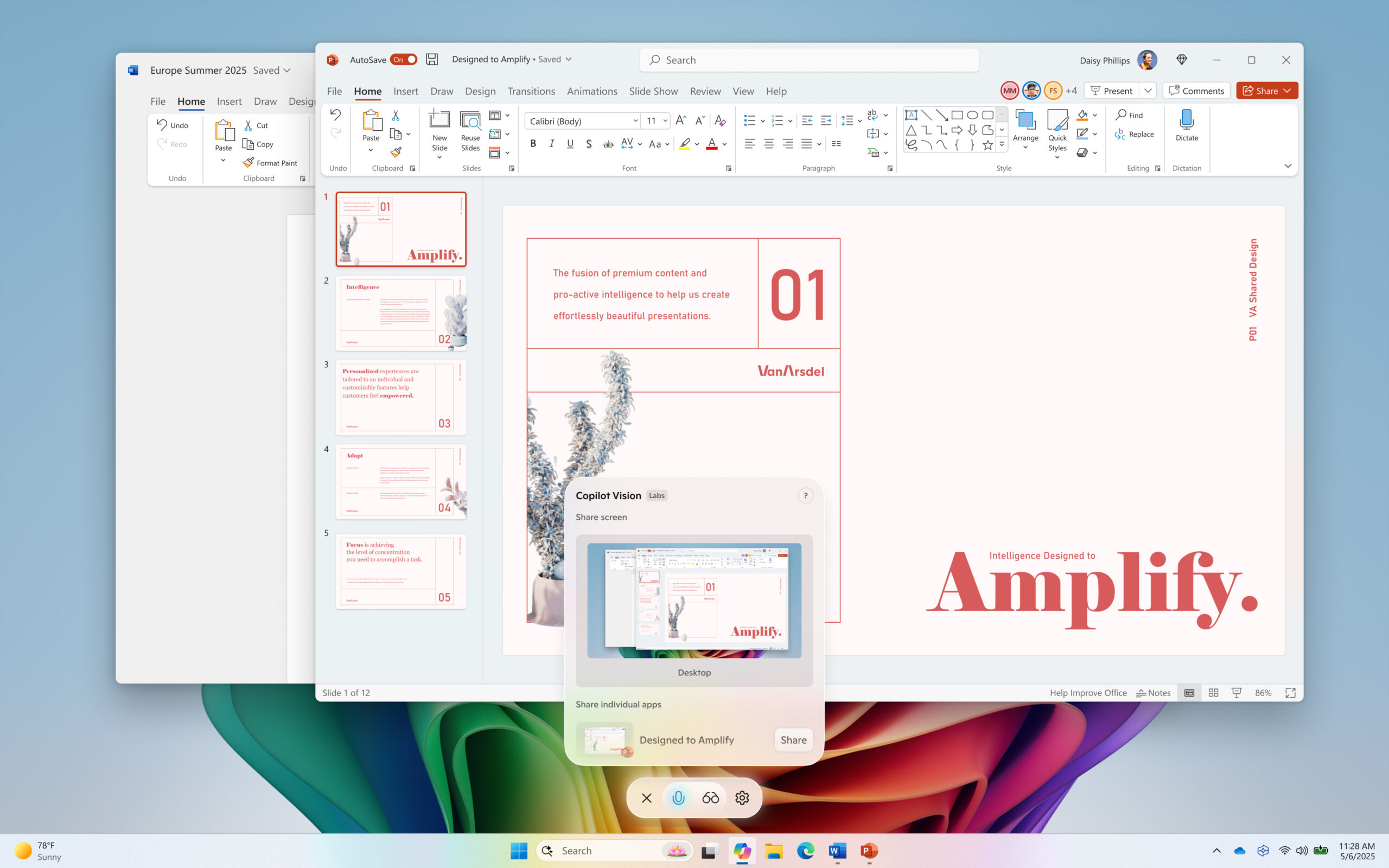
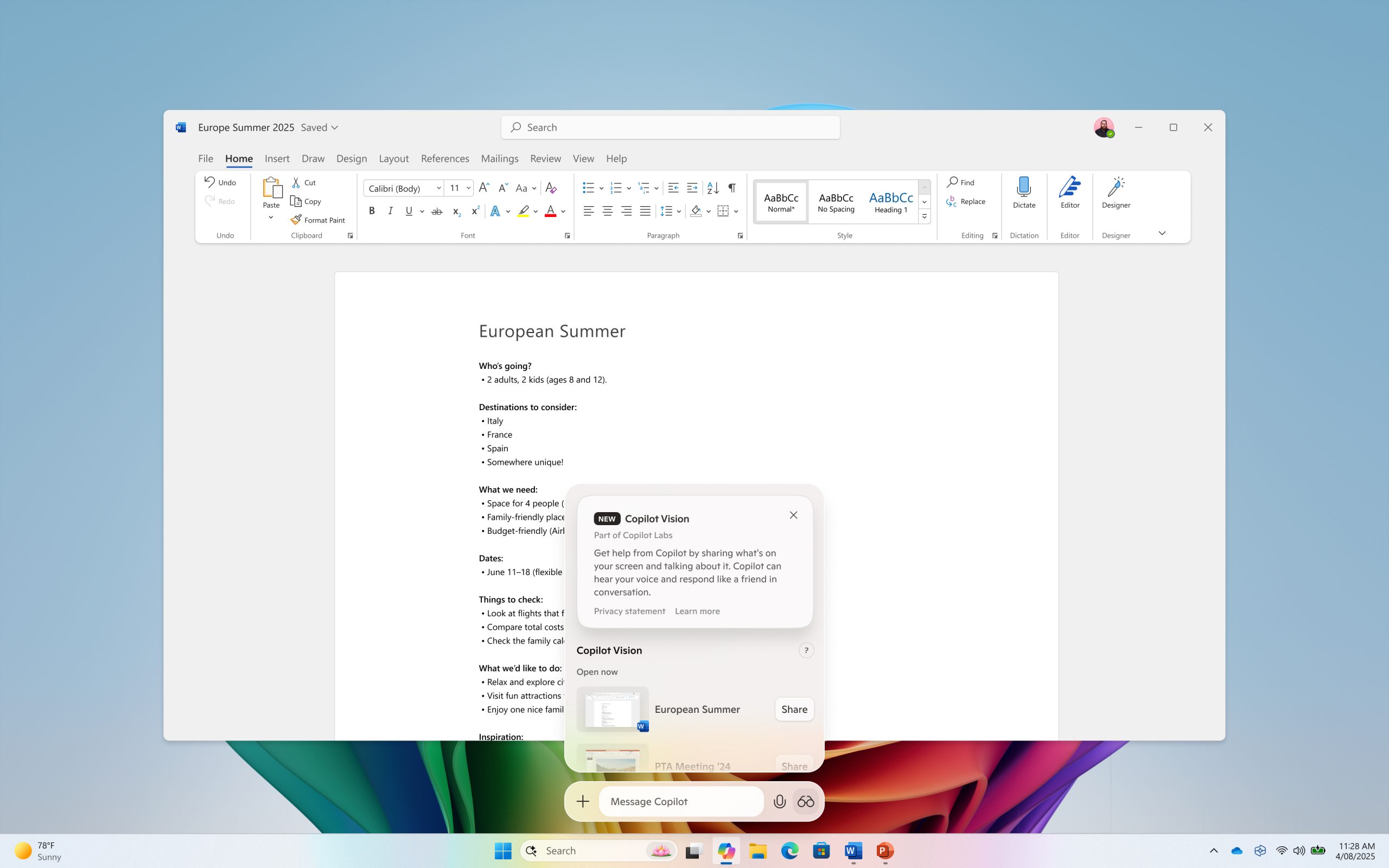
Hello Windows Insiders, we are beginning to roll out an update for the Microsoft Copilot app on Windows via the Microsoft Store which introduces the following changes and improvements to Copilot Vision on Windows: Desktop Share: Now you can choose to share your whole desktop with Copilot. When you share your desktop (or any specific browser or app window), Copilot can see what you see and talk to you about it in real time. It can help analyze content, provide insights, and answer your questions, coaching you through it aloud. Get tips on making improvements to your creative project, help with improving your resume, or guidance while navigating a new game. To get started click the glasses icon in your composer, select the desktop that you’d like to share, and ask Copilot to help with whatever you’re working on. To stop sharing, press 'Stop' or 'X' in the composer. [caption id="attachment_178066" align="alignnone" width="1024"]Copilot Vision on Windows with desktop share. Copilot Vision on Windows with desktop share.[/caption] Access Vision from your Voice conversation: Now you can turn on Vision from a Voice conversation. When you're talking with Copilot and want to provide additional context on whatever you’re working on, simply click on the glasses icon and share your screen. This Copilot app update (version 1.25071.125 and higher) is beginning to roll out across all Insider Channels via the Microsoft Store. These updates will first roll out to Insiders in markets where Windows Vision is enabled. The above-mentioned features are gradually rolling out so not all Insiders will get the update right away. We are excited to be previewing improvements with our Insiders to ensure all our customers have a great Copilot experience on Windows. FEEDBACK: Please provide feedback directly within the Copilot app by clicking on your profile icon and choosing “Give feedback”. Thanks, Microsoft Copilot Team
Copilot on Windows: “Hey, Copilot!” begins rolling out to Windows Insiders

14 mai 2025 à 16:16
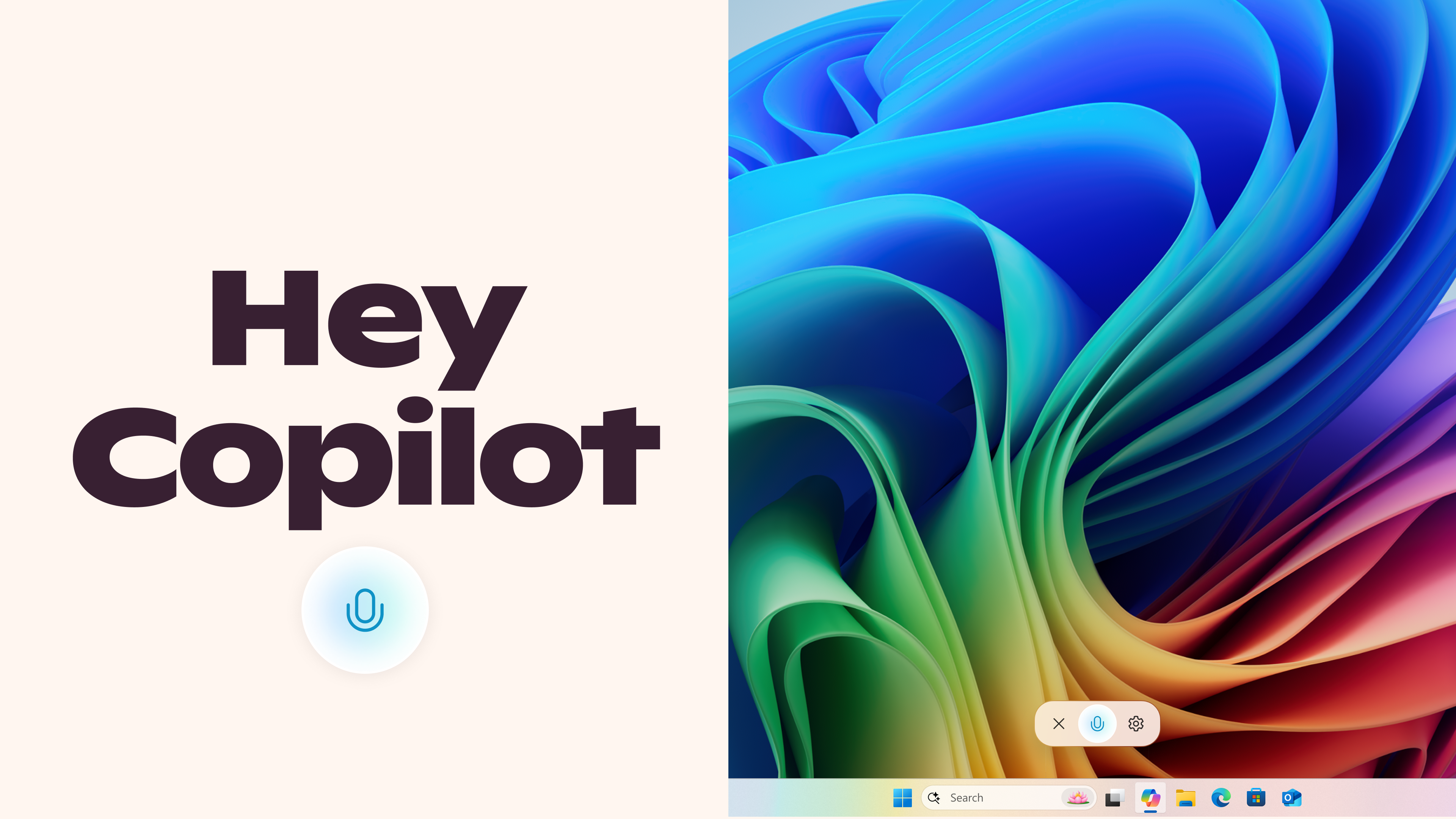
Hello Windows Insiders, we are beginning to roll out an update for the Microsoft Copilot app on Windows via the Microsoft Store which introduces the following changes and improvements: Copilot wake word: Windows Insiders can now invoke Copilot with the phrase “Hey, Copilot!”. This opt-in feature gives people a new way to easily start a conversation with Copilot Voice, anytime the feature is enabled, and their PC is unlocked. With this new hands-free experience, you can stay in your flow when you need answers to a question or just need someone to bounce an idea off of. To get started, enable “Hey, Copilot” in the Settings of your Copilot app, then simply ask a question starting with “Hey, Copilot…”. You’ll see the Copilot microphone appear on your screen, along with a chime to indicate that Copilot is listening. To end a conversation, tap ‘X’ or Copilot will end the call automatically after a few seconds of no interaction. You will hear a chime confirming that the conversation has ended. [caption id="attachment_177867" align="alignnone" width="3840"]Invoke Copilot with your voice with “Hey Copilot”. Invoke Copilot with your voice with “Hey Copilot”.[/caption] FAQs: How do I use ‘Hey Copilot’ once enabled? 
  • Anytime your PC is unlocked, and the feature is enabled, simply say “Hey Copilot” or “Hey Copilot, what is the weather in Palm Springs this weekend?” (or whatever question you have) and Copilot Voice will respond.
  • Anytime the wake word is detected you will see the Copilot Voice Floating UI appear on the bottom of your screen and either hear a small chime, or a voice greeting or response from Copilot.
  • You can end a conversation by tapping the X on the Copilot Voice Floating Call UI or wait a few seconds without speaking and the call will end automatically. You will hear a hang up chime or a voice confirmation that the call ended.
Is ‘Hey Copilot’ on by default?   No, you must enable this feature within Copilot’s settings to use it. To configure:
  1. Open Copilot
  2. Tap your avatar in the bottom left corner,
  3. Tap Settings
  4. Scroll down to Voice mode
  5. Toggle “Listen for ‘Hey, Copilot’ to start a conversation” on or off.  It is off by default.
Why does Windows show my microphone in use when I turn on ‘Hey Copilot’?  Windows will show Copilot in use of the microphone via the Windows System Tray when either of these are true:
  • ‘Hey Copilot’ is enabled and the Copilot app is running in (open, minimized, or running in the background)
  • Any Copilot Voice conversation is going on
How do I tell the difference between if Copilot is only listening for the wake word or if I’m in a Copilot Voice conversation?  If you see the Copilot Voice interface, you are in a conversation with Copilot Voice. Is my data/voice/recordings sent to the cloud when ‘Hey Copilot’ is enabled? No. When ‘Hey Copilot’ is enabled, Copilot uses the microphone with an on-device wake word spotter that only detects the ‘Hey Copilot’ phrase. The wake word spotter uses an on-device 10 second audio buffer in memory. This audio buffer is never recorded or stored locally. When the wake word is detected, the Copilot Voice Floating UI will appear and begin to establish a Copilot Voice conversation. In parallel, the audio buffer will send audio from when “Hey Copilot” was detected to the cloud so it can be used to help answer the question you asked. Will ‘Hey Copilot’ work when my PC is off or locked?  No, your PC must be powered on and unlocked. It will respond to any voice it hears when unlocked. Will ‘Hey Copilot’ work if I’m offline? Recognition of the wake word is always performed locally and will try to establish a Copilot Voice call when detected. If you are offline you will see Copilot attempt to establish a connection but will not able to and see the call end. Copilot Voice responses require internet access and cloud processing, similar to typed interactions. What languages work with ‘Hey Copilot’?  Today, the ‘Hey Copilot’ wake word is only trained and available in English. This Copilot app update (version 1.25051.10.0 and higher) is beginning to roll out across all Insider Channels via the Microsoft Store. Hey Copilot will first roll out to Insiders worldwide, who have their display language in Windows set to English. The above-mentioned features are gradually rolling out so not all Insiders will get the update right away. We are excited to be previewing improvements with our Insiders to ensure all our customers have a great Copilot experience on Windows. FEEDBACK: Please provide feedback directly within the Copilot app by clicking on your profile icon and choosing “Give feedback”. Thanks, Microsoft Copilot Team
Copilot on Windows: Windows Insiders can now use Vision with 2 apps and new Highlights feature with 1 app

12 mai 2025 à 17:48
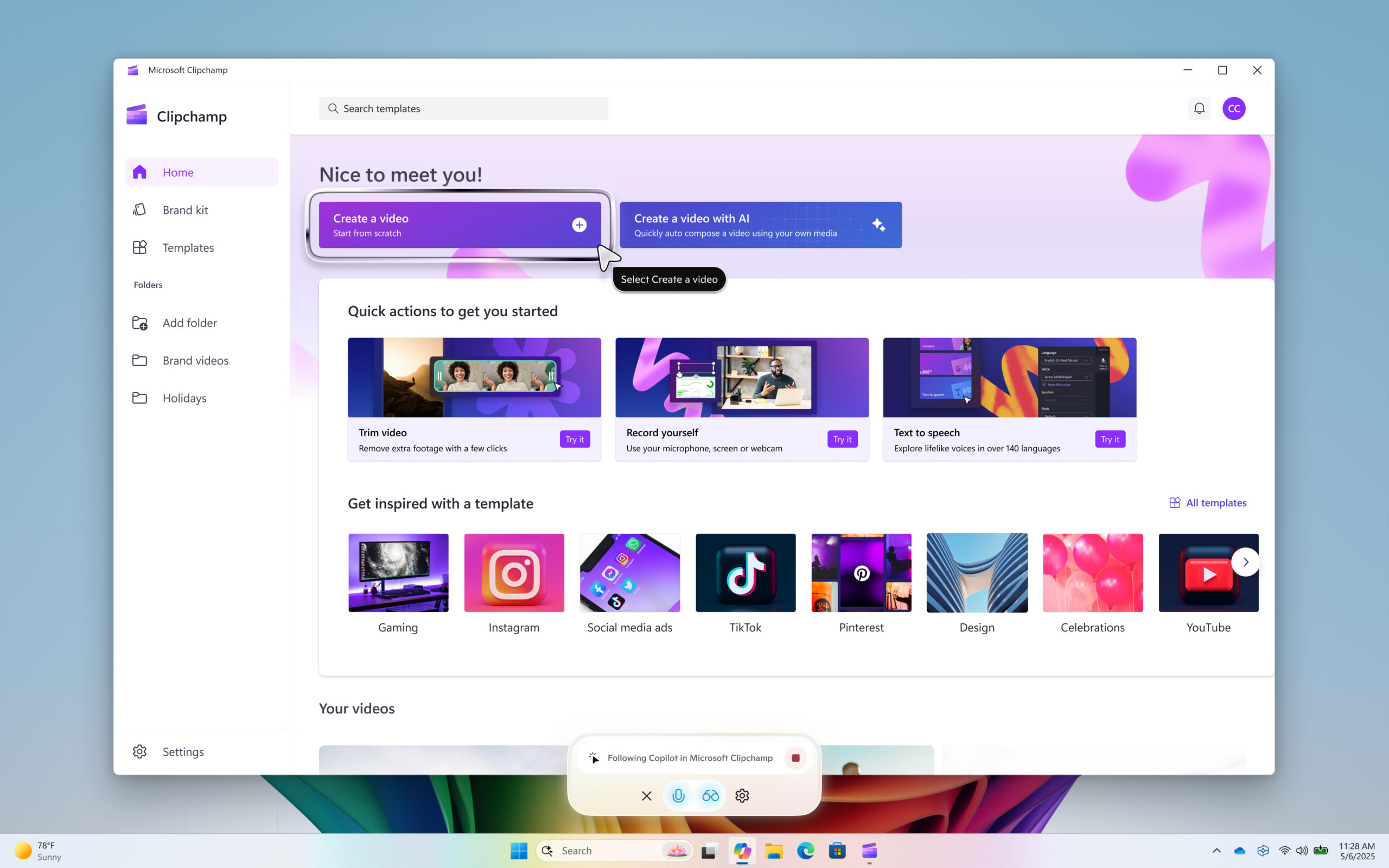
Hello Windows Insiders, we are beginning to roll out an update today for the Microsoft Copilot app on Windows via the Microsoft Store which introduces the following changes and improvements to Copilot Vision on Windows: Highlights: Now when you share a single browser or app window using Copilot Vision, Copilot can guide, navigate, and coach you to complete a specific task using visual cues. Just ask Copilot to “show me how”, and Copilot will highlight where in the shared browser or app to click to help you accomplish your task. Today, Highlights works with a single app. Press the stop button to stop the Copilot highlights and resume your normal Vision session. Here are some examples of things to try:
  • Share your Settings window and ask Copilot “Show me how to turn on night light.”
  • Share your favorite productivity app and ask Copilot “Show me how to add a footer.”
  • Share your favorite video editing app and ask Copilot “Show me how to add text to my video.”
[caption id="attachment_177854" align="alignnone" width="2560"]Copilot Vision on Windows highlights – “Show me how to get started to create a video in Clipchamp”. Copilot Vision on Windows highlights – “Show me how to get started to create a video in Clipchamp”.[/caption] 2-app support: Copilot Vision on Windows now supports sharing up to two applications. Copilot can then help analyze, offer insights, and answer your questions across the shared apps. For example, share the apps for your backpacking adventure packing list and an online list, and ask Copilot “Is there anything missing from my packing list, compared to the online list?” To get started with Copilot Vision on Windows click the glasses icon in your composer, select which browser window or app you want to share, and ask Copilot to help with whatever you’re working on. To stop sharing, press ‘Stop’ or ‘X’ in the composer. This Copilot app update (version 1.25044.92.0 and higher) is beginning to roll out across all Insider Channels via the Microsoft Store. Currently Copilot Vision on Windows, including highlights and 2-app support is available to Insiders in the U.S. The above-mentioned features are gradually rolling out so not all Insiders will get the update right away. We are excited to be previewing improvements with our Insiders to ensure all our customers have a great Copilot experience on Windows. FEEDBACK: Please provide feedback directly within the Copilot app by clicking on your profile icon and choosing “Give feedback”. Thanks, Microsoft Copilot Team
Copilot on Windows: Vision and file search begin rolling out to Windows Insiders

8 avril 2025 à 20:12
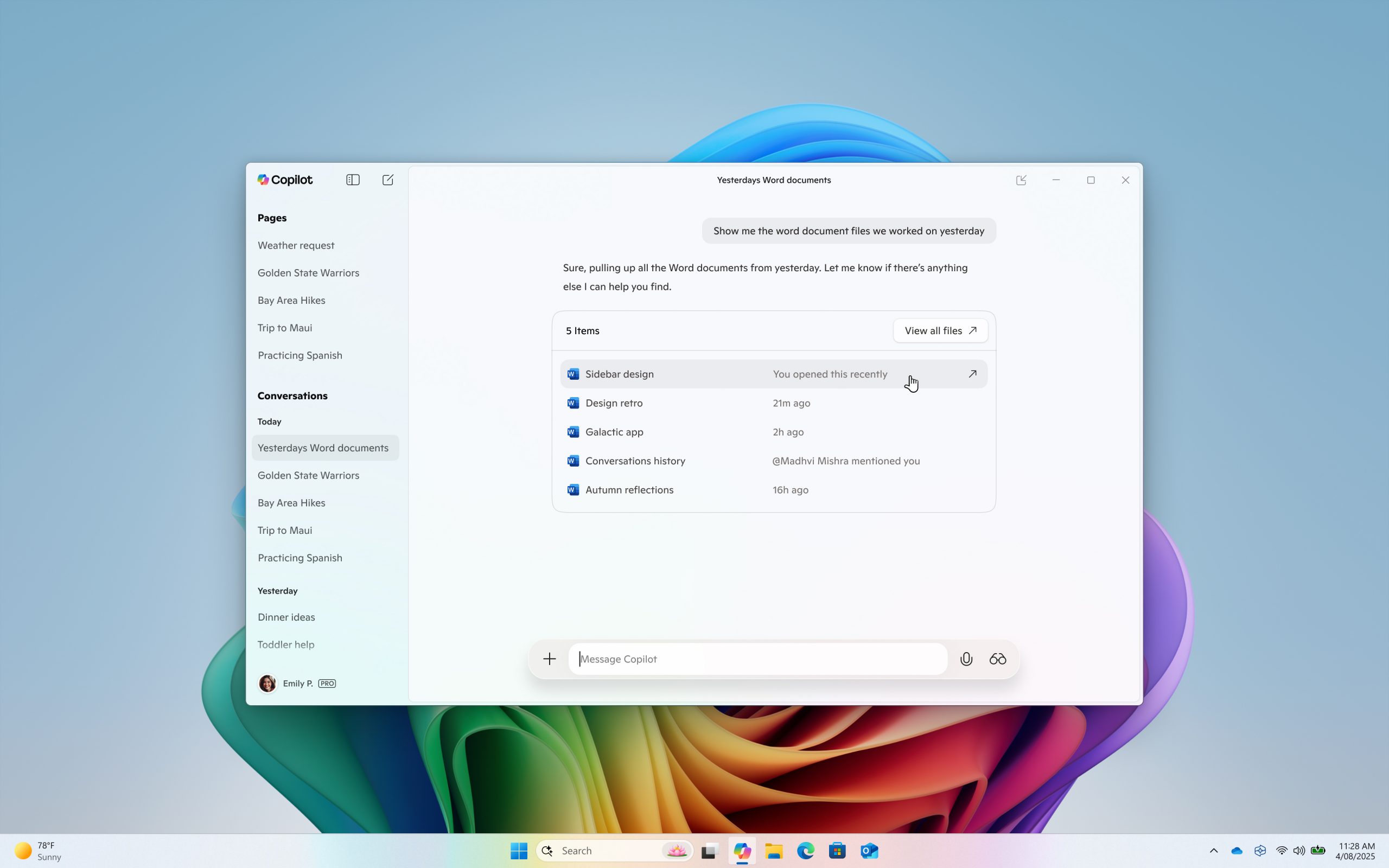
Hello Windows Insiders, we are beginning to roll out an update for the Microsoft Copilot app on Windows via the Microsoft Store which introduces the following changes and improvements: File search: You can now find, open and ask questions about the contents of a file on your device from the Copilot on Windows app. You can adjust your permissions for what Copilot can access, retrieve, or read in Copilot Settings under Permission settings. File search supports most file types and can read .docx, .xlsx, .pptx, .txt, .pdf, .json files. Ask Copilot questions like "Can you find my resume", "Open the trip planning doc I was working on last week", or "Look at my budget file and tell me how much I spent on dining last month". [caption id="attachment_177782" align="alignnone" width="2560"]File search in Copilot on Windows. File search in Copilot on Windows.[/caption] Copilot Vision on Windows: You can share any browser or app window with Copilot. Copilot can then help analyze, offer insights, or answer your questions, coaching you through it aloud. To get started click the glasses icon in your composer, select which browser window or app you want to share, and ask Copilot to help with whatever you’re working on. To stop sharing, press 'Stop' or 'X' in the composer. [caption id="attachment_177783" align="alignnone" width="2560"]Copilot Vision on Windows. Copilot Vision on Windows.[/caption] This Copilot app update (version 1.25034.133.0 and higher) is beginning to roll out across all Insider Channels via the Microsoft Store. Copilot Vision on Windows will first roll out to Insiders in the U.S., and file search will roll out to Insiders worldwide. The above-mentioned features are gradually rolling out so not all Insiders will get the update right away. We are excited to be previewing improvements with our Insiders to ensure all our customers have a great Copilot experience on Windows. FEEDBACK: Please provide feedback directly within the Copilot app by clicking on your profile icon and choosing “Give feedback”. Thanks, Microsoft Copilot Team
Copilot on Windows: Press to talk begins rolling out to Windows Insiders

10 mars 2025 à 19:35
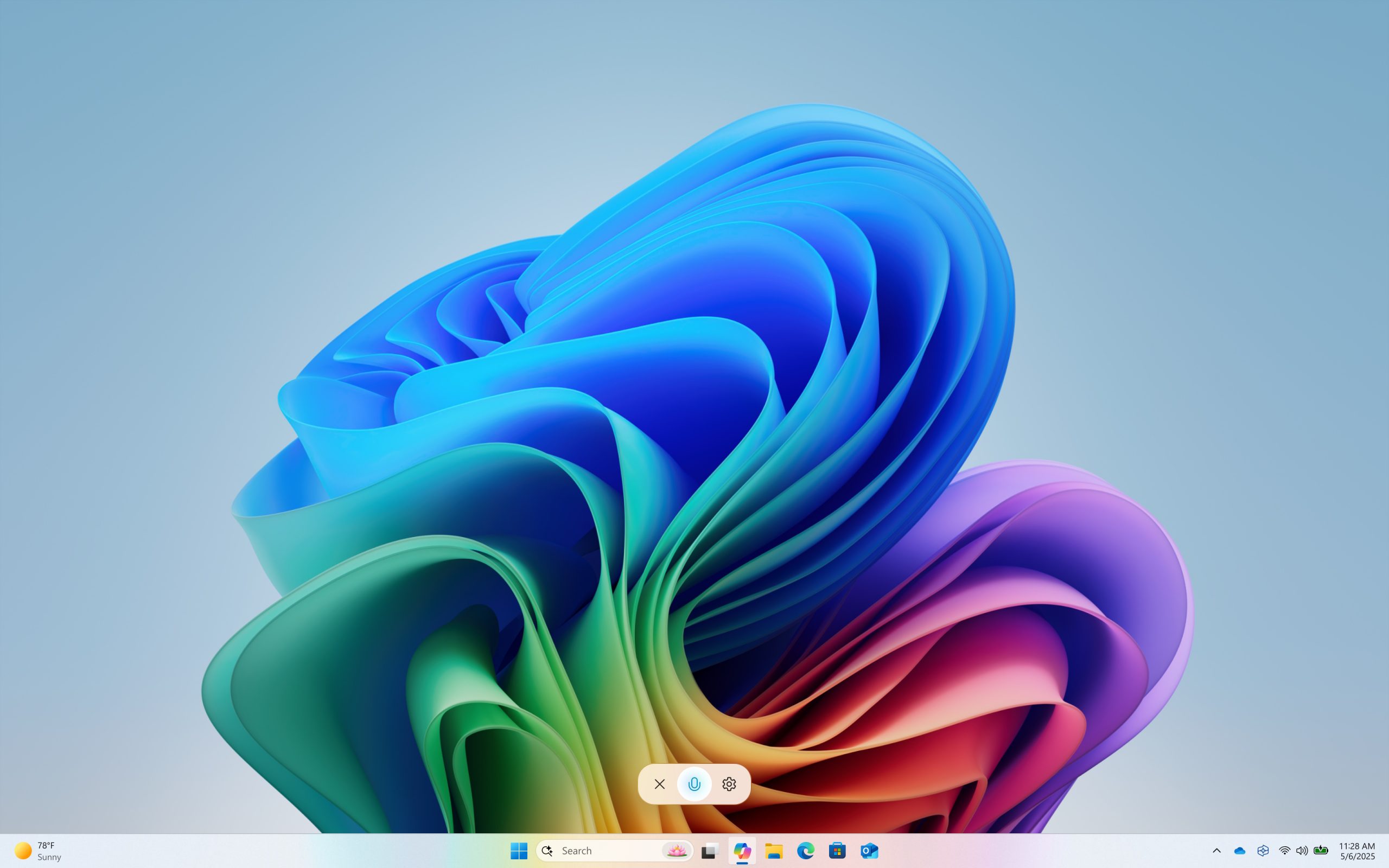
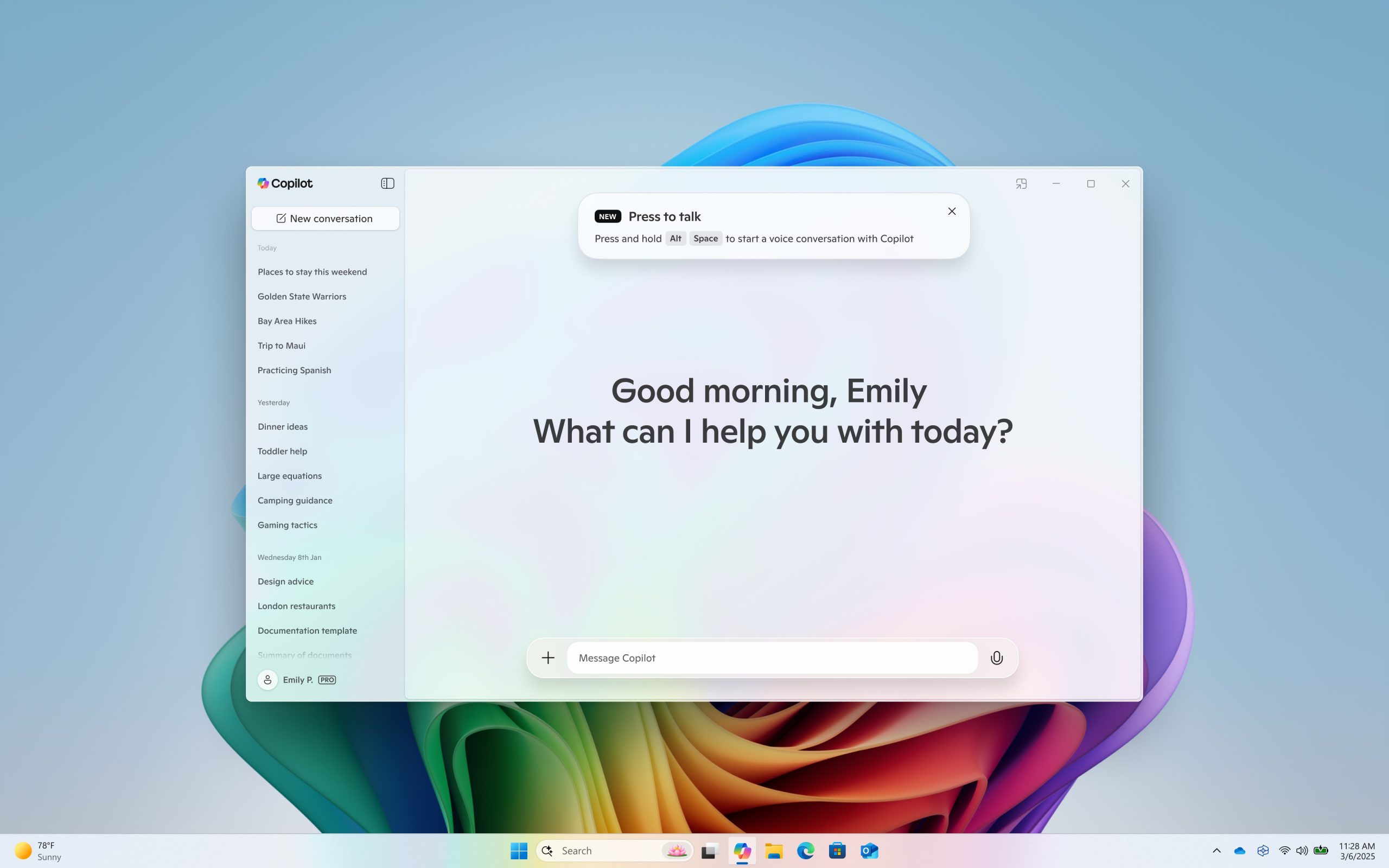
Hello Windows Insiders, we are beginning to roll out an update for the Microsoft Copilot app on Windows via the Microsoft Store which introduces the following changes and improvements: Press to talk: Allows you to interact with Copilot using your voice by using a hotkey, providing instant responses while staying in your current workflow and continuing tasks without interruption. To start a voice conversation with Copilot, hold the Alt + Spacebar for 2 seconds on your PC. To end your conversation, press the Esc key. If there is no speaking for several seconds Copilot will automatically end the conversation. When the conversation is over the microphone on the screen will disappear. [caption id="attachment_177681" align="alignnone" width="1024"]Hold Alt + Spacebar for 2 seconds to start a voice conversation with Copilot. Hold Alt + Spacebar for 2 seconds to start a voice conversation with Copilot.[/caption] [caption id="attachment_177682" align="alignnone" width="1024"]Copilot on Windows app. Copilot on Windows app.[/caption] This Copilot app update (version 1.25024.100.0 and higher) is beginning to roll out across all Insider Channels via the Microsoft Store. The above-mentioned features are gradually rolling out so not all Insiders will get the update right away. We are excited to be previewing improvements with our Insiders to ensure all our customers have a great Copilot experience for Windows. FEEDBACK: Please file feedback in Feedback Hub (WIN + F) under Apps > Copilot or directly within the Copilot app by clicking on your profile icon and choosing “Give feedback”. Thanks, Windows Insider Program Team

Update for Copilot on Windows begins rolling out to Windows Insiders with new features and improvements

4 mars 2025 à 00:59
Hello Windows Insiders, we are beginning to roll out an update for the Microsoft Copilot app on Windows via the Microsoft Store which introduces the following changes and improvements:
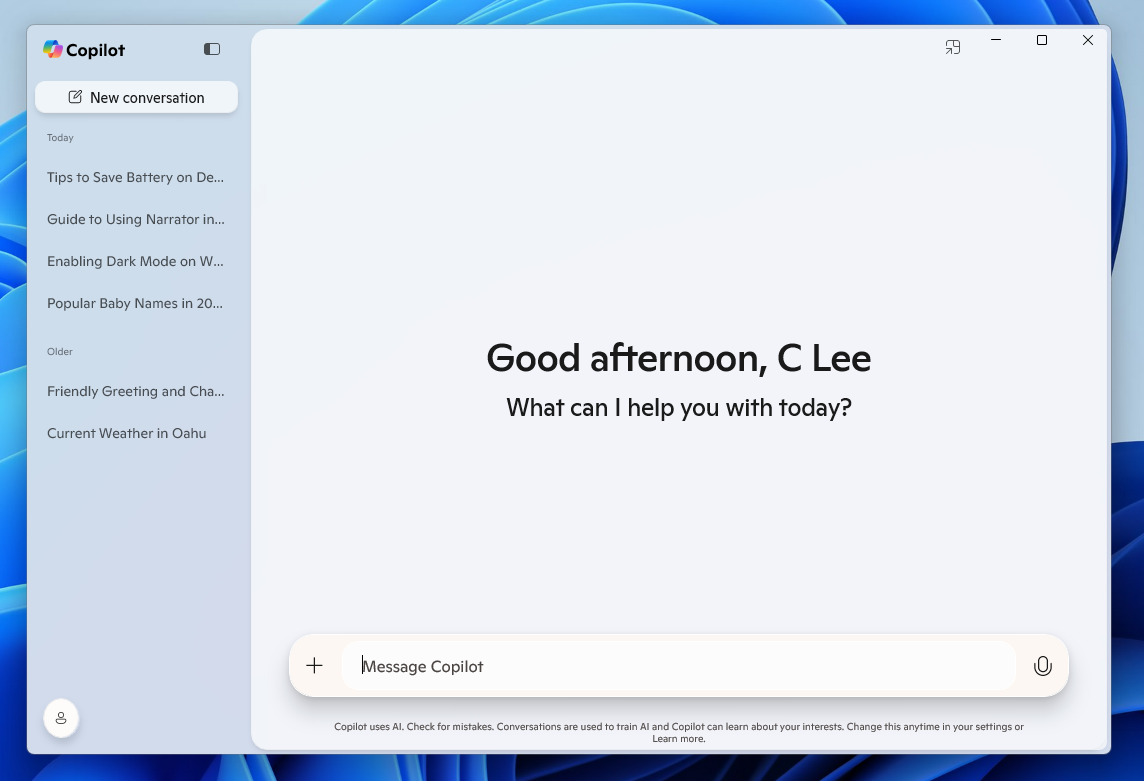
  • Native XAML app and new UI: Includes a new side panel where you can easily start a new conversation and see your conversation history.
[caption id="attachment_177661" align="alignnone" width="1144"]The new Copilot on Windows native app and user interface. The new Copilot on Windows native app and user interface.[/caption]
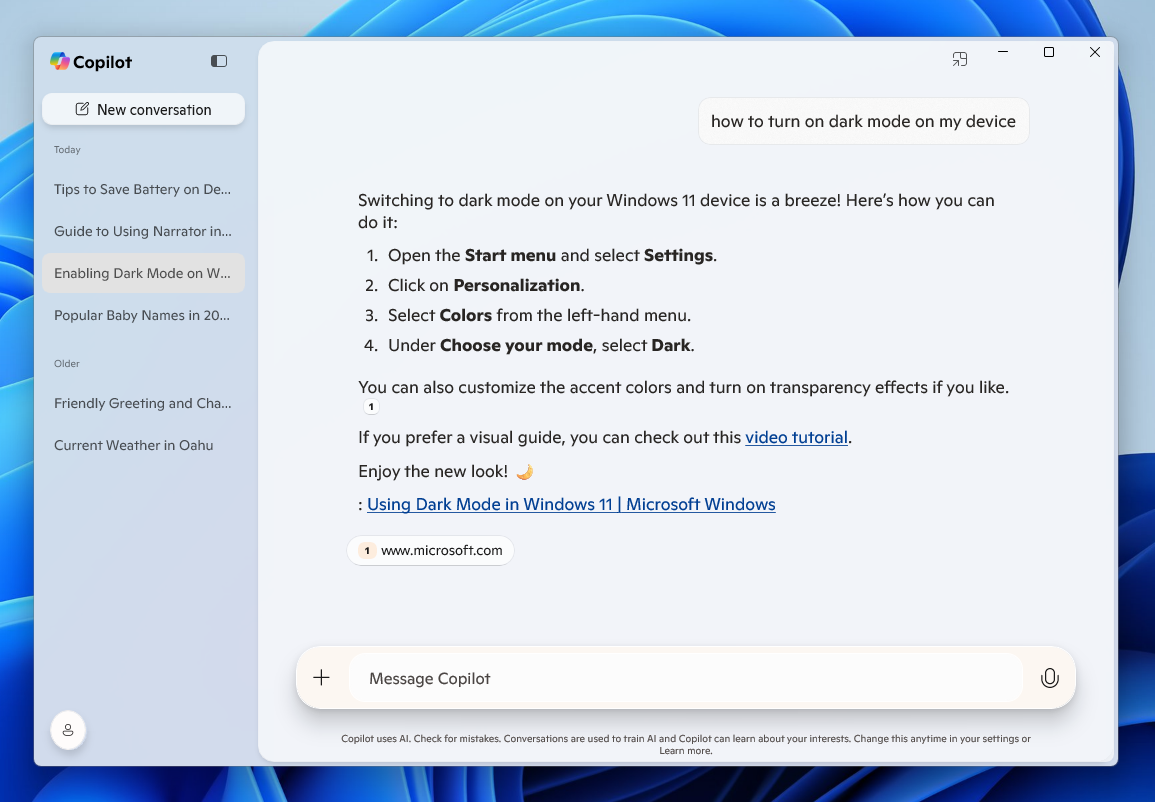
  • Ask questions about your PC, like "How do I set up a Bluetooth headset on this device?" and Copilot provides information tailored to your current version of Windows.
[caption id="attachment_177662" align="alignnone" width="1155"]Copilot on Windows with OS context. Copilot on Windows with OS context.[/caption] As a reminder, you can get quick access to the Copilot app using the Alt + Space hotkey across all PCs and the Copilot Key for those using a Copilot+ PC. This Copilot app update (version 1.25023.101.0 and higher) is beginning to roll out across all Insider Channels via the Microsoft Store. This is a gradual roll out so not all Insiders will get the update right away. We are excited to be previewing improvements with our Insiders to ensure all our customers have a great Copilot experience for Windows. FEEDBACK: Please file feedback in Feedback Hub (WIN + F) under Apps > Copilot or directly within the Copilot app by clicking on your profile icon and choosing “Give feedback”. Thanks, Windows Insider Program Team
❌
❌