❌

Vue normale

Il y a de nouveaux articles disponibles, cliquez pour rafraîchir la page.
Aujourd’hui — 4 octobre 2026IT

Copilot on Windows: Vision Desktop Share begins rolling out to Windows Insiders

15 juillet 2025 à 20:58
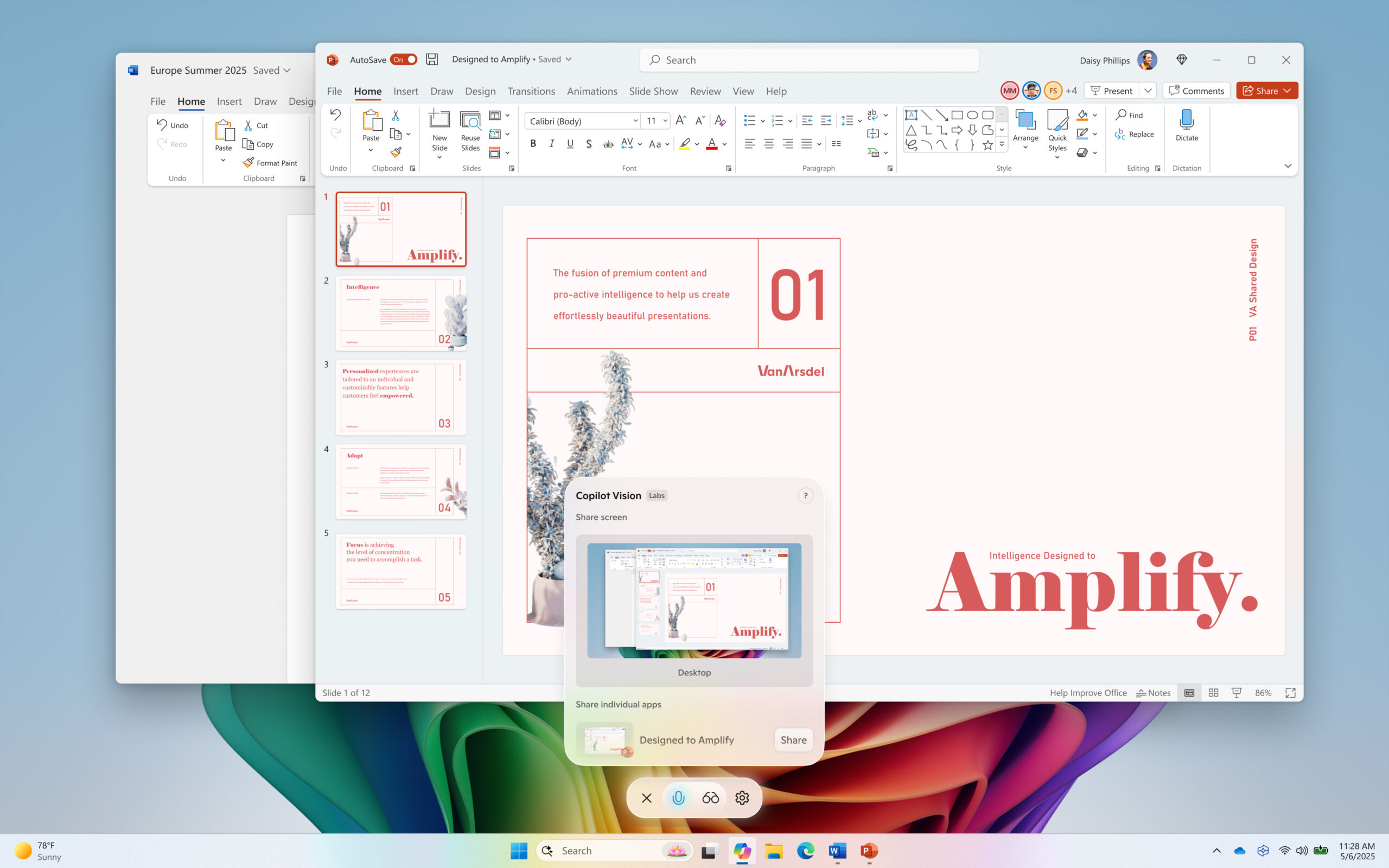
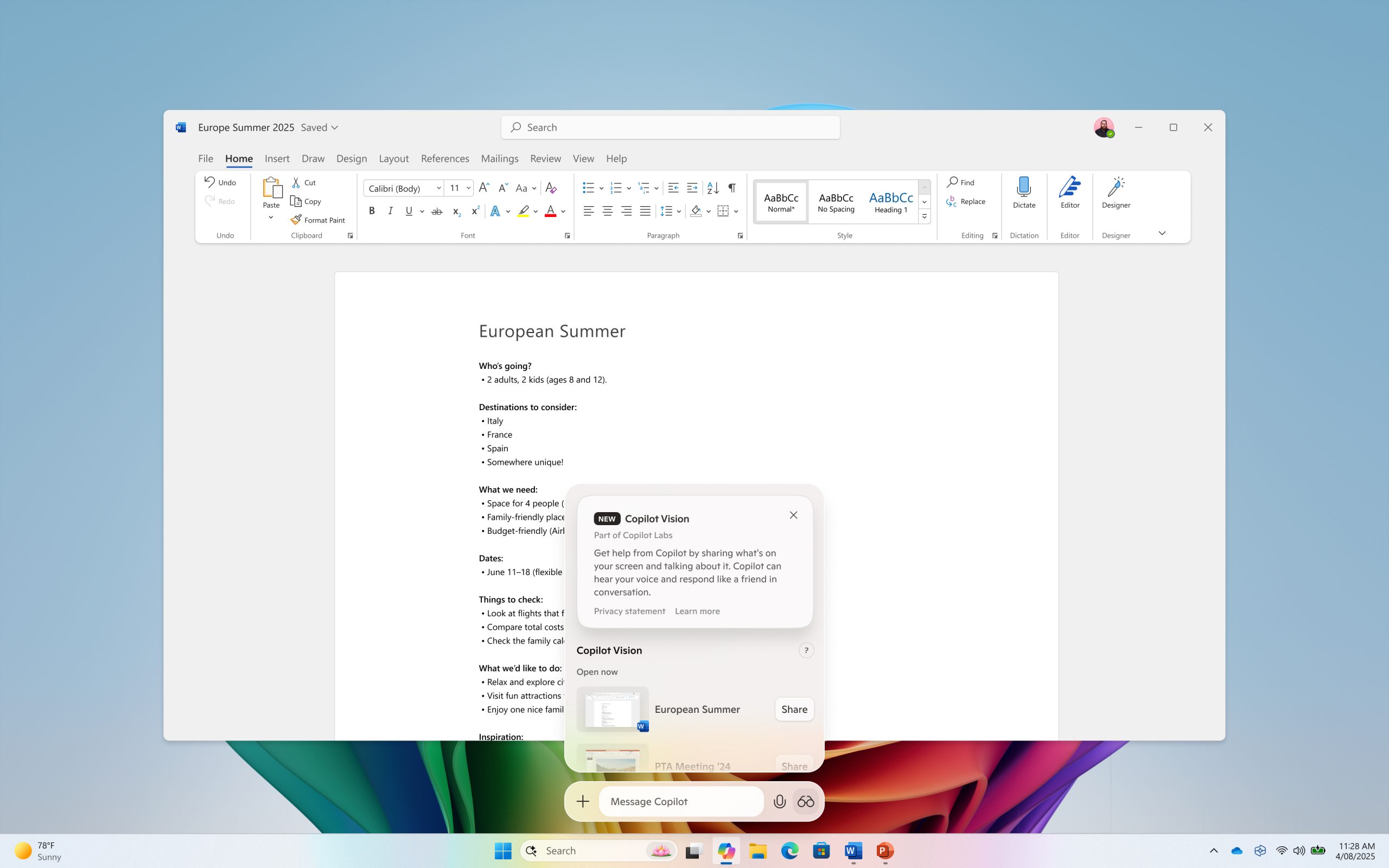
Hello Windows Insiders, we are beginning to roll out an update for the Microsoft Copilot app on Windows via the Microsoft Store which introduces the following changes and improvements to Copilot Vision on Windows: Desktop Share: Now you can choose to share your whole desktop with Copilot. When you share your desktop (or any specific browser or app window), Copilot can see what you see and talk to you about it in real time. It can help analyze content, provide insights, and answer your questions, coaching you through it aloud. Get tips on making improvements to your creative project, help with improving your resume, or guidance while navigating a new game. To get started click the glasses icon in your composer, select the desktop that you’d like to share, and ask Copilot to help with whatever you’re working on. To stop sharing, press 'Stop' or 'X' in the composer. [caption id="attachment_178066" align="alignnone" width="1024"]Copilot Vision on Windows with desktop share. Copilot Vision on Windows with desktop share.[/caption] Access Vision from your Voice conversation: Now you can turn on Vision from a Voice conversation. When you're talking with Copilot and want to provide additional context on whatever you’re working on, simply click on the glasses icon and share your screen. This Copilot app update (version 1.25071.125 and higher) is beginning to roll out across all Insider Channels via the Microsoft Store. These updates will first roll out to Insiders in markets where Windows Vision is enabled. The above-mentioned features are gradually rolling out so not all Insiders will get the update right away. We are excited to be previewing improvements with our Insiders to ensure all our customers have a great Copilot experience on Windows. FEEDBACK: Please provide feedback directly within the Copilot app by clicking on your profile icon and choosing “Give feedback”. Thanks, Microsoft Copilot Team
Copilot on Windows: “Hey, Copilot!” begins rolling out to Windows Insiders

14 mai 2025 à 16:16
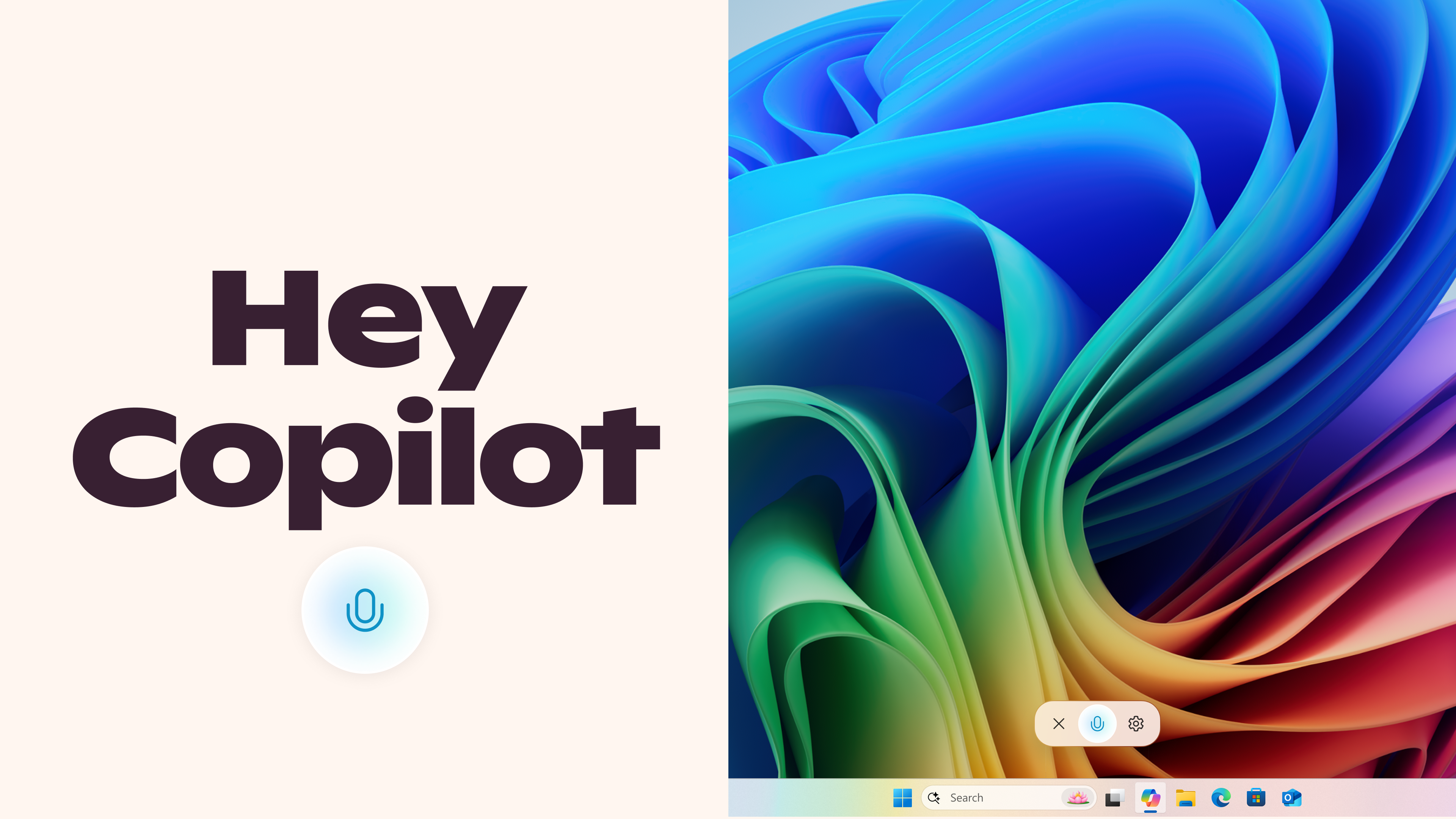
Hello Windows Insiders, we are beginning to roll out an update for the Microsoft Copilot app on Windows via the Microsoft Store which introduces the following changes and improvements: Copilot wake word: Windows Insiders can now invoke Copilot with the phrase “Hey, Copilot!”. This opt-in feature gives people a new way to easily start a conversation with Copilot Voice, anytime the feature is enabled, and their PC is unlocked. With this new hands-free experience, you can stay in your flow when you need answers to a question or just need someone to bounce an idea off of. To get started, enable “Hey, Copilot” in the Settings of your Copilot app, then simply ask a question starting with “Hey, Copilot…”. You’ll see the Copilot microphone appear on your screen, along with a chime to indicate that Copilot is listening. To end a conversation, tap ‘X’ or Copilot will end the call automatically after a few seconds of no interaction. You will hear a chime confirming that the conversation has ended. [caption id="attachment_177867" align="alignnone" width="3840"]Invoke Copilot with your voice with “Hey Copilot”. Invoke Copilot with your voice with “Hey Copilot”.[/caption] FAQs: How do I use ‘Hey Copilot’ once enabled? 
  • Anytime your PC is unlocked, and the feature is enabled, simply say “Hey Copilot” or “Hey Copilot, what is the weather in Palm Springs this weekend?” (or whatever question you have) and Copilot Voice will respond.
  • Anytime the wake word is detected you will see the Copilot Voice Floating UI appear on the bottom of your screen and either hear a small chime, or a voice greeting or response from Copilot.
  • You can end a conversation by tapping the X on the Copilot Voice Floating Call UI or wait a few seconds without speaking and the call will end automatically. You will hear a hang up chime or a voice confirmation that the call ended.
Is ‘Hey Copilot’ on by default?   No, you must enable this feature within Copilot’s settings to use it. To configure:
  1. Open Copilot
  2. Tap your avatar in the bottom left corner,
  3. Tap Settings
  4. Scroll down to Voice mode
  5. Toggle “Listen for ‘Hey, Copilot’ to start a conversation” on or off.  It is off by default.
Why does Windows show my microphone in use when I turn on ‘Hey Copilot’?  Windows will show Copilot in use of the microphone via the Windows System Tray when either of these are true:
  • ‘Hey Copilot’ is enabled and the Copilot app is running in (open, minimized, or running in the background)
  • Any Copilot Voice conversation is going on
How do I tell the difference between if Copilot is only listening for the wake word or if I’m in a Copilot Voice conversation?  If you see the Copilot Voice interface, you are in a conversation with Copilot Voice. Is my data/voice/recordings sent to the cloud when ‘Hey Copilot’ is enabled? No. When ‘Hey Copilot’ is enabled, Copilot uses the microphone with an on-device wake word spotter that only detects the ‘Hey Copilot’ phrase. The wake word spotter uses an on-device 10 second audio buffer in memory. This audio buffer is never recorded or stored locally. When the wake word is detected, the Copilot Voice Floating UI will appear and begin to establish a Copilot Voice conversation. In parallel, the audio buffer will send audio from when “Hey Copilot” was detected to the cloud so it can be used to help answer the question you asked. Will ‘Hey Copilot’ work when my PC is off or locked?  No, your PC must be powered on and unlocked. It will respond to any voice it hears when unlocked. Will ‘Hey Copilot’ work if I’m offline? Recognition of the wake word is always performed locally and will try to establish a Copilot Voice call when detected. If you are offline you will see Copilot attempt to establish a connection but will not able to and see the call end. Copilot Voice responses require internet access and cloud processing, similar to typed interactions. What languages work with ‘Hey Copilot’?  Today, the ‘Hey Copilot’ wake word is only trained and available in English. This Copilot app update (version 1.25051.10.0 and higher) is beginning to roll out across all Insider Channels via the Microsoft Store. Hey Copilot will first roll out to Insiders worldwide, who have their display language in Windows set to English. The above-mentioned features are gradually rolling out so not all Insiders will get the update right away. We are excited to be previewing improvements with our Insiders to ensure all our customers have a great Copilot experience on Windows. FEEDBACK: Please provide feedback directly within the Copilot app by clicking on your profile icon and choosing “Give feedback”. Thanks, Microsoft Copilot Team
Copilot on Windows: Windows Insiders can now use Vision with 2 apps and new Highlights feature with 1 app

12 mai 2025 à 17:48
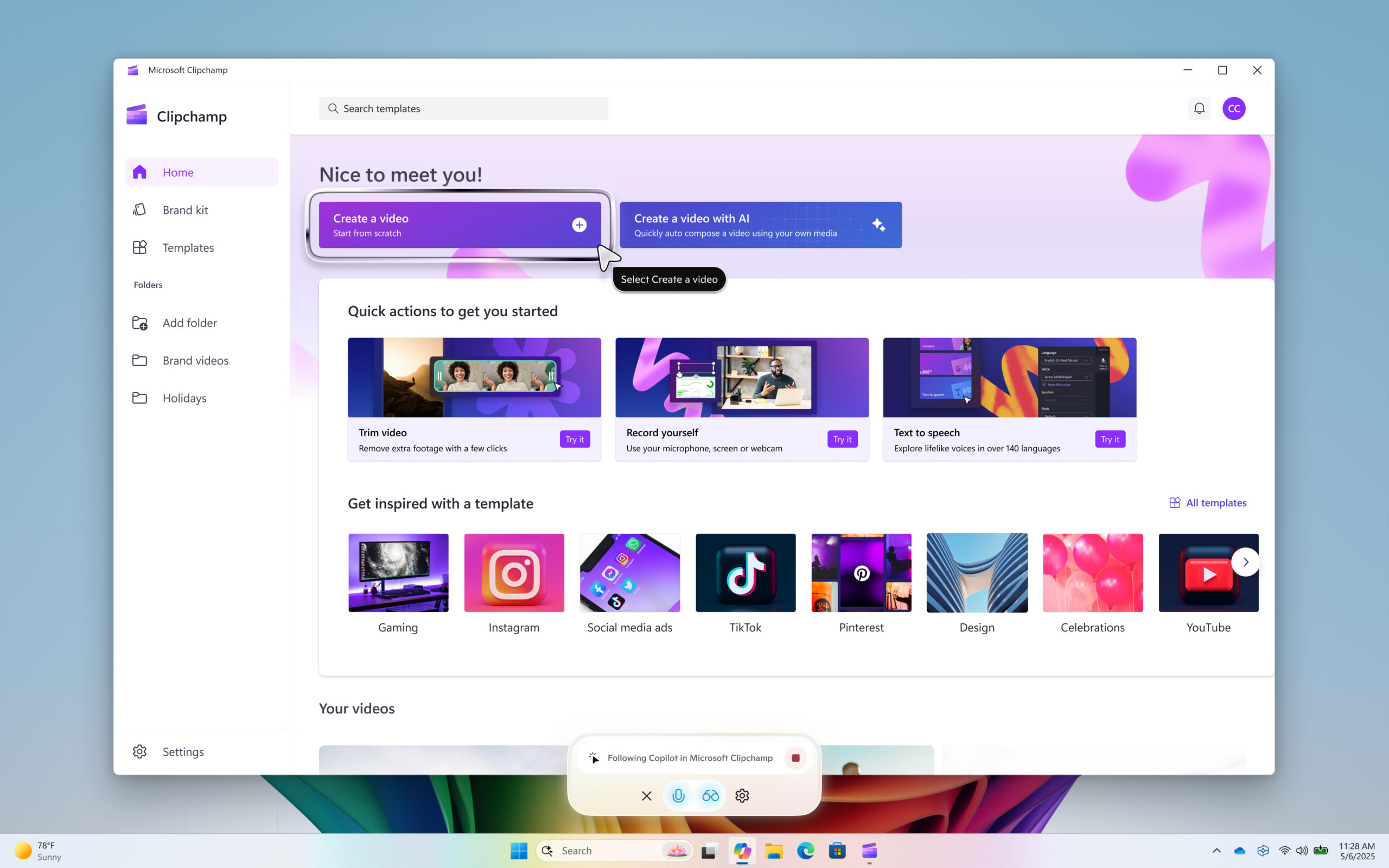
Hello Windows Insiders, we are beginning to roll out an update today for the Microsoft Copilot app on Windows via the Microsoft Store which introduces the following changes and improvements to Copilot Vision on Windows: Highlights: Now when you share a single browser or app window using Copilot Vision, Copilot can guide, navigate, and coach you to complete a specific task using visual cues. Just ask Copilot to “show me how”, and Copilot will highlight where in the shared browser or app to click to help you accomplish your task. Today, Highlights works with a single app. Press the stop button to stop the Copilot highlights and resume your normal Vision session. Here are some examples of things to try:
  • Share your Settings window and ask Copilot “Show me how to turn on night light.”
  • Share your favorite productivity app and ask Copilot “Show me how to add a footer.”
  • Share your favorite video editing app and ask Copilot “Show me how to add text to my video.”
[caption id="attachment_177854" align="alignnone" width="2560"]Copilot Vision on Windows highlights – “Show me how to get started to create a video in Clipchamp”. Copilot Vision on Windows highlights – “Show me how to get started to create a video in Clipchamp”.[/caption] 2-app support: Copilot Vision on Windows now supports sharing up to two applications. Copilot can then help analyze, offer insights, and answer your questions across the shared apps. For example, share the apps for your backpacking adventure packing list and an online list, and ask Copilot “Is there anything missing from my packing list, compared to the online list?” To get started with Copilot Vision on Windows click the glasses icon in your composer, select which browser window or app you want to share, and ask Copilot to help with whatever you’re working on. To stop sharing, press ‘Stop’ or ‘X’ in the composer. This Copilot app update (version 1.25044.92.0 and higher) is beginning to roll out across all Insider Channels via the Microsoft Store. Currently Copilot Vision on Windows, including highlights and 2-app support is available to Insiders in the U.S. The above-mentioned features are gradually rolling out so not all Insiders will get the update right away. We are excited to be previewing improvements with our Insiders to ensure all our customers have a great Copilot experience on Windows. FEEDBACK: Please provide feedback directly within the Copilot app by clicking on your profile icon and choosing “Give feedback”. Thanks, Microsoft Copilot Team
Copilot on Windows: Vision and file search begin rolling out to Windows Insiders

8 avril 2025 à 20:12
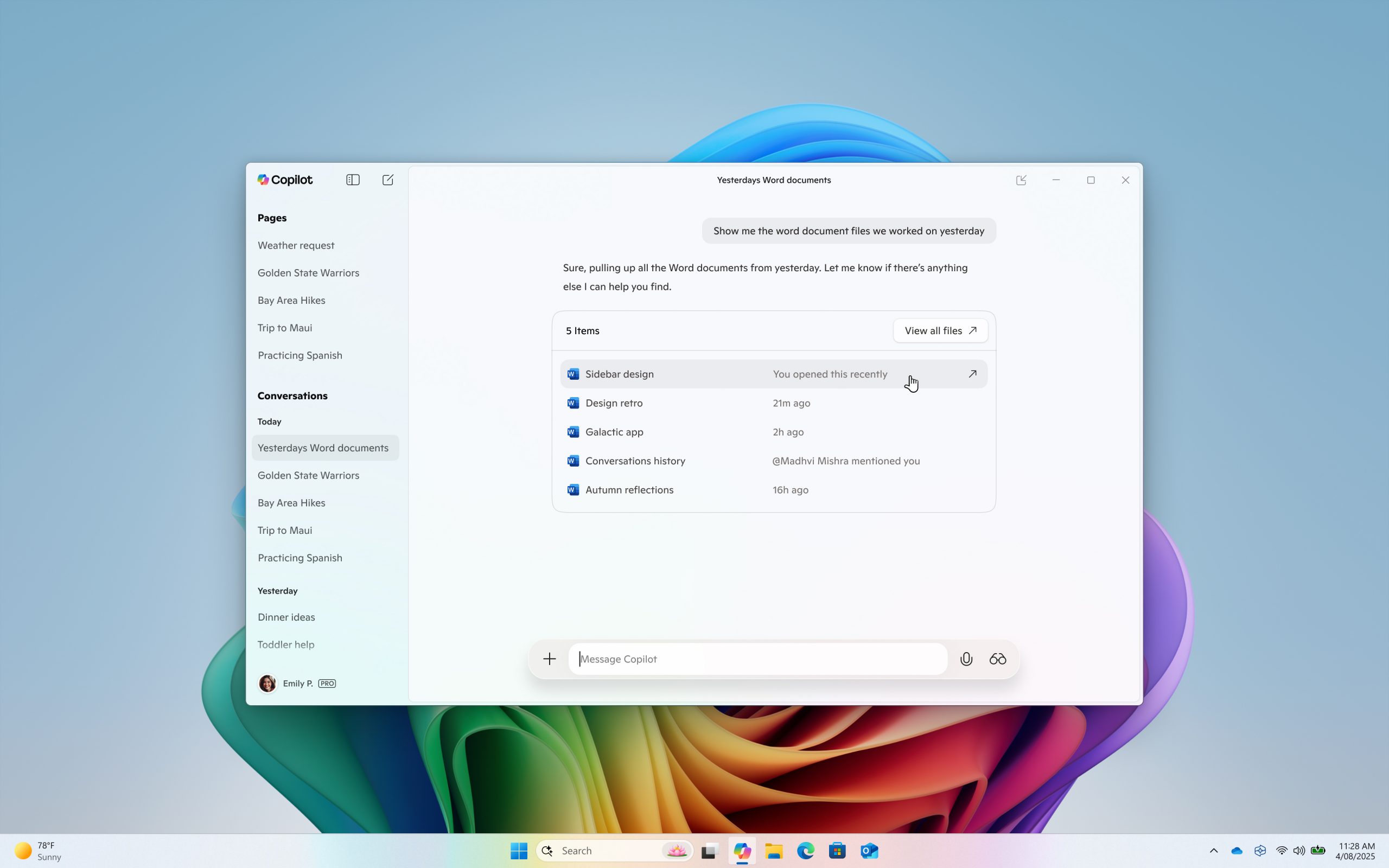
Hello Windows Insiders, we are beginning to roll out an update for the Microsoft Copilot app on Windows via the Microsoft Store which introduces the following changes and improvements: File search: You can now find, open and ask questions about the contents of a file on your device from the Copilot on Windows app. You can adjust your permissions for what Copilot can access, retrieve, or read in Copilot Settings under Permission settings. File search supports most file types and can read .docx, .xlsx, .pptx, .txt, .pdf, .json files. Ask Copilot questions like "Can you find my resume", "Open the trip planning doc I was working on last week", or "Look at my budget file and tell me how much I spent on dining last month". [caption id="attachment_177782" align="alignnone" width="2560"]File search in Copilot on Windows. File search in Copilot on Windows.[/caption] Copilot Vision on Windows: You can share any browser or app window with Copilot. Copilot can then help analyze, offer insights, or answer your questions, coaching you through it aloud. To get started click the glasses icon in your composer, select which browser window or app you want to share, and ask Copilot to help with whatever you’re working on. To stop sharing, press 'Stop' or 'X' in the composer. [caption id="attachment_177783" align="alignnone" width="2560"]Copilot Vision on Windows. Copilot Vision on Windows.[/caption] This Copilot app update (version 1.25034.133.0 and higher) is beginning to roll out across all Insider Channels via the Microsoft Store. Copilot Vision on Windows will first roll out to Insiders in the U.S., and file search will roll out to Insiders worldwide. The above-mentioned features are gradually rolling out so not all Insiders will get the update right away. We are excited to be previewing improvements with our Insiders to ensure all our customers have a great Copilot experience on Windows. FEEDBACK: Please provide feedback directly within the Copilot app by clicking on your profile icon and choosing “Give feedback”. Thanks, Microsoft Copilot Team
Copilot on Windows: Press to talk begins rolling out to Windows Insiders

10 mars 2025 à 19:35
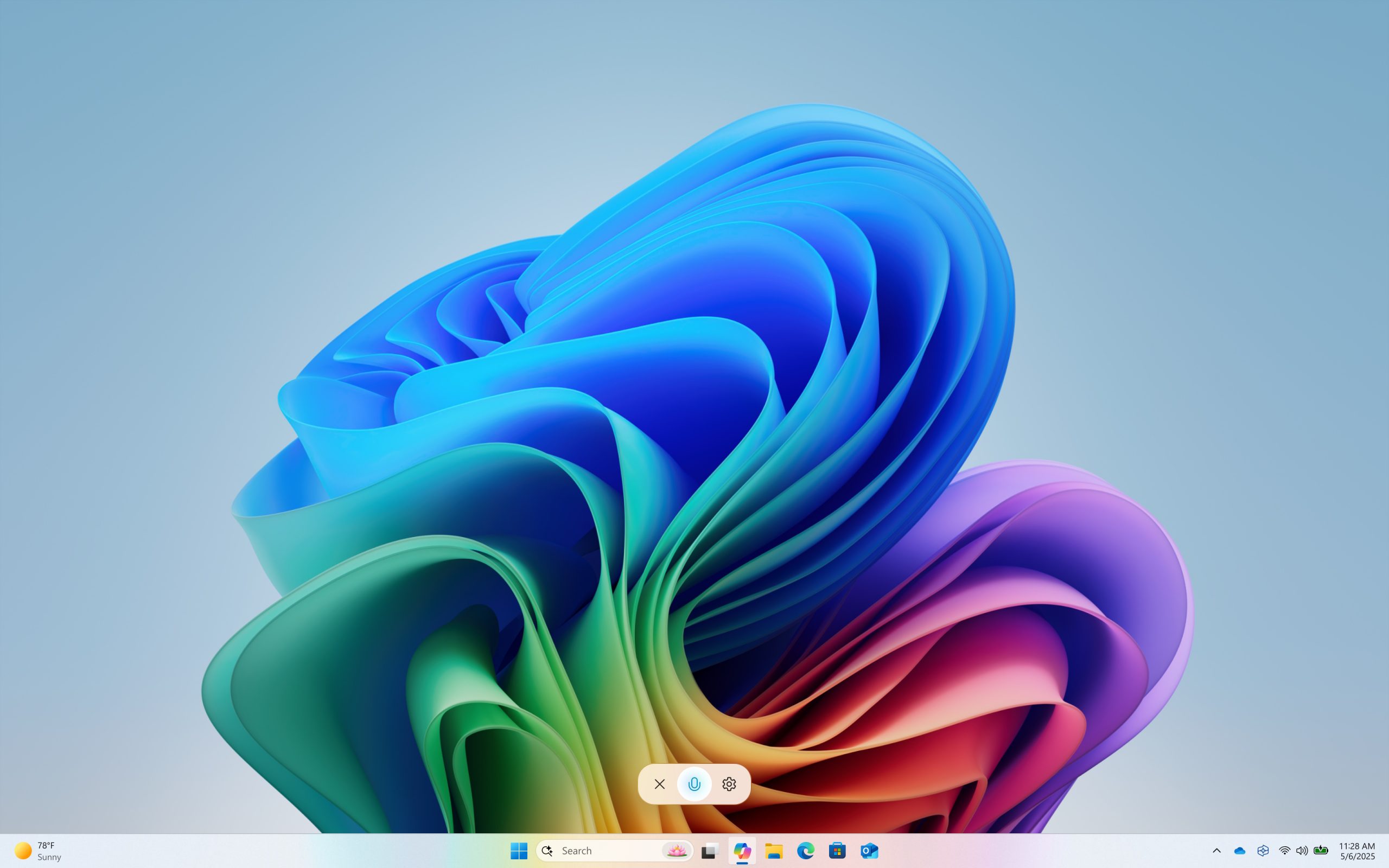
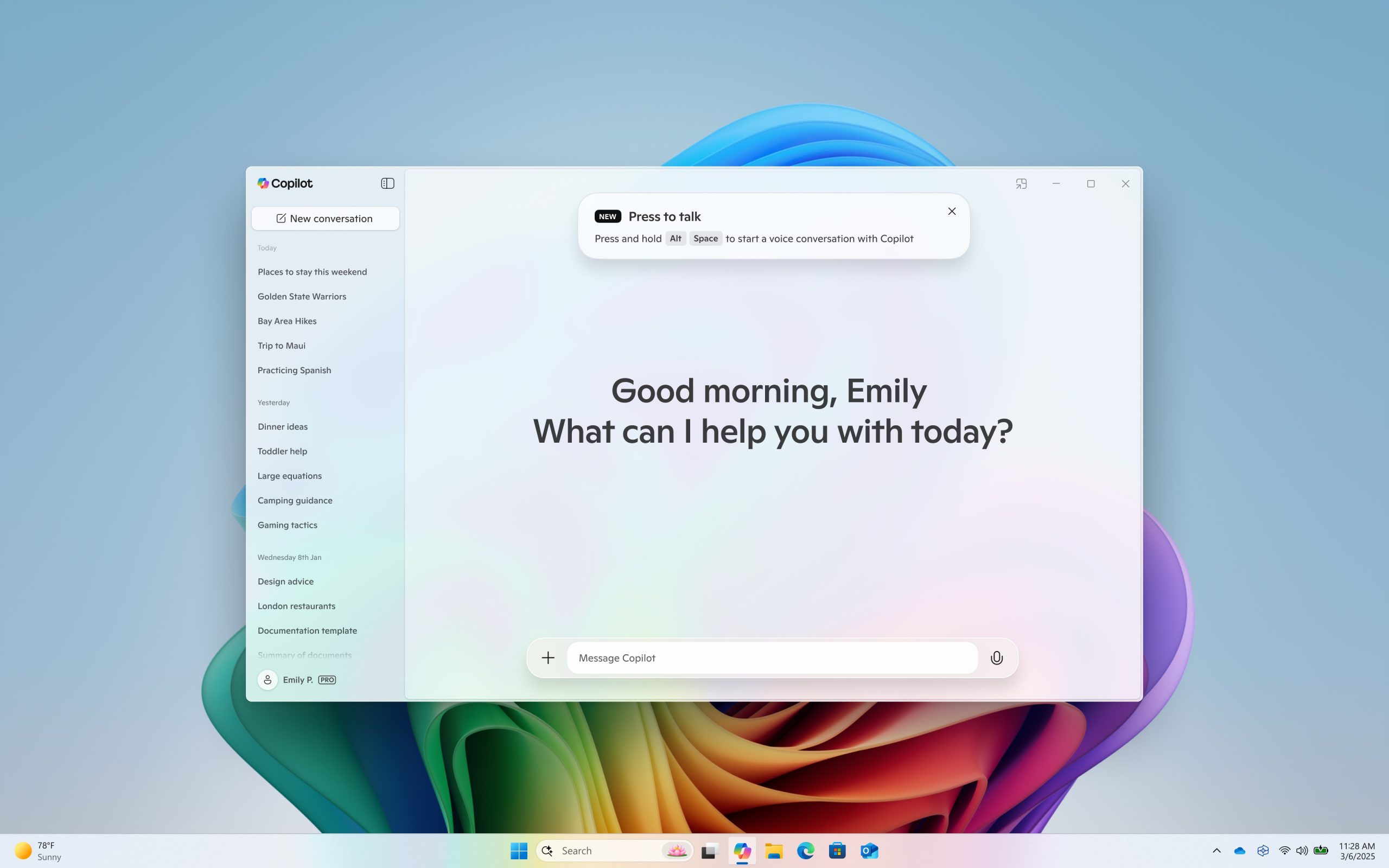
Hello Windows Insiders, we are beginning to roll out an update for the Microsoft Copilot app on Windows via the Microsoft Store which introduces the following changes and improvements: Press to talk: Allows you to interact with Copilot using your voice by using a hotkey, providing instant responses while staying in your current workflow and continuing tasks without interruption. To start a voice conversation with Copilot, hold the Alt + Spacebar for 2 seconds on your PC. To end your conversation, press the Esc key. If there is no speaking for several seconds Copilot will automatically end the conversation. When the conversation is over the microphone on the screen will disappear. [caption id="attachment_177681" align="alignnone" width="1024"]Hold Alt + Spacebar for 2 seconds to start a voice conversation with Copilot. Hold Alt + Spacebar for 2 seconds to start a voice conversation with Copilot.[/caption] [caption id="attachment_177682" align="alignnone" width="1024"]Copilot on Windows app. Copilot on Windows app.[/caption] This Copilot app update (version 1.25024.100.0 and higher) is beginning to roll out across all Insider Channels via the Microsoft Store. The above-mentioned features are gradually rolling out so not all Insiders will get the update right away. We are excited to be previewing improvements with our Insiders to ensure all our customers have a great Copilot experience for Windows. FEEDBACK: Please file feedback in Feedback Hub (WIN + F) under Apps > Copilot or directly within the Copilot app by clicking on your profile icon and choosing “Give feedback”. Thanks, Windows Insider Program Team

Update for Copilot on Windows begins rolling out to Windows Insiders with new features and improvements

4 mars 2025 à 00:59
Hello Windows Insiders, we are beginning to roll out an update for the Microsoft Copilot app on Windows via the Microsoft Store which introduces the following changes and improvements:
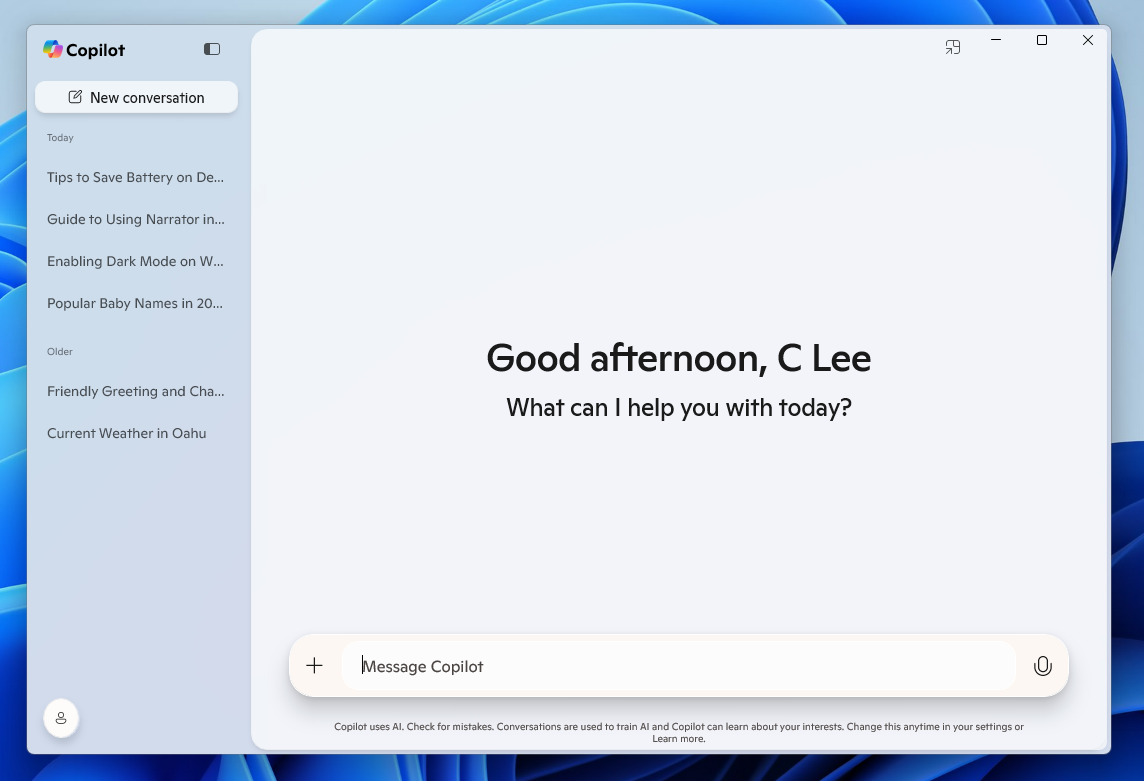
  • Native XAML app and new UI: Includes a new side panel where you can easily start a new conversation and see your conversation history.
[caption id="attachment_177661" align="alignnone" width="1144"]The new Copilot on Windows native app and user interface. The new Copilot on Windows native app and user interface.[/caption]
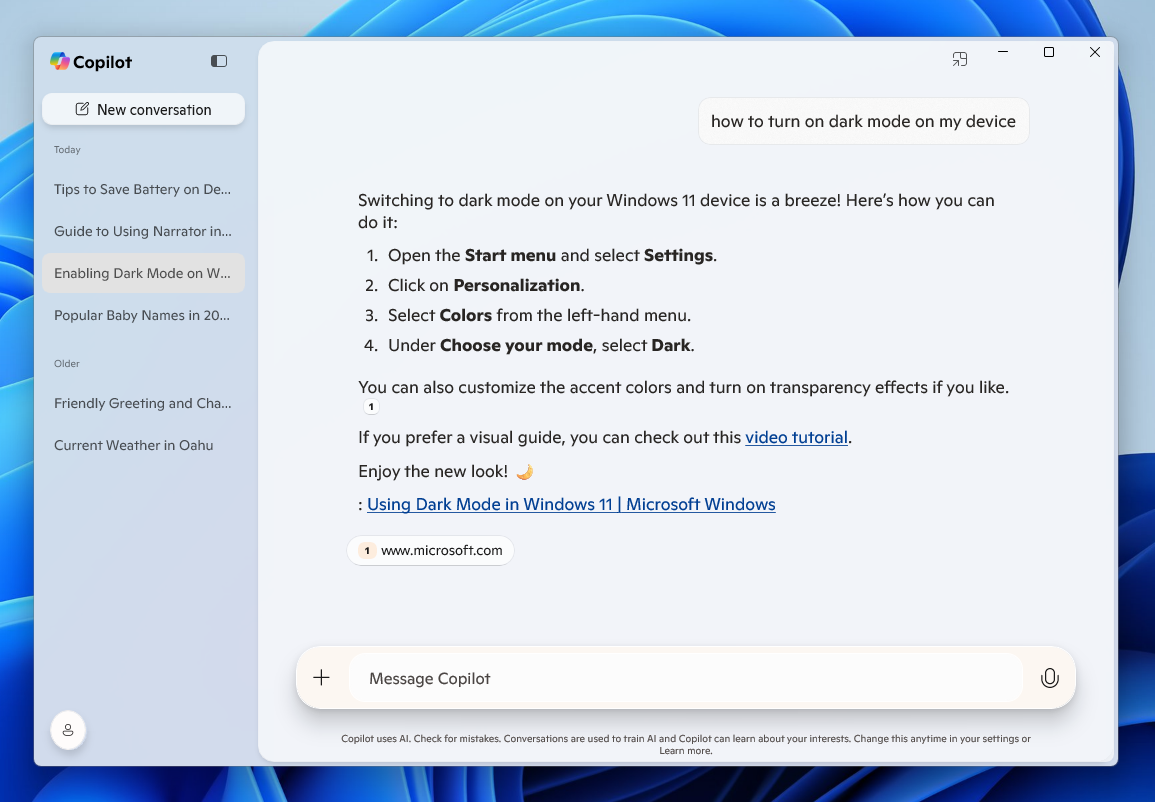
  • Ask questions about your PC, like "How do I set up a Bluetooth headset on this device?" and Copilot provides information tailored to your current version of Windows.
[caption id="attachment_177662" align="alignnone" width="1155"]Copilot on Windows with OS context. Copilot on Windows with OS context.[/caption] As a reminder, you can get quick access to the Copilot app using the Alt + Space hotkey across all PCs and the Copilot Key for those using a Copilot+ PC. This Copilot app update (version 1.25023.101.0 and higher) is beginning to roll out across all Insider Channels via the Microsoft Store. This is a gradual roll out so not all Insiders will get the update right away. We are excited to be previewing improvements with our Insiders to ensure all our customers have a great Copilot experience for Windows. FEEDBACK: Please file feedback in Feedback Hub (WIN + F) under Apps > Copilot or directly within the Copilot app by clicking on your profile icon and choosing “Give feedback”. Thanks, Windows Insider Program Team

The Copilot+ PC brand is dead: How to remap your Copilot key

After years of trying to get people to embrace the Copilot+ PC brand, Microsoft decided to move away from the moniker entirely. The new Surface Pro 12-inch and Surface Laptop 13-inch aren't called Copilot+ PCs even though they meet all the technical requirements to be labeled as such.

That leaves some of us in a strange spot. Many purchased Copilot+ PCs because that was the only way to get a new model of certain laptops. People can enable or disable AI features as they'd like, but Copilot+ PCs feature a Copilot key that is useless to a lot of people.

There are non-Copilot+ PCs and keyboards that feature a Copilot key. But because of the recent change regarding Copilot+ PCs, people online have complained about their Copilot+ PCs having a Copilot key, so I made this guide.

So, what can you do if you spent hundreds, or even thousands, of dollars on a laptop to get the latest specs only to find a key on your keyboard wasted? Luckily, Microsoft considered this quandary and made it possible to remap the Copilot key.

Windows 11 allows you to customize what the Copilot key does, but the options are limited. You can set the key to open Search, open Copilot, or launch an app.

If you want more control over what the Copilot key does (pun intended), you can use PowerToys to remap the key.

You can also spend a few dollars to cover up the Copilot logo and replace it with whatever you'd like to remap that key to.

How to remap Copilot key in Windows 11

This is the easiest option, but it has serious limitations.

  • Open the Settings app on Windows 11.
  • Open Bluetooth & devices.
  • Open Keyboard.
  • Click the dropdown menu next to Customize Copilot key on keyboard.
  • Select Search, Copilot, or Open an app.

The option to remap the Copilot key shipped to Windows 11 this year, so you need to make sure your PC is up to date to use the feature.

How to remap Copilot key with PowerToys

If you want to remap the Copilot key to do something other than launch Search, Copilot, or an app, you need to use a separate application. PowerToys includes a Keyboard Manager that does the trick.

Because the Copilot key is treated by Windows 11 as a shortcut and not as a single key, you need to use the option to remap a shortcut.

I found this process easier to complete using the classic Keyboard Manager within PowerToys. You can do this by toggling Try the new editor off.

Keyboard Manager within Microsoft PowerToys

If you are running the latest version of PowerToys, you may find it easier to use the classic editor rather than the new editor. (Image credit: Future)
  • Install PowerToys.
  • Open PowerToys.
  • Open the Keyboard Manager tool.
  • Make sure Keyboard Manager is enabled.
  • Select Remap a shortcut.
  • Select Add shortcut remapping.
  • Set the shortcut to Windows + Shift + Ctrl + F23.
  • Set the action to whatever you'd like (such as Ctrl (Right)).

Since few keyboards have an F23 key, I found it easier to use the classic editor in Keyboard Manager. Our colleagues at Tom's Hardware were the first to discover that the Copilot key is actually a shortcut using F23.

PowerToys | Free at GitHub | Free at Microsoft Store

This collection of utilities includes a large library of features to enhance the Windows experience. PowerToys is designed with power users in mind, but it has handy features for people who just use their PC for everyday computing too.View Deal

How to cover the Copilot key

Even if you remap the Copilot key, the logo will still appear on your keyboard. If you dislike keys mismatching what they input on your PC, you may want to cover up the Copilot key.

Unfortunately, how easy that will be depends on the color of your keyboard. It's very easy to find keyboard stickers in black or white. This listing on Amazon includes stickers in white, black, and in various languages.

If you have a Surface with a gray keyboard or a colorful Type Cover, you may struggle to find a sticker that matches the color of your keys. You may have better luck on eBay or Etsy, but since items there are often custom made, I won't recommend a specific set of stickers.

If you find stickers to replace the Copilot key on your PC and want to make sure other people know about them, comment below or reach out to me on social media and I'll update this piece.

Click to join us on r/WindowsCentral

Join us on Reddit at r/WindowsCentral to share your insights and discuss our latest news, reviews, and more.

Microsoft Teams is losing its Copilot chat list shortcut next month

Microsoft Teams will no longer show a shortcut to the Copilot app in the Teams chat list. The change is expected to roll out in mid-to-late October and will affect the desktop and web versions of Teams.

Right now, there are two ways to navigate to Copilot within Teams and the two entry points lead to different experiences. Microsoft explained the need for the change through the Microsoft 365 Message Center (archived here):

"Today, users can access Copilot either from the Teams chat list or from the Copilot app in the Teams app bar. Beginning in October 2026, we will remove the Copilot entry point from the Teams chat list and direct users to access Copilot through the Copilot app. The Copilot app provides access to the full set of Copilot capabilities, while the chat list entry point provides a more limited experience."

The Copilot shortcut in the Teams chat list made Copilot more visible, but that entry point led to a limited experience. My guess is that some people only knew about the Teams chat list icon and ended up using a limited version of Copilot.

After October, there will be a single entry point for Copilot in Teams and those who use it will be presented with the full experience.

The mobile versions of Teams are unaffected by this change.

Copilot in flux

Jacob Andreou is on stage in front of a screen displaying

Microsoft wants AI to feel more natural for non-enterprise customers. "Autopilot" is a digital teammate that automates tasks and connects things across Microsoft 365. (Image credit: Microsoft)

Copilot finds itself in a state of flux. Microsoft just announced a massive shift in its Copilot strategy. A major update to Copilot flips the approach Microsoft is taking. Rather than have Copilot sprinkled across Microsoft 365, Copilot will act as a unified workspace that connects documents, conversations, data, and tasks.

Microsoft CEO Satya Nadella went as far as to call the update a new operating system. Three new landing spots for Copilot will provide new ways to interact with the tool, such as Home serving as a landing spot. Changes then permeate throughout relevant Microsoft 365 apps.

The exact features and experiences you will see will depend on what type of Microsoft 365 subscription you have.

More details about Copilot are expected at Microsoft Ignite in November. The key takeaway for now is that while Microsoft is shifting where it uses the Copilot moniker and how people access Copilot, the AI tool is very much an integral part of the company's plans.

Based on the upcoming change to Teams, it's clear that Copilot will still be accessible through apps. But Microsoft may emphasize different experiences or streamline the entry points to the tool.

Click to join us on r/WindowsCentral

Join us on Reddit at r/WindowsCentral to share your insights and discuss our latest news, reviews, and more.

❌
❌